❌

Normal view

RustDesk Released 1.4.3 with Multi-Monitor for Wayland & Virtual Mouse

By:Ji m
22 October 2025 at 01:20

RustDesk, the popular free open-source remote desktop software, released version 1.4.3 few days ago.

RustDesk is yet another remote desktop solution written in Rust, which works in Linux, Windows, macOS, Android, iOS, and web browser. It features peer-to-peer encrypted connection and self-hosting server support.

RustDesk client in Ubuntu

Like TeamViewer or AnyDesk, simply install the app in both sides of your devices, then you may input the ID to connect to each other. By default, it uses the public server to initialize the connection, but data is typically sent peer-to-peer after the connection is established. While, user may set its own server for faster and more reliable connections.

RustDesk supports VP8, VP9, AV1, and hardware accelerated (if your GPU support it) H264/H265 video codecs, as well as IPv6 p2p connection, UDP hole punching, and more.

The latest 1.4.3 version added virtual mouse along with virtual joystick support when accessing remote desktop from mobile devices. It allows user to control mouse movement by touching and dragging a virtual joystick on screen, and scroll up or down through virtual scroll-buttons.

RustDesk on iPhone, accessing remote Ubuntu desktop with virtual mouse

For Linux Wayland (e.g., Ubuntu 24.04 & higher with default session), it now supports sharing multiple monitor screens (if any). When accessing with remote machine, there’ll be a toggle to switch between the monitors, view all monitor screens in single view, or have multiple RustDesk windows (one monitor screen per window).

In addition to show remote desktop with the original screen size, adaptive to fit app window size, the release added scale custom option with a slider bar, allowing to scale the remote desktop screen by percentage value. It’s useful to scale remote screen to fit app window, while keeping the ratio to prevent distortion.

Other changes in the release include:

  • IPv6 prefix-based rate limiting on login failures.
  • Move touch mode option from peer option to local option.
  • More assign from cli and devices.py.
  • Address book api res/ab.py, and audit api res/audits.py.
  • Fix high CPU usage on Arch with Wayland.

How to Install RustDesk 1.4.3

The software offers official packages for Windows, Linux, macOS, iOS, and Android, available to download at its Github releases:

Go to β€œAssets” sections for more packages, and select download X86_64 for Intel/AMD, AArch64 (ARM64) for RasPi, Snapdragon, or Apple Silicon.

For Linux, run uname -m command to tell if you don’t even know your CPU architecture type. And, see the official docs for setting up self-hosting server.
digiKam 8.8.0 Released with UI Translation for 61 Languages

By:Ji m
21 October 2025 at 19:40

digiKam, the popular Qt-based photo management software, released new 8.8.0 version after 4 months of development.

This is probably the last release in 2025, as the developer team plans to add Qt 6.10 bundle and AI-power tools for image enhancement and management in next version for 2026.

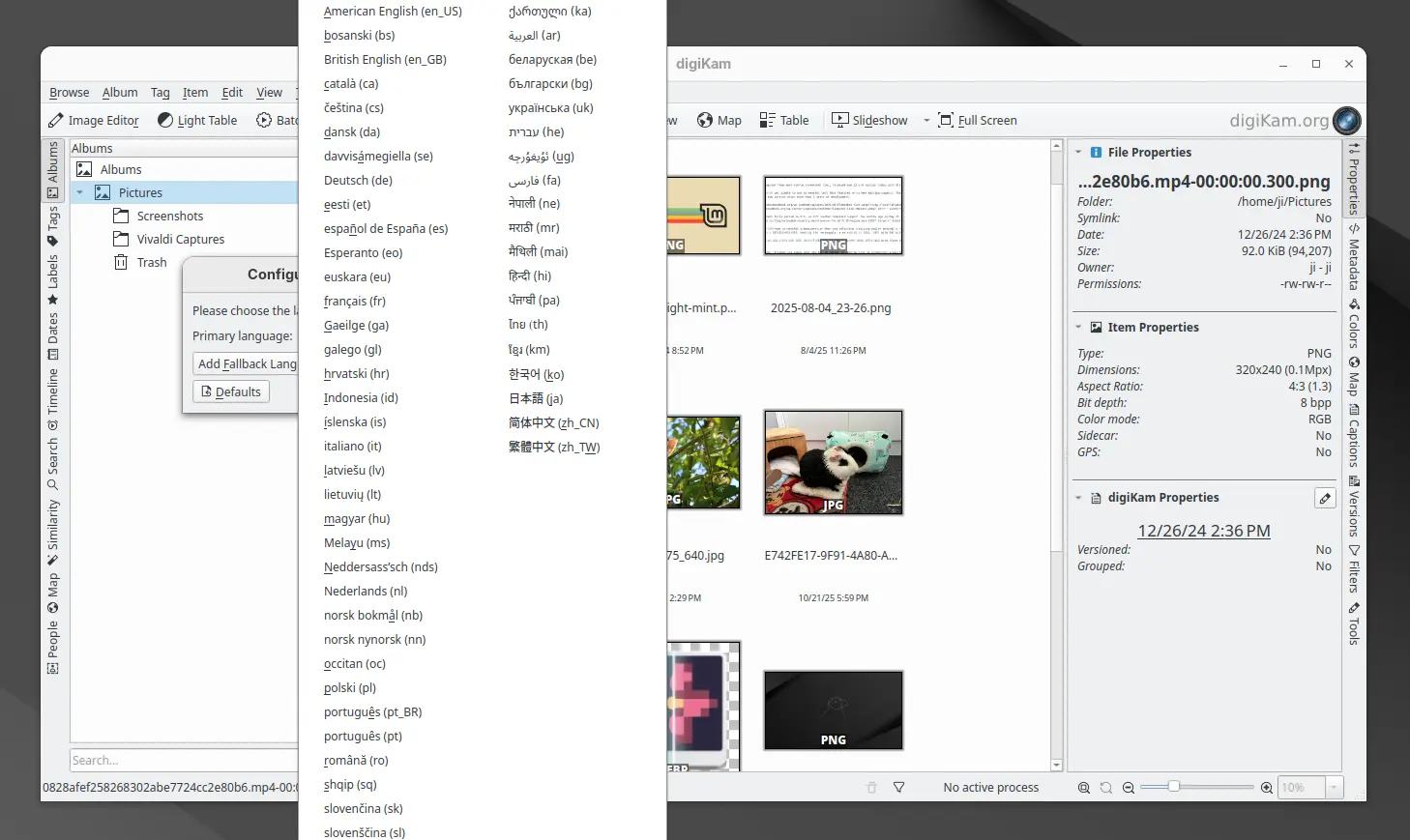
The new release finally updated its UI with translations support. By going to Settings -> Configure Language, user can now switch the application graphical interface between 61 different languages. And, the online documentation has been updated with Brazilian Portuguese translations support.

digiKam 8.8.0 has been fully ported with Qt 6.10.0 support, though the official installers for Linux, Windows, and macOS are still have Qt 6.9.1 in bundle.

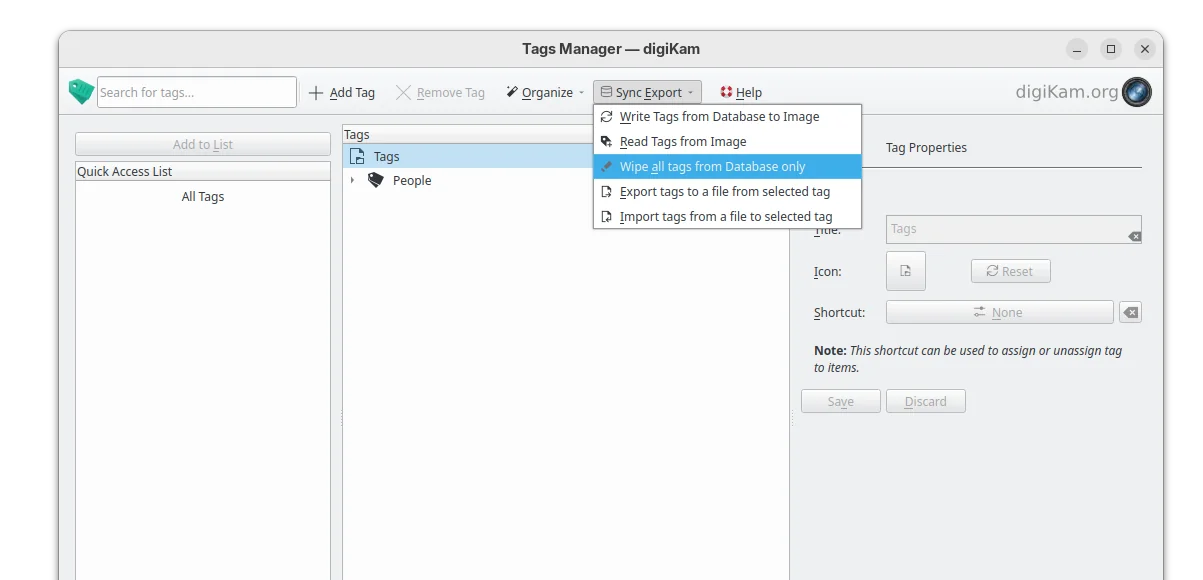
The tag manager in the release now include 2 new options, allowing to import or export tag hierarchies to and from text files, supporting the Controlled Vocabulary Keyword Catalogue (CVKC) format.

The Preview module has been updated with focus point visualization support for FujiFilm and Olympus/OM Systems cameras, providing photographers with precise information about focus accuracy and composition.

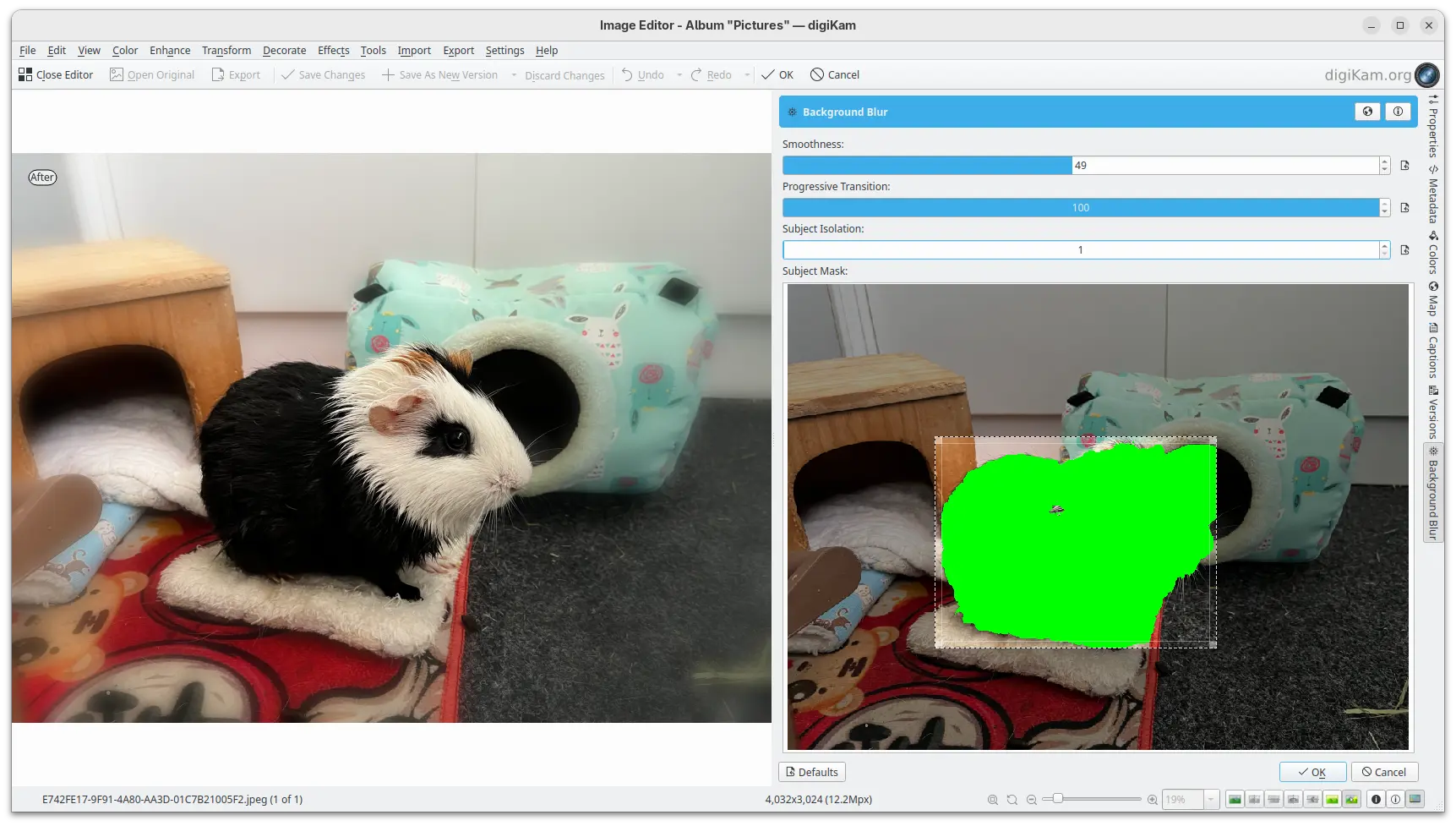
And, the Image Editor new includes a new enhancement tool, Background Blur, allowing to progressively blur the background of a subject in a photo, enabling creative depth-of-field effects.

New background blur enhance tool

Other changes include G’MIC-Qt plugin 3.6.0, long file paths (when enabled) support in Windows, as well as:

  • Use the monitor color profile set under Windows, macOS, and Linux Wayland.
  • Use native desktop notifications in Progress Manage.
  • Update QtAVPlayer video module to 20250913.
  • Update Libraw RAW decoder to 20250727.
  • Improved stability for Linux Wayland.
  • And over 100 bug-fixes.

For more about digiKam 8.8.0, see the official release note.

Install digiKam 8.8.0

The software offers official packages for Linux, Windows, and macOS, which are available to download at the link below:

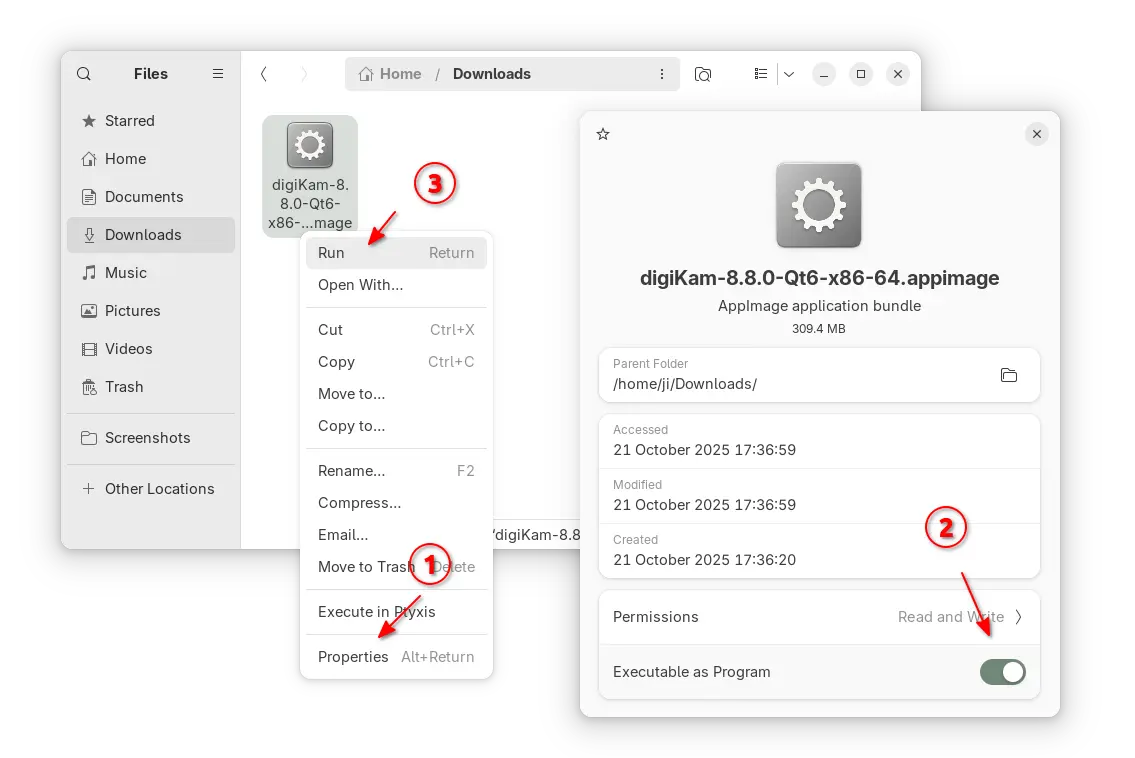
For Linux, it’s an AppImage for modern Intel/AMD platforms. Just grab the package, add executable permission from its Properties dialog, finally run to launch the software.

NOTE: Ubuntu since 22.04 does NOT support AppImage out-of-the-box, you need to open terminal (Ctrl+Alt+T) and run command to install libfuse2 package first:

sudo apt install libfuse2

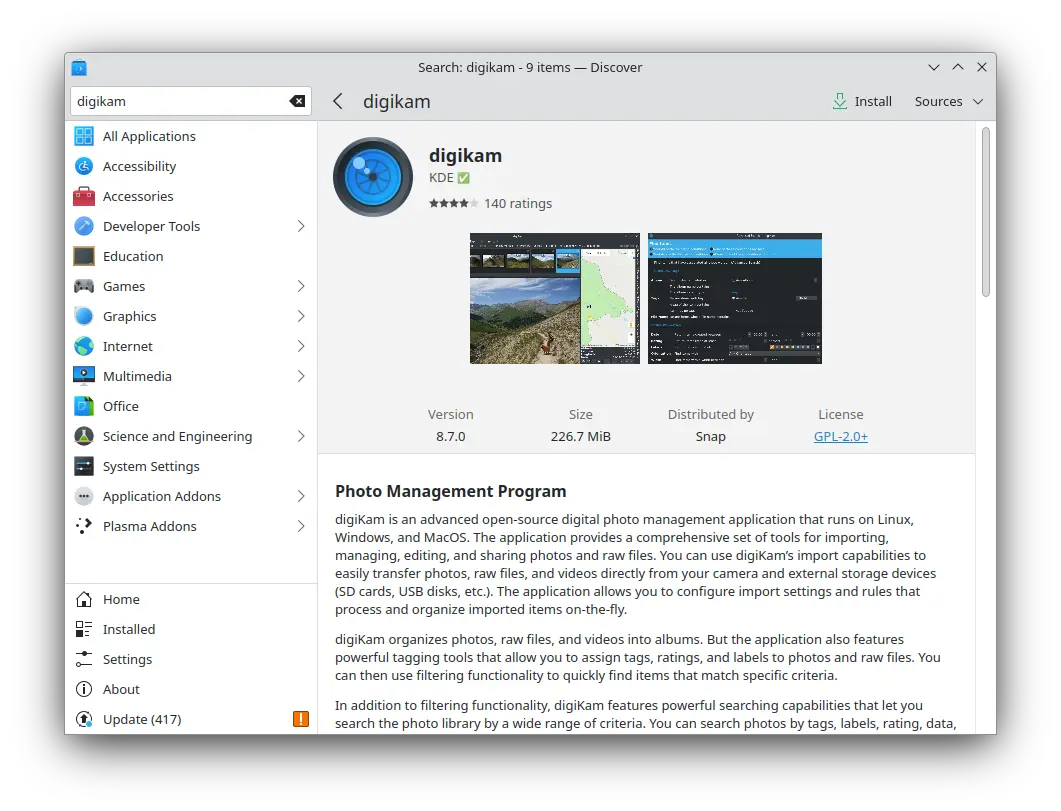
For choice, Ubuntu user (and its official flavors) may search & install digiKam from either App Center (Ubuntu Software) or desktop specific software app. It’s official Snap package that runs in sandbox, though not updated at the moment of writing.

digiKam snap package in KUbuntu software app

For Linux Mint, Fedora, etc Linux Distributions that prefer Flatpak, or Linux users on ARM64 platform, it’s also available to install as Flatpak package.

While Debian & Ubuntu users may run 2 commands below one by one to get it:

  • Install Flatpak daemon:
    sudo apt install flatpak
  • Install digiKam flatpak package:
    flatpak install https://dl.flathub.org/repo/appstream/org.kde.digikam.flatpakref

NOTE: If this is the first Flatpak app you installed on your system, then you may need a log out and back in to make app icon visible. Or, you may start it from terminal by running terminal:

flatpak run org.kde.digikam

And, you may replace run in last command with update to check updates, or with uninstall to remove the package.

❌