Normal view

Received — 14 November 2025 Linux News & Update

NetBeans 28 added Java SE 26 and Multiple LSP Servers Support

By:Ji m
13 November 2025 at 23:59

Apache NetBeans, the free open-source IDE for Java, C/C++, PHP, and HTML5, released new version 28 few days ago.

The new IDE release updated UI with a tool widget to execute common text encoding in the IDE: Base64, URL and Hex encoding/decoding.

It added delete button for the SSH Connection Dialog, updated Add Language Description panel layout to be properly resizable, and brought a couple of smaller improvements relating to keyboard shortcuts in various platform components.

NetBeans 28 added Java SE 26 support for Tomcat, TomEE, and GlassFish, though it’s still in early access development stage. It also added support for the latest stable GlassFish 7.0.25, and GlassFish 8.0.0-M12 pre-release.

The LSP client now permits multiple LSP servers for each file/mime type. And, LSP Protocol provides the language clients to send messages to the language server to shutdown and exit.

For the editor, it added markdown file template, moved CheckRegex action to IDE Tools menu, improved the goto/jumpto dialog, and added tooltips to Projects, Files and Favorites tabs.

For Java, it updated net.java.html library to version 1.8.2, added opentest4j-1.3.0.jar to JUnit5, switched CI to JDK 25 GA, and added enhanced switch support to ThrowableNotThrown.

PHP features an auto-completion for the use keyword in the body of a class, trait, and enum. And, it fixed the coloring for Twig 3.15 inline comments.

Other changes in NetBeans 28 include:

  • Honor the JAVA_HOME environment variable in nbexec script.
  • Add missing CSS properties : margin-block, pading-block, scroll-behavior, conic-gradient, filter-effects.
  • Add extra file extensions support for Groovy.
  • More defensive guards against invalid code points in Ant Preferences.
  • Add copy button to Maven action customizer.
  • Add java/gradle.test to Gradle CI.
  • Support jakarta.persistence in the JPQL query executor.
  • Support nested and toplevel non-public tests and stabiize result extraction for Gradle.
  • Indicate support for Gradle’s incremental annotation processing.
  • Improve maven goal re-run property handling and UI.
  • Add context menu entries in Git Repository Browser for Add a remote and remove a remote.

For more details and source tarball, go to this Github release page.

Get NetBeans 28

Apache provides official binary package for NetBeans 28, which is available to download at the link below:

The platform independent binary package contains executable files and runtime libraries. Simply decompress it and run the executable file for your OS will launch it.

For Ubuntu on AMD/Intel or ARM64 platforms, there’s also an official Snap package that runs in sandbox environment. User may simply launch App Center (or Ubuntu Software for 22.04-) to search & install the package.
Easy Effects 8.0.0 Switched from GTK4 to Qt & KDE Framework

By:Ji m
13 November 2025 at 18:59

Easy Effects, the free open-source audio equalizer and effects application for Pipewire, released new major 8.0.0 version few days ago.

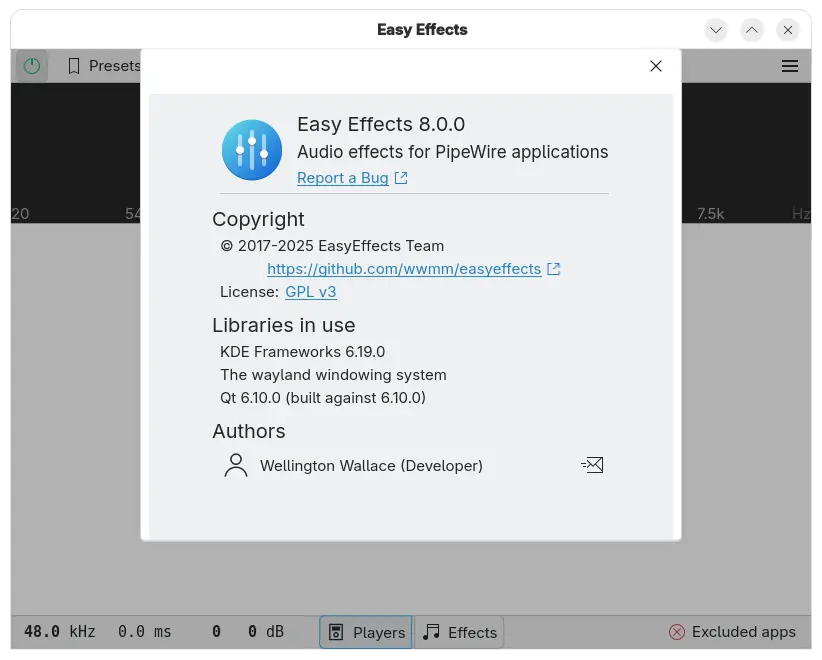
The new app release switched its UI backend from GTK4 plus LibAdwaita to Qt6, QML and Kirigami. The Flatpak package is now based on KDE runtime platform instead of GNOME.

Easy Effects now based on Qt and KDE framework

Due to moving to Qt from GTK, the dependencies changed. Distribution or third-party package maintainers are suggested to look at the Arch Linux PKGBUILD page to see everything required to build it from source.

The global shortcuts are working well on KDE, but not so much on GNOME. And, the presets, impulse response, rnnoise and autoload profile files are now saved in ~/.local/share/easyeffects while only database files kept inside ~/.config/easyeffects.

The 8.0.0 release also introduced new system tray indicator applet, which, provides menu options to show input/output presets, turn on/off audio effects, open shortcuts dialog and manual, and quit app.

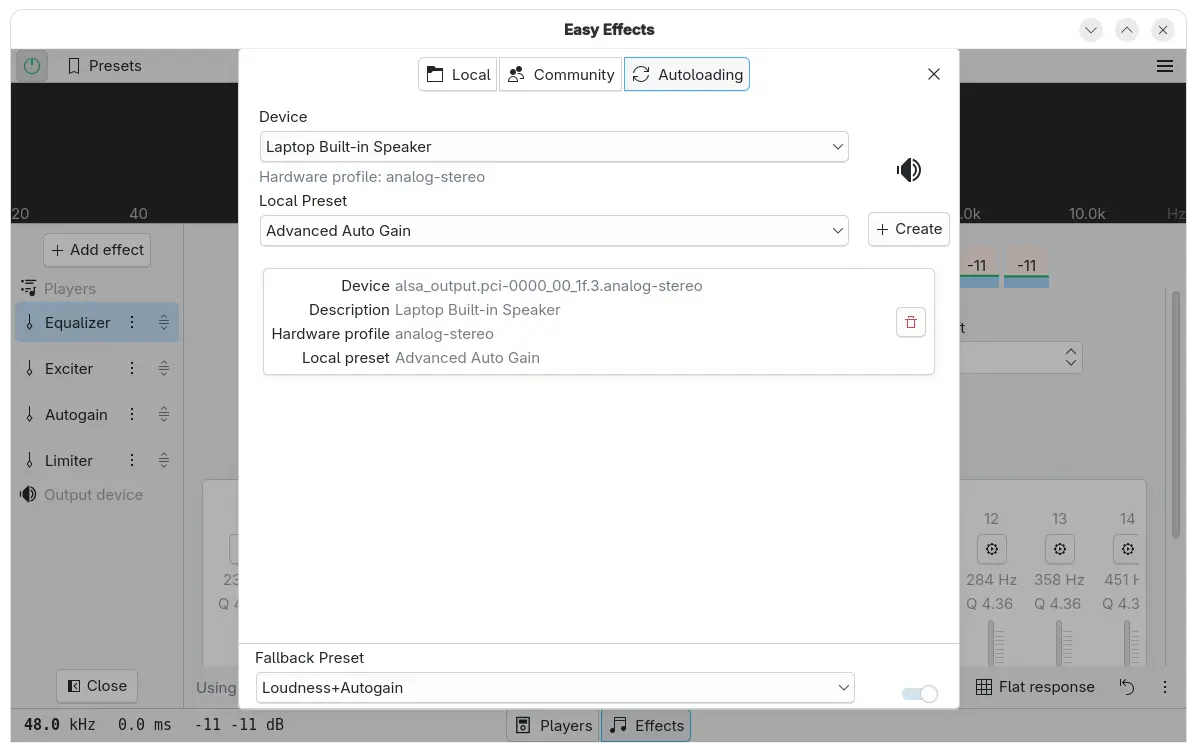
Instead of presets menu, it now has a new presets dialog that contains three tabs, allowing to load local presets, get presets from community (it’s empty somehow in my case), and set auto-load presets.

And, it supports renaming and exporting presets, and setting fallback preset, that is applied automatically for any soundcard or microphone that does not have an autoloading preset.

New Presets dialog

The app window is now more friendly to small screens and tiling window managers. It added new global shortcuts (experimental) for the global effects on/off and the microphone monitor, and new configuration allows the microphone monitor output to be sent to the output effects pipeline input.

Other changes include:

  • Remembers last used plugin or tab.
  • Add “Pink noise” to test signal.
  • Replace global bypass button with a tradition on/off button.
  • Add dry and wet controls for the convolver and pitch plugins.
  • Add ‘reset history’ button for pitch plugin.
  • Draw spectrum by Qt Graphs, and only Qt color presets are allowed so far.
  • Add adaptive intensity mode to crystalizer plugin.
  • Echo Canceller plugin is now based on the webrtc library.
  • New Autogain parameter to force output level to zero.
  • Improve compatibility with the latest Linux Studio Plugins.
  • Add ability to show Calf Studio Plugins native window.

For more about Easy Effects 8.0.0, either see the CHANGELOG in source tarball or go to Flatpak package page via the link below.

How to Install Easy Effects 8.0.0

The app provides official installer packages through Flatpak, which runs in sandbox environment for most Linux on either amd64 or arm64 platforms.

Linux Mint and Fedora Workstation (with third-party repository enabled) can search & install the package from either Software Manager or GNOME Software.

While Debian/Ubuntu and other Linux may do the steps below one by one to get it:

  • First, open terminal (Ctrl+Alt+T) and run command to install the Flatpak daemon:
    sudo apt install flatpak

    For other Linux, follow the official setup guide to enable Flatpak support.

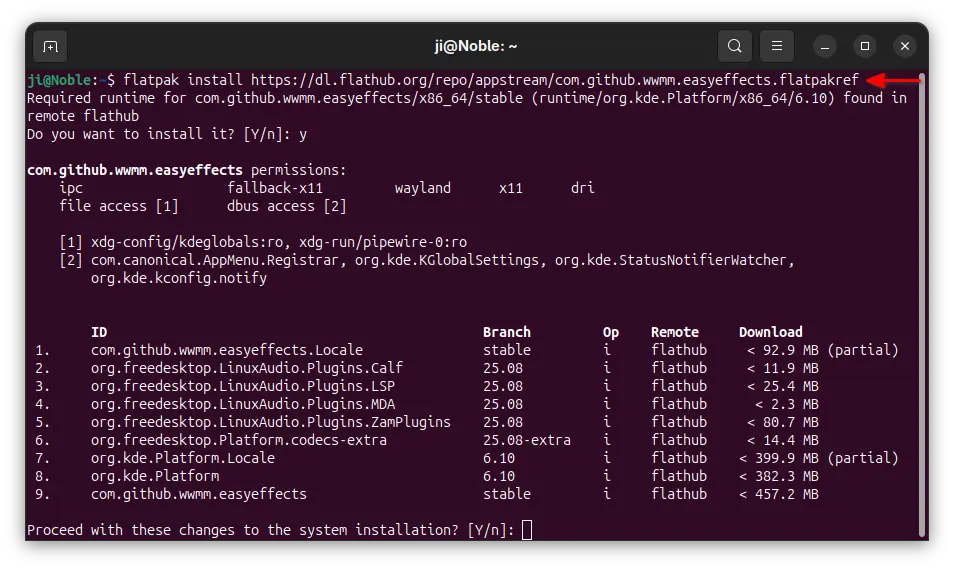
  • Next, run the command below to install the flatpak package, as well as the dependency runtimes.
    flatpak install https://dl.flathub.org/repo/appstream/com.github.wwmm.easyeffects.flatpakref

If you already have the package installed, then you may run the command below instead to check & install updates:

flatpak update com.github.wwmm.easyeffects

And, you may replace update with run in last command to start the app from terminal, which is useful for debugging purpose.

Uninstall Easy Effects

To uninstall the Flatpak app package, run command in terminal:

flatpak uninstall --delete-data com.github.wwmm.easyeffects

Skip --delete-data option if you want to keep the personal app data, and run flatpak uninstall --unused to remove the useless runtime libraries.

.NET 10 Released as New Long Term Support (LTS)

By:Ji m
13 November 2025 at 00:13

Microsoft announced .NET 10, the free open-source cross-platform developer platform, a day ago!

The new .NET 10 is a Long Term Support (LTS) release that features three years support until November 10, 2028. Users are argued to upgrade to the new version to take advantage of the extended support, performance improvements and new features!

What’s New in .NET 10

The new .NET 10 runtime enhanced JIT compiler with various inlining improvements and improved code generation for struct arguments.

It added Advanced Vector Extensions (AVX) 10.2 support for x64-based processors. Though the JIT’s support for AVX10.2 is disabled by default, as AVX10.2-enabled hardware isn’t yet available.

The NativeAOT’s type preinitializer now supports all variants of the conv.* and neg opcodes, further optimizing runtime performance. And, Arm64 gained new default write-barrier implementation that handles GC regions more precisely and reduces GC pause times by 8-20%.

For the SDK, .NET tools can now be published with support for multiple RuntimeIdentifiers (RIDs) in a single package. And, the .NET CLI will select the correct one at install or run time.

User can now use the dotnet tool exec command to execute a .NET tool without installing it globally or locally. And, a new --cli-schema option is added for all CLI commands, which outputs a JSON representation of the CLI command tree for the invoked command or subcommand.

The dotnet CLI now supports generating native tab-completion scripts for popular shells. dotnet test now natively supports Microsoft.Testing.Platform. And, the NuGet Audit feature can prune framework-provided package references that aren’t used by the project.

Other .NET 10 SDK changes include:

  • New dnx script provides a streamlined way to execute tools
  • Enhance file-based apps with publish support and native AOT
  • Enable --interactive flag by default for CLI commands in interactive terminals.
  • New property to explicitly set the format of container images.
  • New aliases for common commands
  • msbuild.exe and Visual Studio 2026 can run MSBuild tasks that are built for .NET.

For .NET libraries, it added client side TLS 1.3 support on macOS, and introduced new asynchronous APIs making easier to perform non-blocking operations when reading from or writing to ZIP files.

It also introduced new WebSocketStream API to simplify some of the most common WebSocket scenarios, and Windows Cryptography API with Next Generation (CNG) support for Post-Quantum Cryptography (PQC).

Other .NET libraries changes include HashML-DSA support, new ExportPkcs12 methods to choose what encryption and digest algorithms, as well as following features:

  • three new asymmetric algorithms: ML-KEM (FIPS 203), ML-DSA (FIPS 204), and SLH-DSA (FIPS 205).
  • Supports the AES-KWP algorithm via instance methods on the Aes class
  • New method overloads in ISOWeek for DateOnly type
  • New TimeSpan.FromMilliseconds overload with single parameter
  • UTF-8 support for hex-string conversion operations in the Convert class
  • New string normalization APIs to work with span of characters
  • Additional TryAdd and TryGetValue overloads for OrderedDictionary <TKey, TValue>
  • Option to disallow duplicate JSON properties
  • new JsonSerializerOptions.Strict preset
  • PipeReader support for JSON serializer
  • New AOT-safe constructor for ValidationContext
  • Support for telemetry schema URLs in ActivitySource and Meter
  • Out-of-proc trace support for Activity events and links
  • Rate-limit trace-sampling support.

Besides the changes in .NET runtime, libraries, and SDK, .NET 10 also includes lots of new features and improvements in Aspire, ASP.NET Core, C# 14, F#, and other components.

For more, see the official announcement or the what’s new page.

How to Install .NET 10

Microsoft provides the SDK, ASP.NET Core, and .NET Runtime packages which are available to download at the link below:

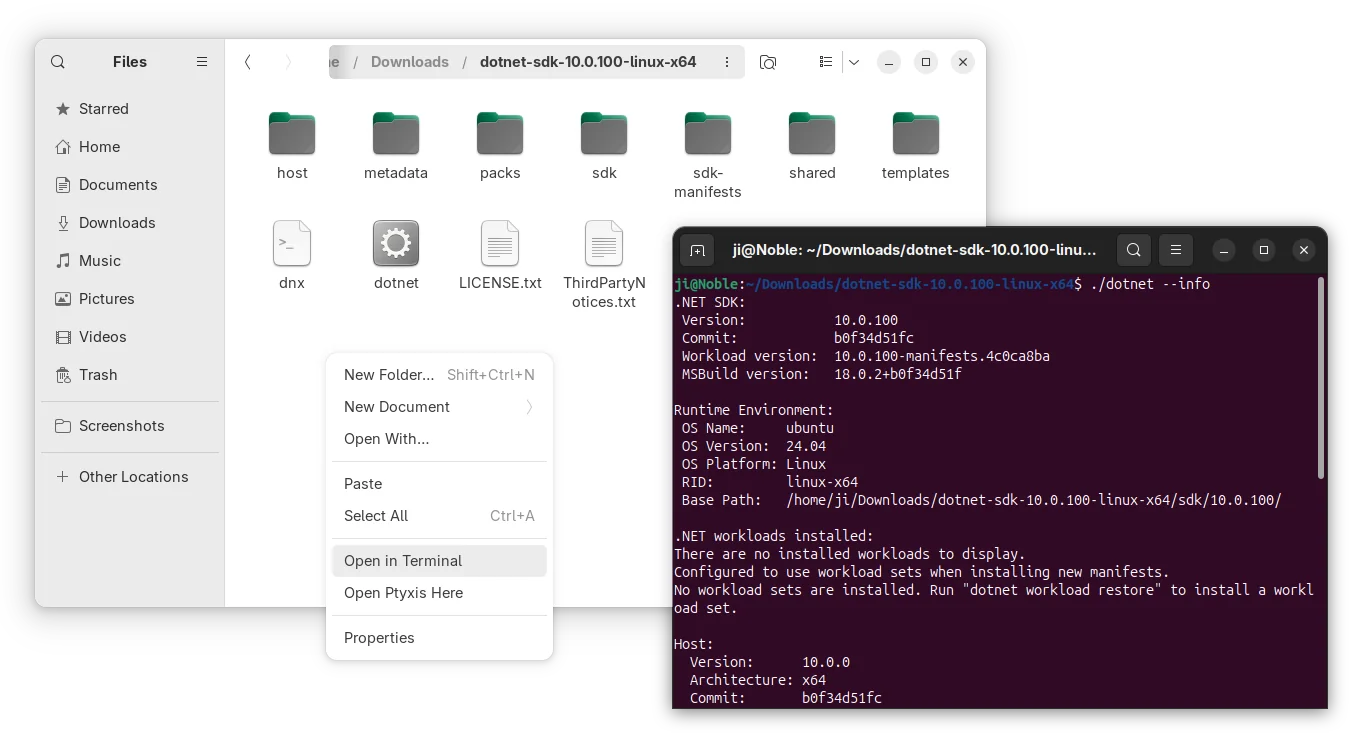
For Linux, they are non-install portable tarball. Simply download, decompress, and run the executable file to get started, though you may need to manually set environment and path variables.

As a LTS release, Ubuntu is likely to add .NET 10 into system repository. And, you may keep an eye on this page for the process.

At the moment of writing, the official Ubuntu PPA has been building .NET 10 for Ubuntu 25.10 and next Ubuntu 26.04.

Mission Center 1.1.0 added CPU Power Draw & Revamped Services Page

By:Ji m
12 November 2025 at 19:05

Mission Center, the popular Linux system monitor and task manager app, released new 1.1.0 version today.

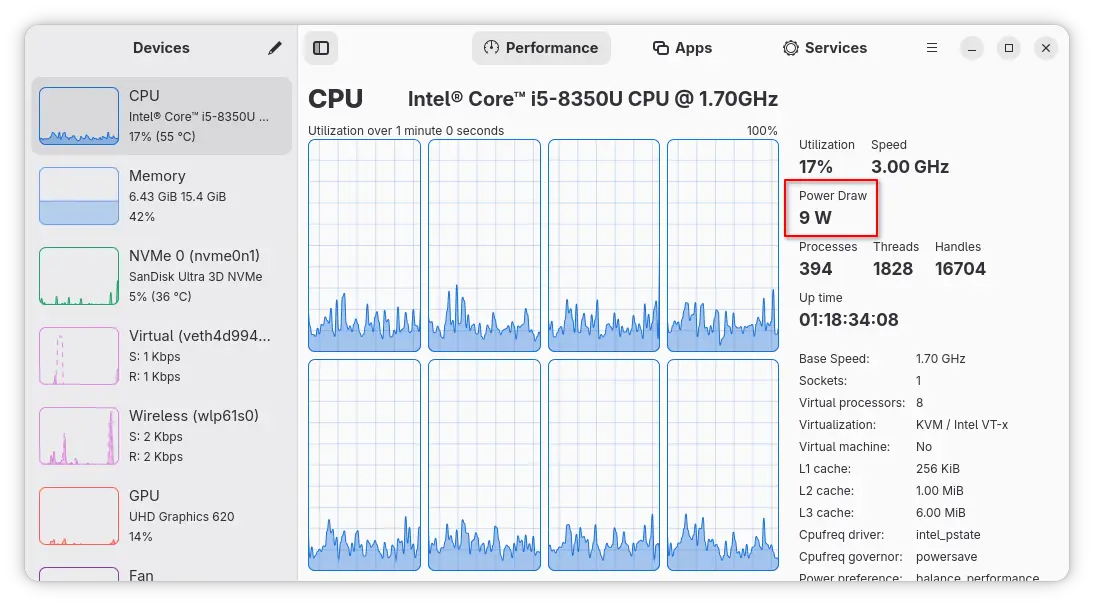
The new release of this free open-source app improved CPU monitoring support. It can now display the amount of electrical energy that CPU consumes in watts.

It works by reading /sys/class/powercap/intel-rapl*/energy_uj for CPU power draw. The file is however unreadable by default for security reason. Meaning user needs to grant read access permission by running the command below in terminal:

sudo chmod a+r /sys/class/powercap/intel-rapl*/energy_uj

For AMD, the feature request page does not mention AMD processors, and I don’t have a AMD CPU to try it out.

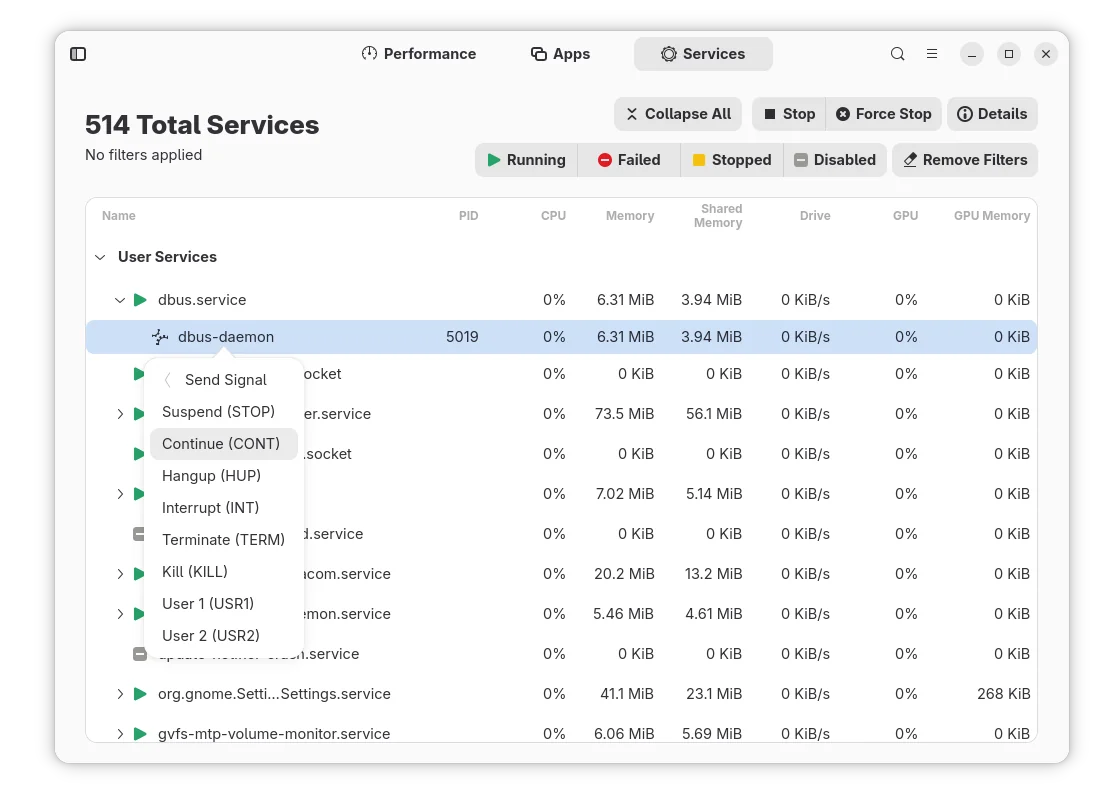
The app also overhauled the Services page. The services are now grouped into “User Services” and “System Services”. And, it supports filtering services on Running, Failed, Stopped, and/or Disabled status.

As well, it now supports view child processes (if any) for services, and allows to send signal (e.g., Suspend, Continue, Hangup, Interrupt, Terminate, and Kill) by right-clicking on a process.

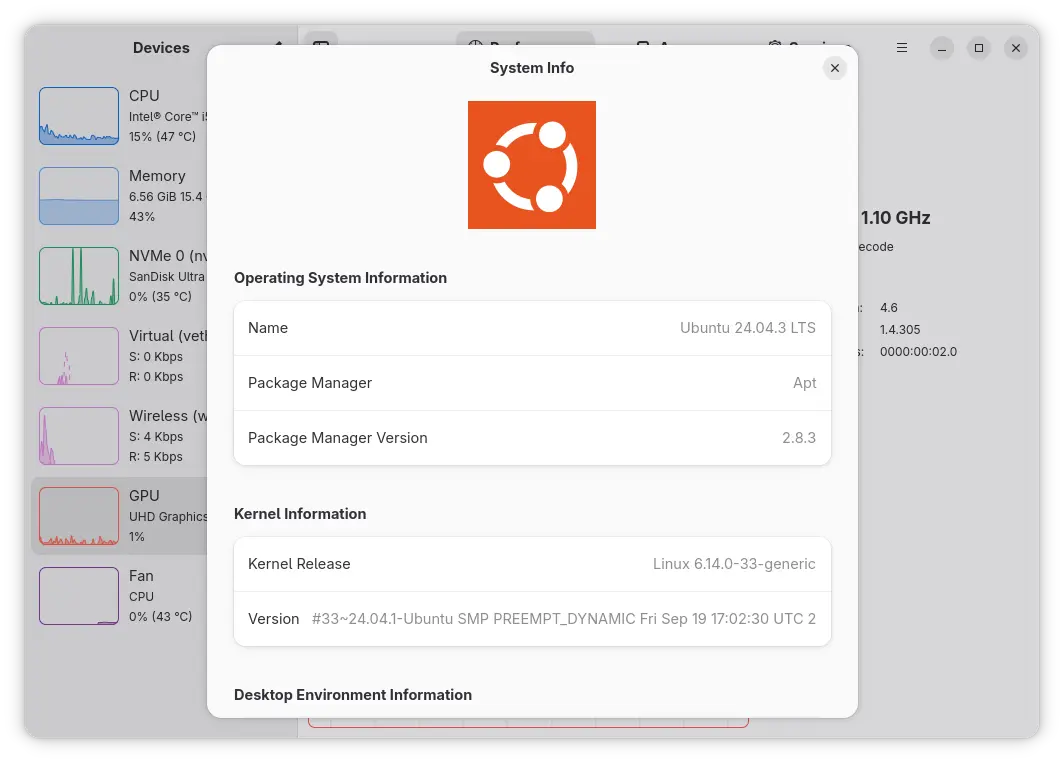
Besides that, it added new “About System” dialog that can be launched from the hamburger menu, which displays the name and version info of Linux Distribution, package manager, Kernel, and desktop environment.

Other changes in Mission Center 1.1.0 include:

  • Improve Fan backend and configurations.
  • Reduce CPU usage.
  • Fix AMD Radeon RX 6600 GPU shown up.
  • Fix missing Vulkan and OpenGL information in GPU page.
  • Fix missing shared memory usage on the memory graph.
  • Add keyboard shortcut to start service.
  • Update to GNOME 49, and the latest NVTOP.
  • Add donation to Flatpak and Readme.

For more about this version, see the official release note in Gitlab.

Install/Update Mission Center

For Ubuntu (with either AMD/Intel or ARM processor), the app is available to install as Snap package through the App Center for 24.04+ or Ubuntu Software or 22.04 and earlier.

For most Linux Distributions, the app is also available to install as Flatpak packages on either amd64 or arm64 platforms.

Linux Mint and Fedora (with 3rd party repository enabled) may search & install the Flatpak package from either Software Manager or GNOME Software. While others may do the following steps one by one to install it:

  • First, follow the official setup guide to enable Flatpak support. For Debian/Ubuntu, simply open terminal and run command:
    sudo apt install flatpak
  • Then, install the app flatpak package via command:
    flatpak install https://dl.flathub.org/repo/appstream/io.missioncenter.MissionCenter.flatpakref

To update the package, use command:

flatpak update io.missioncenter.MissionCenter

And, you may replace update with run in the last command to launch it from terminal.

Uninstall:

To uninstall the Snap package, use either App Center or Ubuntu Software.

And, to uninstall the Flatpak, run command:

flatpak uninstall --delete-data io.missioncenter.MissionCenter

Optionally, run flatpak uninstall --unused to remove useless runtimes.

❌