
 Login
Login
Audacity 3.7.6 Released with FFmpeg 8.0 & Import from Cloud Support

Audacity, the free open-source audio editor and recording application, released new 3.7.6 version few days ago. PPA updated for all current standard Ubuntu releases.
The new release of this cross-platform (Windows, Linux, and macOS) computer software added the FFmpeg 8.0 multimedia library support.
With the most recent FFmpeg library, it supports loading more audio codecs, such as Sanyo LD‑ADPCM, G.728 (.g728), and ADPCM IMA Xbox. And, custom FFmpeg export options now supports exporting to OGG/Opus audio formats using the libopus codec.
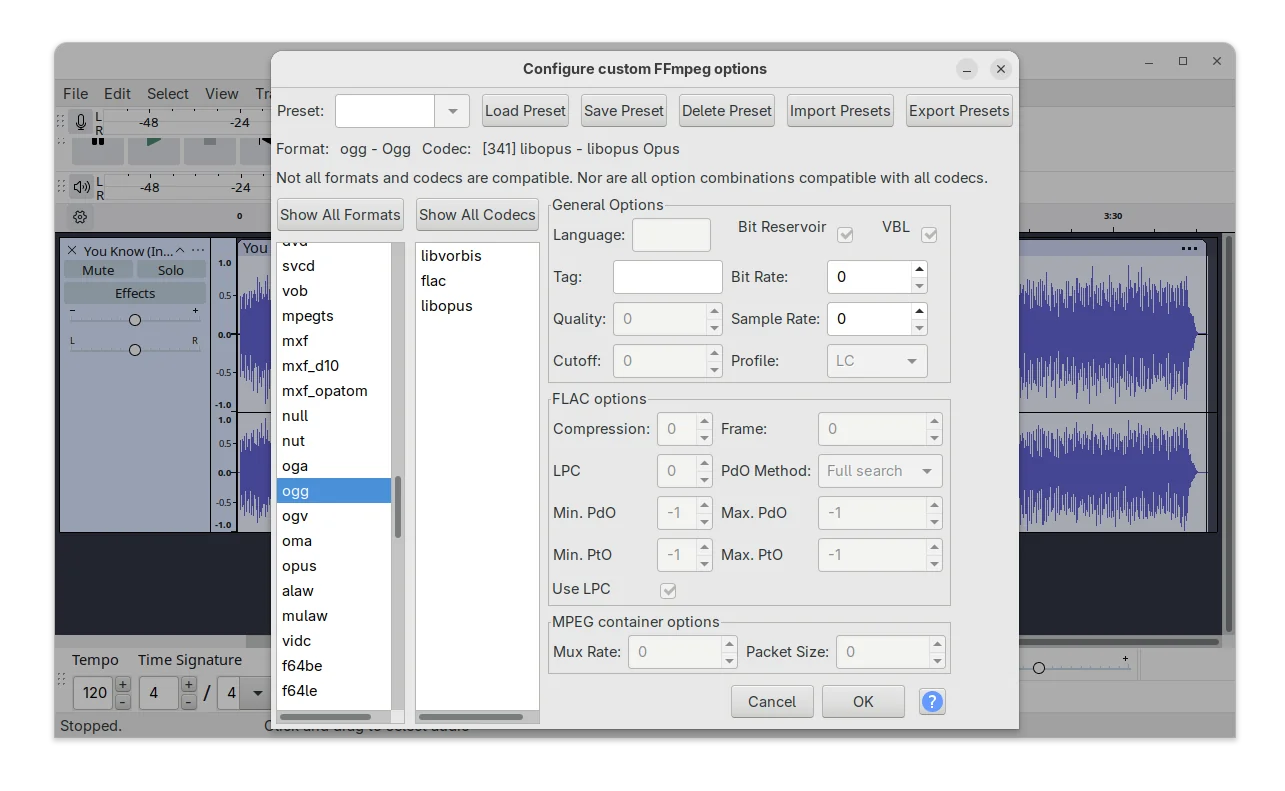
Audacity export with FFmpeg
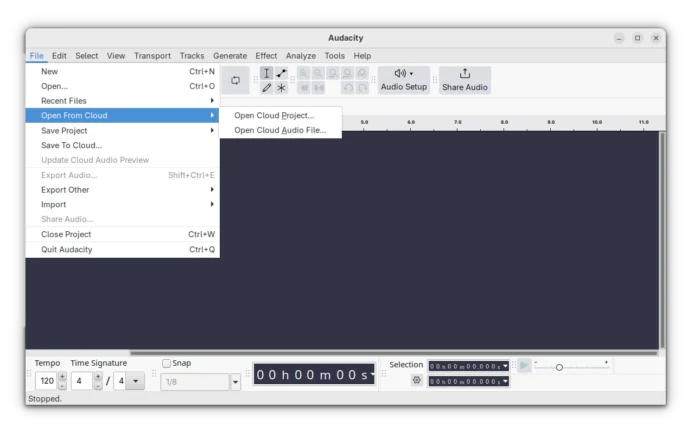
For cloud users, besides uploading your audio to audio.com, it now also supports loading your audio projects or audio files from cloud (meaning audio.com), though you need to log in with a free account.
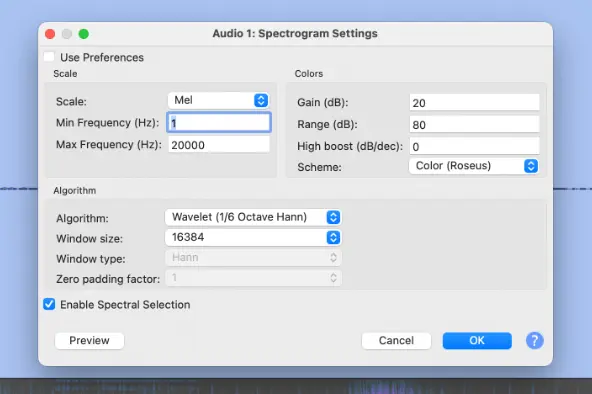
According to the release note, Audacity 3.7.6 also added first simple implementation of Spectrogram Wavelet analysis. It’s a new visualization mode allows to analyze audio using wavelet transforms with more adaptive time‑frequency display than the traditional Fourier spectrogram.
The new feature should add a “Wavelet (1/6 Octave Hann)” algorithm mode into the Spectorgram Settings dialog. However, I cannot see it in my case in Ubuntu 24.04.
I’m neither good at audio editing nor coding. It could be that I can’t meet the new “if condition” added in this commit (see code below) to make it visible, or the feature is just disabled.
#ifdef WAVELET
      XO("Wavelet (1/6 Octave Hann)") ,
#endif
The new version also backported the 4.0 feature that user can middle-click on waveform and drag moving left/right just like the default behavior in GIMP, Kdenlive, Blender, etc applications. And, the scrollbar and viewport will update in sync for natural movement.
Other changes are mostly bug-fixes. They include:
- Fix “Share Audio” (upload to audio.com) function.
- Fix incorrect import 16-bit flac files.
- Fix audio list could not be accessed with keyboard.
- Handle utf-8 file names correctly on windows.
- Keep next/prev buttons focused on page change.
- Tool libraries and translation updates.
How to Install Audacity 3.7.6 in Ubuntu & other Linux
Option 1: Audacity provides official Linux package through AppImage, which is available to download at the link below:
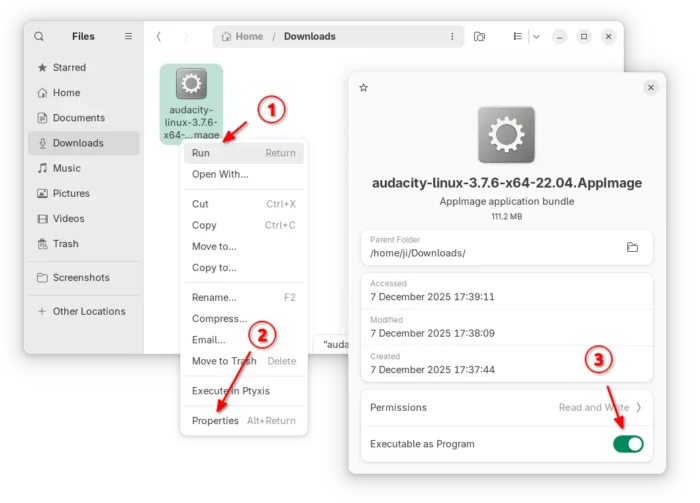
It’s a non-install Linux package format, that has most runtime libraries in bundle. Simply add executable permission from file properties dialog, then run it to launch the audio editor.
The AppImage is marked for 20.04/22.04, though it works in most Linux. And, Ubuntu 22.04 and higher need to install libfuse2 library first in terminal (Ctrl+Alt+T).
sudo apt install libfuse2
NOTE: Both Flatpak and PPA packages below have the networking support disabled, meaning no audio.com upload and import support.
Option 2: For choice, you may install Audacity 3.7.6 in most Linux through the community maintained Flatpak package. It runs in sandbox environment, and supports both amd64 and arm64 processors.
Linux Mint may simply search for and install it from Software Manager, though you need to first enable “unverified Flatpaks” in the preferences dialog.
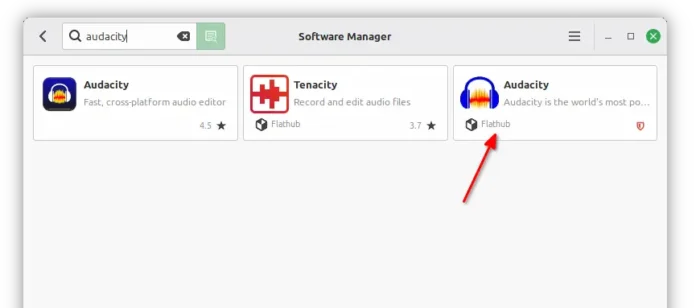
While Debian/Ubuntu may run the 2 commands below one by one to install the package.
sudo apt install flatpak
flatpak install https://dl.flathub.org/repo/appstream/org.audacityteam.Audacity.flatpakref
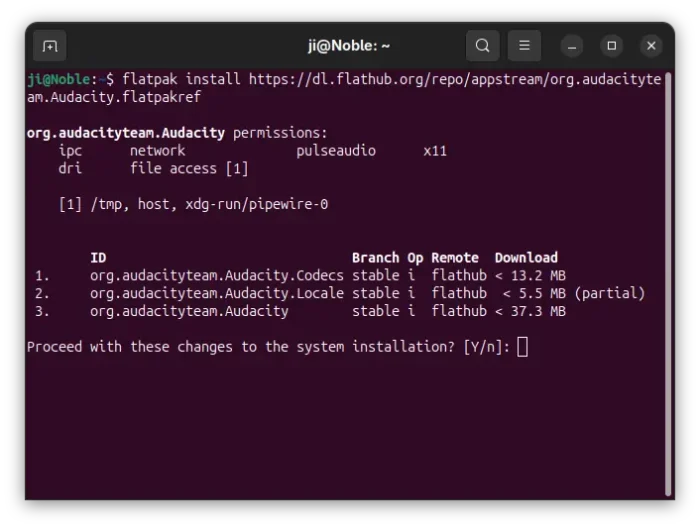
Option 3: For those who don’t like running Audacity in sandbox, I’ve uploaded the new release package into this unofficial PPA for Ubuntu 22.04, Ubuntu 24.04, 25.04 and 25.10 on amd64 and arm64/armhf platforms.
To add the PPA and install the native .deb package, run commands below one by one:
sudo add-apt-repository ppa:ubuntuhandbook1/audacity
sudo apt update
sudo apt install audacity audacity-data
Uninstall
For AppImage, simply delete the file from file manager. While, you may run the command below to uninstall the Flatpak package:
flatpak uninstall --delete-data org.audacityteam.Audacity
Also run flatpak uninstall --unused to remove useless runtimes.
To uninstall the PPA as well as the .deb package, run commands:
sudo add-apt-repository --remove ppa:ubuntuhandbook1/audacity
sudo apt update
sudo apt remove audacity audacity-data




 Spotify Premium users can now stream music in lossless audio quality at no extra cost. The desktop Spotify Linux app is likely to add support for it too.