Login
Login
RustDesk 1.4.4 Released with Edge Scrolling Support

RustDesk, the free open-source remote desktop application, release new 1.4.4 version few days ago.
The new release of this Teamviewer or AnyDesk alternative app introduced edge scrolling support, when your app window is smaller than the remote screen size.
Previously, it scrolls automatically when you move cursor around the screen. While, the “Scrollbar” mode is available for choice when you want to manually move the bottom or right scrollbar to move around.
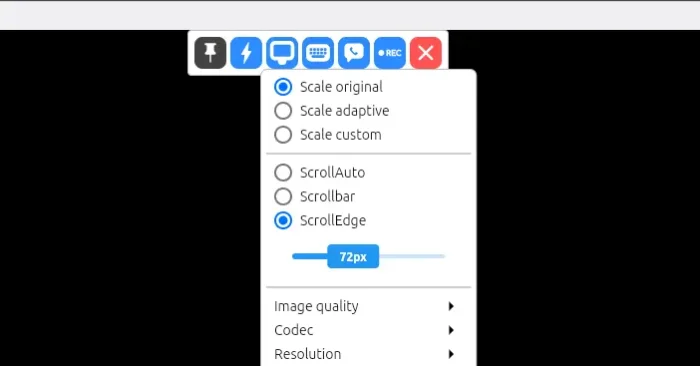
In the new release, a new “ScrollEdge” mode is added. With it enabled, you may move cursor to the window edge to move the screen. And, a scroll-bar is available to adjust the edge thickness.
For Linux with Wayland (e.g., Ubuntu 22.04+ and Fedora Workstation), it added support sharing multiple monitor screens since last 1.4.3. In the new release, it improved this feature by supporting multiple scaled monitors with Gnome or KDE Wayland.
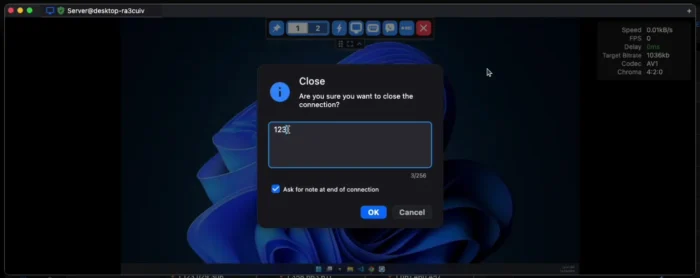
RustDesk 1.4.4 also introduced new “Ask for note at the end of connection” option in the General settings page.
With it enabled, it will display a popup dialog where user can enter a note, when disconnects either actively or passively. See this page for more about the feature.
The new version also improve Apple devices support. It now shows proxy settings on iOS, and allows to manage transferred files through Files or iTunes app. And, it updated hwcodec that fixed H265 encoding support on Intel chip Mac computers.
Other changes in the 1.4.4 release include:
- Allow flipping sort order in mobile app’s file transfer
- File transfer auto start on reconnect
- Load custom installed CA root on mobile
- UI costomization for Sciter version
- Insecure TLS option
- Fix cursor icon capture for the Linux Flatpak package.
- Better TLS compatibility on all platforms
Get RustDesk 1.4.4
The official release note, as well as the installer packages for Windows, Linux, macOS, iOS, and Android, are available in its Github releases via the link below:
For Linux, the “Assets” section provides more packages, e.g., pkg.tar.zst for Arch, .rpm for Fedora/SUSE/RHEL, non-install .appimage, and .flatpak for most Linux that runs in sandbox environment.
If you don’t know which OS type (X86_64, aarch64, or archv7) to choose, open terminal and run uname -m or dpkg --print-architecture command to tell.
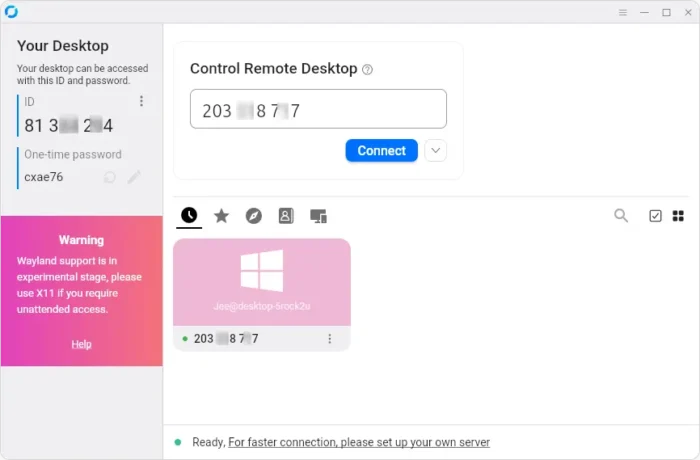
And for those who are new to this application, simply install it in both remote and local machines, then type the remote ID to connect, though remember to start the service first in hamburger menu.
It by default uses the public server to initialize the connection, then send data peer-to-peer after connection is established. While, you may see the official docs for setting up self-hosting server.