Reading view

Mission Center 1.1.0 added CPU Power Draw & Revamped Services Page
Mission Center, the popular Linux system monitor and task manager app, released new 1.1.0 version today.

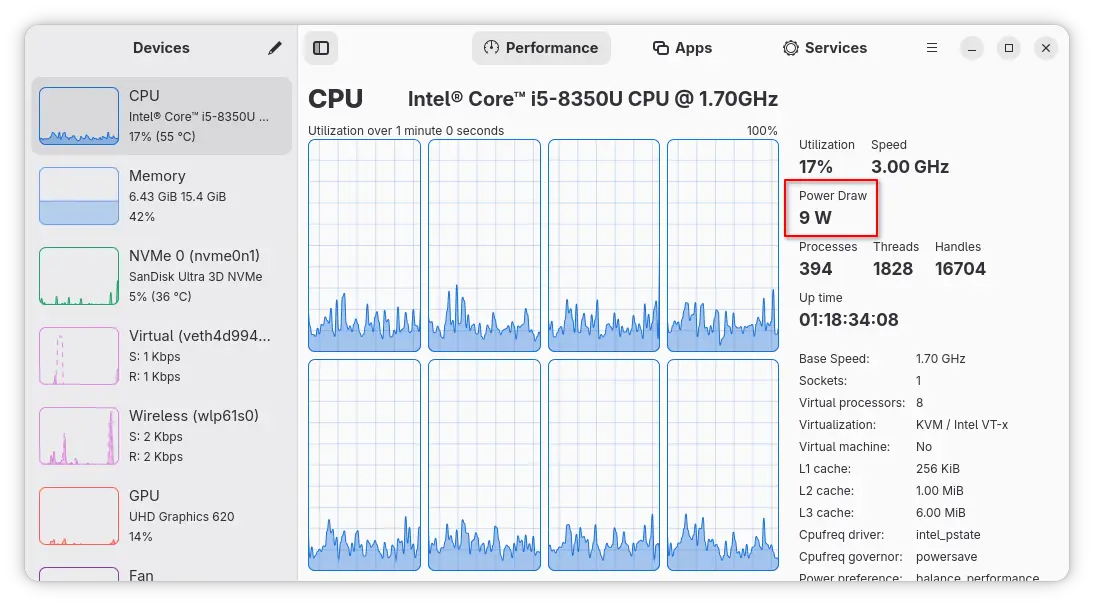
The new release of this free open-source app improved CPU monitoring support. It can now display the amount of electrical energy that CPU consumes in watts.

It works by reading /sys/class/powercap/intel-rapl*/energy_uj for CPU power draw. The file is however unreadable by default for security reason. Meaning user needs to grant read access permission by running the command below in terminal:

sudo chmod a+r /sys/class/powercap/intel-rapl*/energy_uj

For AMD, the feature request page does not mention AMD processors, and I don’t have a AMD CPU to try it out.
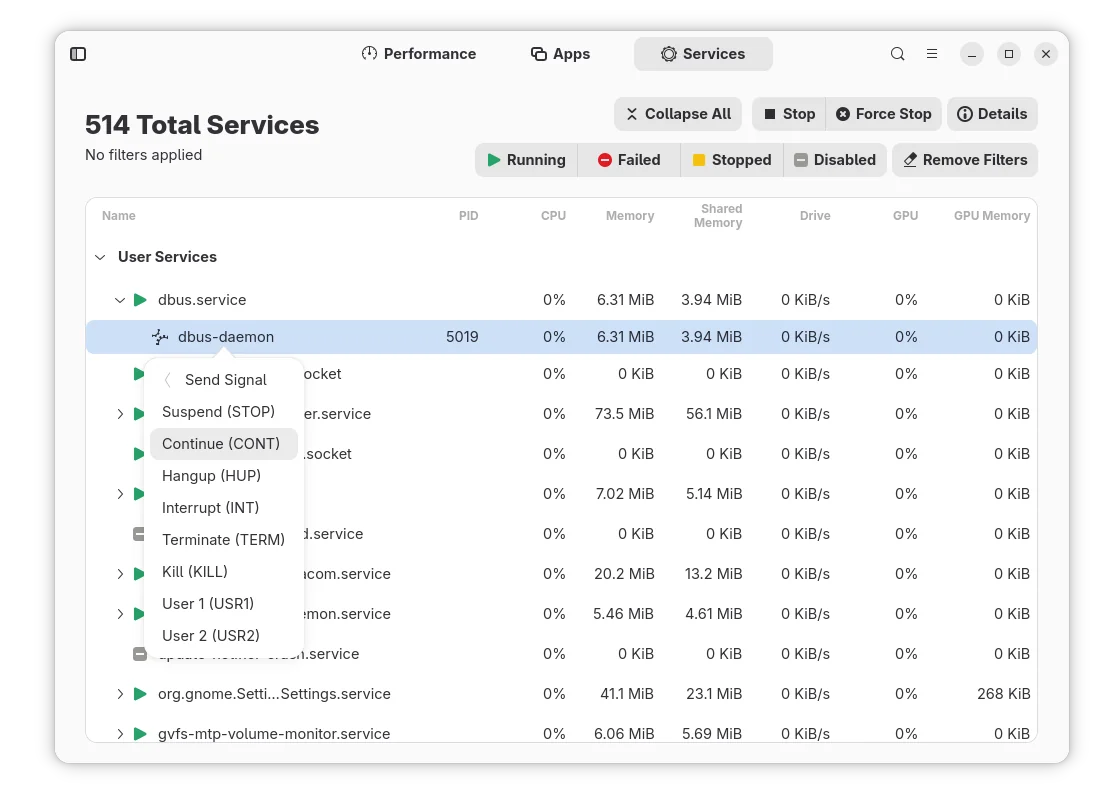
The app also overhauled the Services page. The services are now grouped into “User Services” and “System Services”. And, it supports filtering services on Running, Failed, Stopped, and/or Disabled status.

As well, it now supports view child processes (if any) for services, and allows to send signal (e.g., Suspend, Continue, Hangup, Interrupt, Terminate, and Kill) by right-clicking on a process.
Besides that, it added new “About System” dialog that can be launched from the hamburger menu, which displays the name and version info of Linux Distribution, package manager, Kernel, and desktop environment.
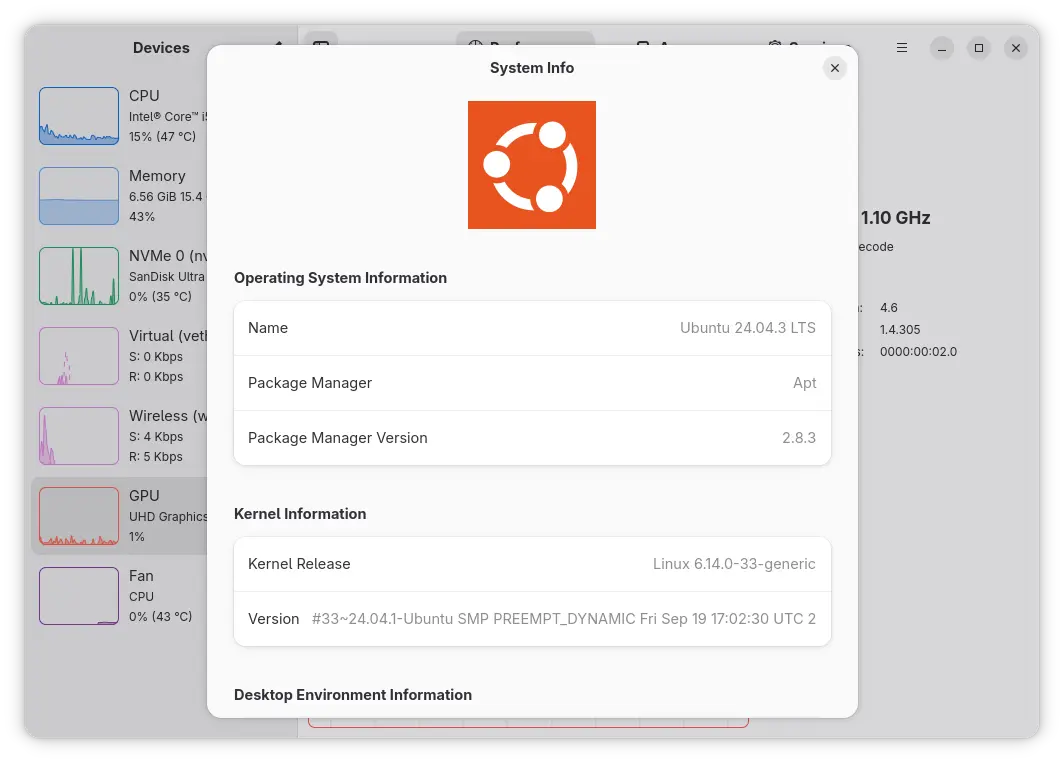
Other changes in Mission Center 1.1.0 include:

  • Improve Fan backend and configurations.
  • Reduce CPU usage.
  • Fix AMD Radeon RX 6600 GPU shown up.
  • Fix missing Vulkan and OpenGL information in GPU page.
  • Fix missing shared memory usage on the memory graph.
  • Add keyboard shortcut to start service.
  • Update to GNOME 49, and the latest NVTOP.
  • Add donation to Flatpak and Readme.

For more about this version, see the official release note in Gitlab.

Install/Update Mission Center

For Ubuntu (with either AMD/Intel or ARM processor), the app is available to install as Snap package through the App Center for 24.04+ or Ubuntu Software or 22.04 and earlier.
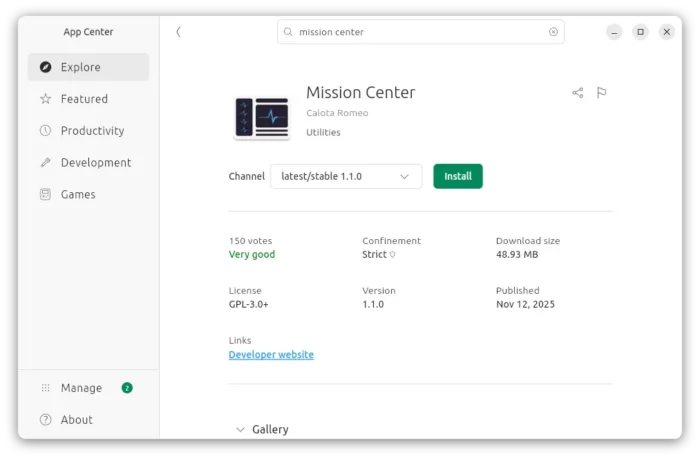
For most Linux Distributions, the app is also available to install as Flatpak packages on either amd64 or arm64 platforms.

Linux Mint and Fedora (with 3rd party repository enabled) may search & install the Flatpak package from either Software Manager or GNOME Software. While others may do the following steps one by one to install it:

  • First, follow the official setup guide to enable Flatpak support. For Debian/Ubuntu, simply open terminal and run command:
    sudo apt install flatpak
  • Then, install the app flatpak package via command:
    flatpak install https://dl.flathub.org/repo/appstream/io.missioncenter.MissionCenter.flatpakref

To update the package, use command:

flatpak update io.missioncenter.MissionCenter

And, you may replace update with run in the last command to launch it from terminal.

Uninstall:

To uninstall the Snap package, use either App Center or Ubuntu Software.

And, to uninstall the Flatpak, run command:

flatpak uninstall --delete-data io.missioncenter.MissionCenter

Optionally, run flatpak uninstall --unused to remove useless runtimes.

  •  

Task Manager App Resources 1.9.0 Added Intel Xe Driver Support

Resources, the modern task manager and system monitor app for Linux desktop, released new 1.9.0 version few days ago.

The new release of this free open-source application added more languages support, more display options, bug-fixes and improvements.

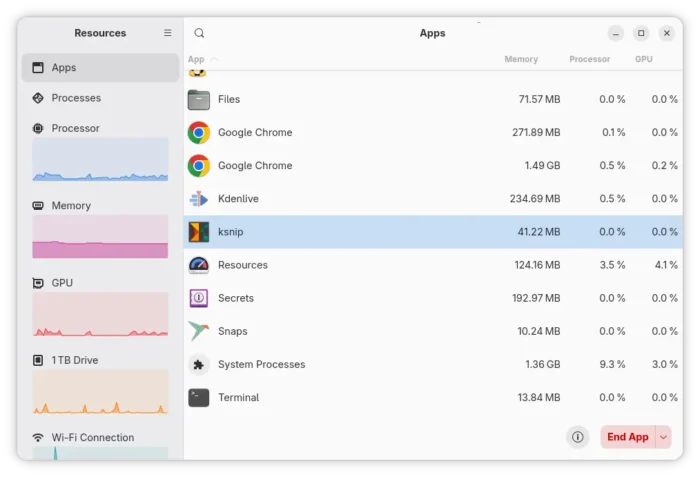
Resources is a GNOME application allowing to monitor and control running processes and apps, and check the utilization of your system resources.

Like Windows’ task manager app, it provides a modern interface to monitor the memory, CPU, and GPU usage for each running app/process, along with option to kill or halt the selected task.

It as well has a “Show App/Process Information” option in bottom, to display more, such as swap, drive read/write, video memory/encoder/decoder usage, as well as app ID, running time, etc properties.

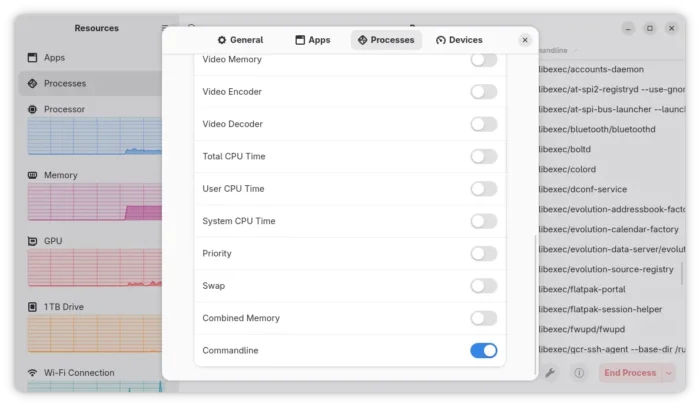
In the new 1.9.0 release, the process view page supports “Commandline” column to display command for each process, though you need to enable the feature in Preference dialog.

For Intel users, the release also added the Intel xe driver support. It’s the modern replacement for the older i915 driver, that was introduced since Linux Kernel 6.8, and may be enabled by default for the newest hardware with Kernel 6.17.

With the new xe driver, the app supports reading the GPU frequency, power and temperature for Intel GPUs.

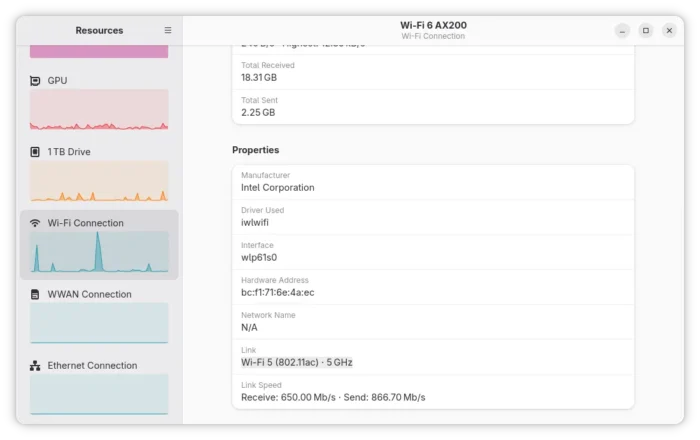
For Wi-Fi devices, the release now displays the Link information about the connected network, Wi-Fi 5 or Wi-Fi 6, 5 GHz or 2.4 GHz, as well as the maximum send/receive speed.

To display Link information, the app needs “network access” permission for Flatpak package, though it does not connect to the Internet in any way. And, if you don’t need this information, just disable “network access”.

Other changes in the release include:

  • Add Bulgarian, Finnish, Hebrew and Slovenian translations.
  • Halt graphical updates when it is not in view to save on power.
  • Show uptime in CPU view..
  • Add PCIe 7.0 and PCIe 8.0 (though not released) devices support.
  • And more, see official release note for details.

How to Install Resources system monitor and task manager

Resources is available to install in most Linux on amd64 and arm64 platforms through Flatpak package which runs in sandbox environment.

Linux Mint and Fedora Workstation may simply search & install the package from either Software Manager or GNOME Software.

While Debian, Ubuntu, and other Linux can install the package by following the steps below one by one:

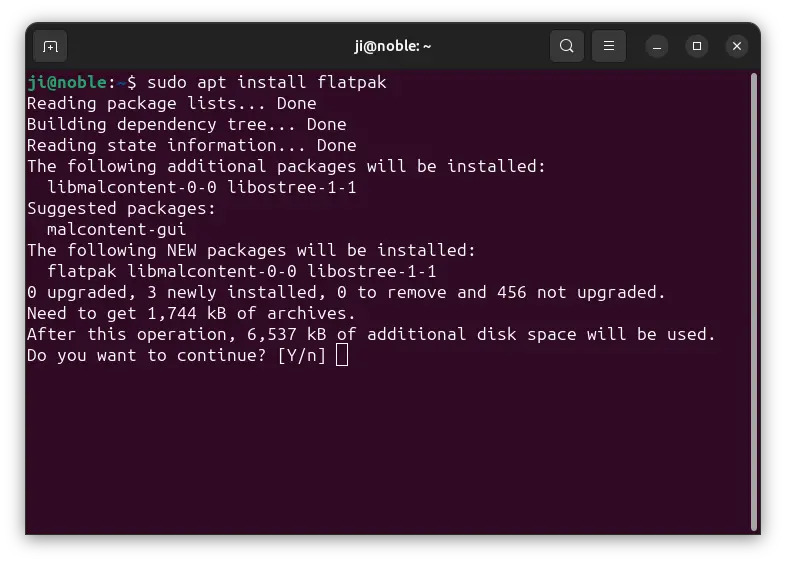
  • First, press Ctrl+Alt+T to open terminal. When it opens, run command to install Flatpak daemon:
    sudo apt install flatpak

    For other Linux, see the official setup guide to enable Flatpak support.

  • Then, run command to install Resources flatpak package:
    flatpak install https://dl.flathub.org/repo/appstream/net.nokyan.Resources.flatpakref

After installed the package, either search for and launch from GNOME Overview (log out and back in of app icon not visible), or run the command below to start from terminal:

flatpak run net.nokyan.Resources

And, you may replace run in last command with update to check & install updates.

Uninstall Resources

To uninstall the system monitor app, use command:

flatpak uninstall --delete-data net.nokyan.Resources

Also run flatpak uninstall --unused to remove useless Flatpak run-time libraries to free up some disk space.

  •  
❌