
Reading view

GNOME 49 Officially Released with New Video Player & Document Viewer

GNOME developer team finally announced the 49 release of this popular Linux Desktop environment!

If everything goes well, GNOME 49 will be the default desktop for Ubuntu 25.10, Fedora Workstation 43, and optional for Arch, Manjaro, etc Linux distributions.

The new desktop release introduced Showtime to replace Totem as the default video player, and Papers to replace Evince as the default document viewer.

Both use the GTK4 plus LibAdwaita libraries for the modern user interfaces with native look and touch friendly experience in today’s GNOME desktop.

Showtime video player

Gnome on Xorg (or Ubuntu on Xorg) is finally removed in the release, meaning there’s no longer Xorg/X11 session but only Wayland for GNOME. Though, the GDM login screen still can load other Xorg sessions, e.g., XFCE and Cinnamon.

It as well features new accessibility menu in login screen, with Quick Settings style buttons to toggle access to screen keyboard, screen reader, etc tools.

And, user can now control music playback and power-off/restart (though not enabled by default) from the lock screen.

GNOME 49 also improved Remote Desktop support, by adding multi-touch input support for client device with touch-screen, relative mouse input for better 3D app or gaming experience, and ability to have additional virtual monitors even when there aren’t additional displays physically present.

The image loading and the background wallpaper now are handled by the Glycin library, which is sandboxed to help prevent security exploits.

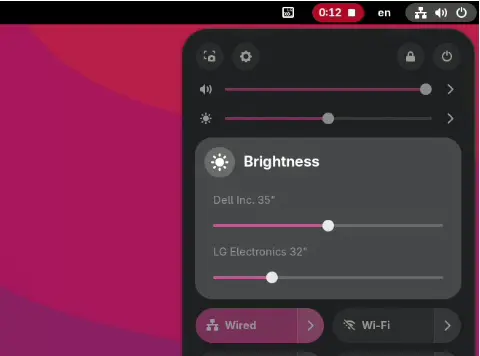
And, the release now supports changing the display brightness in the Quick Settings when HDR is enabled. While, these new HDR brightness controls support external displays, and allow multiple displays to be adjusted at the same time.
There are also many improvements to the Gnome Weather, Gnome Maps, Gnome Calendar apps, as well as following changes:

  • Move “Do Not Distrub” to Quick Settings.
  • Indicate when Preserve Battery Health enabled.
  • New wallpapers for HDR displays.
  • Improved Flatpak app data parsing for GNOME Software.
  • New option to disable “Super” shortcut key.
  • Support relative dials on tablet pads.
  • Hardware accelerated video encoding for Camera app.
  • Add ‘Donate’ button in About page.
  • Add configuration for pointing stick (aka TrackPoint)

For more about GNOME 49, see the official release note.

Get GNOME 49

As mentioned above, GNOME 49 will be available in Ubuntu 25.10, Fedora Workstation 43, etc Linux Distributions. And, Arch has already made the new release into GNOME Unstable repository.

For choice, there’s GNOME OS Nightly available for trying it out in either virtual machine (only support Gnome Boxes) or real hardware.

  •  

Dolphin Emulator 2509 now Emulates Cars 2 & Disney Infinity Smoothly

Dolphin, the free open-source GameCube and Wii game emulator, released new 2509 version today after another 3 months of development.

The new release of this game emulator revamped the settings UI, added some new features, and, it can finally emulate Toy Story 3, Cars 2, and Disney Infinity on powerful hardware at full speed.

It seems that Avalanche Software, the team behind the 3 games, don’t like Dolphin Emulator.

However, we’re going to go out on a limb and say that Avalanche Software, the team behind the Trio of Destruction™, weren’t so fond of us. Not only did they leave crude messages hidden in game data for “hackers” to find, but we also suspect that someone on their team was actively monitoring us.

While Toy Story 3 took a few years to get working, the writing was on the wall for quite some time that eventually it would be solved. So, for Avalanche’s next two games, we believe that they left a trap specifically designed to defeat Dolphin: the dcache suicide pill.

As the announcement said, the team added a trap in the games designed to stop Dolphin from running them in PC or mobile phone. But with the 2509 release, it finally fixed the issue by adding a patch allowing to run the Trio of Destruction™ fluidly on powerful hardware.

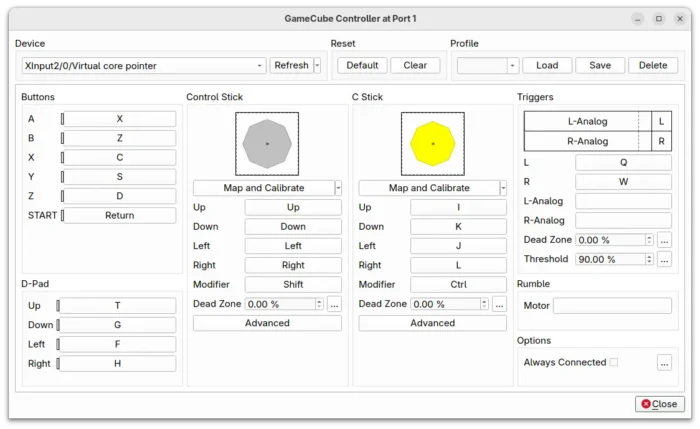
Besides that, the release revamped the settings UI, and introduced new “Map and Calibrate” button, allows to simply map and calibrate joystick at the same time.

It also added “Correct Time Drift” option under Advanced setting page. It pursues accurate overall elapsed time by running fast after stutters, which is useful for internet play.

Dolphin-emu 2509 also improved the general performance for Bluetooth Passthrough. It added the ability to load Realtek firmware, when trying to use a Realtek adapter with the feature for the first time.

Meaning now the Bluetooth Passthrough now supports modern Bluetooth adapters, such as TP-Link Bluetooth 5.3 Nano and Asus USB-BT500.

Other changes include:

  • Disable Dual Code mode by default for desktop, as it’s unstable and modern desktop PCs are overpowered for Dolphin. Though, there’s an option to turn it back.
  • Fix DSP-LLE Recompiler exception that could cause games not booting.
  • Add resource manager, which tracks the requests per frame for better performance loading textures, and tracks memory usage to prevent out of memory.
  • Load custom texture multi-threaded.

In addition, the Nintendo Switch 2 NSO GameCube Controller is not supported yet in the release, as it’s not fully implemented by the upstream SDL (Simple DirectMedia Layer).

Install Dolphin Emulater 2509

The software website provides official installer packages for Windows, macOS, Linux, and Android, which are available to download via the link below:

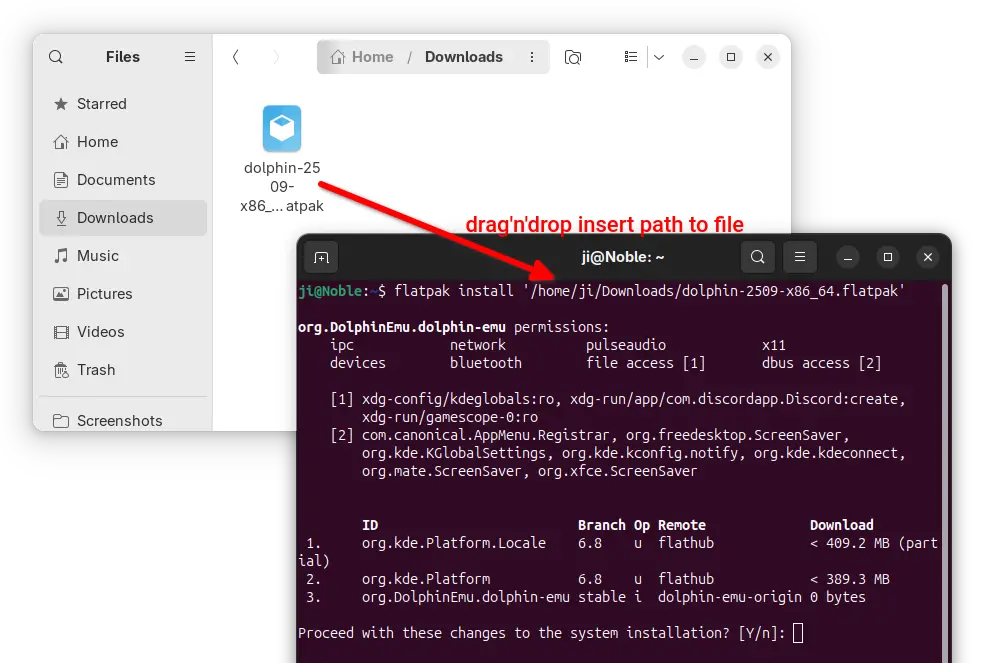
For Linux, it’s Flatpak package that runs in sandbox environment. Download either X86_64 for Intel/AMD or aarch64 for ARM64 platform, then install via command:

flatpak install /path/to/flatpak-file

NOTE: Ubuntu does NOT support Flatpak out-of-the-box, run the command below to install the daemon first:

sudo apt install flatpak

For Ubuntu users who prefer the native .deb package, I’ve made the packages into this unofficial PPA for Ubuntu 22.04, Ubuntu 24.04, and Ubuntu 25.04 on amd64 (Intel/AMD) and arm64 (e.g., Raspi, Snapdragon processors) platforms.

Simply open terminal (Ctrl+Alt+T) and run 3 commands below one by one to add PPA, refresh cache, and install the emulator:

sudo add-apt-repository ppa:ubuntuhandbook1/dolphin-emu
sudo apt update
sudo apt install dolphin-emu
  •  
❌