❌

Normal view

Firefox 145.0 is out! Removed 32-bit Linux Support

By:Ji m
11 November 2025 at 19:47

After 9 Beta releases, Mozilla Firefox 145.0 is finally available to download.

The new browser version introduced new phase of privacy protections. For Private Browsing or when using Enhanced Tracking Protection set to Strict, the amount of Firefox users track-able by fingerprinters is reduced by half. See this page for more details.

In addition, Enhanced Bounce Tracking Protection stateless mode is now enabled by default in ETP Strict, blocking more advanced tracking techniques based on redirection.

Firefox 145.0 improved PDF editing by adding comment support. By selecting the desired text or area in your PDF content, it will show a small pop-up menu with option to add, remove, or edit comment. And, a comment/message icon is added to tool-bar with ability to view all the comments.

The release also improved tab group support. For the collapsed tab groups, simply hover over a tab group name will show a preview of the tabs inside without opening it.

The built-in password manager now can be accessed from the sidebar. Simply open settings from the side-bar, then enable β€œPasswords” option under Firefox tools, you can finally access and manage your saved passwords without opening a new tab or window.

Access and manage passwords from sidebar

For most Windows users, a small desktop launcher program is introduced to replace the existing desktop shortcut. If Firefox is installed, the desktop launcher will launch it. If not, it will prompt the user to install Firefox.

In General settings page, a new β€œOpen links from apps next to your active tab” option is added. With it enabled, links from other applications will open next to your active tab in Firefox instead of at the end of the tab strip.

Other changes include:

  • Remove 32-bit Linux support.
  • Extensions button now shows description and link to Firefox Add-ons store, when no extensions are installed.
  • Use Zstandard compression for local translation models.
  • Improved translation experience when translating between languages with different script directions.
  • New brand-inspired wallpapers for new tab.
  • Update default automation preferences to better support Agentic browsing
  • Add support for Atomics.waitAsync proposal.
  • Support the new Integrity-Policy header for enforcing sub-resource integrity for scripts.
  • Improve Matroska support for the most commonly used codecs: AVC, HEVC, VP8, VP9, AV1, AAC, Opus, and Vorbis.
  • Add the text-autospace property support.
  • Add the WebGPU DOM API for macOS 26 (Tahoe) on Apple Silicon.

Get Firefox 145.0

The official release note for Firefox 145.0 as well as the download link will be available soon in the link below:

At the moment, you may go to this ftp.mozilla.org page to download it.
Arch Linux November 2025 ISO: Fresh Snapshot, Smarter Installer (Archinstall 3.0.12) & Pacman 7.1

Arch Linux November 2025 ISO: Fresh Snapshot, Smarter Installer (Archinstall 3.0.12) & Pacman 7.1

Arch Linux has shipped its November 2025 ISO snapshot (2025.11.01), and while Arch remains a rolling distribution, these monthly images are a big deal, especially for new installs, labs, and homelab deployments. This time, the ISO lands alongside two important pieces:

  • Archinstall 3.0.12 – a more polished, smarter TUI installer

  • Pacman 7.1 – a package manager update with stricter security and better tooling

If you’ve been thinking about spinning up a fresh Arch box, or you’re curious what changed under the hood, this release is a very nice jumping-on point.

Why Arch Still Ships Monthly ISOs in a Rolling World

Arch is famous for its β€œinstall once, update forever” model. Technically, you could install from a two-year-old image and just run:

sudo pacman -Syu

…but in practice, that’s painful:

  • Huge initial update downloads

  • Possible breakage jumping across many months of changes

  • Outdated installer tooling

That’s why the project publishes a monthly snapshot ISO: it rolls all current packages into a fresh image so you:

  • Start with a current kernel and userland

  • Spend less time updating right after install

  • Get the latest Archinstall baked in (or just a pacman -Sy archinstall away)

The 2025.11.01 ISO is exactly that: Arch as of early November 2025, ready to go.

What’s Inside the November 2025 ISO (2025.11.01)

The November snapshot doesn’t introduce new features by itself, it’s a frozen image of current Arch,Β but a few details are worth calling out:

  • Ships with a Linux 6.17.x kernel, including improved AMD/Intel GPU support and updated Btrfs bits.

  • Includes all the usual base packages plus current toolchains, drivers, and desktop stacks from the rolling repos.

  • The image is intended only for new installs; existing Arch systems should keep using pacman -Syu for upgrades.

You can download it from the official Arch Linux download page or via BitTorrent mirrors.

One small twist: the ISO itself still ships with Archinstall 3.0.11, but 3.0.12 was released the same day – so we’ll grab the newer version from the repos before running the installer.

Archinstall 3.0.12: What’s Actually New?

Archinstall has evolved from β€œnice experiment” to β€œpretty solid way to install Arch” if you don’t want to script everything yourself. Version 3.0.12 is a refinement release focused on stability, storage, and bootloader logic.

GStreamer 1.26.8 Improves HDR Video Playback for the Showtime Video Player

11 November 2025 at 03:27

GStreamer 1.26.8

GStreamer 1.26.8 open-source multimedia framework is now available for download with various improvements and bug fixes. Here’s what’s changed!

The post GStreamer 1.26.8 Improves HDR Video Playback for the Showtime Video Player appeared first on 9to5Linux - do not reproduce this article without permission. This RSS feed is intended for readers, not scrapers.

Firefox 145 Is Now Available for Download, Drops 32-Bit Support on Linux

10 November 2025 at 20:19

Firefox 145

Firefox 145 open-source web browser is now available for download as the first release to drop 32-bit support on Linux systems. Here’s what else is new!

The post Firefox 145 Is Now Available for Download, Drops 32-Bit Support on Linux appeared first on 9to5Linux - do not reproduce this article without permission. This RSS feed is intended for readers, not scrapers.

9to5Linux Weekly Roundup: November 9th, 2025

10 November 2025 at 08:38

9to5Linux Roundup November 9th

9to5Linux Weekly Roundup for November 9th, 2025, brings news about MX Linux 25, PorteuX 2.4, LXQt 2.3, Devuan GNU/Linux 6.0, KDE Plasma 6.5.2, KDE Gear 25.08.3, fwupd 2.0.17, NVIDIA 580.105.08, Calibre 8.14, MKVToolNix 96.0, Trinity Desktop Environment R14.1.5, and more.

The post 9to5Linux Weekly Roundup: November 9th, 2025 appeared first on 9to5Linux - do not reproduce this article without permission. This RSS feed is intended for readers, not scrapers.

AMD Confirms Zen 5 RNG Flaw: When β€˜Random’ Isn’t Random Enough

AMD Confirms Zen 5 RNG Flaw: When β€˜Random’ Isn’t Random Enough

AMD has officially confirmed a high-severity security vulnerability in its new Zen 5–based CPUs, and it’s a nasty one because it hits cryptography right at the source: the hardware random number generator.

Here’s a clear breakdown of what’s going on, how bad it really is, and what you should do if you’re running Zen 5.

What AMD Just Confirmed

AMD’s security bulletin AMD-SB-7055, now tracked as CVE-2025-62626, describes a bug in the RDSEED instruction on Zen 5 processors. Under certain conditions, the CPU can:

  • Return the value 0 from RDSEED far more often than true randomness would allow

  • Still signal β€œsuccess” (carry flag CF=1), so software thinks it got a good random value

The issue affects the 16-bit and 32-bit forms of RDSEED on Zen 5; the 64-bit form is not affected.

Because RDSEED is used to feed cryptographically secure random number generators (CSPRNGs), a broken RDSEED can poison keys, tokens, and other security-critical values.

AMD classifies the impact as:

Loss of confidentiality and integrity (High severity).

How the Vulnerability Works (In Plain English)

What RDSEED Is Supposed to Do

Modern CPUs expose hardware instructions like RDRAND and RDSEED:

  • RDRAND: Gives you pseudo-random values from a DRBG that’s already been seeded.

  • RDSEED: Gives you raw entropy samples suitable for seeding cryptographic PRNGs (it should be very close to truly random).

Software like TLS libraries, key generators, HSM emulators, and OS RNGs may rely directly or indirectly on RDSEED to bootstrap secure randomness.

What’s Going Wrong on Zen 5

On affected Zen 5 CPUs:

  • The 16-bit and 32-bit RDSEED variants sometimes return 0 much more often than a true random source should.

  • Even worse, they simultaneously report success (CF=1), so software assumes the value is fine rather than retrying.

In cryptographic terms, this means:

  • Entropy can be dramatically reduced (many key bits become predictable or even fixed).

  • Keys or nonces derived from those values can become partially or fully guessable.

7 Best Skype Alternatives for Linux in 2025

The post 7 Best Skype Alternatives for Linux in 2025 first appeared on Tecmint: Linux Howtos, Tutorials & Guides .

There’s no doubt that Skype was once one of the most popular instant messaging and video calling applications out there.

The post 7 Best Skype Alternatives for Linux in 2025 first appeared on Tecmint: Linux Howtos, Tutorials & Guides.

Manage Gnome Shell Extensions from Command Line

By:Ji m
10 November 2025 at 21:19

This tutorial shows how to install, remove, enable or disable Gnome Shell extensions and configure extensions’ preferences in Ubuntu, Fedora, etc Linux distributions with Gnome Desktop.

We usually install/uninstall Gnome Shell extension by either visiting extensions.gnome.org in web browser or using Extension Manager app, then manage them through either GNOME Extensions or Extension Manager.

Gnome Extension Manager App

For choice, Gnome has a built-in command line tool that can help sometimes without using a graphical user interface.

Why using Command Line

The command line tool gnome-extensions is useful for advanced users and developers for scripting purpose.

It’s also a good choice for installing extensions from local packages (e.g., ZIP archive) without internet connection. And, in some cases you may use gsettings command to configure extension preferences.

Install an Extension from Command Line

Besides using web browser or Extension Manager, user may manually install an extension by putting the source folder (usually [email protected]) to .local/share/gnome-shell/extensions directory.

Say you downloaded an extension package from extensions.gnome.org, by choosing Gnome Shell version and Extension version.

Download an extension from extensions.gnome.org

You may then install it by running command:

gnome-extensions install /path/to/extension.zip

The command do the job decompressing the ZIP archive (.tar.xz, .tar.gz etc also supported) and moving the source to the user’s extension directory mentioned above.

This method however need a log out and back in, before being able to enable the new installed extension.

List Installed Extensions from Command Line

To list all the installed extensions, simply use command:

gnome-extensions list

For choice, you may list user installed extensions via --user option, or system extensions via --system.

gnome-extensions list --user

And, use --enabled option for enabled extensions, --disabled for disabled extensions, and --details for more about extensions, including name, description, source URL, version, and state.

gnome-extensions list --user --enabled

Enable/Disable Extensions

Once you got the extension IDs via the command above, you may get more about it by running command:

gnome-extensions info [email protected]

Here replace the ID [email protected] with yours.

Then, enable or disable an extension by running command:

gnome-extensions enable [email protected]

or:

gnome-extensions disable [email protected]

Also replace the extension ID [email protected], and optionally add --quiet flag to ignore error messages (if any).

Configure Extension Preferences from Command Line

NOTE: if you just want to launch the graphical configuration dialog from command line, then use command (replace extension ID):

gnome-extensions prefs [email protected]

To configure extension preferences from command line, use gsettings command.

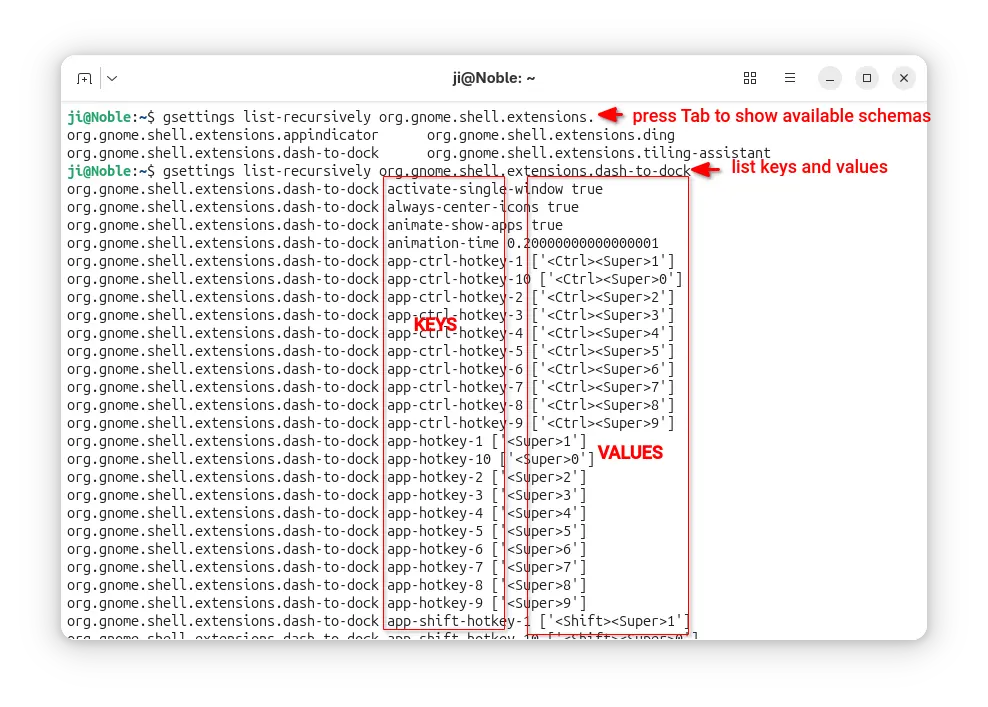
For system extensions, first run command below to list all the available keys and the values:

gsettings list-recursively org.gnome.shell.extensions.dash-to-dock

Here replace dash-to-dock (Ubuntu Dock) to the extension name you’re going to configure. Or, press Tab twice before typing its name to print available choices.

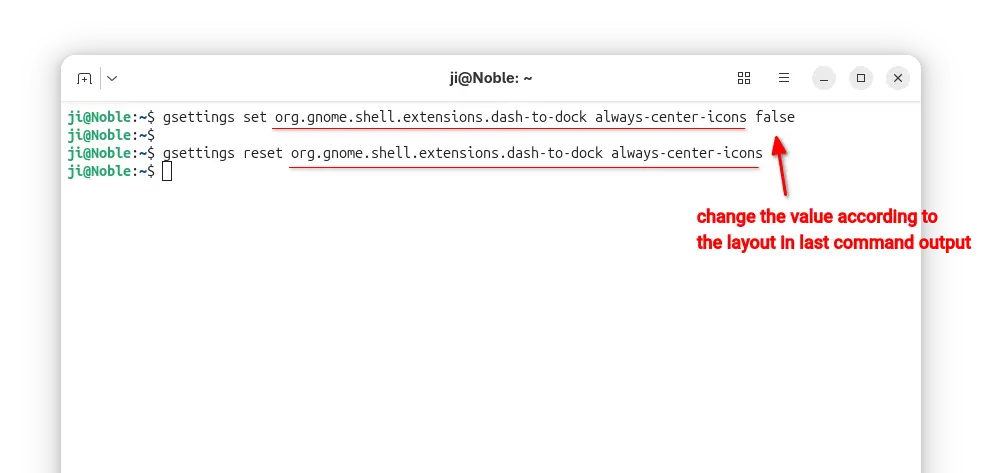
After that, run similar command below to configure an extension key value:

gsettings set org.gnome.shell.extensions.dash-to-dock always-center-icons false

Also replace extension name dash-to-dock, key-name always-center-icons, and key-value false according to the last command output.

Or, run command to reset an extension’s key value to default.

gsettings reset org.gnome.shell.extensions.dash-to-dock always-center-icons

For user extensions, run gnome-extensions list --user to find the ID, then do following steps instead:

  • First, print the extension info, Just Perfection for example, and find out the PATH.
    gnome-extensions info just-perfection-desktop@just-perfection
  • Then, print the extension metadata according to its PATH, and find out the settings schema:
    cat /home/ji/.local/share/gnome-shell/extensions/just-perfection-desktop@just-perfection/metadata.json

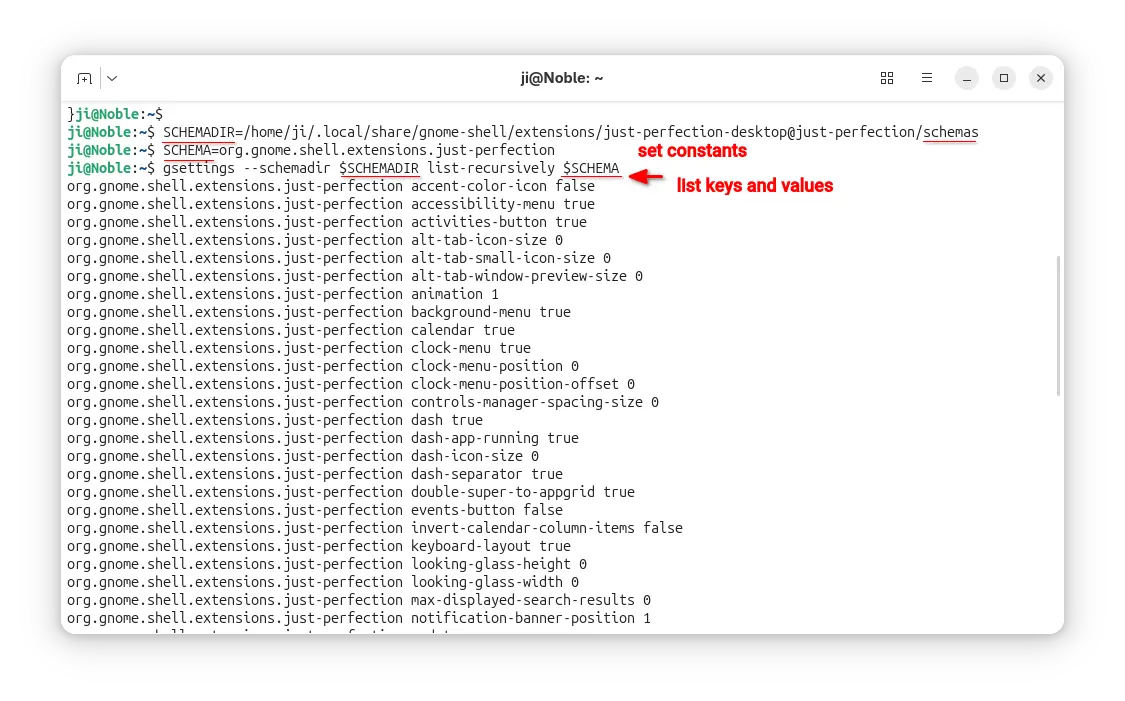
  • After found out the extension PATH and settings schema, set the following constants.
    SCHEMADIR=/home/ji/.local/share/gnome-shell/extensions/just-perfection-desktop@just-perfection/schemas
    
    SCHEMA=org.gnome.shell.extensions.just-perfection

    So that I can use $SCHEMADIR and $SCHEMA in next commands without typing full PATH and settings schema.

  • Next, run command to list all the available keys and their values:
    gsettings --schemadir $SCHEMADIR list-recursively $SCHEMA

  • Finally, according to last command output, run commands below to set or reset something:
    gsettings --schemadir $SCHEMADIR set $SCHEMA top-panel-position 1
    gsettings --schemadir $SCHEMADIR reset $SCHEMA top-panel-position

    Also replace the key and value accordingly.

For more, see the Ubuntu gsettings and gnome-extensions man-pages

❌