Normal view

Received before yesterday

New Extension to Enable GNOME Top Bar in Multiple Displays

By:Ji m
10 December 2025 at 20:09

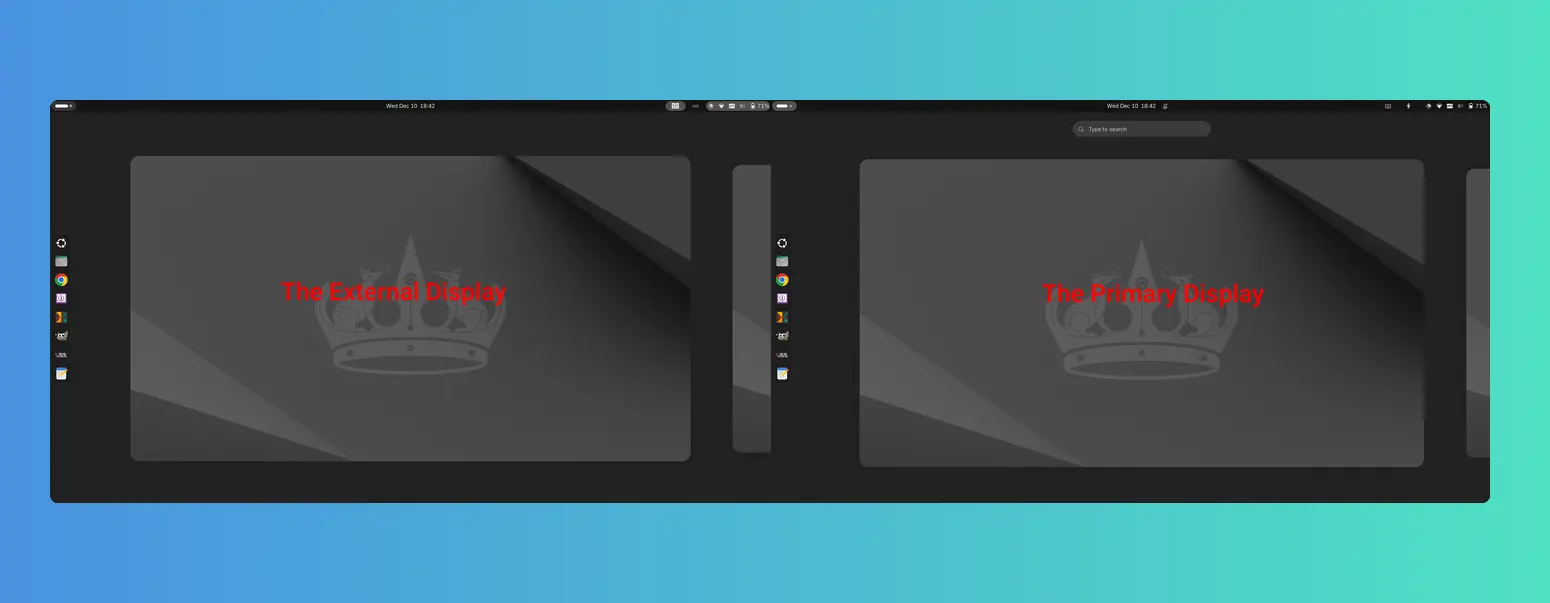
For Ubuntu, Fedora Workstation, and other Linux with recent GNOME Desktop, there’s now a new extension to enable the top-bar in multiple monitors.

As you know, GNOME top-bar by default only shows in the primary display for multi-monitors working in the “Join Mode”.

There was a multi-monitors-add-on extension which can add multiple monitors overview and panel. It’s however discontinued and support ends at Gnome 3.38.

Some forked that extension making it work in GNOME from v42 to 26, and I’ve written about how to install it in Ubuntu 22.04 & 24.04.

Now with the new Multi Monitor Bar extension, all Linux Distributions with recent GNOME v45 ~ 49 (e.g., Ubuntu 24.04, Ubuntu 25.04/25.10, Fedora 42/43, Debian 13, and Arch) can easily enable the top-bar on multiple monitors.

As you see via the screenshot above, besides the top-bar, it also shows following items in the non-primary displays:

  • Activities button (dot and pill icon).
  • date and time menu.
  • system tray icons and indicators.
  • the overview screen.

However, there are still some downsides. There’s neither overview search-box nor app grid to launch apps from the non-primary display. And, following things do NOT work properly either:

  • Scroll on dot-and-pill icon does not switch workspace.
  • Some indicator icons do not show in non-primary display.
  • The built-in screenshot UI options only available in primary display, and “Screen” selection only take the primary screen, though area selection works in all screens.
  • System tray icons display incorrectly when you full-screen something in primary screen. See this issue. In which case, you need to restart the extension to reset.

Install the extension to Enable Gnome Top-bar in Multi-monitors

For Ubuntu 24.04 and higher, simply launch App Center, search & install Extension Manager (filter by Debian package).

Install Extension Manager in Ubuntu Software/App Center

Next, launch Extension Manager and switch to “Browse” tab, finally search & install the “Multi Monitor Bar” extension.

After installed the extension, Gnome top-bar should display automatically on your external monitors. And, you may switch to “Installed” tab in Extension Manager to configure that extension with following options:

  • Turn on/off panel, activities-button, date and time button in additional monitors.
  • Enable/disable hot-corners function.
  • Add more indicators to additional monitors.

For other Linux, simply launch web browser and visit the extension on EGO:

Then, install the browser extension (if it asks) with the link in that page and refresh. Finally, use the ON/OFF toggle to install the extension.

Tips: besides installing the browser extension, Debian/Ubuntu need to also install the agent package by running the command below in terminal:

sudo apt install chrome-gnome-shell

Finally refresh the page to see the toggle option.

After installed the extension, install “Gnome Extensions” in GNOME Software or your system package manager and use it to manage the extension preferences.

That’s all. Enjoy!

Speed up Ubuntu PPA Apt Downloading in Ubuntu / Linux Mint

By:Ji m
4 December 2025 at 17:52

Use apt or apt-get to install/upgrade PPA packages but the download speed is slow? Here’s a workaround to speed it up in Ubuntu or Linux Mint.

By choosing a download mirror that nears to me using “Software & Updates” usually can fix slow downloading issue when installing packages from official Ubuntu repositories.

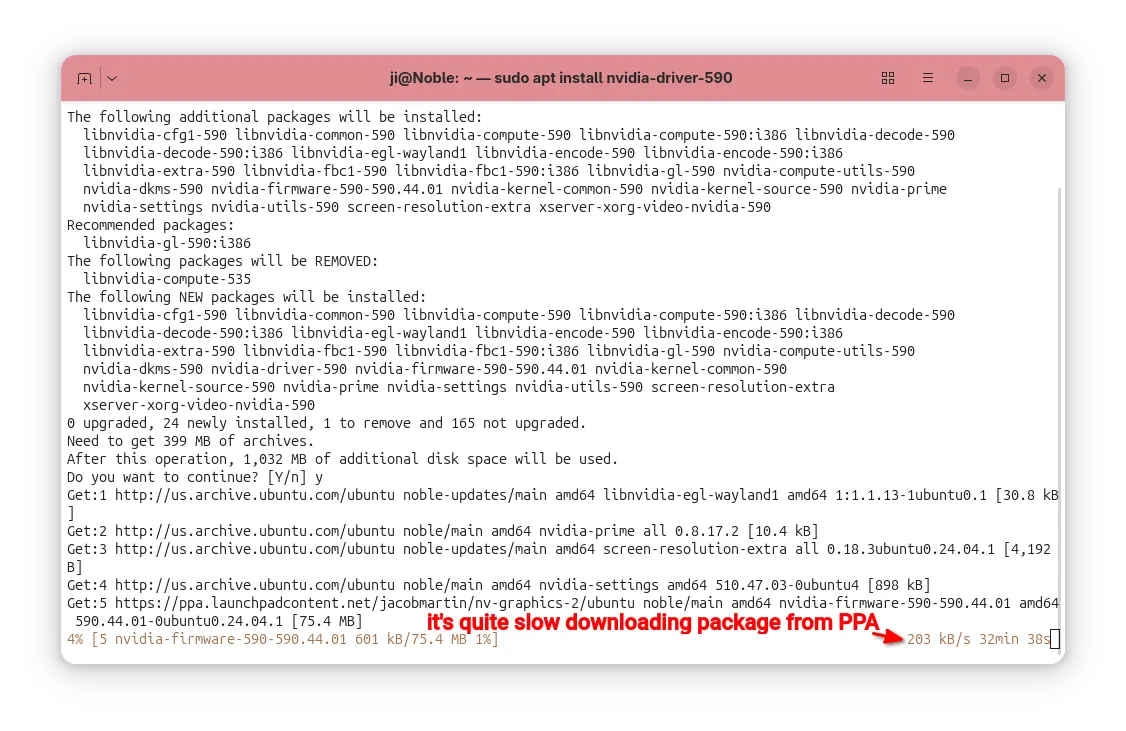
But for app packages from Ubuntu PPAs, in most time it downloads at a speed of few hundreds KB/S.

It’s OK for small apps, but for PPA packages with large file sizes (e.g. NVIDIA driver from Graphics Driver Team PPA, or Plasma Desktop from KUbuntu PPA), it can take half an hour and even more time to install due to slow download speed.

downloading packages from PPA using apt is quite slow

In the case, apt-fast can help!

It’s a free open-source shell script wrapper for apt/apt-get, by using aria2 multi-connection download utility. It works by splitting large file into multiple small pieces, then downloading them from multiple sources in parallel.

Though, the launchpad PPA does not have mirrors, it can still speed up the large file downloading probably due to multi-connections. In my case, it reduced the nvidia-590 packages downloading time from about 30 minutes to less than 3 minutes.

Step 1: Install apt-fast

apt-fast has an official PPA that contains the most recent packages for all current standard supported Ubuntu releases (e.g., Ubuntu 22.04, Ubuntu 24.04, Ubuntu 25.04/25.10), as well as the old Ubuntu 20.04, 18.04, 16.04, and even 14.04 LTS releases.

To add the PPA, press Ctrl+Alt+T to open terminal and run command:

sudo add-apt-repository ppa:apt-fast/stable

Type your user password when it asks (no visual feedback) and hit Enter to continue.

All current Ubuntu releases will automatically refresh cache while adding PPA. But for Linux Mint and old Ubuntu, you may run the command below to update cache manually:

sudo apt update

Finally, install the wrapper by running command:

sudo apt install apt-fast

After installed the package, it will automatically run the post-install script to configure the basic things, like which package manager (apt, apt-get, or aptitude) to use for installing packages, maximum allowed number of connections, and, whether to ask for confirmation before downloading.

Step 2: Configure apt-fast (Optional)

Besides the basic settings you set above, you can configure more about apt-fast, including:

  • add/change downloads mirrors, if you want to use it for getting packages from Ubuntu repositories.
  • change the minimum size of each piece, and piece selection algorithm.
  • adjust the ‘aria2c’ download command.
  • change the temporary download folder, and apt cache directory.
  • enable/disable APT authentication support.
  • change the colors, and more.

Simply, run the command below to open the configuration file via nano command line text editor:

sudo nano /etc/apt-fast.conf

Then edit according to the description text if need, finally Ctrl+S to save and Ctrl+X to exit.

Step 3: How to use apt-fast

You can use apt-fast just by replacing apt or apt-get in all install, upgrade, etc commands with apt-fast.

For example, install app packages:

sudo apt-fast install package1 package2 package3

Install all available updates, but never remove existing packages:

sudo apt-fast upgrade

Install all available updates, allow removing existing packages if required:

sudo apt-fast full-upgrade

Clean download files in cache directory and temporary download folder:

sudo apt-fast clean

For more, see manual by running man apt-fast command.

Uninstall apt-fast (Optional)

If something goes wrong, or you don’t need it anymore, then open terminal (Ctrl+Alt+T) and run command to remove it:

sudo apt remove apt-fast aria2 libaria2-0

And, remove the PPA either by using “Software & Updates -> Updates”(or Software Sources for Linux Mint) utility or by running command:

sudo add-apt-repository --remove ppa:apt-fast/stable

Also, you may need to run sudo apt update to refresh cache afterward in Linux Mint or old Ubuntu 14.04.

How to Disable All the AI Features in Firefox Web Browser

By:Ji m
14 November 2025 at 21:55

Firefox introduced AI chatbot, AI powered link preview, and search images with Google Lens etc AI powered features in the past releases.

According to the Firefox Privacy Notice, it does NOT have access to the AI conversations or what user input, but do collect technical and interaction data, such as how often a chatbot provider or suggested prompts are used, and the length of selected text.

AI chatbot in Firefox sidebar

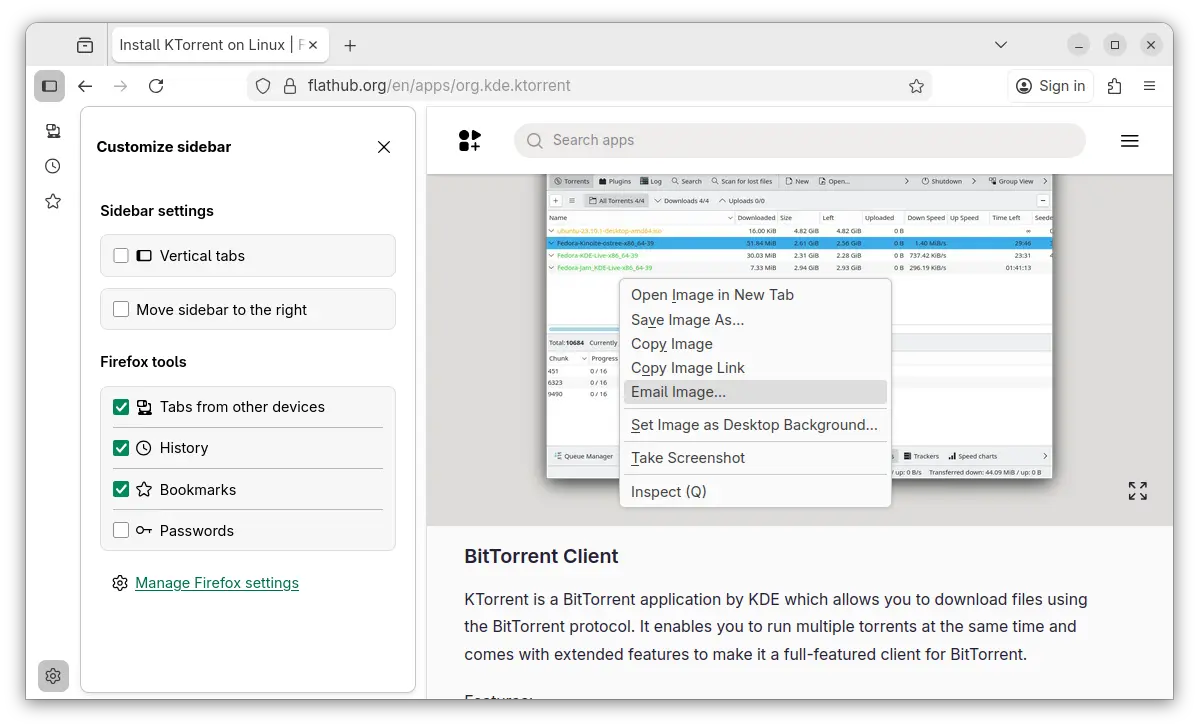
If you don’t like the AI chatbot feature, you can hide them from side-bar settings page, or remove the shortcut from the context menu of a text selection.

Hide AI chatbot

While, in this tutorial I’m going to show you how to disable them so that they will disappear along with the settings option, link preview, and image search with Google Lens.

No AI chatbot, no configure options, and no Google Lens image search

NOTE: This tutorial is tested in Ubuntu 24.04 with Firefox 145. As time go on, Firefox will release new versions and may add, remove, or change the AI related preference keys.

Option 1: Disable AI LLM through about:config

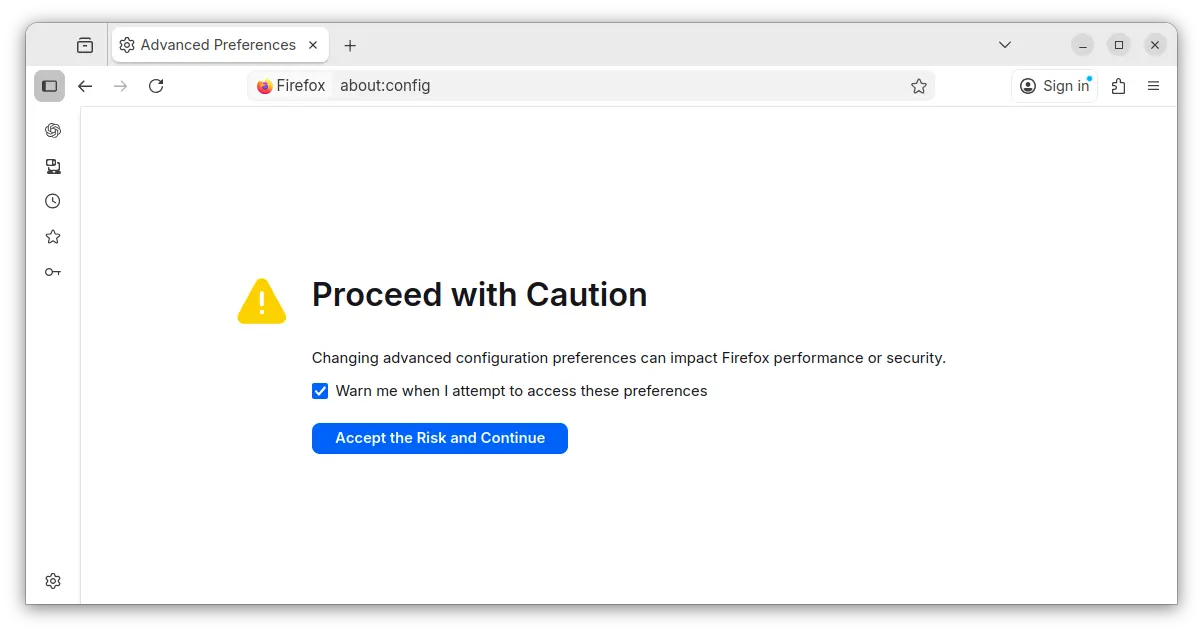
For current profile only, type about:config in address bar and hit Enter, then click the blue “Accept the Risk and Continue” button to access the advanced configuration page.

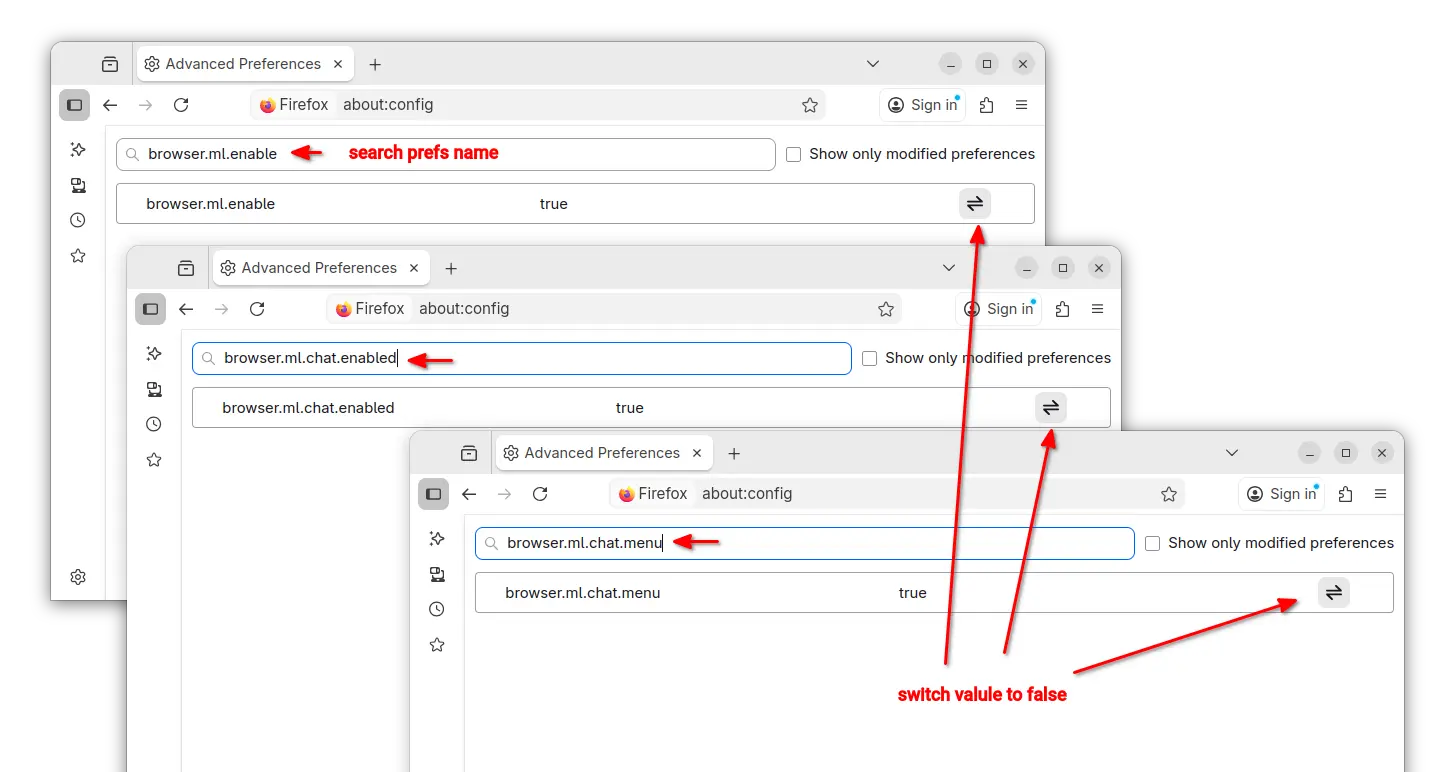
Next, search following preference names and set them to “false” one by one:

  • browser.ml.enable
  • browser.ml.chat.enabled
  • browser.ml.chat.menu
  • browser.ml.chat.page
  • browser.ml.chat.page.footerBadge
  • browser.ml.chat.page.menuBadge
  • browser.ml.linkPreview.enabled
  • browser.ml.pageAssist.enabled
  • browser.tabs.groups.smart.enabled
  • browser.tabs.groups.smart.userEnabled
  • extensions.ml.enabled
  • browser.search.visualSearch.featureGate

And, it should apply the changes immediately after you set them all to false.

Option 2: Add configuration file to disable AI features

If you have multiple user profiles for Firefox, and you want to disable AI for them all, then it’s better to add user.js config file instead of configuring the preference keys one by one.

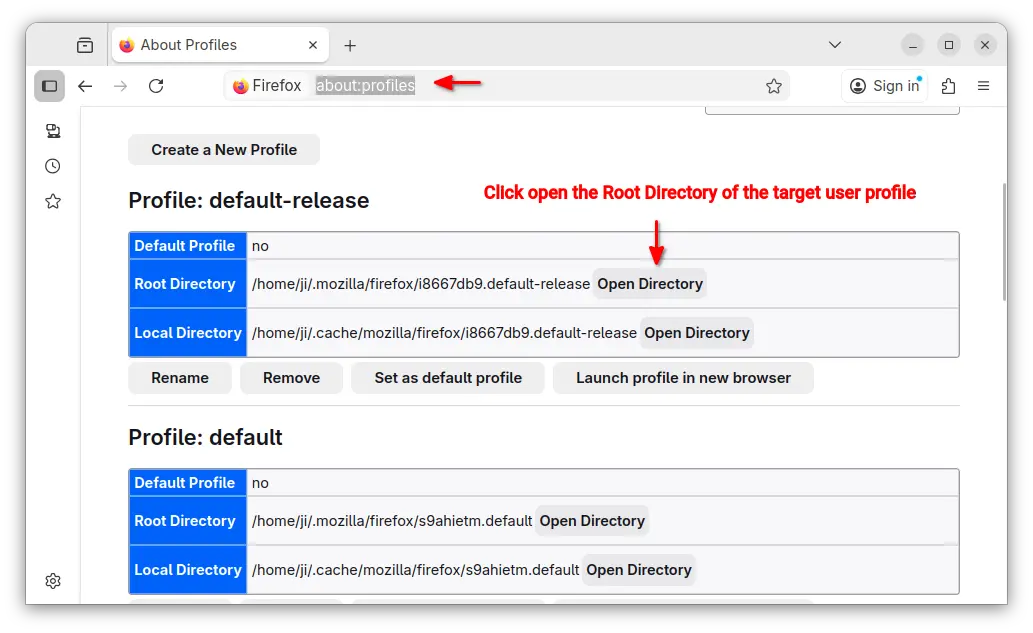
First, type about:profiles in address bar and hit Enter to access the profile management page.

Then, click “Open Directory” button to open the Root Directory of the target user profile.

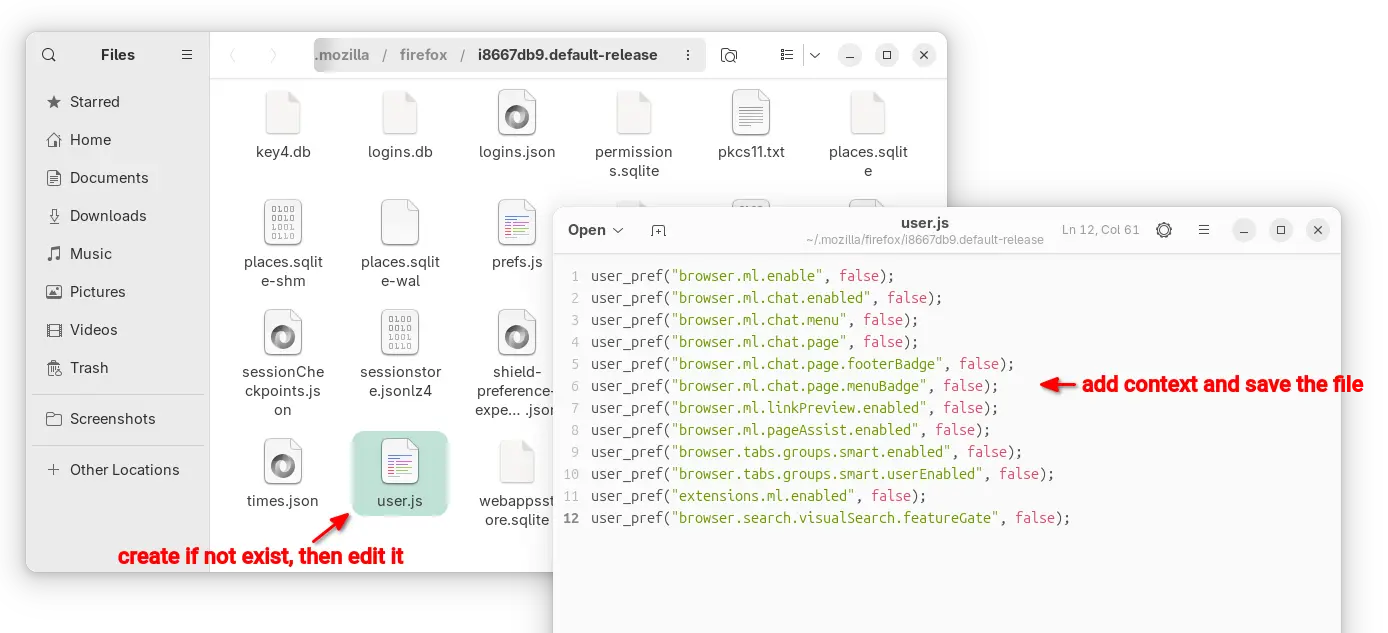
In the opened folder, create user.js file if it does not exist. Finally, edit the file and write following content into it.

user_pref("browser.ml.enable", false);
user_pref("browser.ml.chat.enabled", false);
user_pref("browser.ml.chat.menu", false);
user_pref("browser.ml.chat.page", false);
user_pref("browser.ml.chat.page.footerBadge", false);
user_pref("browser.ml.chat.page.menuBadge", false);
user_pref("browser.ml.linkPreview.enabled", false);
user_pref("browser.ml.pageAssist.enabled", false);
user_pref("browser.tabs.groups.smart.enabled", false);
user_pref("browser.tabs.groups.smart.userEnabled", false);
user_pref("extensions.ml.enabled", false);
user_pref("browser.search.visualSearch.featureGate", false);

After that, you may click “Launch profile in new browser” button to open Firefox window with that profile and see if it works. And, copy the user.js file to root directories for other profiles if need.

Manage Gnome Shell Extensions from Command Line

By:Ji m
10 November 2025 at 21:19

This tutorial shows how to install, remove, enable or disable Gnome Shell extensions and configure extensions’ preferences in Ubuntu, Fedora, etc Linux distributions with Gnome Desktop.

We usually install/uninstall Gnome Shell extension by either visiting extensions.gnome.org in web browser or using Extension Manager app, then manage them through either GNOME Extensions or Extension Manager.

Gnome Extension Manager App

For choice, Gnome has a built-in command line tool that can help sometimes without using a graphical user interface.

Why using Command Line

The command line tool gnome-extensions is useful for advanced users and developers for scripting purpose.

It’s also a good choice for installing extensions from local packages (e.g., ZIP archive) without internet connection. And, in some cases you may use gsettings command to configure extension preferences.

Install an Extension from Command Line

Besides using web browser or Extension Manager, user may manually install an extension by putting the source folder (usually [email protected]) to .local/share/gnome-shell/extensions directory.

Say you downloaded an extension package from extensions.gnome.org, by choosing Gnome Shell version and Extension version.

Download an extension from extensions.gnome.org

You may then install it by running command:

gnome-extensions install /path/to/extension.zip

The command do the job decompressing the ZIP archive (.tar.xz, .tar.gz etc also supported) and moving the source to the user’s extension directory mentioned above.

This method however need a log out and back in, before being able to enable the new installed extension.

List Installed Extensions from Command Line

To list all the installed extensions, simply use command:

gnome-extensions list

For choice, you may list user installed extensions via --user option, or system extensions via --system.

gnome-extensions list --user

And, use --enabled option for enabled extensions, --disabled for disabled extensions, and --details for more about extensions, including name, description, source URL, version, and state.

gnome-extensions list --user --enabled

Enable/Disable Extensions

Once you got the extension IDs via the command above, you may get more about it by running command:

gnome-extensions info [email protected]

Here replace the ID [email protected] with yours.

Then, enable or disable an extension by running command:

gnome-extensions enable [email protected]

or:

gnome-extensions disable [email protected]

Also replace the extension ID [email protected], and optionally add --quiet flag to ignore error messages (if any).

Configure Extension Preferences from Command Line

NOTE: if you just want to launch the graphical configuration dialog from command line, then use command (replace extension ID):

gnome-extensions prefs [email protected]

To configure extension preferences from command line, use gsettings command.

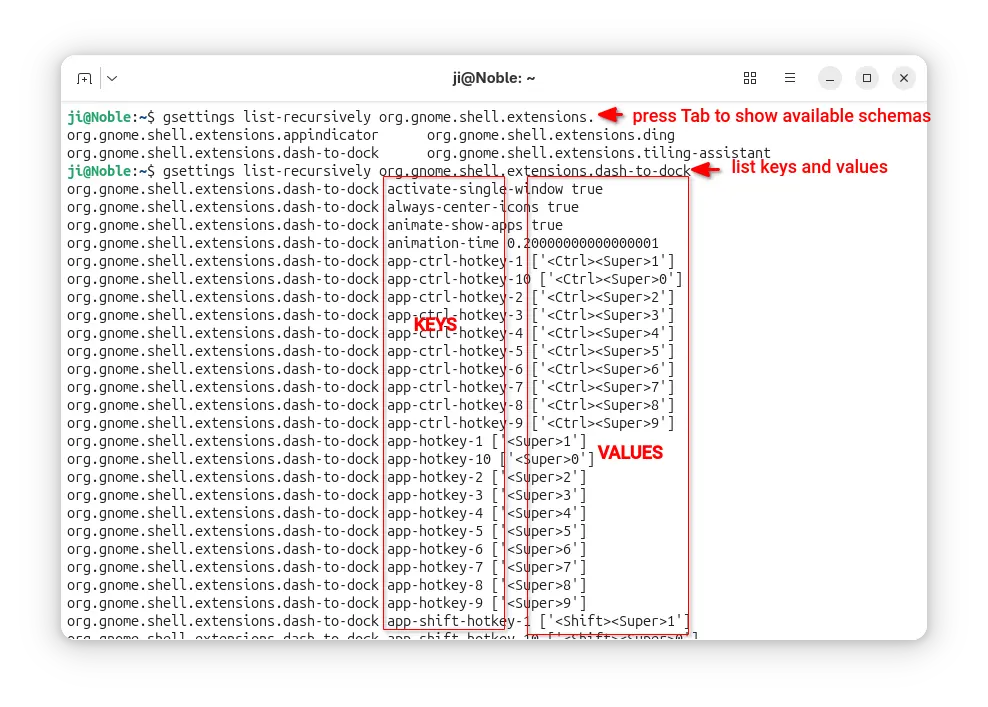
For system extensions, first run command below to list all the available keys and the values:

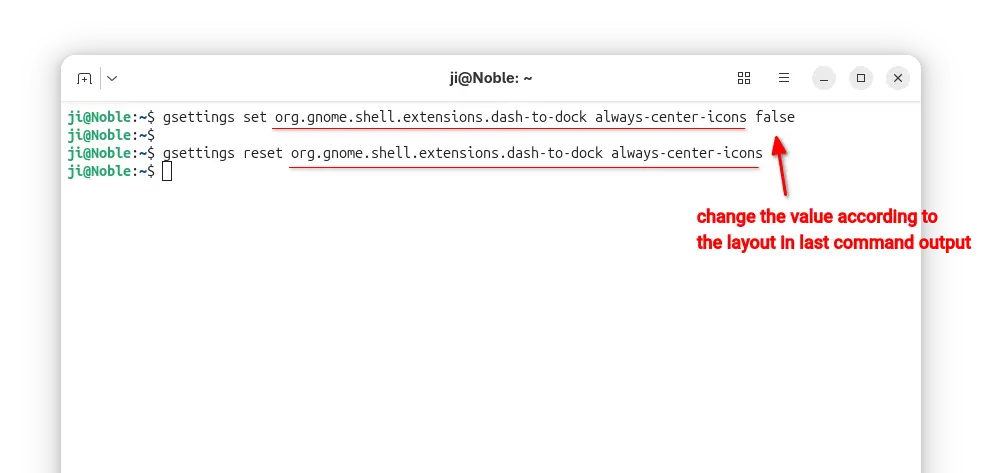
gsettings list-recursively org.gnome.shell.extensions.dash-to-dock

Here replace dash-to-dock (Ubuntu Dock) to the extension name you’re going to configure. Or, press Tab twice before typing its name to print available choices.

After that, run similar command below to configure an extension key value:

gsettings set org.gnome.shell.extensions.dash-to-dock always-center-icons false

Also replace extension name dash-to-dock, key-name always-center-icons, and key-value false according to the last command output.

Or, run command to reset an extension’s key value to default.

gsettings reset org.gnome.shell.extensions.dash-to-dock always-center-icons

For user extensions, run gnome-extensions list --user to find the ID, then do following steps instead:

  • First, print the extension info, Just Perfection for example, and find out the PATH.
    gnome-extensions info just-perfection-desktop@just-perfection
  • Then, print the extension metadata according to its PATH, and find out the settings schema:
    cat /home/ji/.local/share/gnome-shell/extensions/just-perfection-desktop@just-perfection/metadata.json

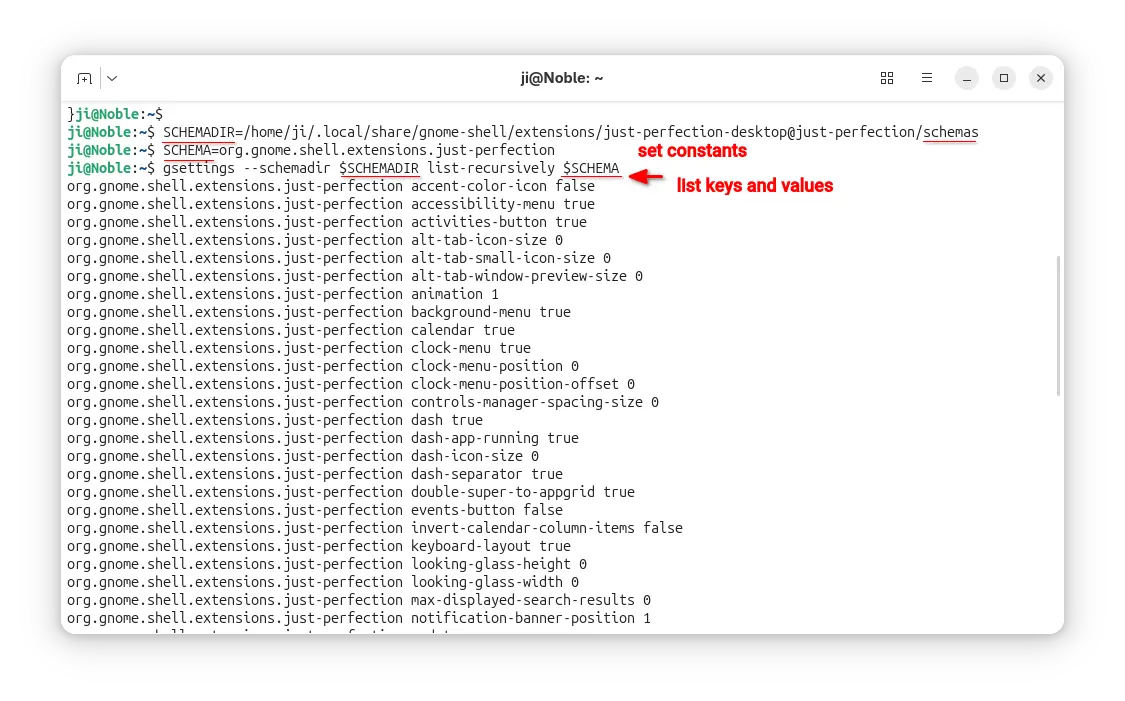
  • After found out the extension PATH and settings schema, set the following constants.
    SCHEMADIR=/home/ji/.local/share/gnome-shell/extensions/just-perfection-desktop@just-perfection/schemas
    
    SCHEMA=org.gnome.shell.extensions.just-perfection

    So that I can use $SCHEMADIR and $SCHEMA in next commands without typing full PATH and settings schema.

  • Next, run command to list all the available keys and their values:
    gsettings --schemadir $SCHEMADIR list-recursively $SCHEMA

  • Finally, according to last command output, run commands below to set or reset something:
    gsettings --schemadir $SCHEMADIR set $SCHEMA top-panel-position 1
    gsettings --schemadir $SCHEMADIR reset $SCHEMA top-panel-position

    Also replace the key and value accordingly.

For more, see the Ubuntu gsettings and gnome-extensions man-pages

Run Custom Actions Automatically When Switch to Light or Dark

By:Ji m
8 November 2025 at 23:58

Want to do some actions automatically when you switch desktop theme to light or dark style? Here’s a new application can do the job for GNOME Desktop.

It’s switchcraft, a free open-source Vala written application that provides a modern simple interface, allowing to add custom commands to run automatically when the theme changes.

The app monitors the org.gnome.desktop.interface color-scheme key value and executes commands instantly when it’s changed to “prefer-dark” or “prefer-light”.

It can be useful for doing the following things automatically when switching desktop between light and dark style:

  • Change the legacy GTK3 theme, though Ubuntu already does it automatically.
  • Change Qt app theme.
  • Enable/Disable extensions, or configure extensions’ preferences.
  • Change Gnome Shell theme.
  • Or do whatever that you want.

Simply add your desired commands in the “Light” and “Dark” tabs, and turn on “Enable Monitor” option in Preferences.

Then, it will auto-run the switchcraft-monitor.sh script under .local/bin folder in next login, monitoring your desktop color scheme and running the commands automatically.

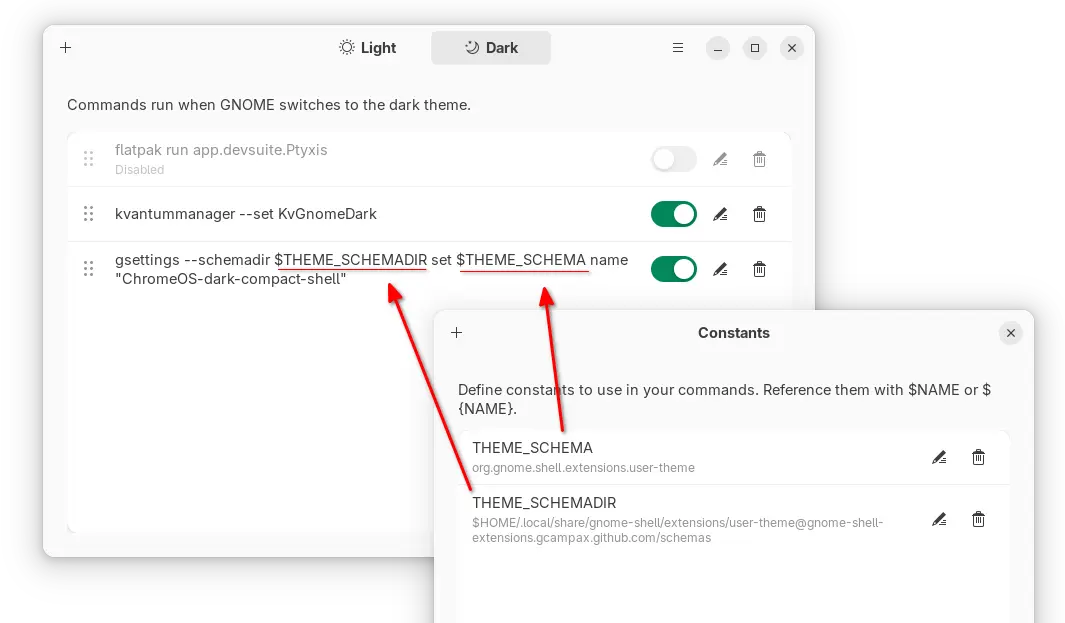
Besides that, it supports adding reusable constants for common variables in commands. And, it support exporting all the commands and importing to other systems.

Install switchcraft

Switchcraft provides official installer packages which are available to download in the link below:

They include .rpm package for Fedora/RHEL and .deb package for Debian/Ubuntu, which can be installed by system software app (e.g., Gnome Software and App Center).

For other Linux, it also provides non-install AppImage package that can be run directly to launch to the app, though you need to add executable permission from file properties dialog.

NOTE: switchcraft requires GNOME 40+, GLib >= 2.66, and jq command-line JSON processor.

Example Commands:

For those who are new to Linux, here are some example commands that may help.

1. change legacy GTK3/Icon theme

NOTE: The commands are written for Debian, Fedora, etc Linux Distributions, as Ubuntu automatically set Yaru and its variants as legacy GTK3 theme.

gsettings set org.gnome.desktop.interface gtk-theme 'adw-gtk3-dark'

This command changes the GTK3 theme to adw-gtk3 dark mode. You need to replace adw-gtk3-dark depends on which theme you want to set.

gsettings set org.gnome.desktop.interface icon-theme 'MacTahoe-light'

This will change the icon theme to MacTahoe-light. Also you need to change the theme name accordingly.

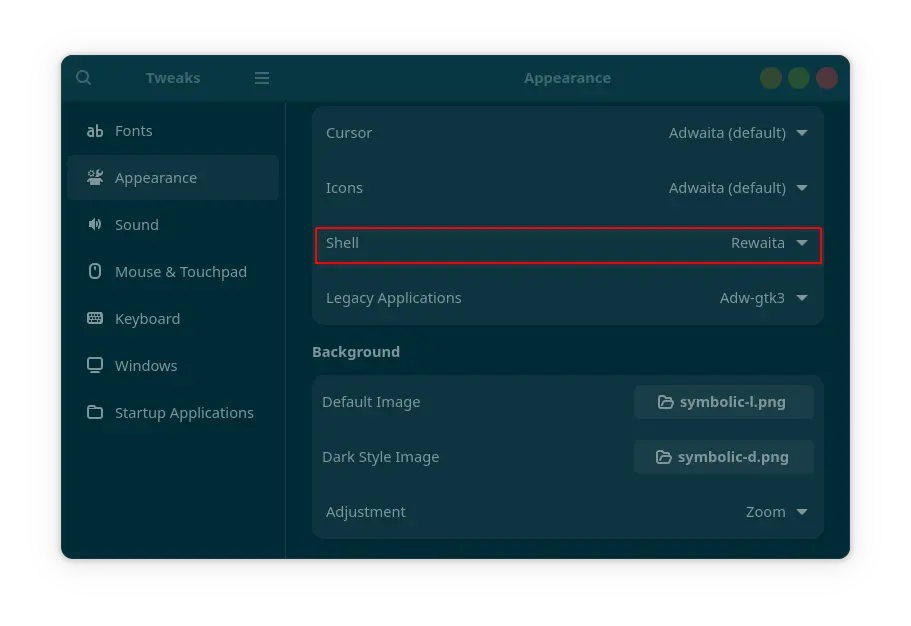
Go to gnome-look.org for more themes, and use “Gnome Tweaks -> Appearance” to see all available choices.

2. Enable/Disable Extensions

First, run command to list all the installed extensions.

gnome-extensions list

Then, disable an extension by command:

gnome-extensions disable [email protected]

Here replace disable with enable if you want to enable an extension. And, replace extension ID [email protected] accordingly.

3. Configure Extension

For system default extensions, use similar command below to configure:

gsettings set org.gnome.shell.extensions.dash-to-dock background-color "#ffffff"

You may install and use the graphical “Dconf Editor” tool to get available extension names, keys, and key values.

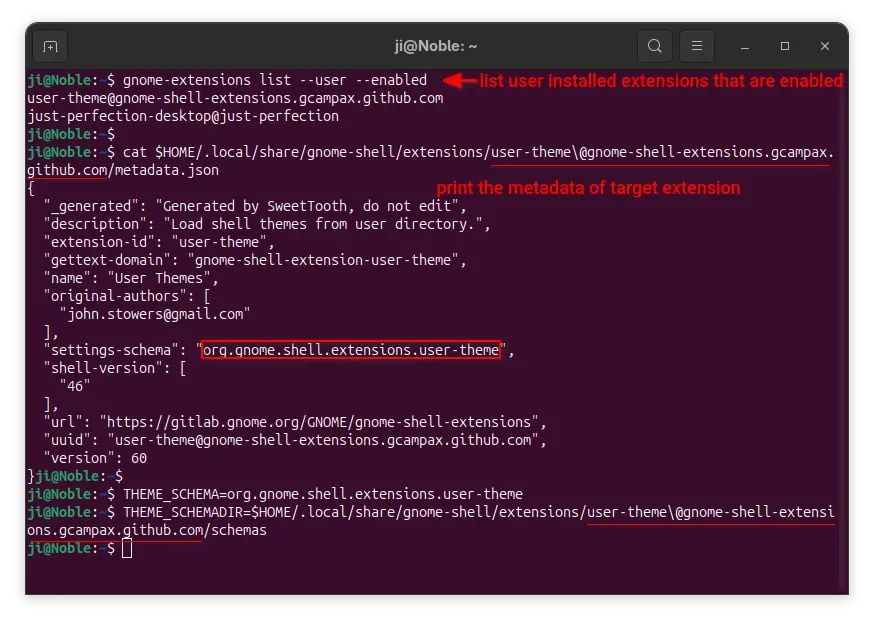
For user installed extensions, you may first run command to list them:

gnome-extensions list --user --enabled

Then, print metadata of an extension (User Themes for example), to get the setting schema:

cat $HOME/.local/share/gnome-shell/extensions/user-theme\@gnome-shell-extensions.gcampax.github.com/metadata.json

Next, set constants:

THEME_SCHAMA=org.gnome.shell.extensions.user-theme
THEME_SCHAMADIR=$HOME/.local/share/gnome-shell/extensions/user-theme\@gnome-shell-extensions.gcampax.github.com/metadata.json/schemas

Finally, run command to configure the “name” (get the key from ‘gschema.xml’ file in extension folder) for the extension.

gsettings --schemadir $THEME_SCHEMADIR set $THEME_SCHEMA name "ChromeOS-dark-compact-shell"

Feel free to leave command below if you want more commands.

Ubuntu Announced the 25.04 to 25.10 Upgrade Channel

By:Ji m
31 October 2025 at 19:50

After 3 weeks of the release date, Ubuntu finally opened the channel for upgrading from Ubuntu 25.04 to Ubuntu 25.10.

Ubuntu 25.10, code-name Questing Quokka, is the latest version that was released on October 9th. It features 9 month support until July 2026, Linux Kernel 6.17, GNOME Desktop 49, new Rust-based core utilities, new Ptyxis terminal emulator, and Loupe image viewer.

It as well removed the classic Xorg session and dropped “Startup Applications” tool. See Ubuntu 25.10 release note for more details.

Just one day ago, Ubuntu finally announced the upgrade channel for 25.04, while Ubuntu 24.04 may also upgrade to 25.04, then to 25.10.

We’re happy to announce that the upgrades to Ubuntu 25.10 (Questing Quokka) are now live!

This cycle also marks the arrival of amd64v3 as an architecture variant — shiny, fast, and ready for testing. If you haven’t already, I’d encourage reading the Discourse post for the full story:

https://discourse.ubuntu.com/t/introducing-architecture-variants-amd64v3-now-available-in-ubuntu-25-10/71312

Happy upgrading, and may your Quokka quest be bug-free!

Before getting started

Ubuntu 25.04 support will end in January 2026. If you decide to upgrade to Ubuntu 25.10, then it’s better to do following steps before getting started:

  • Backup, backup, backup! Backup your important data before upgrading to 25.10, as the process might fail due to unknown bugs or potential interruption.
  • Backup the data of Xorg only applications, as 25.10 dropped Gnome on Xorg, unless you use other desktop environments (e.g., XFCE4, MATE) or switch to XUbuntu, Ubuntu MATE, etc flavors.
  • (optional) Uninstall unused apps, which can speed up the upgrade process by downloading less packages.
  • For laptops, connect to power supply in case of running out of battery.

Upgrade from 25.04 to 25.10

Ubuntu 25.04 now should automatically pop-up a dialog saying that Ubuntu 25.10 upgrade is available, with buttons to accept or refuse.

If you miss that dialog, then do following steps to manually start the upgrading process.

1. First launch Software & Updates, under “Updates” tab, make sure you set notify for any new Ubuntu version.

For Ubuntu server, edit /etc/update-manager/release-upgrades instead and set Prompt=normal

2. Next, launch Software Updater and install all the available updates. And, restart your computer if it asks.

For server with GUI, run the command below instead:

sudo apt update && sudo apt full-upgrade

3. Finally, either launch Software Updater again and click the “Upgrade” button.

Or, run the command below to start the upgrade process from terminal:

do-release-upgrade

then follow the wizard or terminal output to upgrade your Ubuntu.

NOTE: Don’t go far away from your computer. It will ask few questions during the upgrade process, e.g., whether to keep obsolete packages or not. And, when everything’s done well, it will ask you restart computer to complete.

Ubuntu Announced How to Fix for 25.10 Automatic Updates

By:Ji m
28 October 2025 at 00:40

For users of Ubuntu 25.10 Questing Quokka, Ubuntu team announced how to fix the issue that automatically check of updates not working in desktop, server, cloud, and container.

As you may know, Ubuntu replaced GNU Core Utilities with Rust in 25.10. Most core command line tools, such as chroot, dd, du, echo, ls, mkdir, pwd, sudo, who, and more, are now the “memory safe” Rust-based utilities, though for end users, they can be used just like before.

Ubuntu 25.10 switched to Rust based core-utils

This Rust rewritten coreutils so far has many issues that break things in Ubuntu 25.10. And, Ubuntu and upstream developer team keep working to fix them.

As far as I know, Grub bootloader did not (fixed now) find and load dual- or multi-boot operating systems, who command does not show who is logged in, stty command seems to return invalid or non-standard argument format that breaks interactive terminal applications.

Ubuntu by default checks and installs security updates automatically, which is useful to keep your system (especially for public server) safe.

Ubuntu by default automatically check & install security updates

However, due to bug in date command, some Ubuntu 25.10 systems may be unable to automatically check for available. It’s announced few days ago:

Due to a now-resolved bug in the date command, some Ubuntu 25.10 systems have been unable to automatically check for available software updates. Affected machines include cloud deployments, container images, Ubuntu Desktop and Ubuntu Server installs.

As mentioned in the announcement, the issue may affect users who have rust-coreutils <=0.2.2-0ubuntu2. And, it can be easily fixed by installing/updating to rust-coreutils 0.2.2-0ubuntu2.1 or later.

  • For Ubuntu Desktop, simply launch “Software Updater“, then install all the available updates.
  • If you’re OK with Linux commands, then run the command below to refresh cache and update the package:
    sudo apt install --update rust-coreutils

If you found other issues about core utils, then you may either report to this Ubuntu page or the upstream Github page.

And, this discourse thread provides the choice to revert back the old GNU based core-utils for those who need it.

KDE Plasma 6.5 Released! How to Install it in KUbuntu 25.10

By:Ji m
23 October 2025 at 00:06

KDE announced the Plasma desktop 6.5 yesterday. See what’s new and how to install guide for (K)Ubuntu 25.10.

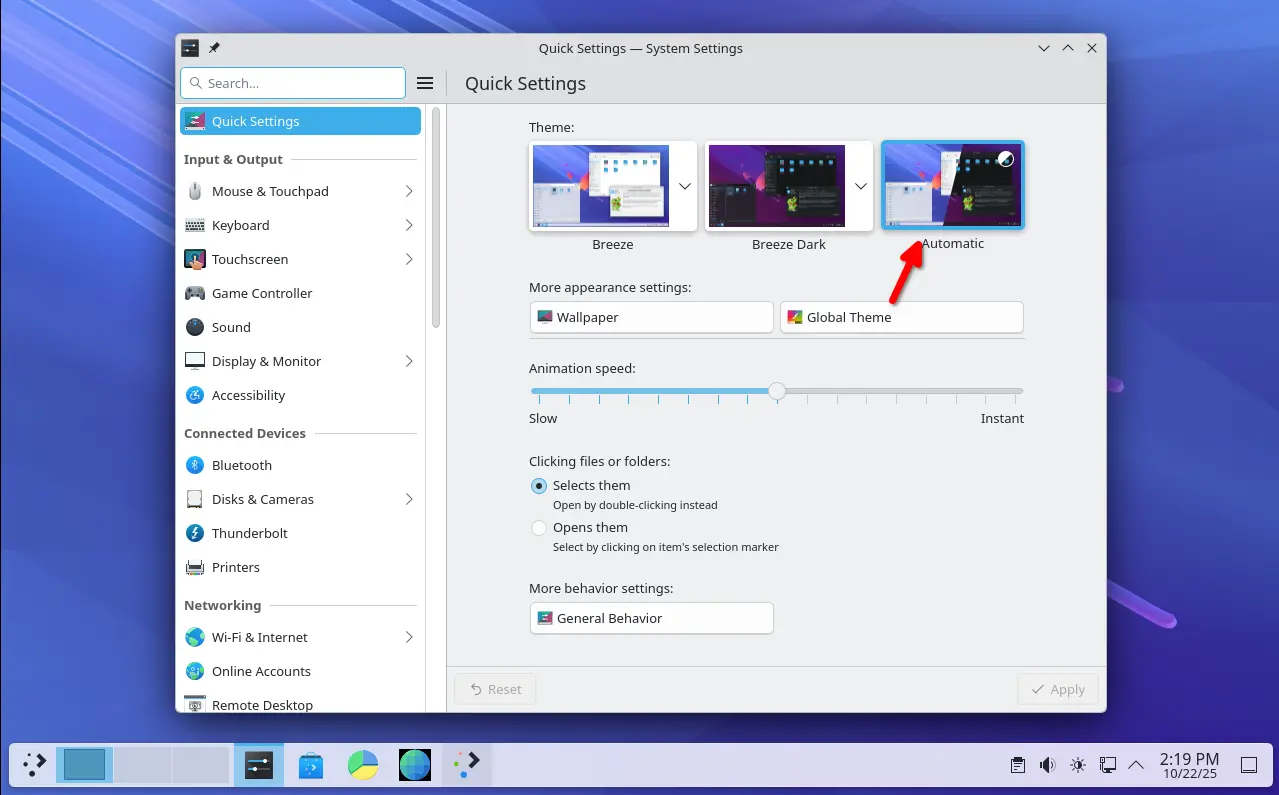
Plasma 6.5 introduced an Automatic theme selection in settings, allowing to automatically switch between light and dark themes according to the time of day.

In the Automatic mode, it uses the light theme for panels, menus, app windows, and wallpaper during the day, and automatically switch them to dark at night. While, user has the choice to set which light or dark theme, and which wallpapers to use.

The new desktop release updated its software app (aka Discover) with support for flatpak+https:// URLs. Meaning that, it allows to click “Install” button in Flathub.org page to automatically open Discover. And, it now can show you hardware drivers available for installation on operating systems supporting this feature.

KRunner, the app launcher, unit converter, calculator, that can be triggered by Alt+F2 or Alt+Space, now supports Fuzzy Search. Meaning even when you misspell an app’s name, it will probably still find it for you.

KRunner Fuzzy Search

The built-in Remote Desktop Protocol (RDP) server in the release now has the ability to share the clipboard. And, it no longer requires to manually create separate remote desktop accounts, as system’s existing user accounts now work as expected.

Zoom & Magnifier effect now has new “Enable text caret tracking” option. With it enabled, it will automatically jump to the position of the text insertion point, when you moving around the screen.

Other changes in Plasma 6.5 include:

  • Rounded window corners (include bottom corners) for default Breeze themes.
  • Add “Pinned clipboard items” feature.
  • Hibernate system from the login screen.
  • Inform when printer’s ink or toner running low or empty.
  • Ability to see missed notifications while you were in Do Not Disturb mode.
  • “Mute Microphone” key or Meta+Mute shortcut mutes all microphones rather than just the active one.
  • Configure rotary dials and touch rings on your drawing tablet in System Settings -> Drawing Tablet
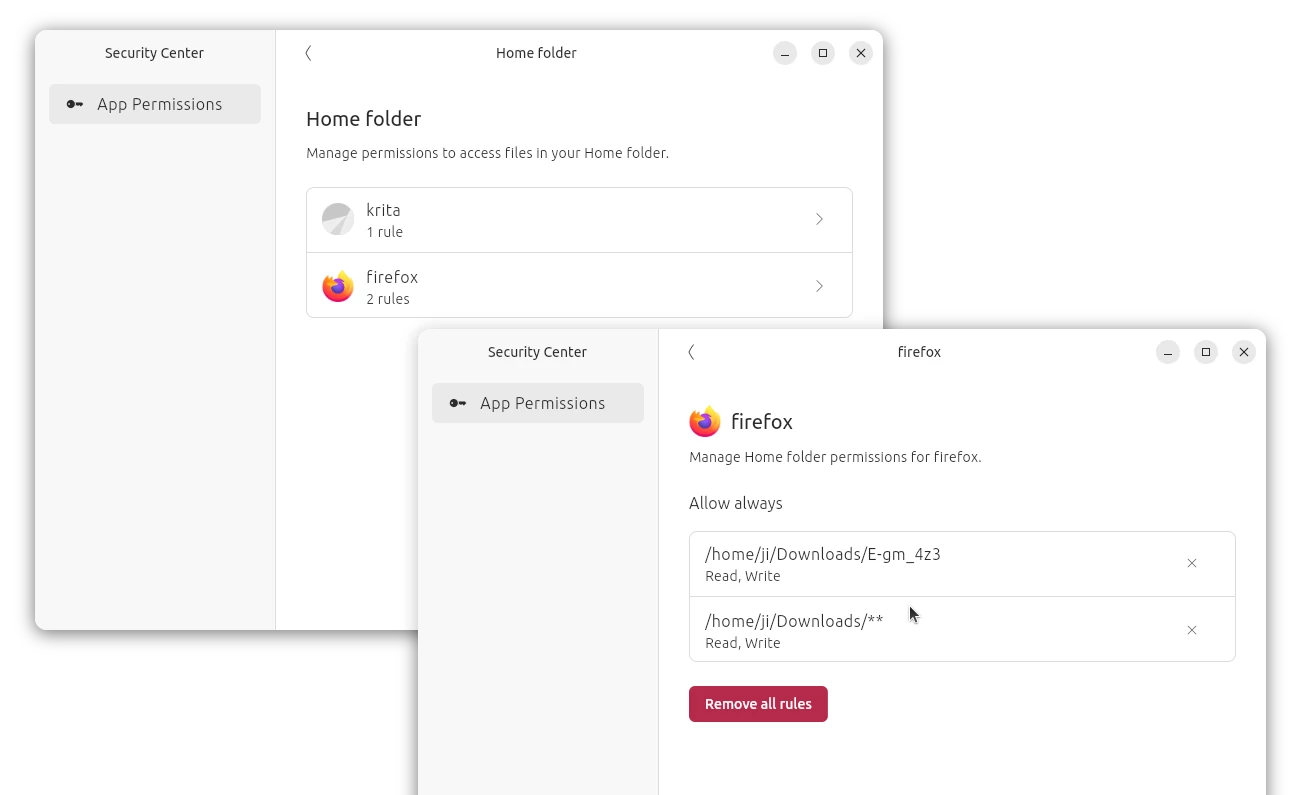
  • Add general Application Permissions page to manage app (include Flatpak apps) permissions.
  • Add more info about game controllers in System Settings’ Game Controller page.
  • Orca screen reader now reads out changes to the Caps Lock state.
  • Show a system notification when plug in a device.
  • Ability to re-order virtual desktops from the Pager widget (Wayland only).
  • Experimental support for Wayland picture-in-picture protocol.
  • Add “overlay planes” support for compatible GPU.

For more about it, see the official release note in this page.

Install Plasma 6.5 in (K)Ubuntu 25.10

Arch Linux has made the Plasma 6.5 into its Extra-Testing repository.

For KUbuntu 25.10, the official Kubuntu Backports PPA has been updated with Plasma Desktop 6.5 along with most recent KDE Gear 25.08.2.

To get them, simply launch terminal (Konsole) and run the commands below one by one:

  • First, run command to add the Backports PPA:
    sudo add-apt-repository ppa:kubuntu-ppa/backports

    It should automatically update caches after adding PPA. Just in case, you may run sudo apt update to manually refresh cache.

  • Then, install all available updates to upgrade your desktop to Plasma 6.5:
    sudo apt full-upgrade

Ubuntu 25.10 and other flavors without KDE Plasma may also install the desktop environment by running the command below after added the PPA:

sudo apt install kubuntu-desktop

Though this is not a good idea as it might mess your current desktop appearance.

Finally, restart your computer to apply changes.

Uninstall KDE Plasma 6.5:

If you installed the 6.5 version of this desktop environment in KUbuntu 25.10 from PPA, simply open terminal (Konsole) and run command below to uninstall:

sudo apt install ppa-purge && sudo ppa-purge ppa:kubuntu-ppa/backports

This command will install ppa-purge command line tool, and use it to purge the PPA, which also downgrade all the packages installed from it. Also, you need to restart computer to apply changes.

Fix Qt App Window Border & Title-bar in Ubuntu 24.04 | 25.10

By:Ji m
13 October 2025 at 16:25

Qt applications (e.g, qBittorrent, KeePassXC) look weird as they don’t have window border or shadow in Ubuntu since 24.04. Here’s how to configure to make them look native.

Applications in Ubuntu and other popular Linux distributions mostly use GTK or Qt tool-kits for rendering their user interfaces. Gnome is based on GTK. It uses “xcb” QPA plugin for Qt apps running on classic Xorg session.

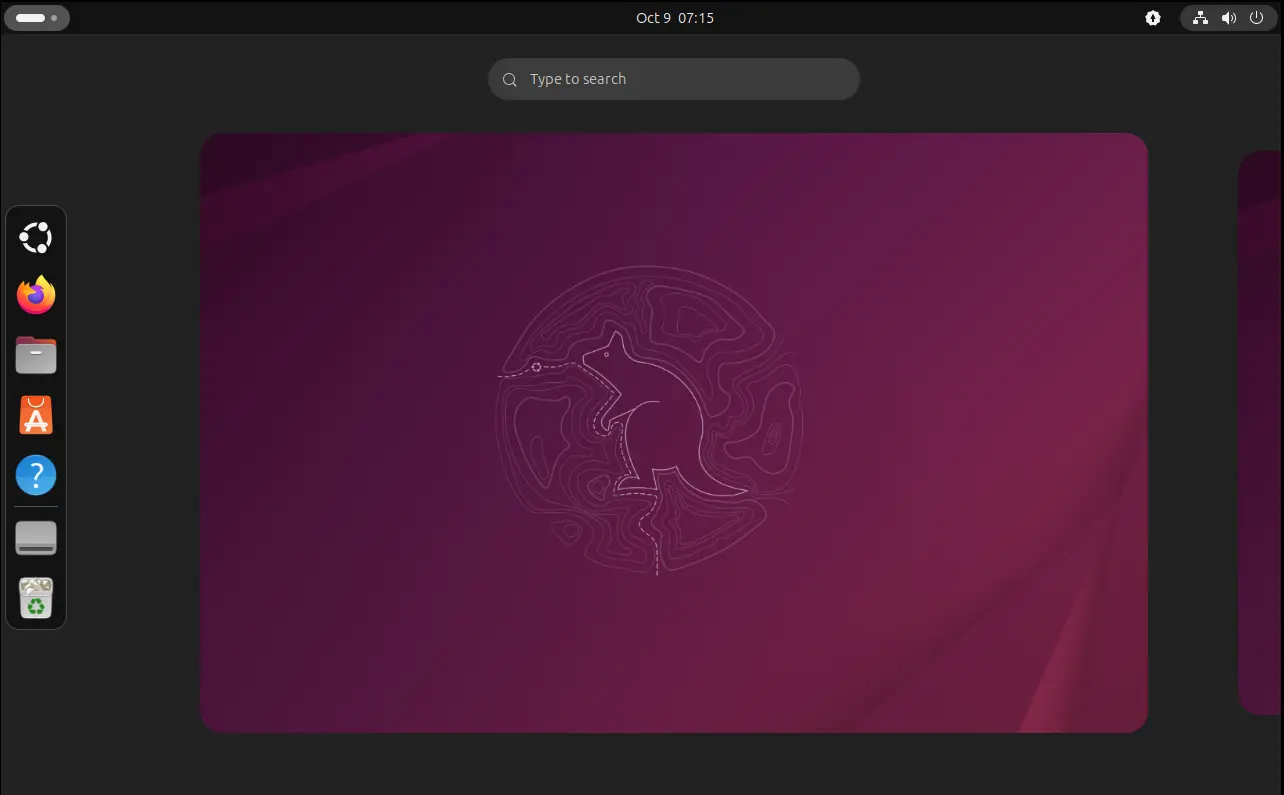
Due to switch to Wayland, the “xcb” plugin is not in use by default, and Qt apps look weird as you see in the screenshot below in Ubuntu 24.04, Ubuntu 25.04 & 25.10.

Qt apps look border-less in Ubuntu since 24.04

To “fix” the issue, I found few choices:

  1. Re-use “xcb” QPA plugin.
  2. QGnomePlatform theme.
  3. QAdwaitaDecorations Qt decoration plugin.

While there are also Qt5/6 configuration tool and Kvantum available for configuring Qt theme, icon, font, color, and more.

1. “Fix” Qt window title-bar and window border

Option 1: use “xcb” QPA plugin

Most Qt applications (both Qt5 and Qt6) are still working good with “xcb” QPA plugin even in Wayland session.

1. First, press Ctrl+Alt+T on keyboard to open window. When it opens, run command to install the required libraries:

sudo apt install libxcb-cursor0 libxcb-composite0

Run sudo apt update to refresh cache in case it’s unable to locate the packages.

2. After that, run the command below in terminal to set the environment variable:

export QT_QPA_PLATFORM=xcb

Then, all Qt apps start from that terminal window will try using “xcb” plugin. For example, run keepassxc to start the Qt-based password manager.

enable ‘xcb’ for apps start from this terminal only

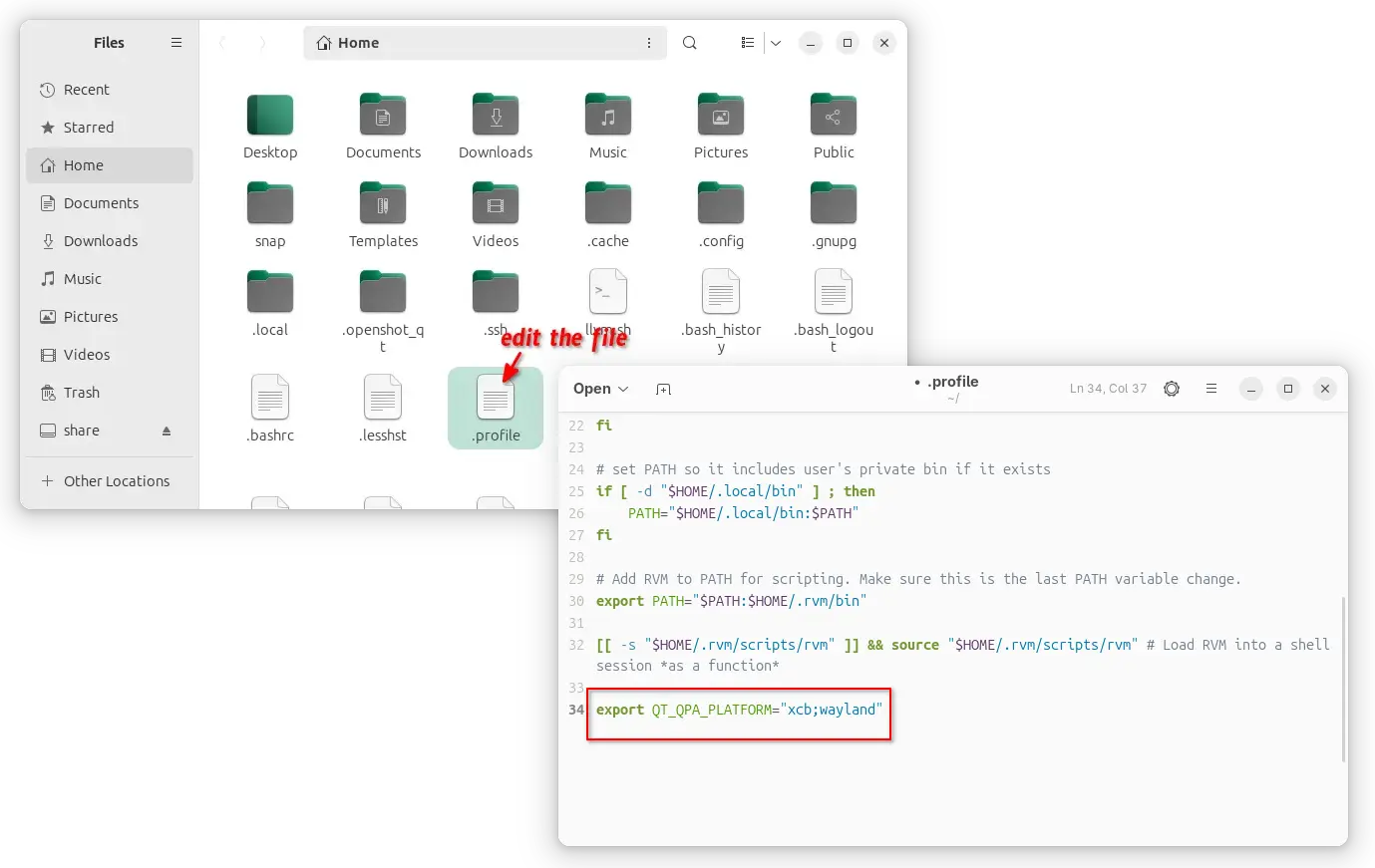
3. If it works for you, then open Files (aka Nautilus), and press Ctrl+H to show all hidden files. Find out .profile file in home directory and click edit it.

Finally, add export QT_QPA_PLATFORM=”xcb;wayland” in the end of file to make it work for all Qt applications permanently! And, log out and back in to apply.

enable xcb for all Qt apps, though current user only

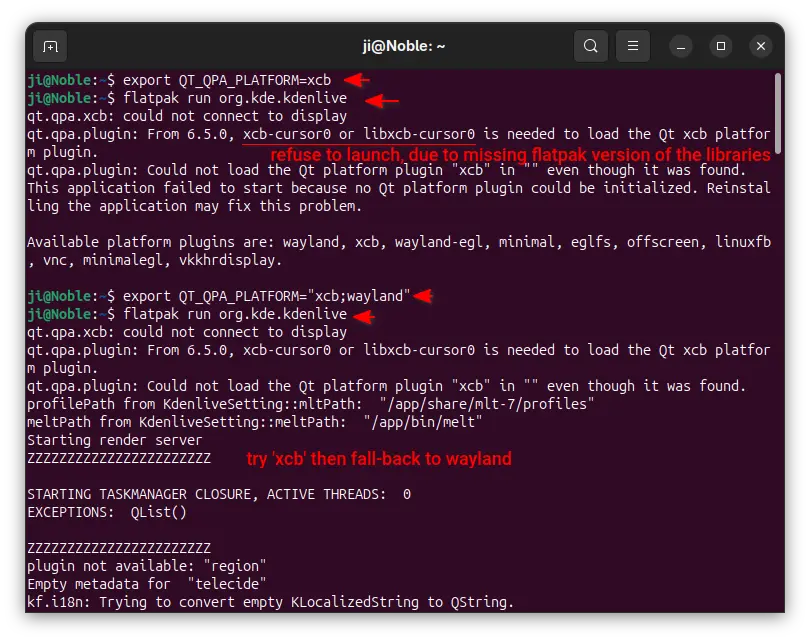
NOTE: It must be set to “xcb;wayland“, to allow fall-back to default wayland, when ‘xcb’ does not work. For example, Qt apps installed as Flatpak may not work with ‘xcb’ plugin and output the error below:

qt.qpa.xcb: could not connect to display
qt.qpa.plugin: From 6.5.0, xcb-cursor0 or libxcb-cursor0 is needed to load the Qt xcb platform plugin.
qt.qpa.plugin: Could not load the Qt platform plugin “xcb” in “” even though it was found.

Option 2: Use QGnomePlatform theme

While xcb is designed for Xorg, FedoraQt team has developed few Qt plugins for better integration in GNOME. They are “QGnomePlatform” theme, “adwaita-qt” style, and “QAdwaitaDecorations”.

Downsides: The Qt window title-bar made by QGnomePlatform looks NOT so good. FedoraQt has discontinued the project. And, Ubuntu 24.04 only includes Qt5 version of the package.

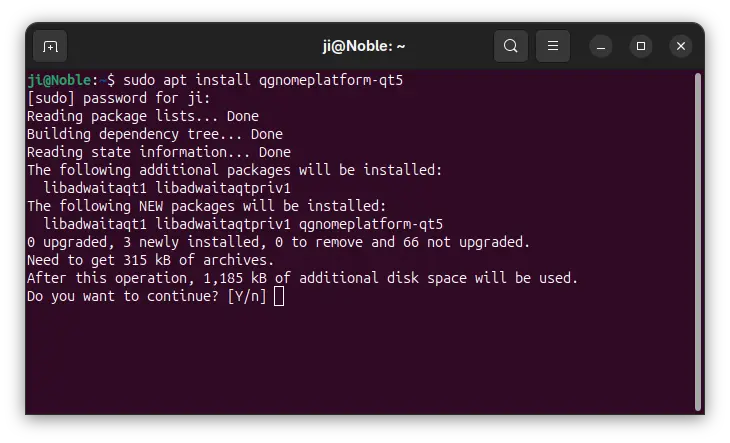
1. To install the Qt platform theme, open terminal (Ctrl+Alt+T) and run command:

sudo apt install qgnomeplatform-qt5

Ubuntu 25.04, 25.10 may also install qgnomeplatform-qt6 for Qt6 support.

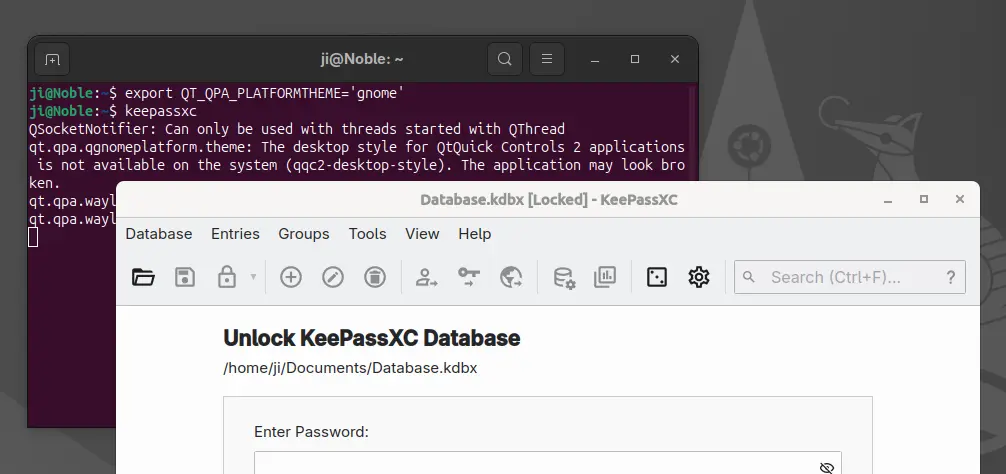
2. Next, either run the command below to set environment:

export QT_QPA_PLATFORMTHEME='gnome'

Then, start Qt apps from the same terminal window to use the Qt platform theme.

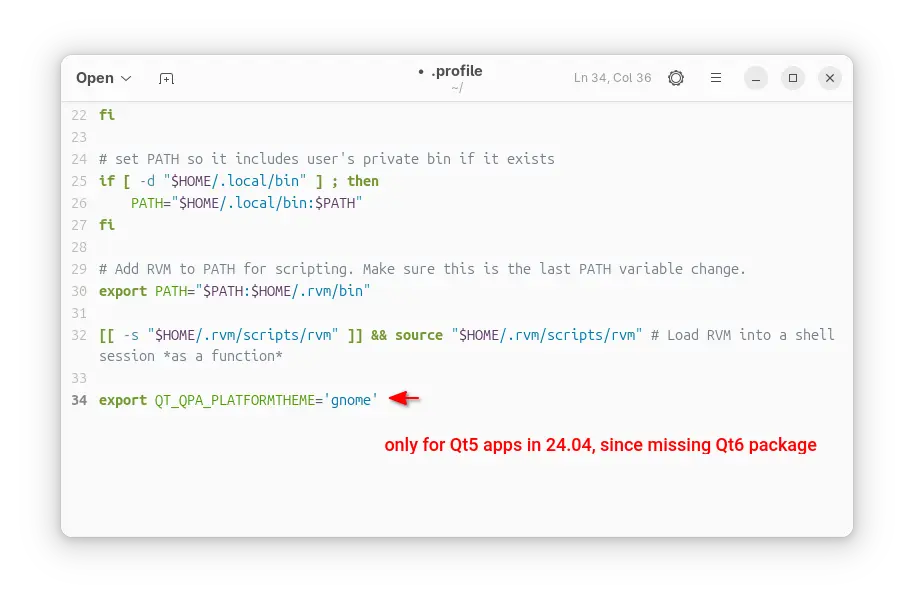
Or, edit .profile file in home directory and add export QT_QPA_PLATFORMTHEME='gnome' to make it work permanently for all Qt apps (Qt5 only for 24.04) at next login.

Option 3: Use QAdwaitaDecorations

QGnomePlatform and adwaita-qt have been discontinued (though they still work). QAdwaitaDecorations, the project that implements Adwaita-like client-side decorations, is so far the only upstream project that’s still in development.

However, it’s NOT made into Debian/Ubuntu repositories so far. Meaning you need to build it by yourself. And, it does not support Qt6 app for Ubuntu 24.04, as it requires Qt6 >= 6.5.0 (24.04 has 6.4.2).

This option is good choice for Ubuntu 25.10, to enable Qt5 window decorations, while Qt6 decorations work out-of-the-box.

1. First, open terminal (Ctrl+Alt+T) and run command to install dependency libraries:

sudo apt install git cmake build-essential qtbase5-dev libqt5svg5-dev libqt5waylandclient5-dev qtbase5-private-dev qtwayland5-private-dev libwayland-dev

2. Then, run command to grab the source code:

git clone https://github.com/FedoraQt/QAdwaitaDecorations.git

After that, navigate to the source folder, create ‘build’ sub-folder and navigate into it:

cd QAdwaitaDecorations
mkdir build && cd build

Next, configure the source for Qt5:

cmake -DUSE_QT6=OFF ../

Ubuntu 24.04 does NOT meet Qt6 requirement, and Qt6 window decoration in 25.10 looks good out-of-the-box, so here I only build it for Qt5.

3. Finally, build & install the plugin by running the 2 commands below one by one:

make -j3
sudo make install

Here -j3 tells to start 3 threads in parallel. Depends on how many CPU cores you have, you may replace it with -j4, -j8, or j$(nproc) to use all CPU cores.

4. After successfully built the plugin, clean up by deleting the source folder. Then, either run the command below to set environment variable:

export QT_WAYLAND_DECORATION=adwaita

So it works for all Qt5 apps start from this terminal window.

Or, edit .profile file in user home and add the line to make it work permanently for all Qt5 apps at next login.

2. Change Qt Theme, or Configure Fonts, icon, and colors

Gnome/Adwaita style decorations is NOT enough? You may also configure the Qt apps themes, fonts, icons, and color scheme.

Option 1: Use Kvantum along with “xcb”

If you use “xcb” plugin for the decorations, then you may also use Kvantum (SVG-based theme engine) to change the Qt app themes.

1. First, open terminal (Ctrl+Alt+T) and run command to install the package:

sudo apt install qt5-style-kvantum

Ubuntu 25.04, 25.10 users may also install qt6-style-kvantum for Qt6 apps support, however it’s NOT available in Ubuntu 24.04.

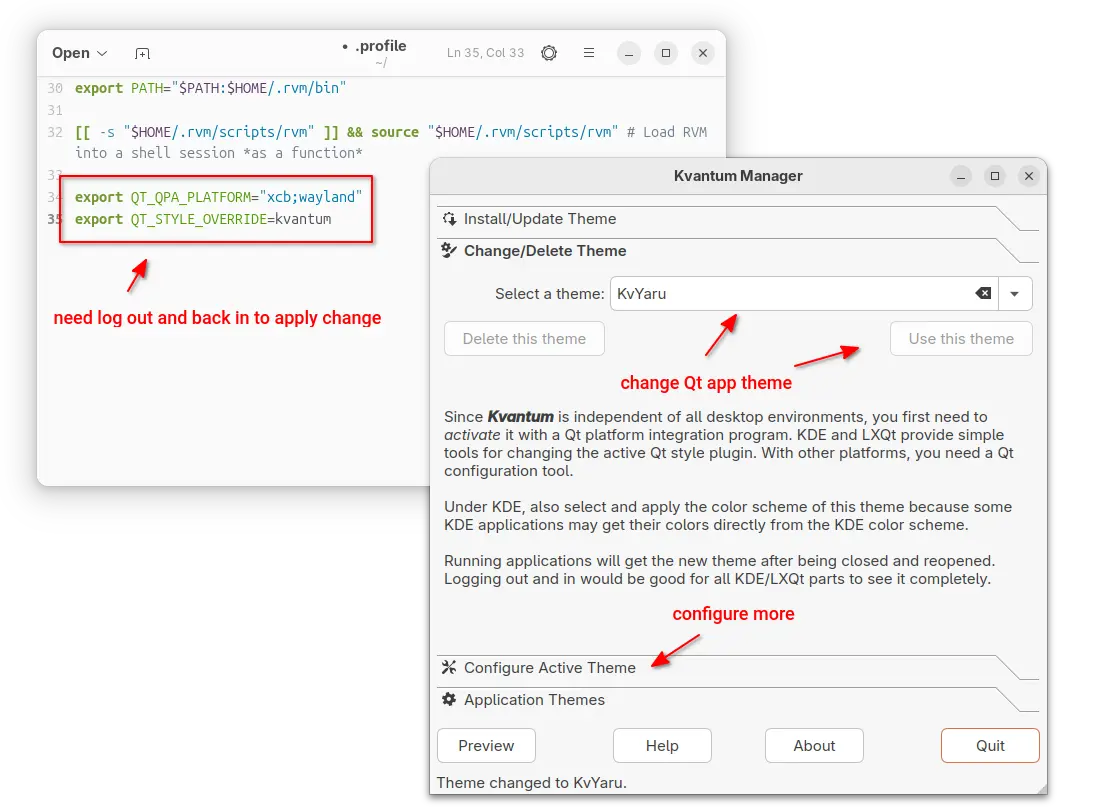
2. Next, set the following environment variables:

export QT_QPA_PLATFORM="xcb;wayland"
export QT_STYLE_OVERRIDE=kvantum

either in terminal for apps start from that terminal, or in .profile for all Qt apps (Qt5 only for 24.04).

3. Finally, launch “Kvantum Manager” to change Qt theme and configure active theme.

Use qt5ct / qt6ct

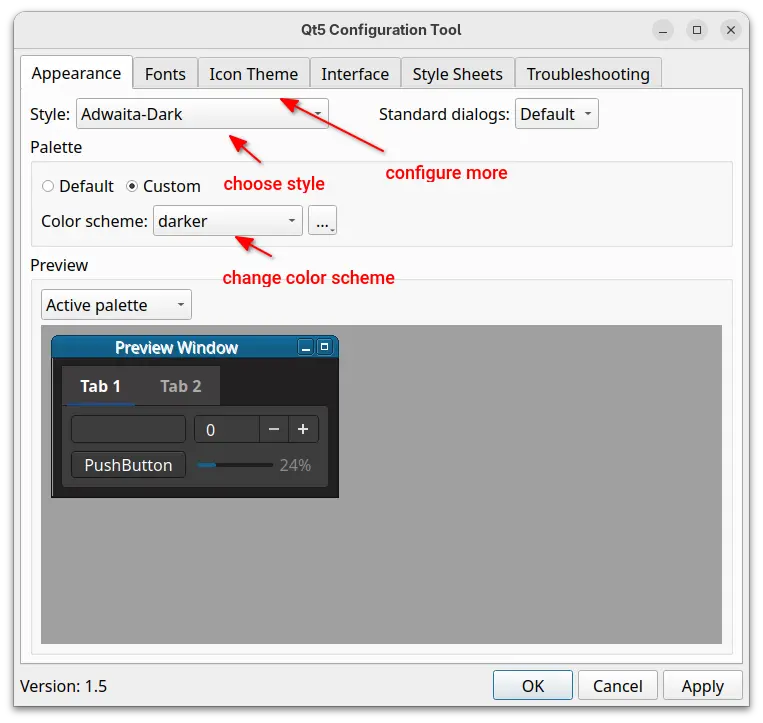
For choice, you may use Qt5 / Qt6 settings tools to configure the app window buttons, fonts, icons, and color scheme.

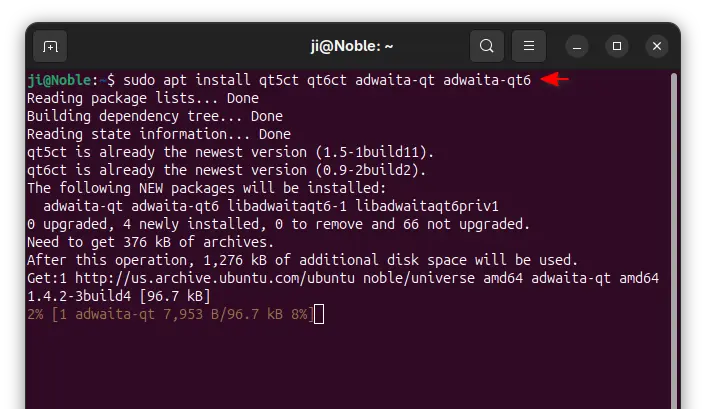
1. First, open terminal and install the settings tools, as well as adwaita-qt themes:

sudo apt install qt5ct qt6ct adwaita-qt adwaita-qt6

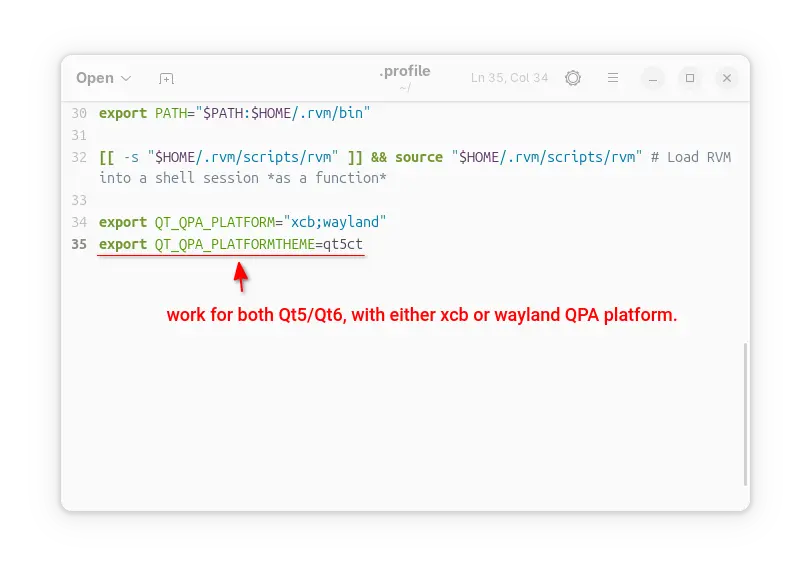
2. Next, set environment variable:

export QT_QPA_PLATFORMTHEME=qt5ct

It works for both Qt5 and Qt6 with either “xcb” or “wayland” QPA platform.

3. After set the environment (log out and back in if added to .profile), launch Qt5 Settings or Qt6 settings to configure the Qt appearances.

Summary:

This tutorial shows how to “fix” border-less issue for Qt apps in Ubuntu 24.04 and higher with default GNOME, as well as change the theme, fonts, icons, and color scheme.

The “xcb” QPA platform plugin is still a good choice for 24.04 with both Qt5 and Q6 support. While, QAdwaitaDecorations is better (in my own opinion) for Qt5 in 25.10, as Qt6 decorations look good out-of-the-box.

Top Things to Do After installed Ubuntu 25.10 Questing Quokka

By:Ji m
9 October 2025 at 23:01

Ubuntu 25.10, code-name Questing Quokka was released! Here are some top things to do, after installed the new Ubuntu desktop release, to make it ready to use.

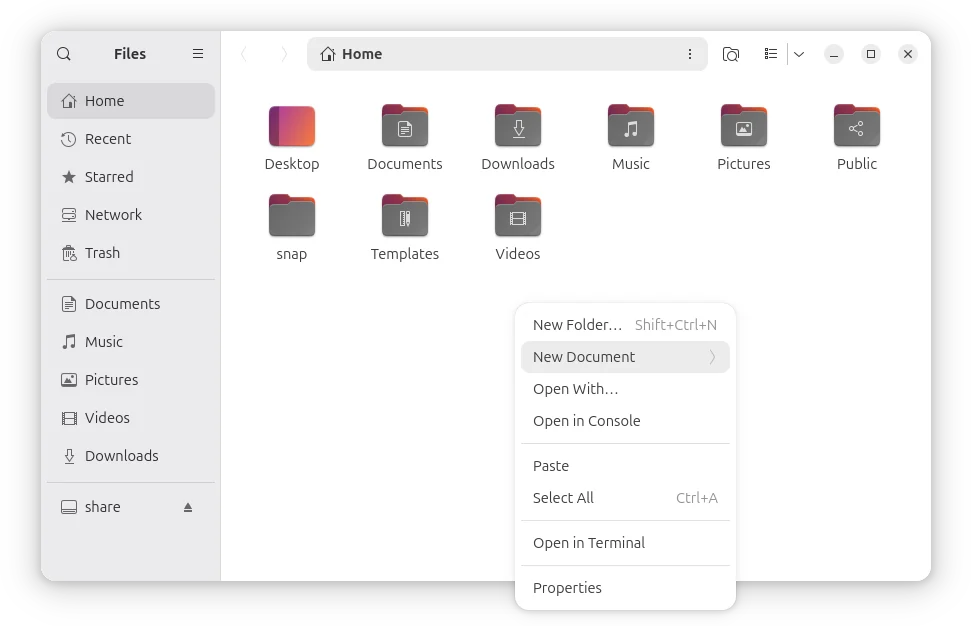
1. Enable “New Documents” Context Menu option

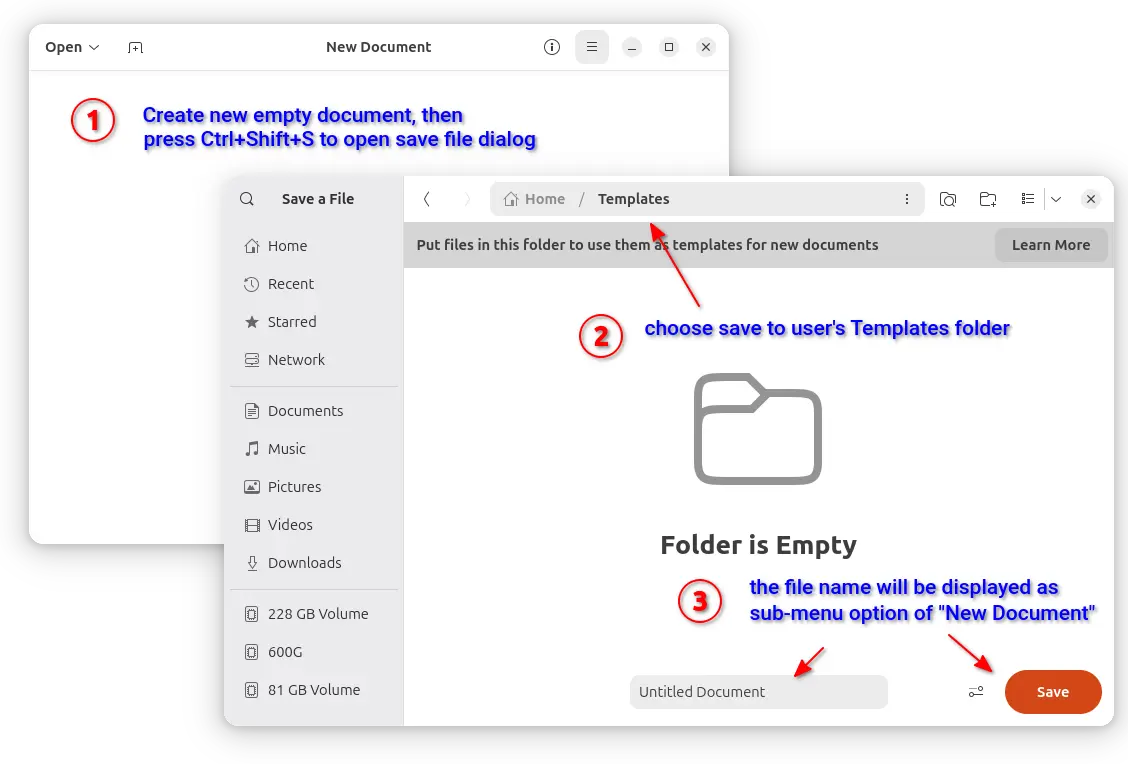
It’s been many years, GNOME still does NOT have a graphical option out-of-box to create new documents in file manager. Though, it’s easy to enable this feature by putting a file into user’s Template folder.

To do so, launch Text Editor and create a new empty document. Then, press Ctrl+Shift+S to open save file dialog. Finally, choose save it to Home -> Templates with whatever file-name you want to display as ‘New Document’ sub-menu option.

2. Configure Printer

The default “Printer” page in Settings is OK for basic use.

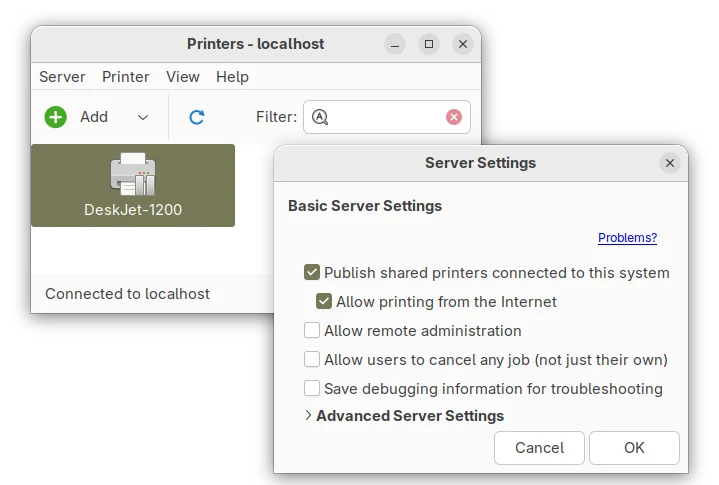
If you have a printer physically connected to the Ubuntu computer, then you may open terminal (Ctrl+Alt+T) and run command to install the graphical CUPS configuration tool:

sudo apt install system-config-printer

Tips: run sudo apt update to refresh cache if it says “Unable to locate package”.

Then, search & launch Printers app to get more controls, such as share printer, remote admin, policies, and default print options.

3. Configure the Left Panel

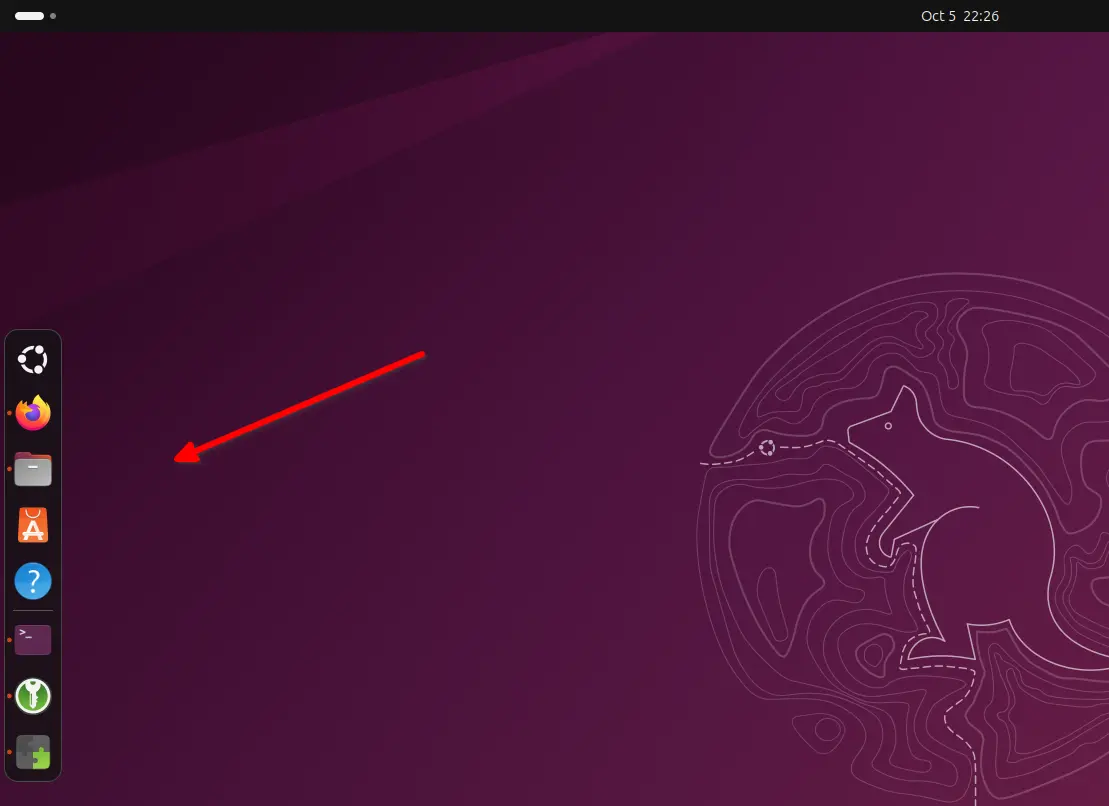
The left panel, aka Ubuntu Dock, is handled by an extension forked from dash-to-dock.


By going to Settings -> Ubuntu Desktop -> Dock, you may configure the left panel/dock with basic options, such as its position, icon size, auto-hide, shorten panel, show on primary or all displays, hide trash and volumes.

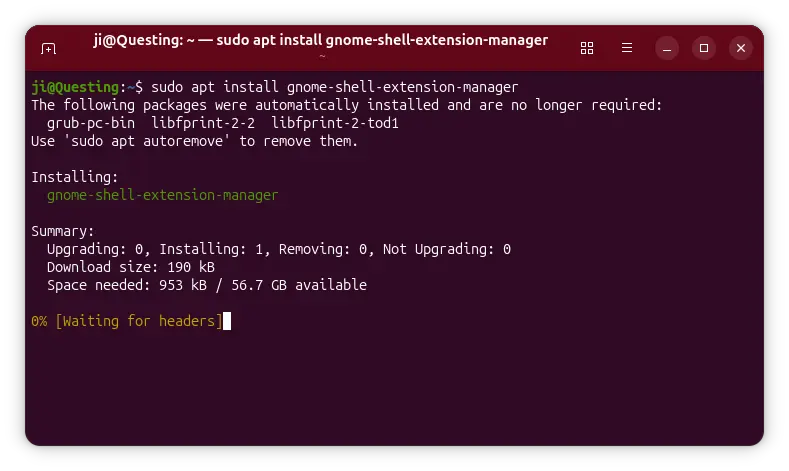
For more, install extension manager either by running the command below in terminal (Ctrl+Alt+T) or by using App Center (filter by Debian package):

sudo apt install gnome-shell-extension-manager

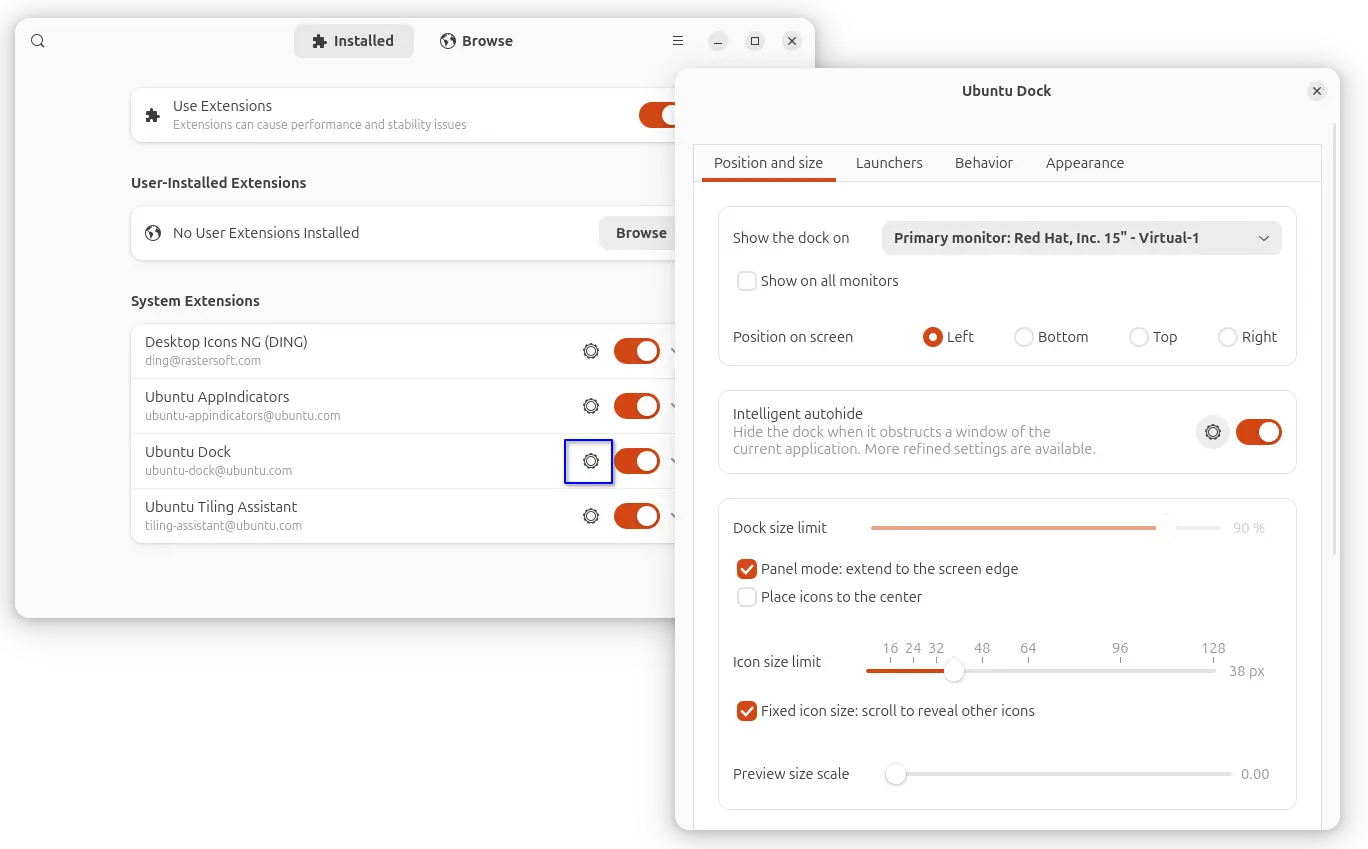
Then you may launch extension manager, and open preferences dialog for the Ubuntu Dock extension, which includes many more configure options for the left panel/dock:

  • Intelligent autohide, with dodge windows, animation duration, pressure threshold options.
  • Center icons in panel mode.
  • Show/hide, and move “Show Apps” (the Ubuntu Logo) icon.
  • Keyboard shortcuts.
  • Click action (e.g., click to minimize).
  • Appearance, e.g., background color, and opacity.

4. Install back default apps

If you chose the “Default Selection” option while installing Ubuntu 25.10, then you’ll see that many default applications are NOT pre-installed!

To install them back, simply launch App Center, then search and install the apps below one by one (mostly filtered by Debian package).

Or, open terminal (Ctrl+Alt+T) and run commands below instead (run sudo apt update to refresh cache first).

  • LibreOffice office suite.
    sudo apt install libreoffice
  • Archive Manager (aka file roller).
    sudo apt install file-roller
  • Shotwell photo manager.
    sudo apt install shotwell
  • Backups (Déjà Dup Backups).
    sudo apt install deja-dup
  • Gnome Camera, the new app replaces Cheese.
    sudo apt install gnome-snapshot
  • Showtime video player.
    sudo apt install showtime
  • Rhythmbox music player.
    sudo apt install rhythmbox
  • Thunderbird email. It’s now defaults to Snap, see how to revert back to Deb version.
  • Startup Disk Creator.
  • Remmina remote desktop client.
    sudo apt install remmina
  • Transmission torrent download app.
    sudo apt install transmission

5. Install Multimedia Codec

Due to legal reason, Ubuntu does not include some media codec for video/audio playback, Microsoft TTF fonts, and RAR archive supports.

To get them, press Ctrl+Alt+T to open up a terminal window, and run command:

sudo apt install ubuntu-restricted-extras

While downloading & installing the MS fonts, it will prompt to accept licence, use Tab key to highlight OK and hit Enter.

6. Enable Flatpak support

Flatpak is a popular package format runs in sandbox environment. Tons of applications support Linux through Flatpak package.

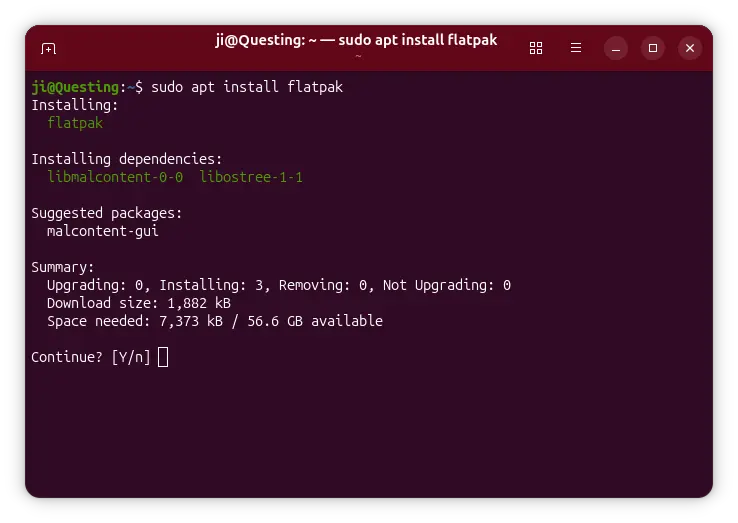
To enable Flatpak support in Ubuntu, simply open terminal (Ctrl+Alt+T) and run command:

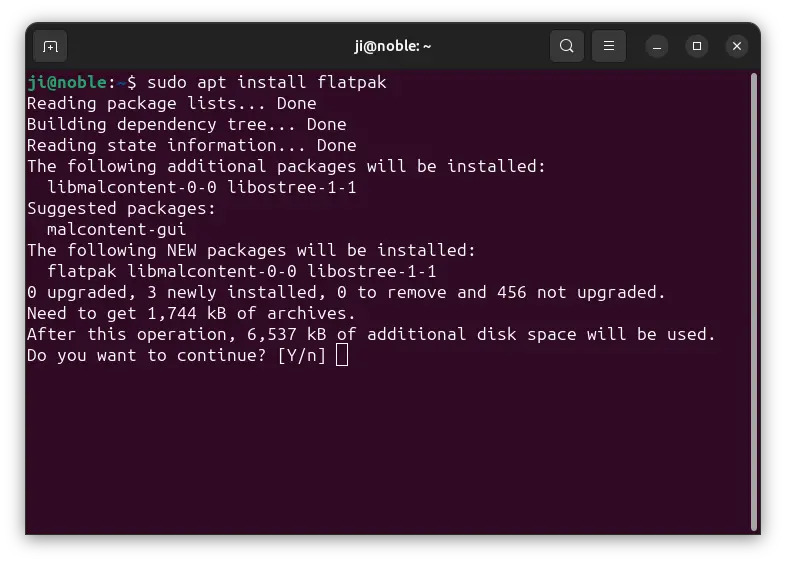
sudo apt install flatpak

Next, you may install local flatpak files by running command:

flatpak install drag-and-drop-flatpak-file-here

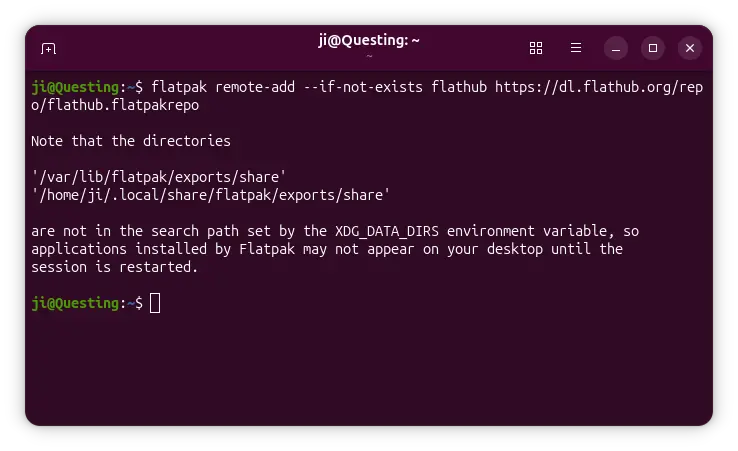
Or, add the Flathub repository into system:

flatpak remote-add --if-not-exists flathub https://dl.flathub.org/repo/flathub.flatpakrepo

For choice, add --user flag for current user only. Then, use the command in a Flathub app page to install (click down arrow besides “Install” button).

Due to this bug, flatpak install may refuse to work. Try running it with sudo at beginning until it’s fixed.

NOTE: After enabled Flatpak support, you need a log out and back in to apply variable changes.

7. Enable AppImage support

AppImage is another popular way to run applications in Linux. It’s a portable, non-install package format, that can be run directly (after added executable permission) to launch application.

Since Ubuntu 22.04, user needs to press Ctrl+Alt+T to open terminal, and run command to install the required library for AppImage support:

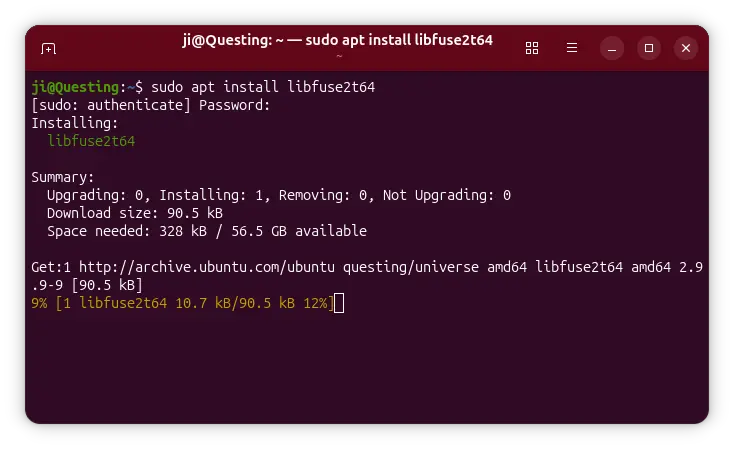
sudo apt install libfuse2

8. Install Configuration Tools

Besides the default Settings (aka Gnome Control Center), they are few other graphical tools to help configure your Ubuntu desktop.

Gnome Tweaks

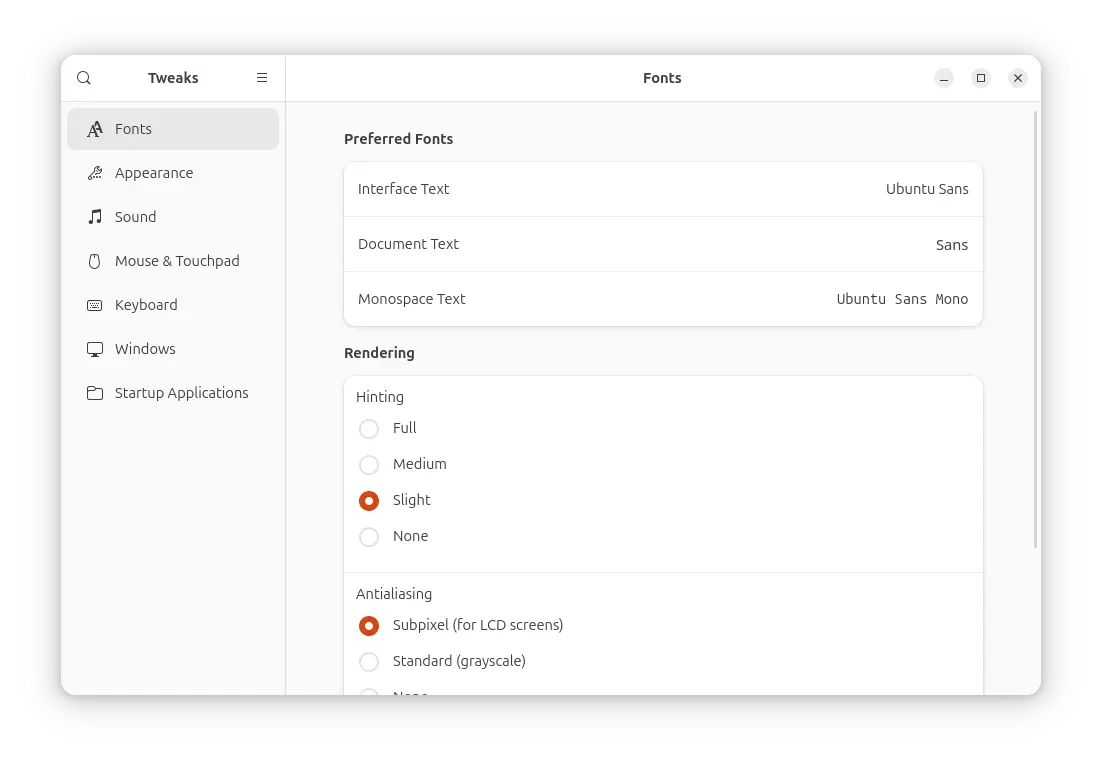
GNOME Tweaks is the popular alternative to Gnome Control Center (aka Settings), which offers graphics options to configure:

  • Fonts, scaling factor.
  • Cursor, icon, legacy apps, and sound themes.
  • Window buttons, and additional mouse & touchpad settings.

The app is available to install either from App Center (filter by Debian package) or by running command below in terminal:

sudo apt install gnome-tweaks

Extension Manager

Extension Manager is one of the must-have applications to install & manage extensions in GNOME desktop. It can be installed by running the command below in terminal:

sudo apt install gnome-shell-extension-manager

Grub Customizer

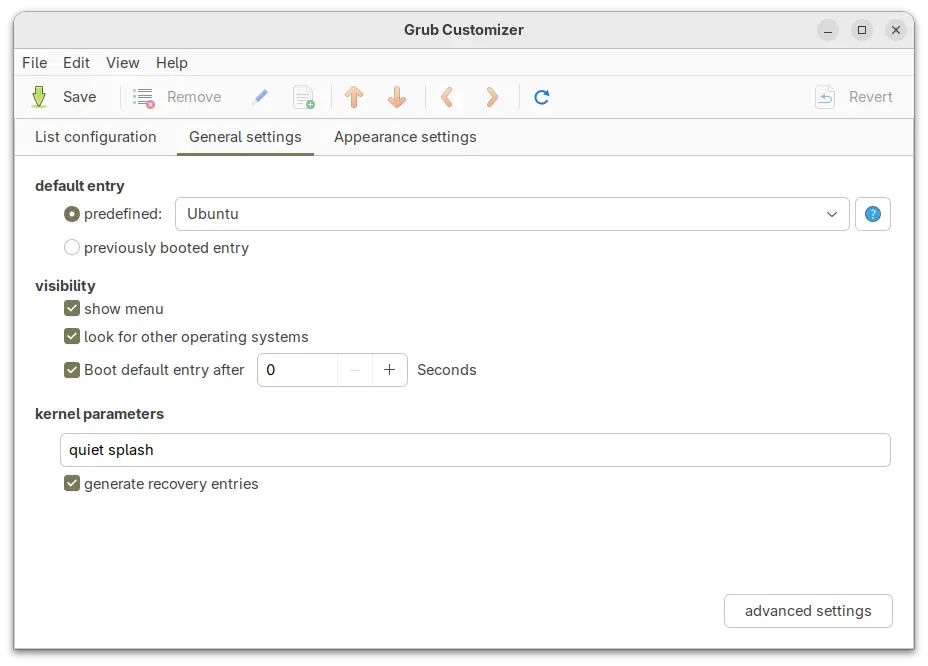
For dual-boot or multi-boot computers, and users who want to configure the boot menu, Grub-customizer is good choice to make things simple.

To install the app, open terminal and run commands below one by one to get from developer’s PPA:

sudo add-apt-repository ppa:danielrichter2007/grub-customizer
sudo apt-get update
sudo apt-get install grub-customizer

NOTE: The PPA does NOT support Ubuntu 25.10 at the moment of writing, check the PPA page for details.

GDM Settings

If you want to change the login screen background, then GDM settings is a good choice that also supports configuring fonts, top-bar, colors, etc for the login screen.

NOTE: GDM Settings has the potential to break your login screen. Use it at your own risk!

To install the app in Ubuntu 25.10, run the commands below one by one to get from PPA:

sudo add-apt-repository ppa:ubuntuhandbook1/gdm-settings
sudo apt update
sudo apt install gdm-settings

Dconf Editor

For advanced users, there’s also “Dconf Editor” that offers even more hidden configuration options.

To install the tool, run command:

sudo apt install dconf-editor

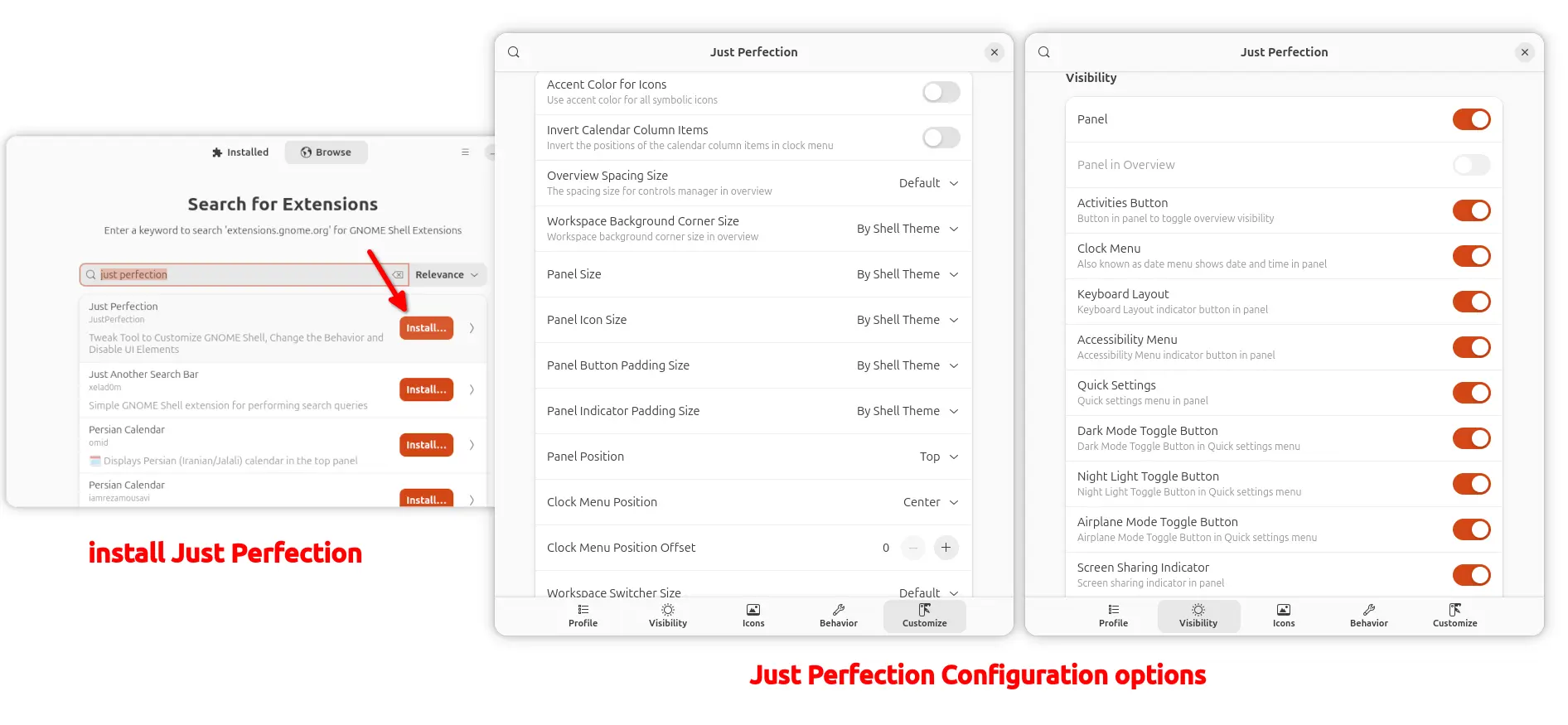
Just Perfection

If you want to hide or tweak the top-panel (e.g., size and position) and panel items (e.g., clock option), configure the desktop behaviors and animations, then Just Perfection extension provides many options that can do the job.

Simply, search and install the extension using “Extension Manager” app, then you can go back “Installed” tab and click open the Just Perfection setting page for the configuration options.

9. Install NVIDIA Driver

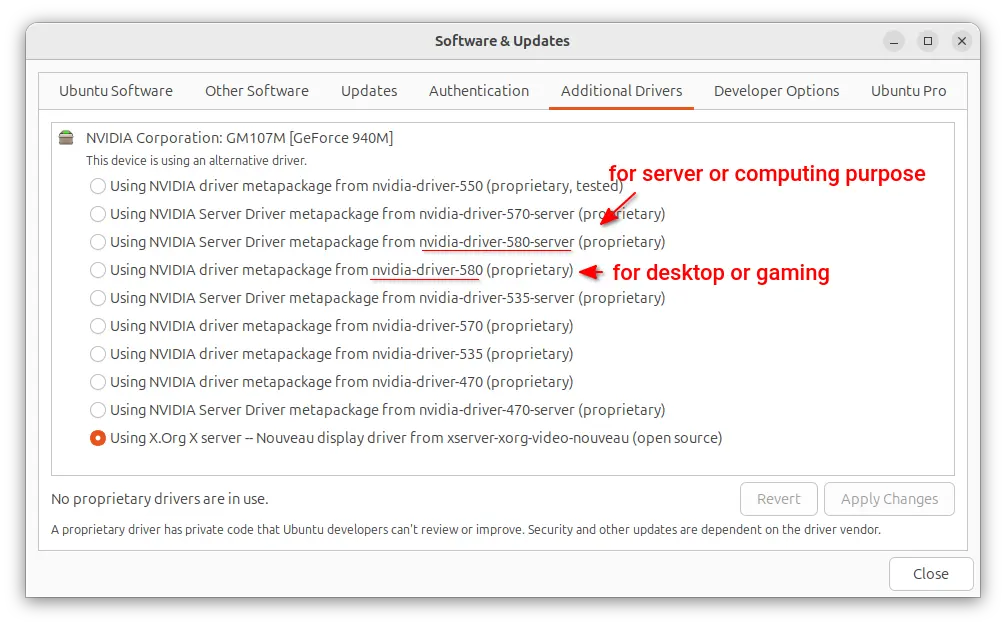
For NVIDIA graphics card, you may launch Additional drivers and select install the latest NVIDIA 580 driver for better gaming performance.

10. Add App Icon to Desktop

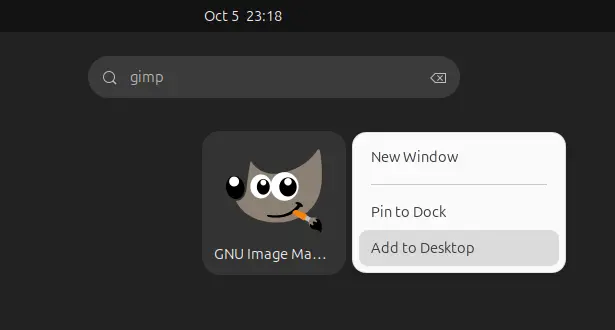
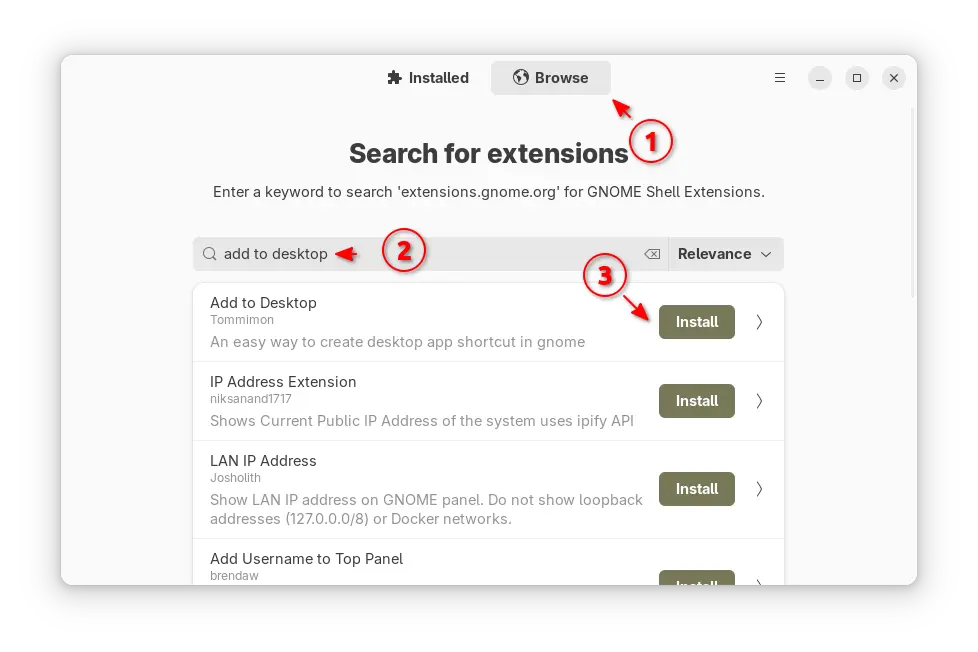
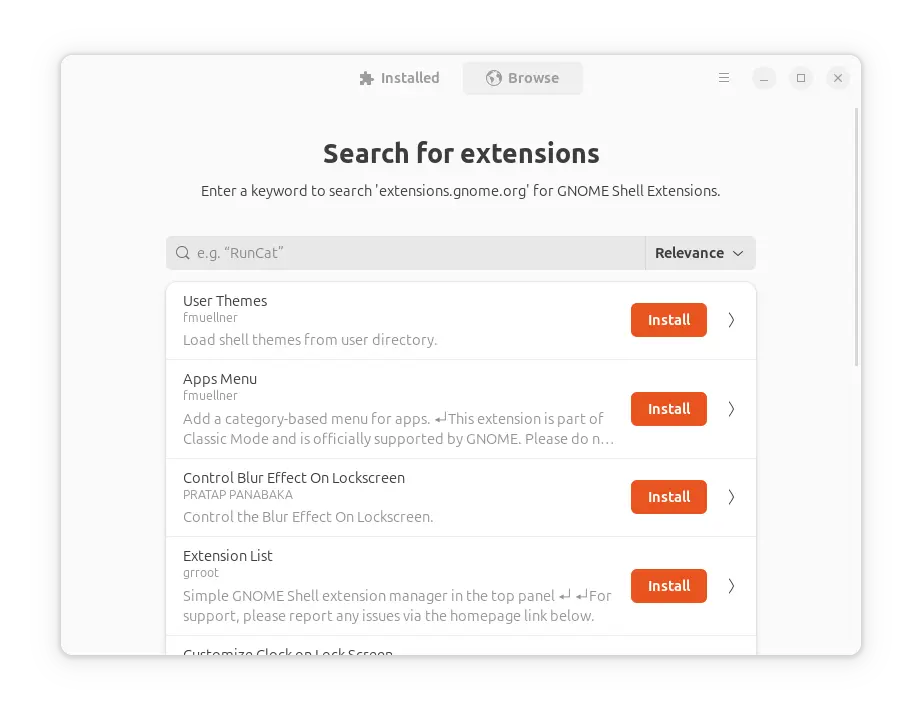
If you prefer launching applications by using desktop shortcuts, then install Extension Manager that’s mentioned above, and use it to search & install “Add to Desktop” extension.

After that, you may right-click on your favorite apps in either app grid or GNOME Overview search result to add them into desktop.

And More

There are even more things you can do to make Ubuntu desktop better for use. The things however differ depend on users. Please leave comment below, if you have any other good advice to tweak the Ubuntu Desktop.

Run Custom Command or Script in Ubuntu 25.10 Automatically at Login
By:Ji m
4 October 2025 at 00:38

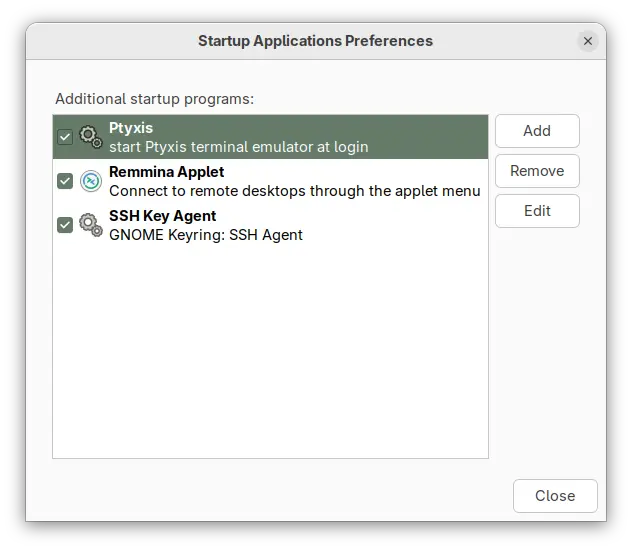
Ubuntu 25.10 no longer includes the “Startup Applications” utility! Here’s a beginner guide shows how to run apps, custom scripts or commands automatically at login through alternative methods.
Ubuntu has a “Startup Applications” tool, allowing to easily add, remove, and edit items that run at user login. Due to upstream (meaning GNOME) changes, it has finally been dropped in 25.10.

Startup Applications tool no longer available in 25.10

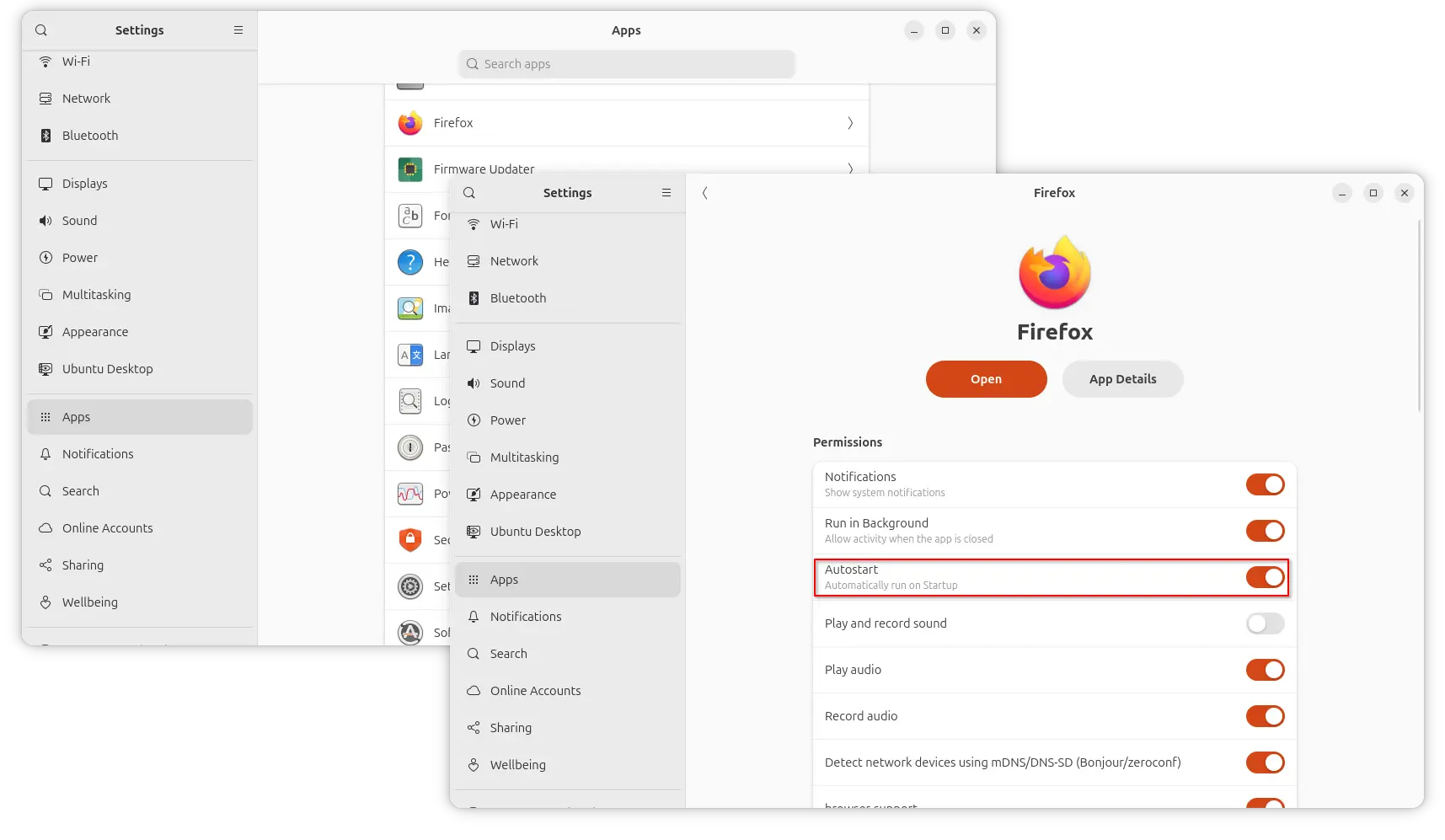
The new way to auto start apps, is using GNOME Control Center (aka Settings) by navigating to ‘Apps’ setting page, choose an app, and turn on the “Autostart” toggle switch. While, Gnome Tweaks also provides similar function to do the job.

Autostart apps in Ubuntu 25.10 (GNOME 49)

But, what if you want to auto-start app with custom options, or auto-run custom commands/scripts at login?

Here are 2 alternatives to do the job:

  • Add startup app manually using .desktop configuration file.
  • Use a third-party graphical configuration tool.

Option 1: Use .desktop configuration file

As you may know, all the app icons you see in Gnome app grid, dock, or other app launchers in most popular Linux distributions are handled by .desktop files under /usr/share/applications, .local/share/applications, etc directories.

Similarly, auto-start apps are handled by the .desktop files under either /etc/xdg/autostart or .config/autostart directories.

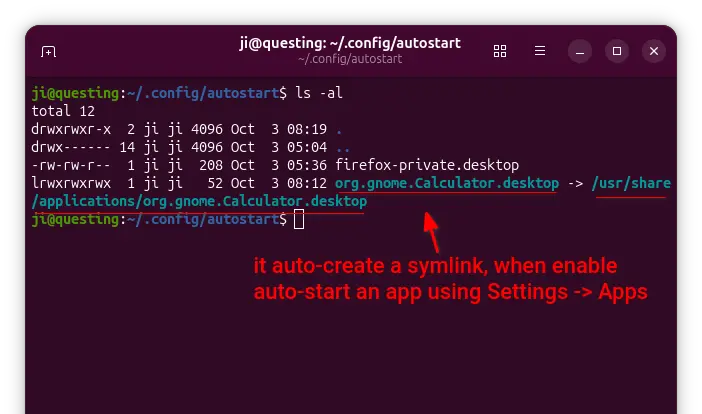
And, when you turn on “Autostart” toggle switch for an application in Settings (Gnome Control Center), it will automatically create a file under .config/autostart linked to the .desktop file for that app icon.

If you want to auto-run custom commands or scripts at login, then just create .desktop files in that directory with following steps.

NOTE: for those hate Linux commands, open file manager and press Ctrl+H to show hidden files/folders, then do following steps accordingly.

1. Create the directory. The ~/.config/autostart directory does not exist out-of-the-box. You may either enable an auto-start app via Settings to auto-create it, or open terminal (Ctrl+Alt+T) and run command below to create:

mkdir -p ~/.config/autostart

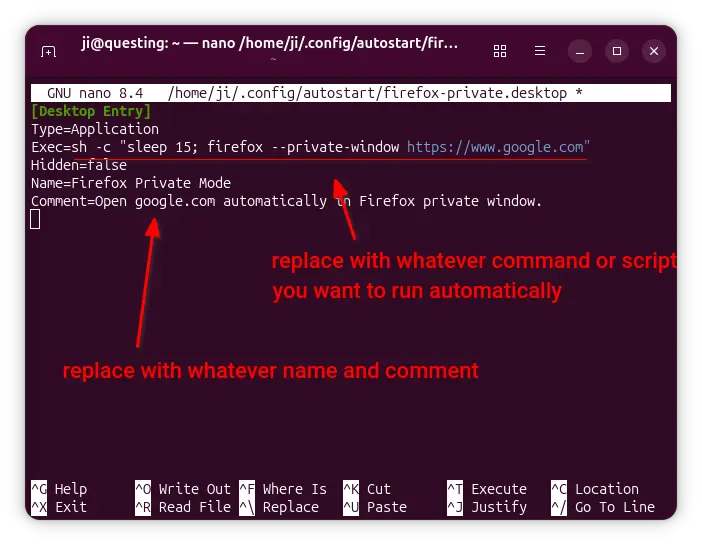
2. Create & edit custom .desktop file. Next, run command to create a .desktop file, “firefox-private.desktop” for example, and edit via nano command line text editor:

nano ~/.config/autostart/firefox-private.desktop

When file opens, write following content and edit accordingly:

[Desktop Entry]
Type=Application
Exec=sh -c "sleep 30; firefox --private-window https://www.google.com"
Hidden=false
Name=Firefox Private Mode
Comment=Open google.com automatically in Firefox private window.

In the case, it will auto-launch Firefox in private mode and open Google.com automatically, with 30 seconds delay after login.

According what you want to run, you need to replace the command for “Exec“, and edit the ‘Name’ and ‘Comment’ as you want. For example, use:

  • Exec=/home/ji/Documents/myscript to run my script under user Documents directory.
  • Exec=sh -c "$HOME/Documents/myscript" to run the same script, but here “sh -c” command interpreter is required so it knows what is $HOME.
  • Exec=update-manager --install-all to auto-launch Software Updater and install all available updates.

Tips:

  • It’s better to first run the custom command or script in terminal to make sure it works.
  • The X-GNOME-Autostart-Delay parameter does not work in Wayland, use sleep in command to add time delay in seconds.
  • You may change Hidden=false to Hidden=true to disable that .desktop file, just like it’s deleted.
  • Add Terminal=true if the command need to run in a terminal.
  • For more about the desktop entry keys, see the doc in freedesktop.org.

After created and edited the file, press Ctrl+S to save and Ctrl+X to exit, and verify if it works by logging out and back in.

Option 2: Use a third-party graphical application

To make things simple, there are few third-party graphical tools can do the job managing startup apps and scripts.

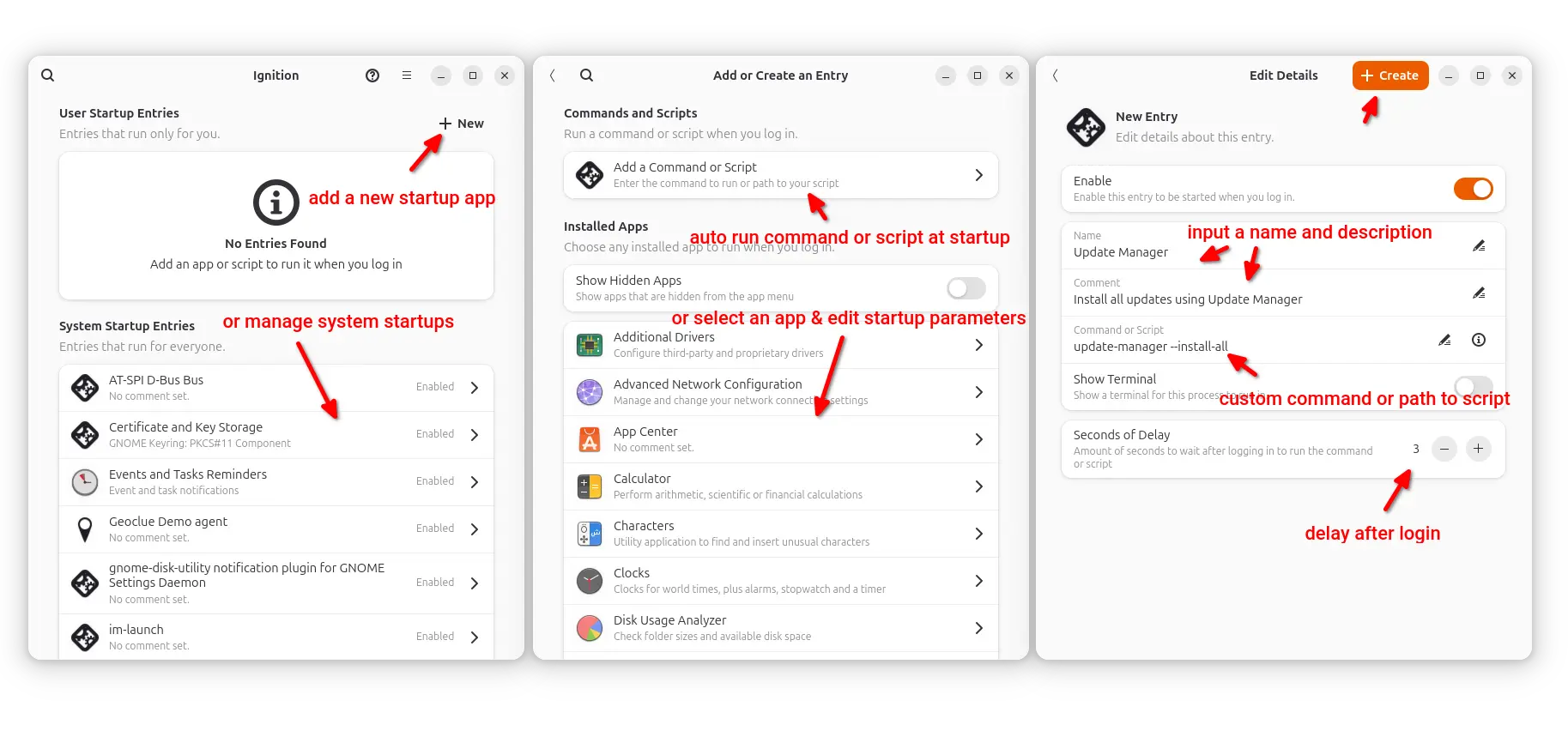
As far as I know, the free open-source Ignition tool is a good choice which provides a simple and modern user interface to add, remove, and modify startup entries.

As you see in the screenshot, it provides a GTK4 and LibAdwaita interface, with ability to manage system startup entries (usually the .desktop files in /etc/xdg/autostart) that works for all users.

As well, it allows to add any installed apps (with custom options and time delay), custom command or script as auto-start items, by automatically creating .desktop files in user’s .config/autostart directory. Meaning they work for current user only.

Install Ignition

Besides building from the source, the app is available to install in most Linux through Flatpak package, which runs in sandbox environment.

For Debian, Ubuntu, and their based systems, run 2 commands below one by one to install the package:

  • First, open terminal (Ctrl+Alt+T) and enable Flatpak support by installing the daemon package:
    sudo apt install flatpak
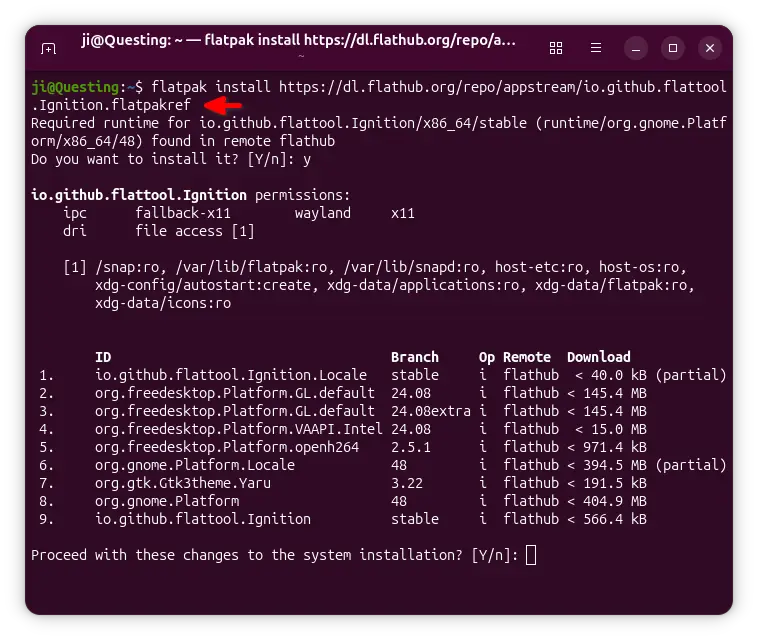
  • Next, install the app package by running command:
    flatpak install https://dl.flathub.org/repo/appstream/io.github.flattool.Ignition.flatpakref

    Tips: You may run command as sudo (add sudo at beginning) to fix installing issue in Ubuntu 25.10.

After installed the package, either search for and launch it from Gnome Overview (log out and back in if app icon is not visible), or run command below to start from terminal:

flatpak run io.github.flattool.Ignition

Uninstall Ignition

If the app does not work good for you, run the command below to uninstall it:

flatpak uninstall --delete-data io.github.flattool.Ignition

Also run flatpak uninstall --unused to remove useless runtime libraries.

NOTE that uninstall the app won’t delete the auto-start entries created by it.

Block Certain App Packages in Ubuntu 25.10 [New Apt Method]

By:Ji m
25 September 2025 at 21:53

This is a step by step guide shows how to block certain app packages from Ubuntu local repositories, PPAs, or other apt repositories in Ubuntu 25.10 and higher.

Previously, we can set package pin-priority to prevent from or prior to installing certain app packages. Now, in Debian/Ubuntu with apt 3.1+, a new method is available to include/exclude packages for specified apt sources (repositories).

Say you have a Ubuntu PPA or apt repository installed in Ubuntu. It contains many app packages, but you only need one or few of them. In the case, you may use the new method below to completely exclude all other packages from that repository, so they are not installable with any apt option or other graphical tool.

NOTE 1: This tutorial only works for classic .deb packages. Though, you may use the method to block snap and flatpak entirely.

NOTE 2: This tutorial needs apt 3.1+, meaning Debian Unstable/Testing or Ubuntu 25.10+.

Step 1: Find out what packages available in the repository

Before getting started, it might be helpful to first find out all the package names available in the target PPA or apt repository.

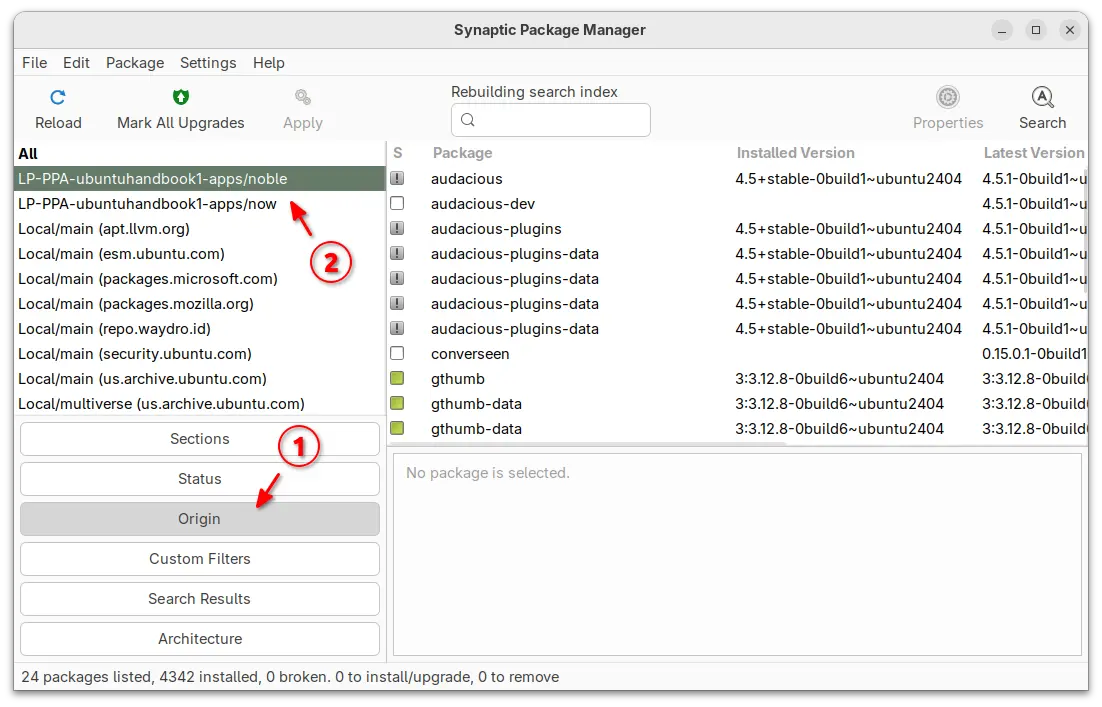
For Ubuntu desktop, you can simply install and launch Synaptic package manager. Then, choose “Origin” in left and select the target repository to show all the packages.

For server without GUI, you may view the package index files instead.

  • First, run the command below to update package index:
    sudo apt update
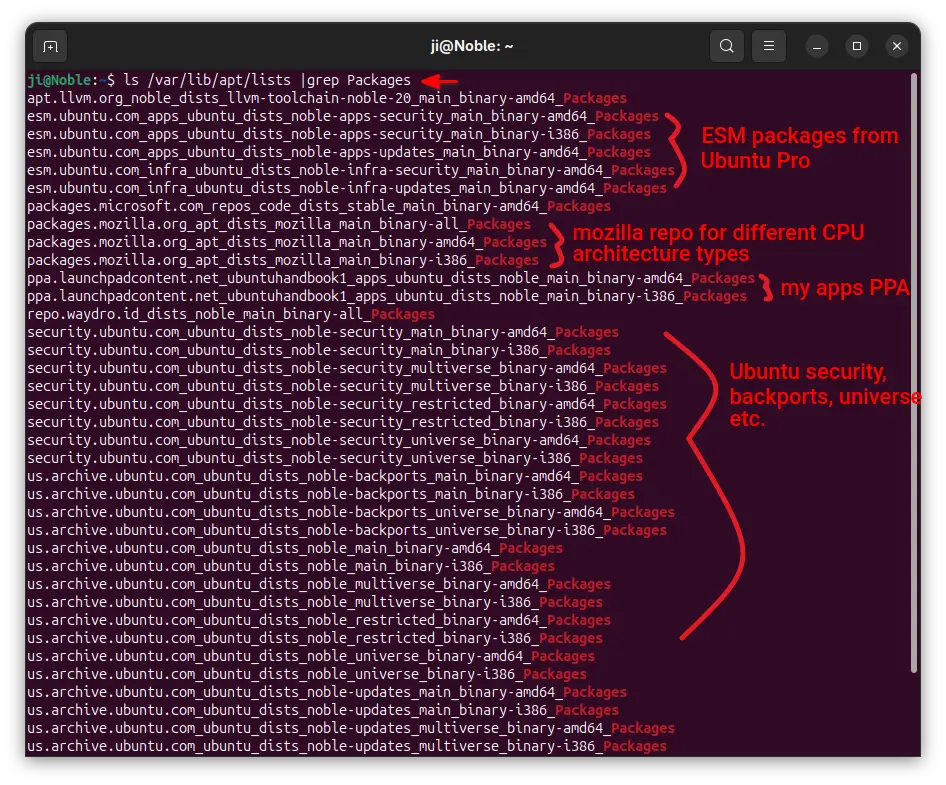
  • Next, print all the package index files under /var/lib/apt/lists directory:
    ls /var/lib/apt/lists/ |grep Packages

    The files contain the package names, their versions, origin, maintainers, sizes, and hash-code, etc information.

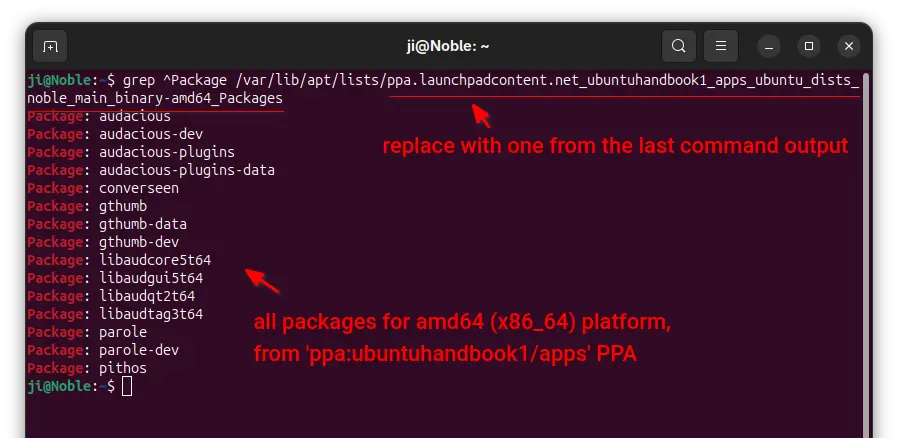
  • In last command output, find out the target file-name for your repository, then use the command below to filter and show only package names in it:
    grep ^Package /var/lib/apt/lists/ppa.launchpadcontent.net_ubuntuhandbook1_apps_ubuntu_dists_noble_main_binary-amd64_Packages

    Here you need to replace the long file-name with yours.

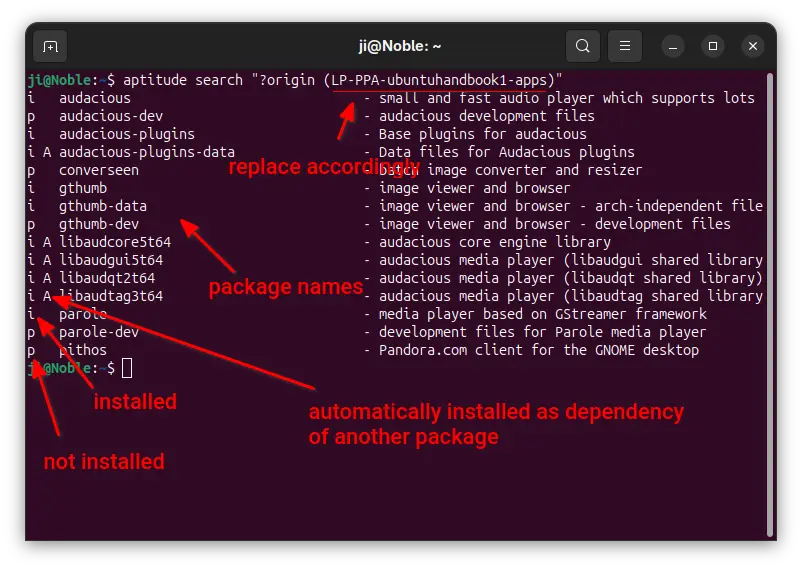
For choice, you may install aptitude, then use the command below instead to list all packages from target repository:

aptitude search "?origin (LP-PPA-ubuntuhandbook1-apps)"
Here replace LP-PPA-ubuntuhandbook1-apps accordingly, while ubuntuhandbook1 is PPA maintainer name, and apps is PPA name. For other repositories, run apt-cache policy |grep "o=" to list and get the target value of “o=”.

Step 2: Edit source files to block packages

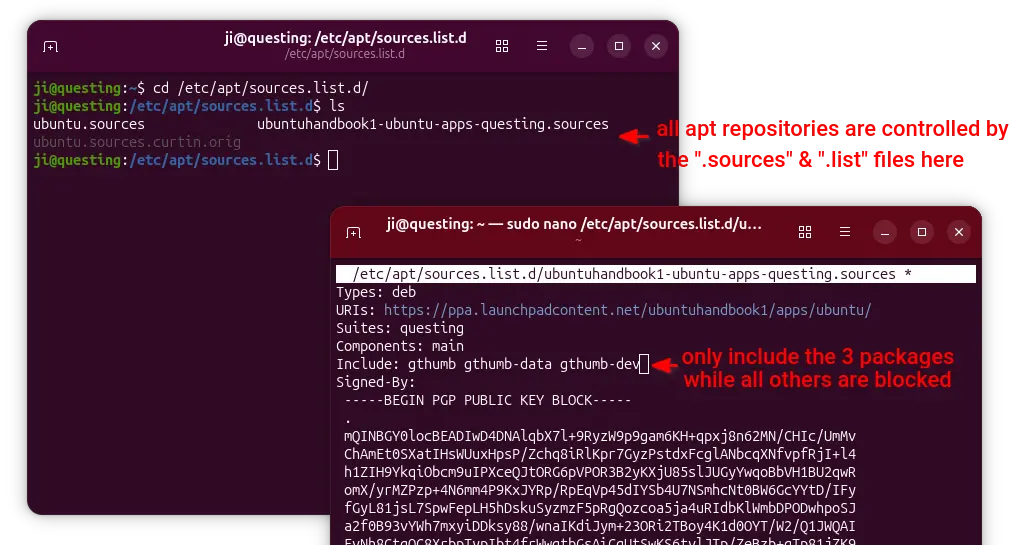
For Ubuntu, all the apt sources are handled by .sources and .list files under /etc/apt/sources.list.d directory.

To block specific packages from Ubuntu official repositories, open terminal (Ctrl+Alt+T) and run command to edit the file below:

sudo nano /etc/apt/sources.list.d/ubuntu.sources

For next Ubuntu 26.04, there’ll be ubuntu-esm-apps.sources and ubuntu-esm-infra.sources in that directory for ESM packages if Ubuntu Pro is enabled.
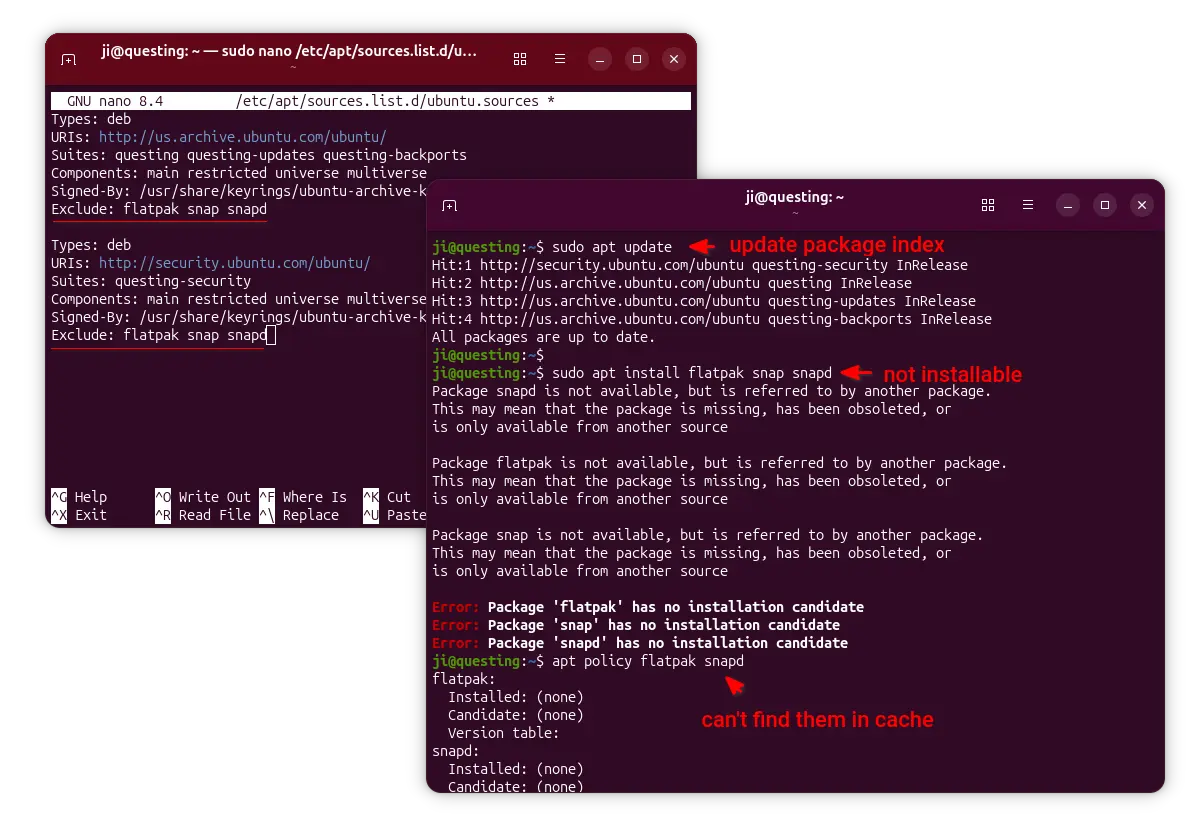
When file opens, simply add Exclude: package1 package2 package3 ... in the end of the 2 sections.
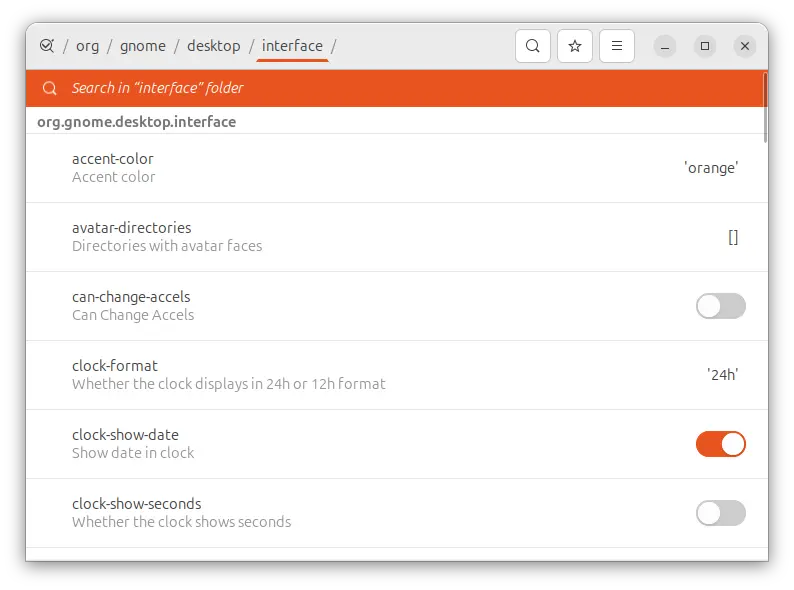
In the screenshot above, it tells to block flatpak, snap, and snapd packages. After saved file (Ctrl+S, then Ctrl+X), run sudo apt update to apply changes.

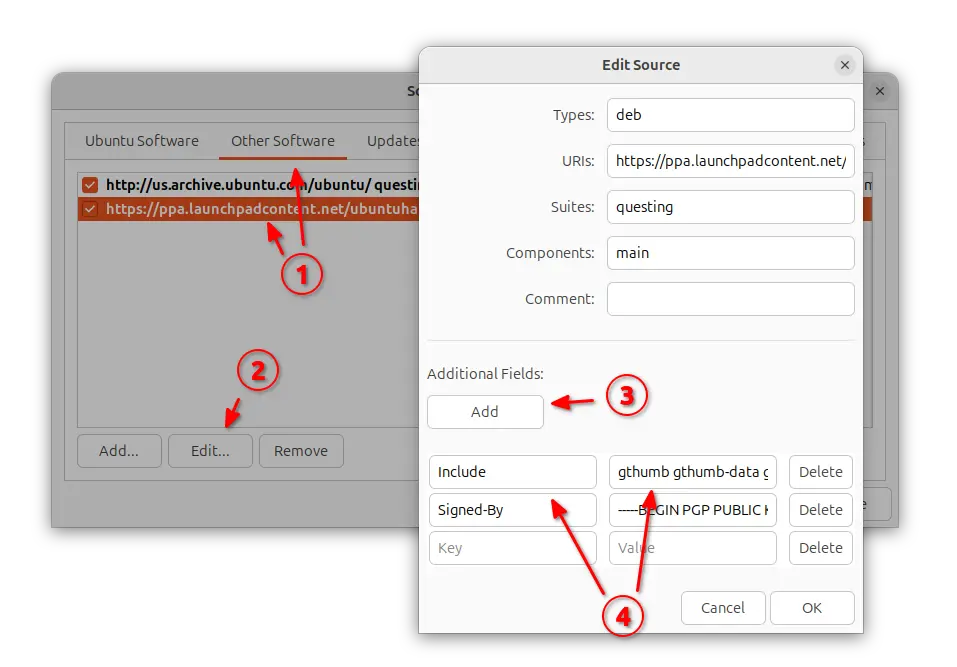
To block certain PPA packages, simply launch “Software & Updates” utility and navigate to “Other Software tab”.

Then, highlight the PPA source and edit it. Finally, click Add an additional fields, and:

  • either set key Include and value package1 package2 package3, so to block all others.
  • or set key Exclude and value package1 package2 ... to block certain packages.

Also refresh cache via either sudo apt update or Software Updater after saving the changes.

NOTE: When using “Include” (leaving others blocked), don’t forget to also include the dependency packages (if any) in that repository!

For server without GUI, run commands below and finally refresh cache.

  • First, list and find out the target source file:
    ls /etc/apt/sources.list.d
  • Then, edit the file (replace file-name with yours):
    sudo nano /etc/apt/sources.list.d/ubuntuhandbook1-ubuntu-apps-questing.sources

    Finally, add new line with either Include: package1 package2 or Exclude: package accordingly

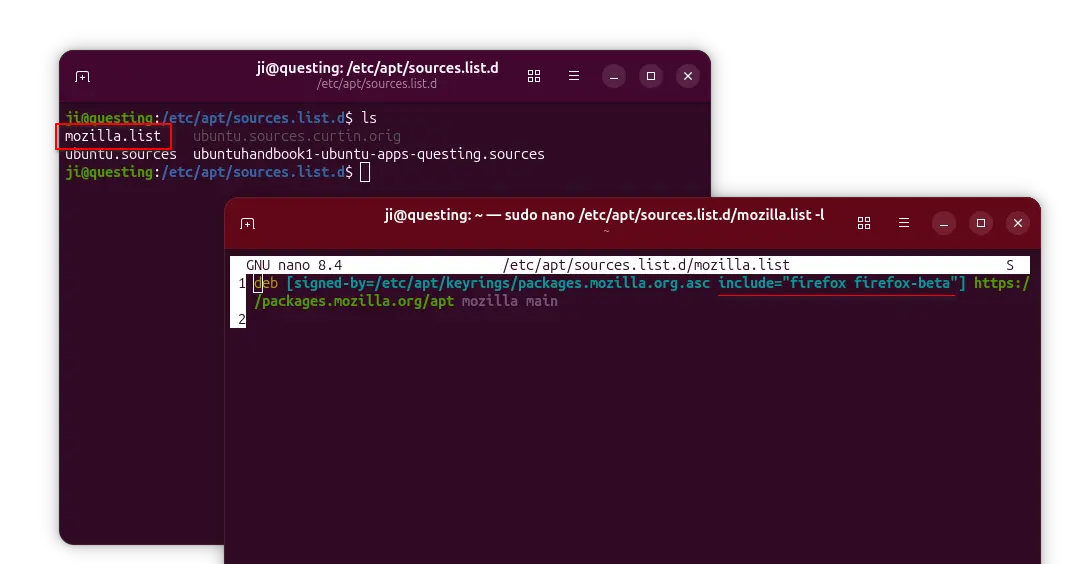
For apt repository installed in the classic .list file, edit it and add the include="package" or exclude="package" section between the brackets after ‘signed-by’ section.

And, finally run sudo apt update to apply changes.

Ubuntu Added NVIDIA 580 Driver Support for 24.04, 22.04 & 25.04

By:Ji m
12 September 2025 at 20:29

For user with NVIDIA graphics card, Ubuntu finally added official NVIDIA 580 driver packages for all current Ubuntu releases.

As you may know, NVIDIA 580 is so far the latest driver series for Linux, that was initially released one month ago. It’s a production branch driver qualified for enterprise and data center GPU use.

The 580 driver features Wayland fifo-v1 protocol support for apps/games running via Vulkan API, reducing visual inconsistencies and potential stuttering.

It enabled RMIntrLockingMode feature by default, which can help reduce stutter especially when using virtual reality (VR). As well, it implemented a feature to reduce time spent in the interrupt top half for low latency display interrupts by deferring the work until later. See HERE for more.

With NVIDIA 580.82.07, it also supports NVIDIA Smooth Motion on GeForce RTX 40 Series GPUs!

Install NVIDIA 580 driver in Ubuntu

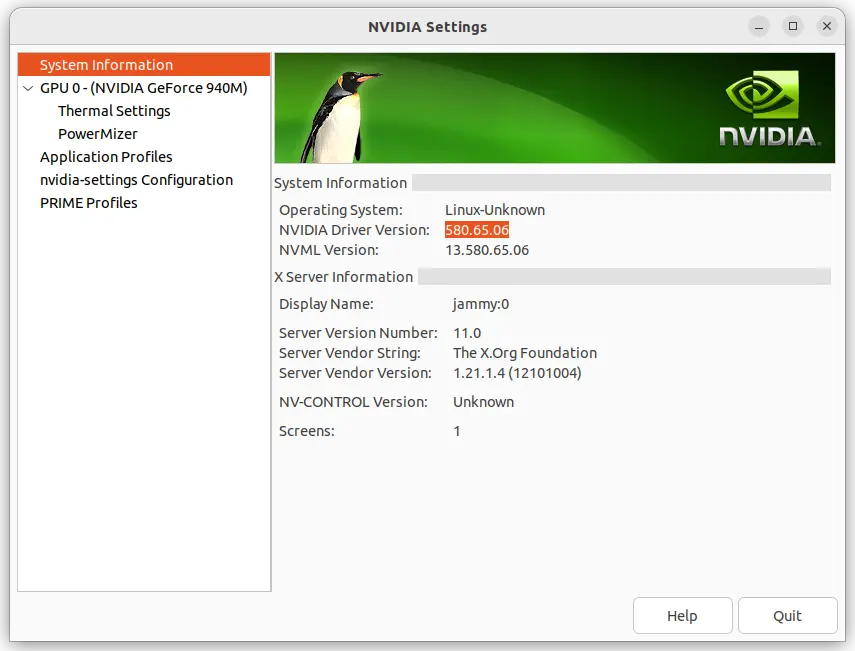
Ubuntu made NVIDIA 580 driver (so far 580.65.06) package into the proposed repository for testing few weeks ago. Now, it finally goes official. And, you may install it by following steps.

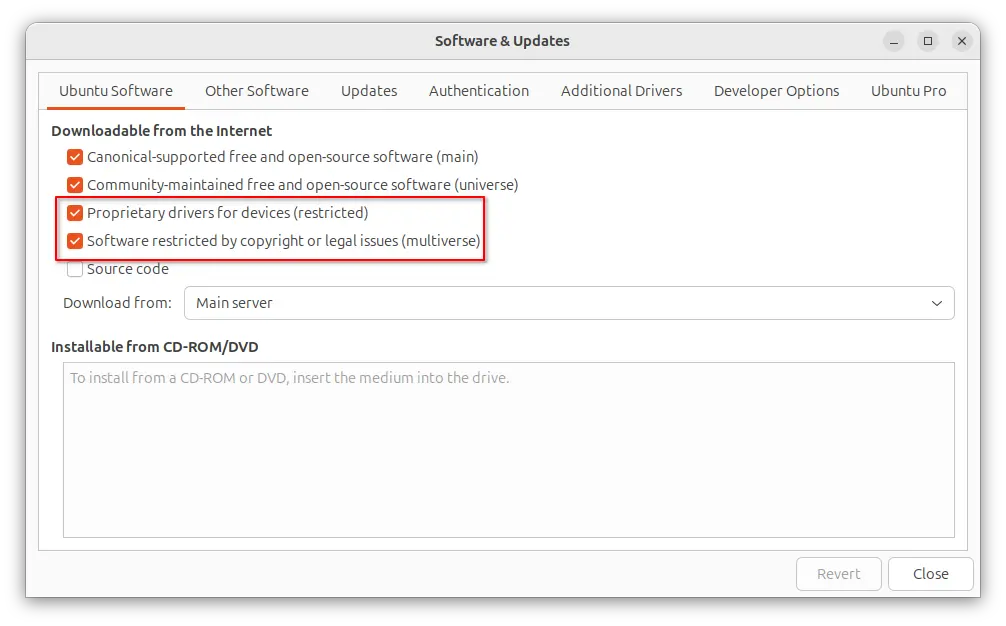
1. Enable Restricted and Multi-verse repository

The proprietary driver is available through the restricted and multiverse repositories. They are usually enabled by default in Ubuntu desktop.

Just in case, you may launch “Software & Updates” utility to ensure:

Or, run the command below for Ubuntu Server to enable them:

sudo add-apt-repository restricted multiverse

You need to install software-properties-common package if the command does not work.

2. Update your system.

Before installing the driver, it’s better to install all available system updates, especially kernel updates (usually minor version updates), to prevent potential failure.

To do so, either use Software Updater or run the commands below in terminal (Ctrl+Alt+T):

sudo apt update

sudo apt upgrade

If there’s a kernel updates, restart computer to boot the new kernel.

3. Install NVIDIA 580 driver

NOTE: The driver version so far is nvidia 580.65.06. If you can’t wait to get 580.82.07 for NVIDIA Smooth Motion support on RTX 40 series GPUs, or you’re on old Ubuntu 20.04|18.04, then run command below to add the popular “Graphics Drivers” team PPA, which however is not officially supported.

sudo add-apt-repository ppa:graphics-drivers/ppa

For Ubuntu Desktop, you may now launch “Additional Drivers” utility, then select either driver below:

  • nvidia-driver-580 for general desktop and gaming purpose.
  • nvidia-driver-580-server for Ubuntu Server or computing purpose.

Then, click “Apply Changes” and  restart computer when installation done!

For server without GUI, simply run the commands below one by one to install the driver.

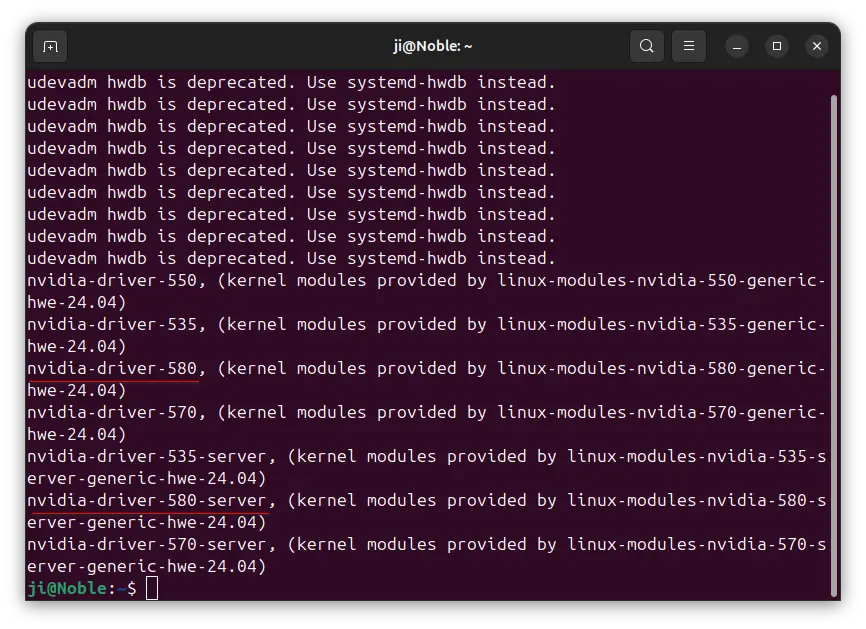
  • First, list all available drivers via command:
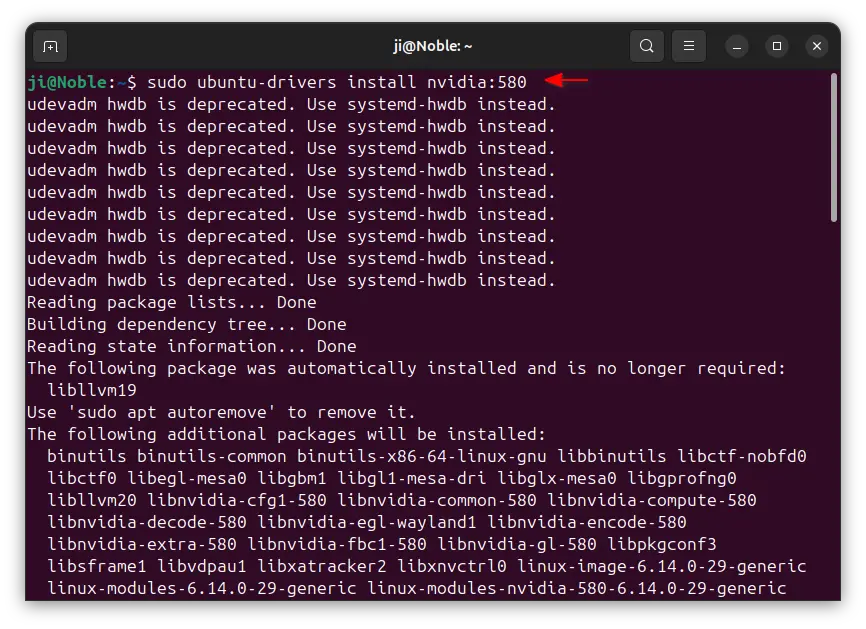
    sudo ubuntu-drivers list

    Skip the  “udevadm hwdb is deprecated. Use systemd-hwdb instead.” output. It’s a warning that does not matter.

  • Then, either install the desktop  or gaming use driver via command:
    sudo ubuntu-drivers install nvidia:580

    Or, install the server or computing purpose driver:

    sudo ubuntu-drivers install --gpgpu nvidia:580-server

Finally, restart computer and enjoy!

In addition, for Ubuntu with default GNOME Desktop, it by default fall back to Xorg session, you need to manually switch back Wayland session (if need) from login screen.

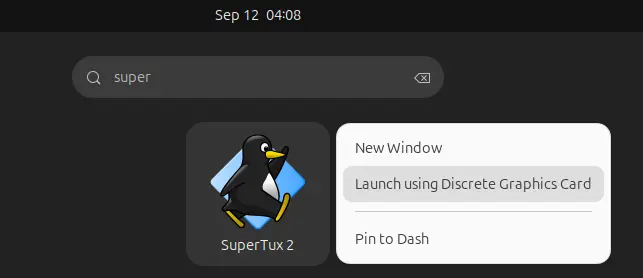
For NVIDIA Optimus laptop, it by default runs in hybrid mode. You can right-click on an application or game icon and choose “Launching using Discrete Graphics Card” to start it via NVIDIA GPU while leaving all others handled by integrated GPU.

Or, run command below in terminal to set environment variable, so all apps start from that terminal will be rendering via NVIDIA GPU:

export __NV_PRIME_RENDER_OFFLOAD=1 __GLX_VENDOR_LIBRARY_NAME=nvidia

If you want to run Ubuntu desktop with NVIDIA only mode, then launch “NVIDIA Settings” and navigate to PRIME Profiles page to make a switch.

For bugs and other issues, please report to HERE or HERE.

Stop Wallpaper Moving when Switching Workspace in Ubuntu 24.04

By:Ji m
12 September 2025 at 00:00

For GNOME users who don’t like the default workspace switch animation, here’s an extension that can help!

When switching workspace (virtual desktop), the transition acts like sliding the desktop wallpaper along with the apps. This is “Sliding Panel” effect that’s also (seems to be) default in Windows and macOS.

If you like, it’s easy to use Android/iOS style swipe left or right switching home screen pages animation. In the case, the wallpaper is static during transitions, it works like only switching the app windows on your desktop.


This can be implemented by an extension called Static Workspace Background. And, here’s how to install it in Ubuntu 24.04, 25.04 and 25.10.

NOTE: This extension only works in Ubuntu and other Linux with GNOME Desktop!

Option 1: Install the Extension in Ubuntu 25.04 / 25.10

The extension so far supports GNOME 48 and 49, though it’s working good in my case in GNOME 46.

For Ubuntu 25.04 and 25.10, first launch App Center then search & install Extension Manager (filter by Debian package).

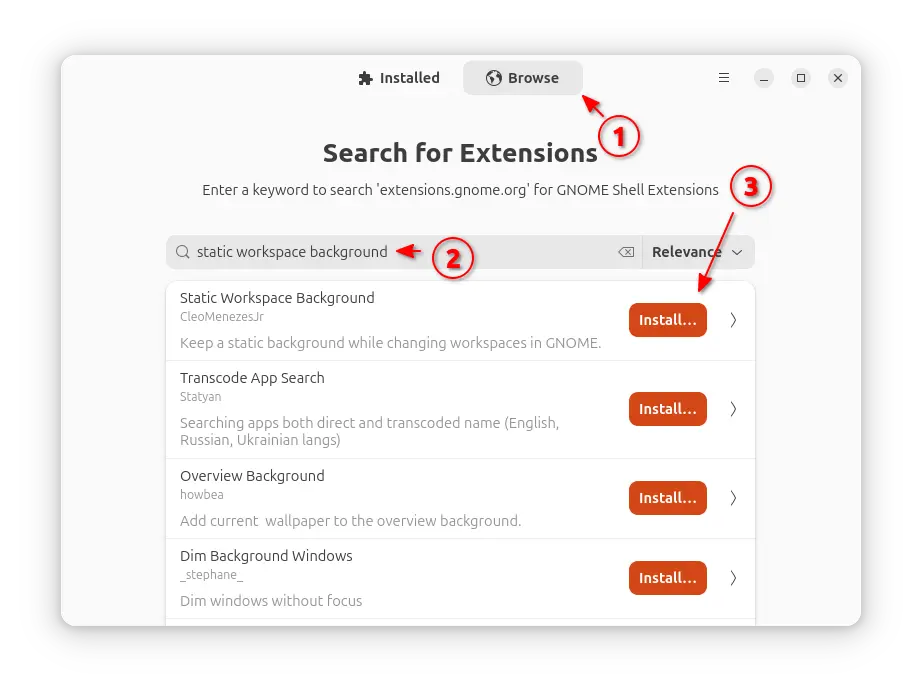
Next, use Extension Manager to search & install the “Static Workspace Background” extension under Browse tab and done!

Install via Extension Manager

Option 2: Install it in Ubuntu 24.04

The extension (version 49.0) so far works good in my case in Ubuntu 24.04 with GNOME 46, though it’s not officially supported.

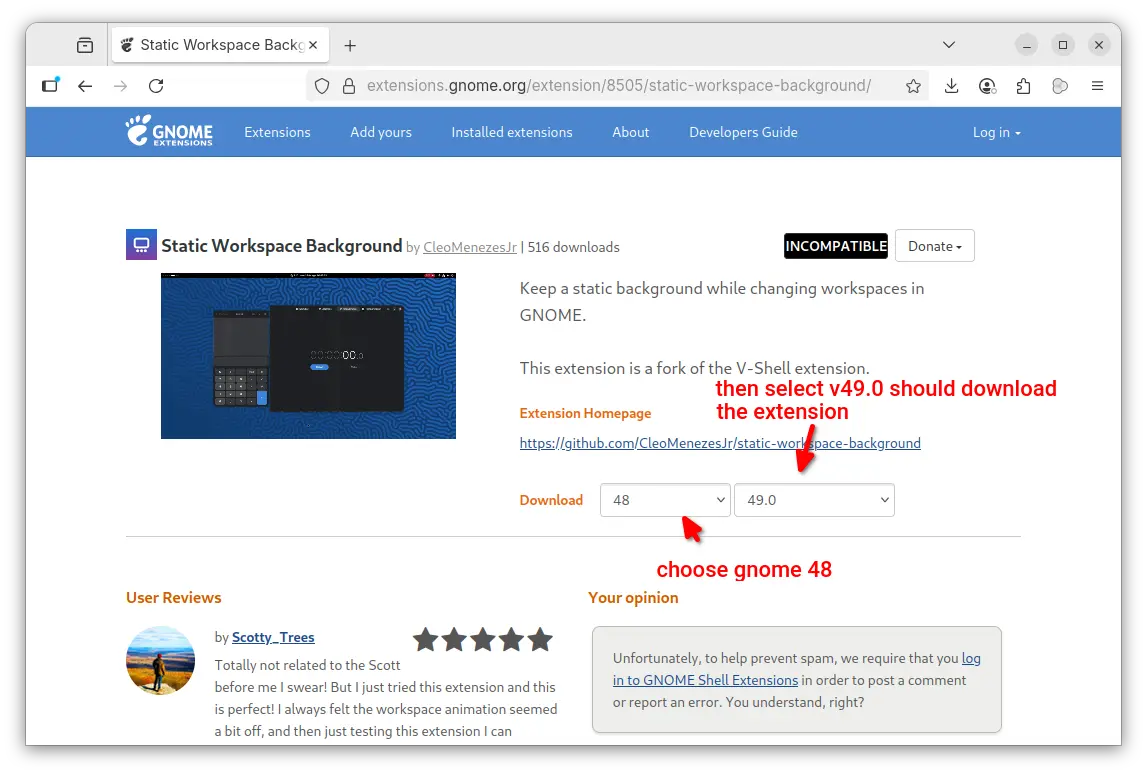
1. First, go to the extension page in extensions.gnome.org (EGO):

In the “Download” section of the page, choose a Gnome version (e.g., v48) and select extension version 49.0 to download it.

2. Once you downloaded the extension package (usually .zip archive), press Ctrl+Alt+T to open terminal and run commands below one by one to install.

  • First, run command to make sure your GNOME is configured to allow users to install extensions in their home folder, though it’s usually enabled by default.
    gsettings set org.gnome.shell allow-extension-installation true
  • Next, disable the validation of extension version compatibility by running command:
    gsettings set org.gnome.shell disable-extension-version-validation true
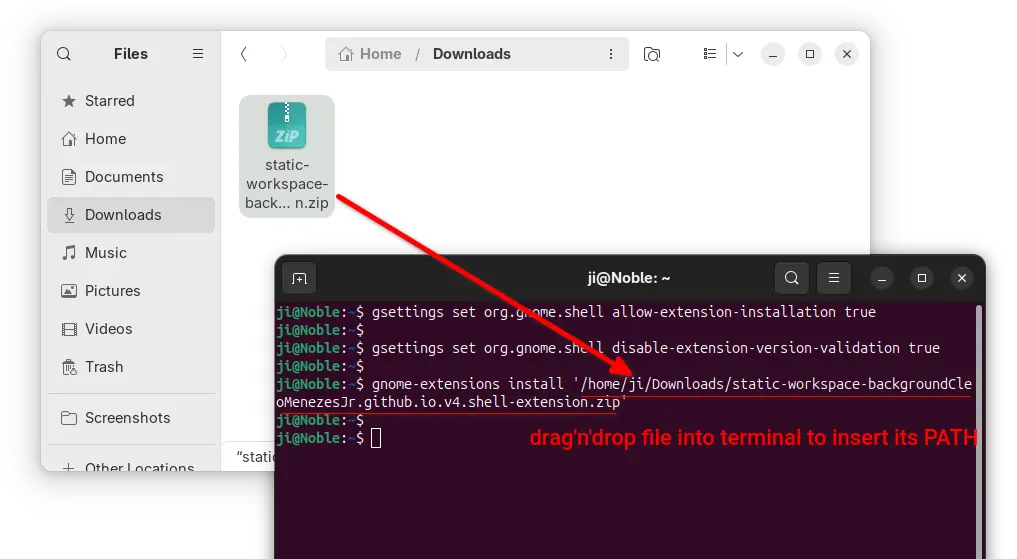
  • Finally, install the extension (.zip archive you just downloaded) via command:
    gnome-extensions install /path/to/zip-archive

    Here replace /path/to/zip-archive by drag’n’dropping it from file manager into terminal!

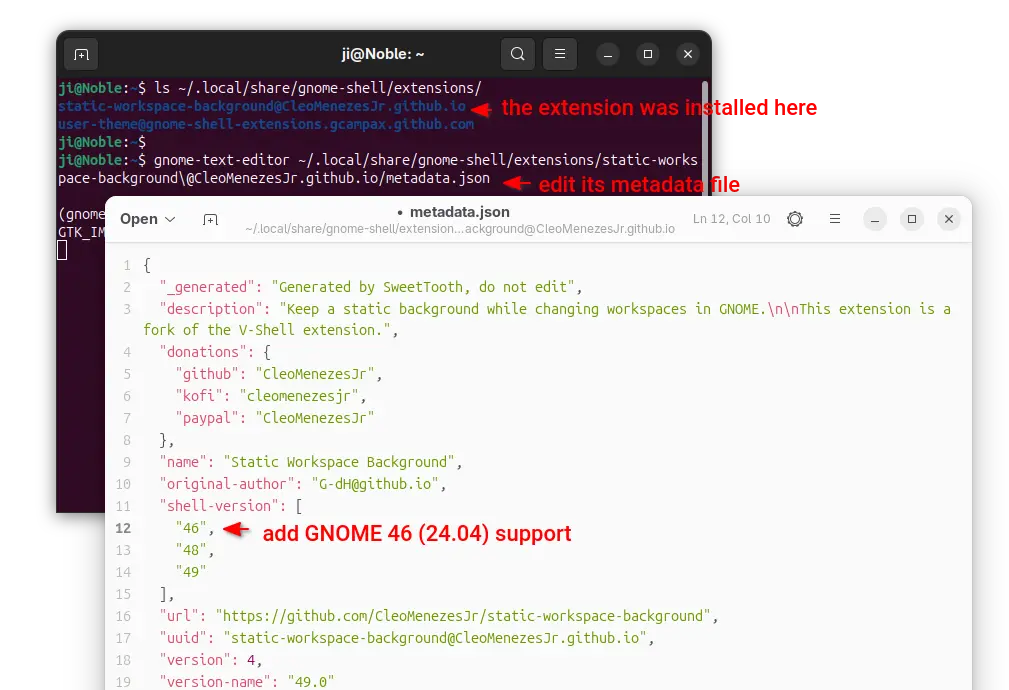
3. (Optional) After that, you have the extension installed to ./local/share/gnome-shell/extensions directory.

In case you want to re-enable the validation of extension version afterwards, run the command below to edit the metadata of that extension:

gnome-text-editor ~/.local/share/gnome-shell/extensions/static-workspace-background\@CleoMenezesJr.github.io/metadata.json

When file opens, either add “46” in “shell-version” section or simply replace any GNOME version (e.g., 49) to 46.

Then save the file, and re-enable the extension version compatibility validation if you want:

gsettings reset org.gnome.shell disable-extension-version-validation

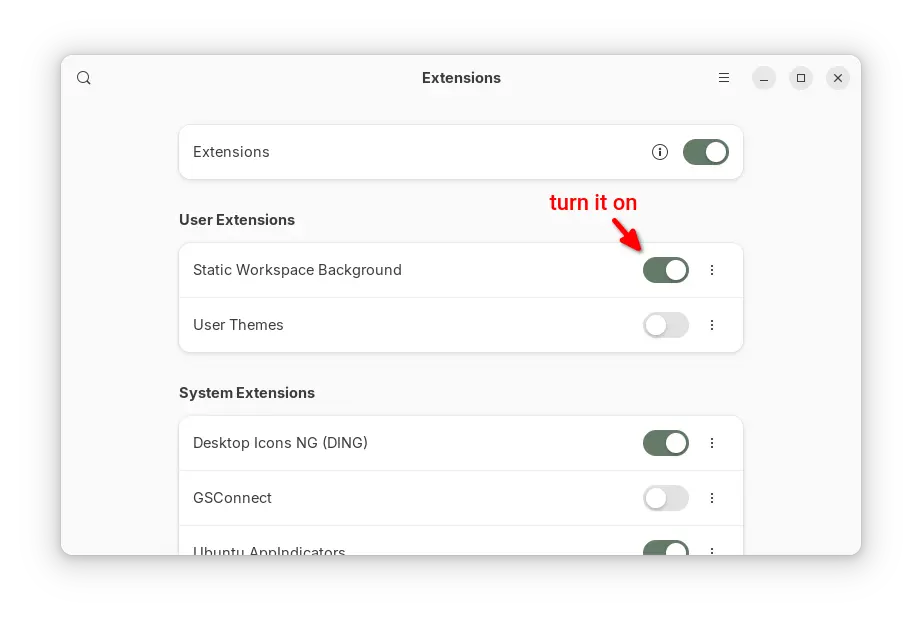
4. Finally, log out and back in. Launch either “Extension Manager” or “Gnome Extensions” app (both available in App Center) to enable the extension.

Euphonica MPD Client added official Flatpak package for Linux

By:Ji m
8 September 2025 at 18:03

Euphonica, the modern GTK4 based MPD client, finally added official package for Linux. Here’s how to install it in Ubuntu desktop.

For those who never heard of Euphonica, it’s a client app for Music Player Daemon (MPD) that provides a modern user interface for managing large local music collection (tens of thousands of songs).

It uses GTK4 + LibAdwaita for a modern UI designed for GNOME (though also works in other desktops), and support basic MPD features, such as playback control, queue reordering, ReplayGain, crossfade and MixRamp configuration.

It can automatically fetch album arts, artist avatars from Last.fm and Music Brainz, and use the current album art for the app window background.

There are also synced song lyrics support through either the 2 external sources alongwith LRCLIB or local files, as well as MPRIS integration, allowing to control you MPD instance via keyboard shortcuts and shell applets without having to keep the app window open.

As you see in the screenshot, the client also has a built-in visualiser, which can read from either FIFO output (not work for Flatpak so far due to sandboxing) or PipeWire output. And, it provides few basic options to switch between and configure them.

Other features include:

  • Playlist browser and editor.
  • Album, artist, and folder view.
  • Asynchronous search for large collections.
  • Volume knob with dBFS readout support.
  • Laze init for smoother performance.
  • Manage MPD sound output.

As a young application, it’ll keep updating with new features and improvements. See it in Github page for more details.

See more screenshots about Euphonica:

Install Euphonica via the new Flatpak package

The app added official Flatpak package, a few days ago, for running the MPD client in sandbox on most Linux (amd64 and arm64).

Linux Mint 21+ and Fedora Workstation (with third party repository enabled) may search & install it from either Software Manager or GNOME Software.

Euphonica in Mint software manager

Tips: the Flatpak package is NOT verified at the moment, though officially maintained by software developers, so you may need to configure your Software Manager first before being able to install it.

For Debian, Ubuntu, and other Linux, do the steps below one by one to install the package:

  • First, run command in terminal (Ctrl+Alt+T) to install the Flatpak daemon package:
    sudo apt install flatpak

    Other Linux may follow the official setup guide for Flatpak support

  • Next, use the command to install the Flatpak app package:
    flatpak install https://dl.flathub.org/repo/appstream/io.github.htkhiem.Euphonica.flatpakref
  • For future updates, run the command to check & install:
    flatpak update io.github.htkhiem.Euphonica

NOTE: After enabled Flatpak support, you need a log out and back in to apply environment variable changes, or you won’t see the app icon from menu.

And for beginners, you need to install & setup MPD daemon before being able to play & manage your local music collection.

Uninstall:

To uninstall Euphonica MPD client, use command:

flatpak uninstall --delete-data io.github.htkhiem.Euphonica

Here skip --delete-data if you want to keep local app data, and run flatpak uninstall --unused to remove useless run-times (e.g., Gnome platform which was also installed in sandbox).

Compile FFmpeg 8.0 in Ubuntu with NVIDIA GPU Acceleration

By:Ji m
2 September 2025 at 21:44

This is a step by step guide shows how to manually compile & install FFmpeg 8.0 from source with NVIDIA GPU acceleration support through cuda-nvcc and enable-libnpp in Ubuntu 24.04 & 22.04.

FFmpeg 8.0 so far is the latest version of this popular multi-media library, that features APV and ProRes RAW decoders, hardware accelerated VP9 and VVC encoding, and new Vulkan compute-based codecs support for FFv1 (encoding and decoding).

This tutorial is tested in Ubuntu 24.04 & 22.04, though it should also works in Debian, Linux Mint

Before Getting Started

FFmpeg now supports hardware accelerated NVENC encoding (AV1, H.264, HEVC) and NVDEC decoding (H.264, HEVC, MJPEG, MPEG-1/2/4, VP8/VP9, VC-1, AV1) through ffncodec, and scale_cuda filters to replace scale_npp.

They are usually enabled by default in FFmpeg packages from Ubuntu system repository or PPAs (e.g., my PPA and Rob Savoury’s PPA).

Meaning, you don’t need to build FFmpeg by yourself, just install it from one the previous sources, then you have the basic NVIDIA GPU acceleration support.

FFmpeg in Ubuntu & PPA repositories has nvenc & nvdec out-of-the-box

You ONLY need to follow this tutorial, when you need specific or more advanced CUDA-dependent features and/or scale_npp only filters.

And, you need:

  • a NVIDIA GPU that support NVENC/NVDEC (see the support list).
  • Install NVIDIA proprietary driver, though either Additional Drivers utility or ubuntu-drivers CLI tool. See the official guide.

Step 1: Install Nvidia Codec SDK headers

nv-codec-headers, the FFmpeg version of Nvidia Codec SDK headers, is available in Ubuntu repositories, but a bit old.

For the most recent version, press Ctrl+Alt+T on keyboard to clone the source code:

git clone https://git.videolan.org/git/ffmpeg/nv-codec-headers.git

Run sudo apt install git to install git first, if you don’t have it.

Then, run the command below to navigate to the source folder, and install it:

cd nv-codec-headers && sudo make install

Step 2: Install Build Dependencies

To build the source, we need some dependency libraries.

First, run command in terminal (Ctrl+Alt+T) to install the essential dependency packages:

sudo apt install build-essential nasm cmake libtool libc6 libc6-dev unzip wget libnuma1 libnuma-dev nvidia-cuda-toolkit pkg-config

For choice, you may install more via sudo apt install package-name (replace package-name) for more features, e.g.,

  • libvulkan-dev, for Vulkan compute-based hardware acceleration (the package in 22.04 is outdated).
  • libjxl-dev, for JPEG-XL support (the package is not available in 22.04).
  • libgme-dev, for Game Music Emu.
  • libvpx-dev, for VP8, VP9 decoding and encoding.

And, below are the packages I use for building FFmpeg into PPA:

libmp3lame-dev zlib1g-dev libvorbis-dev libsdl2-dev libxvidcore-dev liblzo2-dev texinfo libgcrypt-dev libx264-dev libtheora-dev libgsm1-dev libsnappy-dev libdc1394-dev libbs2b-dev libspeex-dev libopencore-amrwb-dev libfreetype-dev libopenmpt-dev nasm libopenjp2-7-dev libharfbuzz-dev libvdpau-dev libtesseract-dev libopencore-amrnb-dev libxfixes-dev libgl-dev libbz2-dev libssl-dev libass-dev libasound2-dev libva-dev libjack-jackd2-dev libvpx-dev frei0r-plugins-dev libvo-amrwbenc-dev libsctp-dev libopus-dev gnutls-dev frei0r-plugins-dev libsoxr-dev linux-libc-dev ladspa-sdk libaom-dev libfontconfig-dev libfdk-aac-dev libpulse-dev libzvbi-dev libiec61883-dev libavc1394-dev libleptonica-dev liblzma-dev libx265-dev libxext-dev libcaca-dev libopenh264-dev librubberband-dev libwebp-dev libgme-dev glslang-dev opencl-c-headers libshine-dev libfribidi-dev libxcb1-dev libxcb-shm0-dev libxcb-xfixes0-dev libcdio-paranoia-dev libcodec2-dev ocl-icd-opencl-dev libzimg-dev libmysofa-dev libbluray-dev libzmq3-dev libaribb24-dev liblensfun-dev liblilv-dev flite1-dev librsvg2-dev libtwolame-dev libopenal-dev librabbitmq-dev libvulkan-dev libxavs2-dev libsrt-gnutls-dev libdavs2-dev libomxil-bellagio-dev libxml2-utils libsmbclient-dev libchromaprint-dev libunwind-dev libdvdnav-dev libdvdread-dev

Step 3: Compile & install FFmpeg 8.0

1. Download & extract the source

Now download FFmpeg 8.0 source tarball from its website, decompress, then right-click on extracted folder and choose “Open in Terminal” to open terminal with source folder as working directory.

open FFmpeg source folder in terminal

For Ubuntu server without GUI, run the command below to download the source:

wget https://ffmpeg.org/releases/ffmpeg-8.0.tar.xz

Then, decompress and navigate to the source folder:

tar -Jxf ffmpeg-8.0.tar.xz && cd ffmpeg-8.0

2. Configure the source

Now, configure the source by running command:

./configure --enable-nonfree --enable-cuda-nvcc --enable-libnpp --extra-cflags=-I/usr/local/cuda/include --extra-ldflags=-L/usr/local/cuda/lib64 --disable-static --enable-shared

Here, you may add more configure options, e.g.,:

  • --enable-libvpx, need ‘libvpx-dev’ to be installed.
  • --enable-vulkan, need ‘libvulkan-dev’ to be installed.
  • --enable-libjxl, need ‘libjxl-dev’ to be installed.

And even more. See either configure file, or run ./configure --help to list more choices.

Configure the source

3. build & install FFmpeg

If configure is done without error, you may then run the command below to build it:

make -j4

Here j4 means to start 4 threads in parallel. You may replace it with j8, or even j16 depends on your CPU, or use -j$(nproc) to use all CPU cores.

build with ‘make’ command

If everything goes well, finally install FFmpeg by running command:

sudo make install

install ffmpeg via ‘make install’

Step 4: Verify

After installed FFmpeg, run the command below to print its version and configuration.

ffmpeg

If it said error while loading shared libraries, then run command to add /usr/local/lib as LD_LIBRARY_PATH environment variable, which works for current terminal session.

export LD_LIBRARY_PATH="/usr/local/lib:$LD_LIBRARY_PATH"

Or, write the command into end of .profile or .bashrc file in user home to make it permanent for current user.

Finally, try to transcode with GPU acceleration via command (replace input.mp4 with path to an existing media file):

ffmpeg -hwaccel cuda -i input.mp4 -vf scale_npp=-1:720 -c:v h264_nvenc -preset slow output.mkv

Uninstall:

To uninstall, open the source folder again in terminal and run command:

sudo make uninstall

If you’ve already deleted that folder, then manually remove the executable files from /usr/local/bin and libraries from /usr/local/lib:

Install & Set Ptyxis as Default Terminal in Ubuntu 24.04 | 22.04

By:Ji m
31 August 2025 at 15:07

Like the new Ptyxis terminal emulator introduced in Ubuntu 25.10, here’s how to install and set it as default in current Ubuntu 24.04 and 22.04 LTS.

Ptyxis is a modern terminal emulator designed for GNOME with first-class container integration, such as auto-discovery and option to launch a container in new tab, preferences profiles with container integration for Podman, Toolbox, Distrobox, and JHBuild.

The terminal uses GTK4 + LibAdwaita for its modern user interface well integrated into GNOME. And, it supports configurable keyboard shortcuts, user-installable color palettes, GPU acceleration, integrated developer tool, and more.

Ubuntu 25.10 since snapshot 4 has added this terminal app as a replacement of GNOME Terminal. For current 2 Ubuntu LTS releases, it’s easy to install through Flatpak via the steps below.

1. Install Ptyxis

The latest Ptyxis (48.5 so far) won’t build in current Ubuntu 24.04 or 22.04 due to outdated GTK4 and libadwaita libraries. User may choose to install it as Flatpak package, which runs in sandbox environment.

NOTE: This step works only on X86_64 (modern Intel/AMD) and ARM64 platforms.

First, press Ctrl+Alt+T on keyboard to open terminal. When it opens, run the command below to install the flatpak daemon:

sudo apt install flatpak

You may run sudo apt update to refresh your system package cache, if the last command failed.

Then, install the terminal emulator by running command:

flatpak install https://dl.flathub.org/repo/appstream/app.devsuite.Ptyxis.flatpakref

This will install the app system wide, so all users can access it. For choice, you may add --user flag in command to install it for current user only.

Finally, either launch the terminal from menu (log out and back in if app icon not visible) or run flatpak run app.devsuite.Ptyxis to start from terminal.

And for future updates, run the command below to check & install:

flatpak update app.devsuite.Ptyxis

Step 2: Set Ptyxis as default terminal

If you would like to make your terminal apps use Ptyxis as default, and Ctrl+Alt+T launch this terminal instead of Gnome-Terminal, then run following commands one by one.

NOTE 1: Ptyxis has an option in its preferences dialog to set as default, though NOT work in my case.

NOTE 2: This step no longer works for Ubuntu 25.04 and later due to policy change.

Ubuntu until 25.04 uses /etc/alternatives/x-terminal-emulator symbolic link to determine the default terminal app. To configure it, use update-alternatives command to add alternatives and set which to use as default.

1. First, create a wrapper for Ptyxis executable by running command:

sudo nano /usr/bin/ptyxis.wrapper

This command will create a script ptyxis.wrapper under /usr/bin with nano command line text editor.

When it opens, paste the line below, so it will launch Ptyxis with --new-window flag.

#!/bin/sh
flatpak run app.devsuite.Ptyxis --new-window

Finally, press Ctrl+S to save and Ctrl+X to exit. And, run command below to add executable permission:

sudo chmod a+x /usr/bin/ptyxis.wrapper

You may skip creating the wrapper, and use /var/lib/flatpak/exports/bin/app.devsuite.Ptyxis in next commands. Which however only allows to open a single Ptyxis window when pressing Ctrl+Alt+T keyboard shortcut for multiple times.

2. Next, run command to install Ptyxis as an alternative:

sudo update-alternatives --install /usr/bin/x-terminal-emulator x-terminal-emulator /usr/bin/ptyxis.wrapper 10

Here you may replace /usr/bin/ptyxis.wrapper with one of the PATH to Ptyxis executable file below. As mentioned, it however allows only one Ptyxis window, unless passing --new-window flag.

  • /var/lib/flatpak/exports/bin/app.devsuite.Ptyxis for default system-wide installation.
  • $HOME/.local/share/flatpak/exports/bin/app.devsuite.Ptyxis if installed the terminal with --user flag.

Then, run the command below to choose default terminal:

sudo update-alternatives --configure x-terminal-emulator

In my case (see the screenshot), type 4 and hit Enter to select Ptyxis.

Step 3: Add “Open in Terminal” Context Menu option for Ptyxis

If you would like to add “Open in Terminal” look-like context menu to open selected folder in Ptyxis, the popular nautilus-open-any-terminal extension can do the job for Nautilus (aka GNOME Files).

1. First, run command in terminal to install dependency libraries:

sudo apt install python3-pip python3-nautilus gir1.2-gtk-4.0

2. Then, install the extension through pip:

python3 -m pip install --user nautilus-open-any-terminal --break-system-packages

The --break-system-packages flag is required in 24.04 due to PEP 668, though not for 22.04.

3. After installed the Nautilus extension, run the command below to generate dconf configuration:

glib-compile-schemas ~/.local/share/glib-2.0/schemas/

Then quit Nautilus to apply changes:

nautilus -q

4. Finally, launch Dconf Editor which can be installed from either Ubuntu Software or App Center (filter by Debian package).

Then, navigate to “com/github/stunkymonkey/nautilus-open-any-terminal”, and disable default values and set:

  • flatpak to ‘system’ (or ‘user’ if you used --user flag when installing Ptyxis).
  • terminal to ‘ptyxis’.

Finally, right-click on any folder or blank area in file manager to see the new option.

And, remove nautilus-extension-gnome-terminal package to get rid of the default ‘Open in Terminal’ option.

[Quick Fix] Firefox Cannot Download or Open Files in Ubuntu 24.04

By:Ji m
28 August 2025 at 21:43

The default Firefox browser (Snap version) in Ubuntu 24.04 is always failing to download or open files! Here’s why and how you can fix it.

Not only for Firefox, the issue also happens when read or write user files with other SNAP apps in both Ubuntu 22.04 and 24.04 LTSs.

Firefox cannot download or open files in Ubuntu 24.04

Why?

I first heard of the issue was that some of my readers reported they cannot download HPLIP installers when following my tutorial.

I thought it was something to do with the download server until I see the snap warnings below in screenshot:

snap warns AppArmor enabled by no prompting client present

The warning told me that AppArmor (the kernel security module) is enabled, but no prompting client present. So for all snap apps, it auto-denies all the requests when trying to read or write files in user directories.

Meaning NOT only Firefox, all the applications installed as snap packages in Ubuntu 22.04 and 24.04 have the issue, while Ubuntu 25.04 excluded as it has the prompting client installed out-of-the-box.

In short, Ubuntu now has AppArmor enabled by default! And, Ubuntu 22.04 & 24.04 auto-deny snap apps’ permission requests due to lack of prompting client to manage the requests!

How to Fix the issue

To fix the issue, you may choose one of the options below:

  • install prompting client to manage snap app permission requests.
  • disable AppArmor (NOT RECOMMEND).
  • use non-snap apps.

Option 1: Install Prompting Client in Ubuntu 24.04 | 22.04

I’ve written about how to install the prompting client as well as security center in Ubuntu.

Prompting client is the official client for snap apparmor prompting. And, the desktop Security Center provides an easy-to-access interface to manage all snap apps permissions you added.

The Desktop Security Center

Both the packages are snap and pre-installed in Ubuntu 25.04, while the current 2 Ubuntu LTS releases may install them by doing the steps below:

  • either press Ctrl+Alt+T to open terminal, and run the commands below one by one to install the packages:
    sudo snap install desktop-security-center
    sudo snap install prompting-client

  • or, launch App Center (or Ubuntu Software) then search & install both (filter by snap package) packages:

    install prompting client via AppCenter

After successfully install the client, you may now launch a Snap app (e.g., Firefox) then try downloading or opening a file. It will pop-up a dialog asking to grant permission, either once or always.

Prompting client asks to grant permission when reading/writing files via Snap

Once you clicked “Allow”, then the snap (Firefox in the case) can open or the download the file. And, you may then launch “Security Center” to manage the permissions you set.

Option 2: Disable AppArmor (NOT RECOMMEND)

AppArmor is a Linux Kernel security module to restrict app capabilities and permissions with profiles. Due to security reason, it’s NOT recommended to disable this feature.

But if you insist, do the following steps to disable it in Ubuntu (and most other Linux) which is using the default Grub bootloader.

1. First, press Ctrl+Alt+T to open terminal, and, run command to edit Grub configuration file:

sudo nano /etc/default/grub

2. When file opens in terminal, add apparmor=0 as value to either ‘GRUB_CMDLINE_LINUX_DEFAULT’ or ‘GRUB_CMDLINE_LINUX’ section.

3. After edited the file, press Ctrl+S to save and Ctrl+X to exit. Finally, run command below to update Grub:

sudo update-grub

And, the change will apply in next boot. To check AppArmor status, run command sudo aa-status in terminal.

Tips: For choice, user may install the graphical Grub-Customer tool, and use the tool to add apparmor=0 as kernel parameter under “General” tab.

Disable AppArmor via Grub Customizer

That’s all. Enjoy!

Change the Color Scheme of GNOME Adwaita Apps & Shell

By:Ji m
22 August 2025 at 23:59

Modern GNOME apps do NOT support traditional themes, but you may change the look with custom color schemes!

As you know, GNOME has moved to use GTK4 + LibAdwaita for its applications and desktop components. And, so many apps use the LibAwaita library for their modern UI, which however do not support theming (see this thread).

GNOME with custom color scheme

To make libadwaita apps look consistent on non-GNOME desktops, Linux Mint has a soft fork called libadapta, and programmers can inject their custom CSS code.

What if you have no coding skill, but want a fresh look of the GNOME apps? Here’s a stupid simple app that can do the job by changing the color schemes!

There used to be an app called Gradience to set custom colors for Adwaita apps, which is however discontinued due to lack of maintenance. Just a month ago, a new app was born for GNOME users boring with the default look.

It’s Rewaita, a free open-source app written in CSS and Python, which provides a simple user interface, with few dozen of color scheme presets (for light and dark mode) and few window controls (min, max, close) layout.

Rewaita app window

Just choose one from the list, then Adwaita apps (may need a re-launch), Gnome top-bar, and menus’ colors change automatically according to the color scheme.

GNOME Dark mode with a custom color scheme

For choice, user may switch to “Custom” tab for options to set custom background and text colors for buttons, main window, widgets, warning, etc components.

As well, you may change the named colors, e.g., Blue, Teal, Green, Orange, Yellow accent colors. So, when you select an accent color in Appearance settings page, it won’t display the named color but the custom color you set.

The custom colors can be saved as preset for either light or dark mode, then apply at any time from the “Theming” tab.

How to Install Rewaita:

NOTE: Rewaita so far does NOT work in Ubuntu 24.04 and works partially IN MY CASE in Ubuntu 25.04, probably because Ubuntu does not feature vanilla Gnome environment.

Rewaita is available to install in most Linux on amd64 and arm64 platforms as Flatpak package, which runs in sandbox environment.

Fedora workstation (with 3rd party repository enabled) may search & install it from GNOME Software.

While, other Linux may do the steps below one by one to get it:

  • First, follow the official setup guide to enable Flatpak support. For Debian/Ubuntu, simply open terminal (Ctrl+Alt+T) and run command:
    sudo apt install flatpak

  • Next, install the Rewaita package by running command:
    flatpak install https://dl.flathub.org/repo/appstream/io.github.swordpuffin.rewaita.flatpakref

    There’ll be also lots of downloads for GNOME and FreeBSD run-times if you don’t have them.

After installed the app package, launch either from GNOME Overview (log out and back in if app icon not visible) or by running command in terminal:

flatpak run io.github.swordpuffin.rewaita

And, replace run with update in last command to check & install updates.

In addition, to make custom colors work for Flatpak apps, you need to run one more command to grant read & write permission to the gtk-4.0 configuration directory for Flatpak.

sudo flatpak override --filesystem=xdg-config/gtk-4.0:rw

And for GNOME Top-bar and menus, you need to set Gnome Shell theme to Rewaita (via Gnome Tweaks).

Set Gnome Shell theme to Rewaita

Tips: if “Shell” theme option is grayed out, then you need to install User Themes extension:

  • either visit the last link and use the ON/OFF toggle to install. Though you need to install browser extension if prompted, and Debian/Ubuntu needs to install the agent package first:
    sudo apt install chrome-gnome-shell
  • or install “Extension Manager” from Gnome Software, App Center (debian package), or your system package manager, and use it to search & install Gnome Shell extensions.
  • finally, re-launch Gnome Tweaks.

Uninstall Rewaita

To uninstall the app, first reset to default color schemes (use the ⟳ icon) for both light, dark, and window controls.

Then, run the command below to remove the flatpak package:

flatpak uninstall --delete-data io.github.swordpuffin.rewaita
❌