 Login
LoginKDE Plasma 6.6 Will Introduce Per-Window Screen-Recording Exclusions
22 November 2025 at 23:28


Calibre 8.15 open-source e-book management software is now available for download with various new features and bug fixes. Here's what's new!
The post Calibre 8.15 Open-Source E-Book Manager Improves the Comments Editor appeared first on 9to5Linux - do not reproduce this article without permission. This RSS feed is intended for readers, not scrapers.
Can the Raspberry Pi 500+ work as a standalone Bluetooth keyboard? Yes, using the open-source btferret project – but not without limitations, as I report.
You're reading Raspberry Pi 500+ Works as Standalone Keyboard (Well, Kinda), a blog post from OMG! Ubuntu. Do not reproduce elsewhere without permission.
RustDesk, the free open-source remote desktop application, release new 1.4.4 version few days ago.
The new release of this Teamviewer or AnyDesk alternative app introduced edge scrolling support, when your app window is smaller than the remote screen size.
Previously, it scrolls automatically when you move cursor around the screen. While, the “Scrollbar” mode is available for choice when you want to manually move the bottom or right scrollbar to move around.
In the new release, a new “ScrollEdge” mode is added. With it enabled, you may move cursor to the window edge to move the screen. And, a scroll-bar is available to adjust the edge thickness.
For Linux with Wayland (e.g., Ubuntu 22.04+ and Fedora Workstation), it added support sharing multiple monitor screens since last 1.4.3. In the new release, it improved this feature by supporting multiple scaled monitors with Gnome or KDE Wayland.
RustDesk 1.4.4 also introduced new “Ask for note at the end of connection” option in the General settings page.
With it enabled, it will display a popup dialog where user can enter a note, when disconnects either actively or passively. See this page for more about the feature.
The new version also improve Apple devices support. It now shows proxy settings on iOS, and allows to manage transferred files through Files or iTunes app. And, it updated hwcodec that fixed H265 encoding support on Intel chip Mac computers.
Other changes in the 1.4.4 release include:
The official release note, as well as the installer packages for Windows, Linux, macOS, iOS, and Android, are available in its Github releases via the link below:
For Linux, the “Assets” section provides more packages, e.g., pkg.tar.zst for Arch, .rpm for Fedora/SUSE/RHEL, non-install .appimage, and .flatpak for most Linux that runs in sandbox environment.
If you don’t know which OS type (X86_64, aarch64, or archv7) to choose, open terminal and run uname -m or dpkg --print-architecture command to tell.
And for those who are new to this application, simply install it in both remote and local machines, then type the remote ID to connect, though remember to start the service first in hamburger menu.
It by default uses the public server to initialize the connection, then send data peer-to-peer after connection is established. While, you may see the official docs for setting up self-hosting server.
HPLIP, the free open-source Linux driver for HP inkjet and laser based printers, released new 3.25.8 version few days ago.
This is the third release in 2025, which features a few dozen new printer devices support but NO installer update for the most recent Linux Distributions support.
According to the official release note, HPLIP 3.25.8 added following printers support:
Sadly, the official installer so far supports Distros up to following versions:
Meaning for Ubuntu 25.04, 25.10, Debian 13, Fedora 43 etc, you need to manually build the driver from source.
The official installer “hplip-3.25.8.run” is available to download in sourceforge.net via the link below:
After downloaded the installer, open the Downloads folder in terminal, and finally run the 2 commands below one by one:
chmod u+x ./hplip-3.25.8.run
./hplip-3.25.8.run
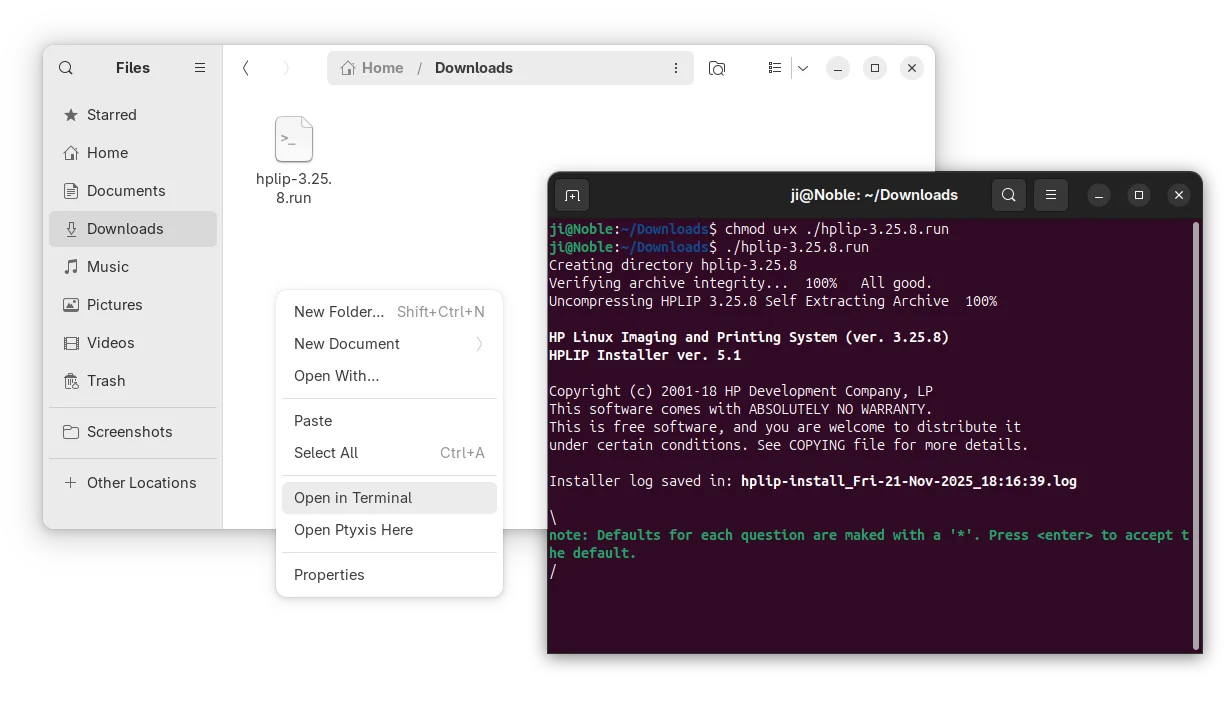
For non-supported Linux Distributions, either grab the source form the link above, or, open the extracted folder (the command above automatically generate the source folder) in terminal, then compile by yourself.

If you use Linux and occasionally run Windows applications, whether via native Wine or through gaming layers like Proton, you’ll appreciate what just dropped in Wine 10.19. Released November 14 2025, this version brings a major enhancement: official support for Windows reparse points, a filesystem feature many Windows apps rely on, and a host of other compatibility upgrades.
In simpler terms: Wine now understands more of the Windows filesystem semantics, which means fewer workarounds, better application compatibility, and smoother experiences for many games and tools previously finicky under Linux.
On Windows, a reparse point is a filesystem object (file or directory) that carries additional data, often used for symbolic links, junctions, mount points, or other redirection features. When an application opens or queries a file, the OS may check the reparse tag to determine special behavior (for example “redirect this file open to this other path”).
Because many Windows apps, installers, games, DRM systems, file-managers, use reparse points for features like directory redirection, path abstractions, or filesystem overlays, lacking full support for them in Wine means those apps often misbehave.
What Wine 10.19 AddsWith Wine 10.19, support for these reparse point mechanisms has been implemented in key filesystem APIs: for example NtQueryDirectoryFile, GetFileInfo, file attribute tags, and DeleteFile/RemoveDirectory for reparse objects.
This means that in Wine 10.19:
Windows apps that create or manage symbolic links, directory junctions or mount-point style re-parsing will now function correctly in many more cases.
Installers or frameworks that rely on “when opening path X, redirect to path Y” will work with less tinkering.
Games or utilities that check for reparse tags or use directory redirections will have fewer “stuck” behaviors or missing files.
In effect, this is a step toward closer to native behavior for Windows file-system semantics under Linux.
Beyond reparse points, the release brings several notable improvements:
Expanded support for WinRT exceptions (Windows Runtime error handling) meaning better compatibility for Universal Windows Platform (UWP) apps and newer Windows-based frameworks.
Refactoring of “Common Controls” (COMCTL32) following the version 5 vs version 6 split, which helps GUI applications that rely on older controls or expect mixed versions.
LibrePods brings AirPods Pro features to Linux desktops, including active noise cancellation, transparency mode, ear detection and accurate battery levels.
You're reading Use AirPods Pro Features on Linux with LibrePods, a blog post from OMG! Ubuntu. Do not reproduce elsewhere without permission.
Apple iWork is Apple’s suite of office applications, similar to Microsoft Office or Google Docs, consisting of three main applications
The post How to Open and Edit Apple iWork Files on Linux first appeared on Tecmint: Linux Howtos, Tutorials & Guides.
PHP 8.5 open-source scripting language is out now with URI extension, Pipe operator, and support for modifying properties while cloning. Here's what's new!
The post PHP 8.5 Released with Pipe Operator, URI Extension, and Clone With Functionality appeared first on 9to5Linux - do not reproduce this article without permission. This RSS feed is intended for readers, not scrapers.
Wireshark 4.6.1 open-source network protocol analyzer is now available to download with various bug fixes and updated protocols. Here’s what’s changed!
The post Wireshark 4.6.1 Released with Updated Protocol Support and Various Bug Fixes appeared first on 9to5Linux - do not reproduce this article without permission. This RSS feed is intended for readers, not scrapers.
GDM Settings, the graphical configuration tool for GNOME Login Screen, updated recently with new toggle options!
As you know, GDM Settings is a free open-source Python written settings app for GNOME’s Login/Display Manager.
With it, you may change the login screen background image, set the fonts and themes, tweak top-bar colors, disable user list, show welcome message, and configure more about the login screen.
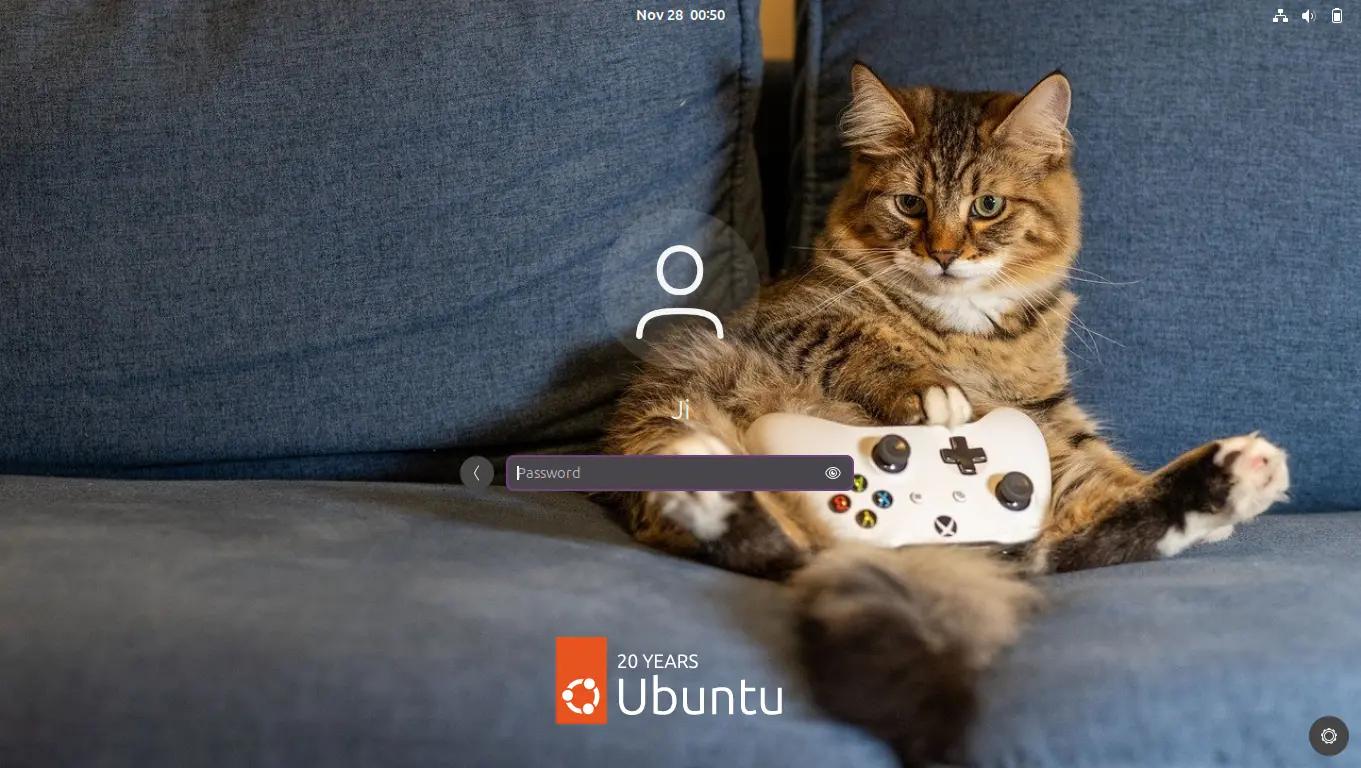
GNOME Login Screen with custom background
The latest of the app is so far at version 5.0 which was release one year ago. The development slows down however after that release.
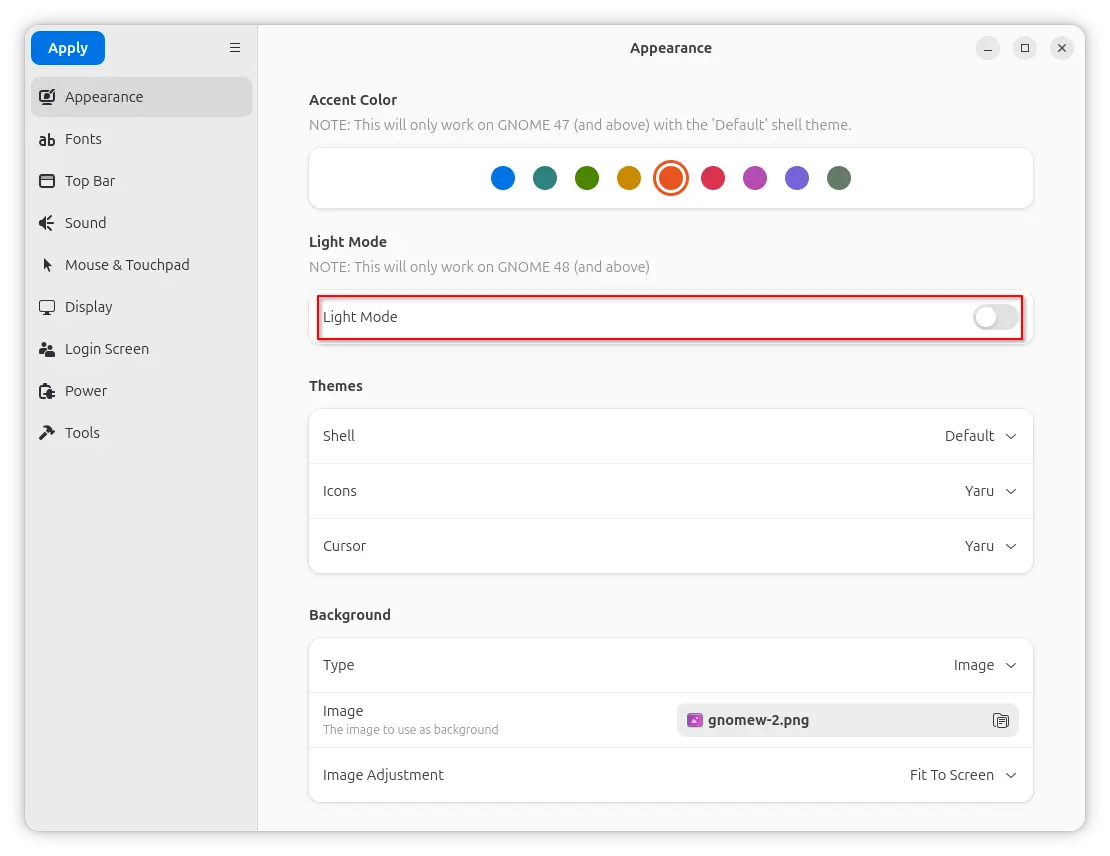
In the past 12 months, only few features were added. One is the “Light Mode” toggle option under Appearance tab, which works for GNOME 48 and above.
It works by setting the org/gnome/desktop/interface/color-scheme key to ‘prefer-light‘ for GDM. Though, in vanilla Gnome both top-bar and menus are dark in either mode. And, I didn’t see anything goes light after enabled the option in my test in Ubuntu 25.10.
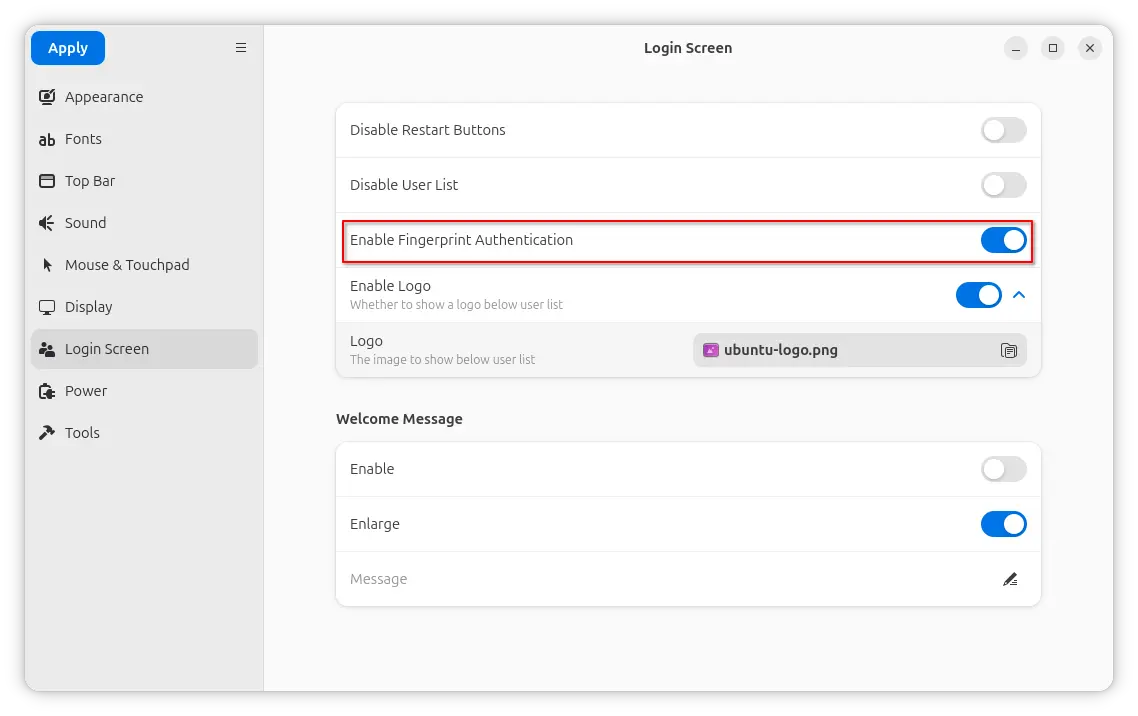
Another is a new Enable Fingerprint Authentication toggle option added to ‘Login Screen’ page. It can be useful when you want to use fingerprint authentication for your GNOME desktop environment except the login screen, as you know log-in without password will cause unlock keyring pop-up when launching Chrome etc application though it can be skipped.
And, the function is done by setting org/gnome/login-screen/enable-fingerprint-authentication key for GDM silently in the background.
Besides that, it also updated to GNOME 49 platform for the Flatpak package. For more about the development of GDM Settings, see the commits page.
The changes mentioned above are still in development stage. Meaning you need to manually build it from source code.
NOTE: GDM Settings has the potential to break your login screen. Don’t use it on production machine!
For the 5.0 version, it’s available to install in most Linux Distributions through Flatpak package.
Just enable Flatpak support, then run the command below to install it:
flatpak install flathub io.github.realmazharhussain.GdmSettings
While, Fedora Workstation may simply search for and install it from GNOME Software, if you have 3rd party repository enabled.
GDM Settings flatpak package in Fedora GNOME Software
For choice, there’s also non-install AppImage available to download in the Github releases page under Assets section.
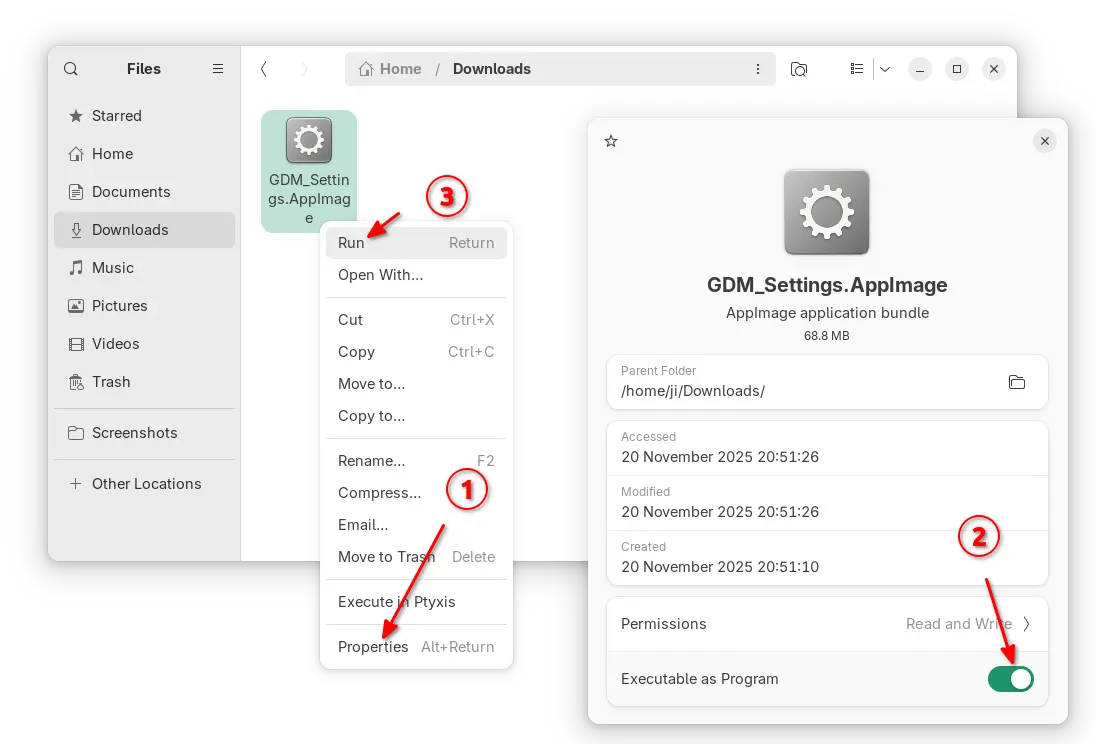
As both AppImage and Flatpak were built with most recent GNOME runtime, they may be NOT working good in old GNOME Desktops.
So, I built the app package into this unofficial PPA for Ubuntu 22.04, Ubuntu 24.04, 25.04 and 25.10.
To add the PPA and install GDM Settings, open terminal (Ctrl+Alt+T) and run commands below one by one:
sudo add-apt-repository ppa:ubuntuhandbook1/gdm-settings
sudo apt update
sudo apt install gdm-settings
Optionally, you may remove the PPA package and remove the PPA at any time by running commands:
sudo apt remove gdm-settings
sudo add-apt-repository --remove ppa:ubuntuhandbook1/gdm-settings
