❌

Normal view

Received before yesterday

GDM Settings adding Toggles for Light Mode & Fingerprint Authentication

By:Ji m
20 November 2025 at 21:14

GDM Settings, the graphical configuration tool for GNOME Login Screen, updated recently with new toggle options!

As you know, GDM Settings is a free open-source Python written settings app for GNOME’s Login/Display Manager.

With it, you may change the login screen background image, set the fonts and themes, tweak top-bar colors, disable user list, show welcome message, and configure more about the login screen.
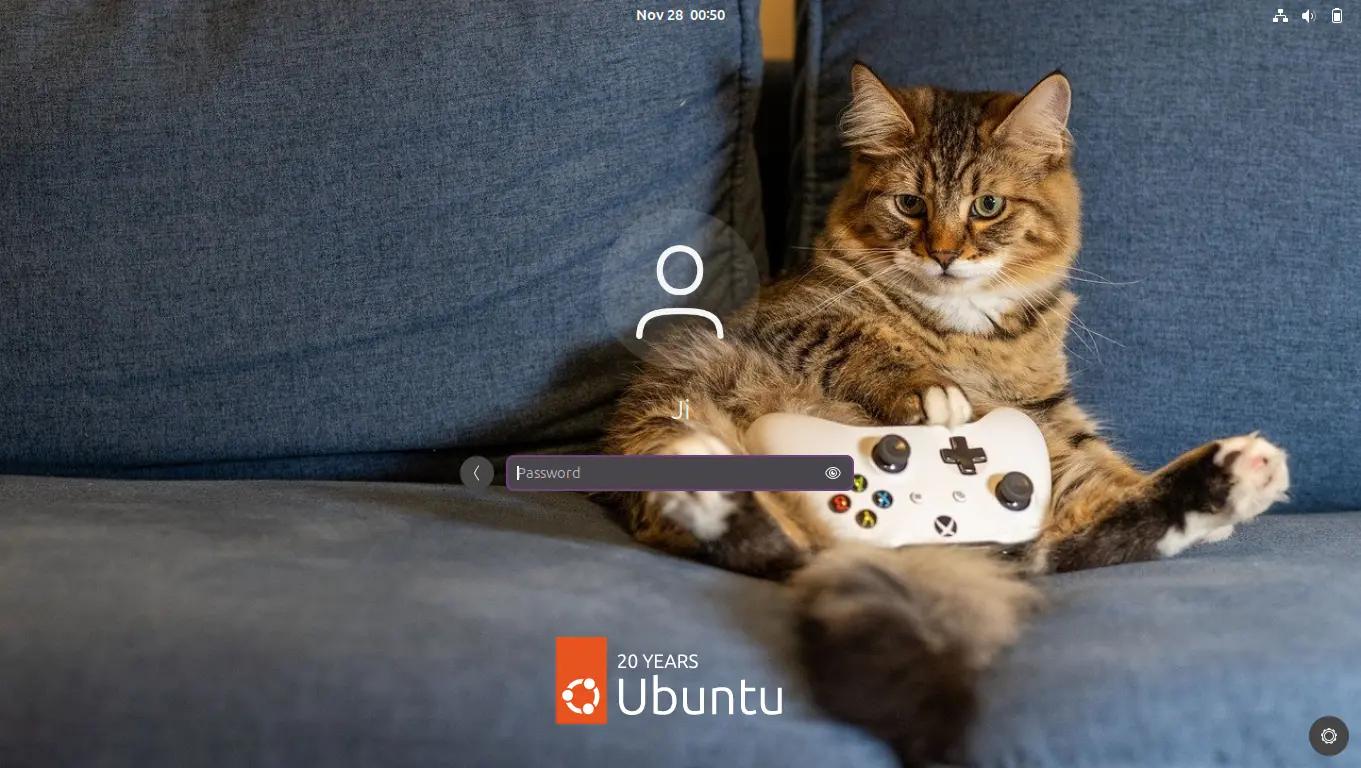
GNOME Login Screen with custom background

The latest of the app is so far at version 5.0 which was release one year ago. The development slows down however after that release.

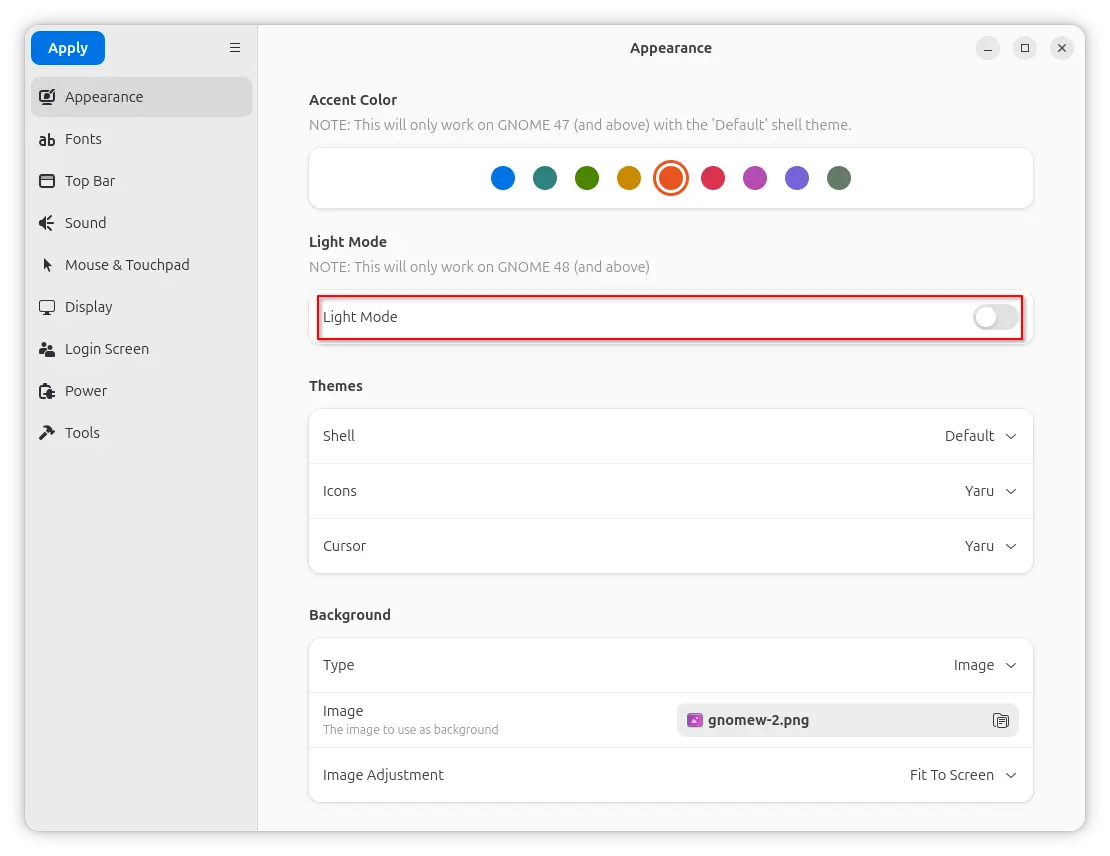
In the past 12 months, only few features were added. One is the β€œLight Mode” toggle option under Appearance tab, which works for GNOME 48 and above.

It works by setting the org/gnome/desktop/interface/color-scheme key to β€˜prefer-lightβ€˜ for GDM. Though, in vanilla Gnome both top-bar and menus are dark in either mode. And, I didn’t see anything goes light after enabled the option in my test in Ubuntu 25.10.
Another is a new Enable Fingerprint Authentication toggle option added to β€˜Login Screen’ page. It can be useful when you want to use fingerprint authentication for your GNOME desktop environment except the login screen, as you know log-in without password will cause unlock keyring pop-up when launching Chrome etc application though it can be skipped.

And, the function is done by setting org/gnome/login-screen/enable-fingerprint-authentication key for GDM silently in the background.
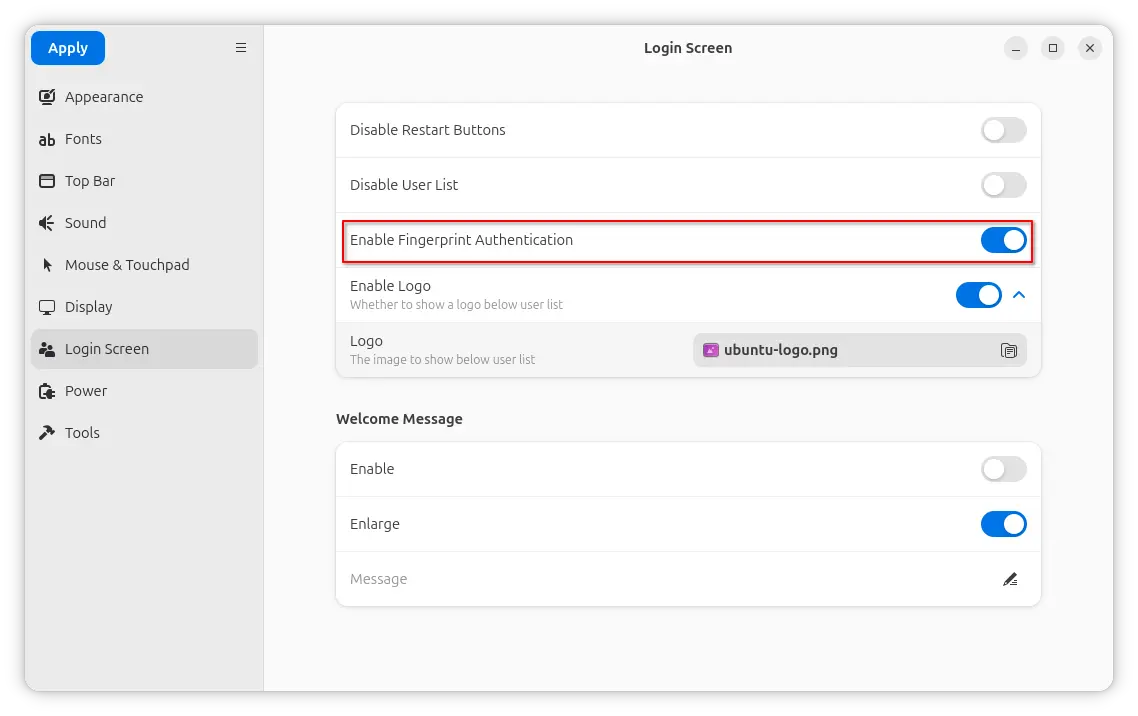
Besides that, it also updated to GNOME 49 platform for the Flatpak package. For more about the development of GDM Settings, see the commits page.

Install GDM Settings

The changes mentioned above are still in development stage. MeaningΒ you need to manually build it from source code.

NOTE: GDM Settings has the potential to break your login screen. Don’t use it on production machine!

For the 5.0 version, it’s available to install in most Linux Distributions through Flatpak package.

Just enable Flatpak support, then run the command below to install it:

flatpak install flathub io.github.realmazharhussain.GdmSettings

While, Fedora Workstation may simply search for and install it from GNOME Software, if you have 3rd party repository enabled.

GDM Settings flatpak package in Fedora GNOME Software

For choice, there’s also non-install AppImage available to download in the Github releases page under Assets section.
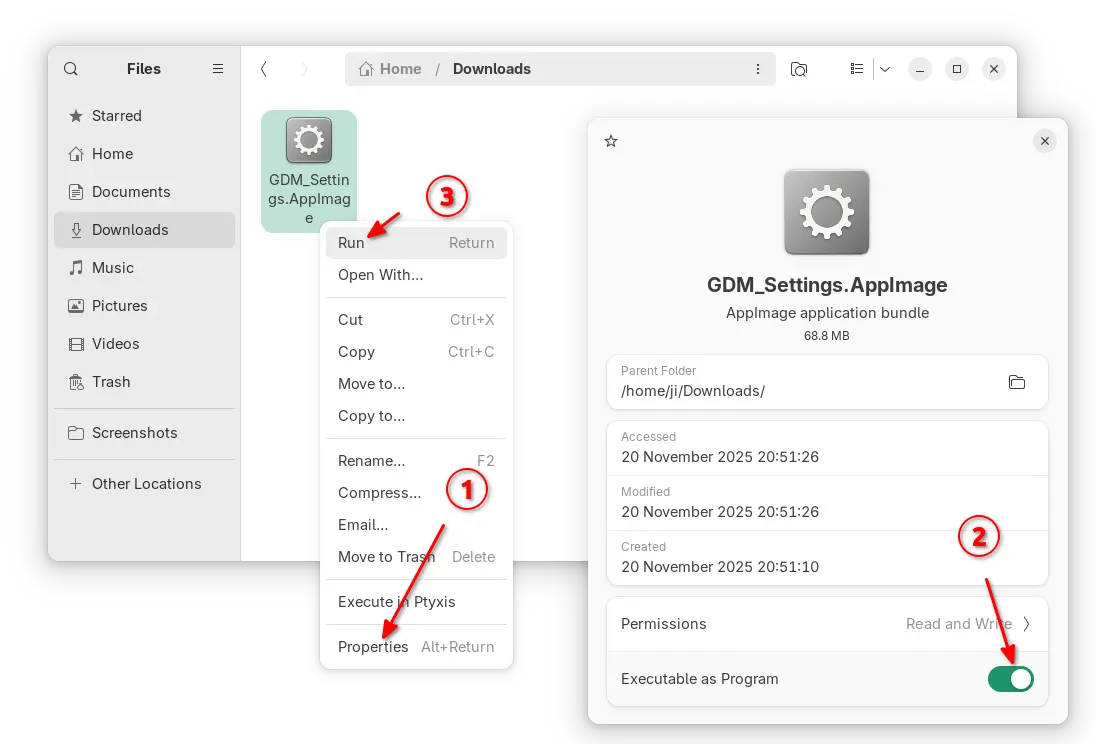
As both AppImage and Flatpak were built with most recent GNOME runtime, they may be NOT working good in old GNOME Desktops.

So, I built the app package into this unofficial PPA for Ubuntu 22.04, Ubuntu 24.04, 25.04 and 25.10.

To add the PPA and install GDM Settings, open terminal (Ctrl+Alt+T) and run commands below one by one:

sudo add-apt-repository ppa:ubuntuhandbook1/gdm-settings
sudo apt update
sudo apt install gdm-settings

Optionally, you may remove the PPA package and remove the PPA at any time by running commands:

sudo apt remove gdm-settings
sudo add-apt-repository --remove ppa:ubuntuhandbook1/gdm-settings
Lenspect – New Malware Scanner App for Linux Desktop

By:Ji m
21 October 2025 at 00:47

Want to scan your files for security threats? Here a new app can do the job for Linux Desktop.

It’s Lenspect, a free open-source Python written application that features a lightweight user interface designed for GNOME. And, it uses VirusTotal as backend for scanning.

As you may know, there’s a ClamAV AntiVirus software that supports Linux. It has a graphical front-end ClamTk (available in App Center or Ubuntu Software), that provides simple interface to scan your files or directories for malware.

ClamTk

ClamAV is great for basic use, but if you want to check for viruses that ClamAV may have missed or verify against any false positives, then VirusTotal is a good alternative and Lenspect is a graphical front-end for it working on Linux.

Lendspect

VirusTotal is an online service created by the Spanish security company Hispasec Sistemas. The company now belongs to Google Security Operations, a subsidiary of Google.

It’s a free service that aggregates over 70 antivirus engines and URL/domain blocklisting services called Contributors. They include Arcabit, Avast, BitDefender, ClamAV, McAfee, and more. See this page for all the scanning engines.

With it, you may scan files, IPs, and URLs to detect malware with multiple anti-malware or antivirus engines concurrently. Though as an online service, you need to upload file through either its web page, browser extension, or API.

Lenspect uses VirusTotal API to upload you files, then show you a scan summary, while you may click open in VirusTotal website for a more detailed information, including analysis from different antivirus products, file details, and more.

View scan details in virustotal.com

The standard API is free but has limitations. They include 4 lookups per min, 500 lookups per day, 15.5 K lookups per month, and non-business use.

Install Lenspect

NOTE that the app will send your file to VirusTotal, DON’T use it for scanning sensitive data.

Lenspect is available to install in most Linux through Flatpak package, which runs in sandbox environment.

Linux Mint and Fedora Workstation may simply search & install the application from either Software Manager or GNOME Software.

While Ubuntu and other Linux can do the steps below one by one to get it:

  • First, open terminal (Ctrl+Alt+T) and run command to install Flatpak daemon package:
    sudo apt install flatpak

    For non-debian/ubuntu based distributions, follow the official setup guide to enable Flatpak support.

  • Next, install the app package by running command:
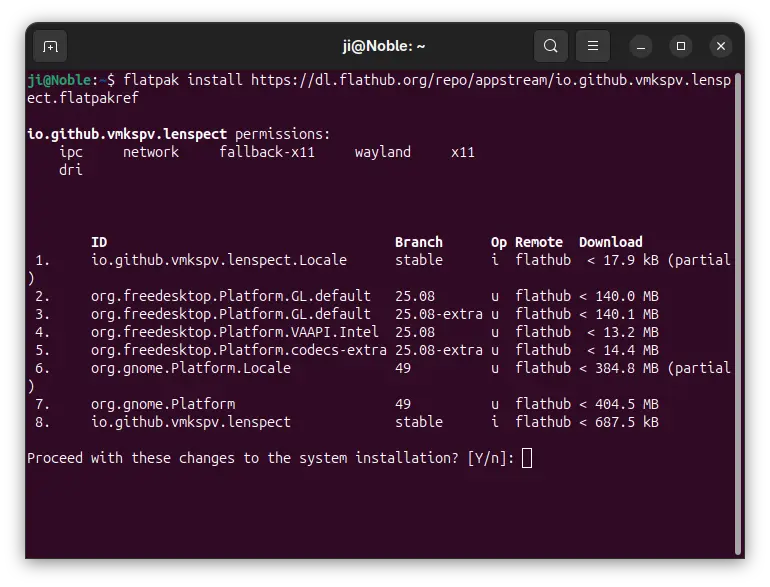
    flatpak install https://dl.flathub.org/repo/appstream/io.github.vmkspv.lenspect.flatpakref

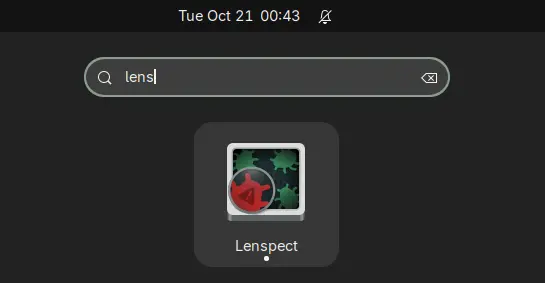
After installation, log out and back in if you don’t see the app icon, or run the command below to start it from terminal:

flatpak run io.github.vmkspv.lenspect

While you may replace run with update in last command to check updates.

Uninstall:

To uninstall the app, simply open terminal (Ctrl+Alt+T) and run command:

flatpak uninstall --delete-data io.github.vmkspv.lenspect

Also run flatpak uninstall --unused to remove useless runtimes to free up disk space.

❌