โŒ

Normal view

GStreamer 1.26.8 Improves HDR Video Playback for the Showtime Video Player

11 November 2025 at 03:27

GStreamer 1.26.8

GStreamer 1.26.8 open-source multimedia framework is now available for download with various improvements and bug fixes. Hereโ€™s whatโ€™s changed!

The post GStreamer 1.26.8 Improves HDR Video Playback for the Showtime Video Player appeared first on 9to5Linux - do not reproduce this article without permission. This RSS feed is intended for readers, not scrapers.

Firefox 145 Is Now Available for Download, Drops 32-Bit Support on Linux

10 November 2025 at 20:19

Firefox 145

Firefox 145 open-source web browser is now available for download as the first release to drop 32-bit support on Linux systems. Hereโ€™s what else is new!

The post Firefox 145 Is Now Available for Download, Drops 32-Bit Support on Linux appeared first on 9to5Linux - do not reproduce this article without permission. This RSS feed is intended for readers, not scrapers.

9to5Linux Weekly Roundup: November 9th, 2025

10 November 2025 at 08:38

9to5Linux Roundup November 9th

9to5Linux Weekly Roundup for November 9th, 2025, brings news about MX Linux 25, PorteuX 2.4, LXQt 2.3, Devuan GNU/Linux 6.0, KDE Plasma 6.5.2, KDE Gear 25.08.3, fwupd 2.0.17, NVIDIA 580.105.08, Calibre 8.14, MKVToolNix 96.0, Trinity Desktop Environment R14.1.5, and more.

The post 9to5Linux Weekly Roundup: November 9th, 2025 appeared first on 9to5Linux - do not reproduce this article without permission. This RSS feed is intended for readers, not scrapers.

AMD Confirms Zen 5 RNG Flaw: When โ€˜Randomโ€™ Isnโ€™t Random Enough

AMD Confirms Zen 5 RNG Flaw: When โ€˜Randomโ€™ Isnโ€™t Random Enough

AMD has officially confirmed a high-severity security vulnerability in its new Zen 5โ€“based CPUs, and itโ€™s a nasty one because it hits cryptography right at the source: the hardware random number generator.

Hereโ€™s a clear breakdown of whatโ€™s going on, how bad it really is, and what you should do if youโ€™re running Zen 5.

What AMD Just Confirmed

AMDโ€™s security bulletin AMD-SB-7055, now tracked as CVE-2025-62626, describes a bug in the RDSEED instruction on Zen 5 processors. Under certain conditions, the CPU can:

  • Return the value 0 from RDSEED far more often than true randomness would allow

  • Still signal โ€œsuccessโ€ (carry flag CF=1), so software thinks it got a good random value

The issue affects the 16-bit and 32-bit forms of RDSEED on Zen 5; the 64-bit form is not affected.

Because RDSEED is used to feed cryptographically secure random number generators (CSPRNGs), a broken RDSEED can poison keys, tokens, and other security-critical values.

AMD classifies the impact as:

Loss of confidentiality and integrity (High severity).

How the Vulnerability Works (In Plain English)

What RDSEED Is Supposed to Do

Modern CPUs expose hardware instructions like RDRAND and RDSEED:

  • RDRAND: Gives you pseudo-random values from a DRBG thatโ€™s already been seeded.

  • RDSEED: Gives you raw entropy samples suitable for seeding cryptographic PRNGs (it should be very close to truly random).

Software like TLS libraries, key generators, HSM emulators, and OS RNGs may rely directly or indirectly on RDSEED to bootstrap secure randomness.

Whatโ€™s Going Wrong on Zen 5

On affected Zen 5 CPUs:

  • The 16-bit and 32-bit RDSEED variants sometimes return 0 much more often than a true random source should.

  • Even worse, they simultaneously report success (CF=1), so software assumes the value is fine rather than retrying.

In cryptographic terms, this means:

  • Entropy can be dramatically reduced (many key bits become predictable or even fixed).

  • Keys or nonces derived from those values can become partially or fully guessable.

7 Best Skype Alternatives for Linux in 2025

The post 7 Best Skype Alternatives for Linux in 2025 first appeared on Tecmint: Linux Howtos, Tutorials & Guides .

Thereโ€™s no doubt that Skype was once one of the most popular instant messaging and video calling applications out there.

The post 7 Best Skype Alternatives for Linux in 2025 first appeared on Tecmint: Linux Howtos, Tutorials & Guides.

Manage Gnome Shell Extensions from Command Line

By:Ji m
10 November 2025 at 21:19

This tutorial shows how to install, remove, enable or disable Gnome Shell extensions and configure extensionsโ€™ preferences in Ubuntu, Fedora, etc Linux distributions with Gnome Desktop.

We usually install/uninstall Gnome Shell extension by either visiting extensions.gnome.org in web browser or using Extension Manager app, then manage them through either GNOME Extensions or Extension Manager.

Gnome Extension Manager App

For choice, Gnome has a built-in command line tool that can help sometimes without using a graphical user interface.

Why using Command Line

The command line tool gnome-extensions is useful for advanced users and developers for scripting purpose.

Itโ€™s also a good choice for installing extensions from local packages (e.g., ZIP archive) without internet connection. And, in some cases you may use gsettings command to configure extension preferences.

Install an Extension from Command Line

Besides using web browser or Extension Manager, user may manually install an extension by putting the source folder (usually [email protected]) to .local/share/gnome-shell/extensions directory.

Say you downloaded an extension package from extensions.gnome.org, by choosing Gnome Shell version and Extension version.

Download an extension from extensions.gnome.org

You may then install it by running command:

gnome-extensions install /path/to/extension.zip

The command do the job decompressing the ZIP archive (.tar.xz, .tar.gz etc also supported) and moving the source to the userโ€™s extension directory mentioned above.

This method however need a log out and back in, before being able to enable the new installed extension.

List Installed Extensions from Command Line

To list all the installed extensions, simply use command:

gnome-extensions list

For choice, you may list user installed extensions via --user option, or system extensions via --system.

gnome-extensions list --user

And, use --enabled option for enabled extensions, --disabled for disabled extensions, and --details for more about extensions, including name, description, source URL, version, and state.

gnome-extensions list --user --enabled

Enable/Disable Extensions

Once you got the extension IDs via the command above, you may get more about it by running command:

gnome-extensions info [email protected]

Here replace the ID [email protected] with yours.

Then, enable or disable an extension by running command:

gnome-extensions enable [email protected]

or:

gnome-extensions disable [email protected]

Also replace the extension ID [email protected], and optionally add --quiet flag to ignore error messages (if any).

Configure Extension Preferences from Command Line

NOTE: if you just want to launch the graphical configuration dialog from command line, then use command (replace extension ID):

gnome-extensions prefs [email protected]

To configure extension preferences from command line, use gsettings command.

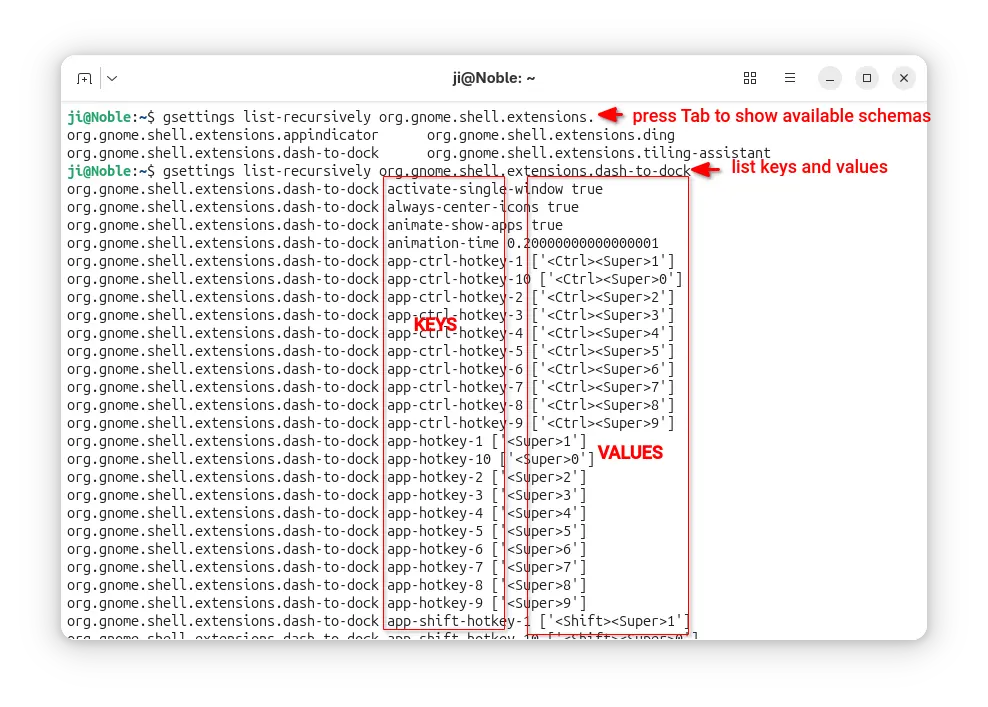
For system extensions, first run command below to list all the available keys and the values:

gsettings list-recursively org.gnome.shell.extensions.dash-to-dock

Here replace dash-to-dock (Ubuntu Dock) to the extension name youโ€™re going to configure. Or, press Tab twice before typing its name to print available choices.

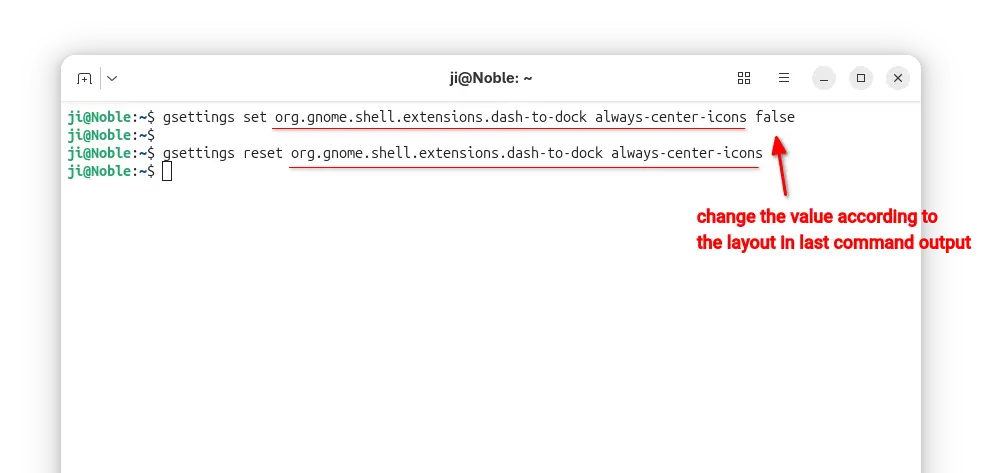
After that, run similar command below to configure an extension key value:

gsettings set org.gnome.shell.extensions.dash-to-dock always-center-icons false

Also replace extension name dash-to-dock, key-name always-center-icons, and key-value false according to the last command output.

Or, run command to reset an extensionโ€™s key value to default.

gsettings reset org.gnome.shell.extensions.dash-to-dock always-center-icons

For user extensions, run gnome-extensions list --user to find the ID, then do following steps instead:

  • First, print the extension info, Just Perfection for example, and find out the PATH.
    gnome-extensions info just-perfection-desktop@just-perfection
  • Then, print the extension metadata according to its PATH, and find out the settings schema:
    cat /home/ji/.local/share/gnome-shell/extensions/just-perfection-desktop@just-perfection/metadata.json

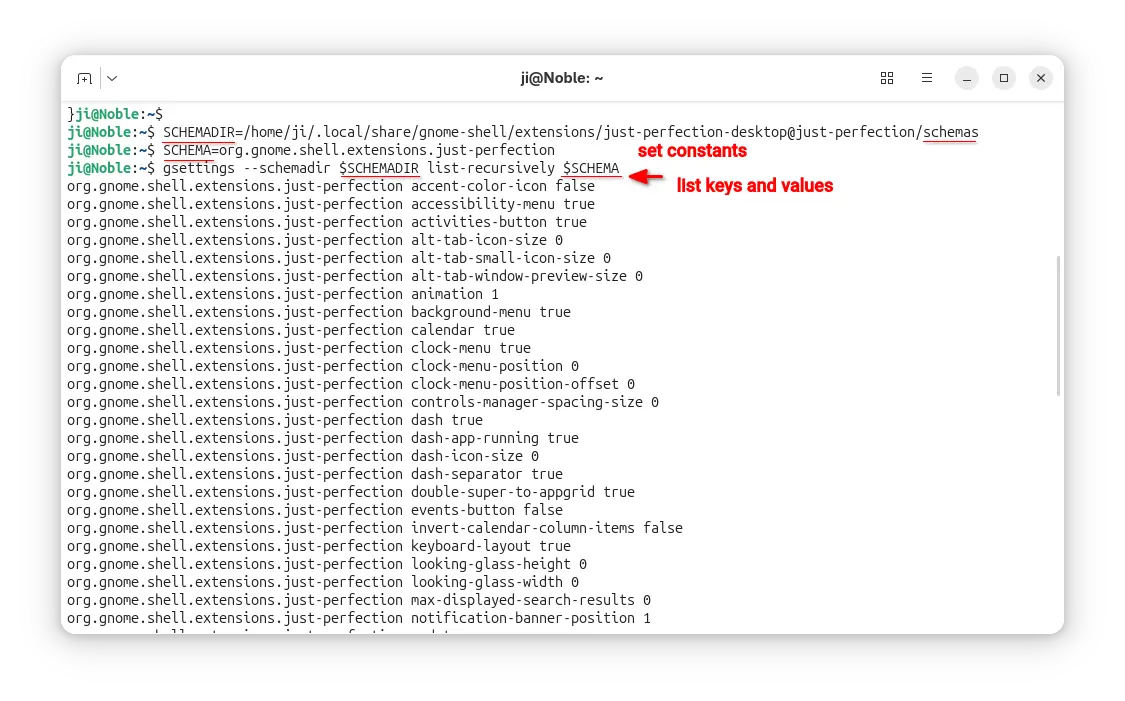
  • After found out the extension PATH and settings schema, set the following constants.
    SCHEMADIR=/home/ji/.local/share/gnome-shell/extensions/just-perfection-desktop@just-perfection/schemas
    
    SCHEMA=org.gnome.shell.extensions.just-perfection

    So that I can use $SCHEMADIR and $SCHEMA in next commands without typing full PATH and settings schema.

  • Next, run command to list all the available keys and their values:
    gsettings --schemadir $SCHEMADIR list-recursively $SCHEMA

  • Finally, according to last command output, run commands below to set or reset something:
    gsettings --schemadir $SCHEMADIR set $SCHEMA top-panel-position 1
    gsettings --schemadir $SCHEMADIR reset $SCHEMA top-panel-position

    Also replace the key and value accordingly.

For more, see the Ubuntu gsettings and gnome-extensions man-pages

Linux Mint 22.3 adding New Application Menu, System Admin/Info Apps

By:Ji m
10 November 2025 at 13:15

Linux Mint, the popular Ubuntu and Debian based Linux Distribution, is going to add new system administration, information tools, and redesigned application menu in next release.

As you may know, Linux Mint has an official blog that updates monthly with news about the development process. In recent updates, it introduced some exciting new features that will include in next Linux Mint 22.3.

First, the Cinnamon menu is redesigned. As you see in the screenshot above, it features a left sidebar that displays user avatar, places (user folders), and favorite apps. While, user has the choice to disable any of them, and even disable the whole side-bar.

In addition, the search bar can be moved to either top or bottom of application menu. While, the system buttons (e.g., lock, log-out, power-off) can be placed to either follow the search bar or in the bottom of left sidebar.

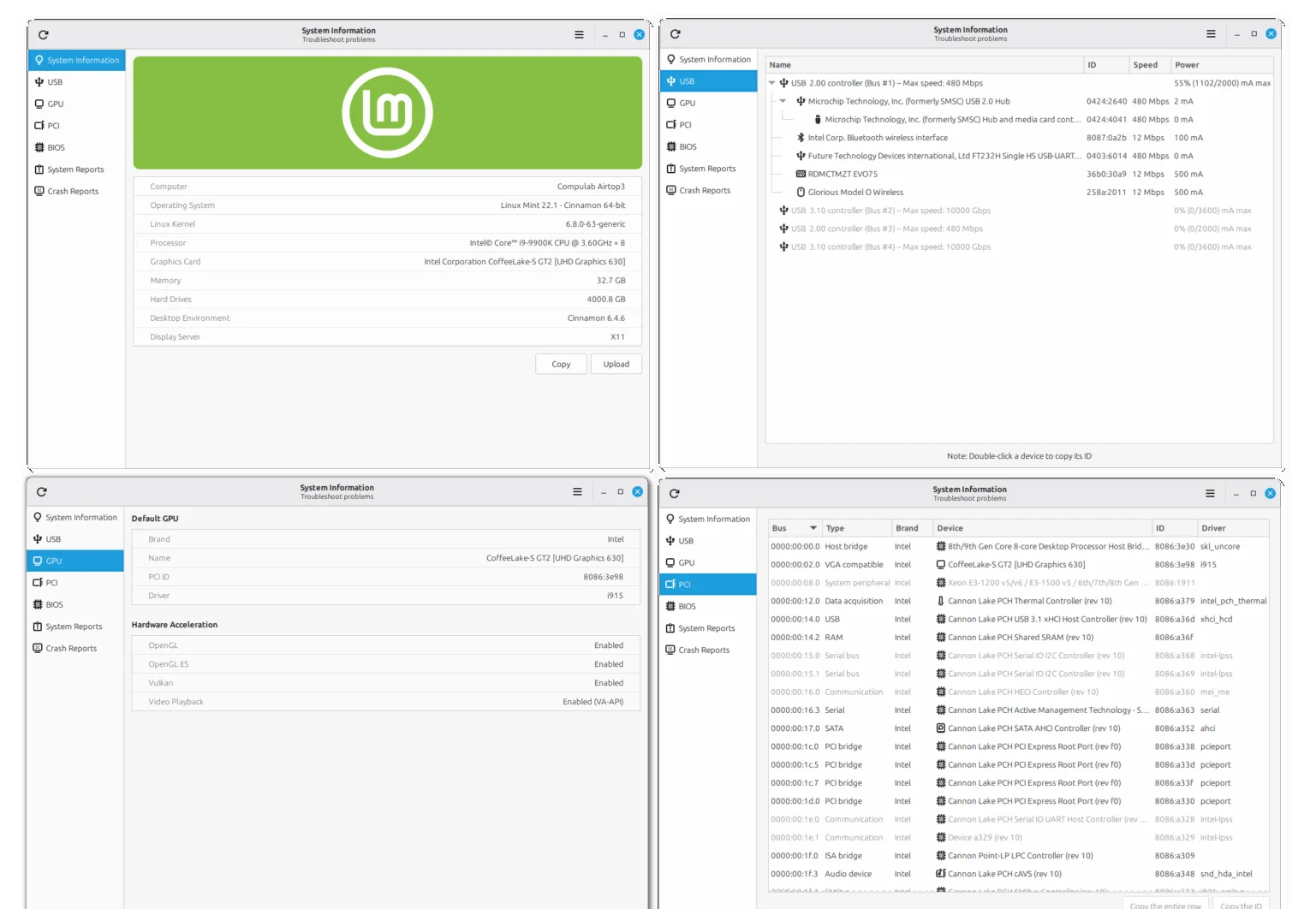
The System Report tool is re-named to new โ€œSystem Informationโ€. It merged the old system info and system reports into single app window. And, it shows all the USB devices including their IDs, connection speeds, and power.

It as well shows you GPU info including the driver and hardware acceleration status, PCI devices, motherboard and BIOS info, and the previous system reports and crash reports.

A new tool โ€œSystem Administrationโ€ is also added, which so far only supports configuring the boot menu. Though, thereโ€™s already popular third-party Grub Customizer tool can do the job.

With it, user may configure to either show or hide the boot menu, and set how long it will be displayed until a user action. And, it can add boot parameters which is useful for loading Kernel modules, debugging, recovering, or other purpose.

Other changes include:

  • Support both traditional layouts and IBus input methods in keyboard settings and applet.
  • Wayland support for both traditional layouts and IBus input methods.
  • IM support and layout switch in on-screen keyboard.
  • Add new XApp Symbolic Icons to replace the Adwaita symbolic icons

For more, see the official blog posts in Linux Mint website.

Linux Mint 22.3

Linux Mint 22.3 is NOT available at the moment. According to the release history, the third point release were mostly released on January or December. Meaning that Linux Mint 22.3 will be probably released in Jan. 2026 or Dec. 2025.

The Linux Mint source codes are available in this Github page. And, you may keep an eye on this page for the ISO image status.

Distribution Release: Volumio 4.067

11 November 2025 at 02:45
The DistroWatch news feed is brought to you by TUXEDO COMPUTERS. The Volumio team has announced the release of Volumio 4.067, a major update of the project's single-purpose Debian-based Linux distribution designed and fine-tuned exclusively for music playback. This release updates the underlying system to Debian 12: "Today marks something special for us and for everyone who loves what....
โŒ