Normal view

Received — 15 November 2025 Linux News & Update

Mesa 25.3 Open-Source Graphics Stack Improves Support for Many Video Games

15 November 2025 at 09:37

Mesa 25.3

Mesa 25.3 open-source graphics stack for Linux is now available for download with numerous new features and improvements for existing graphics drivers, as well as better support for numerous video games.

The post Mesa 25.3 Open-Source Graphics Stack Improves Support for Many Video Games appeared first on 9to5Linux - do not reproduce this article without permission. This RSS feed is intended for readers, not scrapers.

KDE Frameworks 6.20 Adds a Fancier Push/Pop Animation to System Settings Pages

15 November 2025 at 00:39

KDE Frameworks 6.20

KDE Frameworks 6.20 open-source software suite is out now with various improvements and bug fixes for KDE apps and the Plasma desktop. Here’s what’s new!

The post KDE Frameworks 6.20 Adds a Fancier Push/Pop Animation to System Settings Pages appeared first on 9to5Linux - do not reproduce this article without permission. This RSS feed is intended for readers, not scrapers.

💾

Proton 10 Released with Support for Far Horizon, The Riftbreaker, and Other Games

14 November 2025 at 12:51

Proton 10

Proton 10 is now available with support for Mary Skelter: Nightmares, Fairy Fencer F Advent Dark Force, Far Horizon, and many other Windows games.

The post Proton 10 Released with Support for Far Horizon, The Riftbreaker, and Other Games appeared first on 9to5Linux - do not reproduce this article without permission. This RSS feed is intended for readers, not scrapers.

Thunderbird 145 Brings Microsoft Exchange Support + More

15 November 2025 at 00:04

Thunderbird email client logo and the number 145Thunderbird 145 has been released with support for Microsoft Exchange e-mail accounts, DNS over HTTPS, renamed Junk folder and other improvements.

You're reading Thunderbird 145 Brings Microsoft Exchange Support + More, a blog post from OMG! Ubuntu. Do not reproduce elsewhere without permission.

MX Linux 25 ‘Infinity’ Arrives: Debian 13 ‘Trixie’ Base, Modern Tools & A Fresh Installer

MX Linux 25 ‘Infinity’ Arrives: Debian 13 ‘Trixie’ Base, Modern Tools & A Fresh Installer

Introduction

The team behind MX Linux has just released version 25, carrying the codename “Infinity”, and it brings a significant upgrade by building upon the stable base of Debian 13 “Trixie”. Released on November 9, 2025, this edition doesn’t just refresh the desktop, it introduces modernized tooling, updated kernels, dual init-options, and installer enhancements aimed at both newcomers and long-time users.

In the sections that follow, we’ll walk through the key new features of MX Linux 25, what’s changed for each desktop edition, recommended upgrade or fresh-install paths, and why this release matters in the wider Linux-distribution ecosystem.

What’s New in MX Linux 25 “Infinity”

Here are the headline changes and improvements that define this release:

Debian 13 “Trixie” Base

By moving to Debian 13, Infinity inherits all the stability, security updates, and broader hardware support of the latest Debian stable release. The base system now aligns with Trixie’s libraries, kernels, and architecture support.

Kernel Choices & Hardware Support
  • The standard editions ship with the Linux 6.12 LTS kernel series, offering a solid baseline for most hardware.

  • For newer hardware or advanced users, the “AHS” (Advanced Hardware Support) variants and the KDE Plasma edition adopt a Liquorix-flavored Linux 6.16 (or 6.15 in some variants) kernel, maximizing performance and compatibility with cutting-edge setups.

Dual Init Option: systemd and SysVinit

Traditionally associated with lighter-weight init options, MX Linux now offers both systemd by default and SysVinit editions (particularly for Xfce and Fluxbox variants). This gives users the freedom to choose their init system preference without losing new features.

Updated Desktop Environments
  • Xfce edition: Ships with Xfce 4.20. Improvements include a revamped Whisker Menu, updated archive management tools (Engrampa replacing File Roller in some editions).

  • KDE Plasma edition: Uses KDE Plasma 6.3.6, defaults to Wayland for a modern session experience (with X11 still optionally available), adds root-actions and service menus to Dolphin, and switches TLP out for power-profiles-daemon to resolve power widget issues.

  • Fluxbox edition: Offers a more minimal, highly customizable environment: new panel layouts, updated “appfinder” configs for Rofi, toolbar changes and themes refined. Defaults the audio player to Audacious (instead of the older DeaDBeeF).

100 Top Observability Tools (+ Server Monitoring and APM solutions)

14 November 2025 at 14:05
100 Top Observability Tools (+ Server Monitoring and APM solutions)

Looking for application monitoring and observability solutions? On this page, I’ve listed the top application performance monitoring (APM), infrastructure monitoring, and observability solutions to date.

Continue reading...

How to Disable All the AI Features in Firefox Web Browser

By:Ji m
14 November 2025 at 21:55

Firefox introduced AI chatbot, AI powered link preview, and search images with Google Lens etc AI powered features in the past releases.

According to the Firefox Privacy Notice, it does NOT have access to the AI conversations or what user input, but do collect technical and interaction data, such as how often a chatbot provider or suggested prompts are used, and the length of selected text.

AI chatbot in Firefox sidebar

If you don’t like the AI chatbot feature, you can hide them from side-bar settings page, or remove the shortcut from the context menu of a text selection.

Hide AI chatbot

While, in this tutorial I’m going to show you how to disable them so that they will disappear along with the settings option, link preview, and image search with Google Lens.

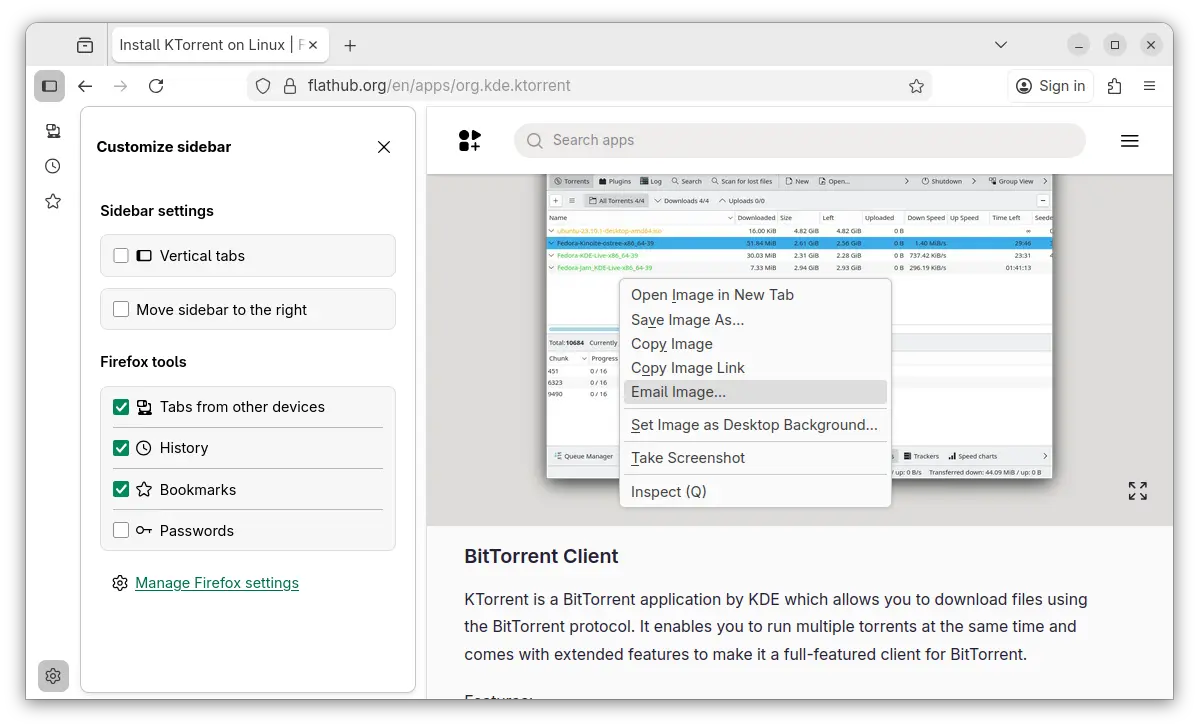
No AI chatbot, no configure options, and no Google Lens image search

NOTE: This tutorial is tested in Ubuntu 24.04 with Firefox 145. As time go on, Firefox will release new versions and may add, remove, or change the AI related preference keys.

Option 1: Disable AI LLM through about:config

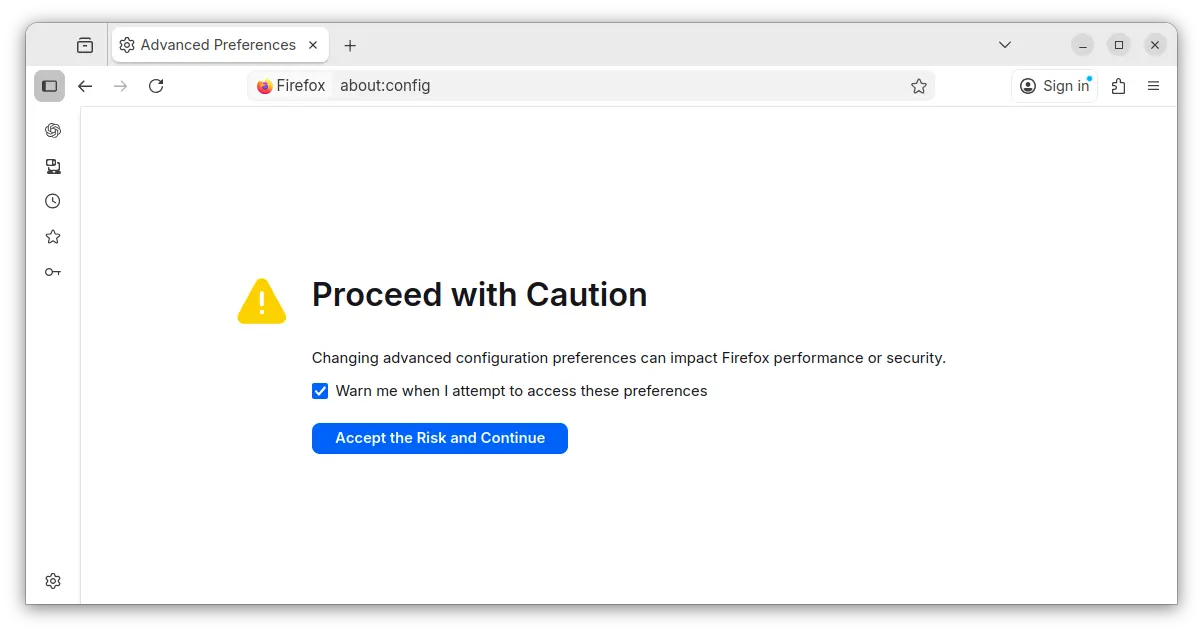
For current profile only, type about:config in address bar and hit Enter, then click the blue “Accept the Risk and Continue” button to access the advanced configuration page.

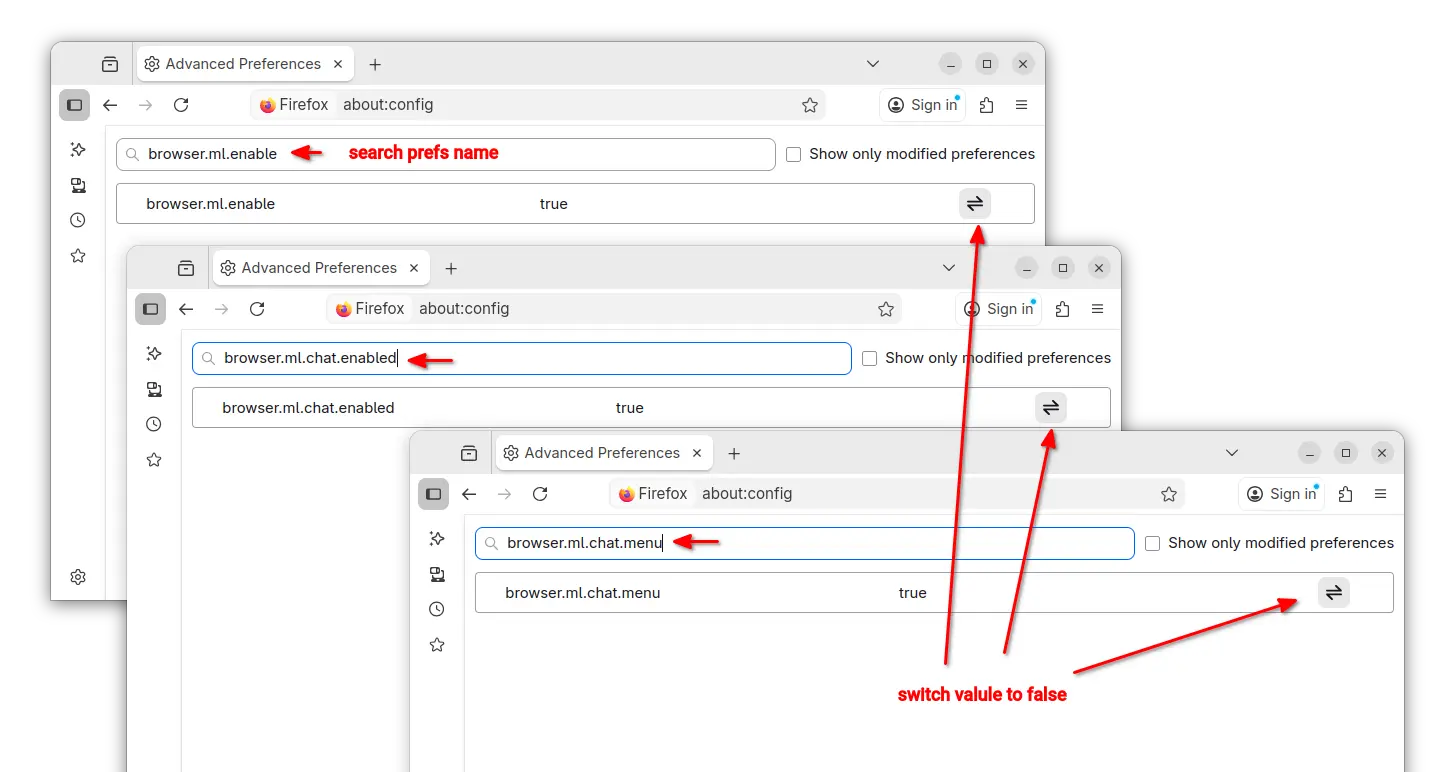
Next, search following preference names and set them to “false” one by one:

  • browser.ml.enable
  • browser.ml.chat.enabled
  • browser.ml.chat.menu
  • browser.ml.chat.page
  • browser.ml.chat.page.footerBadge
  • browser.ml.chat.page.menuBadge
  • browser.ml.linkPreview.enabled
  • browser.ml.pageAssist.enabled
  • browser.tabs.groups.smart.enabled
  • browser.tabs.groups.smart.userEnabled
  • extensions.ml.enabled
  • browser.search.visualSearch.featureGate

And, it should apply the changes immediately after you set them all to false.

Option 2: Add configuration file to disable AI features

If you have multiple user profiles for Firefox, and you want to disable AI for them all, then it’s better to add user.js config file instead of configuring the preference keys one by one.

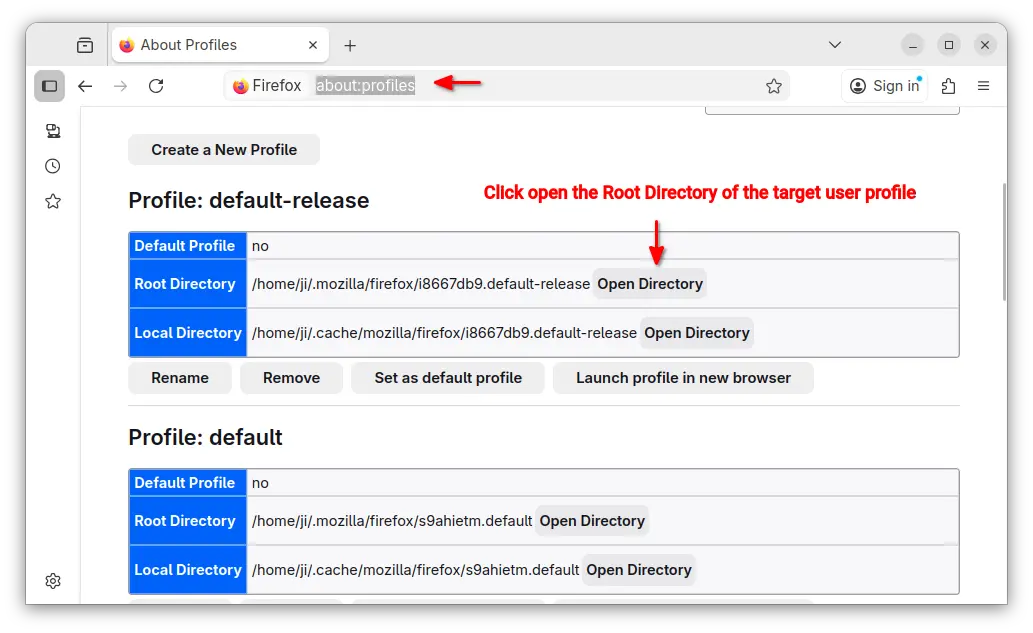
First, type about:profiles in address bar and hit Enter to access the profile management page.

Then, click “Open Directory” button to open the Root Directory of the target user profile.

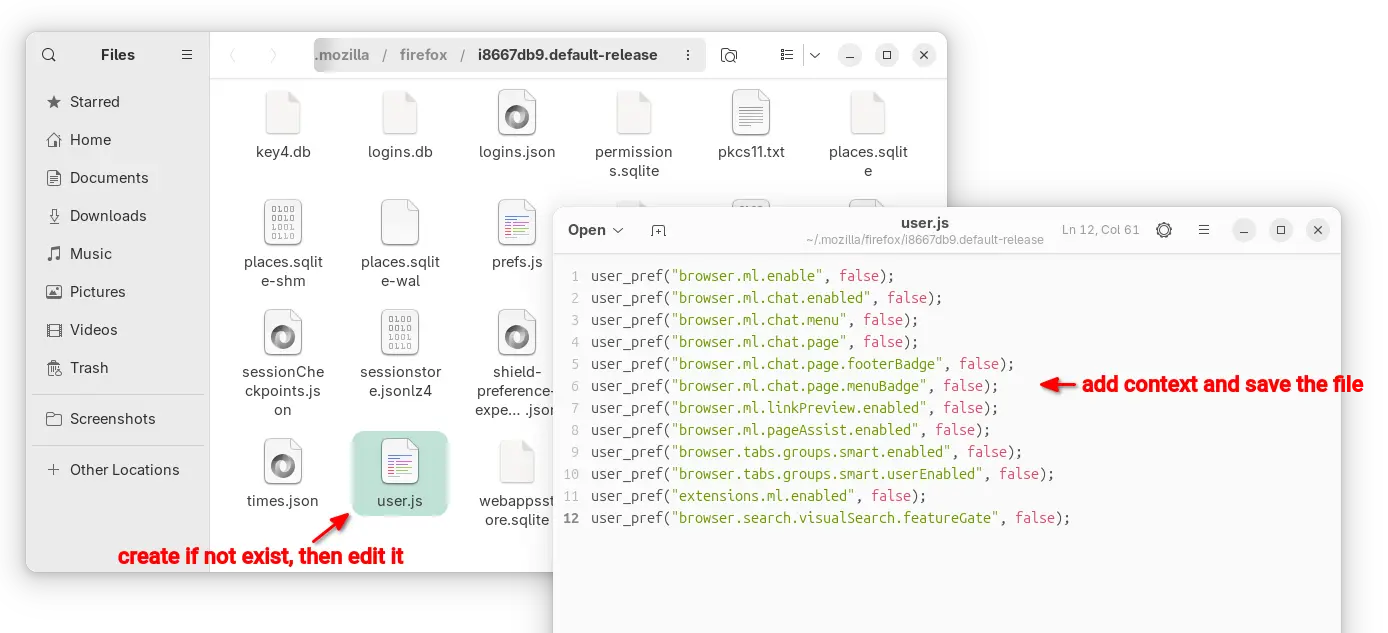
In the opened folder, create user.js file if it does not exist. Finally, edit the file and write following content into it.

user_pref("browser.ml.enable", false);
user_pref("browser.ml.chat.enabled", false);
user_pref("browser.ml.chat.menu", false);
user_pref("browser.ml.chat.page", false);
user_pref("browser.ml.chat.page.footerBadge", false);
user_pref("browser.ml.chat.page.menuBadge", false);
user_pref("browser.ml.linkPreview.enabled", false);
user_pref("browser.ml.pageAssist.enabled", false);
user_pref("browser.tabs.groups.smart.enabled", false);
user_pref("browser.tabs.groups.smart.userEnabled", false);
user_pref("extensions.ml.enabled", false);
user_pref("browser.search.visualSearch.featureGate", false);

After that, you may click “Launch profile in new browser” button to open Firefox window with that profile and see if it works. And, copy the user.js file to root directories for other profiles if need.

❌