❌

Normal view

Calibre 8.16 Open-Source E-Book Manager Adds More AI Features, Bug Fixes

5 December 2025 at 11:47

Calibre 8.16

Calibre 8.16 open-source e-book management software is now available for download with various new AI features and several bug fixes. Here's what's new!

The post Calibre 8.16 Open-Source E-Book Manager Adds More AI Features, Bug Fixes appeared first on 9to5Linux - do not reproduce this article without permission. This RSS feed is intended for readers, not scrapers.

Audacity 3.7.6 Audio Editor Adds FFmpeg 8 Support, Spectrogram Wavelet Analysis

5 December 2025 at 02:46

Audacity 3.7.6

Audacity 3.7.6 open-source digital audio editor and recording software is now available for download with FFmpeg 8 support, Spectrogram Wavelet analysis, and other changes. Here's what's new!

The post Audacity 3.7.6 Audio Editor Adds FFmpeg 8 Support, Spectrogram Wavelet Analysis appeared first on 9to5Linux - do not reproduce this article without permission. This RSS feed is intended for readers, not scrapers.

Raspberry Pi OS Now Lets You Safely Eject HDD and NVMe Drives Connected via USB

5 December 2025 at 02:23

Raspberry Pi OS USB

Raspberry Pi OS 2025-12-04 is now available for download with the ability to safely eject HDD and NVMe drives connected via USB and other changes. Here's what's new!

The post Raspberry Pi OS Now Lets You Safely Eject HDD and NVMe Drives Connected via USB appeared first on 9to5Linux - do not reproduce this article without permission. This RSS feed is intended for readers, not scrapers.

This Add-On Brings Adaptive UI Colour to Firefox

5 December 2025 at 07:14

Want Firefox to dynamically match website colours? This free add-on changes toolbars based on page colours for Vivaldi-style theming. Works on all platforms.

You're reading This Add-On Brings Adaptive UI Colour to Firefox, a blog post from OMG! Ubuntu. Do not reproduce elsewhere without permission.

Linux Distros Designed for Former Windows Users Are Picking Up Steam

Linux Distros Designed for Former Windows Users Are Picking Up Steam

For years, Windows users frustrated with constant changes, aggressive updates, and growing system bloat have flirted with switching to Linux. But 2025 marks a noticeable shift: a new generation of Linux distributions built specifically for ex-Windows users is gaining real traction. One of the standout examples is Bazzite, a gaming-optimized Fedora-based distro that has quickly become a go-to choice for people abandoning Windows in favor of a cleaner, more customizable experience.

Why Many Windows Users Are Finally Jumping Ship

Microsoft’s ecosystem has been slowly pushing some users toward the exit. Hardware requirements for Windows 11 left millions of perfectly functional PCs behind. Ads on the Start menu and in system notifications have frustrated many. And for gamers, launcher problems, forced reboots and background processes that siphon resources have driven a search for alternatives.

Linux distributions have benefited from that frustration, especially those that focus on simplicity, performance and gaming readiness.

Gaming-First Distros Are Leading the Movement

Historically, switching to Linux meant sacrificing game compatibility. But with Valve’s Proton layer and Vulkan-based translation technologies, thousands of Windows games now run flawlessly, sometimes better than on Windows.

Distros targeting former Windows users are leaning into this new reality:

  • Seamless Steam integration

  • Automatic driver configuration for AMD, Intel and NVIDIA

  • Built-in performance overlays like MangoHUD

  • Proton GE and tools for modding or shader fixes

  • Support for HDR, VR and modern controller layouts

This means a new Linux user can install one of these distros and jump straight into gaming with almost no setup.

Bazzite: A Standout Alternative OS

Bazzite has become the poster child for this trend. Built on Fedora’s image-based system and the Universal Blue infrastructure, it offers an incredibly stable base that updates atomically, similar to SteamOS.

What makes Bazzite so attractive to Windows refugees?

  • Gaming-ready out of the boxΒ no tweaking, no driver hunts

  • Rock-solid performance thanks to an immutable system layout

  • Support for handheld PCs like the Steam Deck, ROG Ally and Legion Go

  • Friendly workflows that feel familiar to new Linux users

  • Customization without the risk of breaking the system

It’s no surprise that many β€œI switched to Linux!” posts now mention Bazzite as their distro of choice.

Speed up Ubuntu PPA Apt Downloading in Ubuntu / Linux Mint

By:Ji m
4 December 2025 at 17:52

Use apt or apt-get to install/upgrade PPA packages but the download speed is slow? Here’s a workaround to speed it up in Ubuntu or Linux Mint.

By choosing a download mirror that nears to me using β€œSoftware & Updates” usually can fix slow downloading issue when installing packages from official Ubuntu repositories.

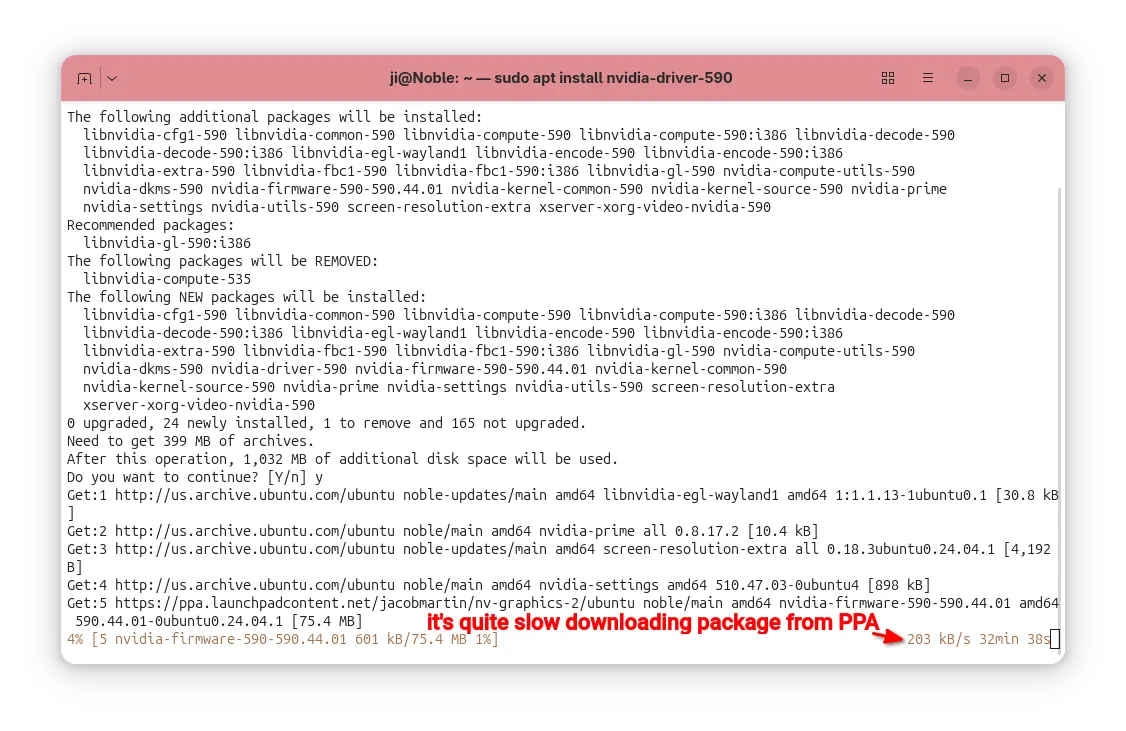
But for app packages from Ubuntu PPAs, in most time it downloads at a speed of few hundreds KB/S.

It’s OK for small apps, but for PPA packages with large file sizes (e.g. NVIDIA driver from Graphics Driver Team PPA, or Plasma Desktop from KUbuntu PPA), it can take half an hour and even more time to install due to slow download speed.

downloading packages from PPA using apt is quite slow

In the case, apt-fast can help!

It’s a free open-source shell script wrapper for apt/apt-get, by using aria2 multi-connection download utility. It works by splitting large file into multiple small pieces, then downloading them from multiple sources in parallel.

Though, the launchpad PPA does not have mirrors, it can still speed up the large file downloading probably due to multi-connections. In my case, it reduced the nvidia-590 packages downloading time from about 30 minutes to less than 3 minutes.

Step 1: Install apt-fast

apt-fast has an official PPA that contains the most recent packages for all current standard supported Ubuntu releases (e.g., Ubuntu 22.04, Ubuntu 24.04, Ubuntu 25.04/25.10), as well as the old Ubuntu 20.04, 18.04, 16.04, and even 14.04 LTS releases.

To add the PPA, press Ctrl+Alt+T to open terminal and run command:

sudo add-apt-repository ppa:apt-fast/stable

Type your user password when it asks (no visual feedback) and hit Enter to continue.

All current Ubuntu releases will automatically refresh cache while adding PPA. But for Linux Mint and old Ubuntu, you may run the command below to update cache manually:

sudo apt update

Finally, install the wrapper by running command:

sudo apt install apt-fast

After installed the package, it will automatically run the post-install script to configure the basic things, like which package manager (apt, apt-get, or aptitude) to use for installing packages, maximum allowed number of connections, and, whether to ask for confirmation before downloading.

Step 2: Configure apt-fast (Optional)

Besides the basic settings you set above, you can configure more about apt-fast, including:

  • add/change downloads mirrors, if you want to use it for getting packages from Ubuntu repositories.
  • change the minimum size of each piece, and piece selection algorithm.
  • adjust the β€˜aria2c’ download command.
  • change the temporary download folder, and apt cache directory.
  • enable/disable APT authentication support.
  • change the colors, and more.

Simply, run the command below to open the configuration file via nano command line text editor:

sudo nano /etc/apt-fast.conf

Then edit according to the description text if need, finally Ctrl+S to save and Ctrl+X to exit.

Step 3: How to use apt-fast

You can use apt-fast just by replacing apt or apt-get in all install, upgrade, etc commands with apt-fast.

For example, install app packages:

sudo apt-fast install package1 package2 package3

Install all available updates, but never remove existing packages:

sudo apt-fast upgrade

Install all available updates, allow removing existing packages if required:

sudo apt-fast full-upgrade

Clean download files in cache directory and temporary download folder:

sudo apt-fast clean

For more, see manual by running man apt-fast command.

Uninstall apt-fast (Optional)

If something goes wrong, or you don’t need it anymore, then open terminal (Ctrl+Alt+T) and run command to remove it:

sudo apt remove apt-fast aria2 libaria2-0

And, remove the PPA either by using β€œSoftware & Updates -> Updates”(or Software Sources for Linux Mint) utility or by running command:

sudo add-apt-repository --remove ppa:apt-fast/stable

Also, you may need to run sudo apt update to refresh cache afterward in Linux Mint or old Ubuntu 14.04.

❌