Normal view

Stop Wallpaper Moving when Switching Workspace in Ubuntu 24.04

By:Ji m
12 September 2025 at 00:00

For GNOME users who don’t like the default workspace switch animation, here’s an extension that can help!

When switching workspace (virtual desktop), the transition acts like sliding the desktop wallpaper along with the apps. This is “Sliding Panel” effect that’s also (seems to be) default in Windows and macOS.

If you like, it’s easy to use Android/iOS style swipe left or right switching home screen pages animation. In the case, the wallpaper is static during transitions, it works like only switching the app windows on your desktop.


This can be implemented by an extension called Static Workspace Background. And, here’s how to install it in Ubuntu 24.04, 25.04 and 25.10.

NOTE: This extension only works in Ubuntu and other Linux with GNOME Desktop!

Option 1: Install the Extension in Ubuntu 25.04 / 25.10

The extension so far supports GNOME 48 and 49, though it’s working good in my case in GNOME 46.

For Ubuntu 25.04 and 25.10, first launch App Center then search & install Extension Manager (filter by Debian package).

Next, use Extension Manager to search & install the “Static Workspace Background” extension under Browse tab and done!
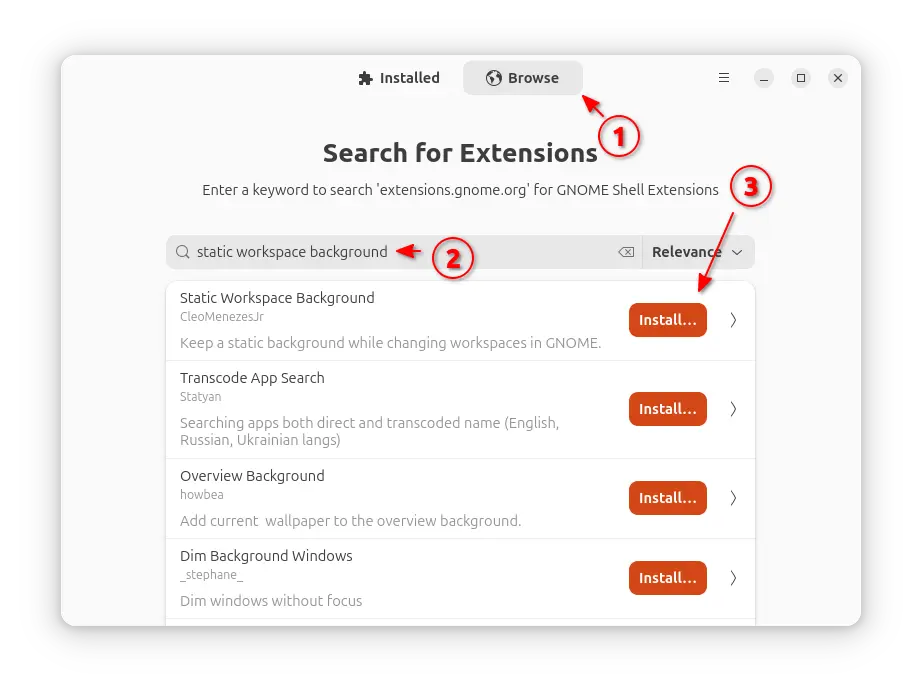
Install via Extension Manager

Option 2: Install it in Ubuntu 24.04

The extension (version 49.0) so far works good in my case in Ubuntu 24.04 with GNOME 46, though it’s not officially supported.

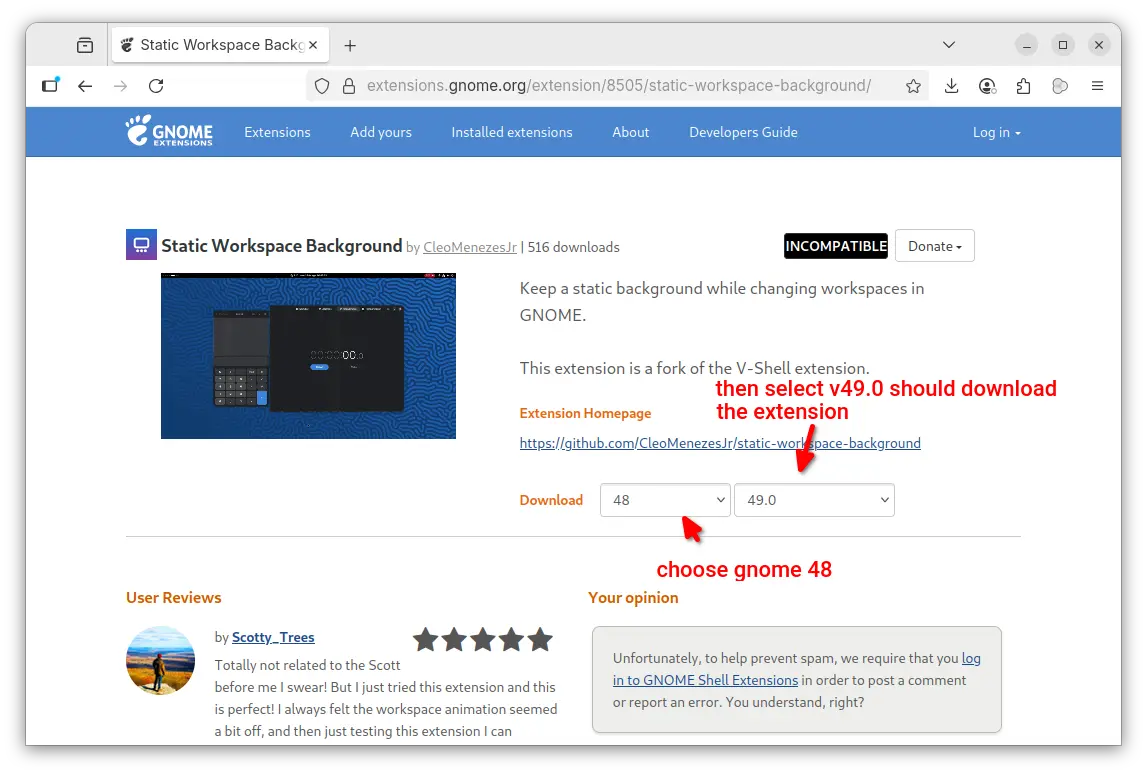
1. First, go to the extension page in extensions.gnome.org (EGO):

In the “Download” section of the page, choose a Gnome version (e.g., v48) and select extension version 49.0 to download it.
2. Once you downloaded the extension package (usually .zip archive), press Ctrl+Alt+T to open terminal and run commands below one by one to install.

  • First, run command to make sure your GNOME is configured to allow users to install extensions in their home folder, though it’s usually enabled by default.
    gsettings set org.gnome.shell allow-extension-installation true
  • Next, disable the validation of extension version compatibility by running command:
    gsettings set org.gnome.shell disable-extension-version-validation true
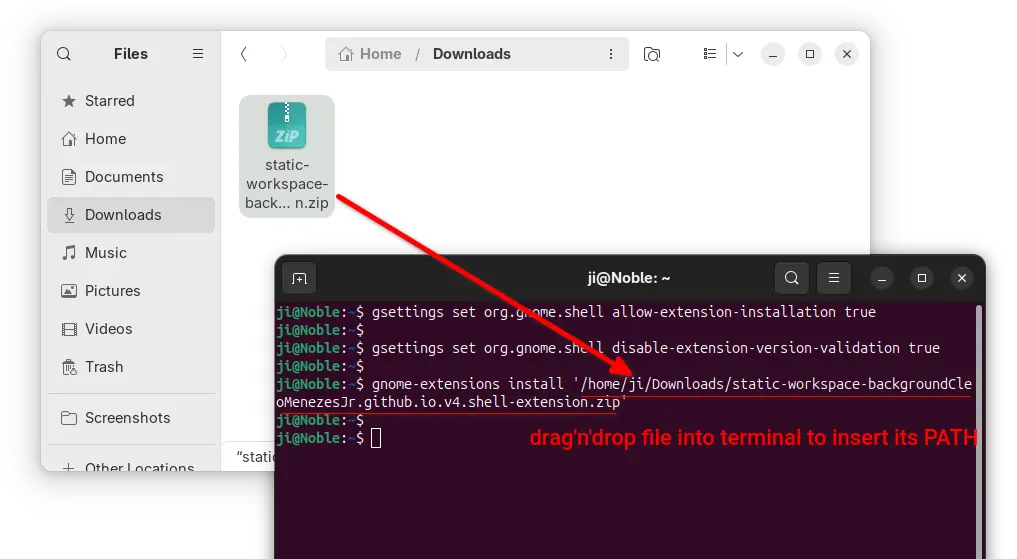
  • Finally, install the extension (.zip archive you just downloaded) via command:
    gnome-extensions install /path/to/zip-archive

    Here replace /path/to/zip-archive by drag’n’dropping it from file manager into terminal!
3. (Optional) After that, you have the extension installed to ./local/share/gnome-shell/extensions directory.

In case you want to re-enable the validation of extension version afterwards, run the command below to edit the metadata of that extension:

gnome-text-editor ~/.local/share/gnome-shell/extensions/static-workspace-background\@CleoMenezesJr.github.io/metadata.json

When file opens, either add “46” in “shell-version” section or simply replace any GNOME version (e.g., 49) to 46.
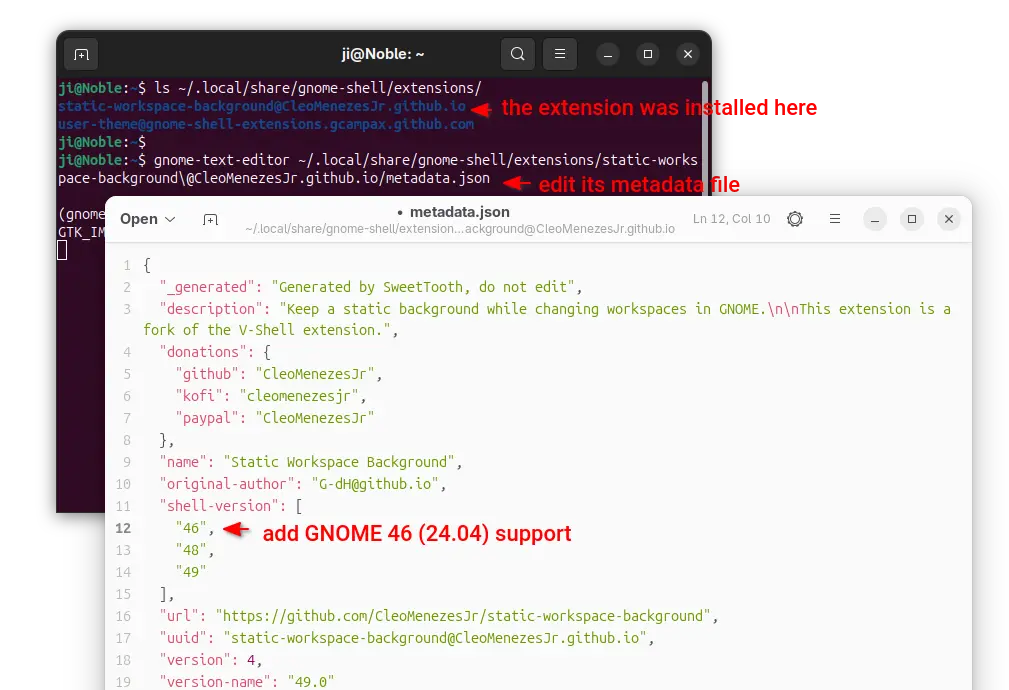
Then save the file, and re-enable the extension version compatibility validation if you want:

gsettings reset org.gnome.shell disable-extension-version-validation

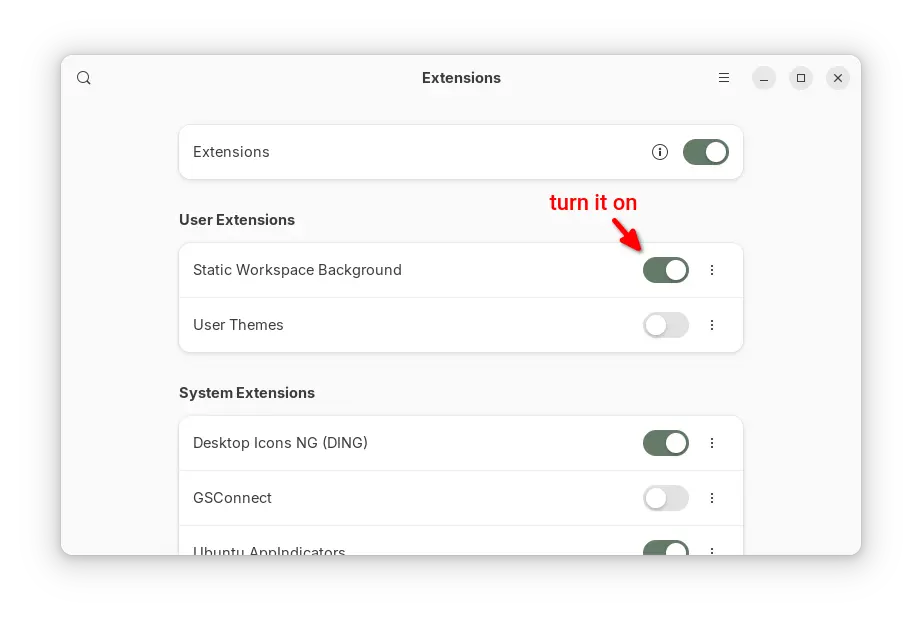
4. Finally, log out and back in. Launch either “Extension Manager” or “Gnome Extensions” app (both available in App Center) to enable the extension.
Warzone 2100 Released 4.6.0 with Spectator Host Mode

By:Ji m
11 September 2025 at 19:50

Warzone 2100, the free open-source 3D real-time strategy game, released new major 4.6.0 version few days ago.

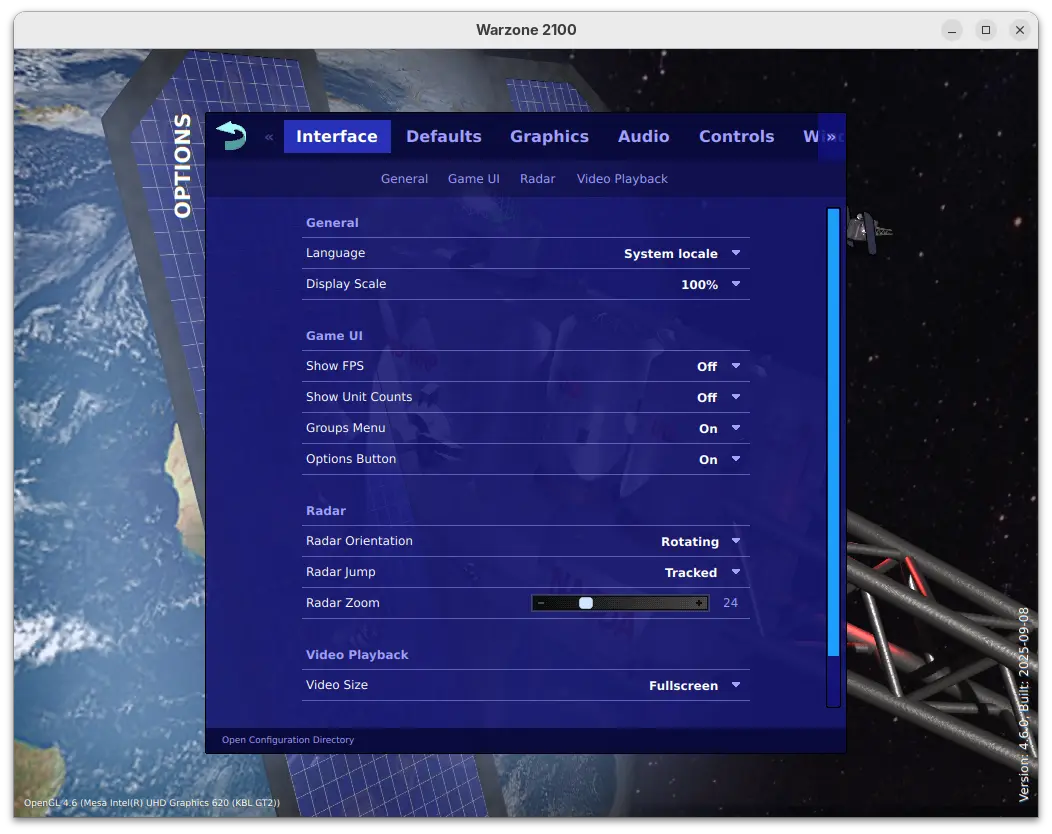
This is a big release that features revamped options menu. The options menu now has a clean design with reorganized options, which as well introduced many new toggle options, such as show FPS / Unit Counts, Group Reporting, Radar Zoom, default AI and more.

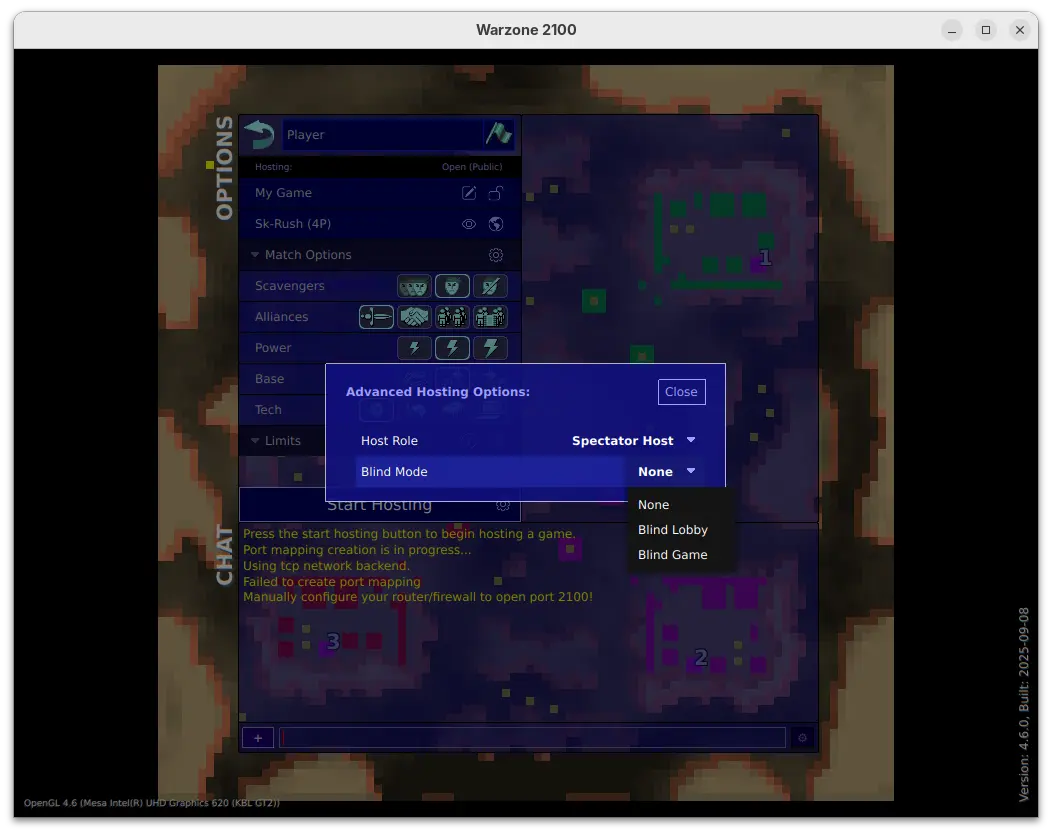
For multi-player mode, the release added option to start hosting in Spectator Host mode, in which case the host is a spectator in the game.

When start hosting in this mode, it also allows to set blind lobby mode to hide players’ true identities until the game starts, or blind game to hide players’ true identities until the game ends, while the host (as a spectator) can see them in both modes.

The 4.6.0 release also massively improved high-quality water effects, improved the performance for loading, path-finding, target selection, networking, and high-object-count situations.

It revamped Lobby game browser with new design, more filtering options, more room information, and increased responsiveness. And, it now automatically attempts multiple graphics backends on first-run, and defaults to Vulkan in more cases, when possible.

For Windows, it now provides single .exe installer (instead of three) to install the game on all the X86, X86_64, and ARM64 computers, along with option to choose install for either all users or current user only.

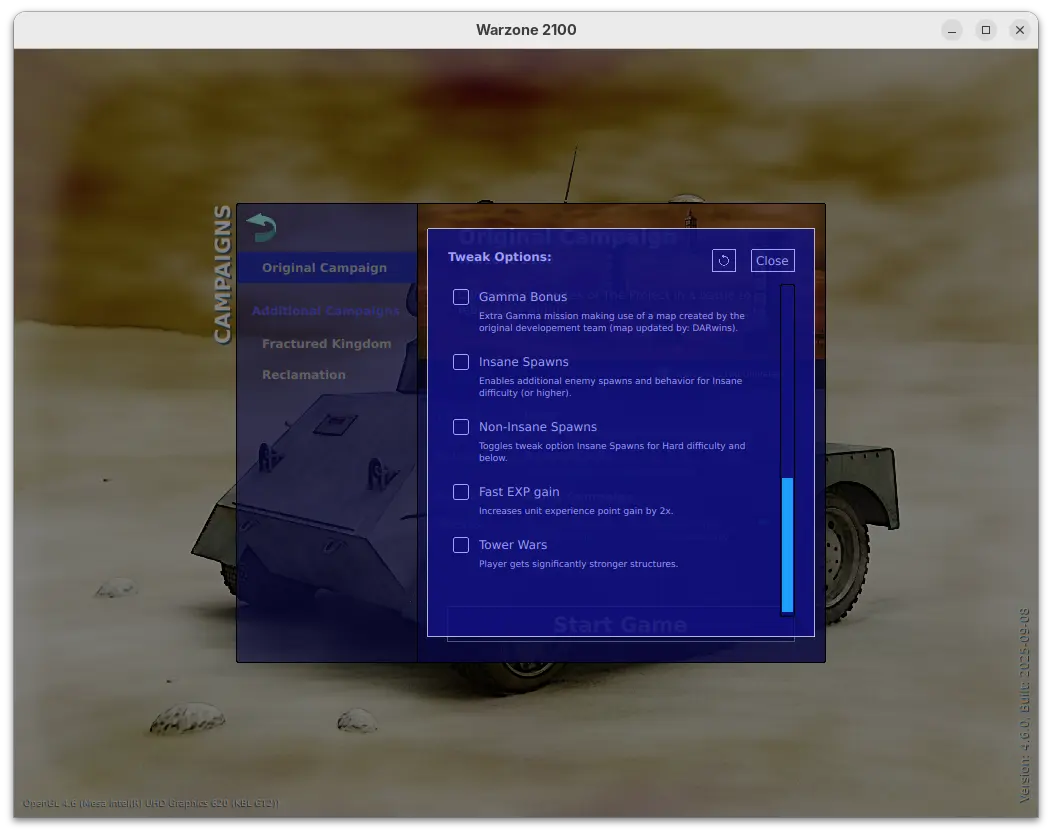
Warzone 2100 also introduced many additional tweak options for the Original Campaign. They include:

  • Infinite Time – missions have no timer when possible.
  • Victory Hints – displays a console message every few minutes showing victory related information.
  • Finale Fun – activate Final Gamma mission bonus content.
  • Insane Spawns – enable additional enemy spawns and behavior for Insane difficulty.
  • Non-Insane Spawns – toggle Insane Spawns for Hard difficulty and below.
  • Fast EXP gain – 2x unit experience point gain.
  • TowerWars – player gets significantly stronger structures.

There are as well many in game changes, including:

  • Bump repair spread area from 6 to 10 tiles.
  • Update Fractured Kingdom to v1.4.
  • Give ACs some basic splash damage.
  • Specify missing research names so research appears in the Stats objects.
  • Add “Defending Your Base” guide topic.
  • Add Particle Gun Laser weapon.
  • Adjust Emplacement-PlasmaCannon cost 200 -> 350, buildPoints 400 -> 500.
  • Increase spinAngle for Tracks in MP 45->65 to allow better unit packing.

For more, see the official release note.

Download & Install Warzone 2100 4.6.0

The official installers for Linux, macOS, ans Windows are available to download at the link below (under Assets section):

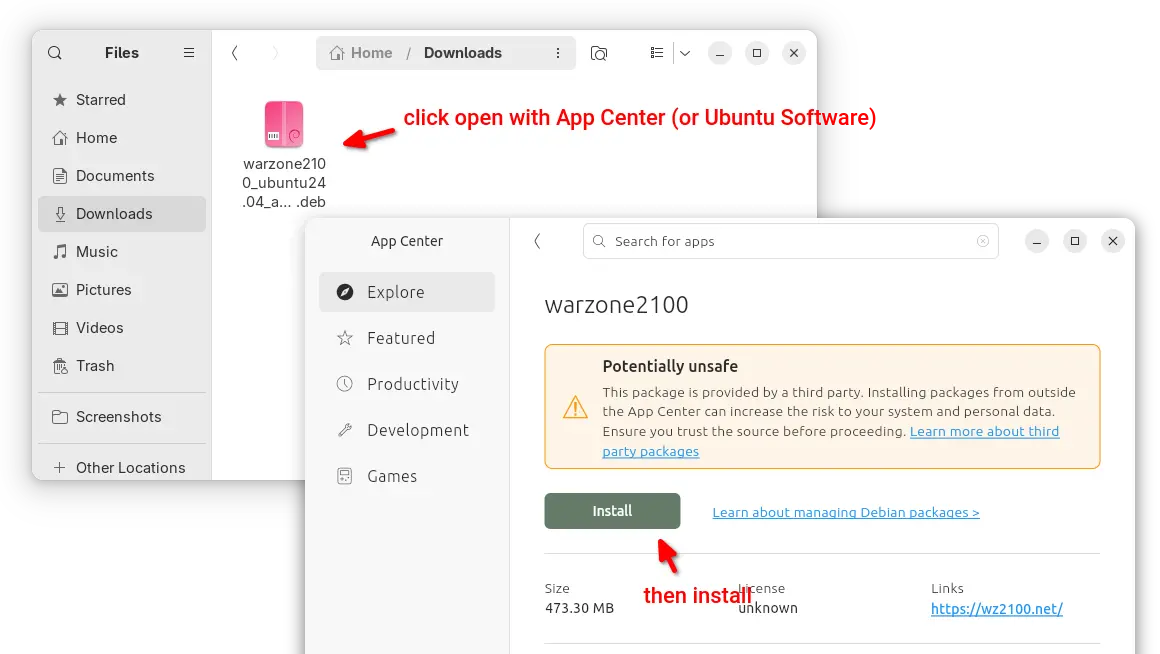
For Ubuntu 22.04 and Ubuntu 24.04 on modern Intel/AMD platform, select download the .deb package then click open & install via either Ubuntu Software or App Center.

Warzone 2100 DEB package

For all Ubuntu editions on Intel/AMD and ARM64, user may also choose install the Snap package (runs in sandbox) from App Center or Ubuntu Software.

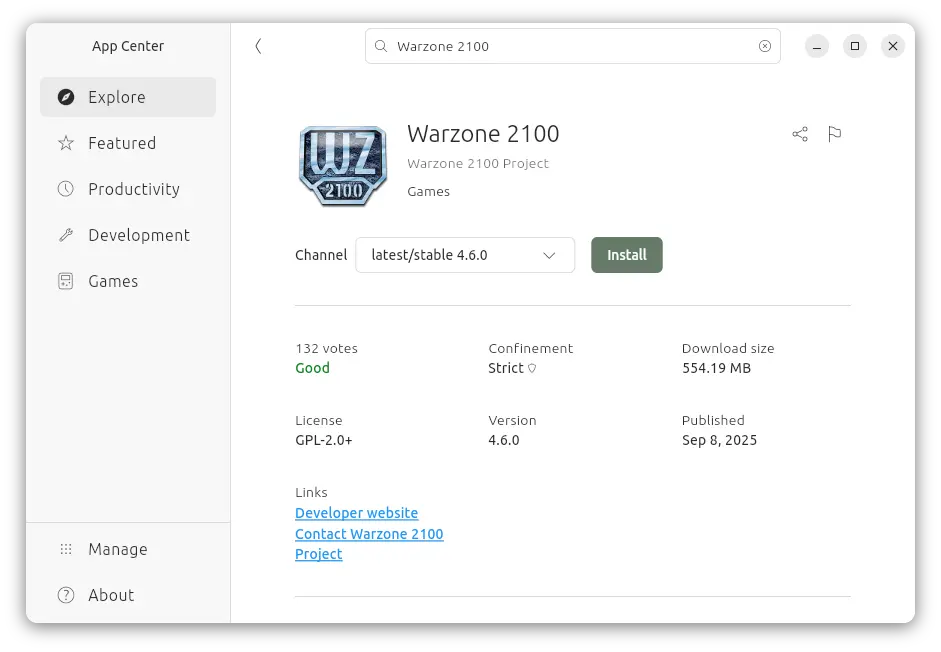
warzone 2100 Snap package

While, there’s also Flatpak package (also runs in sandbox) available to install in most Linux desktops.

❌