Login
Login
Top Things to Do After installed Ubuntu 25.10 Questing Quokka
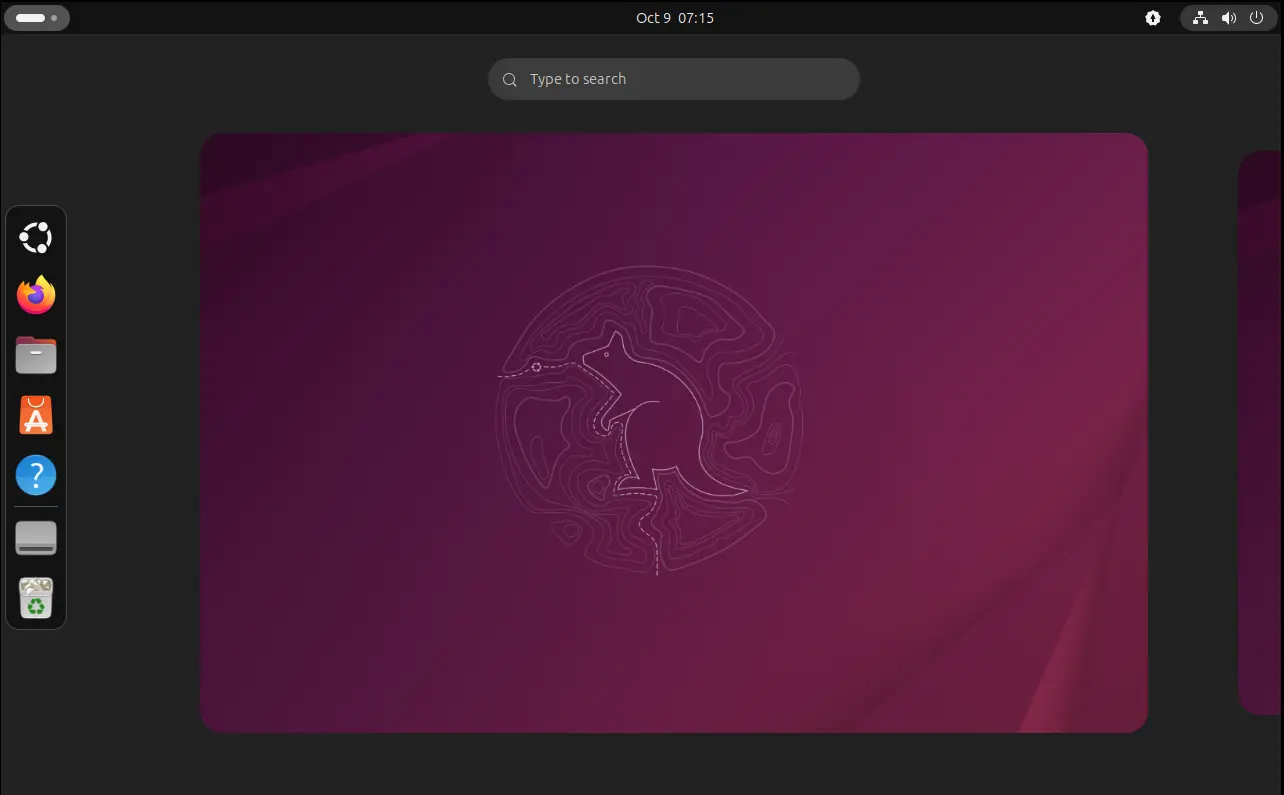
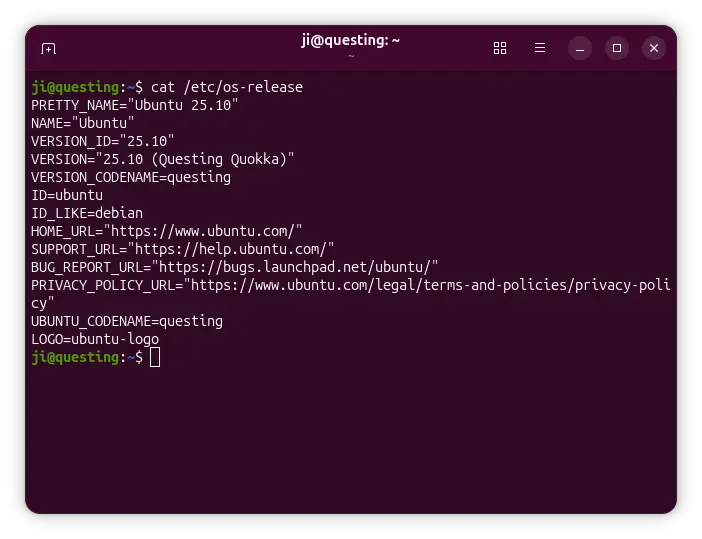
Ubuntu 25.10, code-name Questing Quokka was released! Here are some top things to do, after installed the new Ubuntu desktop release, to make it ready to use.
1. Enable “New Documents” Context Menu option
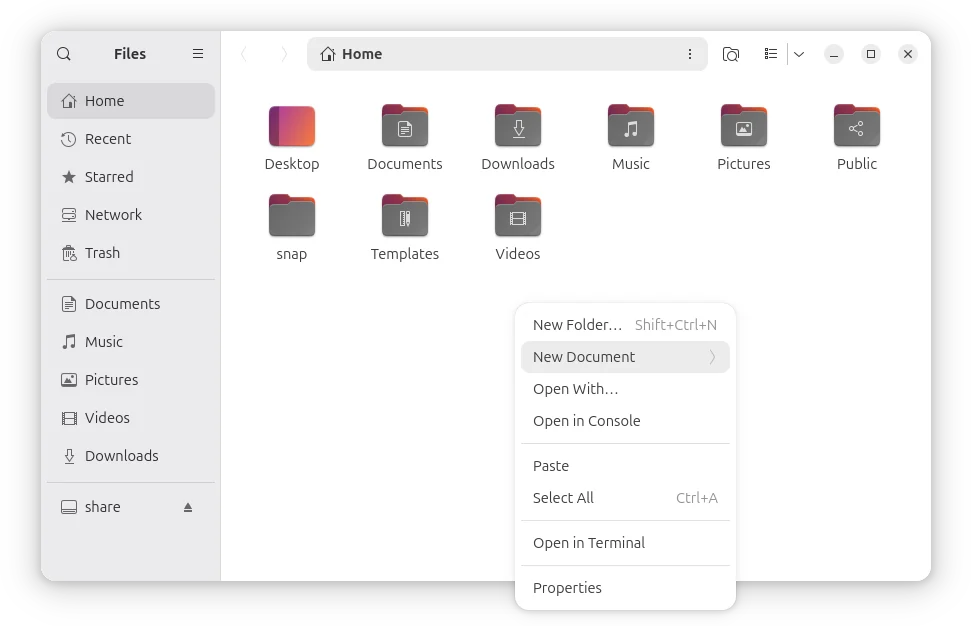
It’s been many years, GNOME still does NOT have a graphical option out-of-box to create new documents in file manager. Though, it’s easy to enable this feature by putting a file into user’s Template folder.
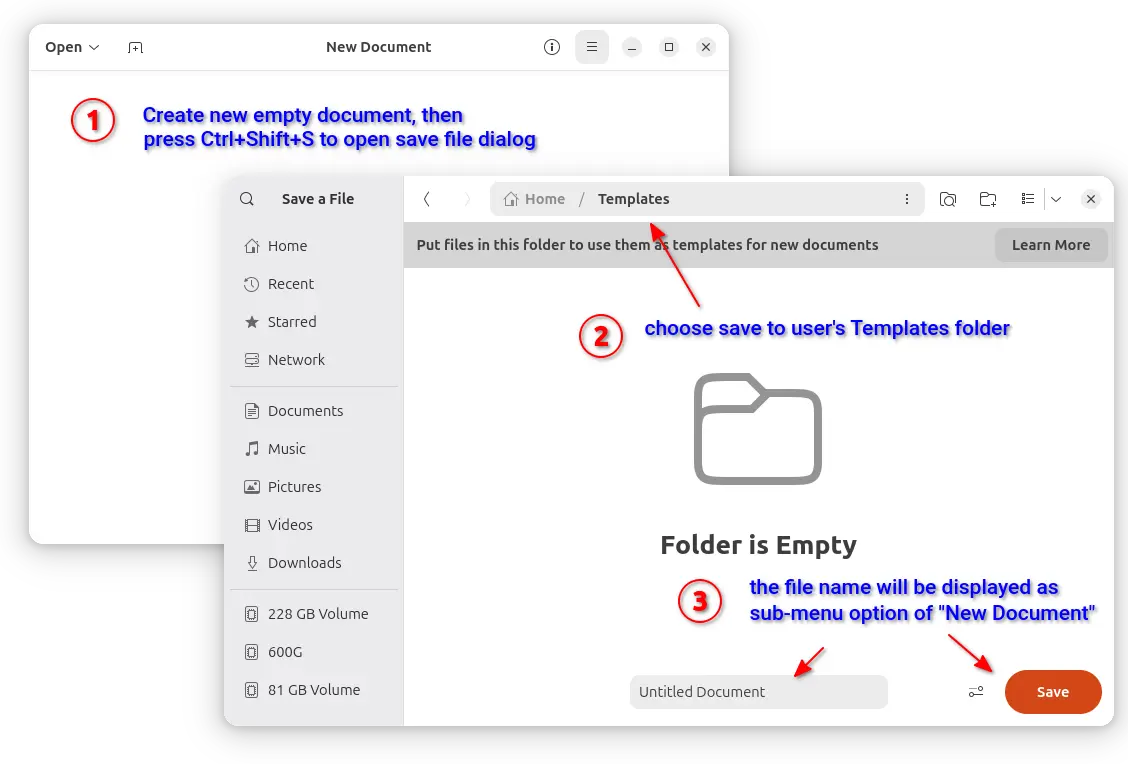
To do so, launch Text Editor and create a new empty document. Then, press Ctrl+Shift+S to open save file dialog. Finally, choose save it to Home -> Templates with whatever file-name you want to display as ‘New Document’ sub-menu option.
2. Configure Printer
The default “Printer” page in Settings is OK for basic use.
If you have a printer physically connected to the Ubuntu computer, then you may open terminal (Ctrl+Alt+T) and run command to install the graphical CUPS configuration tool:
sudo apt install system-config-printer
Tips: run sudo apt update to refresh cache if it says “Unable to locate package”.
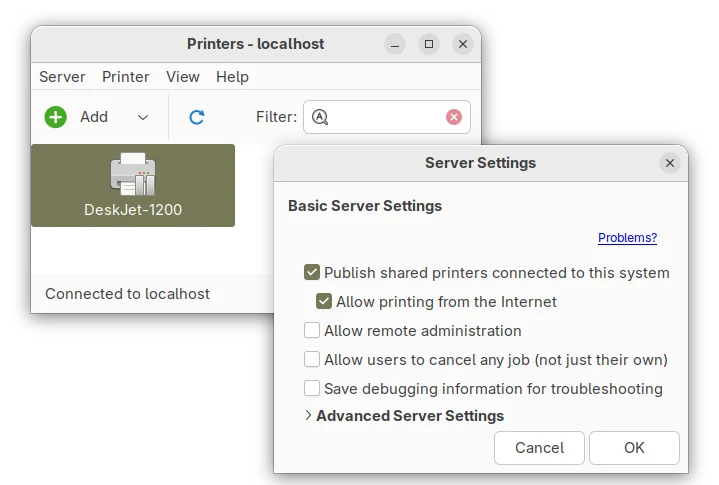
Then, search & launch Printers app to get more controls, such as share printer, remote admin, policies, and default print options.
3. Configure the Left Panel
The left panel, aka Ubuntu Dock, is handled by an extension forked from dash-to-dock.
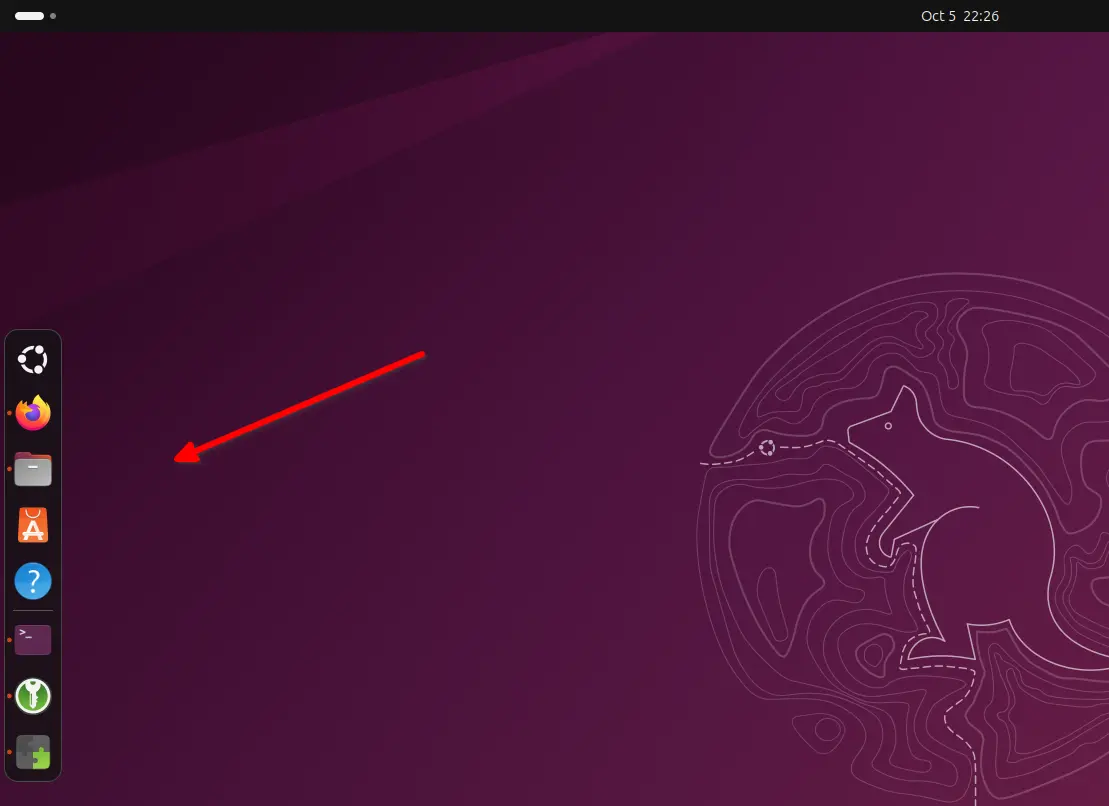
By going to Settings -> Ubuntu Desktop -> Dock, you may configure the left panel/dock with basic options, such as its position, icon size, auto-hide, shorten panel, show on primary or all displays, hide trash and volumes.
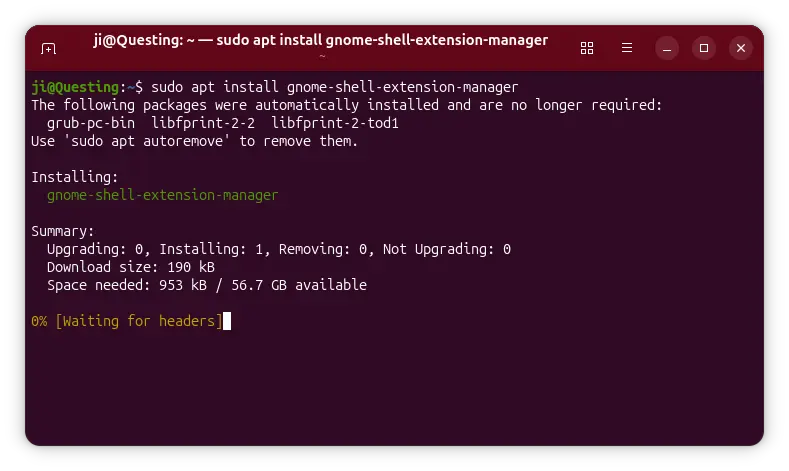
For more, install extension manager either by running the command below in terminal (Ctrl+Alt+T) or by using App Center (filter by Debian package):
sudo apt install gnome-shell-extension-manager
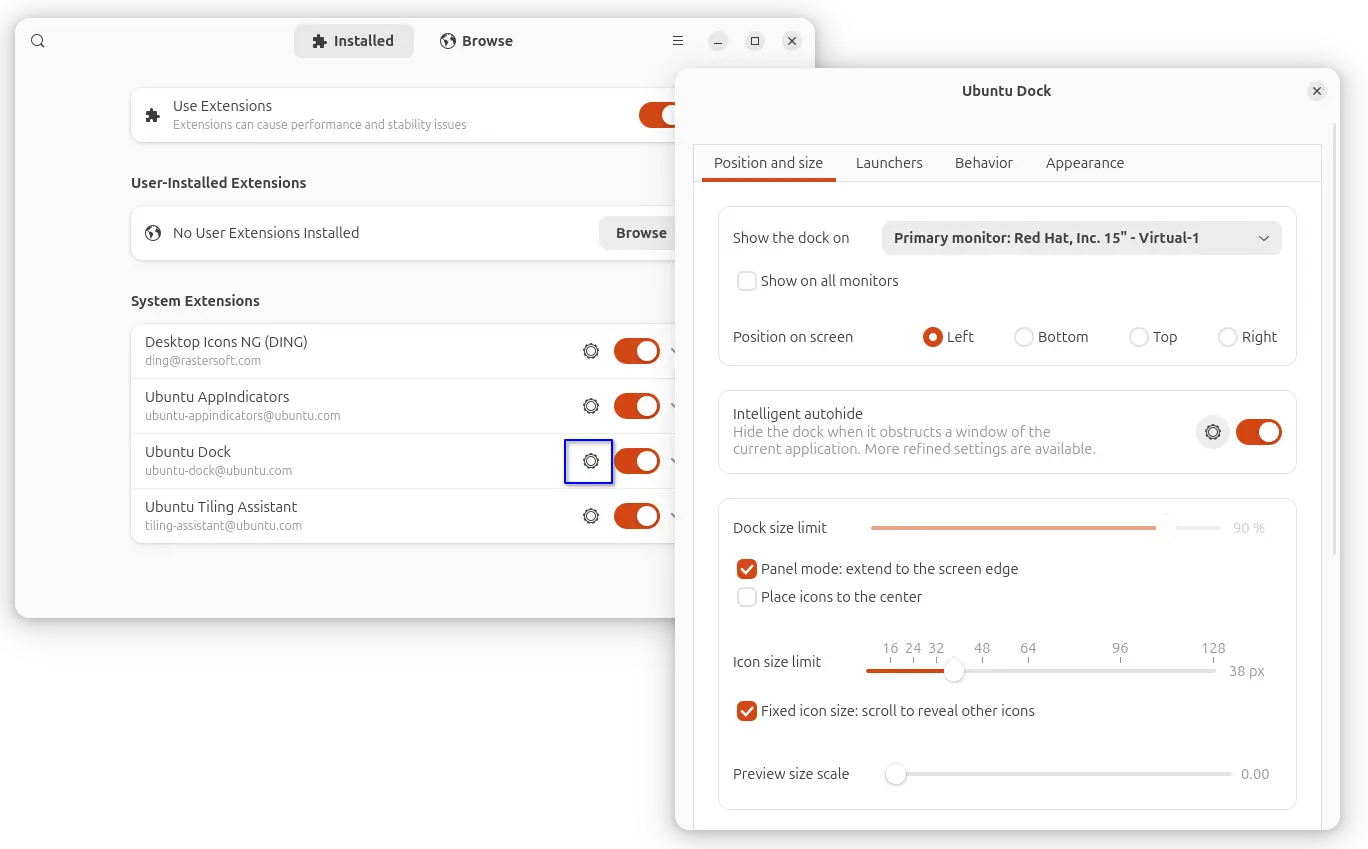
Then you may launch extension manager, and open preferences dialog for the Ubuntu Dock extension, which includes many more configure options for the left panel/dock:
- Intelligent autohide, with dodge windows, animation duration, pressure threshold options.
- Center icons in panel mode.
- Show/hide, and move “Show Apps” (the Ubuntu Logo) icon.
- Keyboard shortcuts.
- Click action (e.g., click to minimize).
- Appearance, e.g., background color, and opacity.
4. Install back default apps
If you chose the “Default Selection” option while installing Ubuntu 25.10, then you’ll see that many default applications are NOT pre-installed!
To install them back, simply launch App Center, then search and install the apps below one by one (mostly filtered by Debian package).
Or, open terminal (Ctrl+Alt+T) and run commands below instead (run sudo apt update to refresh cache first).
- LibreOffice office suite.
sudo apt install libreoffice
- Archive Manager (aka file roller).
sudo apt install file-roller
- Shotwell photo manager.
sudo apt install shotwell
- Backups (Déjà Dup Backups).
sudo apt install deja-dup
- Gnome Camera, the new app replaces Cheese.
sudo apt install gnome-snapshot
- Showtime video player.
sudo apt install showtime
- Rhythmbox music player.
sudo apt install rhythmbox
- Thunderbird email. It’s now defaults to Snap, see how to revert back to Deb version.
- Startup Disk Creator.
- Remmina remote desktop client.
sudo apt install remmina
- Transmission torrent download app.
sudo apt install transmission
5. Install Multimedia Codec
Due to legal reason, Ubuntu does not include some media codec for video/audio playback, Microsoft TTF fonts, and RAR archive supports.
To get them, press Ctrl+Alt+T to open up a terminal window, and run command:
sudo apt install ubuntu-restricted-extras
While downloading & installing the MS fonts, it will prompt to accept licence, use Tab key to highlight OK and hit Enter.
6. Enable Flatpak support
Flatpak is a popular package format runs in sandbox environment. Tons of applications support Linux through Flatpak package.
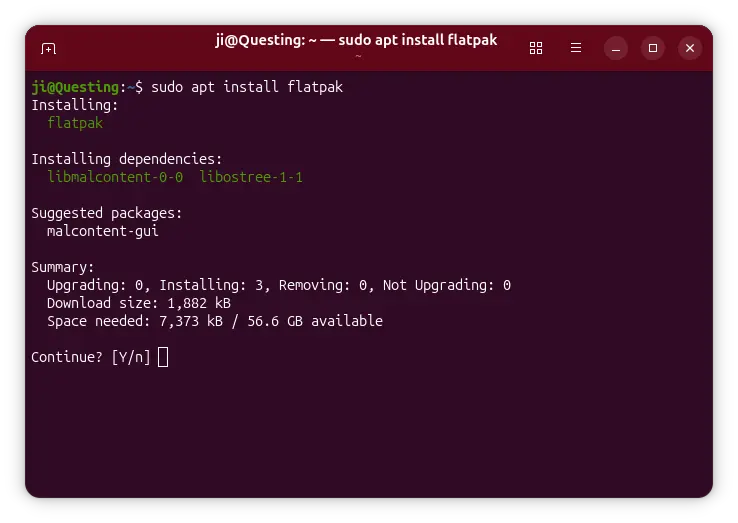
To enable Flatpak support in Ubuntu, simply open terminal (Ctrl+Alt+T) and run command:
sudo apt install flatpak
Next, you may install local flatpak files by running command:
flatpak install drag-and-drop-flatpak-file-here
Or, add the Flathub repository into system:
flatpak remote-add --if-not-exists flathub https://dl.flathub.org/repo/flathub.flatpakrepo
For choice, add --user flag for current user only. Then, use the command in a Flathub app page to install (click down arrow besides “Install” button).
Due to this bug, flatpak install may refuse to work. Try running it with sudo at beginning until it’s fixed.
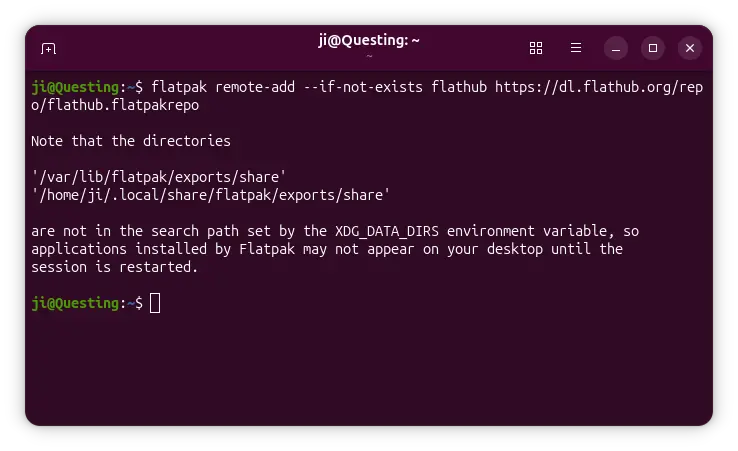
NOTE: After enabled Flatpak support, you need a log out and back in to apply variable changes.
7. Enable AppImage support
AppImage is another popular way to run applications in Linux. It’s a portable, non-install package format, that can be run directly (after added executable permission) to launch application.
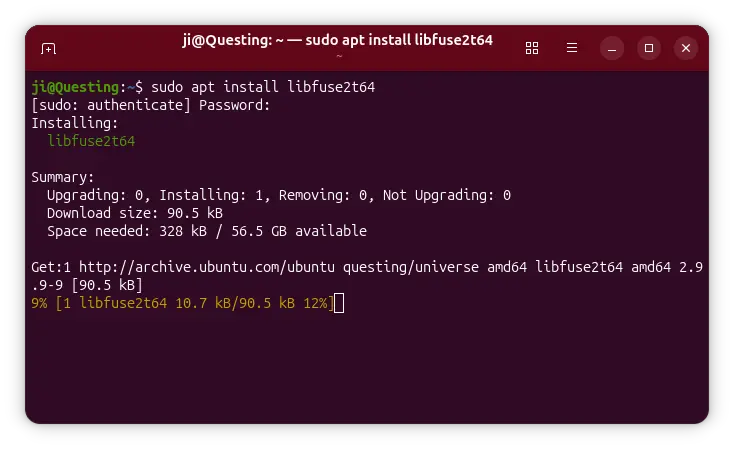
Since Ubuntu 22.04, user needs to press Ctrl+Alt+T to open terminal, and run command to install the required library for AppImage support:
sudo apt install libfuse2
8. Install Configuration Tools
Besides the default Settings (aka Gnome Control Center), they are few other graphical tools to help configure your Ubuntu desktop.
Gnome Tweaks
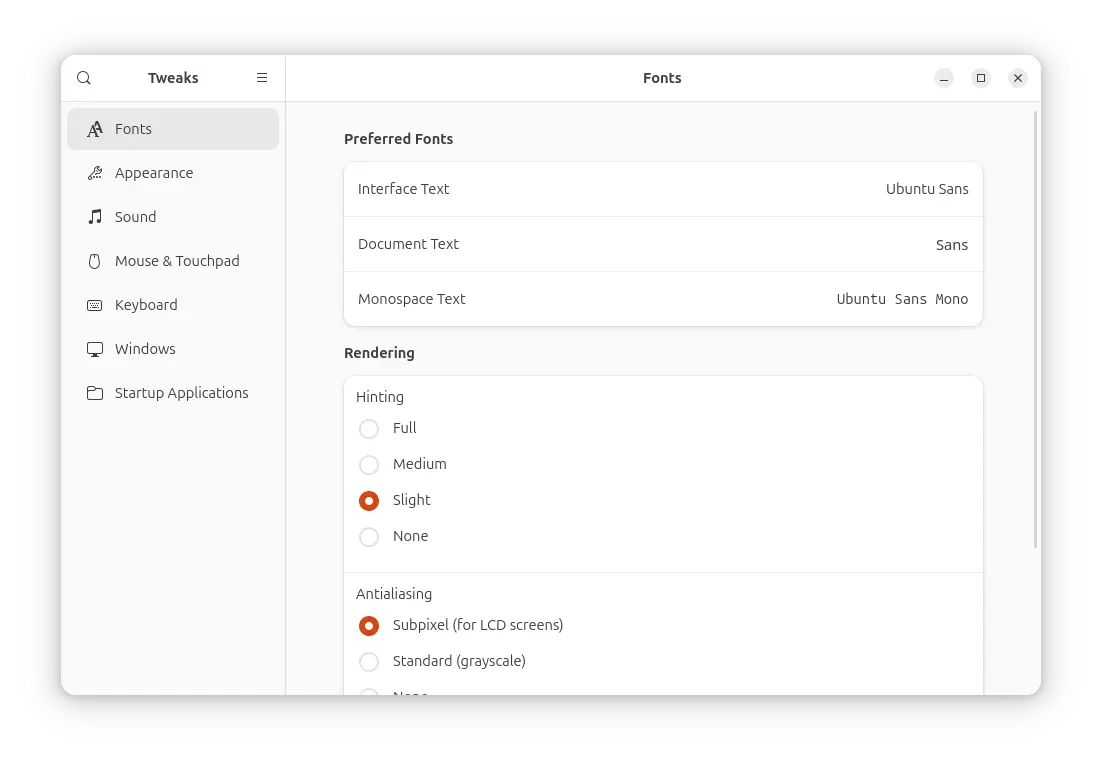
GNOME Tweaks is the popular alternative to Gnome Control Center (aka Settings), which offers graphics options to configure:
- Fonts, scaling factor.
- Cursor, icon, legacy apps, and sound themes.
- Window buttons, and additional mouse & touchpad settings.
The app is available to install either from App Center (filter by Debian package) or by running command below in terminal:
sudo apt install gnome-tweaks
Extension Manager
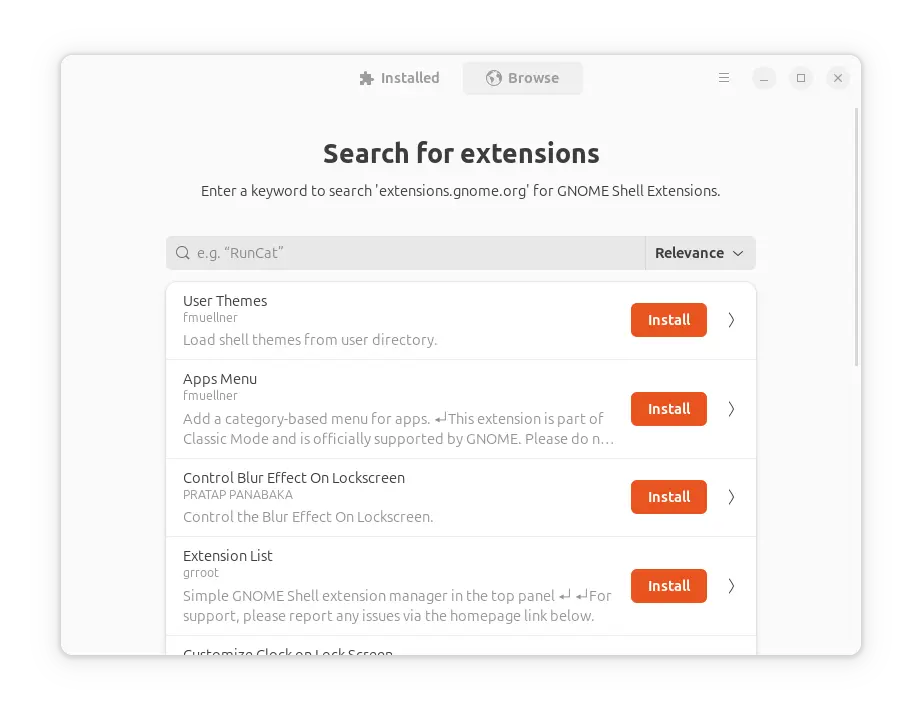
Extension Manager is one of the must-have applications to install & manage extensions in GNOME desktop. It can be installed by running the command below in terminal:
sudo apt install gnome-shell-extension-manager
Grub Customizer
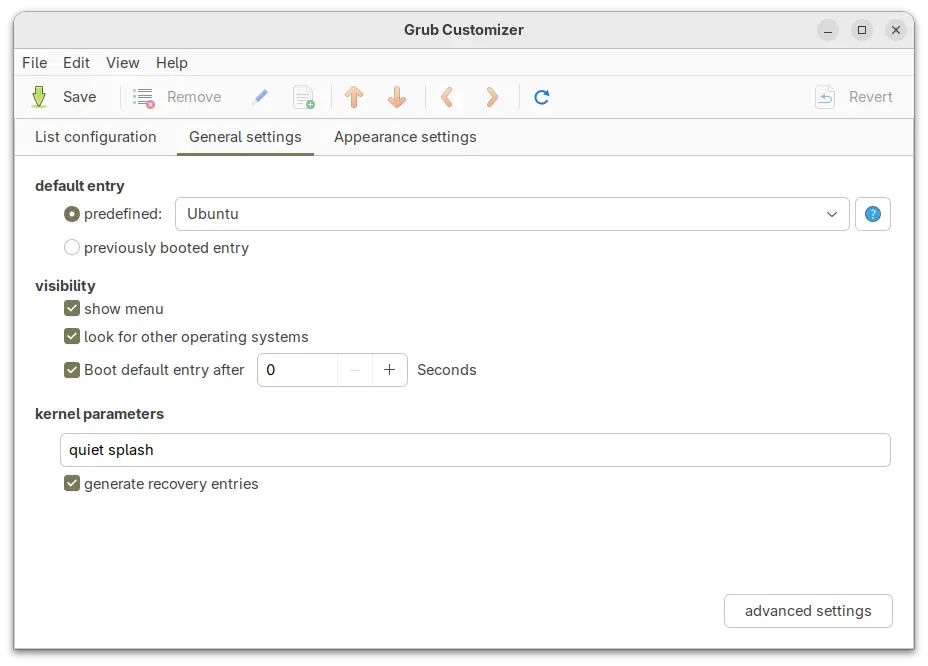
For dual-boot or multi-boot computers, and users who want to configure the boot menu, Grub-customizer is good choice to make things simple.
To install the app, open terminal and run commands below one by one to get from developer’s PPA:
sudo add-apt-repository ppa:danielrichter2007/grub-customizer
sudo apt-get update
sudo apt-get install grub-customizer
NOTE: The PPA does NOT support Ubuntu 25.10 at the moment of writing, check the PPA page for details.
GDM Settings

If you want to change the login screen background, then GDM settings is a good choice that also supports configuring fonts, top-bar, colors, etc for the login screen.
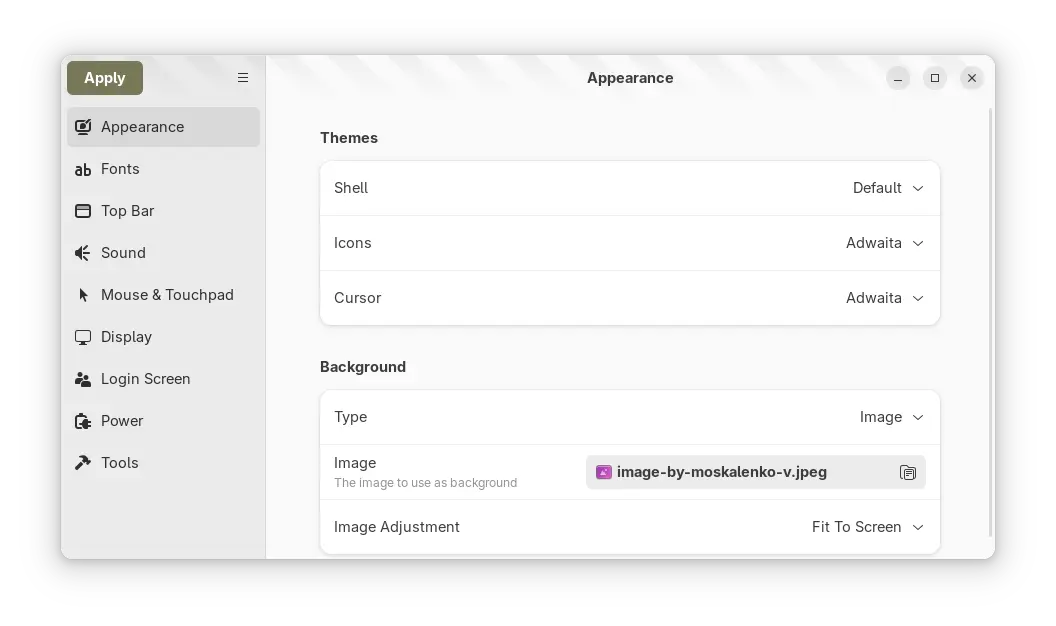
NOTE: GDM Settings has the potential to break your login screen. Use it at your own risk!
To install the app in Ubuntu 25.10, run the commands below one by one to get from PPA:
sudo add-apt-repository ppa:ubuntuhandbook1/gdm-settings
sudo apt update
sudo apt install gdm-settings
Dconf Editor
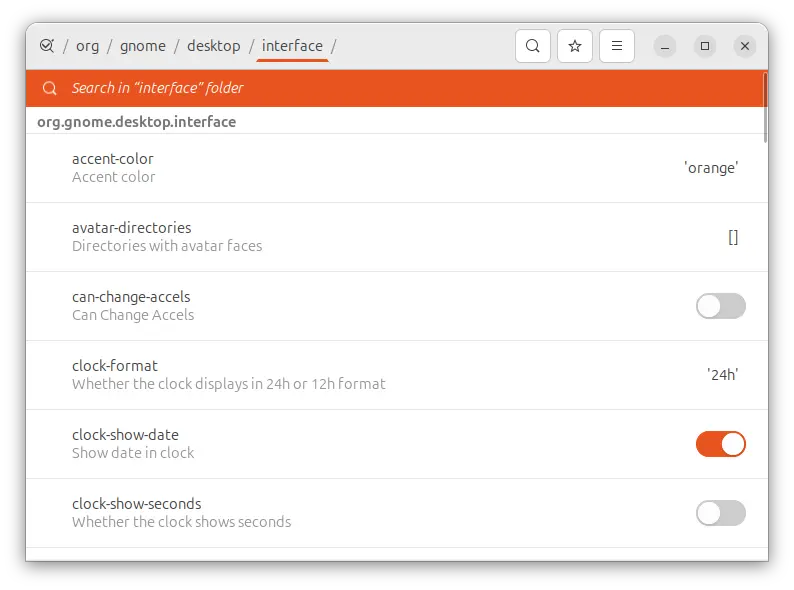
For advanced users, there’s also “Dconf Editor” that offers even more hidden configuration options.
To install the tool, run command:
sudo apt install dconf-editor
Just Perfection
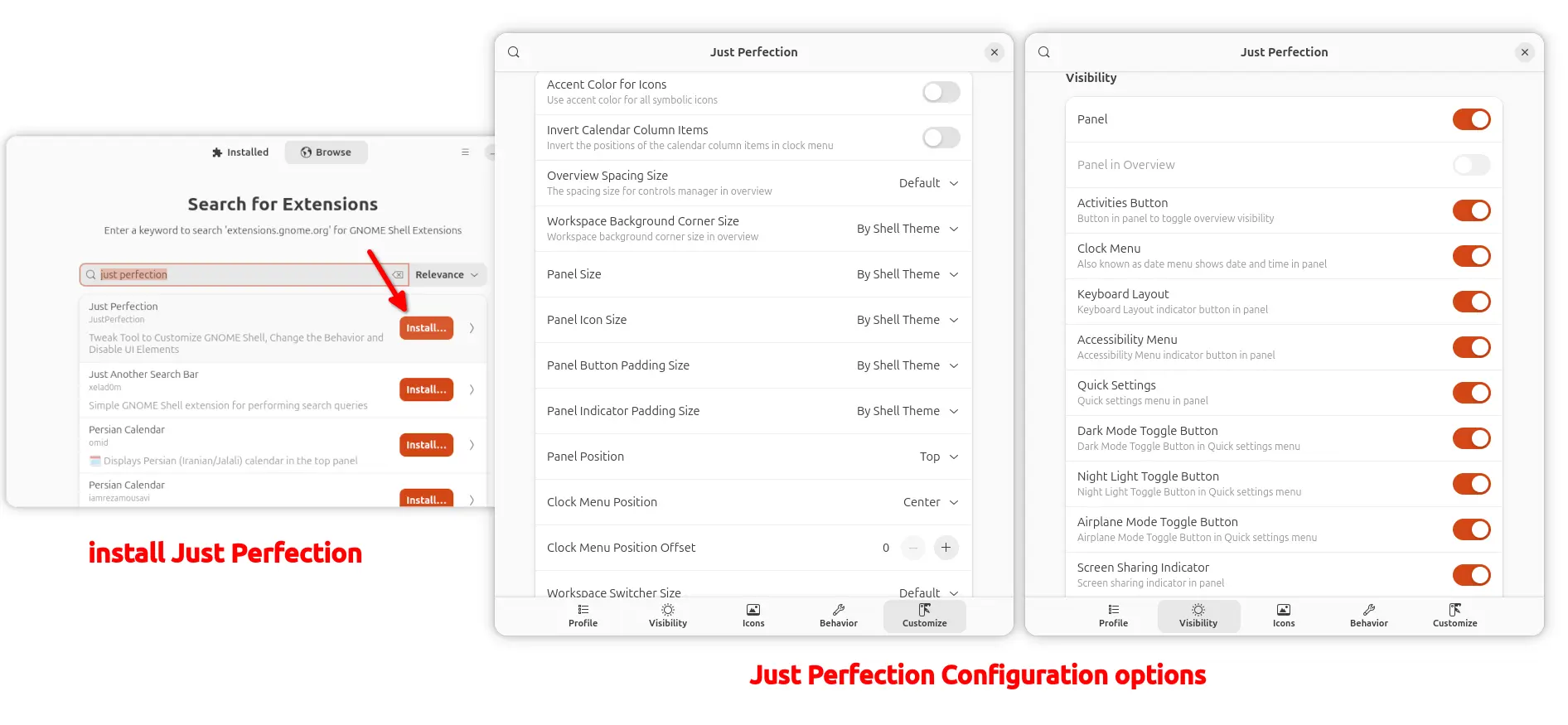
If you want to hide or tweak the top-panel (e.g., size and position) and panel items (e.g., clock option), configure the desktop behaviors and animations, then Just Perfection extension provides many options that can do the job.
Simply, search and install the extension using “Extension Manager” app, then you can go back “Installed” tab and click open the Just Perfection setting page for the configuration options.
9. Install NVIDIA Driver
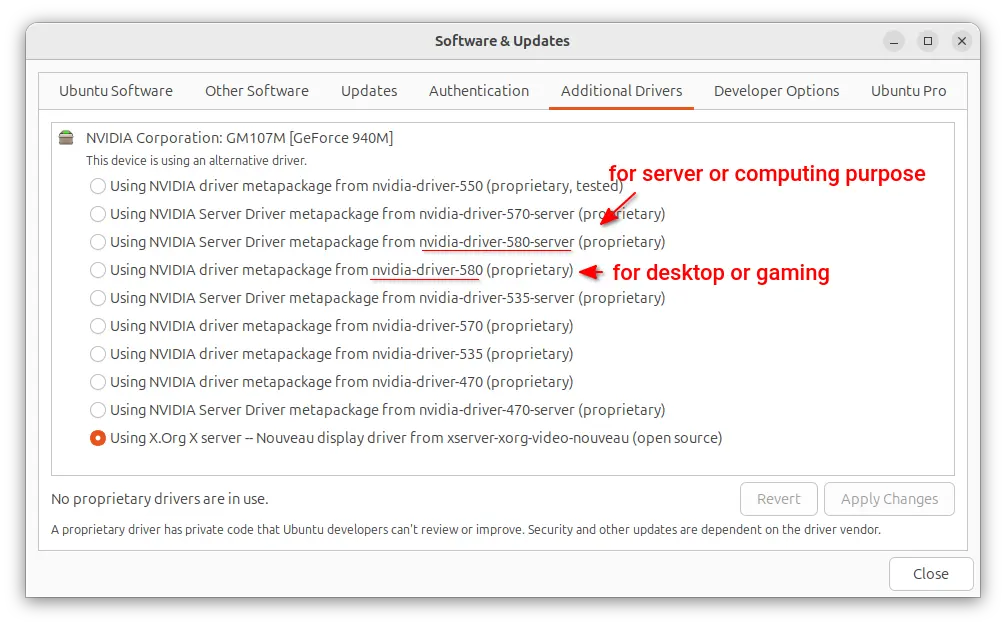
For NVIDIA graphics card, you may launch Additional drivers and select install the latest NVIDIA 580 driver for better gaming performance.
10. Add App Icon to Desktop
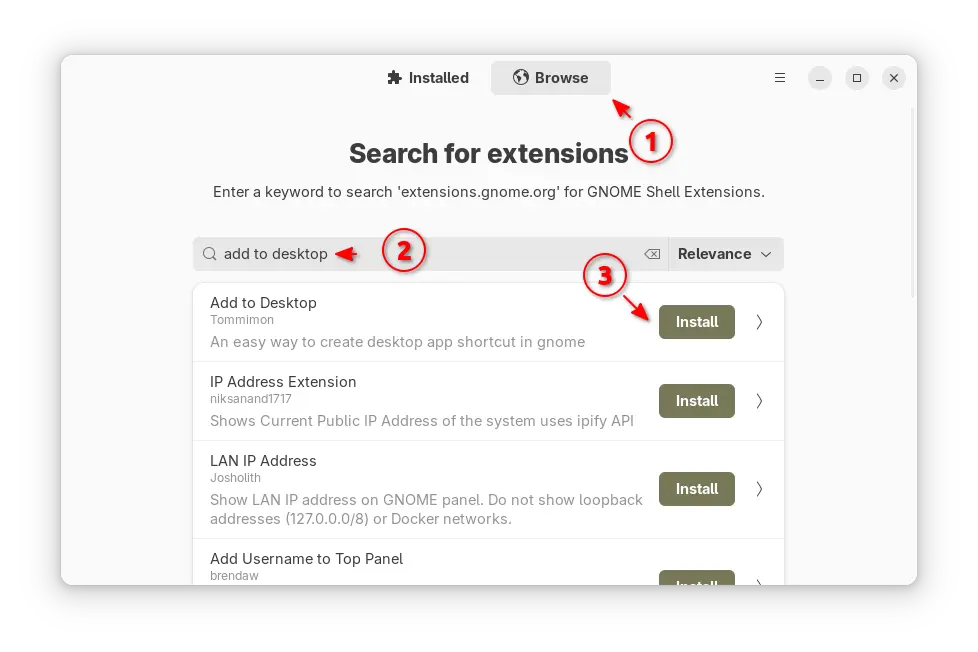
If you prefer launching applications by using desktop shortcuts, then install Extension Manager that’s mentioned above, and use it to search & install “Add to Desktop” extension.
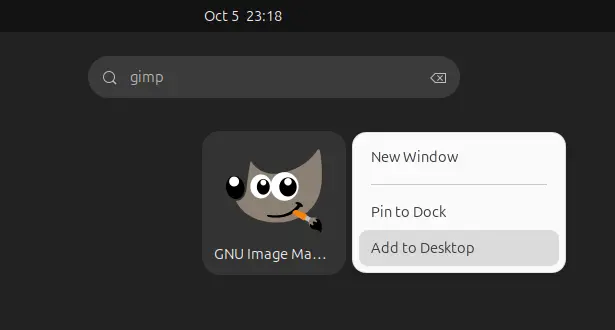
After that, you may right-click on your favorite apps in either app grid or GNOME Overview search result to add them into desktop.
And More
There are even more things you can do to make Ubuntu desktop better for use. The things however differ depend on users. Please leave comment below, if you have any other good advice to tweak the Ubuntu Desktop.