Normal view

SuperTux Released 0.7.0 Beta with New Artwork & Multiplayer Mode

By:Ji m
30 December 2025 at 19:34

SuperTux, the free open-source Super Mario inspired jump’n’run game, released new 0.7.0 beta version yesterday.

This is the first update after 4 years of making. It completely remade the worlds, redesigned the character, introduced new assets for the Tux, enemies, and backgrounds, and revived Android support.

First of all, the new version completely overhauled the world I (aka Icy Island) and world II (aka Rooted Forest).

User can now press the action key (left Control by default) to get the screen to select a different world, though only Icy Island is available in my case as I never completed the first world.

press Action key, allowing to switch world.

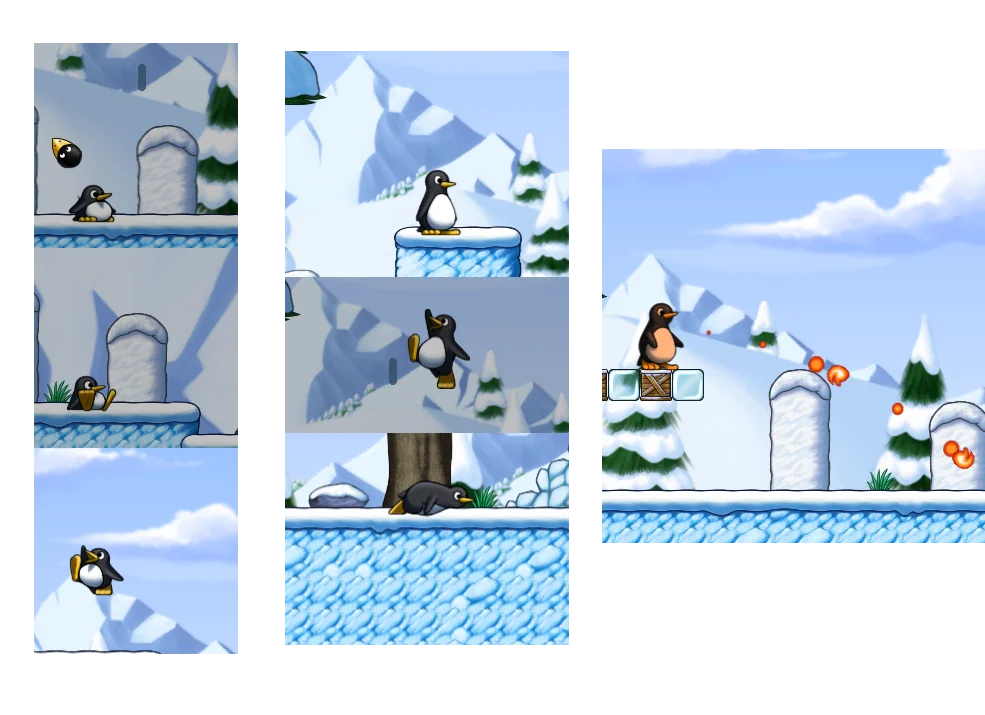
The version redesigned the main character Tux. The penguin now looks stereoscopic. And, it is animated when you’re not in control of it, which acts just like playing on its own and even sit on the ground and take a load off.

It now jumps more like a human, and supports creep forward by press’n’holding down and moving left/right. After ate a fire-flower, the body turns fiery-red instead of wearing a cap, and the fireballs are looking better than before with new animation.
The new version also added many new enemies and NPCs. They include:

  • Granito – a friendly npc within Rooted Forest levels.
  • Root Sapling – spawns small roots pointing upwards, like Ghost Tree.
  • Corrupted Big Granito– a hostile version of the friendly Granito NPC.

SuperTux 0.7.0 also introduced new Item Pocket feature to save a powerup for later use.

If you collect a flower while having a bonus greater than GROWUP_BONUS, that flower gets equipped and the old flower gets stored in the top left corner of the screen. Now, the player can press the new ITEM control (usually Select/Back or Left Shift) to use the stored flower by throwing it up and catching it.

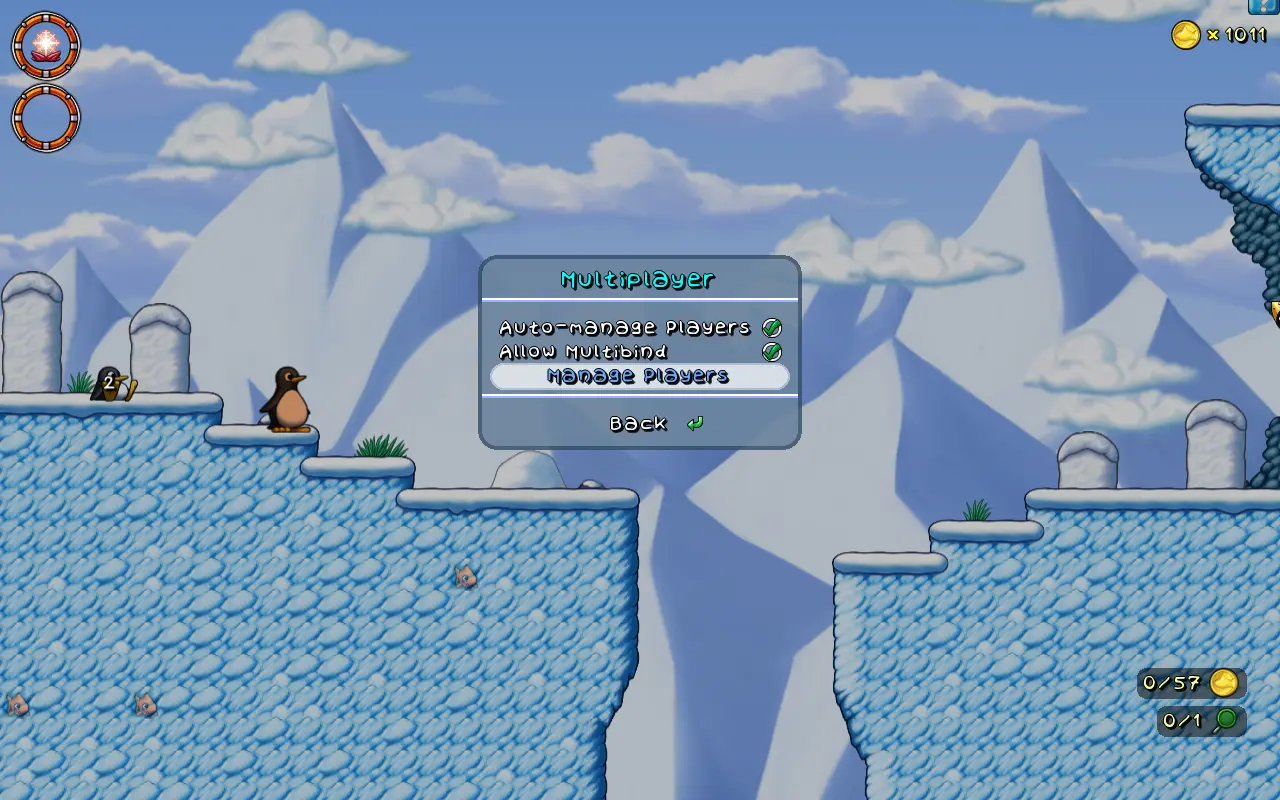
It also added local multiple player mode. It supports up to 4 players, allowing to play with your friends together with the same game screen and even same input device (e.g., keyboard).
Other changes include:

  • New Cutscenes, new Ghost Tree, new Ghost Tree, and new Yeti Boss fight.
  • New music.
  • Revamp the options dialog.
  • Revamp Level Editor and QoL changes.
  • Glinting BadGuys that will drop coins on death.
  • Revived Android support.
  • Add Linux Flatpak package.

How to Get SuperTux 0.7.0 Beta

For more about the release of 2D slide-scrolling game, as well as the official installers (under Assets section), go to the Github release page via the link below:

Linux user on AMD/Intel platform may simply download the AppImage package, then add executable permission, and run to launch the game.

As the package name says, it requires glibc >= 2.38. For Ubuntu, it means you need 24.04 LTS and higher, and make sure the libfuse2 library is installed via the command below in terminal (Ctrl+Alt+T):

sudo apt install libfuse2

For choice, select download the Flatpak package, then run command below in terminal (Ctrl+Alt+T) to install:

flatpak install drag-and-drop-flatpak-package-into-terminal


Tips: run sudo apt install flatpak to install the daemon if your don’t have Flatpak support in Ubuntu.

If the app icon is not visible, either log out and back in to apply path environment change, or run the command below instead to start it from terminal:

flatpak run org.supertux.SuperTuxNightly

(Optionally) For any reason, you may use the command below to uninstall the Flatpak package from your system:

flatpak uninstall --delete-data org.supertux.SuperTuxNightly
How to Install Pop!_OS COSMIC Desktop in Ubuntu 24.04

By:Ji m
29 December 2025 at 17:58

Want to try out the COSMIC desktop environment? Without installing the whole Pop!_OS, you can now install the desktop in Ubuntu 24.04 through a PPA repository.

COSMIC is a new standalone desktop environment built from scratch. It’s the default desktop environment for Pop!_OS, developed by System76, an American Linux computer manufacturer.

The desktop is written in the Rust programming language for high performance and memory safety. It features its own set of files, terminal, text editor, and video player etc core applications.

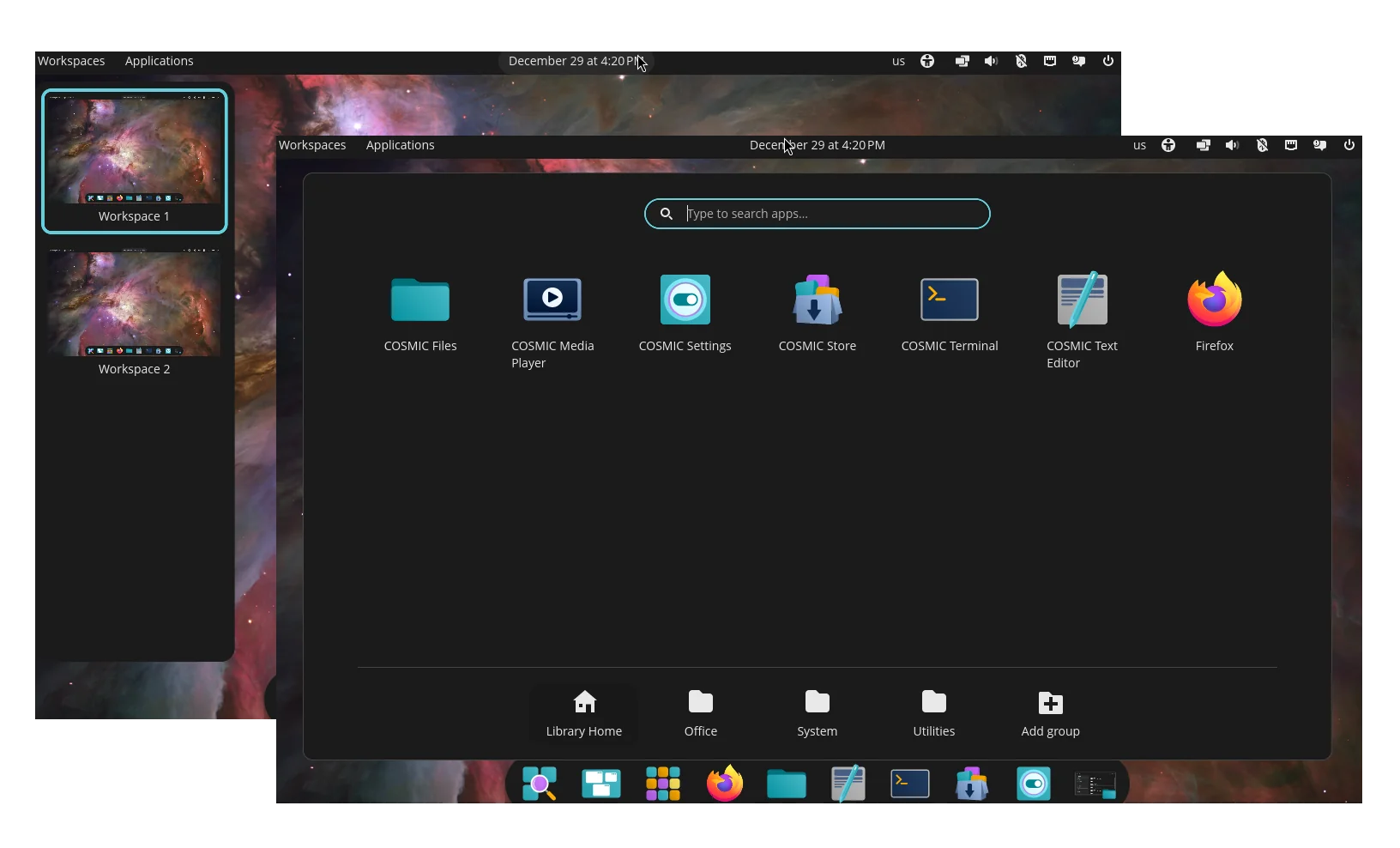
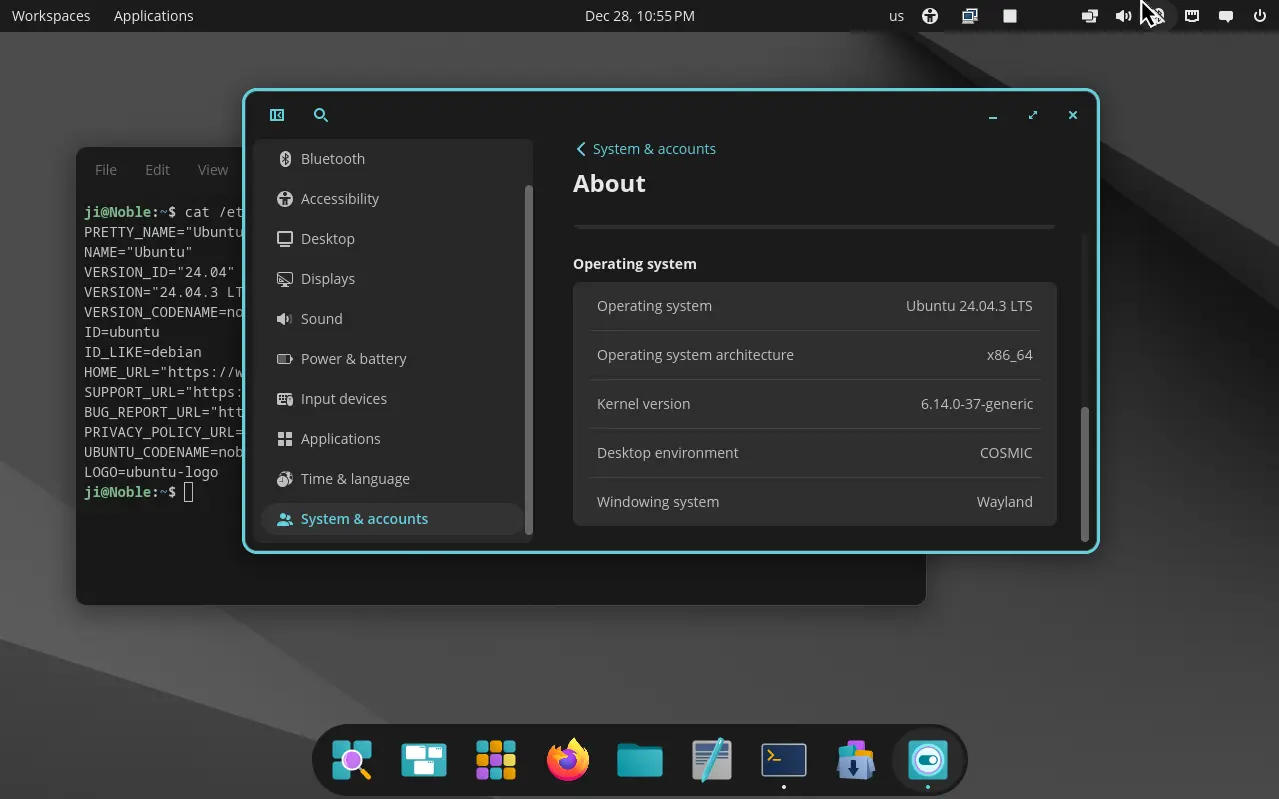
Ubuntu 24.04 with COSMIC desktop

COSMIC was previously a customized version of Gnome desktop. It by default has Gnome style top-bar and bottom dock, which are however highly customizable.

User may configure to show or hide the top-bar/dock, move them to any screen edge, as well show/hide panel items and move them to left, right, or center.

It as well features Gnome 3.x style vertical overview screen, and its own Application menu to get started launching apps or opening files.

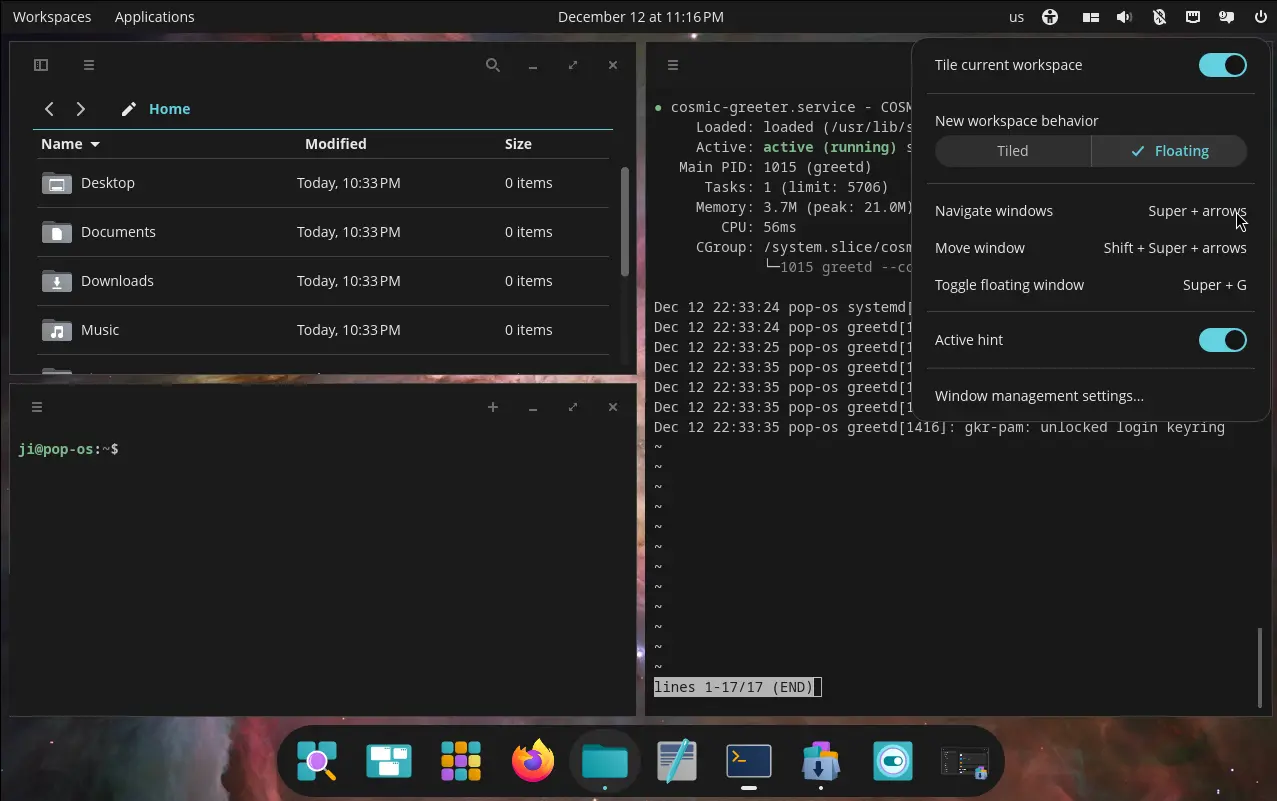
And, it features an indicator applet to one-click tiling all app windows in current workspace, while user may drag’n’drop exchanging window position in the tiling mode.

Other features include:

  • Multiple displays support with separated or spanned workspaces, per display window tiling, mixed HiDPI and standard resolutions.
  • Hybrid graphics support that auto select the correct GPU for running apps.
  • Stack windows feature to combine multiple app windows into single in tabs.

Install COSMIC in Ubuntu 24.04

For Ubuntu 24.04 LTS users who don’t want to download & install the Pop!_OS 24.04, there’s now an unofficial PPA repository that maintains the desktop environment packages for AMD/Intel platform.

NOTE: This is an unofficial PPA, though it has a source repository for reporting issues or requesting features.

1. Just open terminal (Ctrl+Alt+T) and run command to add the PPA:

sudo add-apt-repository ppa:hepp3n/cosmic-epoch

Type user password (no visual feedback) when it asks for sudo authentication, and hit Enter to continue.

2. Ubuntu now automatically refresh cache while adding PPA, but some flavors (e.g., Linux Mint) may need to manually run command below to do the job:

sudo apt update

3. Finally, install the COSMIC desktop by running command:

sudo apt install cosmic-session

As the PPA description said, you may optionally add --install-recommends option in last command to install more packages to get full experience of COSMIC desktop.

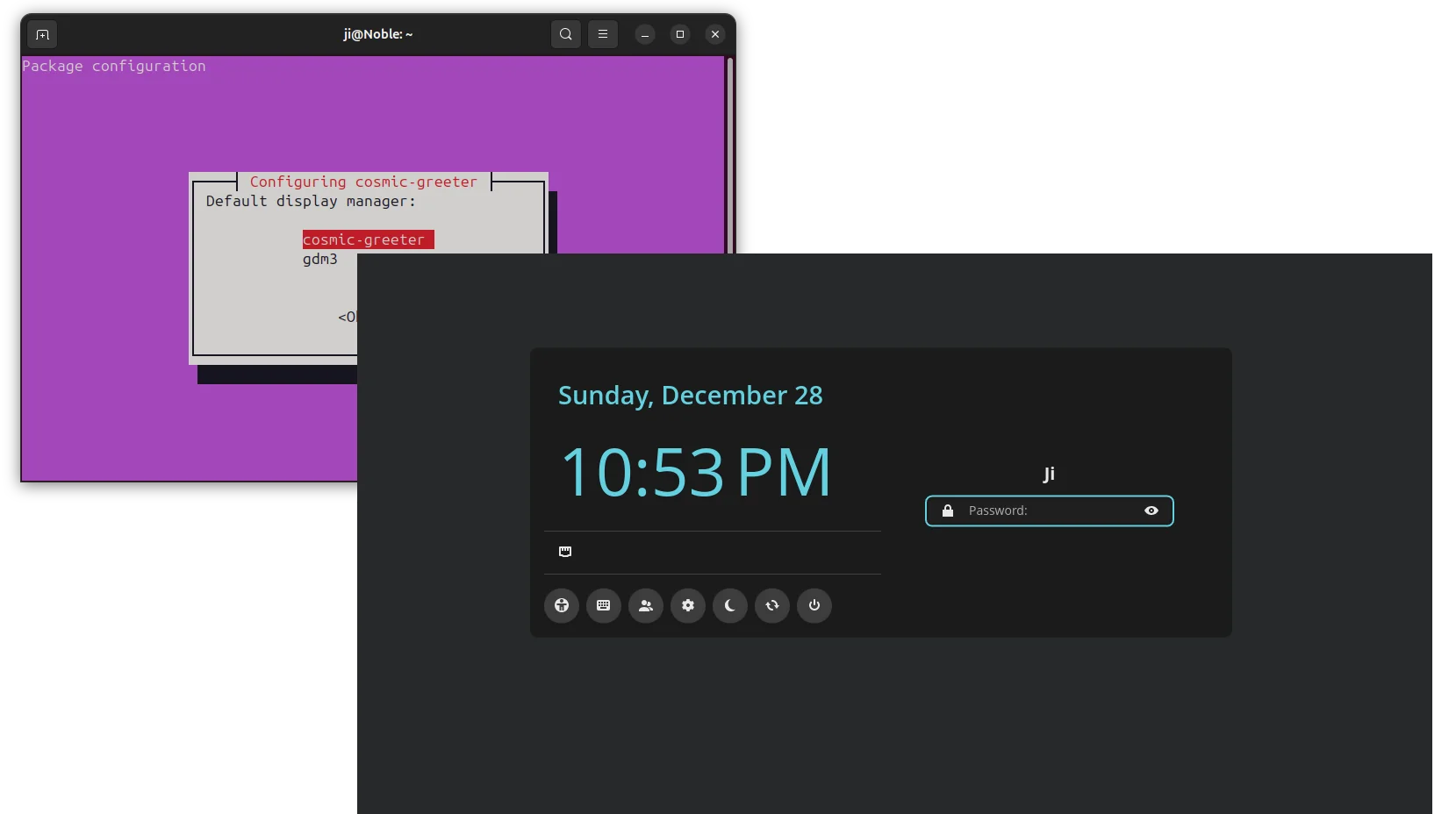
During the installation process, it will ask for choosing the default display manager. And, by choosing “cosmic-greeter” (press Tab to select OK), the login screen will change to be cosmic style.

After successfully installed the desktop, restart your computer and select login with “COSMIC” session if you chose to use the previous login screen.

Uninstall COSMIC desktop

If something goes wrong, or you just want to remove the desktop environment, then open terminal (Ctrl+Alt+T) and run commands:

  • First, install ppa-purge tool:
    sudo apt install ppa-purge
  • Then, use the tool to purge the PPA, which will also downgrade (or remove) all the installed packages.
    sudo ppa-purge ppa:hepp3n/cosmic-epoch

    For Ubuntu flavors, e.g., Linux Mint, use sudo ppa-purge ppa:hepp3n/cosmic-epoch -d noble instead.

In my case, it automatically switch the display manager (the login screen) back to the default afterward.

Tips: If the ppa-purge process was somehow interrupted, then use the command below to manually remove the desktop packages:

sudo apt remove cosmic-app-library cosmic-applets cosmic-bg cosmic-comp cosmic-edit cosmic-files cosmic-greeter cosmic-greeter-daemon cosmic-icons cosmic-idle cosmic-launcher cosmic-notifications cosmic-osd cosmic-panel cosmic-player cosmic-randr cosmic-screenshot cosmic-session cosmic-settings cosmic-settings-daemon cosmic-store cosmic-term cosmic-wallpapers cosmic-workspaces pop-launcher xdg-desktop-portal-cosmic

Finally, restart computer to apply changes.

Graphical Shutdown App KShutdown 6.2 added Beep Sound & D-Bus Help

By:Ji m
29 December 2025 at 10:57

KShutdown, the graphical shutdown utility for Windows and Linux, released new 6.2 version few days ago.

The new version of this free open-source application added some minor new features, UI tweaks, and basic D-Bus help dialog for those who would like to automate the process via a widget or script.

As you may know, KShutdown is a small utility designed for KDE desktop, which also works in other desktop environments without KDE libraries.

The app can automatically shutdown, restart, hibernate, suspend your system, log-out or lock/un-lock your screen, as well as run custom command or popup a message dialog.

The action can be performed at given date and time, time from now, on application exit, or when a file is created/deleted.

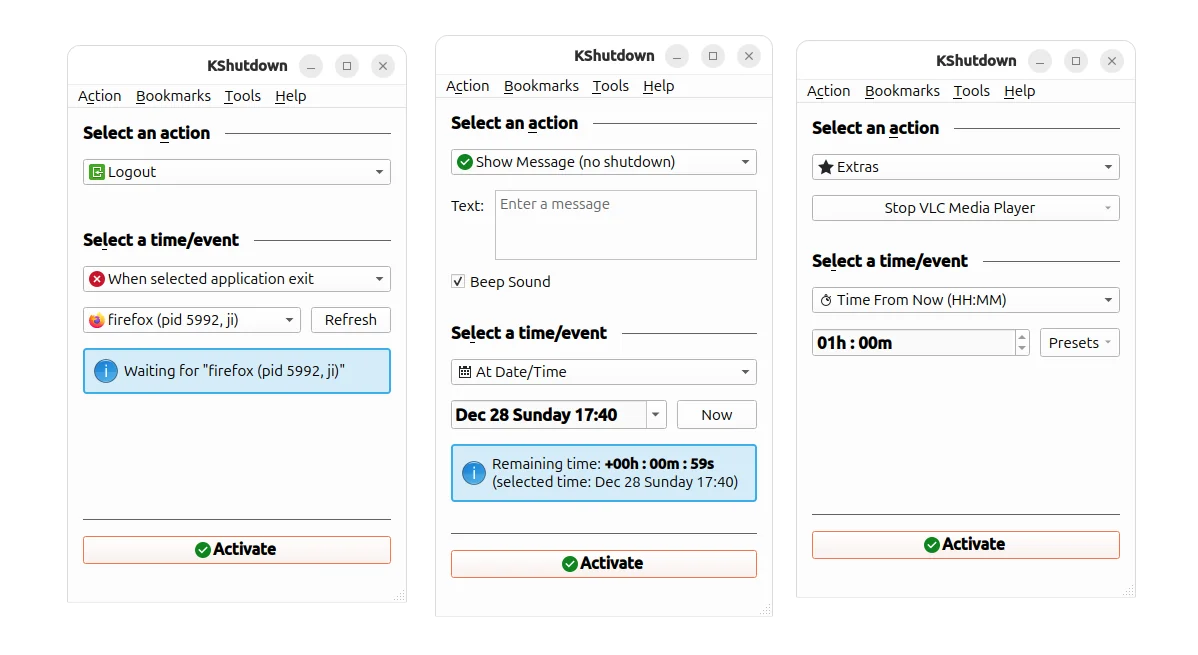
As you see in the screenshot above, the new 6.2 version added “Beep Sound” option when you choose “Show Message” action. In my case in Ubuntu, it will play the event sound (only once) when popping up the message dialog.

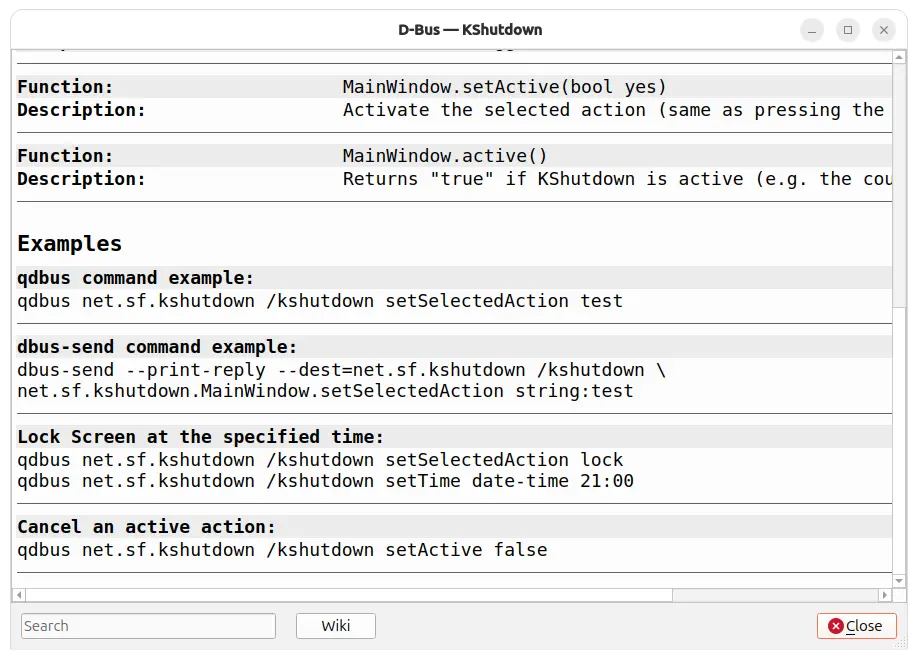
For those who would like to use Kshutdown in command line, e.g., for scripting or automation purpose, the new version added the D-Bus help dialog which can be launch from Help menu.

It shows the basic D-Bus commands to perform user-like actions. While, the Wiki page shows more about how to use it from command line.

NOTE: Ubuntu may need to first run the command below in terminal (Ctrl+Alt+T) to install the required runtime libraries for being able to use the d-bus commands.

sudo apt install qtchooser qdbus-qt6 qdbus-qt5

Besides that, the release also added more date and time presets, optimized app startup time by skipping loading of non-existent icons, and fixed some minor bugs.

Get KShutdown

The source code and Windows installers are available to download in its website via the link below:

For Linux, KShutdown is available in most Linux system repositories, though a bit old. Simply, search & install it from your system package manager or software app.

Inkscape 1.4.3 Released with 100+ Bug-Fixes & Improved PDF Import

By:Ji m
28 December 2025 at 21:09

Inkscape, the free open-source GTK based vector graphics editor, released new 1.4.3 version few days ago.

This is a maintenance release that features around 124 bug and crash fixes, improved PDF import, and other improvements.

First of all, the new 1.4.3 version added support opening the document created by the next v1.5 (still in dev stage).

As you may know, inkscape 1.5 is going to move from the ‘old’ format of pages, that only works in inkscape, to the new format that uses svg:view element, which is standardized and can work in other SVG viewers and browsers.

The current 1.4.3 version added the compatibility for 1.5 page elements. It can now open the pre-1.5 format, but saving it will convert it back to the current ‘old’ page format.

The new version also improved PDF support. It now remembers user’s selection in the PDF import dialog, and uses Substitute missing fonts as the default font import strategy.

And, it does no longer imports unnecessary (in SVG) clipping paths from PDF files, and accurately suggests substitution fonts when importing PDF with text.

The macOS app now supports importing jpg, jpeg, and webp image files. User interface texts should now always show up in real letters instead of rectangle-shaped placeholders. And, it’s now less flickering when resizing the app window and working better on multiple monitor setup.

For Linux, the Snap package now supports opening files in /home and /media by either drag’n’dropping from file manager into app window, or using the context menu open with dialog. And, on smaller screens, it fixed the issue that the Welcome dialog bottom buttons go outside of the screen on Linux with Wayland session.

Other changes in the release include:

  • Fix JPEG/JPG export for Windows.
  • Add option to disable interface animations.
  • Add color support for ‘Abstract 1’, ‘Polka dots, medium’ and ‘Polka dots, large’ patterns.
  • Add option for changing the current page on selection to the selection and the node tools.
  • Splash screen and Welcome dialog can now be disabled individually.
  • Hide the experimental “LPE Tool” from tool-bar.
  • Add pasting options to canvas context menu.
  • Allow text-on-path for rectangles.
  • Allow to override theme styles via user.css or mac.css in settings’ ui folder.
  • Effect extensions can now be written in the XSLT language.

For more about the release, see the official release note.

Get Inkscape 1.4.3

The official packages for Linux, Windows, and macOS are available to download in app website via the link below:

For Linux, there are 4 choices. They include AppImage package which can be downloaded from the link above. Just add executable permission from file properties dialog, then run to launch the image editor.

Tips: For Debian and Ubuntu 22.04+, you may first run the command below to install libfuse2 package first:

sudo apt install libfuse2

For Ubuntu, it’s also available to install as Snap package, which can be installed from either Ubuntu Software or App Center. Though. it’s not updated to the new 1.4.3 at the moment of writing.

If you don’t like running the app in sandbox environment, then you may also choose the official PPA that contains the native .deb packages for Ubuntu 22.04, Ubuntu 24.04, Ubuntu 25.04 and 25.10.

To add the PPA and install the deb package, open terminal (Ctrl+Alt+T) and run the commands below one by one:

sudo add-apt-repository ppa:inkscape.dev/stable
sudo apt update
sudo apt install inkscape

And, Linux Mint may search & install the Flatpak package directly from Software Manager.

❌