
Normal view

Received before yesterday

Waydroid 1.6.0 added Forwarding Android Notifications to Linux Desktop Support

By:Ji m
23 November 2025 at 21:50

Waydroid, the software for running Android OS and Android apps on Linux Desktop, released new 1.6.0 version few days ago.

As you may know, Waydroid is a free open-source Python written application that uses a container-based approach to boot a full Android system (LineageOS by default) on regular Linux system.
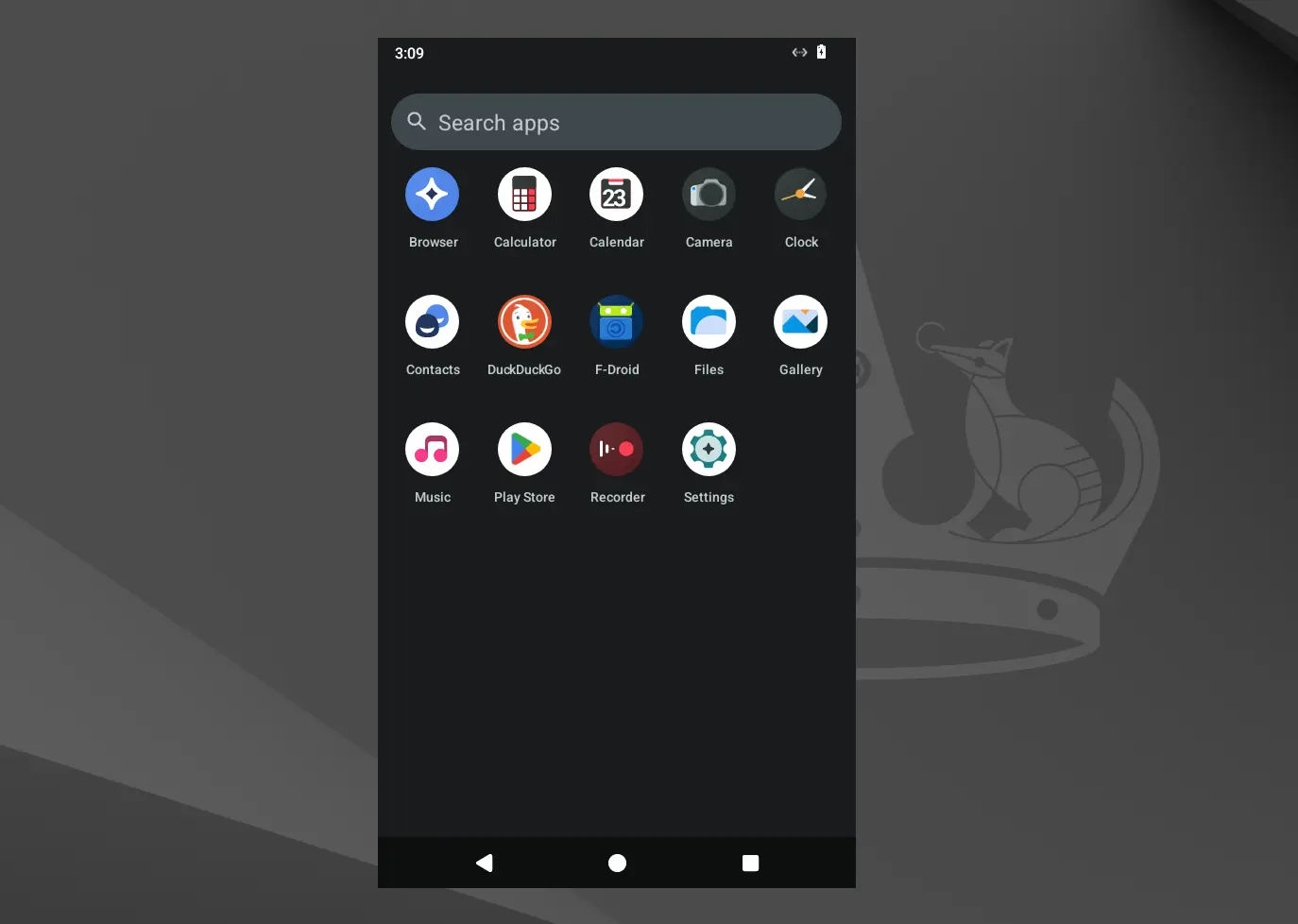
The new Waydroid release now hide the system apps (e.g., Files, Contacts, Calculator, Music, and Camera) by default, as your Linux desktop may have apps with same names, to avoid duplicate app names in your Linux Desktop’s application launcher.

However, the manually installed Android apps are still visible, and user may edit the corresponding .desktop files under .local/share/applications directory and add NoDisplay=true option to hide them.

And, for those who want to hide all Android app icons from Desktop’s app launcher, then run the command below will do the trick for all current apps.

for file in $HOME/.local/share/applications/waydroid.*.desktop; do desktop-file-edit --set-key=NoDisplay --set-value=true $file; done

According to the release note, Waydroid 1.6.0 now will always show the main launcher after enabling multi-windows mode. And, it shows “Stop Waydroid” and “Initialize Waydroid” options when you right-clicking on main app icon, which can be useful to restart session or switch Android OS type to either minimal or with Google Services/Gapps.

Since the release, ADB will no longer auto-connect on session start. To install apps from Linux host, transfer files, debugging, or run shell commands, user needs to first run waydroid adb connect command manually to connect ADB, and provide authorization on the Android side.

This version also introduced new notification manager, allowing to forward Android notifications to DBUS.

It however requires updating the Android system image to a compatible version, and needs python-gbinder >= 1.3.0 or it will crash when receiving a notification with a picture. And, in my test with default LineageOS image, the feature seems not working!

The release also include new waydroid bugreport command to gather logs. It’s useful for reporting bugs, as you may reproduce your problem while running the command and send the log as bug report.

Other changes include

  • Rotate and trim waydroid.log file at 5MB.
  • Add new waydroid command with no arguments, as alias for waydroid show-full-ui.
  • And other miscellaneous improvements.

How to Install Waydroid

Waydroid has been made into Fedora and Arch etc Linux repositories. And, it provides an official apt repository contains native .deb packages for Ubuntu 22.04, 24.04, 25.10, Debian 12, 13 and Unstable.

And, I’ve written about how to install and setup Waydroid in Ubuntu, though it’s still at the last v1.5.4 at the moment of writing.

How to Install RQuickShare (NearbyShare/QuickShare) on Linux

7 December 2024 at 11:23

RQuickShare is a Rust implementation of the smartphone NearbyShare/QuickShare feature for Linux and macOS. It’s a free, open-source, lightweight tool designed to seamlessly transfer files between desktops and smartphones.

There are very few options available in the settings; you can only adjust the default bootup settings, run in background settings, and change the download directory to something else.

You can install it on your Linux system using the DEB package for Debian and Ubuntu-based distributions, the RPM package for Red Hat and Fedora-based distributions, or the Snap package.

If you dislike installing applications on your system, don’t worry; it also comes as an AppImage that you can use without installing, but make sure your system has the libfuse2 package installed (the step will be shown later on this article).

In this quick tutorial, I’ll show you how to quickly install RQuickShare on major Linux distributions such as Debian, Ubuntu, Red Hat, Fedora, Arch, and more.

How to Install RQuickShare on Linux

The RQuickShare package is available in two variants: main and legacy. The main variant offers future support and the latest features, while the legacy variant is only for use if you’re on an older version of your Linux distribution, though it is not recommended.

To start, visit the GitHub download page and download the appropriate distribution package for your Linux system. For instance, you can download the DEB package for Debian and Ubuntu-based distributions, the RPM package for Red Hat and Fedora-based distributions, the Snap package for the Snap package manager, and the AppImage package for portable versions.

downloading rquickshare for linux

Once the download is complete, open your terminal from the application launcher or use the Ctrl+Alt+T shortcut, then follow one of the provided instructions to install it on your Linux system.

On Debian and Ubuntu-Based Distributions

# Navigate to the downloads directory
$ cd ~/Downloads/

# Install the DEB Package
$ sudo apt install ./r-quick-share-main_*_amd64.deb

On Red Hat and Fedora-Based Distributions

# Navigate to the downloads directory
$ cd ~/Downloads/

# Install the RPM Package
$ sudo rpm install ./r-quick-share-main_*-x86_64.rpm

On Arch and Manjaro-Based Distributions

For Arch Linux, you can quickly install it from the AUR (Arch User Repository) using an AUR helper such as Yay.

$ yay -S r-quick-share

Using Snap Package

It’s not currently available on the Snap Store, but you can download the Snap package and install it using the following command:

# Navigate to the downloads directory
$ cd ~/Downloads/

# Install the Snap Package
$ sudo snap install --dangerous r-quick-share_*_amd64.snap

Using AppImage

The AppImage requires libfuse to function properly, so make sure it is installed on your Linux distribution before using the RQuickShare AppImage.

# On Debian and Ubuntu-based distributions
$ sudo apt install libfuse2

# On Red Hat and Fedora-based distributions
$ sudo yum install fuse fuse-devel

Once the installation is complete, you can navigate to the download directory, assign executable permissions, and run it just like a shell script.

# Navigate to the downloads directory
$ cd ~/Downloads/

# Assign Executable Permission
$ sudo chmod u+x ./r-quick-share-main_*_amd64.AppImage

# Launch AppImage
$ ./r-quick-share-main_*_amd64.AppImage

How to Use RQuickShare on Linux

Once the installation is complete, you can find and launch it from the application menu. Upon your first launch, you’ll see the following screen where RQuickShare will scan for nearby devices (with Quick Share) connected to the same network.

RQuickShare main windows

To customize settings like auto-launch on boot, keeping the application running in the background, and the default download directory, click the gear icon in the top right corner.

RQuickShare settings windows

When you’re ready to transfer a file, simply drag and drop or select your file, and make sure both devices are on the same Wi-Fi network. Once the other device is discovered, click on it to share your file from your desktop to your smartphone.

Sharing file from desktop to mobile using RQuickShare

That’s it! This way, you can share your file between your desktop and smartphone in a quick and easy way.

Wrap Up

RQuickShare is a fantastic tool that lets you easily share files between your desktop and smartphone. Most modern smartphones come with QuickShare or NearbyShare, so you don’t need any external applications installed on your smartphone; just install RQuickShare on your desktop and start sharing your files.

The post How to Install RQuickShare (NearbyShare/QuickShare) on Linux appeared first on Linux TLDR.

❌