Login
Login
Manage Gnome Shell Extensions from Command Line

This tutorial shows how to install, remove, enable or disable Gnome Shell extensions and configure extensions’ preferences in Ubuntu, Fedora, etc Linux distributions with Gnome Desktop.
We usually install/uninstall Gnome Shell extension by either visiting extensions.gnome.org in web browser or using Extension Manager app, then manage them through either GNOME Extensions or Extension Manager.
Gnome Extension Manager App
For choice, Gnome has a built-in command line tool that can help sometimes without using a graphical user interface.
Why using Command Line
The command line tool gnome-extensions is useful for advanced users and developers for scripting purpose.
It’s also a good choice for installing extensions from local packages (e.g., ZIP archive) without internet connection. And, in some cases you may use gsettings command to configure extension preferences.
Install an Extension from Command Line
Besides using web browser or Extension Manager, user may manually install an extension by putting the source folder (usually [email protected]) to .local/share/gnome-shell/extensions directory.
Say you downloaded an extension package from extensions.gnome.org, by choosing Gnome Shell version and Extension version.
Download an extension from extensions.gnome.org
You may then install it by running command:
gnome-extensions install /path/to/extension.zip
The command do the job decompressing the ZIP archive (.tar.xz, .tar.gz etc also supported) and moving the source to the user’s extension directory mentioned above.
This method however need a log out and back in, before being able to enable the new installed extension.
List Installed Extensions from Command Line
To list all the installed extensions, simply use command:
gnome-extensions list
For choice, you may list user installed extensions via --user option, or system extensions via --system.
gnome-extensions list --user
And, use --enabled option for enabled extensions, --disabled for disabled extensions, and --details for more about extensions, including name, description, source URL, version, and state.
gnome-extensions list --user --enabled
Enable/Disable Extensions
Once you got the extension IDs via the command above, you may get more about it by running command:
gnome-extensions info [email protected]
Here replace the ID [email protected] with yours.
Then, enable or disable an extension by running command:
gnome-extensions enable [email protected]
or:
gnome-extensions disable [email protected]
Also replace the extension ID [email protected], and optionally add --quiet flag to ignore error messages (if any).
Configure Extension Preferences from Command Line
NOTE: if you just want to launch the graphical configuration dialog from command line, then use command (replace extension ID):
gnome-extensions prefs [email protected]
To configure extension preferences from command line, use gsettings command.
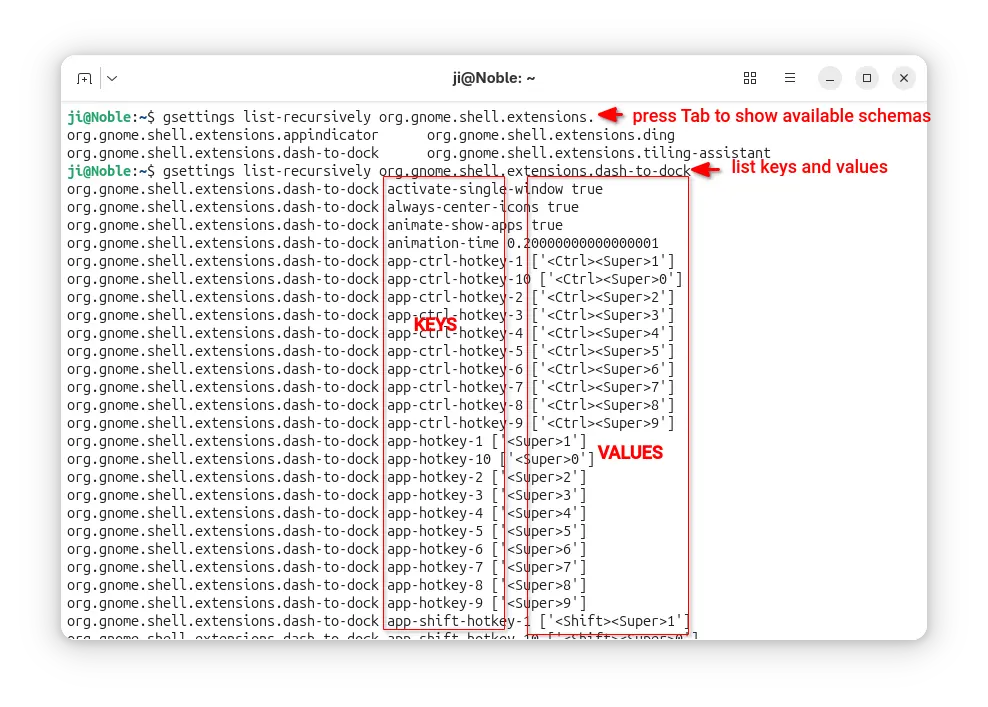
For system extensions, first run command below to list all the available keys and the values:
gsettings list-recursively org.gnome.shell.extensions.dash-to-dock
Here replace dash-to-dock (Ubuntu Dock) to the extension name you’re going to configure. Or, press Tab twice before typing its name to print available choices.
After that, run similar command below to configure an extension key value:
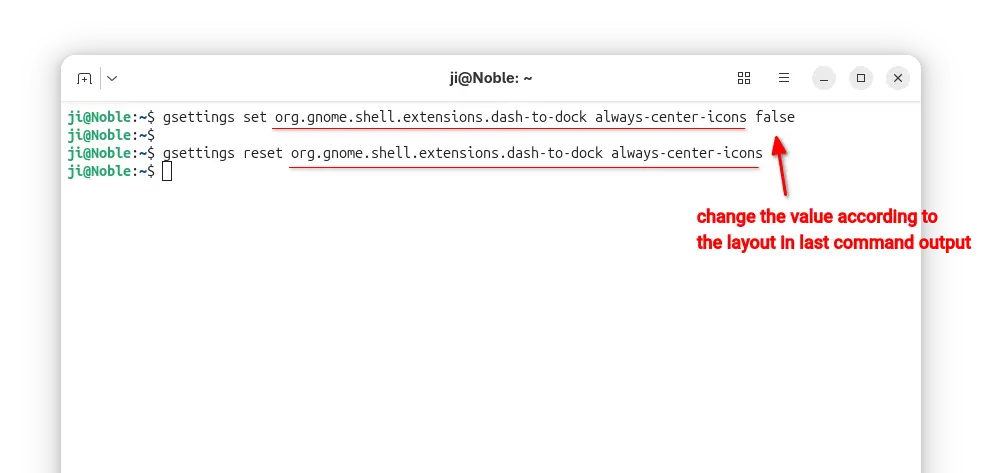
gsettings set org.gnome.shell.extensions.dash-to-dock always-center-icons false
Also replace extension name dash-to-dock, key-name always-center-icons, and key-value false according to the last command output.
Or, run command to reset an extension’s key value to default.
gsettings reset org.gnome.shell.extensions.dash-to-dock always-center-icons
For user extensions, run gnome-extensions list --user to find the ID, then do following steps instead:
- First, print the extension info, Just Perfection for example, and find out the PATH.
gnome-extensions info just-perfection-desktop@just-perfection
- Then, print the extension metadata according to its PATH, and find out the settings schema:
cat /home/ji/.local/share/gnome-shell/extensions/just-perfection-desktop@just-perfection/metadata.json
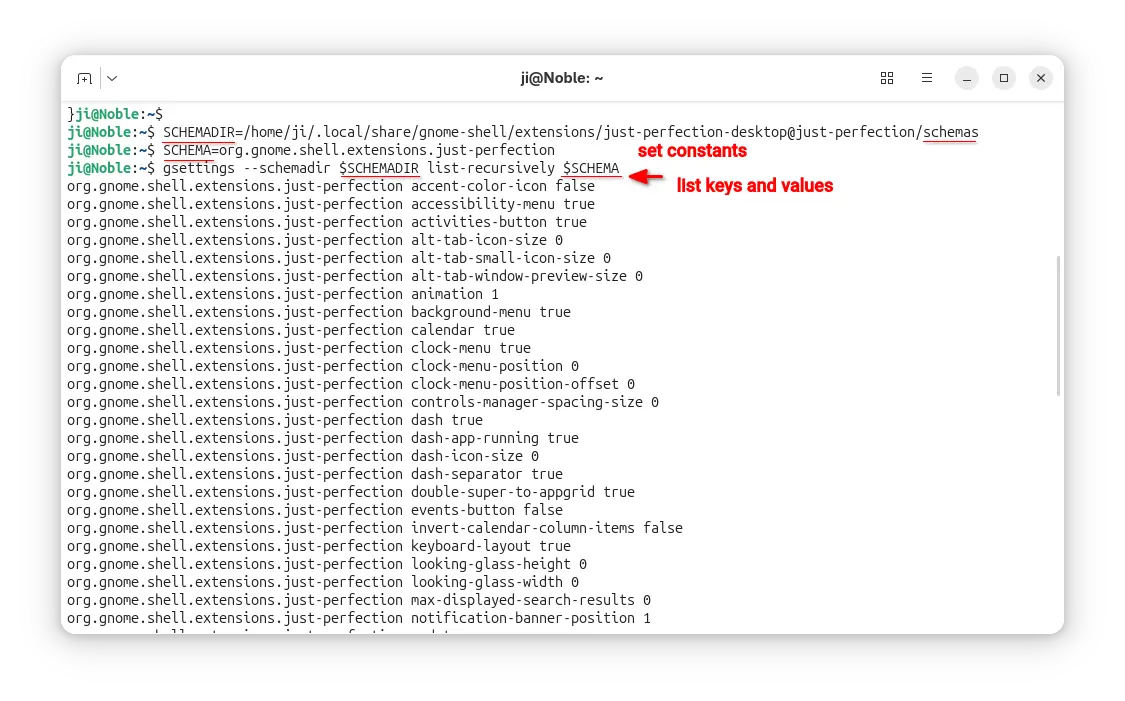
- After found out the extension PATH and settings schema, set the following constants.
SCHEMADIR=/home/ji/.local/share/gnome-shell/extensions/just-perfection-desktop@just-perfection/schemas

SCHEMA=org.gnome.shell.extensions.just-perfection
So that I can use
$SCHEMADIRand$SCHEMAin next commands without typing full PATH and settings schema. - Next, run command to list all the available keys and their values:
gsettings --schemadir $SCHEMADIR list-recursively $SCHEMA
- Finally, according to last command output, run commands below to set or reset something:
gsettings --schemadir $SCHEMADIR set $SCHEMA top-panel-position 1
gsettings --schemadir $SCHEMADIR reset $SCHEMA top-panel-position
Also replace the key and value accordingly.

For more, see the Ubuntu gsettings and gnome-extensions man-pages