Reading view

Commands for Installing Bottles on Any Ubuntu Version

If you’ve ever tried running Windows software on Linux, you know the frustration of wrestling with Wine configurations. “Bottles” changes that entirely. It’s a modern, graphical Wine prefix manager that wraps all the complexity into a clean interface—letting you run Windows apps and games without touching cryptic config files. This guide provides the exact terminal […]

The post Commands for Installing Bottles on Any Ubuntu Version appeared first on LinuxShout.

  •  

Pop!_OS 24.04 Released with COSMIC Desktop & ARM Computers Support

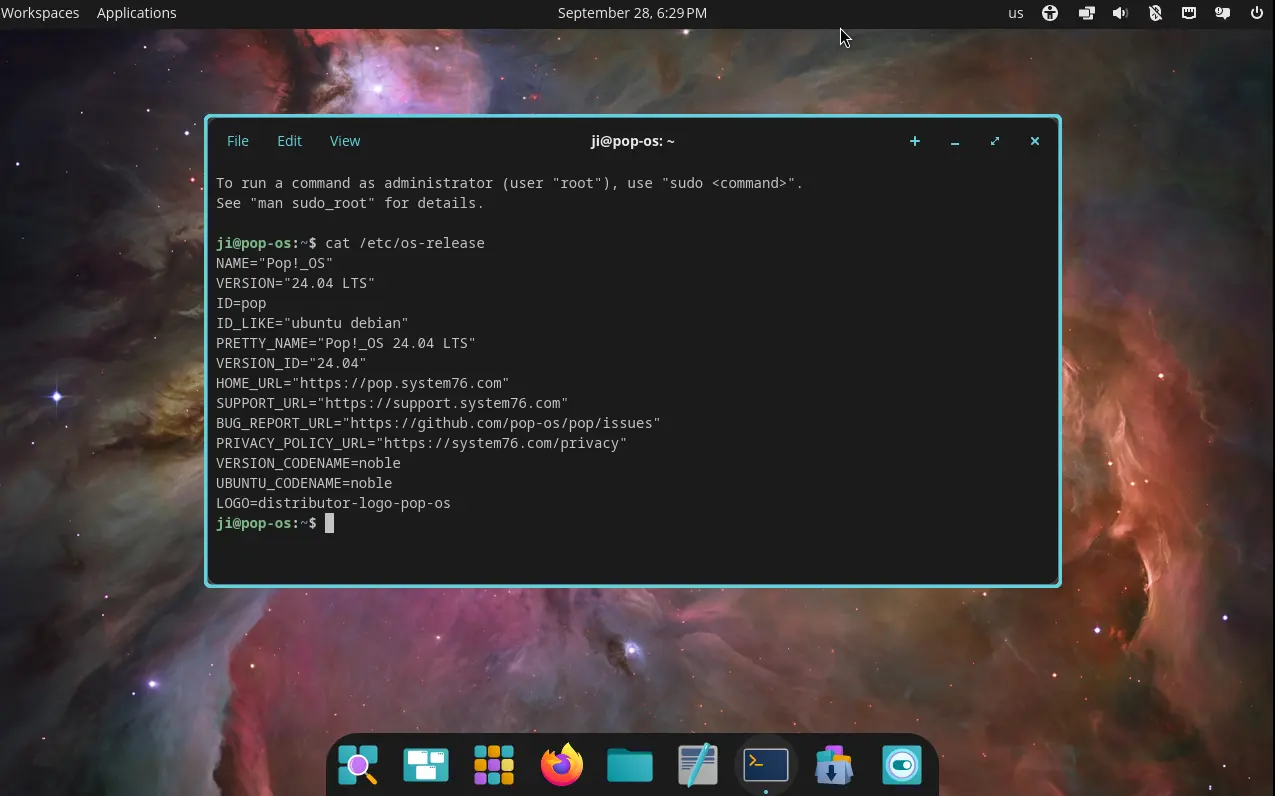
After more than two months of Beta testing, System76 finally announced the release of Pop!_OS 24.04 LTS.

As the version number indicates, Pop!_OS 24.04 is based on Ubuntu 24.04, but features Linux Kernel 6.17 and its new COSMIC desktop environment.

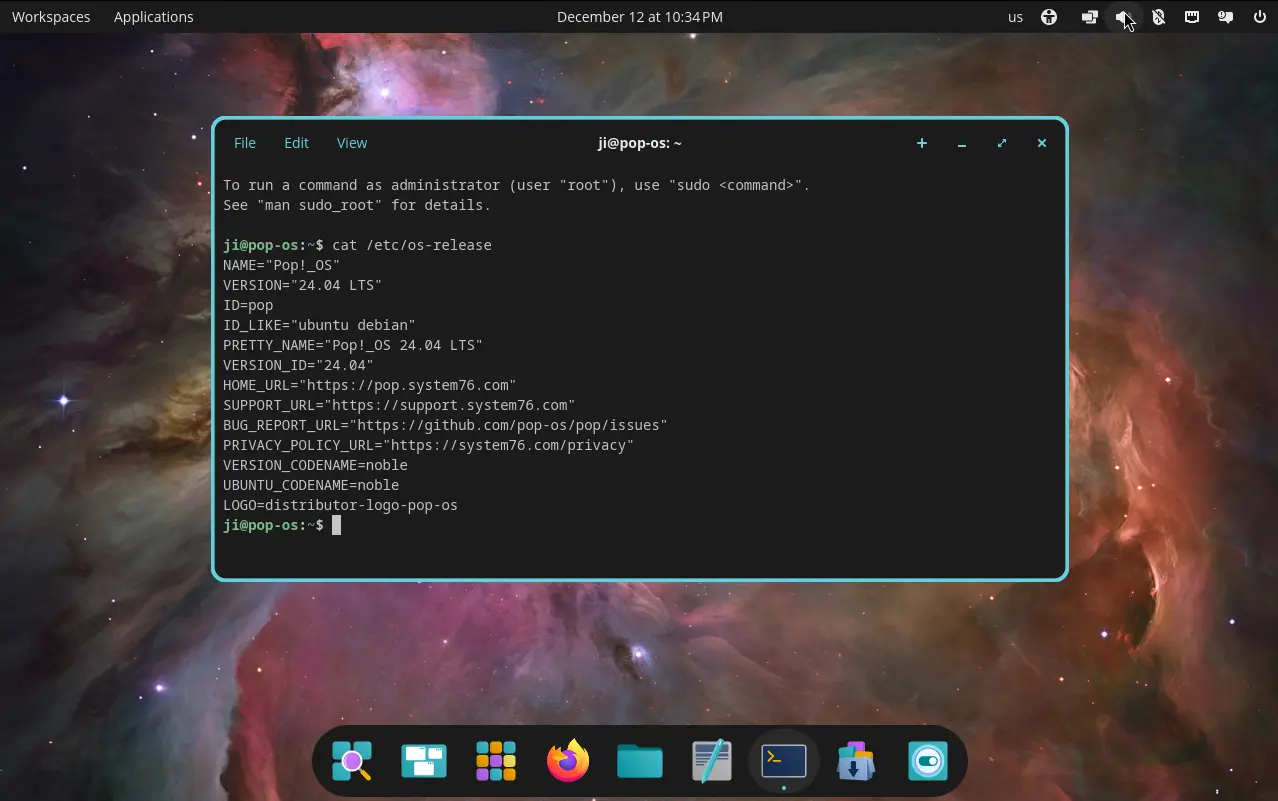
Pop!_OS 24.04

Pop!_OS is developed by System76, a American Linux computer manufacturer. It features COSMIC desktop, which was previously a customized GNOME desktop, but now a standalone desktop environment built from scratch.

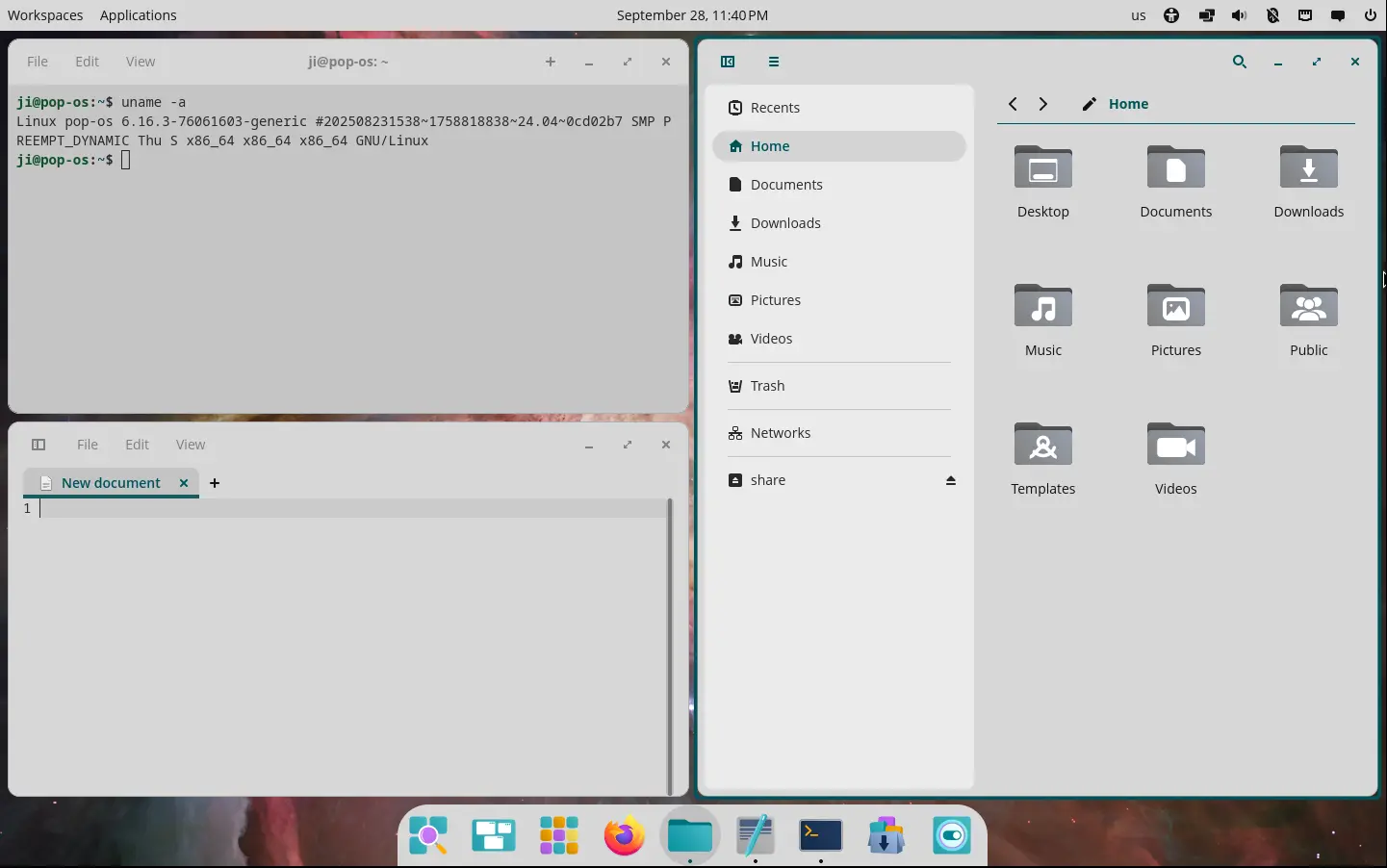
The new desktop environment is written in the Rust programming language for high performance and memory safety. It replaced Nautilus, Gnome Terminal, Gnome Text Editor, Totem with its own COSMIC specific files, terminal, text editor, and video player apps.

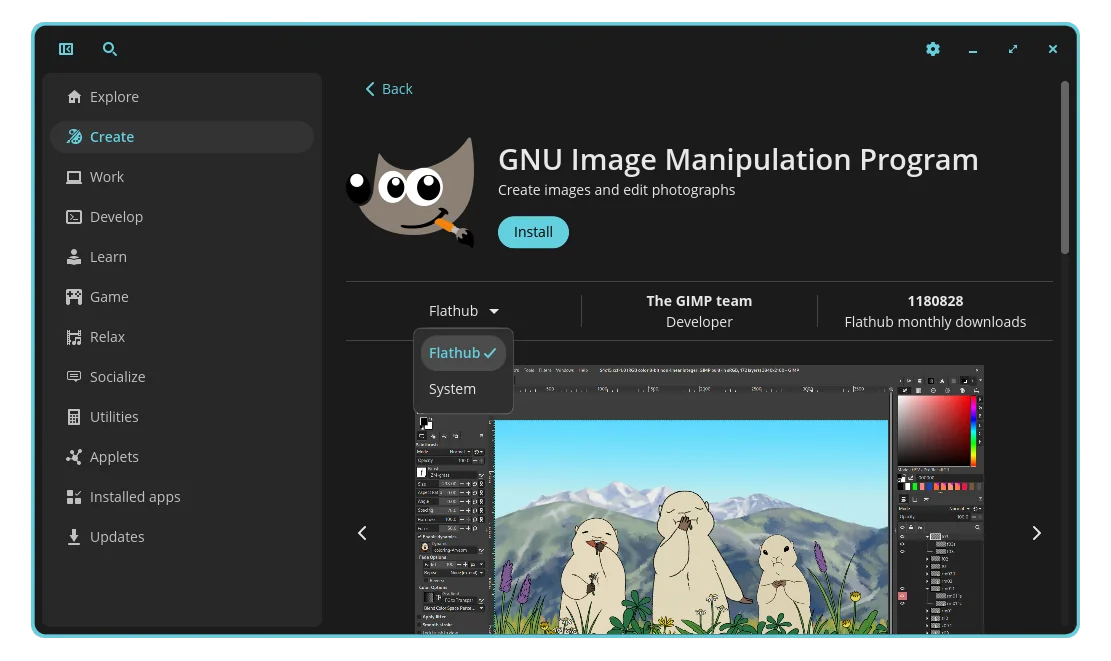
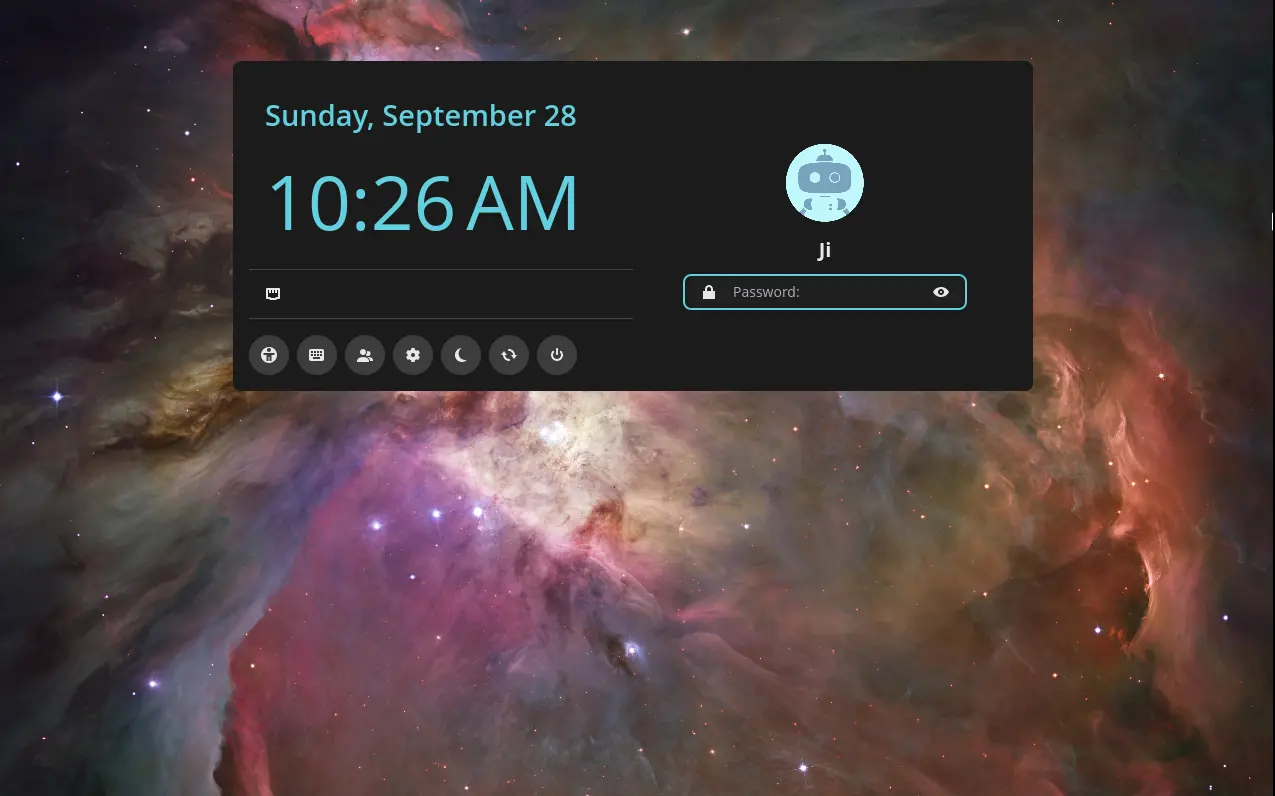
Pop!_Shop is replaced by COSMIC Store, which supports both Flatpak and Deb out-of-the-box. And, the GDM display manager is replaced by new COSMIC Greeter with a redesigned login appearance.

COSMIC Store

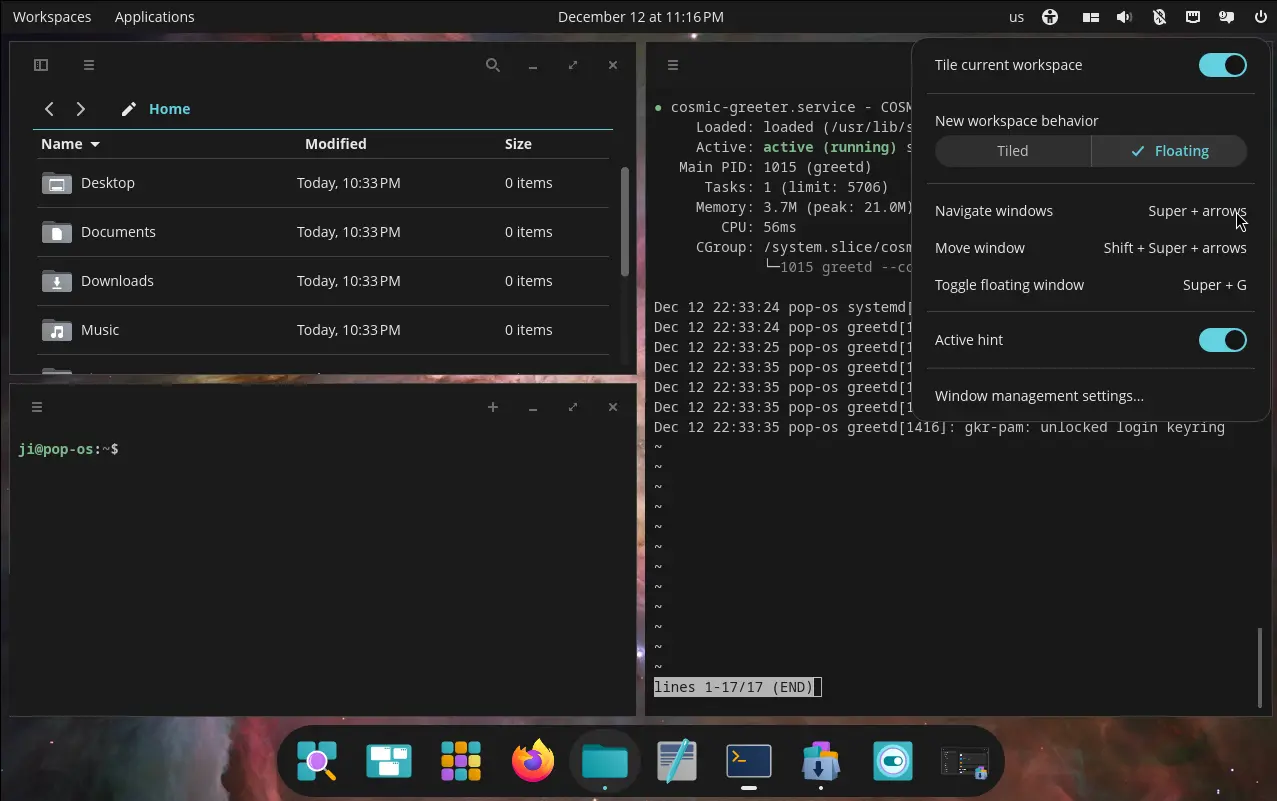
The new desktop improved window tiling support. It added a toggle in system tray indicator, allowing to tile all current workspace windows by single-click. The icon changes automatically according to the window tiling status. And, it supports drag’n’drop exchange window position in tiling mode.

Besides using indicator menu, it also support tiling windows via keyboard shortcuts, and tiling in per display basis.

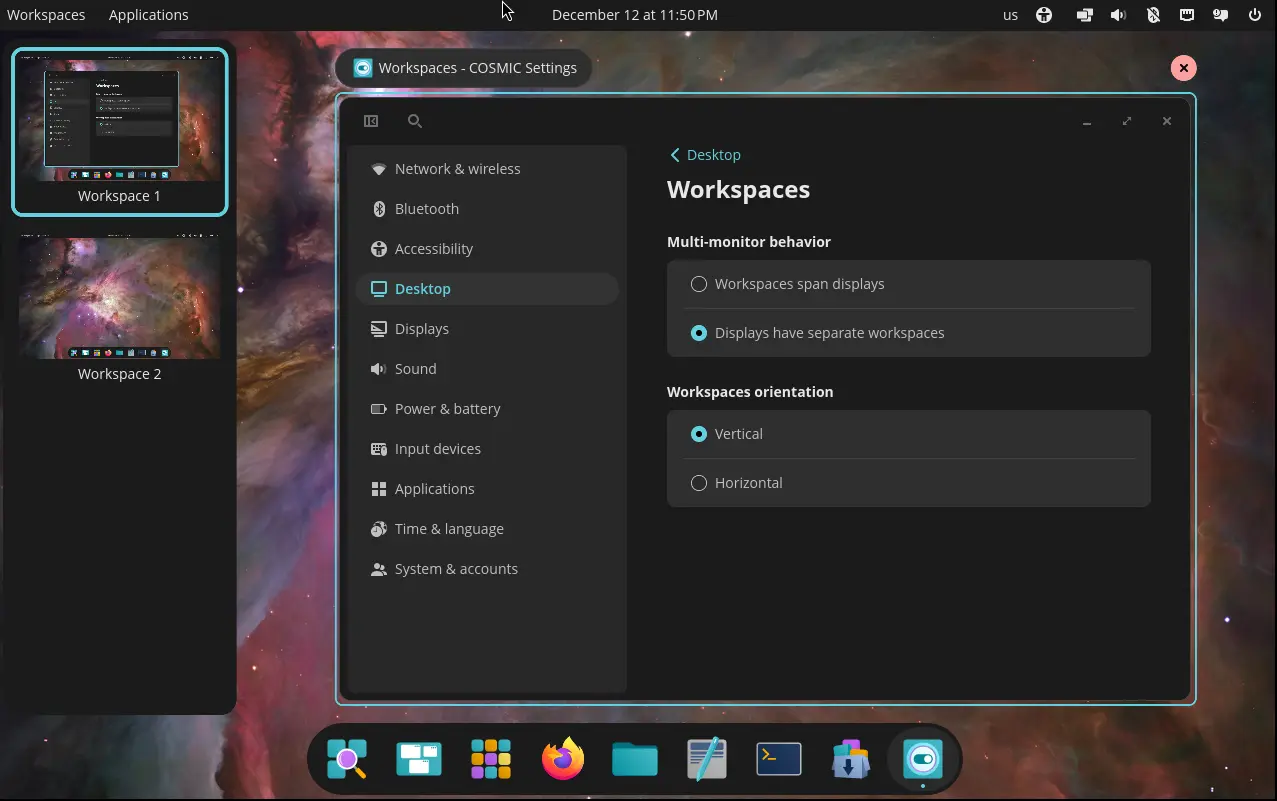
The workspaces can now displayed in either vertical or horizontal orientation. Multiple displays can have separated or spanned workspaces. And, it supports pinning workspace and drag’n’drop re-arranging workspace or even moving to another display.

Pop!_OS 24.04 also improved multiple monitors support. Besides per display window tiling and multi-display workspaces mentioned above, it also improved the experience for displays with mixed HiDPI and standard resolutions.

Displays are automatically scaled based on pixel density and display scaling can be fine-tuned in Settings. And, it will remember your display settings and restore automatically next time you plug it in.

Moreover, it added hybrid graphics support. Apps request the discrete GPU will automatically run on the correct GPU, while user may right-click on app icon to choose which GPU to use at launch.

Other changes in Pop!_OS 24.04 include:

  • New stack windows feature to combine multiple app windows into single in tabs, just like web browser.
  • NVIDIA 580 driver out-of-the-box.
  • ARM computers support.
  • Support reinstalling the OS anytime while keeping files, settings, and Flatpak user applications

For more, see the official release note.

Download or Upgrade to Pop!_OS 24.04

Pop!_OS 24.04 is available to download in its website via the link below:

It recommends 4 GB RAM, 16 GB disk space, and 64-bit ARM or X86_64 processors. While, NVIDIA edition asks for GeForce 16 series graphics or newer.

And for Pop!_OS 22.04 LTS, user may run the single command below in terminal to upgrade to Pop!_OS 24.04 LTS:

pop-upgrade release upgrade -f

Though it’s always recommended to back up your files first.

  •  

How to Install Vim on Ubuntu Without Using the Terminal

Command Terminal offers the most straightforward way to install applications on Linux. However, if you’re looking to install Vim on Ubuntu without opening the terminal, then we can do that as well, and that is what we are going to discuss in this tutorial. Whether you’re new to Linux or prefer graphical interfaces, we will […]

The post How to Install Vim on Ubuntu Without Using the Terminal appeared first on LinuxShout.

  •  

How to Install ShareX on Ubuntu 24.04 Linux

ShareX is a popular tool for capturing screenshots on Windows 11 and 10 operating systems; however, it is unfortunately not available for Linux systems. Therefore, if you are previously using a Windows OS and have not switched to Linux, and you are missing ShareX, then this article discusses the way to install it on Ubuntu. […]

The post How to Install ShareX on Ubuntu 24.04 Linux appeared first on LinuxShout.

  •  

Pop!_OS 24.04 is Available for Beta Testing!

Pop!_OS, the popular Linux Distribution powered by System76, announced the Beta release of 24.04 LTS few days ago.

As the version number says, it’s based on Ubuntu 24.04 LTS, but features Linux Kernel 6.16 and its own COSMIC desktop environment.

Pop!_OS is developed by System76, a American Linux computer manufacturer. It features COSMIC desktop, which was previously a customized GNOME desktop, but now a standalone desktop environment built from scratch.

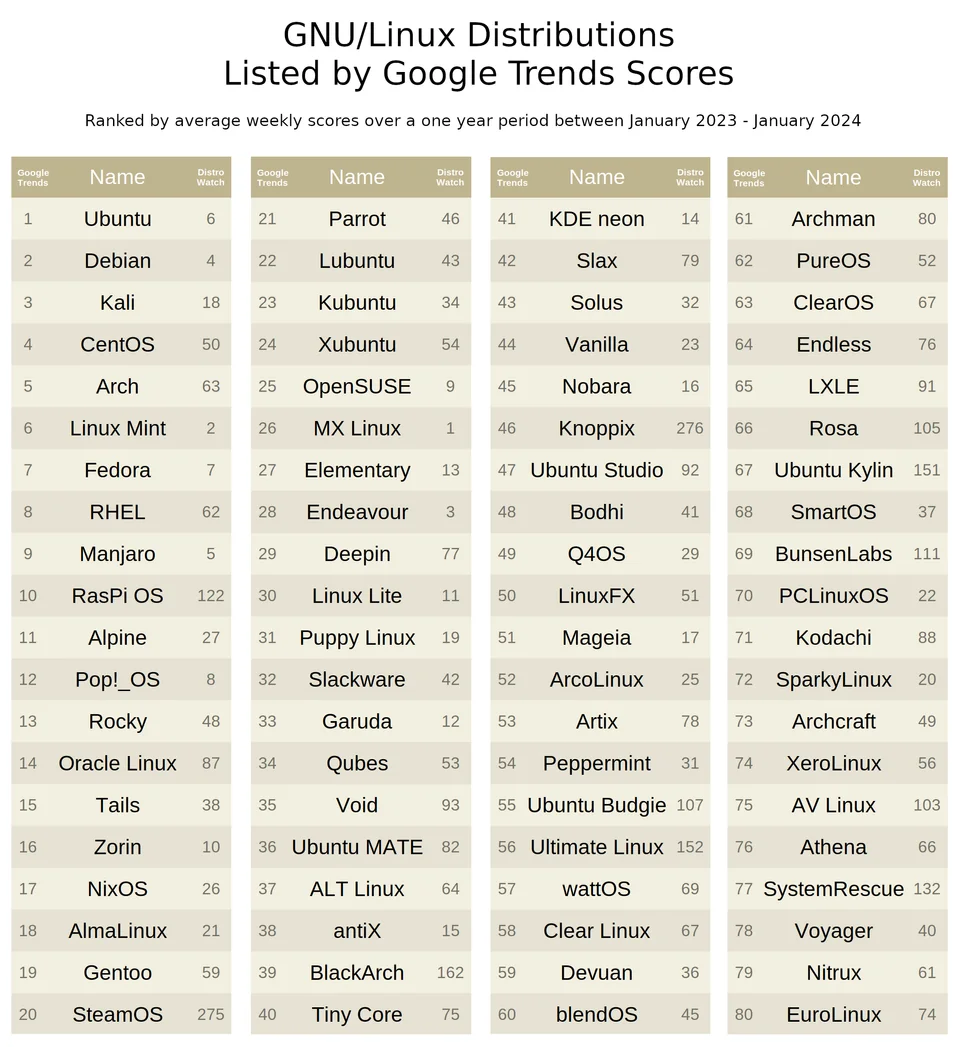
Since version 18.04, Pop!_OS updated regularly with versions based on every Ubuntu releases. And, it was ranked as 12th popular Linux Distribution according to Google Trends Scores between Jan 2023 and Jan 2024.

The development however slows down since 22.04. There’s no Pop!_OS 22.10, 23,04, or 23.10.

The first Pop!_OS 24.04 development release (first alpha) was available in August of last year. Then, it got another few more alpha releases, and finally announced this Beta few days ago!

This is the first release that ships with new standalone COSMIC Desktop environment. It replaced Nautilus, Gnome Terminal, Gnome Text Editor, and Totem with its own COSMIC specific files, terminal, text editor, and video player apps.

Pop!_Shop is replaced by COSMIC Store, which prefers Flatpak when both Flatpak and Deb are available. And, the GDM display manager is replaced by new COSMIC Greeter with a redesigned login appearance.

Drag’n’dropping files from Wayland apps to X11 apps is not supported so far, though user may use the applications upload option as a work-around until the feature is added.

Other changes include new and redesigned settings app, as well as:

  • Single bottom panel layout.
  • Variable refresh rate (VRR) support.
  • NVIDIA driver 580.82.07.
  • Mesa 25.1.5-1
  • New fonts, themes, and more.

Get Pop!_OS 24.04 Beta

The official release note as well as the .iso images are available in system76 website via the link below:

For Pop!_OS 22.04 users who want to upgrade to the new beta release, it can be done by opening terminal and run command:

pop-upgrade release upgrade -f

Though, it’s highly recommended to make a backup first, as bugs are expected in beta that may break things!

  •  

[Quick Fix] Firefox Cannot Download or Open Files in Ubuntu 24.04

The default Firefox browser (Snap version) in Ubuntu 24.04 is always failing to download or open files! Here’s why and how you can fix it.

Not only for Firefox, the issue also happens when read or write user files with other SNAP apps in both Ubuntu 22.04 and 24.04 LTSs.
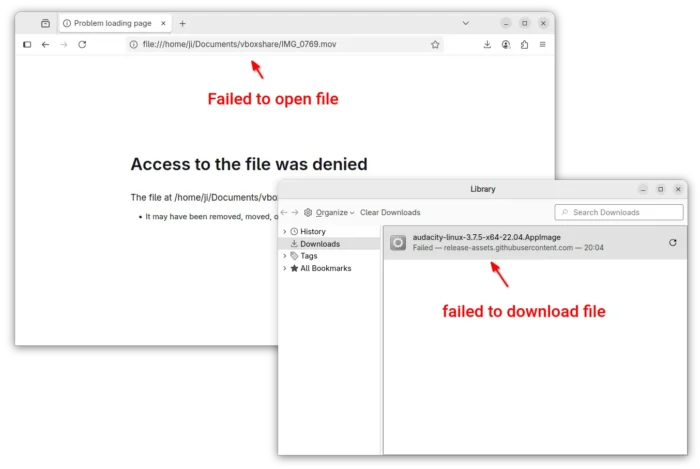
Firefox cannot download or open files in Ubuntu 24.04

Why?

I first heard of the issue was that some of my readers reported they cannot download HPLIP installers when following my tutorial.

I thought it was something to do with the download server until I see the snap warnings below in screenshot:
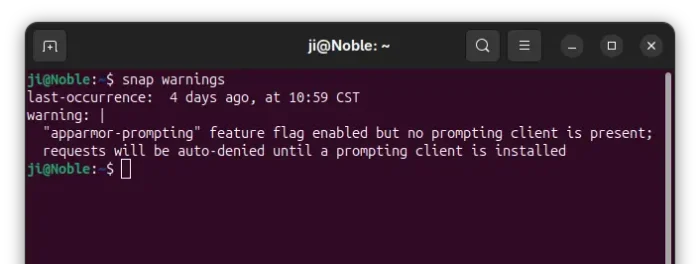
snap warns AppArmor enabled by no prompting client present

The warning told me that AppArmor (the kernel security module) is enabled, but no prompting client present. So for all snap apps, it auto-denies all the requests when trying to read or write files in user directories.

Meaning NOT only Firefox, all the applications installed as snap packages in Ubuntu 22.04 and 24.04 have the issue, while Ubuntu 25.04 excluded as it has the prompting client installed out-of-the-box.

In short, Ubuntu now has AppArmor enabled by default! And, Ubuntu 22.04 & 24.04 auto-deny snap apps’ permission requests due to lack of prompting client to manage the requests!

How to Fix the issue

To fix the issue, you may choose one of the options below:

  • install prompting client to manage snap app permission requests.
  • disable AppArmor (NOT RECOMMEND).
  • use non-snap apps.

Option 1: Install Prompting Client in Ubuntu 24.04 | 22.04

I’ve written about how to install the prompting client as well as security center in Ubuntu.

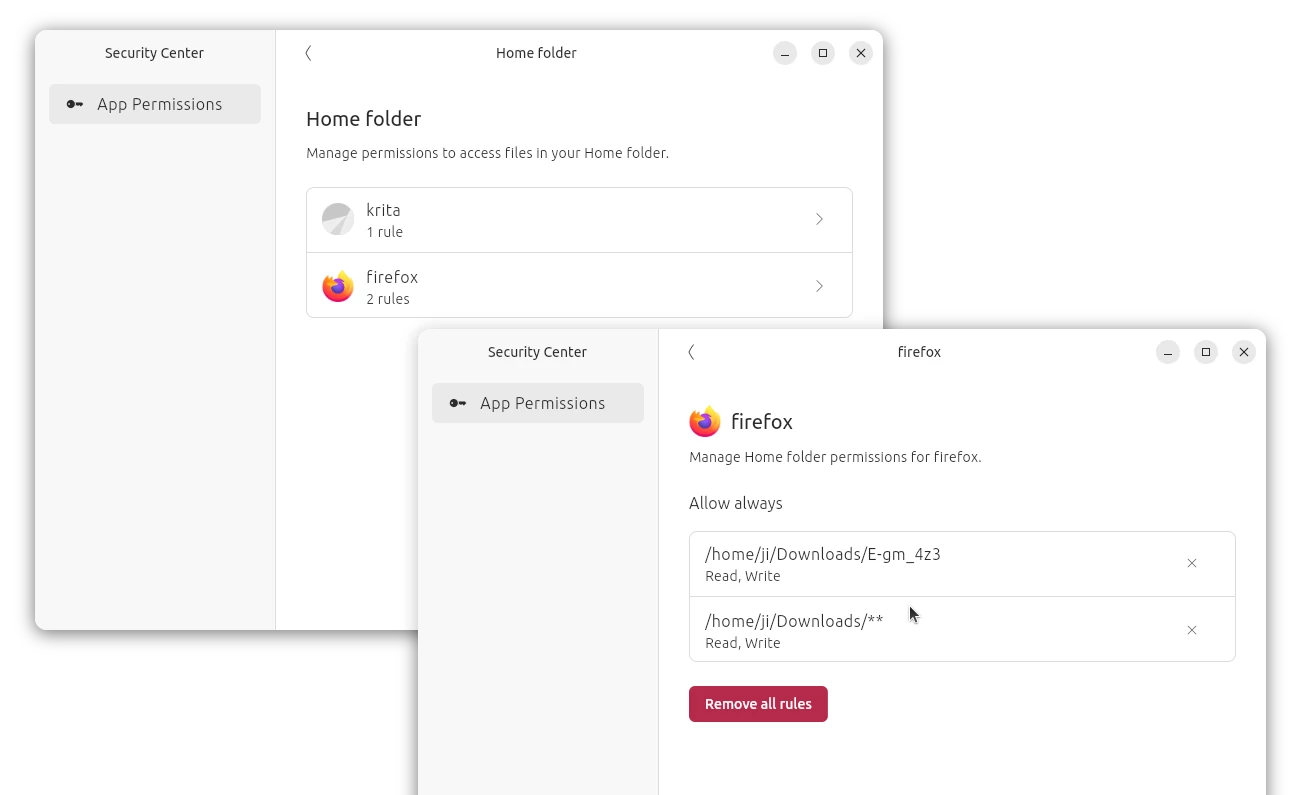
Prompting client is the official client for snap apparmor prompting. And, the desktop Security Center provides an easy-to-access interface to manage all snap apps permissions you added.
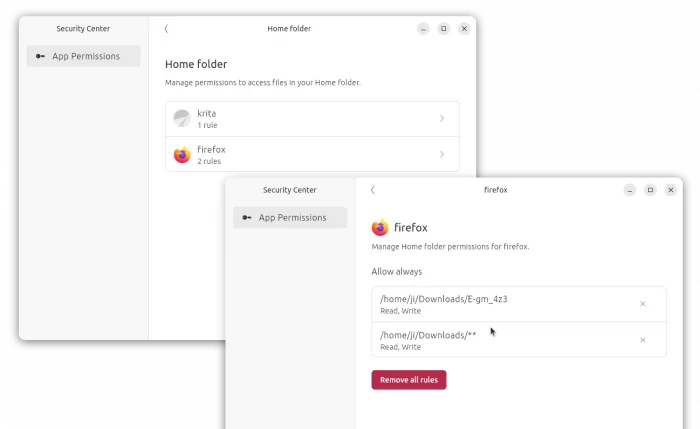
The Desktop Security Center

Both the packages are snap and pre-installed in Ubuntu 25.04, while the current 2 Ubuntu LTS releases may install them by doing the steps below:

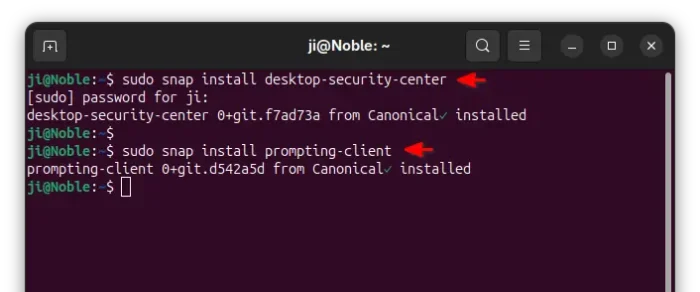
  • either press Ctrl+Alt+T to open terminal, and run the commands below one by one to install the packages:
    sudo snap install desktop-security-center
    sudo snap install prompting-client

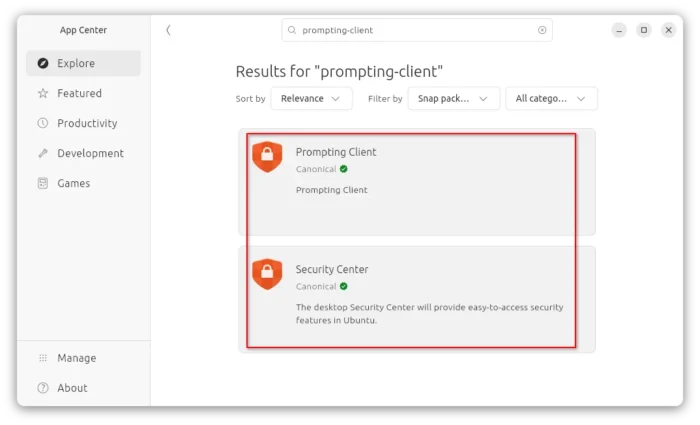
  • or, launch App Center (or Ubuntu Software) then search & install both (filter by snap package) packages:

    install prompting client via AppCenter

After successfully install the client, you may now launch a Snap app (e.g., Firefox) then try downloading or opening a file. It will pop-up a dialog asking to grant permission, either once or always.
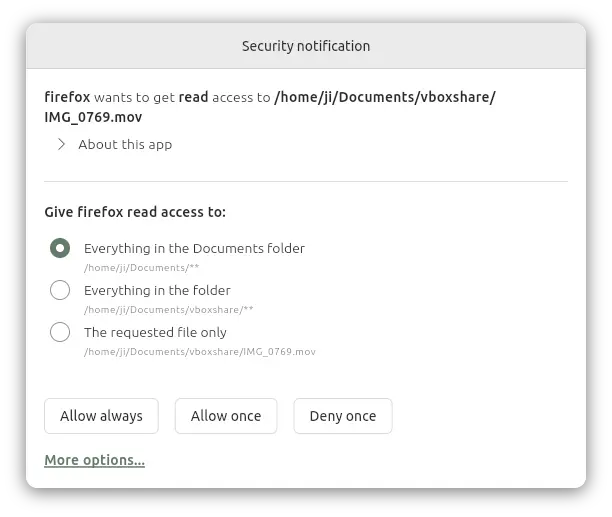
Prompting client asks to grant permission when reading/writing files via Snap

Once you clicked “Allow”, then the snap (Firefox in the case) can open or the download the file. And, you may then launch “Security Center” to manage the permissions you set.

Option 2: Disable AppArmor (NOT RECOMMEND)

AppArmor is a Linux Kernel security module to restrict app capabilities and permissions with profiles. Due to security reason, it’s NOT recommended to disable this feature.

But if you insist, do the following steps to disable it in Ubuntu (and most other Linux) which is using the default Grub bootloader.

1. First, press Ctrl+Alt+T to open terminal, and, run command to edit Grub configuration file:

sudo nano /etc/default/grub

2. When file opens in terminal, add apparmor=0 as value to either ‘GRUB_CMDLINE_LINUX_DEFAULT’ or ‘GRUB_CMDLINE_LINUX’ section.
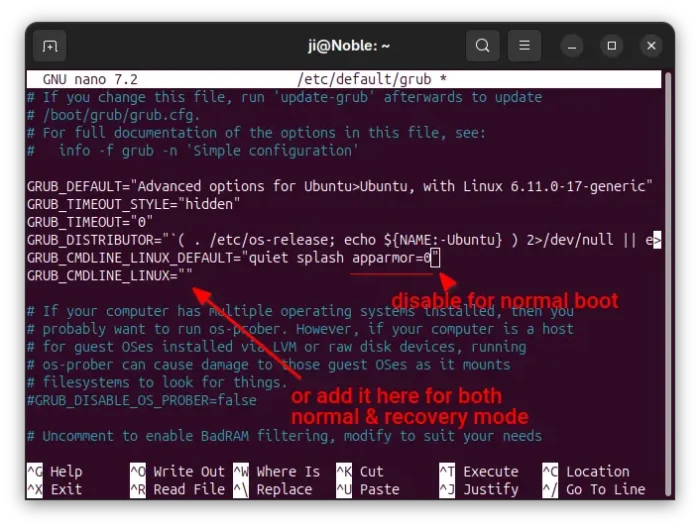
3. After edited the file, press Ctrl+S to save and Ctrl+X to exit. Finally, run command below to update Grub:

sudo update-grub

And, the change will apply in next boot. To check AppArmor status, run command sudo aa-status in terminal.

Tips: For choice, user may install the graphical Grub-Customer tool, and use the tool to add apparmor=0 as kernel parameter under “General” tab.
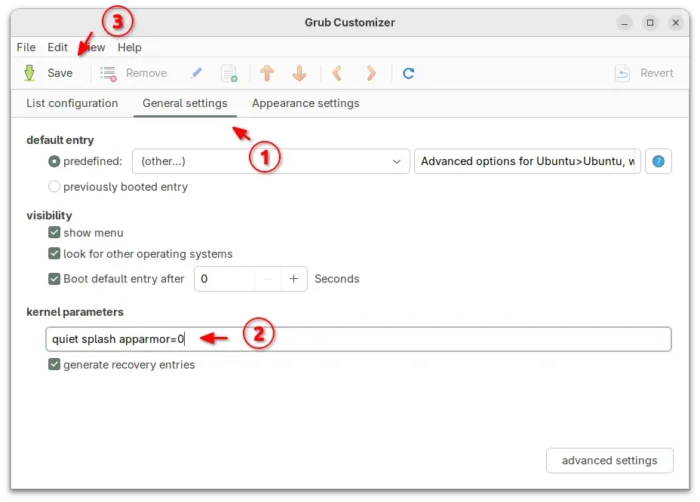
Disable AppArmor via Grub Customizer

That’s all. Enjoy!

  •