Qt applications (e.g, qBittorrent, KeePassXC) look weird as they don’t have window border or shadow in Ubuntu since 24.04. Here’s how to configure to make them look native.
Applications in Ubuntu and other popular Linux distributions mostly use GTK or Qt tool-kits for rendering their user interfaces. Gnome is based on GTK. It uses “xcb” QPA plugin for Qt apps running on classic Xorg session.
Due to switch to Wayland, the “xcb” plugin is not in use by default, and Qt apps look weird as you see in the screenshot below in Ubuntu 24.04, Ubuntu 25.04 & 25.10.
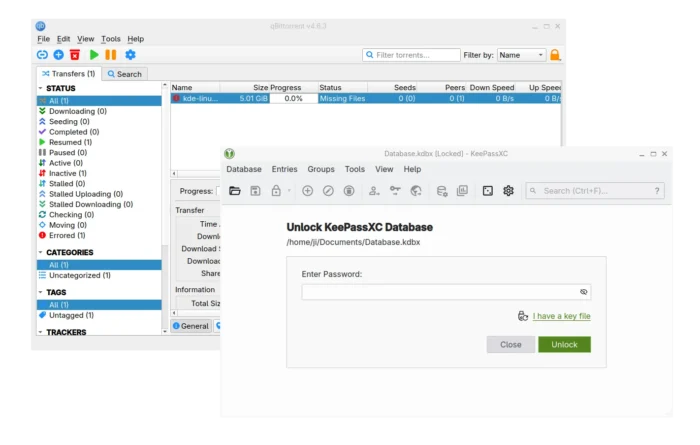
Qt apps look border-less in Ubuntu since 24.04
To “fix” the issue, I found few choices:
- Re-use “xcb” QPA plugin.
- QGnomePlatform theme.
- QAdwaitaDecorations Qt decoration plugin.
While there are also Qt5/6 configuration tool and Kvantum available for configuring Qt theme, icon, font, color, and more.
1. “Fix” Qt window title-bar and window border
Option 1: use “xcb” QPA plugin
Most Qt applications (both Qt5 and Qt6) are still working good with “xcb” QPA plugin even in Wayland session.
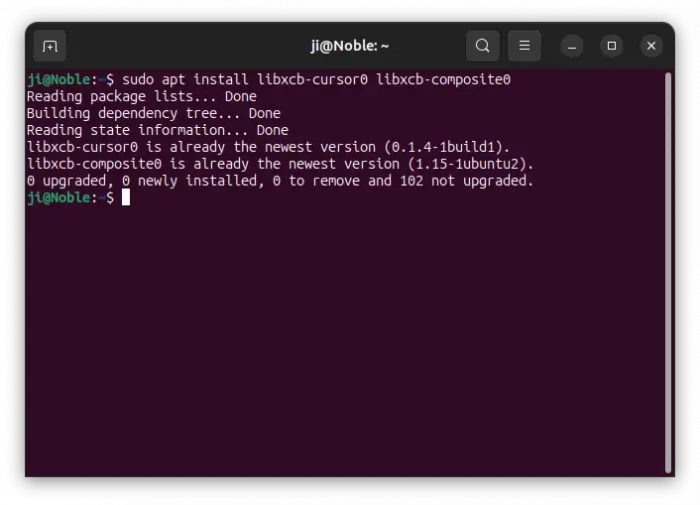
1. First, press Ctrl+Alt+T on keyboard to open window. When it opens, run command to install the required libraries:
sudo apt install libxcb-cursor0 libxcb-composite0
Run sudo apt update to refresh cache in case it’s unable to locate the packages.
2. After that, run the command below in terminal to set the environment variable:
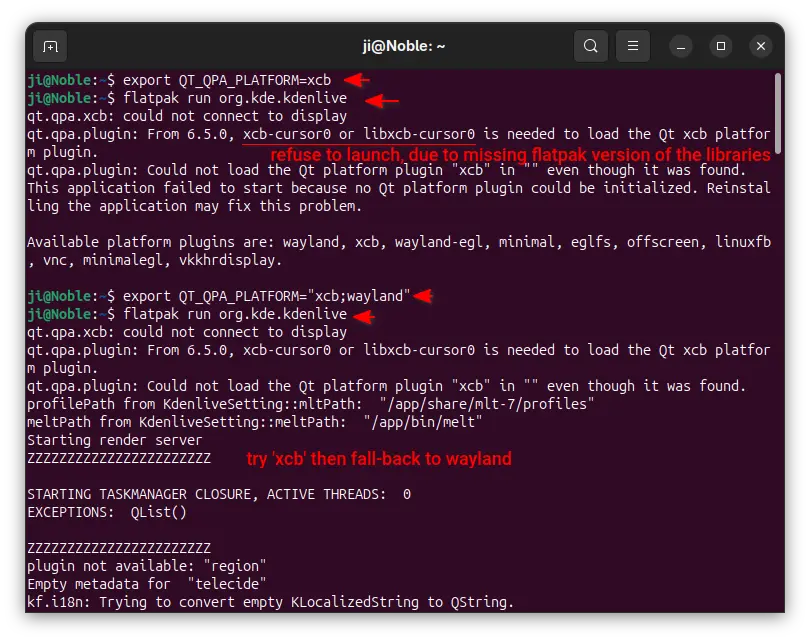
export QT_QPA_PLATFORM=xcb
Then, all Qt apps start from that terminal window will try using “xcb” plugin. For example, run keepassxc to start the Qt-based password manager.
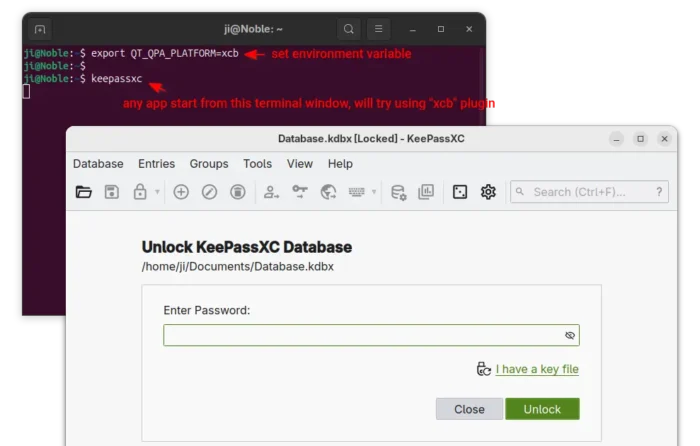
enable ‘xcb’ for apps start from this terminal only
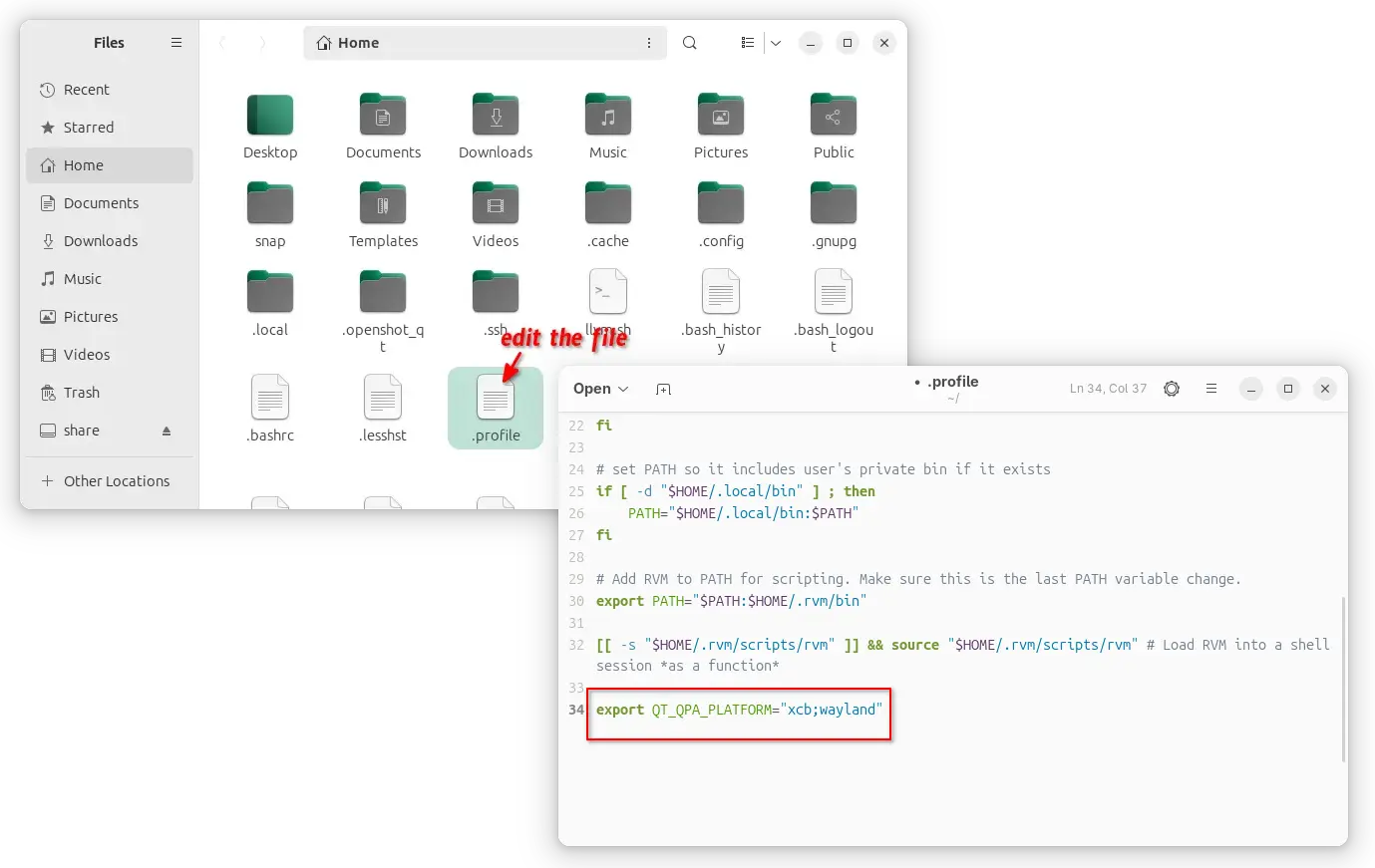
3. If it works for you, then open Files (aka Nautilus), and press Ctrl+H to show all hidden files. Find out .profile file in home directory and click edit it.
Finally, add export QT_QPA_PLATFORM=”xcb;wayland” in the end of file to make it work for all Qt applications permanently! And, log out and back in to apply.
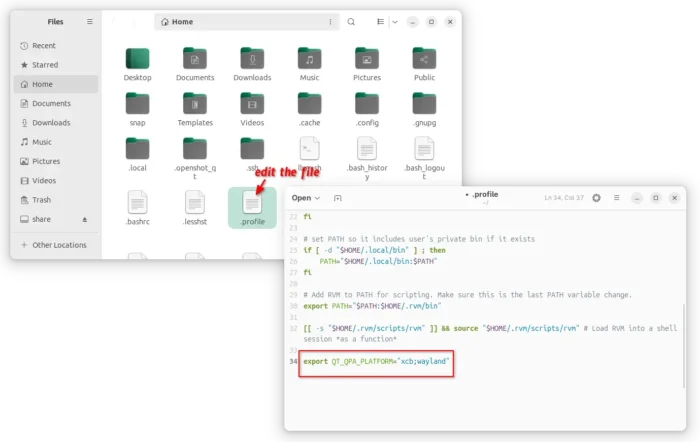
enable xcb for all Qt apps, though current user only
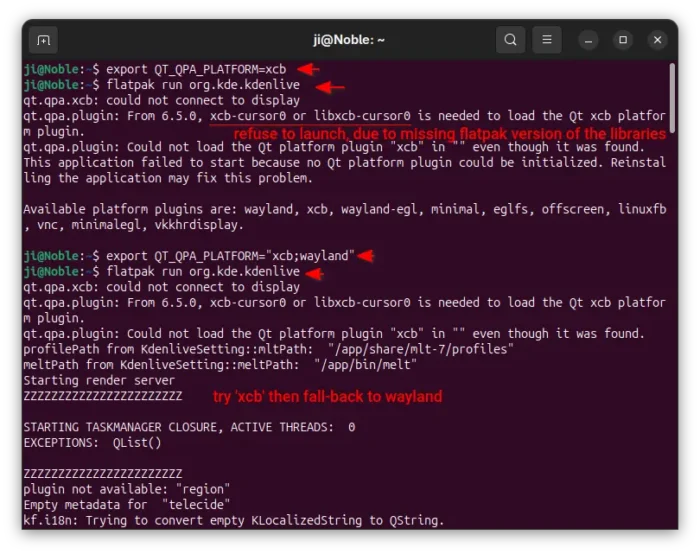
NOTE: It must be set to “xcb;wayland“, to allow fall-back to default wayland, when ‘xcb’ does not work. For example, Qt apps installed as Flatpak may not work with ‘xcb’ plugin and output the error below:
qt.qpa.xcb: could not connect to display
qt.qpa.plugin: From 6.5.0, xcb-cursor0 or libxcb-cursor0 is needed to load the Qt xcb platform plugin.
qt.qpa.plugin: Could not load the Qt platform plugin “xcb” in “” even though it was found.
Option 2: Use QGnomePlatform theme
While xcb is designed for Xorg, FedoraQt team has developed few Qt plugins for better integration in GNOME. They are “QGnomePlatform” theme, “adwaita-qt” style, and “QAdwaitaDecorations”.
Downsides: The Qt window title-bar made by QGnomePlatform looks NOT so good. FedoraQt has discontinued the project. And, Ubuntu 24.04 only includes Qt5 version of the package.
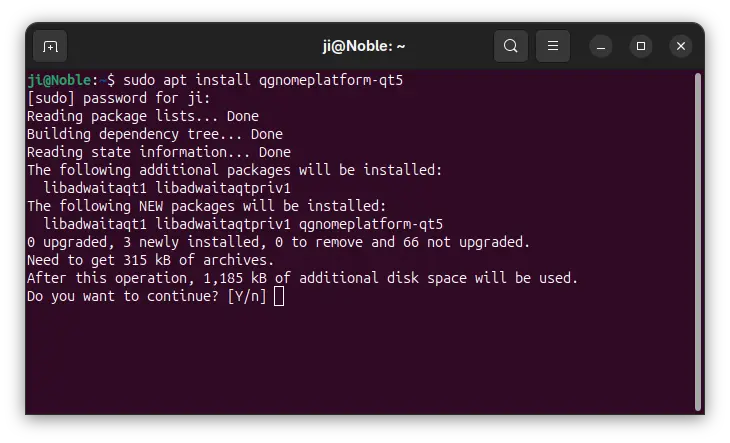
1. To install the Qt platform theme, open terminal (Ctrl+Alt+T) and run command:
sudo apt install qgnomeplatform-qt5
Ubuntu 25.04, 25.10 may also install qgnomeplatform-qt6 for Qt6 support.
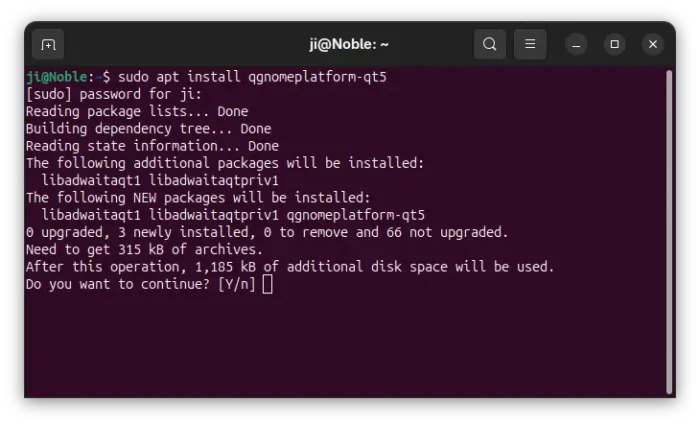
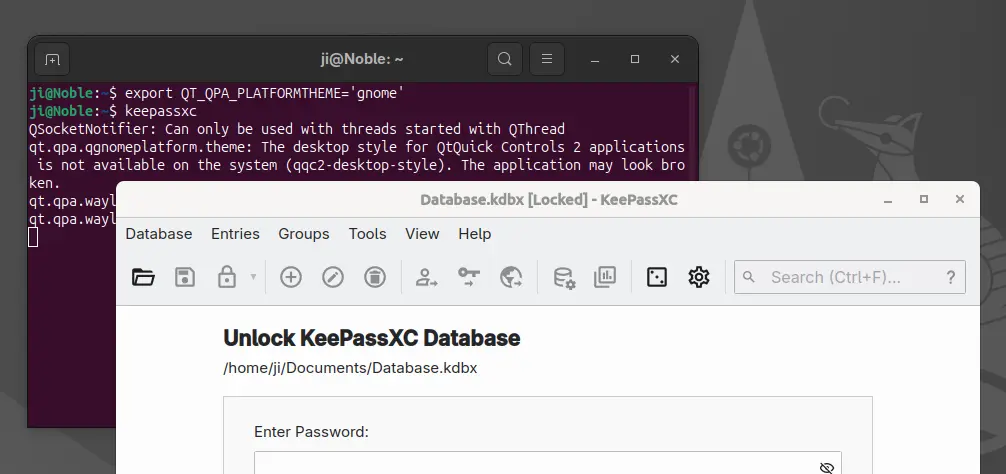
2. Next, either run the command below to set environment:
export QT_QPA_PLATFORMTHEME='gnome'
Then, start Qt apps from the same terminal window to use the Qt platform theme.
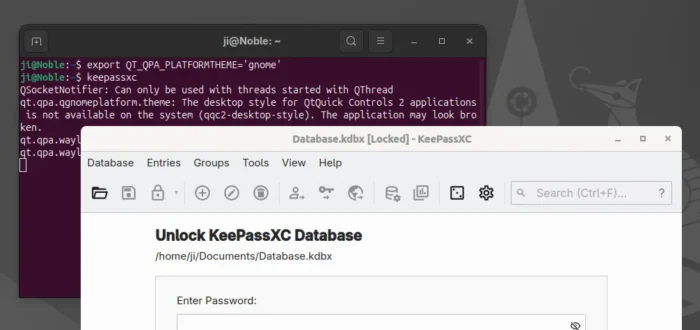
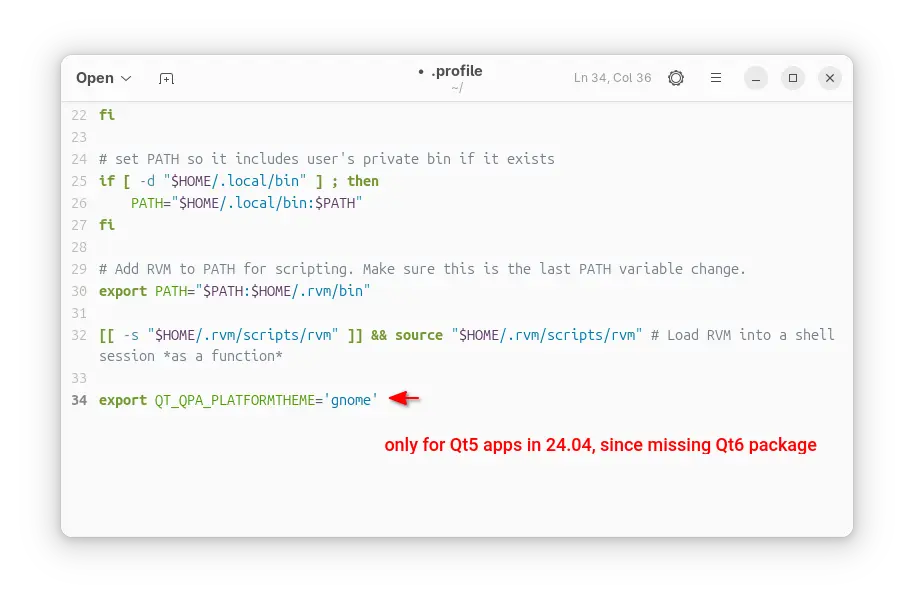
Or, edit .profile file in home directory and add export QT_QPA_PLATFORMTHEME='gnome' to make it work permanently for all Qt apps (Qt5 only for 24.04) at next login.
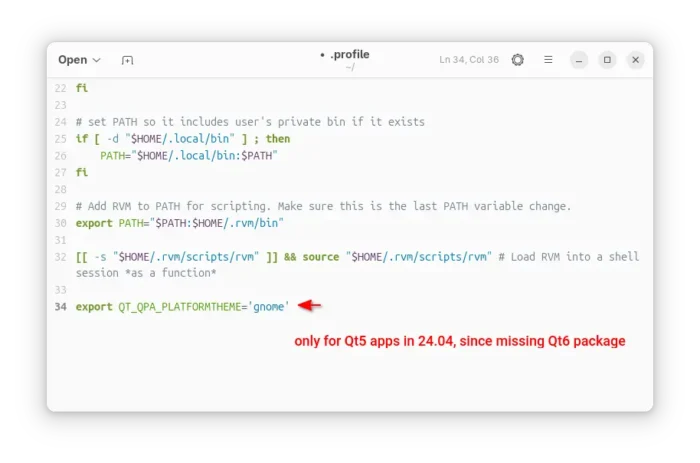
Option 3: Use QAdwaitaDecorations
QGnomePlatform and adwaita-qt have been discontinued (though they still work). QAdwaitaDecorations, the project that implements Adwaita-like client-side decorations, is so far the only upstream project that’s still in development.
However, it’s NOT made into Debian/Ubuntu repositories so far. Meaning you need to build it by yourself. And, it does not support Qt6 app for Ubuntu 24.04, as it requires Qt6 >= 6.5.0 (24.04 has 6.4.2).
This option is good choice for Ubuntu 25.10, to enable Qt5 window decorations, while Qt6 decorations work out-of-the-box.
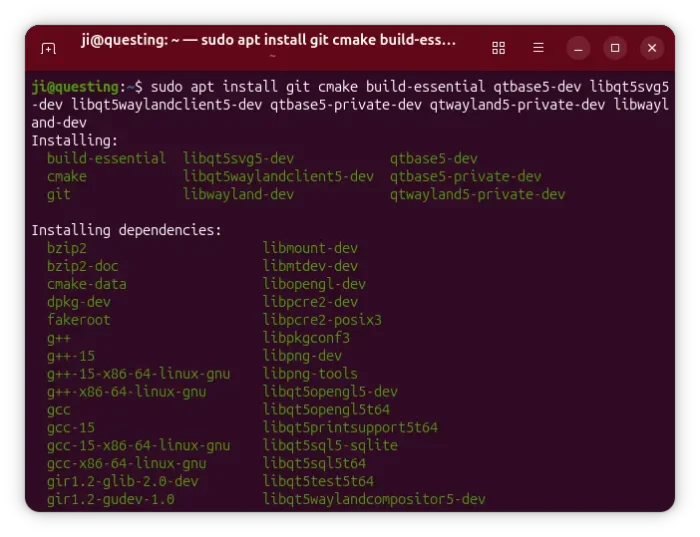
1. First, open terminal (Ctrl+Alt+T) and run command to install dependency libraries:
sudo apt install git cmake build-essential qtbase5-dev libqt5svg5-dev libqt5waylandclient5-dev qtbase5-private-dev qtwayland5-private-dev libwayland-dev
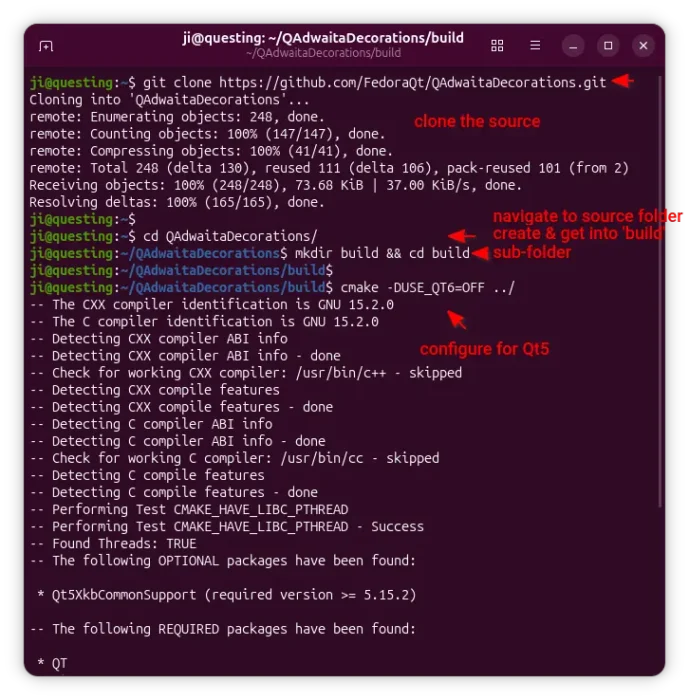
2. Then, run command to grab the source code:
git clone https://github.com/FedoraQt/QAdwaitaDecorations.git
After that, navigate to the source folder, create ‘build’ sub-folder and navigate into it:
cd QAdwaitaDecorations
mkdir build && cd build
Next, configure the source for Qt5:
cmake -DUSE_QT6=OFF ../
Ubuntu 24.04 does NOT meet Qt6 requirement, and Qt6 window decoration in 25.10 looks good out-of-the-box, so here I only build it for Qt5.
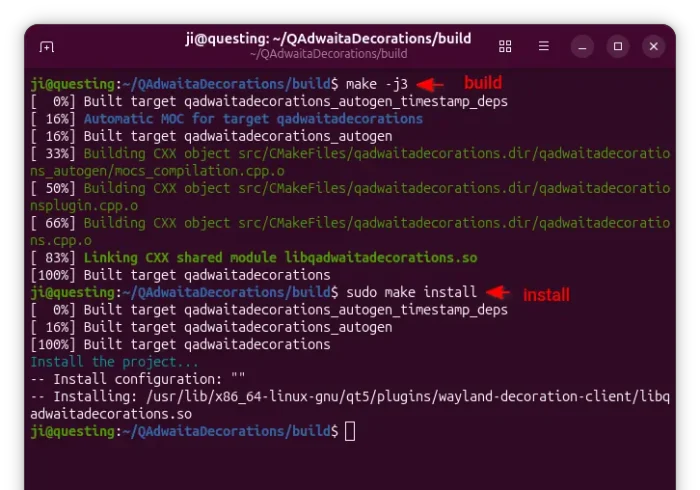
3. Finally, build & install the plugin by running the 2 commands below one by one:
make -j3
sudo make install
Here -j3 tells to start 3 threads in parallel. Depends on how many CPU cores you have, you may replace it with -j4, -j8, or j$(nproc) to use all CPU cores.
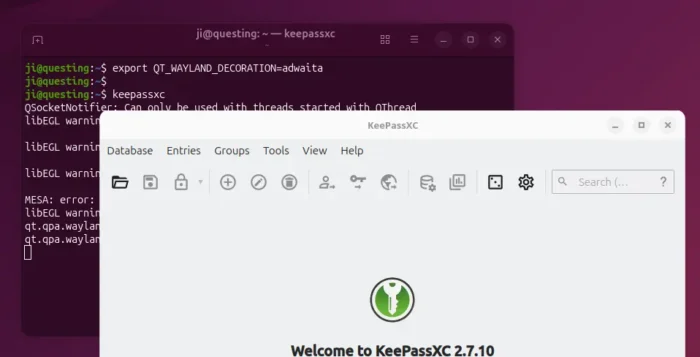
4. After successfully built the plugin, clean up by deleting the source folder. Then, either run the command below to set environment variable:
export QT_WAYLAND_DECORATION=adwaita
So it works for all Qt5 apps start from this terminal window.
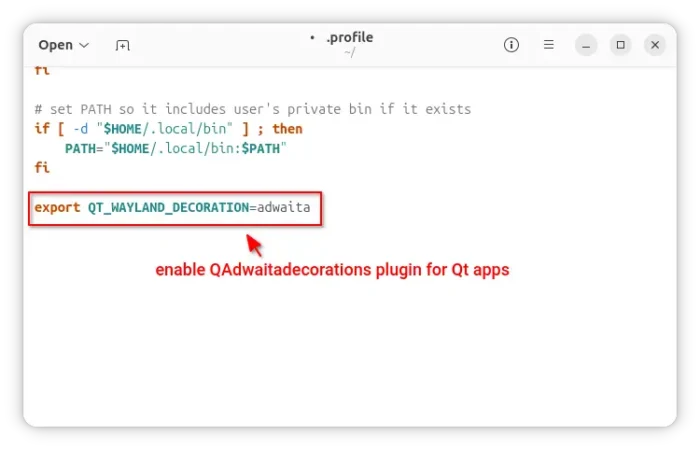
Or, edit .profile file in user home and add the line to make it work permanently for all Qt5 apps at next login.
2. Change Qt Theme, or Configure Fonts, icon, and colors
Gnome/Adwaita style decorations is NOT enough? You may also configure the Qt apps themes, fonts, icons, and color scheme.
Option 1: Use Kvantum along with “xcb”
If you use “xcb” plugin for the decorations, then you may also use Kvantum (SVG-based theme engine) to change the Qt app themes.
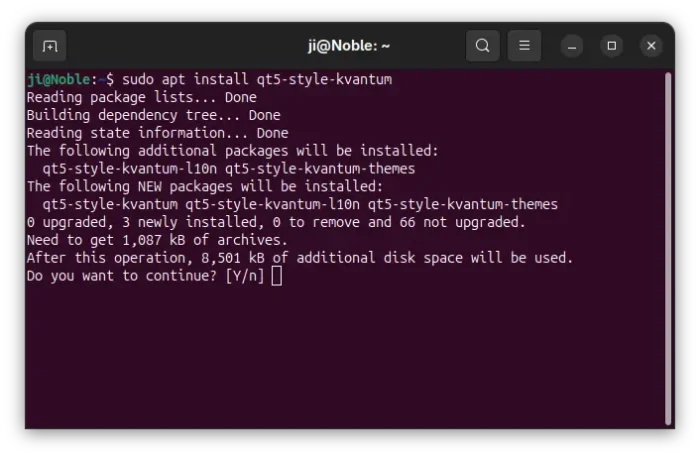
1. First, open terminal (Ctrl+Alt+T) and run command to install the package:
sudo apt install qt5-style-kvantum
Ubuntu 25.04, 25.10 users may also install qt6-style-kvantum for Qt6 apps support, however it’s NOT available in Ubuntu 24.04.
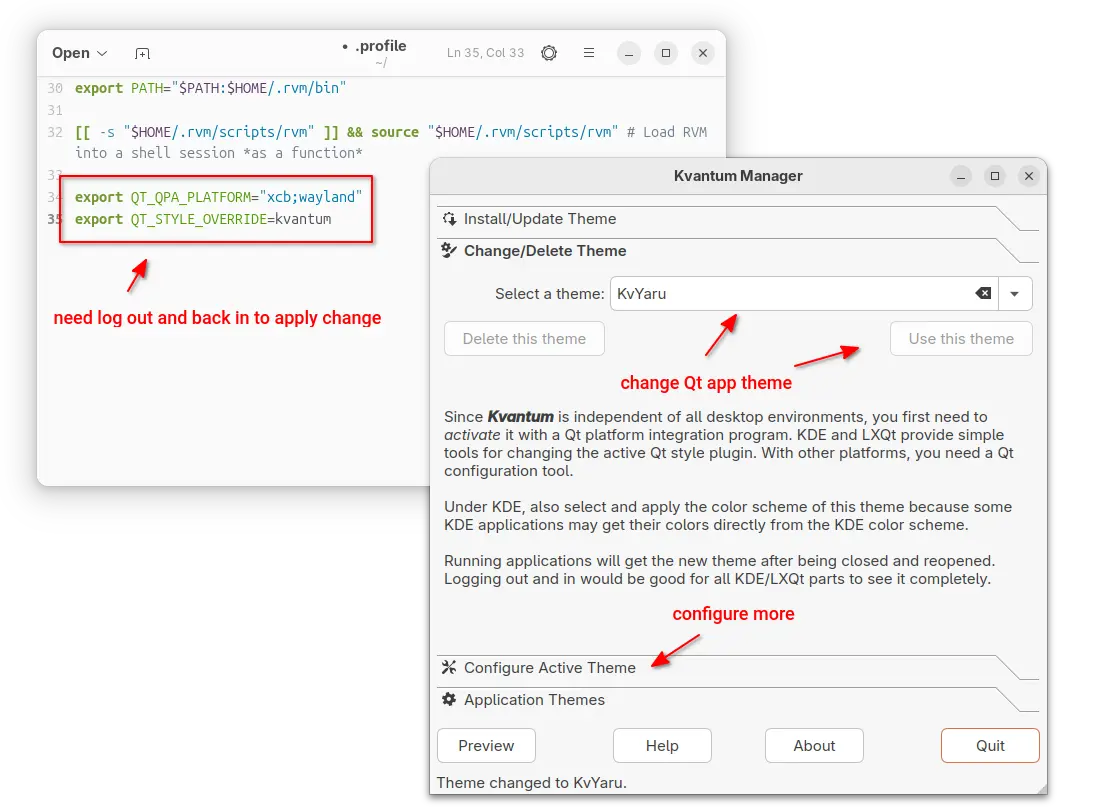
2. Next, set the following environment variables:
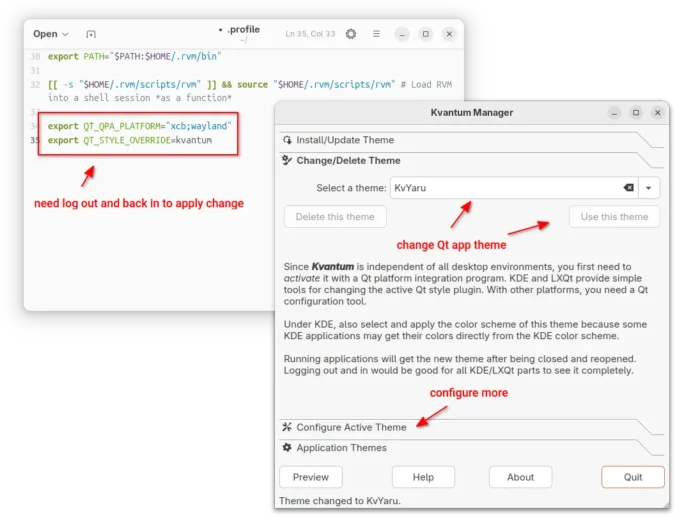
export QT_QPA_PLATFORM="xcb;wayland"
export QT_STYLE_OVERRIDE=kvantum
either in terminal for apps start from that terminal, or in .profile for all Qt apps (Qt5 only for 24.04).
3. Finally, launch “Kvantum Manager” to change Qt theme and configure active theme.
Use qt5ct / qt6ct
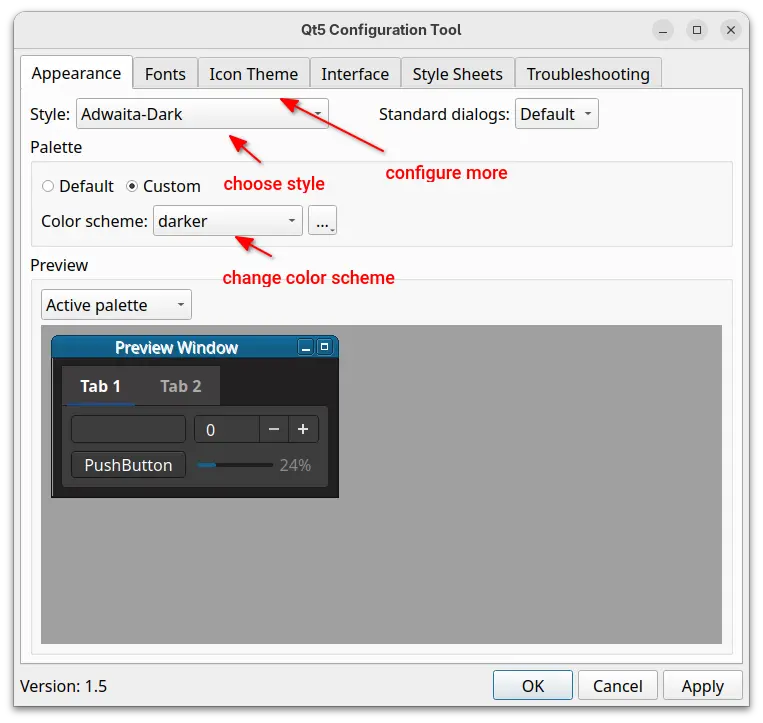
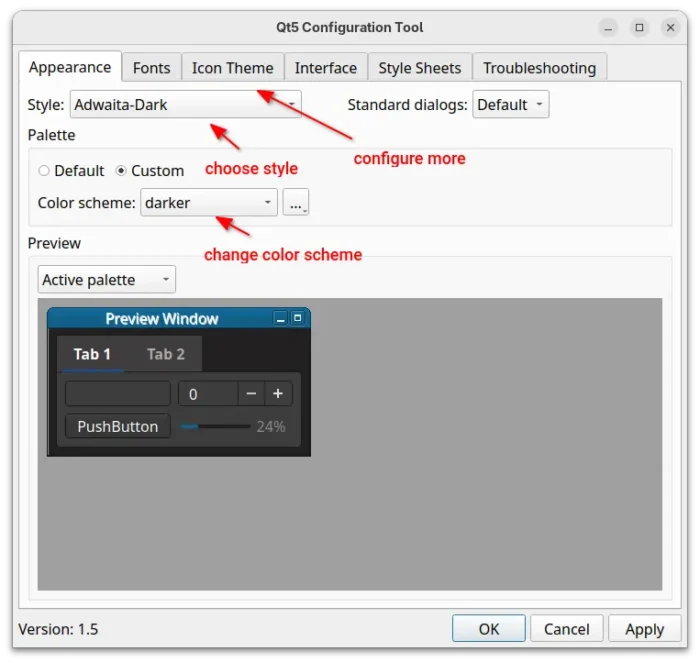
For choice, you may use Qt5 / Qt6 settings tools to configure the app window buttons, fonts, icons, and color scheme.
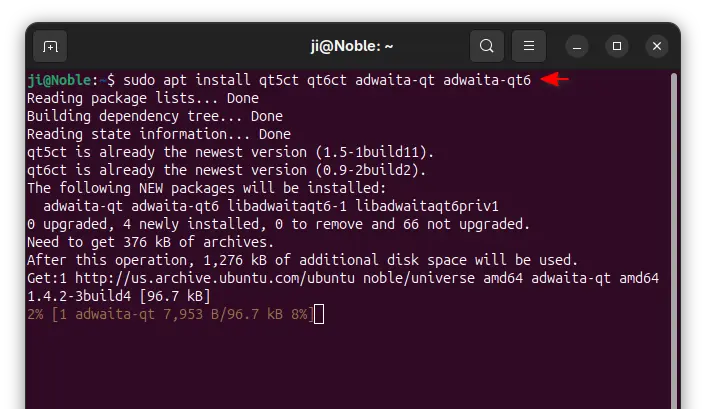
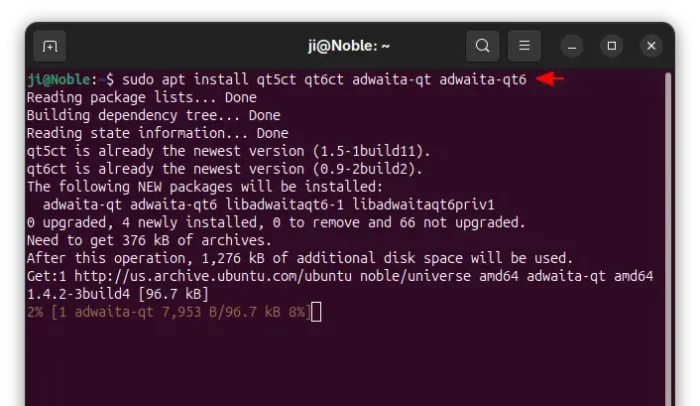
1. First, open terminal and install the settings tools, as well as adwaita-qt themes:
sudo apt install qt5ct qt6ct adwaita-qt adwaita-qt6
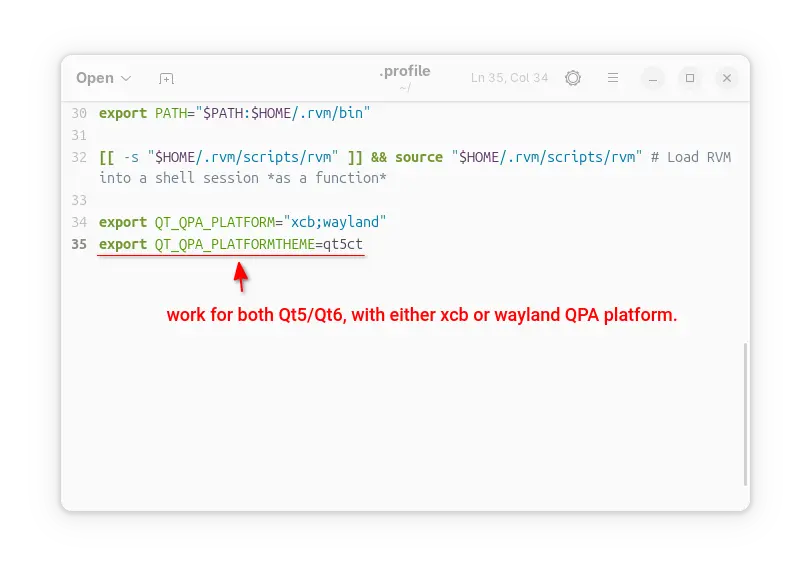
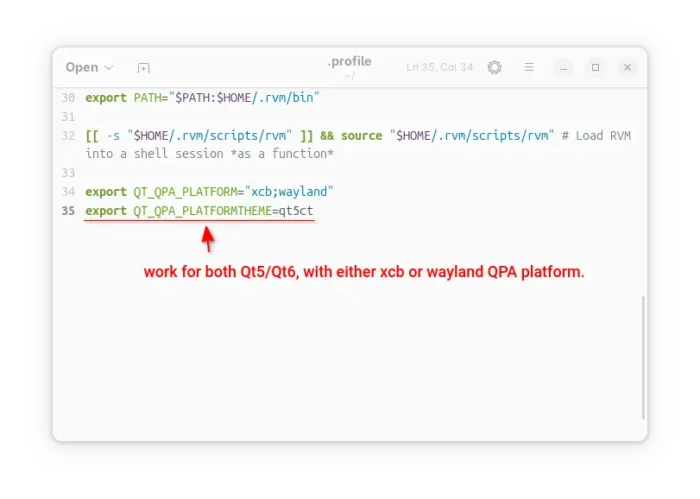
2. Next, set environment variable:
export QT_QPA_PLATFORMTHEME=qt5ct
It works for both Qt5 and Qt6 with either “xcb” or “wayland” QPA platform.
3. After set the environment (log out and back in if added to .profile), launch Qt5 Settings or Qt6 settings to configure the Qt appearances.
Summary:
This tutorial shows how to “fix” border-less issue for Qt apps in Ubuntu 24.04 and higher with default GNOME, as well as change the theme, fonts, icons, and color scheme.
The “xcb” QPA platform plugin is still a good choice for 24.04 with both Qt5 and Q6 support. While, QAdwaitaDecorations is better (in my own opinion) for Qt5 in 25.10, as Qt6 decorations look good out-of-the-box.

 Login
Login