 Login
Login
Kdenlive 25.12 Released With Interface and Workflow Improvements
19 December 2025 at 04:00


The 25.12.0 version of Kdenlive video editor is finally available to download!
The new version of this KDE’s software added a welcome dialog at app start, allowing to open or create new project, or create new from a profile.
For new users, the welcome screen also provides options to select prefer color scheme, and configure default profile resolution, frame rate, layout orientation, and video/audio tracks number etc.
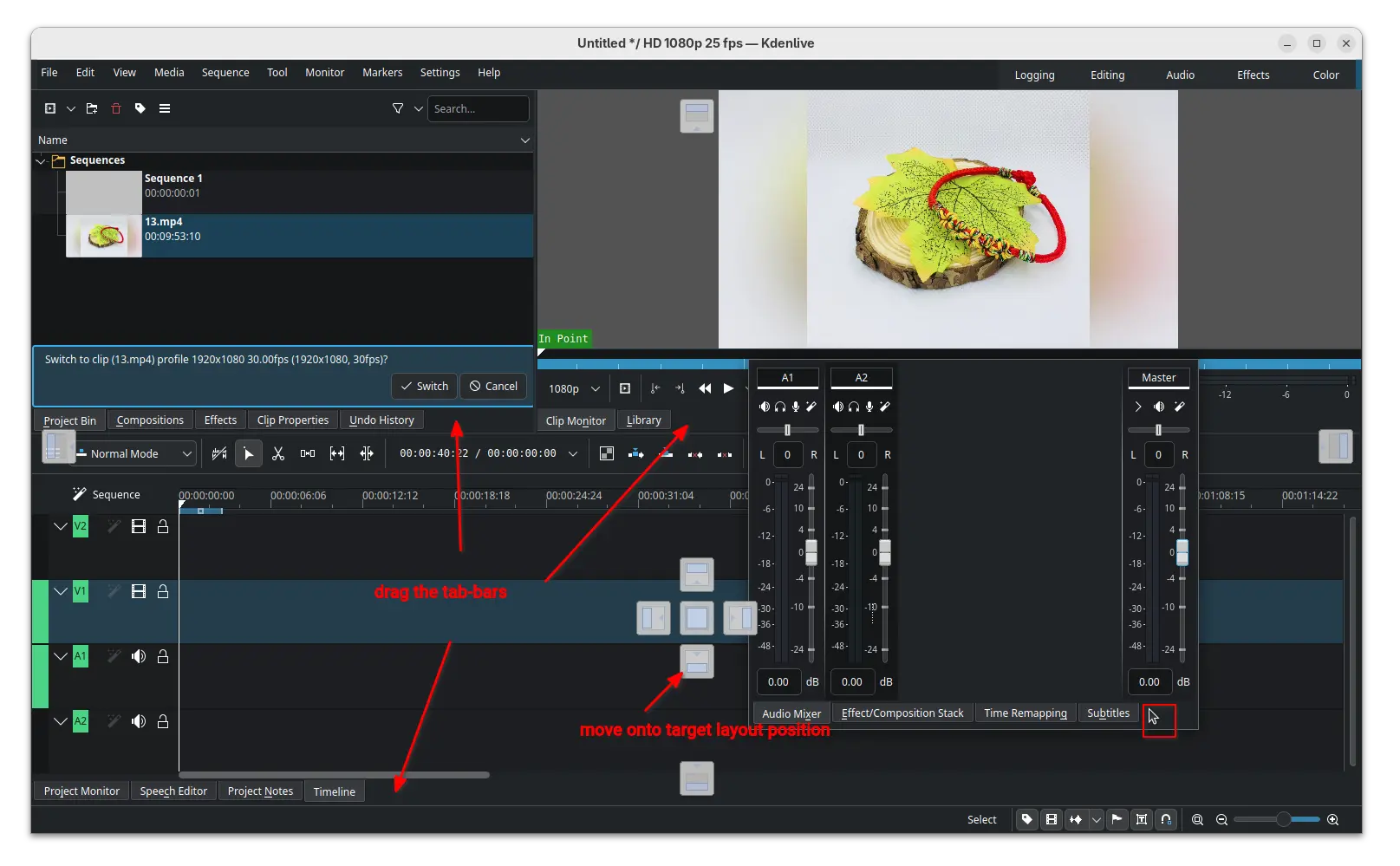
The new version also introduced new widget docking system, allowing to easily re-arrange the video editor components by dragging on their tab-bars.
Simply click down on the tab-bar of the target component then drag, it will show you the layout thumbnails. Just drag the cursor icon onto target layout position, then you’re done moving the component. Or, you may double-click (on tab-bar) to cancel the dragging, or even leave it to be outside of the video editor window.
Besides that, the release also updated the clip monitor and project monitor (video preview section) with enhanced audio display, 1080p monitor scaling, and hamburger menu options to create mark from zone.
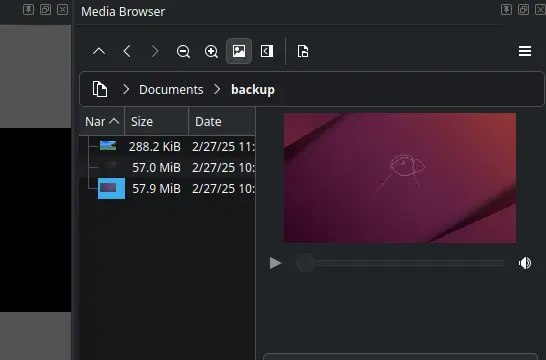
The add marker dialog now has time span support, letting to easily set the end time and duration. Media browser now has preview support, making easy to find out the file that you want. And, Safe Zone button is added in monitor toolbar, vertical safe zone layout and zoom reset.
The new version also updated audio waveform support by adding reset/cycle actions, and moving zoom control from A1 track header to status bar.
It brings back snapping when resizing for non-rotated frames, supports snapping when moving a rotated frame, and snapping for all edges when moving instead of only top-left.
And it added power management option to disable sleep while rendering and playing, switched av1 encoder to the highly optimized software dav1d encoder, and added SVT-AV1 to codecs which use crf option.
Other changes include:
There are as well numerous other improvements and tons of bug-fixes in this release. For details, see the change-log in the KDE announcement page.
The official packages for Linux, Windows, and macOS are made available in the KDE website via the link below:
For Linux, it’s an AppImage for AMD/Intel platform, which can be run directly to launch the video editor, after adding executable permission.
There’s also an official Flatpak package for most Linux on both amd64 and arm64 processors, though not updated at the moment of writing.
For Ubuntu user who prefer native .deb package, the new release has been made into Ubuntu 26.04 repository, and I’ve uploaded the package into this unofficial PPA for Ubuntu 25.10 and Ubuntu 25.04.
To add the PPA and install Kdenlive deb package, run commands below one by one:
sudo add-apt-repository ppa:ubuntuhandbook1/kdenlive
sudo apt update
sudo apt install kdenlive
OpenShot 3.4 open-source video editing software is now available for download with new features, improved performance, and other exchiting updates. Here’s what’s new!
The post OpenShot 3.4 Open-Source Video Editor Released with New Effects and Features appeared first on 9to5Linux - do not reproduce this article without permission. This RSS feed is intended for readers, not scrapers.
OpenShot, the free open-source and easy-to-use video editor, released new 3.4 version yesterday.
It’s been almost a year since the last! The new release improved the overall performance with 32% speed up, and introduced many new effects.
According to the official announcement, the new version has 14.9% to 63% speed up for the performance of frame mapper, mask, crop, ffmpeg reading/writing, and other effects.
It also features 23% faster export by integrating the caching thread into the Export dialog, faster waveforms for long audio plus time-curved clips, and faster FFmpeg decoding.
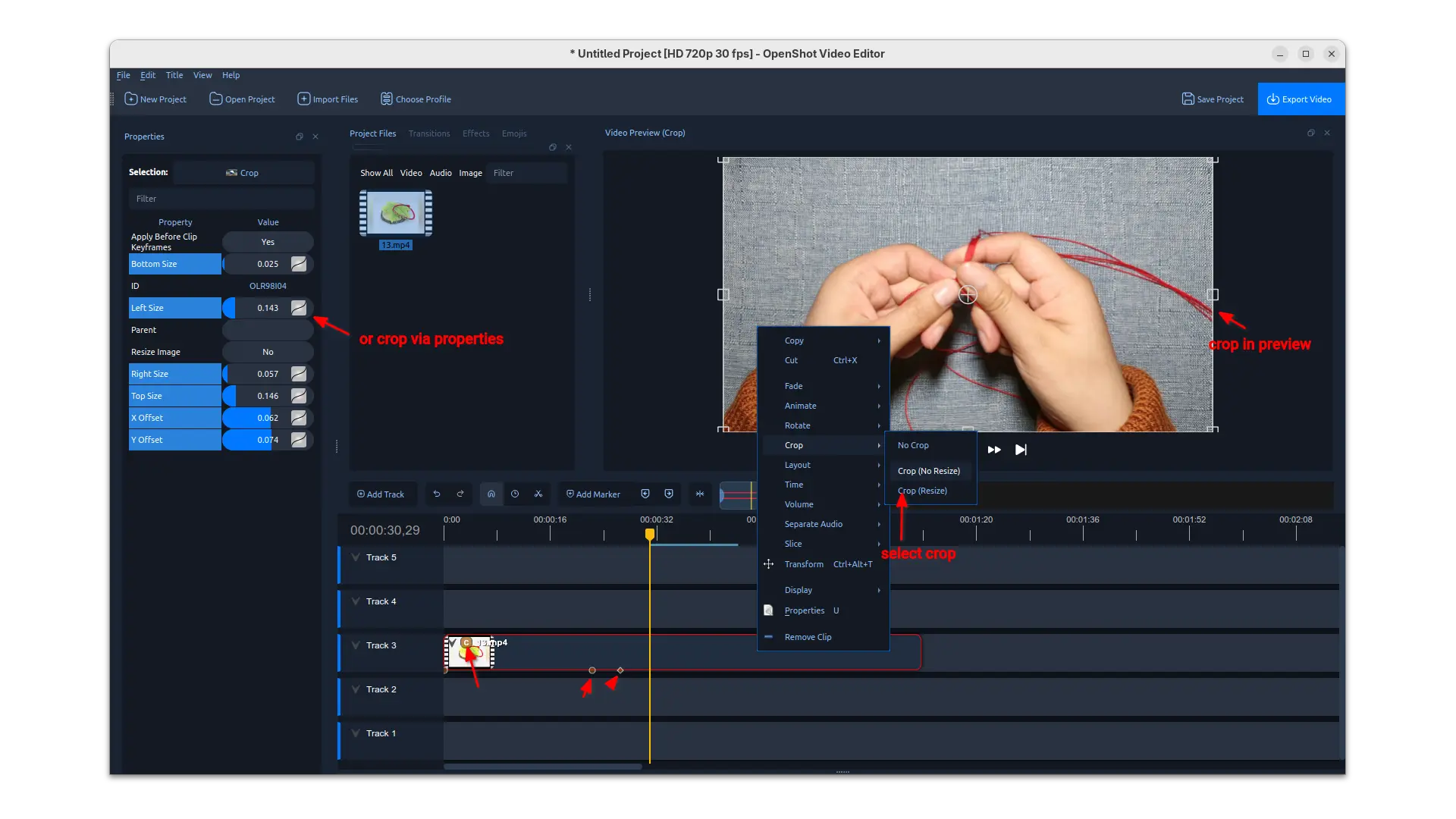
Besides the significant performance improvements, the release also introduced interactive cropping support in preview.
Simply, right-click on your video clip and choose a crop method, then you may drag resizing and moving the rectangular selection in preview to crop the video clip from current position in timeline. While, you may also input the corresponding values in left to crop using properties.
The release also added new experimental timeline which can be enabled in Preferences dialog. The new timeline added buttons to do move up/down, lock, delete actions in track header. It as well features smoother scrolling/zooming on large timelines, new Keyframe panel and in-timeline keyframe editing.
OpenShot 3.4 also added following new filter effects:
Other changes include:
The video editor provides official packages for Linux, Windows, ChromeOS and macOS. Along with the source code, they are available to download via the link below:
For Linux, it’s an AppImage for AMD and Intel platforms. It can be run directly to launch the video editor after adding executable permission.
For Ubuntu, there’s also an official PPA, though it’s not updated for the new release at the moment of writing.
It’s also available to install as Flatpak package, which runs in sandbox environment and support both amd64 and arm64 CPU processors.
Flowblade, the free open-source Linux video editing software, released new 2.24 version few days ago.
The new release of this multi-track non-linear video editor focused mostly on UX improvements, bug fixes and GTK 4 port, while there are also some new features.
First, the new version improved support for Compound Clips, the way to group multiple clips into a single container clip on the timeline, by adding 2 new ways to create it.
Previously, user may either select multiple clips (via Ctrl or Shift + click) and use right-click menu to create Compound Clips, or go to menu Project -> Create Container Clip -> From Current Sequence to use the entire current timeline/sequence.
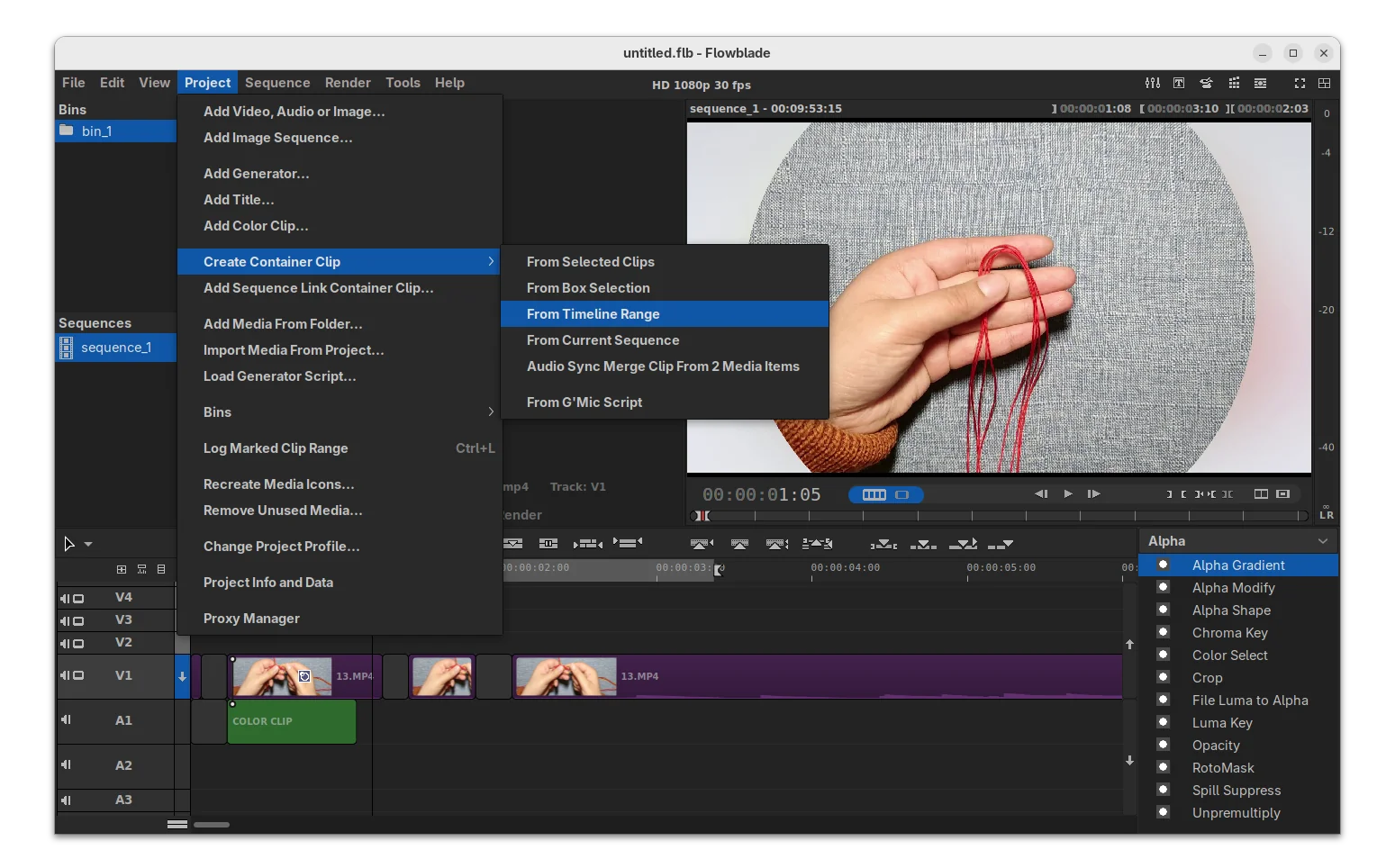
In the new version, user may also select a timeline range (press I in timeline for start point, and O for the end) or use box selection method to create the container clips.
It also added new Auto Sync Trim Single Childs feature, so that child clips now follow the their parent clips to be trimmed automatically when trimming the parent clips, though there’s an option available in “Syncing” menu to toggle on/off the function.
The release also improved the Rotomask editor with new Box Select Move edit mode, allowing to move a selection of edit points as a group. And, the line color is now editable through a new color picker tool.
Moreover, new “Add Title” option is added to both “Project” menu and Media panel context menu, allowing to launch the titler dialog. And, the titler dialog added options to set the title name, and close the dialog automatically when clicking save.
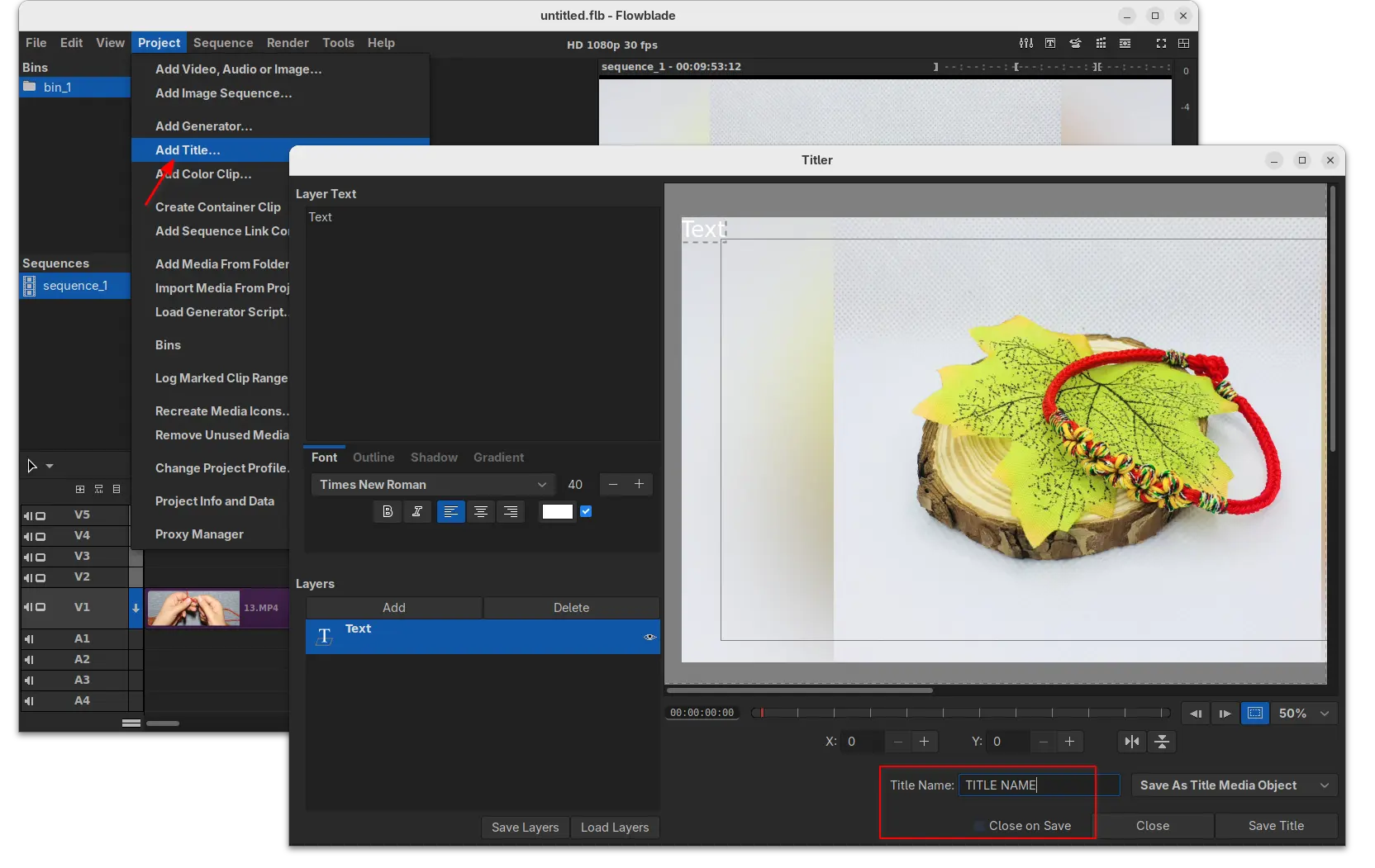
Other changes include new Alt+J keyboard shortcut to mark selection range, new “Warning on Disk Cache Size” limit (4 GB and 8 GB), warn if estimated size exceeds 60% of the available disk space, as well as following changes:
As mentioned, the release also includes some GTK4 port, such as new keyboard shortcut framework with per widget shortcuts, and more. See the RELEASE NOTE for details.
Flowblade provides official installer for Linux through Flatpak package, which runs in sandbox environment.
Linux Mint and Fedora workstation (with 3rd party repository enabled) can search & install it from either Software Manager or GNOME Software.
flowblade Flatpak package in Linux Mint Software Manager
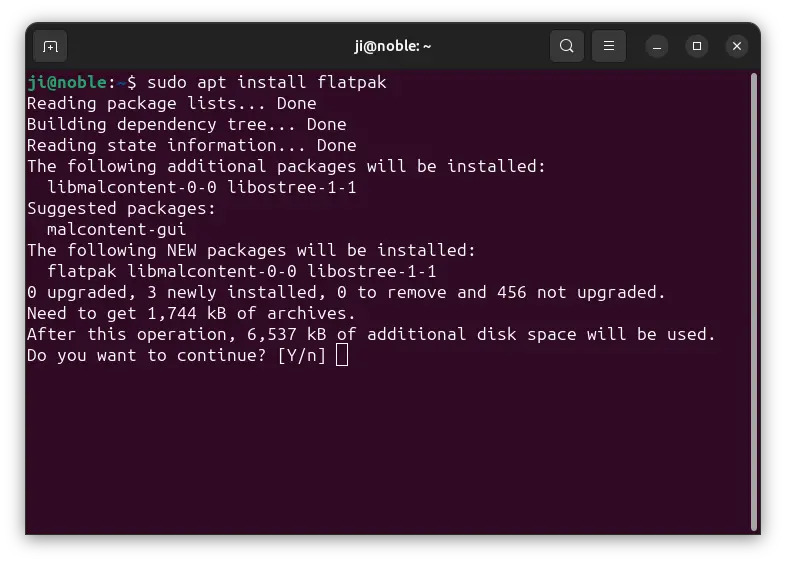
While, Debian/Ubuntu and other Linux may do the following steps one by one to install the package.
sudo apt install flatpak
For other Linux, follow the official setup guide to enable Flatpak support.
flatpak install https://dl.flathub.org/repo/appstream/io.github.jliljebl.Flowblade.flatpakref
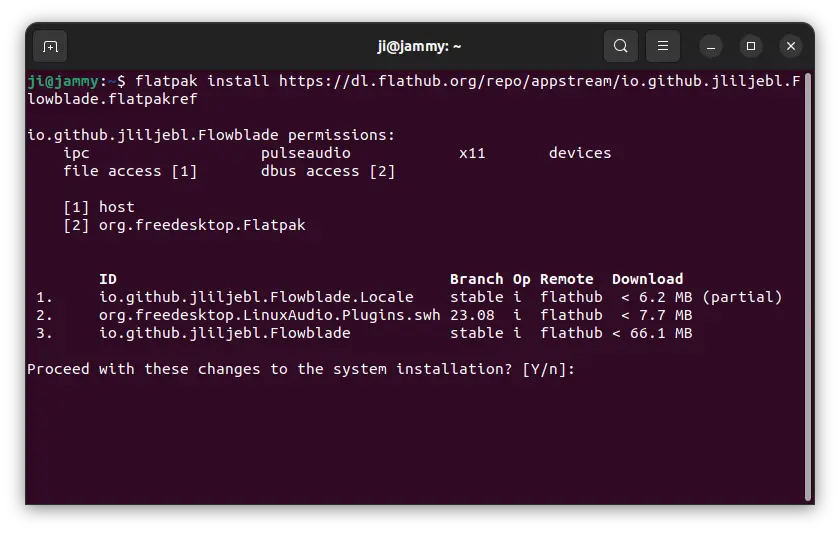
After installed the software package, either start it from start menu (log out and back in if app icon not visible). Or, run the command below to launch it from terminal without re-login.
flatpak run io.github.jliljebl.Flowblade
And, you may replace run in last command with update to check & install updates.
To uninstall the Flowblade Flatpak package, open terminal (Ctrl+Alt+T) and run command:
flatpak uninstall --delete-data io.github.jliljebl.Flowblade
Optionally run flatpak uninstall --unused to remove useless run-time libraries.
After 2 months of development, the Shotcut video editor released new 25.10 version yesterday.
The new release of this free open-source Qt and MLT based video editor introduced new option to generate image or video from HTML, Text to Speech, and some other exciting new features.
Under File -> New or New Generator menu, there’s a new Image/Video from HTML option, that can generate image or video through custom HTML code, with transparent background by default, though the video is limited to 15 frame-per-second for performance reasons.
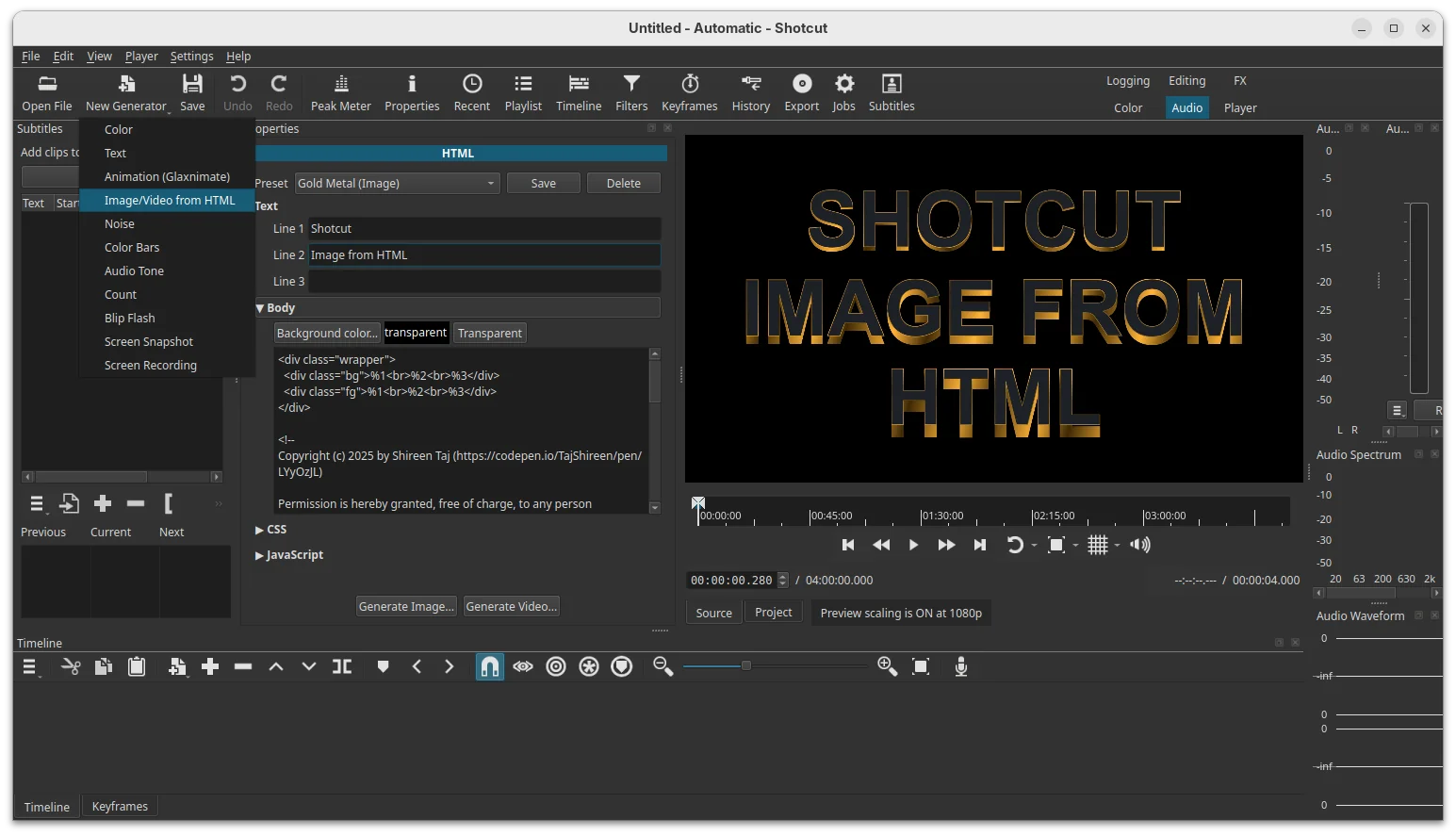
The feature depends on Google Chrome or Chromium web browser. You need to specify path to the executable of either browser first time you launch the option.
It offers some presets that also demonstrate a template with up to 3 lines of text. And, it automatically opens the generated image or video in the Source viewer so that you can preview and revise it if need. However, there’s neither preprocessors nor WebGL or embedded video support.
In addition, the release added New -> Screen Snapshot and Screen Recording options to generate image or video from your screen. And, the recording so far can be only ended by selecting “Stop This Job” from context menu of the job.
Shotcut 25.10 also added Text to Speech support to Notes and Subtitles. The quality with subtitles is heavily dependent upon the timing and duration of each item. And, it requires installing a docker image which takes 13.2 GB space in my case in Ubuntu.
Text to Speech needs installing a docker image as plugin
The release also introduced new Text: Typewriter video filter, that can insert text to your video clip and display them line by line, word by word, or character by character with typing cursor animation.
Other changes in the release include:
The official release note and installer packages for Linux, Windows, macOS are available to download in Github releases page. Along with the source tarball they are available via the link below:
For Linux, either download the AppImage (for Intel/AMD). Then add executable permission from its Properties dialog, and click Run the package to launch the video editor.
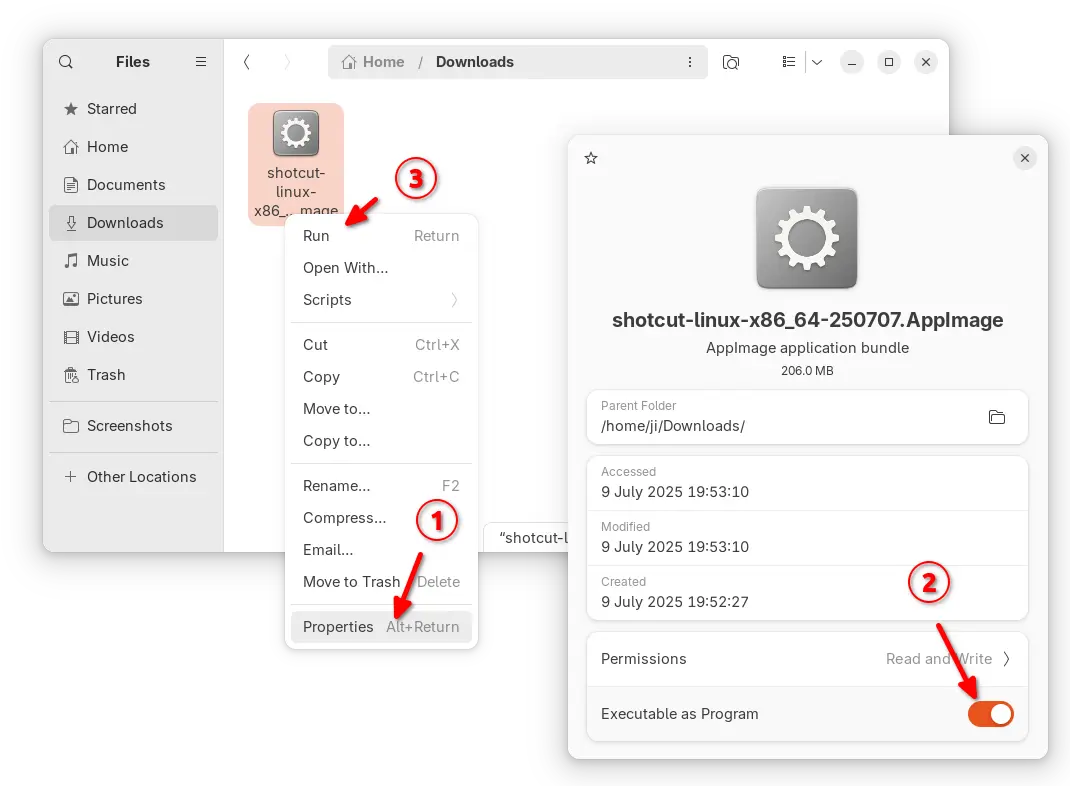
NOTE: Ubuntu since 22.04 does NOT support AppImage out-of-the-box. Press Ctrl+Alt+T to open terminal and run command to install the required library first:
sudo apt install libfuse2
Or, download the Linux tarball “shotcut-linux-x86_64-25.10.31.txz“, extract and run the executable file to launch the video editor, though you need to manually set the run-time libraries environment variable.
For choice, there are also official Flatpak package in flathub.org, which also support ARM64 platform, and snap package in App Center (or Ubuntu Software), though both run in sandbox environment!
Shotcut 25.10 open-source video editor is now available for download with screen recording. Typewriter text effect, and more. Here’s what’s new!
The post Shotcut 25.10 Video Editor Released with Screen Recording, Typewriter Text Effect appeared first on 9to5Linux - do not reproduce this article without permission. This RSS feed is intended for readers, not scrapers.
Kdenlive, the popular KDE video editing software, released new 25.08.0 version yesterday.
The new 25.08.0 is a new feature release that added 10 bit x265 encoding for NVIDIA, and 10 bit export profiles in the render dialog, though it will be converted to 8 bit when using compositing or non-avfilter effects.
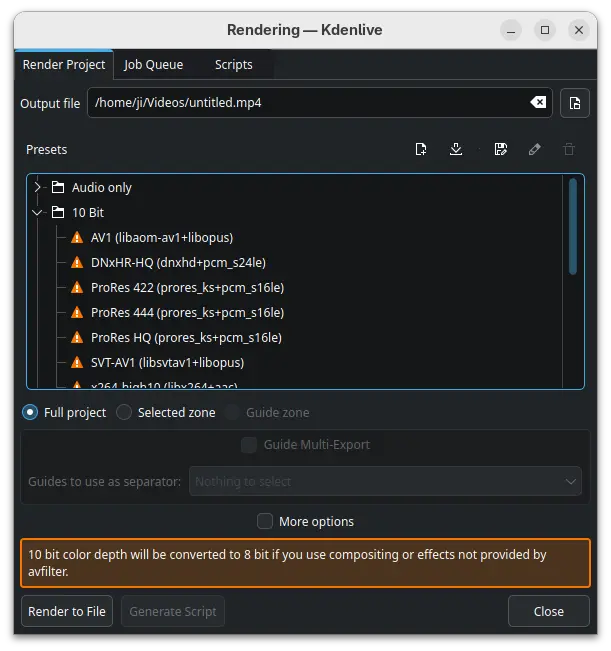
It as well replaced AV1 profile with the faster SVT-AV1, along with preset options to control the quality and speed, and, added power management option to disable sleep while rendering and playing.
Audio mixer in the release has been redesigned with clearer level visuals and thresholds. And, it fixed some issues for better HiDPI displays support with fractional scaling.
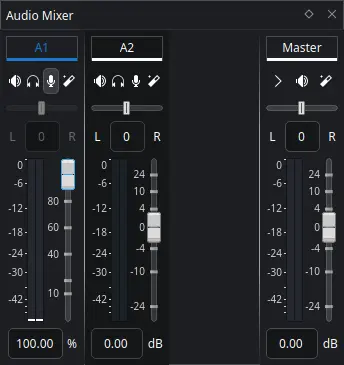
new audio mixer
Kdenlive 25.08.0 also improved SVG and image support for its titler. It’s now has ability to move and resize items, and shift-drag item border to center resize.
It renamed the Pattern tab to Templates and moved the templates dropdown to it. As well, it added timecode widget with ability to drag to seek in the Titler.
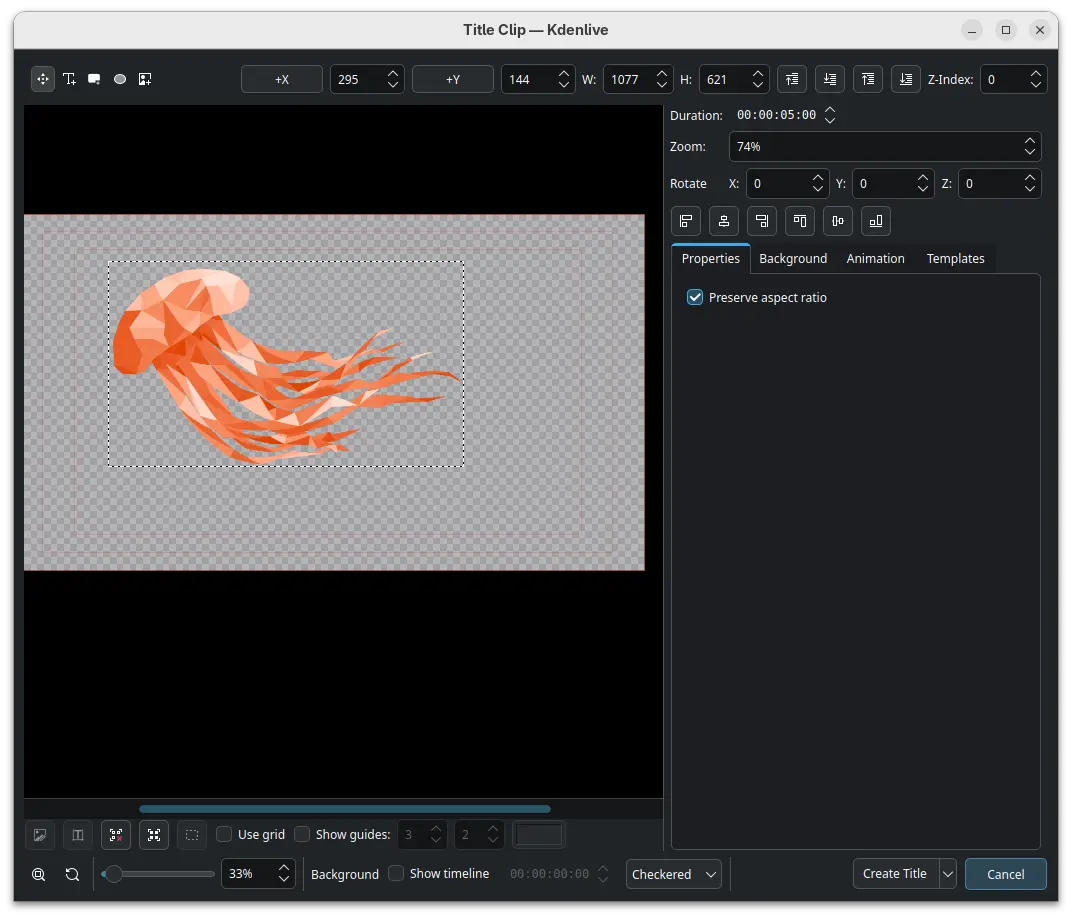
The subtitle edit widget in the new release now is resizable to adapt to lower resolution displays. And, it now requires shift + drag of a subtitle clip to create a new layer.
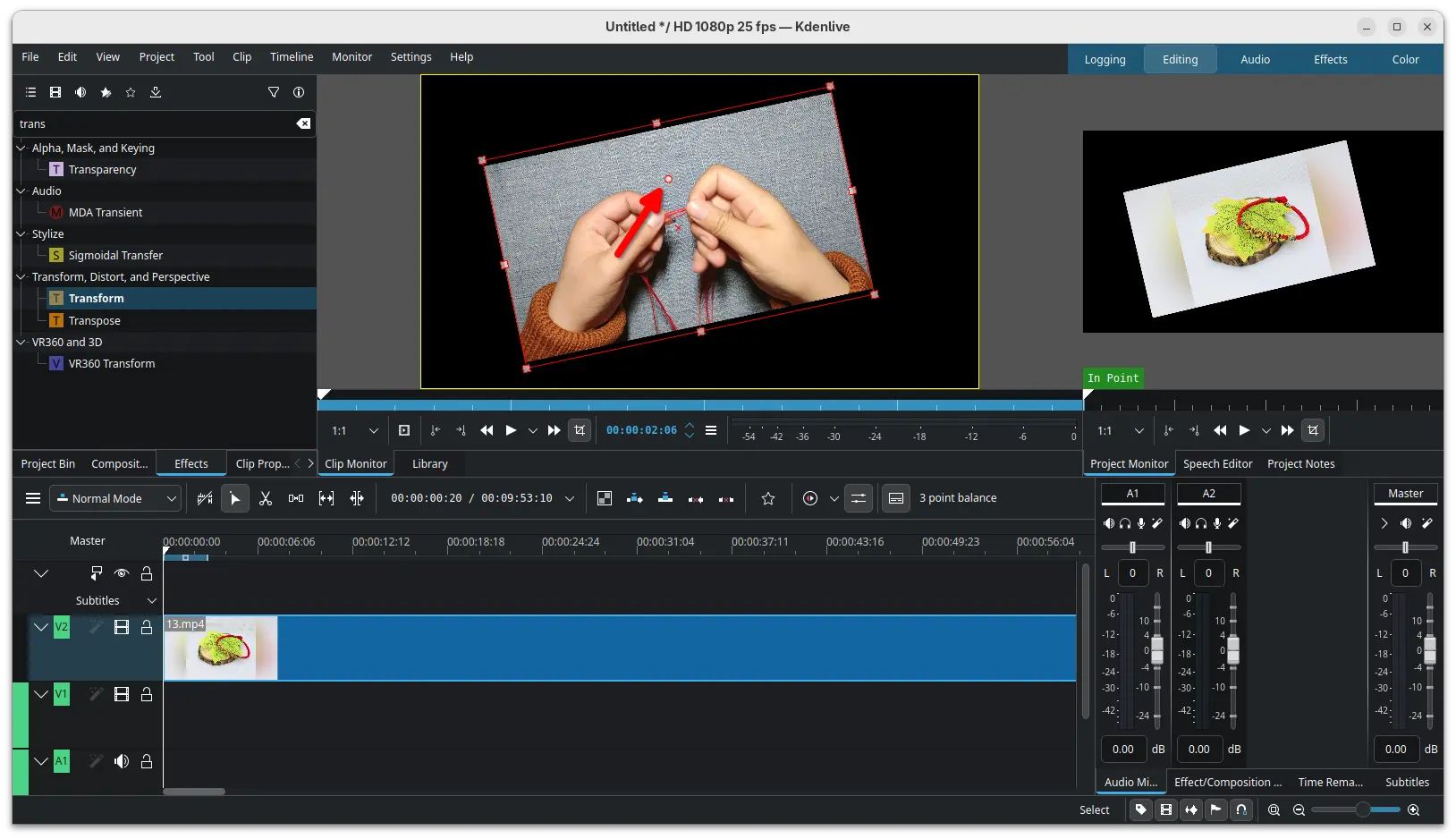
It as well added a new handle allowing to rotate an item in the preview using the Transform effect. And it improved monitor snapping by adding back snapping when resizing for non-rotated frames, snapping when moving a rotated frame, and added snapping support for all edges.
Other changes include:
For more about Kdenlive 25.08.0, see the official release note.
The official installers for Linux, Windows, and macOS are available to download in its website via the link below:
As a KDE project, you may alternatively download it from KDE website via this page.
Linux user may choose download the AppImage, then click Run to launch the video editor after granted executable permission. Though, Ubuntu since 22.04 needs to install libfuse2 library first in terminal (Ctrl+Alt+T):
sudo apt install libfuse2
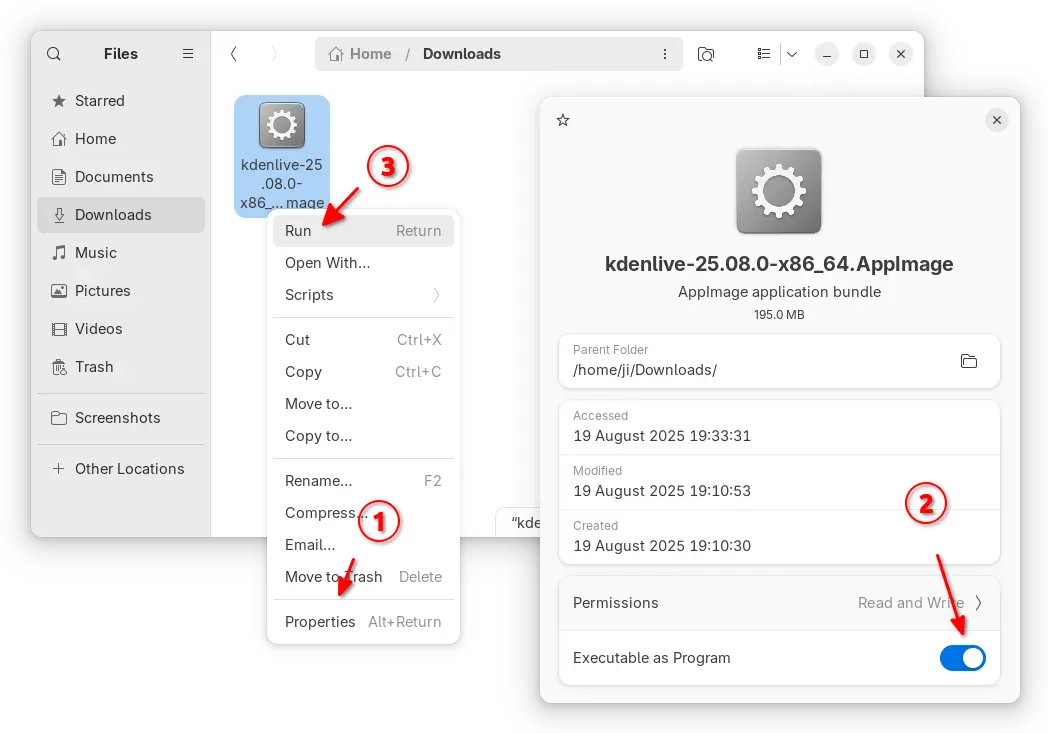
While AppImage is so far only for modern Intel/AMD (x86_64) platform, user may choose the Flatpak package that supports both X86_64 and ARM64 platforms, though it runs in sandbox environment.
Linux Mint and Fedora can search & install the Flatpak package from either Software Manager or GNOME Software.
Kdenlive Flatpak package in Linux Mint Software Manager
While Debian/Ubuntu, may run the 2 commands below one by one to install the package:
sudo apt install flatpak
flatpak install https://dl.flathub.org/repo/appstream/org.kde.kdenlive.flatpakref
For Ubuntu, there’s also official snap package available in App Center (or Ubuntu Software).
Kdenlive Snap package in Ubuntu App Center
And, if you want to build Kdenlive from source, here’s a step by step guide shows how to do the job in Ubuntu 25.04.
