 Login
LoginHow to Install KDE Plasma on Linux Mint
19 February 2025 at 13:04


For user with NVIDIA graphics card, Ubuntu finally added official NVIDIA 580 driver packages for all current Ubuntu releases.
As you may know, NVIDIA 580 is so far the latest driver series for Linux, that was initially released one month ago. It’s a production branch driver qualified for enterprise and data center GPU use.
The 580 driver features Wayland fifo-v1 protocol support for apps/games running via Vulkan API, reducing visual inconsistencies and potential stuttering.
It enabled RMIntrLockingMode feature by default, which can help reduce stutter especially when using virtual reality (VR). As well, it implemented a feature to reduce time spent in the interrupt top half for low latency display interrupts by deferring the work until later. See HERE for more.
With NVIDIA 580.82.07, it also supports NVIDIA Smooth Motion on GeForce RTX 40 Series GPUs!
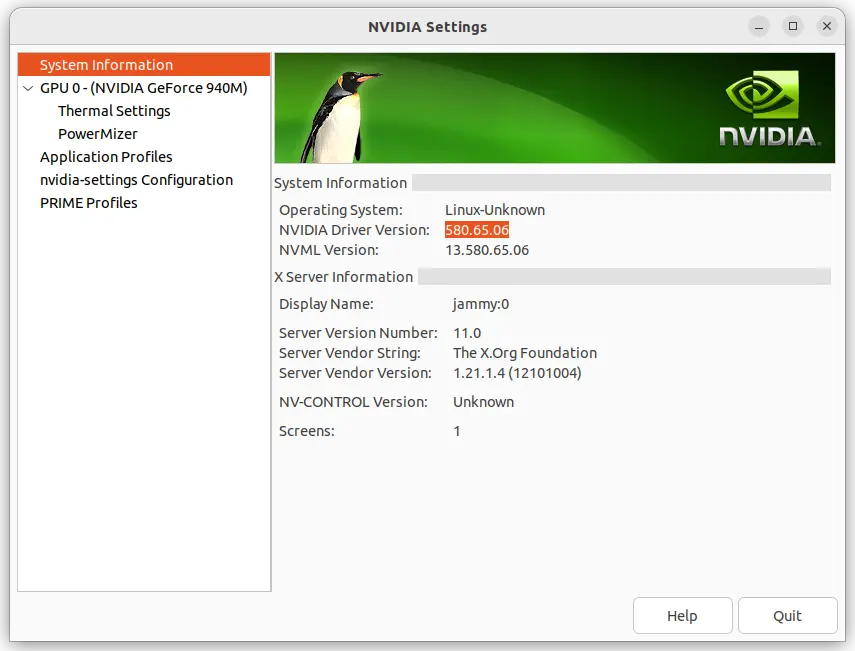
Ubuntu made NVIDIA 580 driver (so far 580.65.06) package into the proposed repository for testing few weeks ago. Now, it finally goes official. And, you may install it by following steps.
1. Enable Restricted and Multi-verse repository
The proprietary driver is available through the restricted and multiverse repositories. They are usually enabled by default in Ubuntu desktop.
Just in case, you may launch “Software & Updates” utility to ensure:
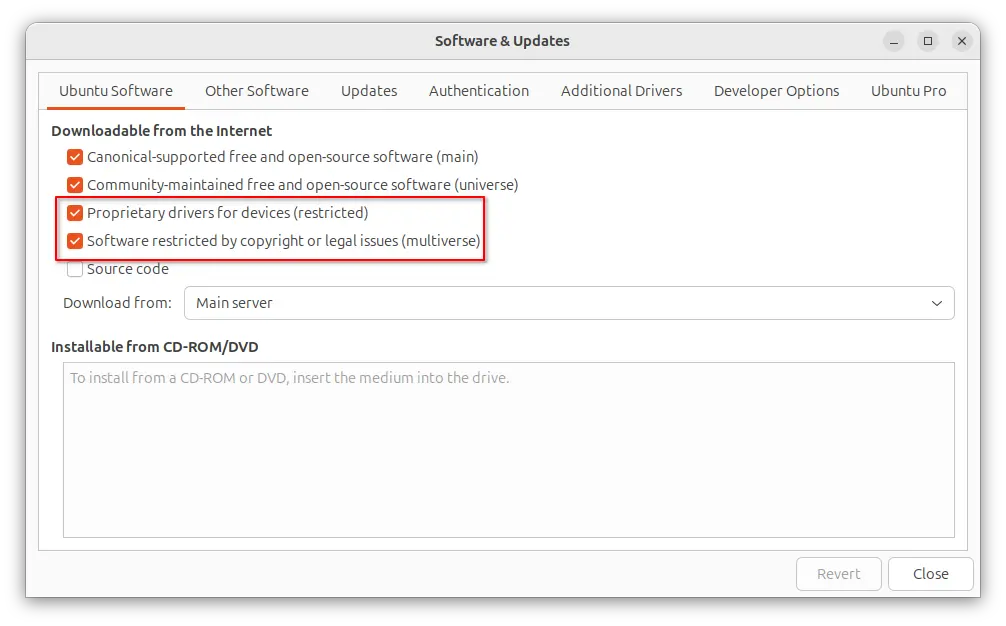
Or, run the command below for Ubuntu Server to enable them:
sudo add-apt-repository restricted multiverse
You need to install software-properties-common package if the command does not work.
2. Update your system.
Before installing the driver, it’s better to install all available system updates, especially kernel updates (usually minor version updates), to prevent potential failure.
To do so, either use Software Updater or run the commands below in terminal (Ctrl+Alt+T):
sudo apt update

sudo apt upgrade
If there’s a kernel updates, restart computer to boot the new kernel.
3. Install NVIDIA 580 driver
NOTE: The driver version so far is nvidia 580.65.06. If you can’t wait to get 580.82.07 for NVIDIA Smooth Motion support on RTX 40 series GPUs, or you’re on old Ubuntu 20.04|18.04, then run command below to add the popular “Graphics Drivers” team PPA, which however is not officially supported.
sudo add-apt-repository ppa:graphics-drivers/ppa
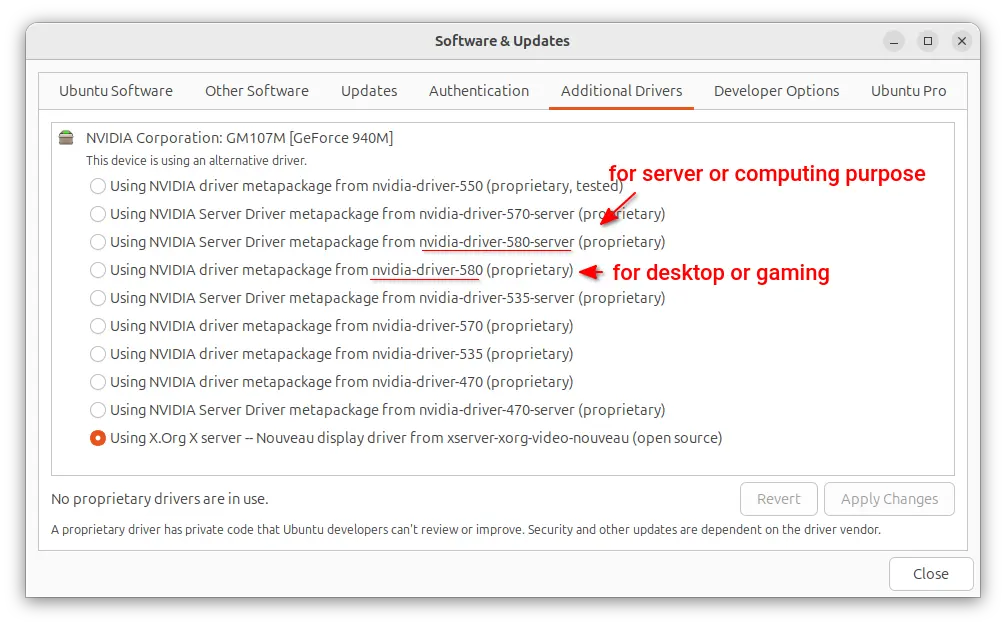
For Ubuntu Desktop, you may now launch “Additional Drivers” utility, then select either driver below:
nvidia-driver-580 for general desktop and gaming purpose.nvidia-driver-580-server for Ubuntu Server or computing purpose.Then, click “Apply Changes” and restart computer when installation done!
For server without GUI, simply run the commands below one by one to install the driver.
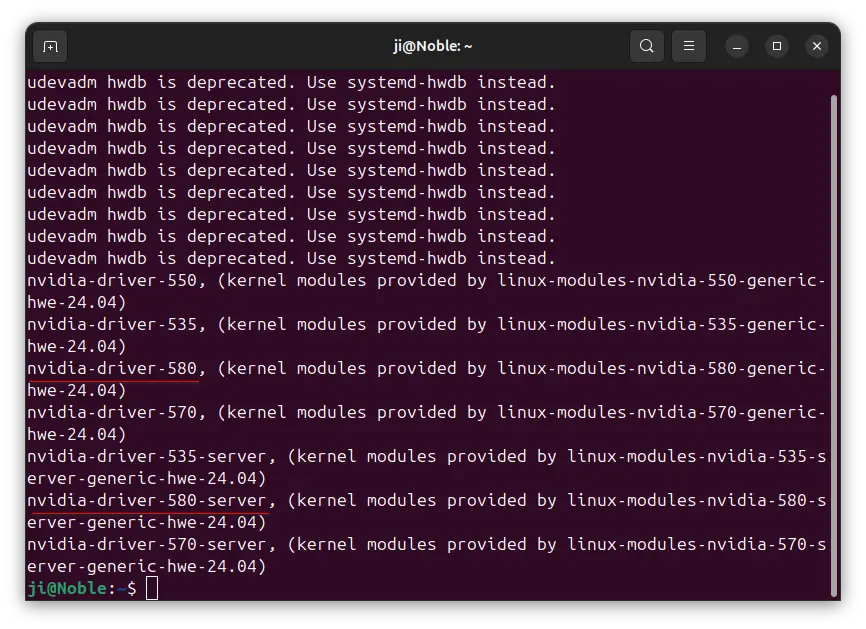
sudo ubuntu-drivers list
Skip the “udevadm hwdb is deprecated. Use systemd-hwdb instead.” output. It’s a warning that does not matter.
sudo ubuntu-drivers install nvidia:580
Or, install the server or computing purpose driver:
sudo ubuntu-drivers install --gpgpu nvidia:580-server
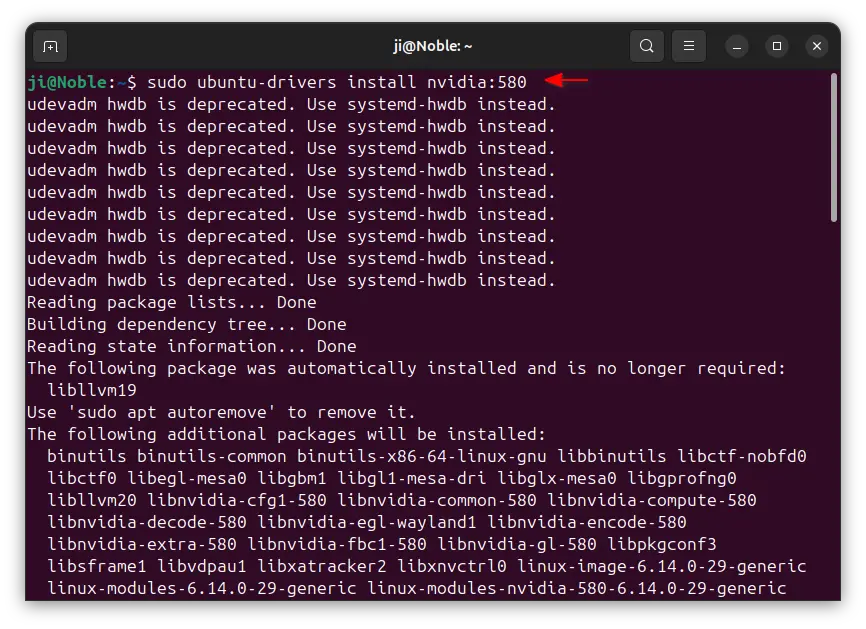
Finally, restart computer and enjoy!
In addition, for Ubuntu with default GNOME Desktop, it by default fall back to Xorg session, you need to manually switch back Wayland session (if need) from login screen.
For NVIDIA Optimus laptop, it by default runs in hybrid mode. You can right-click on an application or game icon and choose “Launching using Discrete Graphics Card” to start it via NVIDIA GPU while leaving all others handled by integrated GPU.
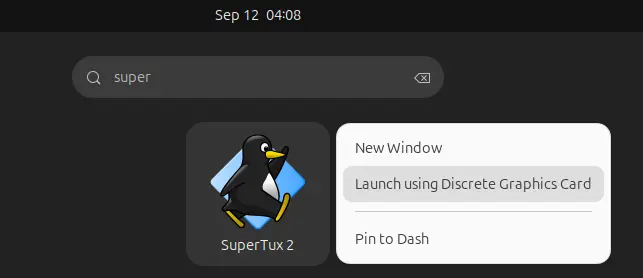
Or, run command below in terminal to set environment variable, so all apps start from that terminal will be rendering via NVIDIA GPU:
export __NV_PRIME_RENDER_OFFLOAD=1 __GLX_VENDOR_LIBRARY_NAME=nvidia
If you want to run Ubuntu desktop with NVIDIA only mode, then launch “NVIDIA Settings” and navigate to PRIME Profiles page to make a switch.
 GNOME 49 brings new apps, lock screen media controls, multi-monitor brightness controls, file manager changes and fractional scaling improvements.
You're reading GNOME 49: New Apps, Lock Screen Features & Design Changes, a blog post from OMG! Ubuntu. Do not reproduce elsewhere without permission.

In June 2025, the Qt team officially rolled out Qt Creator 17, marking a notable milestone for developers who rely on this IDE for cross-platform Qt, C++, QML, and Python work. While there are many changes under the hood, two of the spotlighted improvements are its updated default visual style and significant enhancements in how CMake is supported. Below, we’ll explore these in depth, assess their impact, and offer guidance on how to adopt the new features smoothly.
Before zooming into the theme and CMake changes, here are some of the broader enhancements in version 17 to set context:
The “2024” theme set (light and dark variants) — which first appeared in earlier versions — becomes the foundational appearance for all new installs.
General polish across the UI: icon refreshes, more consistent spacing, and better contrast.
Projects now bind run configurations more tightly to the build configurations. That means selecting a build (e.g. Debug vs Release) also constrains which run configurations apply.
Upgraded C++ tooling (with LLVM 20.1.3), improved QML formatting options, enhanced Python (pyproject.toml) support, and refinements in version control & analysis tools.
With that backdrop, let’s dive into the theme and CMake changes in more detail.
Qt Creator 17 makes the “2024” light and dark themes the standard look & feel for new installations. These themes had been available previously (since Qt Creator 15) but in this version become the out-of-the-box configuration.
Other visual adjustments accompany the theme change:
Icons throughout the IDE have been reviewed and updated so they align better with the new theme style.
UI consistency is improved: spacing, contrast, and alignment between interface elements have been refined so that the environment feels more cohesive.
A theme isn't just aesthetics. The look and feel of an IDE affect user comfort, readability, efficiency, and even fatigue. Some benefits include:
Improved clarity for long coding sessions: better contrast helps in low-ambient light or for users with visual sensitivity.
Consistency across elements: less jarring visual transitions when switching between parts of the interface or when using external themes/plugins.
Reduced setup friction: since the “2024” theme is now default, many users won’t need to hunt down or tweak theme settings just to get a modern, usable look.
Windows Subsystem for Linux (WSL) has gradually become one of Microsoft’s key bridges for developers, data scientists, and power users who need Linux compatibility without leaving the Windows environment. Over recent versions, WSL2 brought major improvements: a real Linux kernel running in a lightweight virtualized environment, much better filesystem behavior, nearly full system-call compatibility, etc. However, until recently, certain high-performance workloads, GPU computing, video encoding/decoding, and very up-to-date kernel features, were either limited, inefficient, or unavailable.
In Windows 11, Microsoft has taken bold strides to remove many of these bottlenecks. Two of the most significant enhancements are:
The ability for WSL to tap into the GPU for acceleration (compute, video hardware offload, etc.), reducing reliance on CPU where the GPU is much more suited.
More seamless Linux kernel upgrades, allowing users to run newer kernel versions inside WSL2, bringing performance, driver, and feature improvements faster.
This article walks through each thing in detail: what has changed, why it matters, how to use it, what limitations still exist, and how these developments shift what’s possible with WSL on Windows 11.
Before diving into recent changes, it helps to understand what WSL (especially WSL2) already provided, and where it lagged.
WSL1: Early versions translated Linux system calls to Windows equivalents. Good for basic command-line tools, scripts, but limited in compatibility with certain networking, kernel module, filesystem, and performance-sensitive tasks.
WSL2: Introduced a real Linux kernel inside a lightweight VM (Hyper-V or a similar backend), better system-call compatibility, better performance especially for Linux tools, and much improved behavior for things like Docker, compiling, etc. Still, heavy workloads (e.g. ML training, video encoding, hardware-accelerated graphics) were constrained by CPU support, lack of passthrough of GPU features, older kernels, etc.
So developers were pushing Microsoft to allow more direct access to GPU functionality (CUDA, DirectML, video decoding), and to speed up how kernel updates reach users.
GPU acceleration here refers to WSL’s ability to offload certain computation or video tasks from the CPU to the GPU, enabling faster, more efficient execution. This includes:
Compute workloads - frameworks like CUDA (for NVIDIA), DirectML, etc., so that things like deep learning, scientific computing, data-parallel tasks run much faster. Microsoft now supports running NVIDIA CUDA inside WSL to accelerate ML libraries like PyTorch, TensorFlow.
The top command (referred to below as Linux top) is a command on Unix and Unix-like systems such as Linux, which provides a dynamic real-time overview of a running system.
A rundown of new features in development for Firefox, including visual image search, more sponsored results in the URL bar, and (of course) more AI integration.
You're reading Firefox Adding Google Lens, Stock Data, AI “Page Buddy” Features, a blog post from OMG! Ubuntu. Do not reproduce elsewhere without permission.

For GNOME users who don’t like the default workspace switch animation, here’s an extension that can help!
When switching workspace (virtual desktop), the transition acts like sliding the desktop wallpaper along with the apps. This is “Sliding Panel” effect that’s also (seems to be) default in Windows and macOS.
If you like, it’s easy to use Android/iOS style swipe left or right switching home screen pages animation. In the case, the wallpaper is static during transitions, it works like only switching the app windows on your desktop.
This can be implemented by an extension called Static Workspace Background. And, here’s how to install it in Ubuntu 24.04, 25.04 and 25.10.
NOTE: This extension only works in Ubuntu and other Linux with GNOME Desktop!
The extension so far supports GNOME 48 and 49, though it’s working good in my case in GNOME 46.
For Ubuntu 25.04 and 25.10, first launch App Center then search & install Extension Manager (filter by Debian package).
Next, use Extension Manager to search & install the “Static Workspace Background” extension under Browse tab and done!
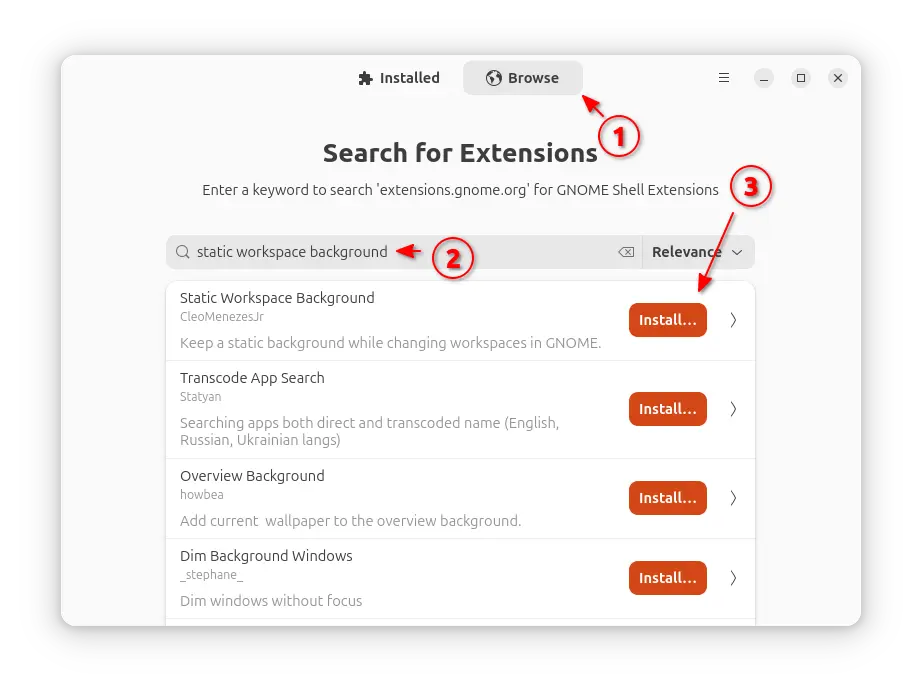
Install via Extension Manager
The extension (version 49.0) so far works good in my case in Ubuntu 24.04 with GNOME 46, though it’s not officially supported.
1. First, go to the extension page in extensions.gnome.org (EGO):
In the “Download” section of the page, choose a Gnome version (e.g., v48) and select extension version 49.0 to download it.
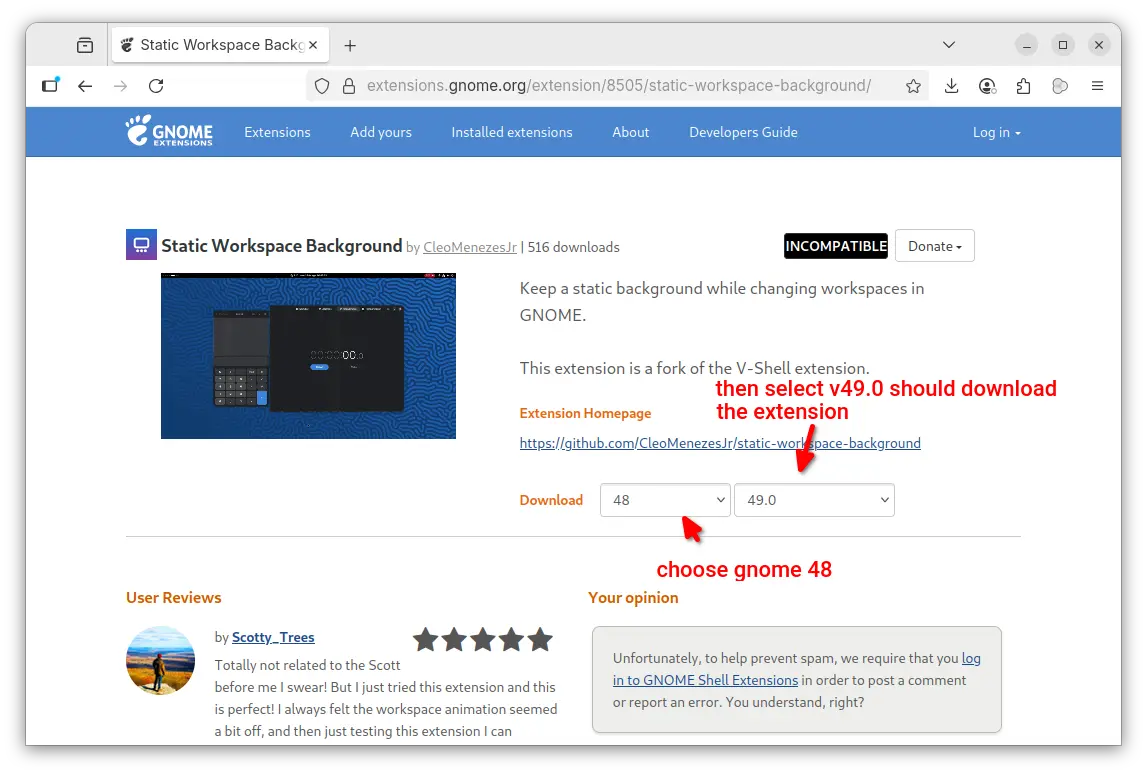
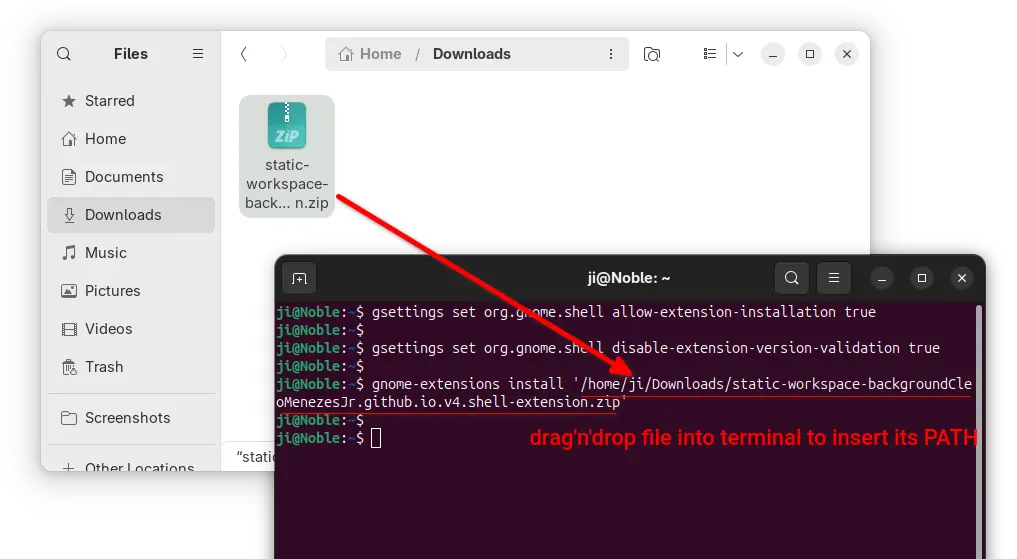
2. Once you downloaded the extension package (usually .zip archive), press Ctrl+Alt+T to open terminal and run commands below one by one to install.
gsettings set org.gnome.shell allow-extension-installation true
gsettings set org.gnome.shell disable-extension-version-validation true
gnome-extensions install /path/to/zip-archive
Here replace /path/to/zip-archive by drag’n’dropping it from file manager into terminal!
3. (Optional) After that, you have the extension installed to ./local/share/gnome-shell/extensions directory.
In case you want to re-enable the validation of extension version afterwards, run the command below to edit the metadata of that extension:
gnome-text-editor ~/.local/share/gnome-shell/extensions/static-workspace-background\@CleoMenezesJr.github.io/metadata.json
When file opens, either add “46” in “shell-version” section or simply replace any GNOME version (e.g., 49) to 46.
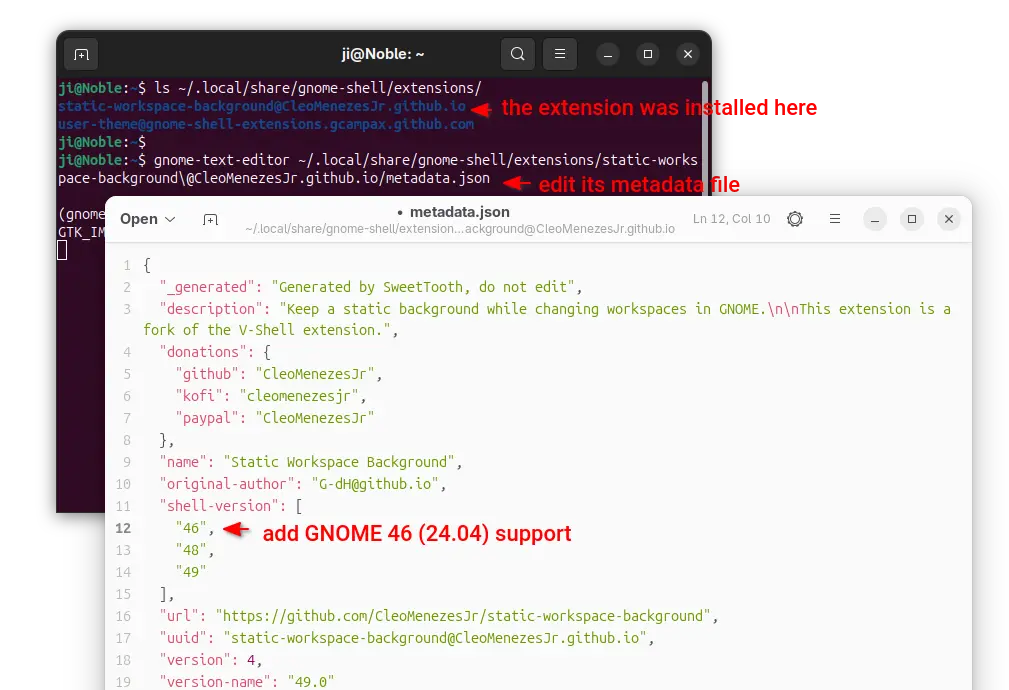
Then save the file, and re-enable the extension version compatibility validation if you want:
gsettings reset org.gnome.shell disable-extension-version-validation
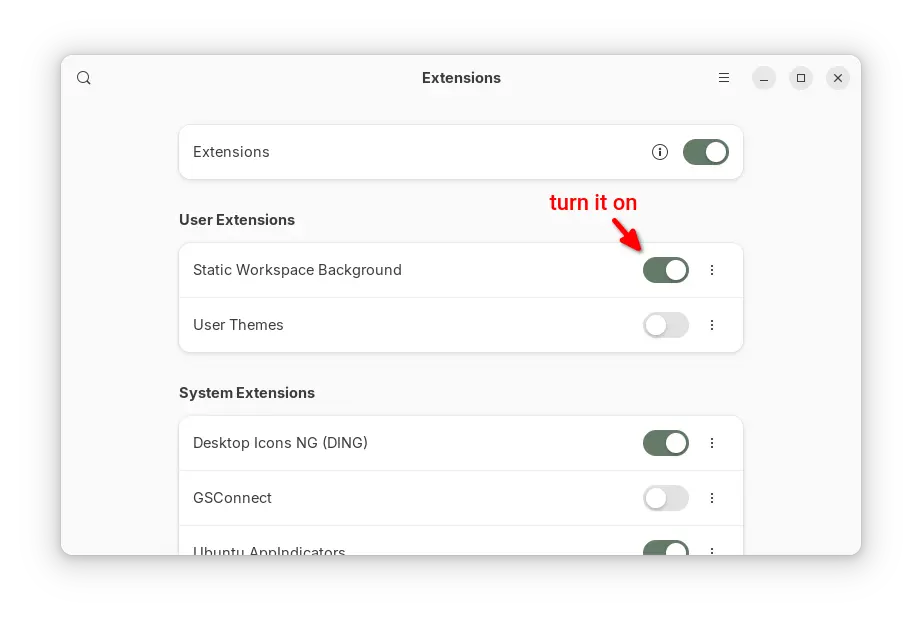
4. Finally, log out and back in. Launch either “Extension Manager” or “Gnome Extensions” app (both available in App Center) to enable the extension.
Warzone 2100, the free open-source 3D real-time strategy game, released new major 4.6.0 version few days ago.
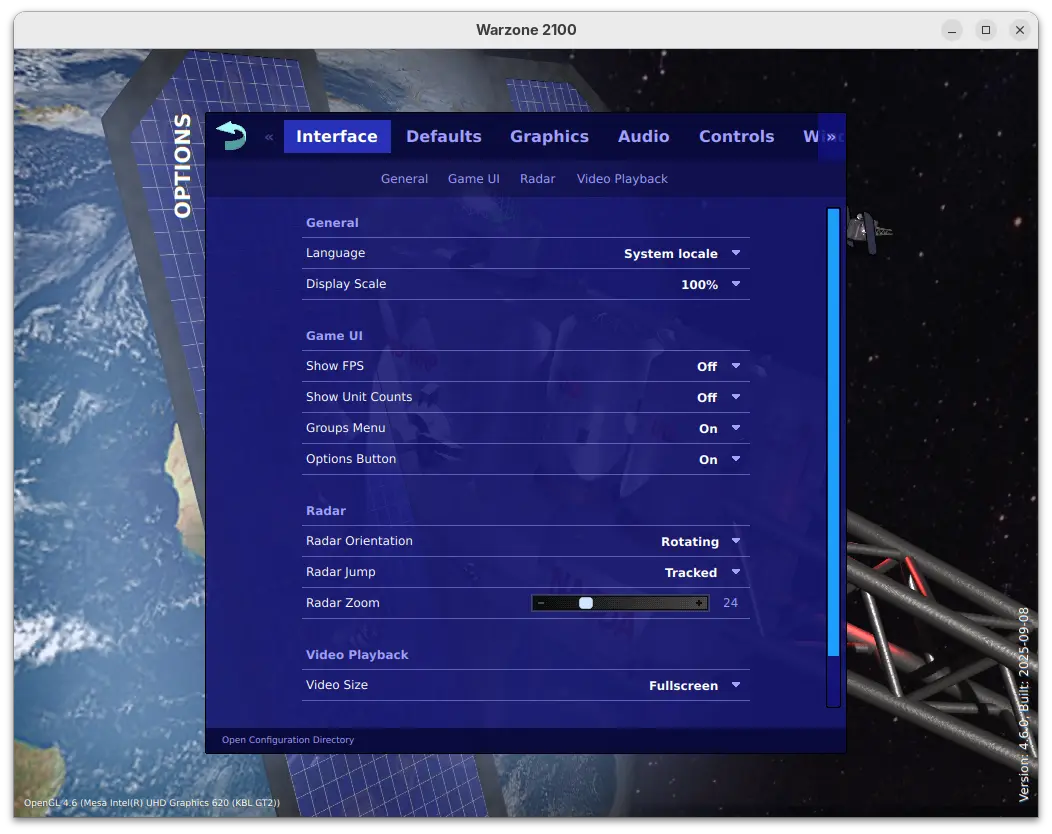
This is a big release that features revamped options menu. The options menu now has a clean design with reorganized options, which as well introduced many new toggle options, such as show FPS / Unit Counts, Group Reporting, Radar Zoom, default AI and more.
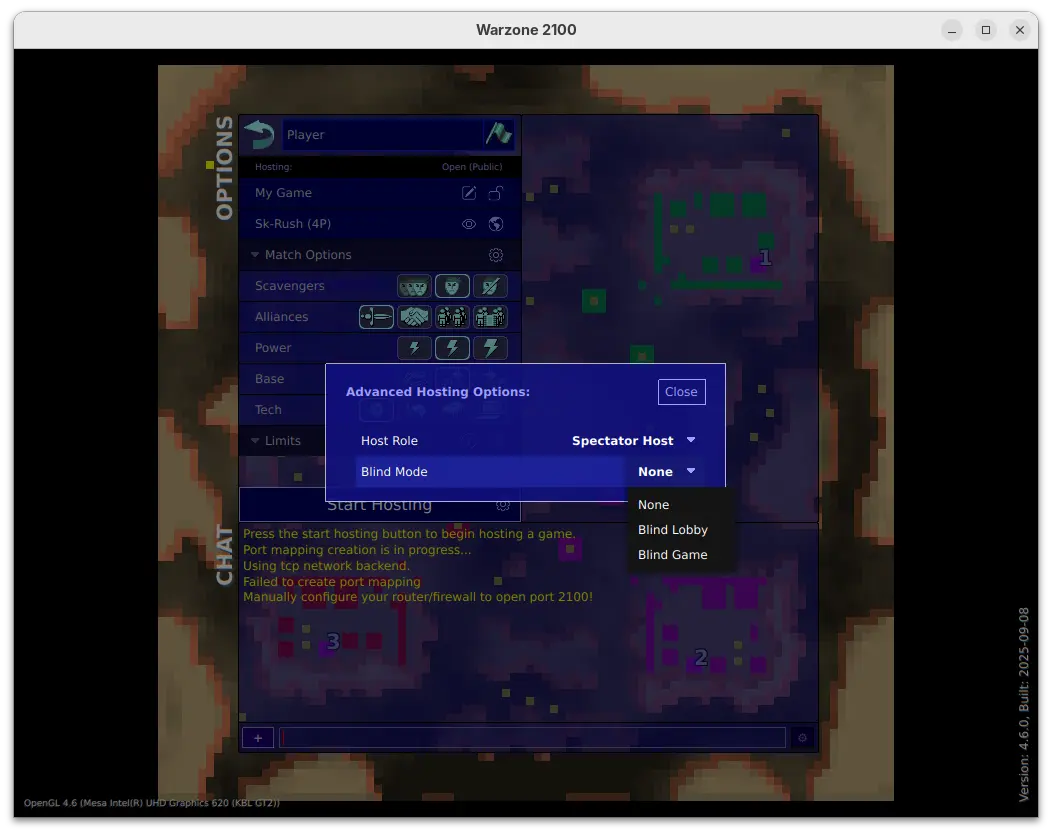
For multi-player mode, the release added option to start hosting in Spectator Host mode, in which case the host is a spectator in the game.
When start hosting in this mode, it also allows to set blind lobby mode to hide players’ true identities until the game starts, or blind game to hide players’ true identities until the game ends, while the host (as a spectator) can see them in both modes.
The 4.6.0 release also massively improved high-quality water effects, improved the performance for loading, path-finding, target selection, networking, and high-object-count situations.
It revamped Lobby game browser with new design, more filtering options, more room information, and increased responsiveness. And, it now automatically attempts multiple graphics backends on first-run, and defaults to Vulkan in more cases, when possible.
For Windows, it now provides single .exe installer (instead of three) to install the game on all the X86, X86_64, and ARM64 computers, along with option to choose install for either all users or current user only.
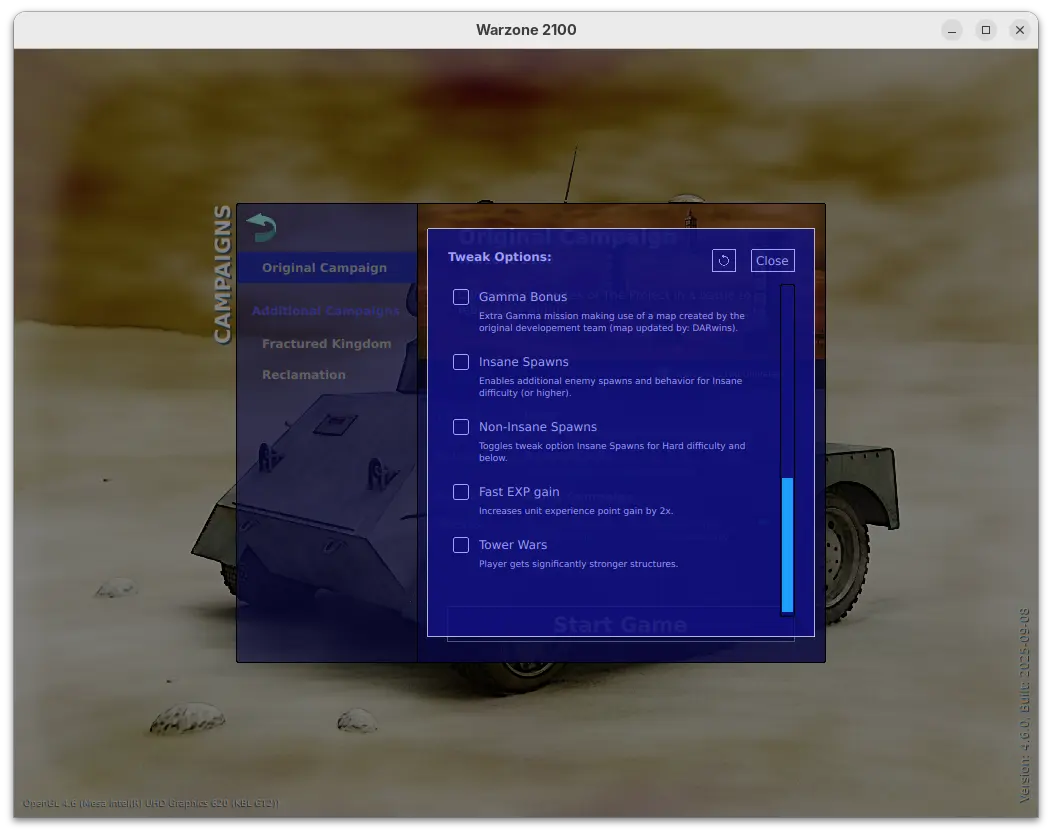
Warzone 2100 also introduced many additional tweak options for the Original Campaign. They include:
There are as well many in game changes, including:
For more, see the official release note.
The official installers for Linux, macOS, ans Windows are available to download at the link below (under Assets section):
For Ubuntu 22.04 and Ubuntu 24.04 on modern Intel/AMD platform, select download the .deb package then click open & install via either Ubuntu Software or App Center.
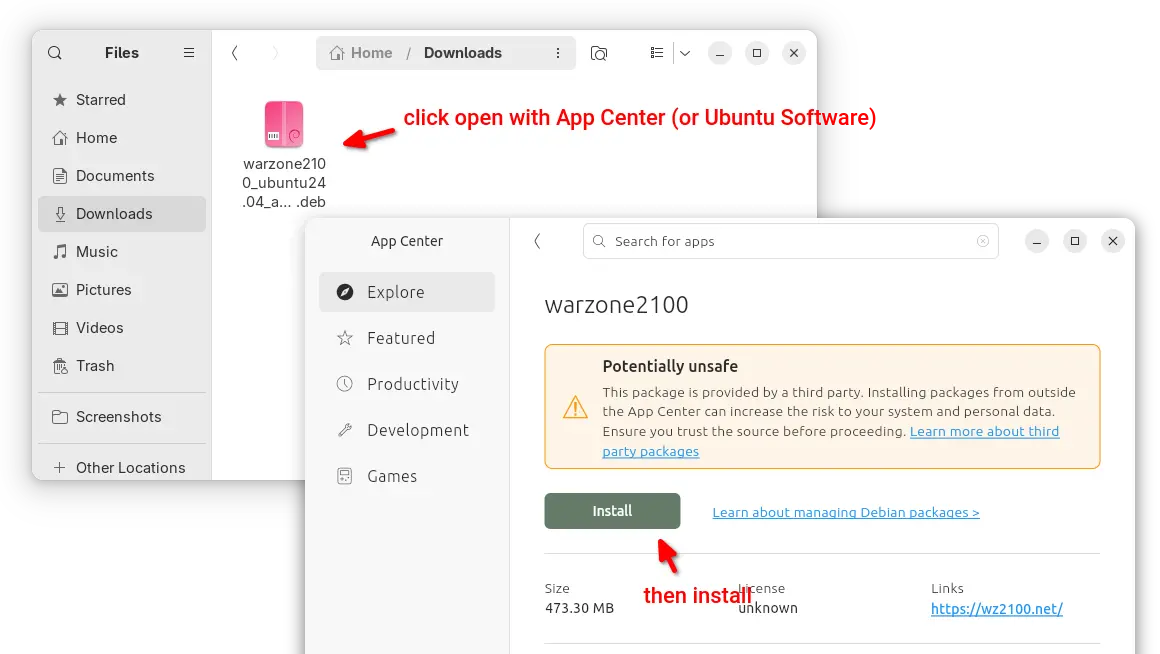
Warzone 2100 DEB package
For all Ubuntu editions on Intel/AMD and ARM64, user may also choose install the Snap package (runs in sandbox) from App Center or Ubuntu Software.
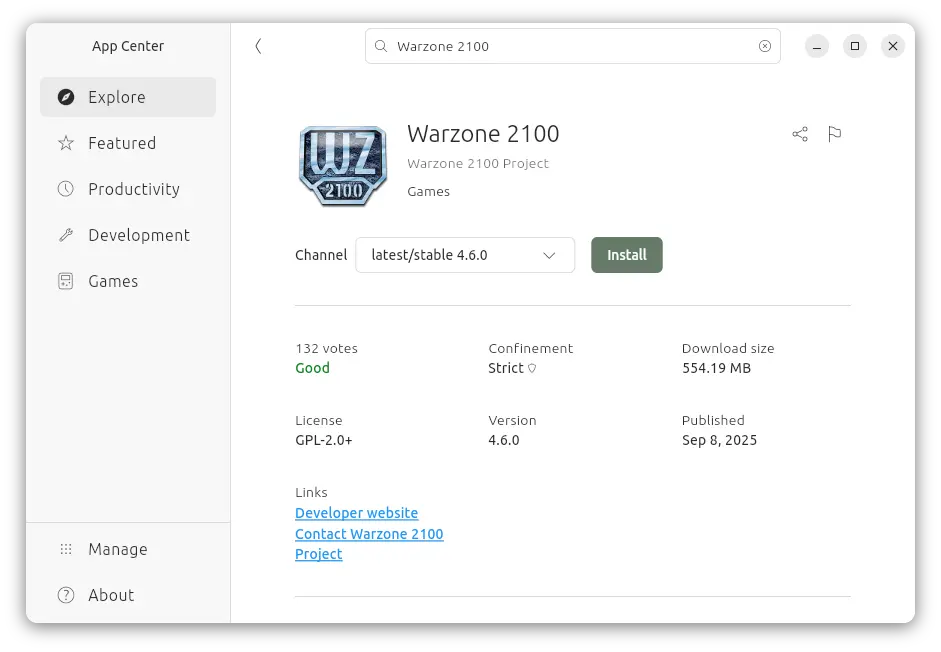
warzone 2100 Snap package
While, there’s also Flatpak package (also runs in sandbox) available to install in most Linux desktops.
Efficiently managing files and directories is a fundamental task in computing. It’s crucial for keeping our data organized, optimizing storage space, and facilitating smooth data transfers.
The tar command (short for Tape Archive) is one of the most widely used utilities in Linux for archiving multiple files and directories into a single file (an archive).
As a Linux user, you may eventually run into a situation where your root partition (/) runs out of space,
The post How to Extend Root Partition in Linux first appeared on Tecmint: Linux Howtos, Tutorials & Guides.