โŒ

Normal view

How to Install Caddy and Set Up Caddyfile Reverse Proxy

14 September 2025 at 02:00

Unlike traditional servers that require dozens of lines just to get started, a Caddyfile reverse proxy can be configured in as few as three lines while automatically handling HTTPS certificates. Whether youโ€™re looking for a Caddyfile reverse proxy Docker Compose setup or need to configure Caddy WebSocket proxy configuration, this guide covers every scenario. A [โ€ฆ]

The post How to Install Caddy and Set Up Caddyfile Reverse Proxy appeared first on LinuxShout.

What is nproc and nofile in ulimits?

12 September 2025 at 15:37

Quick Answer: nproc limits control the maximum number of processes/threads a user can create (default: 1024โ€“4096), while nofile limits restrict the maximum number of open file descriptors per process (default: 1024). Both are critical Linux resource limits that prevent system overload and ensure stability. Configure them via /etc/security/limits.conf or systemd service files. Every Linux system [โ€ฆ]

The post What is nproc and nofile in ulimits? appeared first on LinuxShout.

How to Fix โ€œcdrom:// Debian GNU/Linux 13.1.0 Trixie DVDโ€ Error in APT

11 September 2025 at 22:40

Recently, after installing Debian 13 (Trixie) using a DVD or ISO, when I tried to update the system by running the sudo apt update command, I got this error: This is not something that only happened with Debian 13, but also with other versions. So, what is this error, and why does it appear? In [โ€ฆ]

The post How to Fix โ€œcdrom:// Debian GNU/Linux 13.1.0 Trixie DVDโ€ Error in APT appeared first on LinuxShout.

How to Upgrade Debian 12 Bookworm to 13 Trixie

11 September 2025 at 18:02

The transition from Debian 12 โ€œBookwormโ€ to Debian 13 โ€œTrixieโ€ represents a significant milestone in the Debian ecosystem, bringing enhanced performance, updated packages, and improved security features that make the upgrade worthwhile for both personal and enterprise systems. Whether youโ€™re a seasoned system administrator managing critical infrastructure or a Linux enthusiast running Debian on your [โ€ฆ]

The post How to Upgrade Debian 12 Bookworm to 13 Trixie appeared first on LinuxShout.

How to install Chrome browser on Debian 13 Trixie Linux

10 September 2025 at 14:34

Installing Google Chrome on Debian 13 is similar to setting it up on Ubuntu or other distributions. However, with the right approach, you can have it running smoothly in minutes. As a Linux system administrator who has deployed Chrome across multiple Debian workstations and servers, I present a detailed tutorial on every possible way to [โ€ฆ]

The post How to install Chrome browser on Debian 13 Trixie Linux appeared first on LinuxShout.

Install Chromium browser Debian 13 | 12| 11 Linux

10 September 2025 at 14:18

The steps provided here for installing Chromium on Debian 13, 12, and 11 will also work for Debian 10 Buster and other previous versions, including Ubuntu, Linux Mint, MX Linux, Kali Linux, and more.ย  Chromium is an open-source browser from Google, on which โ€œGoogle Chromeโ€ is based. With this web app, developers and users always [โ€ฆ]

The post Install Chromium browser Debian 13 | 12| 11 Linux appeared first on LinuxShout.

16 popular Open-Source Tools to Secure Your Linux Server

9 September 2025 at 21:12

Since I started learning about computers, I have heard many experienced users say Linux is impenetrable, Linux offers the best security, and so on. It is partly true that Linux offers various security measures that mitigate attacks and stop hackers from breaching your system network. However, you should also understand that simply deploying Linux on [โ€ฆ]

The post 16 popular Open-Source Tools to Secure Your Linux Server appeared first on LinuxShout.

Firewall vs. firewalld: Understanding the Difference and Choosing the Right Tool

7 September 2025 at 02:28

When managing network security on Linux systems, understanding the distinction between a firewall and firewalld is quite vital for effective system administration. While these terms might sound similar, they represent fundamentally different concepts in the Linux security ecosystem. A firewall is a broad term referring to any network security systemโ€”whether software or hardwareโ€”that monitors and [โ€ฆ]

The post Firewall vs. firewalld: Understanding the Difference and Choosing the Right Tool appeared first on LinuxShout.

How to install FirewallD GUI on Rocky Linux | Almalinux 9/8

7 September 2025 at 01:24

In this article, we will learn the simple steps and commands to install a graphical user interface (GUI) for managing FirewallD on either AlmaLinux or Rocky Linux 9/8. However, the steps are the same for CentOS, Red Hat, Oracle Linux, and other RPM-based distros. FirewallD is a command-line tool to provide a system firewall feature [โ€ฆ]

The post How to install FirewallD GUI on Rocky Linux | Almalinux 9/8 appeared first on LinuxShout.

VS Code 1.104 Added Auto Model Selection & Sign in with Google Account

By:Ji m
13 September 2025 at 23:59

Visual Studio Code 1.104, the August release of Microsoftโ€™s code editor, was released few days ago.

The new release introduced Auto AI model selection support (Preview feature), allowing to automatically choose between Claude Sonnet 4, GPT-5, GPT-5 mini, and GPT-4.1 models, to get the optimal performance and reduce rate limits.

And, user can view the selected model and the model multiplier by hovering over the response in the Chat view.

In agent mode, the agent now explicitly asks for user confirmation before making edits to certain files. And you can configure file patterns to indicate which files require confirmation with chat.tools.edits.autoApprove setting.

The release also improved GitHub coding agent integration with chat editor actions, seamless transitions, better session rendering, and performance boosts. And, it enhanced chat sessions view with status bar tracking, multi-session support, rich descriptions, and expanded context menus.

The #codebase tool has been updated to use a new embeddings model for semantic searching for code in workspace, providing better results, while using less storage space (only 6% compare to previous model).

Other AI changes in VS Code 1.104 include:

  • Support for AGENTS.md files (Experimental).
  • Use custom chat mode in prompt file.
  • Support changing font family and font size of chat messages.
  • Sign in or sign up to GitHub Copilot with Google account is GA.
  • Add warning first time to enable global auto approve.
  • New setting for disabling and hiding GitHub Copilot AI features.
  • Add more terminal tools to core.
  • Math rendering in chat responses is GA and enabled by default.
  • Enhance terminal auto-approve usability and security.
  • Enable or disable each tool individually.

Besides AI changes, the release also added support configuring the color of window borders in Windows. User can choose to respect color theme settings, Windows settings, disable border colors, and a specific color in Hex, RGB, RGBA, HSL, HSLA format.

It added Accounts: Manage Extension Account Preferences command to the Command Palette, new setting to show tab index, ability to toggle editor tab bar scoll-bar visibility, as well as new โ€œCeate on GitHubโ€ and โ€œPreview on Githubโ€ buttons in built-in issue reporter.

The code editor can now reads and includes MCP server instructions in base prompt. It includes new setting options to allow all MCP servers or disable MCP entirely. And, it now disables MCP auto discovery by default.

As well, it improved NES suggestion by adding new setting to allow the language model to access the entire notebook, thus it will generate more accurate and higher-quality next edit suggestions.

Other changes include:

  • add Focus Chat Confirmation action.
  • new setting to configure how quickly inline suggesstions appear after you type.
  • add โ€œCompare with Workspaceโ€ context menu option for worktree file, and Migrate Worktree Changesโ€ฆ command
  • remove the built-in bower.json IntelliSense
  • add Python Environments extension support for Pipenv
  • new experimental AI hover summaries for Python with latest Pylance.
  • Pylance IntelliSense enabled in all Python documents
  • finalized Language Model Chat Provider API
  • And much more!

Get VS Code 1.104

The official release note, and download links for Windows, MacOS, and Linux are available via the link below:

Ubuntu users may either search & install the Snap package from App Center (or Ubuntu Software for 22.04), or download the deb package from the link above.

While, a community maintained flatpak available is available for choice. See this guide for how to install them.

Dash to Panel Update Adds GNOME 49 Support + More

14 September 2025 at 05:29

The words "Dash to panel" in white text surrounded by a box.Popular GNOME Shell extension Dash to Panel is updated for GNOME 49, but all of its changes, fixes and improvements are available on earlier releases too.

You're reading Dash to Panel Update Adds GNOME 49 Support + More, a blog post from OMG! Ubuntu. Do not reproduce elsewhere without permission.

Linux Mint 22.3 Plans App Menu Revamp, Better Wayland Support

14 September 2025 at 02:57

Linux Mint 22.3 is due for release in December, and we just got our first idea of what's planned: redesigned app launcher, new applets, and Wayland integration.

You're reading Linux Mint 22.3 Plans App Menu Revamp, Better Wayland Support, a blog post from OMG! Ubuntu. Do not reproduce elsewhere without permission.

Ubuntu Added NVIDIA 580 Driver Support for 24.04, 22.04 & 25.04

By:Ji m
12 September 2025 at 20:29

For user with NVIDIA graphics card, Ubuntu finally added official NVIDIA 580 driver packages for all current Ubuntu releases.

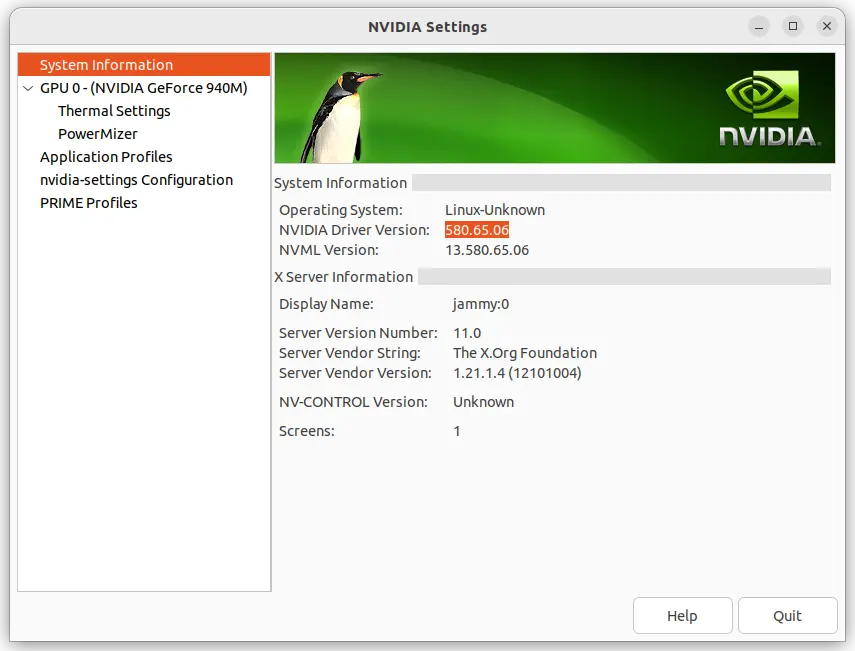
As you may know, NVIDIA 580 is so far the latest driver series for Linux, that was initially released one month ago. Itโ€™s a production branch driver qualified for enterprise and data center GPU use.

The 580 driver features Wayland fifo-v1 protocol support for apps/games running via Vulkan API, reducing visual inconsistencies and potential stuttering.

It enabled RMIntrLockingMode feature by default, which can help reduce stutter especially when using virtual reality (VR). As well, it implemented a feature to reduce time spent in the interrupt top half for low latency display interrupts by deferring the work until later. See HERE for more.

With NVIDIA 580.82.07, it also supports NVIDIA Smooth Motion on GeForce RTX 40 Series GPUs!

Install NVIDIA 580 driver in Ubuntu

Ubuntu made NVIDIA 580 driver (so far 580.65.06) package into the proposed repository for testing few weeks ago. Now, it finally goes official. And, you may install it by following steps.

1. Enable Restricted and Multi-verse repository

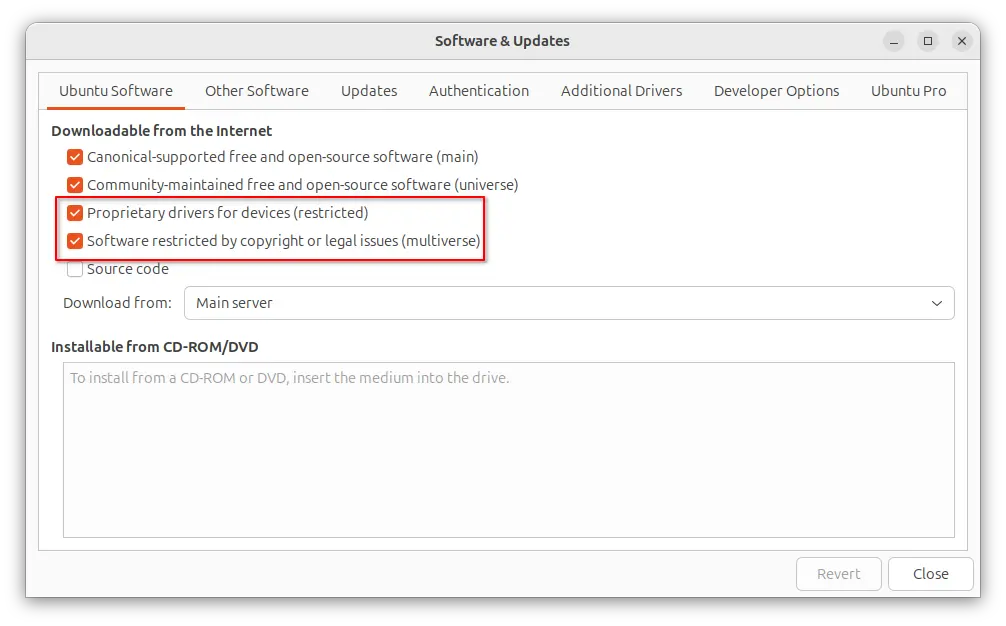
The proprietary driver is available through the restricted and multiverse repositories. They are usually enabled by default in Ubuntu desktop.

Just in case, you may launch โ€œSoftware & Updatesโ€ utility to ensure:

Or, run the command below for Ubuntu Server to enable them:

sudo add-apt-repository restricted multiverse

You need to install software-properties-common package if the command does not work.

2. Update your system.

Before installing the driver, itโ€™s better to install all available system updates, especially kernel updates (usually minor version updates), to prevent potential failure.

To do so, either use Software Updater or run the commands below in terminal (Ctrl+Alt+T):

sudo apt update

sudo apt upgrade

If thereโ€™s a kernel updates, restart computer to boot the new kernel.

3. Install NVIDIA 580 driver

NOTE: The driver version so far is nvidia 580.65.06. If you canโ€™t wait to getย 580.82.07 for NVIDIA Smooth Motion support on RTX 40 series GPUs, or youโ€™re on old Ubuntu 20.04|18.04, then run command below to add the popular โ€œGraphics Driversโ€ team PPA, which however is not officially supported.

sudo add-apt-repository ppa:graphics-drivers/ppa

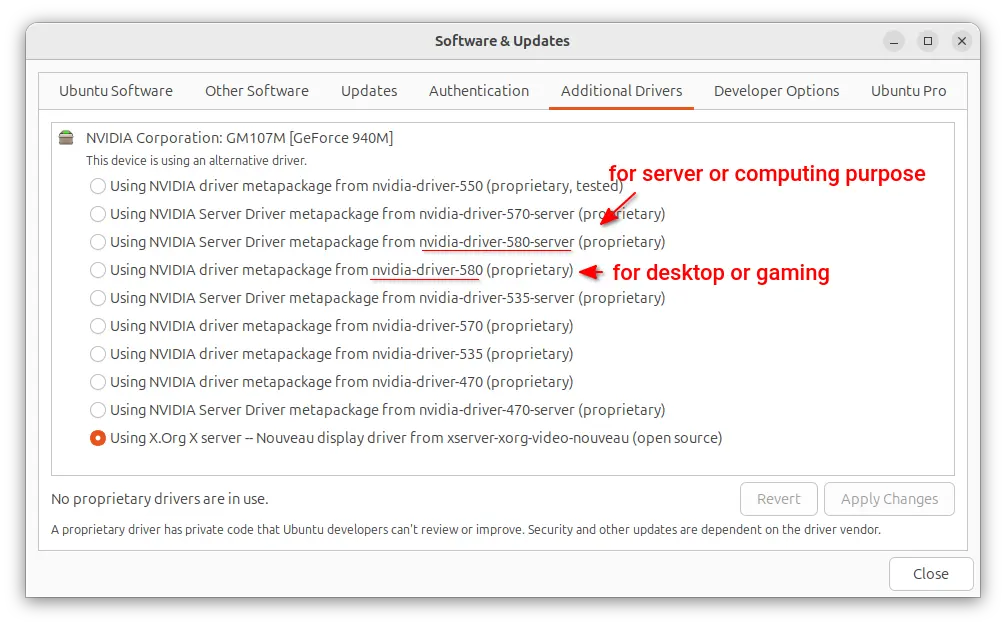
For Ubuntu Desktop, you may now launch โ€œAdditional Driversโ€ utility, then select either driver below:

  • nvidia-driver-580 for general desktop and gaming purpose.
  • nvidia-driver-580-server for Ubuntu Server or computing purpose.

Then, click โ€œApply Changesโ€ and ย restart computer when installation done!

For server without GUI, simply run the commands below one by one to install the driver.

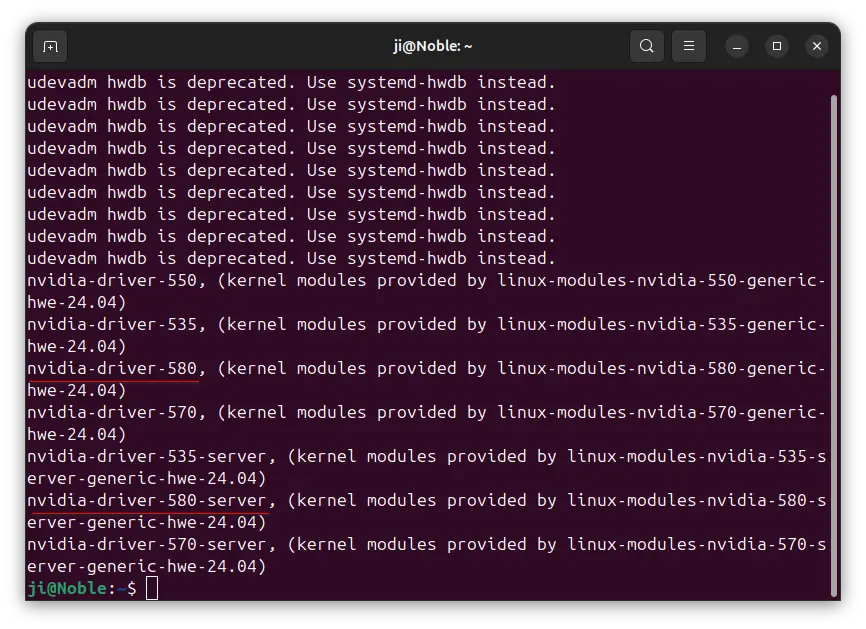
  • First, list all available drivers via command:
    sudo ubuntu-drivers list

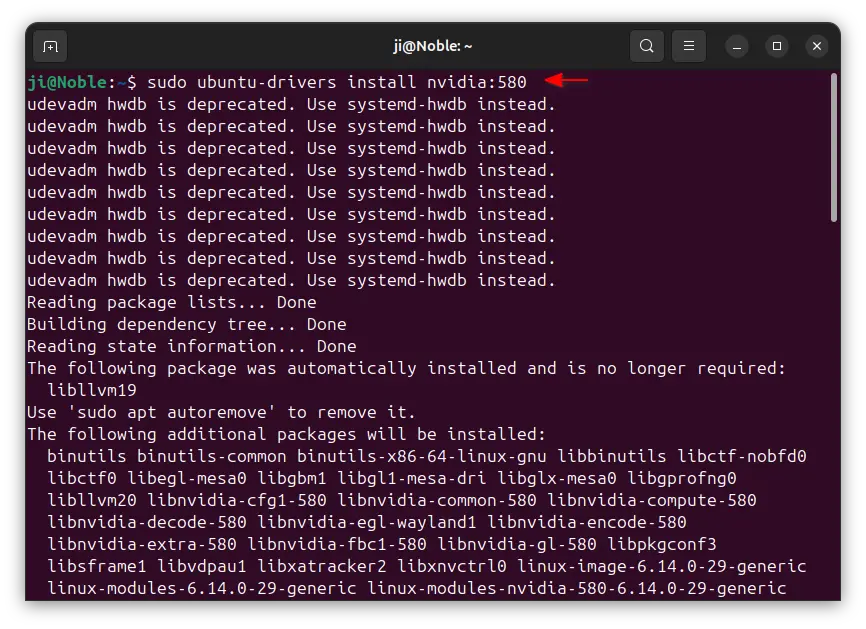
    Skip the ย โ€œudevadm hwdb is deprecated. Use systemd-hwdb instead.โ€ output. Itโ€™s a warning that does not matter.

  • Then, either install the desktopย  or gaming use driver via command:
    sudo ubuntu-drivers install nvidia:580

    Or, install the server or computing purpose driver:

    sudo ubuntu-drivers install --gpgpu nvidia:580-server

Finally, restart computer and enjoy!

In addition, for Ubuntu with default GNOME Desktop, it by default fall back to Xorg session, you need to manually switch back Wayland session (if need) from login screen.

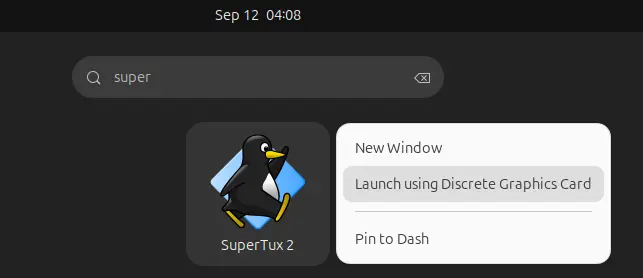
For NVIDIA Optimus laptop, it by default runs in hybrid mode. You can right-click on an application or game icon and choose โ€œLaunching using Discrete Graphics Cardโ€ to start it via NVIDIA GPU while leaving all others handled by integrated GPU.

Or, run command below in terminal to set environment variable, so all apps start from that terminal will be rendering via NVIDIA GPU:

export __NV_PRIME_RENDER_OFFLOAD=1 __GLX_VENDOR_LIBRARY_NAME=nvidia

If you want to run Ubuntu desktop with NVIDIA only mode, then launch โ€œNVIDIA Settingsโ€ and navigate to PRIME Profiles page to make a switch.

For bugs and other issues, please report to HERE or HERE.

โŒ