 Login
LoginHow to Get Notified on SSH Logins on Linux
5 October 2025 at 04:21


Check in for a recap of Linux app releases in September 2025, including updates to gThumb, Apostrophe, Rio Term, MPD Client Euphonica and more!
You're reading Linux App Release Roundup (September 2025), a blog post from OMG! Ubuntu. Do not reproduce elsewhere without permission.
Linux Mint users can expect an easier time switching between keyboard layouts and input methods in the next version of the GTK-based Cinnamon desktop.
You're reading Linux Mint Improves Keyboard and Input Switching for Cinnamon, a blog post from OMG! Ubuntu. Do not reproduce elsewhere without permission.
If you see the "unable to capture a screenshot, all possible methods failed" error when using GNOME Screenshot in Ubuntu, it is not a bug – but by design.
You're reading Why the (Old) GNOME Screenshot App Doesn’t Work in GNOME 49, a blog post from OMG! Ubuntu. Do not reproduce elsewhere without permission.
A new version of the Raspberry Pi Imager, a cross-platform and open source Qt-based image flashing tool is available for testing — with a BRAND NEW look.
You're reading Raspberry Pi Imager 2.0 Enters Testing with a Brand New Look, a blog post from OMG! Ubuntu. Do not reproduce elsewhere without permission.
Ubuntu 25.10 no longer includes the “Startup Applications” utility! Here’s a beginner guide shows how to run apps, custom scripts or commands automatically at login through alternative methods.
Ubuntu has a “Startup Applications” tool, allowing to easily add, remove, and edit items that run at user login. Due to upstream (meaning GNOME) changes, it has finally been dropped in 25.10.
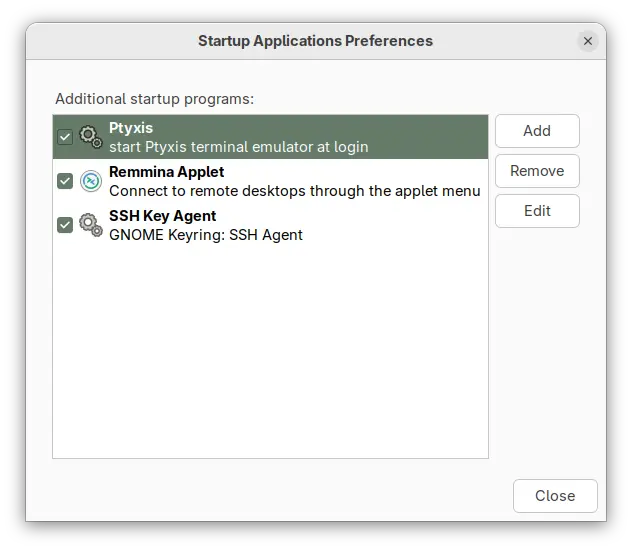
Startup Applications tool no longer available in 25.10
The new way to auto start apps, is using GNOME Control Center (aka Settings) by navigating to ‘Apps’ setting page, choose an app, and turn on the “Autostart” toggle switch. While, Gnome Tweaks also provides similar function to do the job.
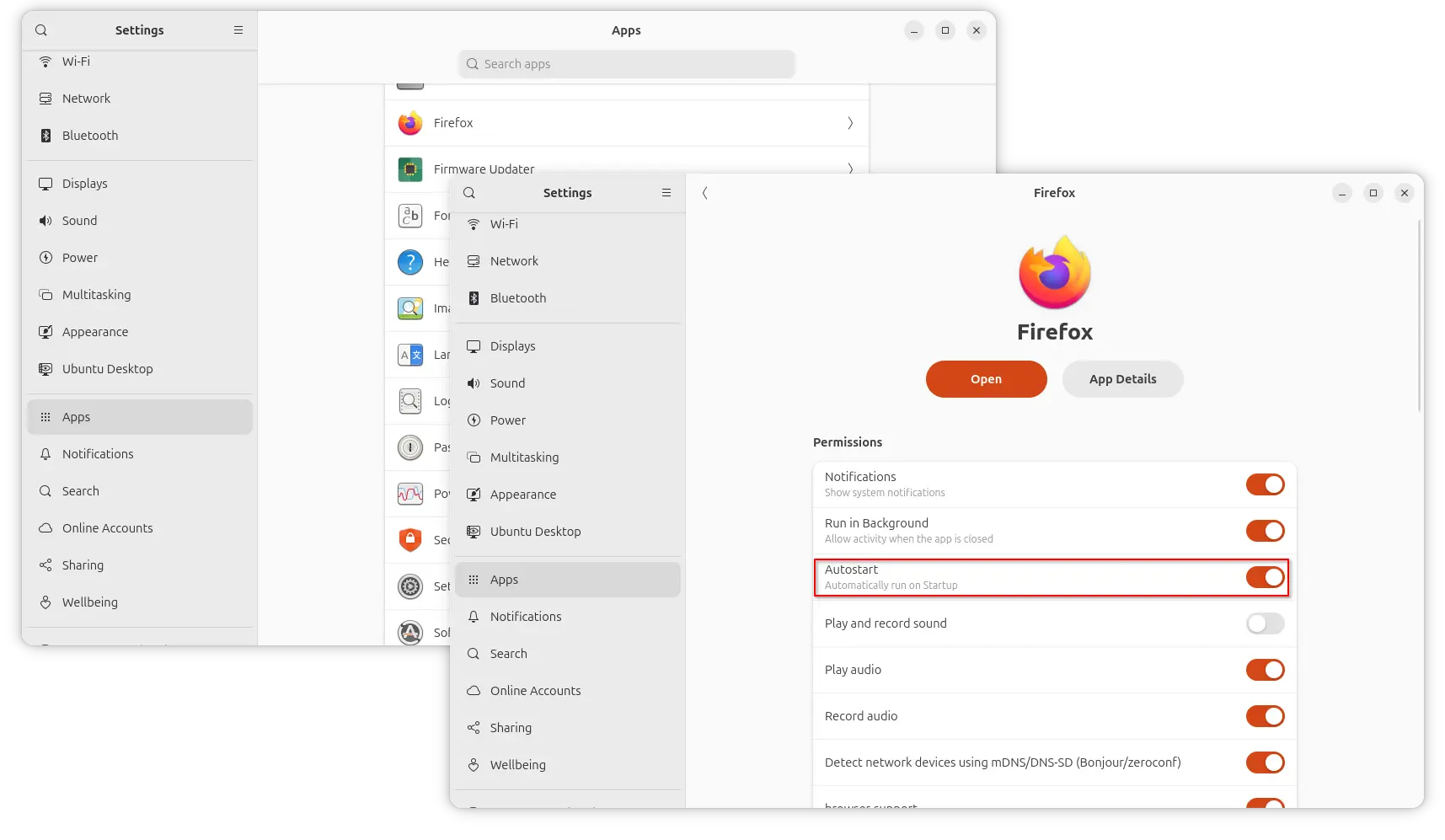
Autostart apps in Ubuntu 25.10 (GNOME 49)
But, what if you want to auto-start app with custom options, or auto-run custom commands/scripts at login?
Here are 2 alternatives to do the job:
.desktop configuration file.As you may know, all the app icons you see in Gnome app grid, dock, or other app launchers in most popular Linux distributions are handled by .desktop files under /usr/share/applications, .local/share/applications, etc directories.
Similarly, auto-start apps are handled by the .desktop files under either /etc/xdg/autostart or .config/autostart directories.
And, when you turn on “Autostart” toggle switch for an application in Settings (Gnome Control Center), it will automatically create a file under .config/autostart linked to the .desktop file for that app icon.
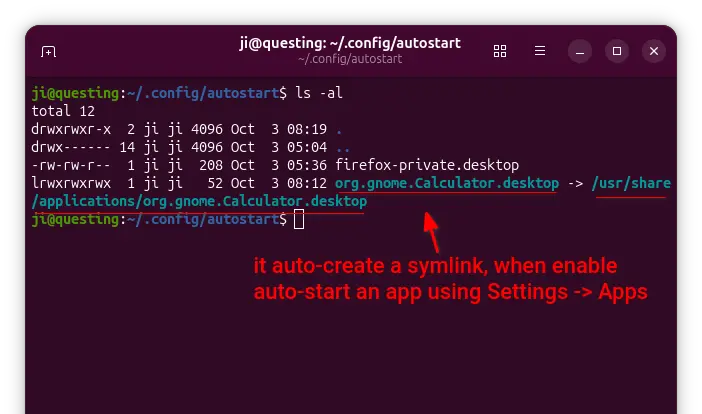
If you want to auto-run custom commands or scripts at login, then just create .desktop files in that directory with following steps.
NOTE: for those hate Linux commands, open file manager and press Ctrl+H to show hidden files/folders, then do following steps accordingly.
1. Create the directory. The ~/.config/autostart directory does not exist out-of-the-box. You may either enable an auto-start app via Settings to auto-create it, or open terminal (Ctrl+Alt+T) and run command below to create:
mkdir -p ~/.config/autostart
2. Create & edit custom .desktop file. Next, run command to create a .desktop file, “firefox-private.desktop” for example, and edit via nano command line text editor:
nano ~/.config/autostart/firefox-private.desktop
When file opens, write following content and edit accordingly:
[Desktop Entry]
Type=Application
Exec=sh -c "sleep 30; firefox --private-window https://www.google.com"
Hidden=false
Name=Firefox Private Mode
Comment=Open google.com automatically in Firefox private window.
In the case, it will auto-launch Firefox in private mode and open Google.com automatically, with 30 seconds delay after login.
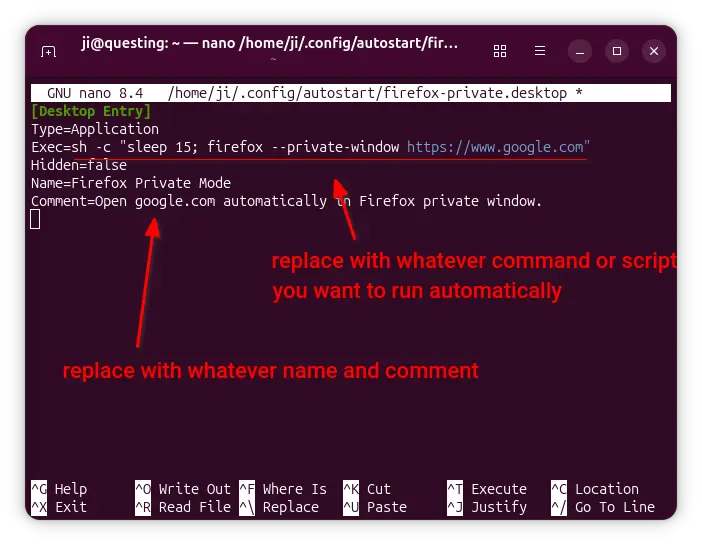
According what you want to run, you need to replace the command for “Exec“, and edit the ‘Name’ and ‘Comment’ as you want. For example, use:
Exec=/home/ji/Documents/myscript to run my script under user Documents directory.Exec=sh -c "$HOME/Documents/myscript" to run the same script, but here “sh -c” command interpreter is required so it knows what is $HOME.Exec=update-manager --install-all to auto-launch Software Updater and install all available updates.Tips:
sleep in command to add time delay in seconds..desktop file, just like it’s deleted.Terminal=true if the command need to run in a terminal.After created and edited the file, press Ctrl+S to save and Ctrl+X to exit, and verify if it works by logging out and back in.
To make things simple, there are few third-party graphical tools can do the job managing startup apps and scripts.
As far as I know, the free open-source Ignition tool is a good choice which provides a simple and modern user interface to add, remove, and modify startup entries.
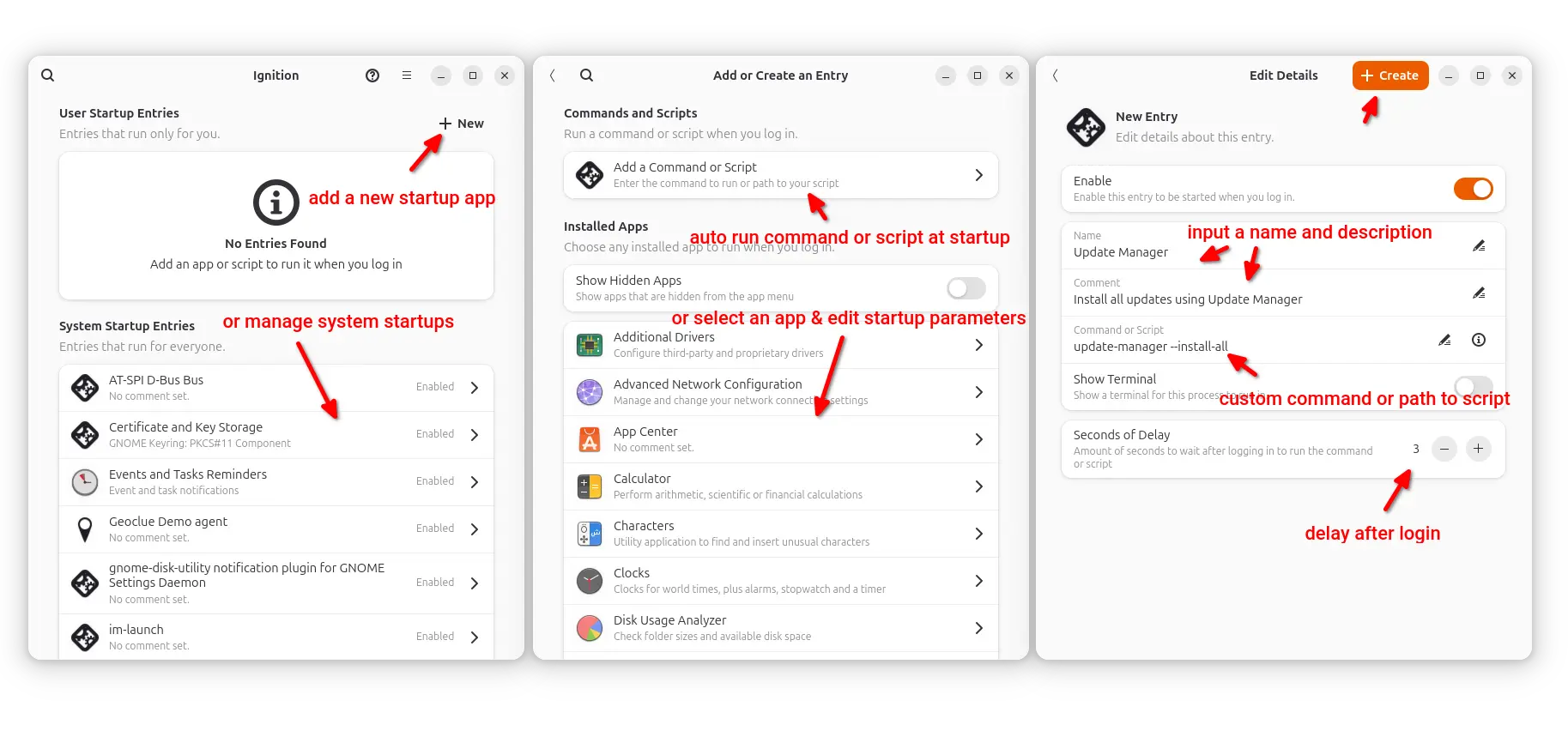
As you see in the screenshot, it provides a GTK4 and LibAdwaita interface, with ability to manage system startup entries (usually the .desktop files in /etc/xdg/autostart) that works for all users.
As well, it allows to add any installed apps (with custom options and time delay), custom command or script as auto-start items, by automatically creating .desktop files in user’s .config/autostart directory. Meaning they work for current user only.
Besides building from the source, the app is available to install in most Linux through Flatpak package, which runs in sandbox environment.
For Debian, Ubuntu, and their based systems, run 2 commands below one by one to install the package:
sudo apt install flatpak
flatpak install https://dl.flathub.org/repo/appstream/io.github.flattool.Ignition.flatpakref
Tips: You may run command as sudo (add sudo at beginning) to fix installing issue in Ubuntu 25.10.
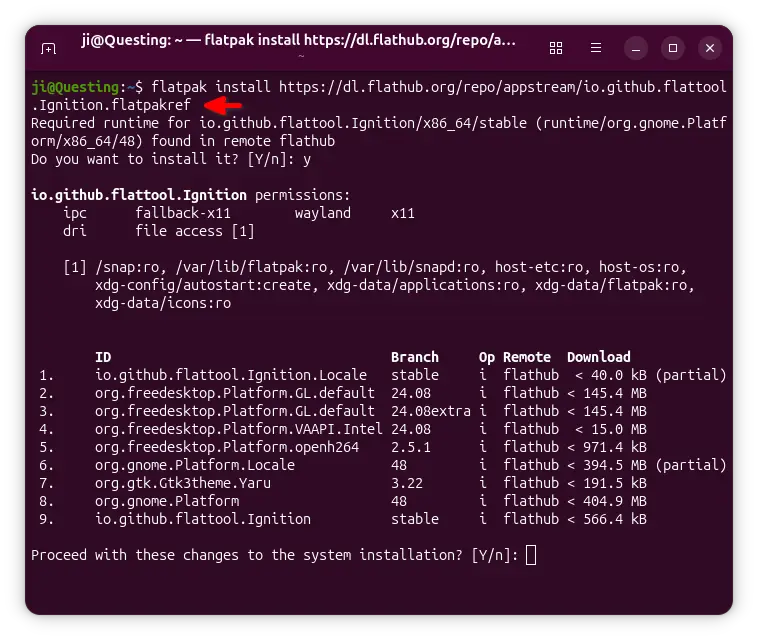
After installed the package, either search for and launch it from Gnome Overview (log out and back in if app icon is not visible), or run command below to start from terminal:
flatpak run io.github.flattool.Ignition
If the app does not work good for you, run the command below to uninstall it:
flatpak uninstall --delete-data io.github.flattool.Ignition
Also run flatpak uninstall --unused to remove useless runtime libraries.
NOTE that uninstall the app won’t delete the auto-start entries created by it.

For Linux users with NVIDIA graphics card, the new 580 production branch driver got a new update few days ago!
It’s NVIDIA 580.95.05, the third stable release in this driver series. Like the last one, it introduced only one but important new feature, and fixed few bugs.
The new driver version added YCbCr 4:2:2 display modes support. Like RGB and CMYK, it’s a family of color spaces designed for brandwidth reduction and efficient video and image compression.
YCbCr 4:2:2 uses chroma subsampling technique to save file size by capturing less color data. It’s useful to meet the bandwidth demands of high resolution (e.g, 4K) games or videos at high-frame-rate (e.g., 120Hz), though it causes image quality reduction, such as blurry or fuzzy text.
The feature requires Fixed Rate Link (FRL) signaling technology (meaning display connected with HDMI 2.1), and Blackwell or later GPU, such as RTX 50 series, B100, B200, B300 …
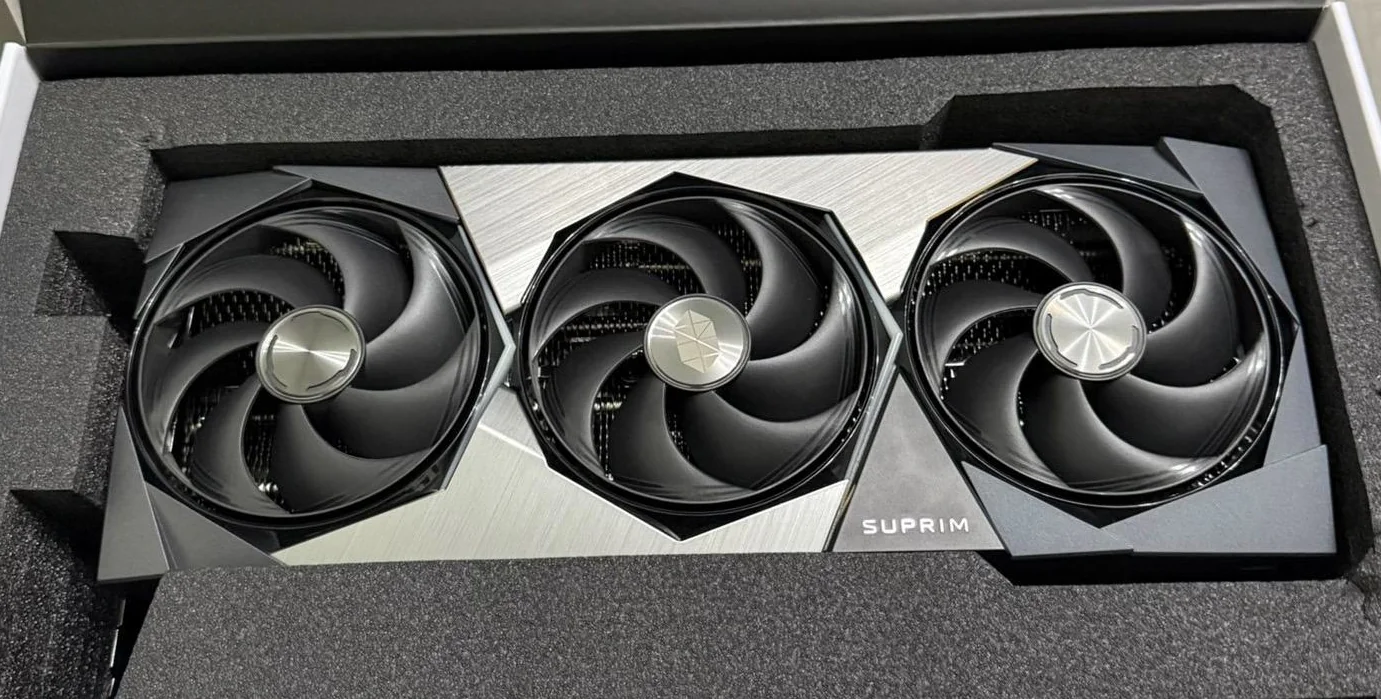
MSI SUPRIM, NVIDIA RTX 5090
Besides that, the new driver fixed interactive object outline rendering issue in Indiana Jones and the Great Circle game, and few other issues.
Compare to the previous NVIDIA 575 driver, there’re also Smooth Motion frame generation support for RTX 40 series GPU introduced by 580.82.07 for better gaming performance, and RMIntrLockingMode enabed by default that can help reduce stutter especially when using virtual reality (VR).
Other changes in NVIDIA 580 series driver include:
fifo-v1 protocol support when using Vulkan backend in Wayland, reducing visual inconsistencies and potential stuttering.And, more. See HERE, HERE, and HERE for details.
Ubuntu has already made the NVIDIA 580 driver into system repositories, which is however NVIDIA 580.65.06 so far for current two 22.04 and 24.04 LTS (check this page).
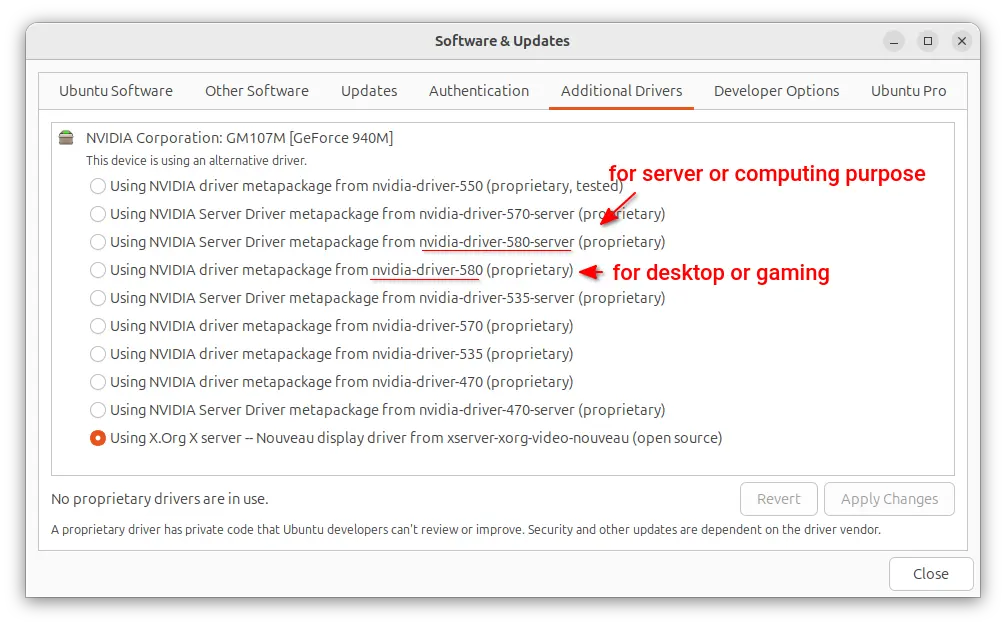
If you can wait for the official package from Ubuntu, then try adding either the “Canonical Kernel Team” team PPA or “Graphics Drivers” team PPA (long-standing PPA), then use Additional Drivers utility to install, both of which are maintained by Ubuntu members.

Fedora’s beta releases offer one of the earliest glimpses into the next major version of the distribution — letting users and developers poke, test, and report issues before the final version ships. With Fedora 43 Beta, released on September 16, 2025, the community begins the final stretch toward the stable Fedora 43.
This beta is largely feature-complete: developers hope it will closely match what the final release looks like (barring last-minute fixes). The goal is to surface regression bugs, UX issues, and compatibility problems before Fedora 43 is broadly adopted.
The Fedora Project published the beta across multiple editions and media — Workstation, KDE Plasma, Server, IoT, Cloud, and spins/labs where applicable. ISO images are available for download from the official Fedora servers.
Users already running Fedora 42 can upgrade via the DNF system-upgrade mechanism. Some spins (e.g. Mate or i3) are not fully available across all architectures yet.
Because it’s a beta, users should be ready to encounter bugs. Fedora encourages testers to file issues via the QA mailing list or Fedora’s issue tracking infrastructure.
Fedora 43 Beta brings many updates under the hood — some in visible user features, others in core tooling and system behavior.
Kernel, Desktop & Session UpdatesFedora 43 Beta is built on Linux kernel 6.17.
The Workstation edition features GNOME 49.
In a bold shift, Fedora removes GNOME X11 packages for the Workstation, making Wayland-only the default and only session for GNOME. Existing users are migrated to Wayland.
On KDE, Fedora 43 Beta ships with KDE Plasma 6.4 in the Plasma edition.
Fedora’s Anaconda installer gets a WebUI by default for all Spins, providing a more unified and modern install experience across desktop variants.
The installer now uses DNF5 internally, phasing out DNF4 which is now in maintenance mode.
Auto-updates are enabled by default in Fedora Kinoite, ensuring that systems apply updates seamlessly in the background with minimal user intervention.
The Python version in Fedora 43 Beta moves to 3.14, an early adoption to catch bugs before the upstream release.
SSH (Secure Shell) is one of the most important tools for Linux system administrators and developers, as it allows you
The post 20 Essential SSH Configurations and Security Tips for Linux first appeared on Tecmint: Linux Howtos, Tutorials & Guides.
Valve released a new Steam Client stable update that improves support for DualSense controllers on Linux systems and fixes various bugs. Here's what's new!
The post Latest Steam Client Update Improves Support for DualSense Controllers on Linux appeared first on 9to5Linux - do not reproduce this article without permission. This RSS feed is intended for readers, not scrapers.
