Normal view

Received — 4 December 2025 Linux News & Update

NVIDIA 590.44.01 Beta Released! Removed GeForce 10 Series & Earlier Support
By:Ji m
3 December 2025 at 23:44

NVIDIA 590, the next new feature branch driver for Linux, is available for beta testing.

This beta driver is NVIDIA 590.44.01, which however does not introduce any new features, but raised the minimum system library requirements and fixed some bugs.

The new driver now requires wayland >= 1.20 for the modern Wayland session, xserver 1.17 or higher for classic Xorg session, and glibc library >= 2.27. For Ubuntu, 22.04 and higher match the Wayland requirement, while 18.04 and 20.04 with Xorg are still supported.

Besides the minimum requirements update, the release also removed support for GeForce 700, GeForce 800M, GeForce 900/900M, GeForce 10 series, as well as GeForce MX100, MX200, MX300 series notebooks.

And, it improved the performance of recreating Vulkan swap chains. The swap chain is essentially a queue of images waiting to be presented to the screen. By improving the performance of swap chains recreation, it can help prevent stuttering when resizing Vulkan application windows.

Others are mostly bug-fixes. They include:

  • Fix that “PowerMizer” preferred mode drop-down menu in the nvidia-settings control panel didn’t not function correctly on Wayland.
  • Fix that the Dots Per Inch (DPI) to be incorrectly reported for some monitors, such as Samsung Odyssey Neo G9.
  • Fix Vulkan applications not working in VMs using Venus VirtIO virtual GPU.
  • Fix system freezes on PREEMPT_RT real-time kernels

For more about NVIDIA 590.44.01 as well as the official .run installers for x86_64 processors, see this nvidia webpage. Or, go to this page for aarch64 processor, FreeBSD, and Solaris.

How to Install NVIDIA 590.44.01 in Ubuntu

If nothing goes wrong, Ubuntu will add the official NVIDIA 590 driver package for next Ubuntu 26.04, and perhaps backport it for current Ubuntu 25.10 and 24.04/22.04 LTS releases. Though, the process can take few months. Keep an eye on this page for the official NVIDIA 590 package by Ubuntu.

For choice, you may add the long standing Graphics Driver Team PPA, which usually adds the new driver package earlier that the official package mentioned above.

For those who can’t wait, the Ubuntu developer Jacob Martin has made NVIDIA 590.44.01 into this personal PPA for Ubuntu 22.04, Ubuntu 24.04, and Ubuntu 25.10 for testing purpose!

NOTE: the PPA package is for testing only purpose. Don’t try it on production machine!!! It breaks my wi-fi in my case when trying to restore NVIDIA 580.

To add the PPA, open terminal (Ctrl+Alt+T) and run command:

sudo add-apt-repository ppa:jacobmartin/nv-graphics-2

Then, try launching “Additional Drivers” utility to install the driver. Or run the command below instead in terminal:

sudo ubuntu-drivers install nvidia:590

When done, reboot computer.

If the driver does not work properly for you, then try running the command below to uninstall:

sudo apt --purge remove '*nvidia*590*'
OnlyOffice Desktop Editors 9.2 added AI Agent & Macro Recording

By:Ji m
3 December 2025 at 16:02

OnlyOffice desktop editors, the free open-source office suite for Linux, Windows, and macOS, released new 9.2 version yesterday.

The new release added AI agent support, customizable keyboard shortcut, macro recording for repetitive actions, and Windows on ARM support.

In the bottom left of the app window, an “AI agent” option is added, allowing to connect to either Anthropic, OpenAI, TogetherAI, or OpenRouter AI models through API key, or Ollama local hosted AI model.

After that, you may chat with AI to ask questions, find and open files on your computer, create new documents, presentations, or PDFs, generate text or HTML from files without open them, fill forms, and do more actions.

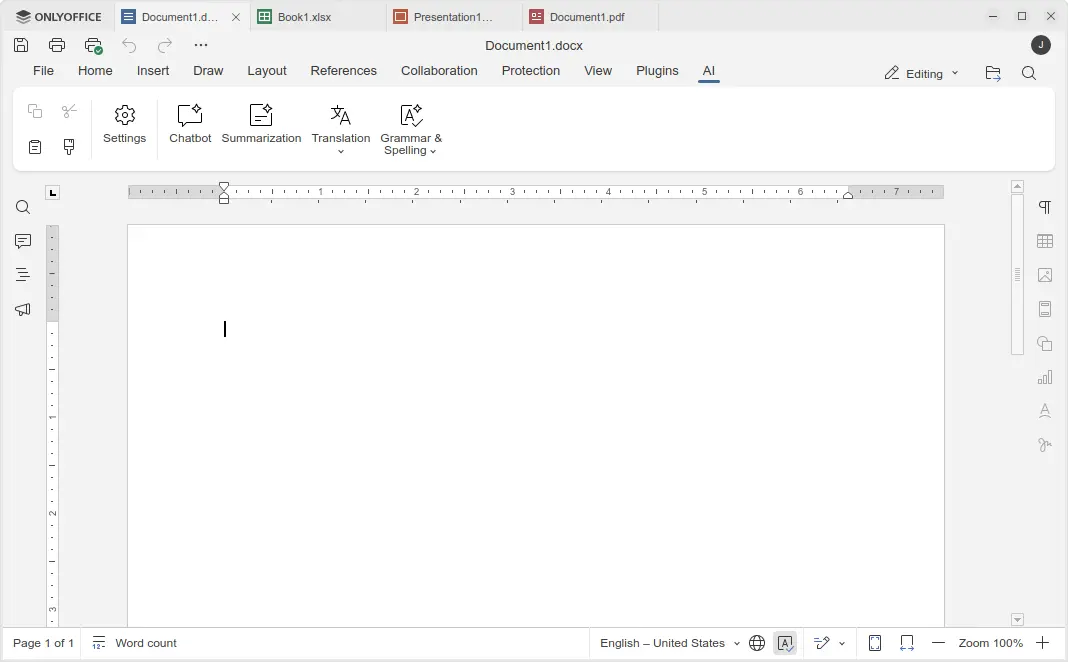
Besides that, the Document, Spreadsheet, Presentation, and PDF editors have AI toolbar options, allowing to do AI-powered translations, summarization, grammar correction and spell-checking. Though, they all need an AI model connected as mentioned above.

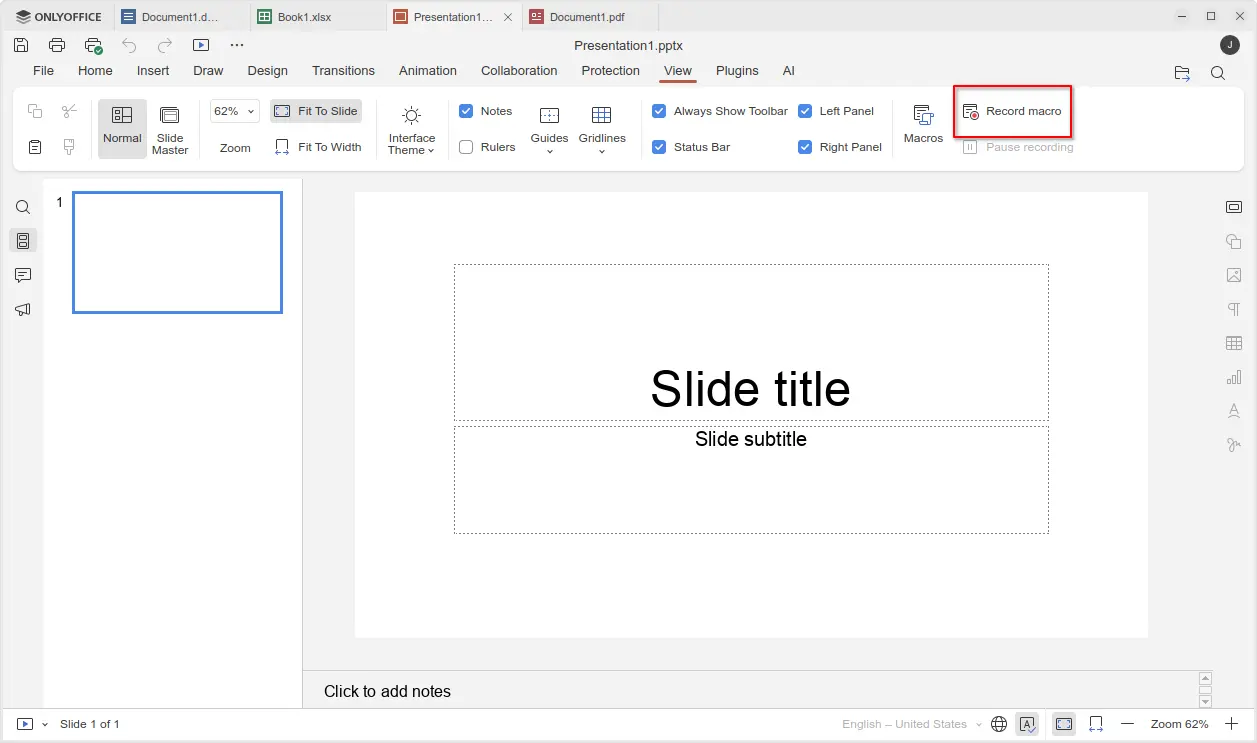
For those who often perform repetitive actions with OnlyOffice, the new version added View -> Record macro menu option, allowing to automate your actions by recording them as macros.

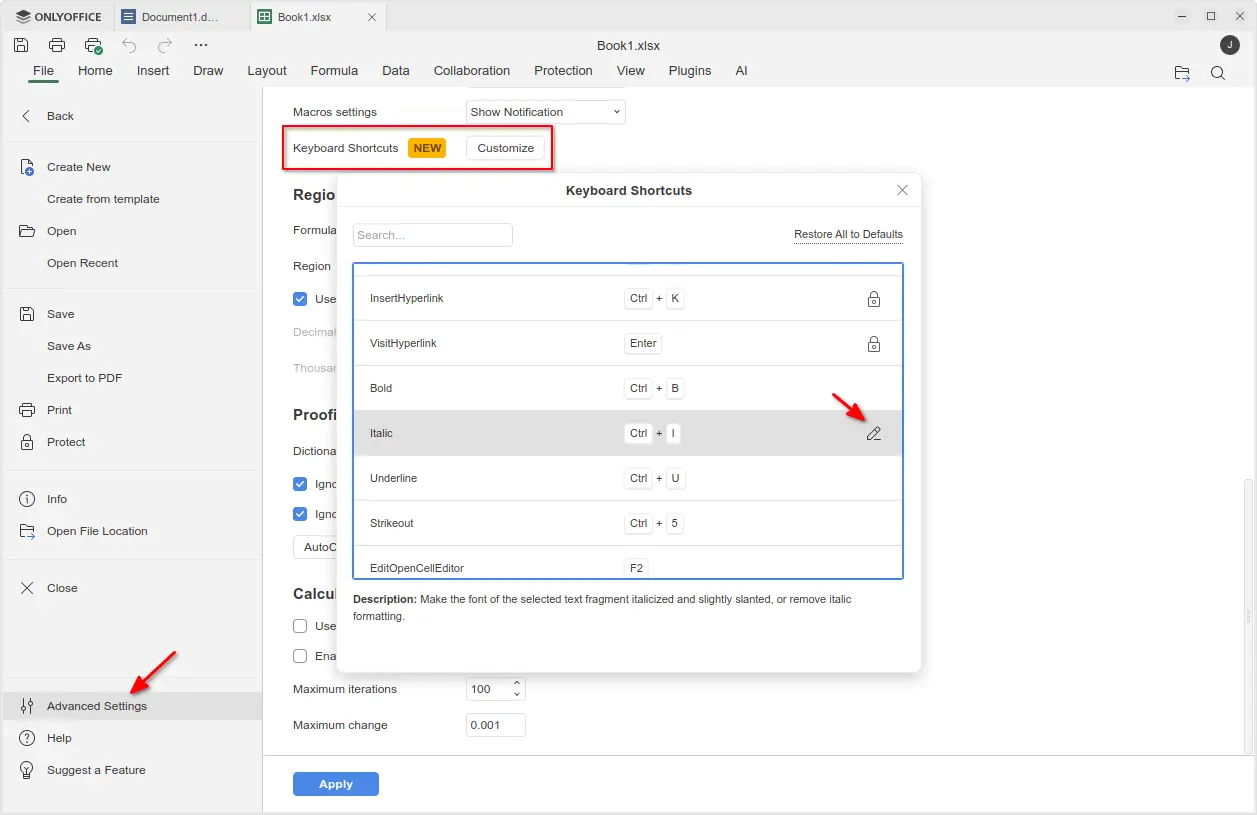
The new version also added support changing the keyboard shortcuts. Simply go to File -> Advanced Settings -> Keyboard Shortcuts, then click on “Customize” button. In pop-up dialog, find out your desired shortcut and either double-click or click ‘edit’ icon to change it.

Though, many shortcuts are locked as unchangeable, and a “Restore All to Defaults” option is available to reset them all.

Moreover, the new version added official support for Windows on ARM64 computers, such as Surface Laptop 7, Galaxy Book4 Edge, etc laptops with Snapdragon X series processors. And, ARM64 support for Linux is coming in future releases.

Other changes in OnlyOffice Desktop Editor 9.2 include:

  • Custom color support for the Redact feature in PDF editor.
  • Ability to add descriptive text labels to checkboxes and radio buttons.
  • Assign specific roles to new fields when inserting them into form.
  • For more, see the official release note.

Get OnlyOffice Desktop Editor 9.2

For Ubuntu, the office suite can be installed easily through the App Center (or Ubuntu Software for 22.04). It’s the official Snap package that runs in sandbox environment. Though, at the moment of writing, it’s still at version 9.1.

For choice you may download the app package for Windows, Linux, and macOS from its website. Where, Ubuntu user may choose download:

  • native DEB package, then click open with App Center or Ubuntu Software to install.
  • non-install AppImage, that can launch the office after adding executable permission.
  • or Flatpak package which runs in sandbox environment.

TLP 1.9.0 Released! “Added back” Graphical Power Mode Settings

By:Ji m
2 December 2025 at 23:05

TLP, the popular battery power saving tool for Linux laptop, released new 1.9.0 version yesterday!

The new release of this free open-source software introduced its own power profile daemon called tlp-pd, which in certain respects added back the GNOME/KDE/Cinnamon’s built-in power mode settings.

TLP 1.9.0 added its own power profiles daemon

As you may know, TLP conflicts with power-profiles-daemon, the background service for common Linux providing ability to switch between Performance, Balanced, and Power Saver power profiles. Thus, installing TLP will remove the built-in power mode options in GNOME, Cinnamon, and KDE desktop environments.

Now with TLP 1.9.0, tlp-pd is introduced to replace power-profiles-daemon by implementing the same D-Bus API that GNOME, KDE, Cinnamon use. So, the power mode options in your desktop seem just like they are never gone.

tlp-td power profile daemon

Besides that, it added new tlpctl command. Without sudo permission, it allows you to switch power profile from command line, query current power profile, or run custom command using a specific power profile.

Meaning that you may start your games or certain apps in performance mode, while leaving all others running in balanced or power saver.

For example, the command below will start the SuperTuxKart game in performance mode, no matter what power profile you set system wide.

tlpctl launch -p performance /usr/games/supertuxkart

tlpctl command to switch profile, or run command using a specific power profile

Moreover, it updated the /etc/tlp.conf configuration file. Now, all parameters end with _AC will work when Performance profile is active, parameters end with _BAT will work for Balanced profile, and parameters end with _SAV will work for Power Saver profile. While, all other parameters work for all profiles.

And, it added new TLP_AUTO_SWITCH option in configuration file, that controls the automatic switching of the power profile. It can be set to:

  • 0, never switch power profile, and use the value of TLP_DEFAULT_MODE if set.
  • 1, auto switch to performance when AC connected, or balanced when running on battery.
  • 2, retain the manually selected profile (e.g., via your desktop’s built-in option) even when the power source changes.

Other changes in TLP 1.9.0 include:

  • Add Battery Care (battery charge start/stop threshold) support for Tuxedo/Clevo laptops.
  • Add TLP_DISABLE_DEFAULTS to deactivate all intrinsic defaults of TLP, so only parameters activated in config file applied.
  • Fix tlp discharge to a target percentage for Chromebooks, Framework laptops.
  • Fix Thinkpad X201, X220 discharge.

For more, see the changelog in Github.

How to Install TLP 1.9.0

TLP has an official PPA that supports Ubuntu 22.04, Ubuntu 24.04, Ubuntu 25.04/25.10, and their based Distros, e.g., Linux Mint 21/22, Zorin OS 17/18.

To add the PPA and install TLP 1.9.0, press Ctrl+Alt+T on keyboard to open terminal and run the commands below one by one:

sudo add-apt-repository ppa:linrunner/tlp
sudo apt update
sudo apt install tlp tlp-pd tlp-rdw

After installed the software, you may just forget it, as the default settings are already optimized for battery life. Though, you may follow the official documentation to install it on other Linux Distributions, or configure it to fit your need.

Uninstall:

To uninstall tlp in Ubuntu or Linux Mint, open terminal and run command:

sudo apt remove tlp tlp-pd tlp-rdw

Also run the command below to remove the PPA:

sudo add-apt-repository --remove ppa:linrunner/tlp

And, install back the system built-in power profiles daemon package:

sudo apt install power-profiles-daemon
❌