
 Login
Login
GIMP 3.1.4 Released! Link Layers, Vector Layers & MyPaint Brushes 2

GIMP 3.1.4, the second development release for next major 3.2, was released few days ago!
The new release of this popular image editor introduced some exciting new features, including link layers, vector layers, MyPaint brushes version 2, and more.
First, by using File -> Open as Link Layer... or press Ctrl+Alt+Shift+O on keyboard, user can now open an image as link layer.
In the case, you may make changes to the image file via any other image editors (e.g., Krita, Inkscape), and see it instantly updated inside GIMP!
You can also non-destructively scale and rotate the link layer without impacting the quality of the original image. And, use “Discard Link Information” context menu option to convert it to a normal raster layer.
GIMP 3.1.4 also implemented the vector layer feature. After drawing a path (via Paths tool), user can now click “Create New Vector Layer” button to generate a vector layer associated with that path, then set the fill and stroke colors and other properties.
You can continue to edit the path, as the vector layer will automatically update. It as well has a “Discard Vector Information” context menu option to convert it to a regular raster layer.
The release also updated MyPaint Brushes to version 2, along with 20 new brushes from the Dieterle set. They include the long requested arrow brush and Posterizer brush.
For Ubuntu users, GIMP is going to make official SNAP package, which can be installed directly from Ubuntu Software or App Center, and also be installed in other Linux.
The current GIMP Snap package is maintained by the snapcrafters developers. The GIMP developers are talking to them to pass over the ownership, so they can maintain it as official package.
GIMP Snap package in APP Center. GIMP to take over this community maintained package
Other changes in GIMP 3.1.4 include:
- New GEGL Filter Browser.
- New
Gainslider in MyPaint Brush tool, to adjust strength of input pressure. - Add boldd, italicize, underline keyboard shortcuts for Text tool.
- Live preview outline color for text tool.
- Add import support for HRZ, signed JPEG 2000, non-DXT PAA textures, Seattle Filmworks (SFW93A, SFW94A).
- Support loading TIFF layer visibility, blending modes, and color tags
- Support System Colors theme for macOS.
- New API to change the paintbrush fade length and repeat settings.
- New public API for creating vector layers.
- Add ARM64 build of nightly Flatpak pacakge.
Compare to current GIMP 3.0 stable, there are as well many changes introduced since 3.1.2:
- Add system color scheme support for Linux (Flatpak package) and Windows.
- New brush preview toggle.
- New overwrite paint mode.
- New Outline Direction option for text tool
- Import support for Photoshop RGB and grayscale patterns, APNG animations, multi-layer OpenEXR images, Over-the-Air Bitmap format, Jeff’s Image Format (.jif).
- Export Krita .kpl, PSB Photoshop Large format, JPEG 2000, HEJ2.
- Support Photoshop .acv and .alv presets in GIMP Curves and Levels filters.
For more about GIMP 3.1.4, see the official release note.
How to Install GIMP 3.1.4
The official GIMP packages for Windows, Linux, and macOS are available to download at the link below:
Linux user may choose the non-install AppImage package, which can be run directly to launch the image editor, after adding executable permission.
NOTE: Ubuntu since 22.04 needs to run command in terminal (Ctrl+Alt+T) to install required library first:
sudo apt install libfuse2
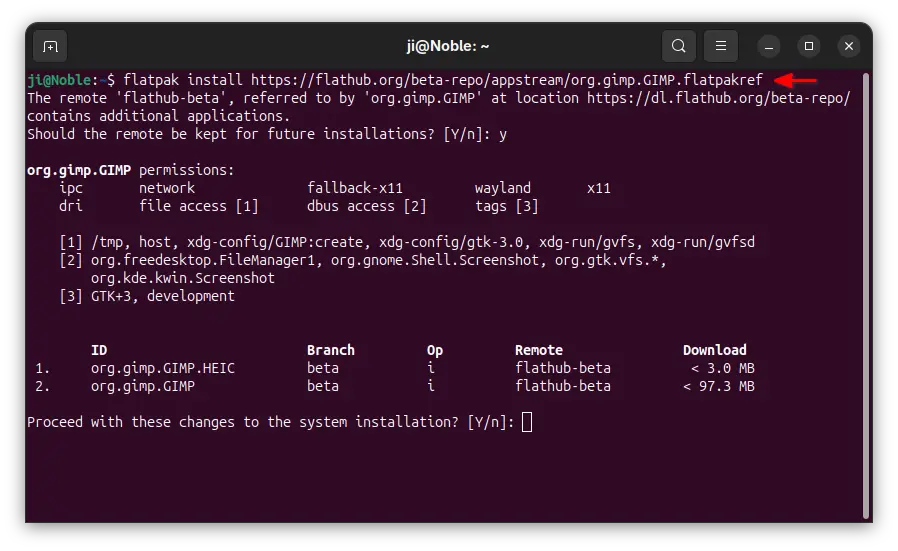
Or, run the command below to install the Flatpak package instead which runs in sandbox environment.
flatpak install https://flathub.org/beta-repo/appstream/org.gimp.GIMP.flatpakref
If you already have GIMP 3.1.2 installed as Flatpak, then try the command below to update it:
flatpak update org.gimp.GIMP//beta
If you have both the Devel and Stable versions of GIMP installed as Flatpak, and don’t know which icon to use, then use the command below to start the GIMP 3.1.4 from terminal:
flatpak run org.gimp.GIMP//beta
