Normal view

Linux Kernel 6.17 Released! Mainline PPA updated for Ubuntu 24.04 +

By:Ji m
30 September 2025 at 00:53

Linux 6.17 is out as the latest Kernel release! Linus Torvalds announced it yesterday afternoon in lkml.org:

No huge surprises this past week, so here we are, with kernel 6.17 pushed out and ready to go.

Below is the shortlog for just the last week – not the full 6.17 release – as usual. It’s not exciting, which is all good. I think the biggest patch in there is some locking fixes for some bluetooth races that could cause use-after-free situations. Whee – that’s about as exciting as it gets.

What’s New in Kernel 6.17

Linux 6.17 introduced Attack Vector Controls, which provides a simple method to manage CPU vulnerability mitigations. Which, so far supports 5 sets of attack-vector mitigations: User-to-Kernel, User-to-User, Guest-to-Host, Guest-to-Guest, and Cross-Tread. See the official documentation for more about it.

For Intel, the kernel added Intel IPU7 driver for web camera support on Lunar Lake and Panther Lake laptops. And, it added perf profiling support for Panther Lake, and EDAC (Error Detection and Correction) support for Granite Rapids D, Wildcat Lake, and Raptor Lake HX, and Core i5 14600, i7 14700 processors.

It as well added initial support for Wildcat Lake integrated graphics, enabled OpenGL and Vulkan support for Xe3 Panther Lake graphics by default, and added SR-IOV (Single Root I/O Virtualization) support for Battlemage GPUs but limit to Arc Pro graphics card.

There are as well DRM Panic support for the Intel i915 and Xe kernel drivers, Wildcat Lake “WCL” display enablement, and experimental flip queue support for Lunar Lake and Panther Lake hardware, and NPU accelerator support for Wildcat Lake.
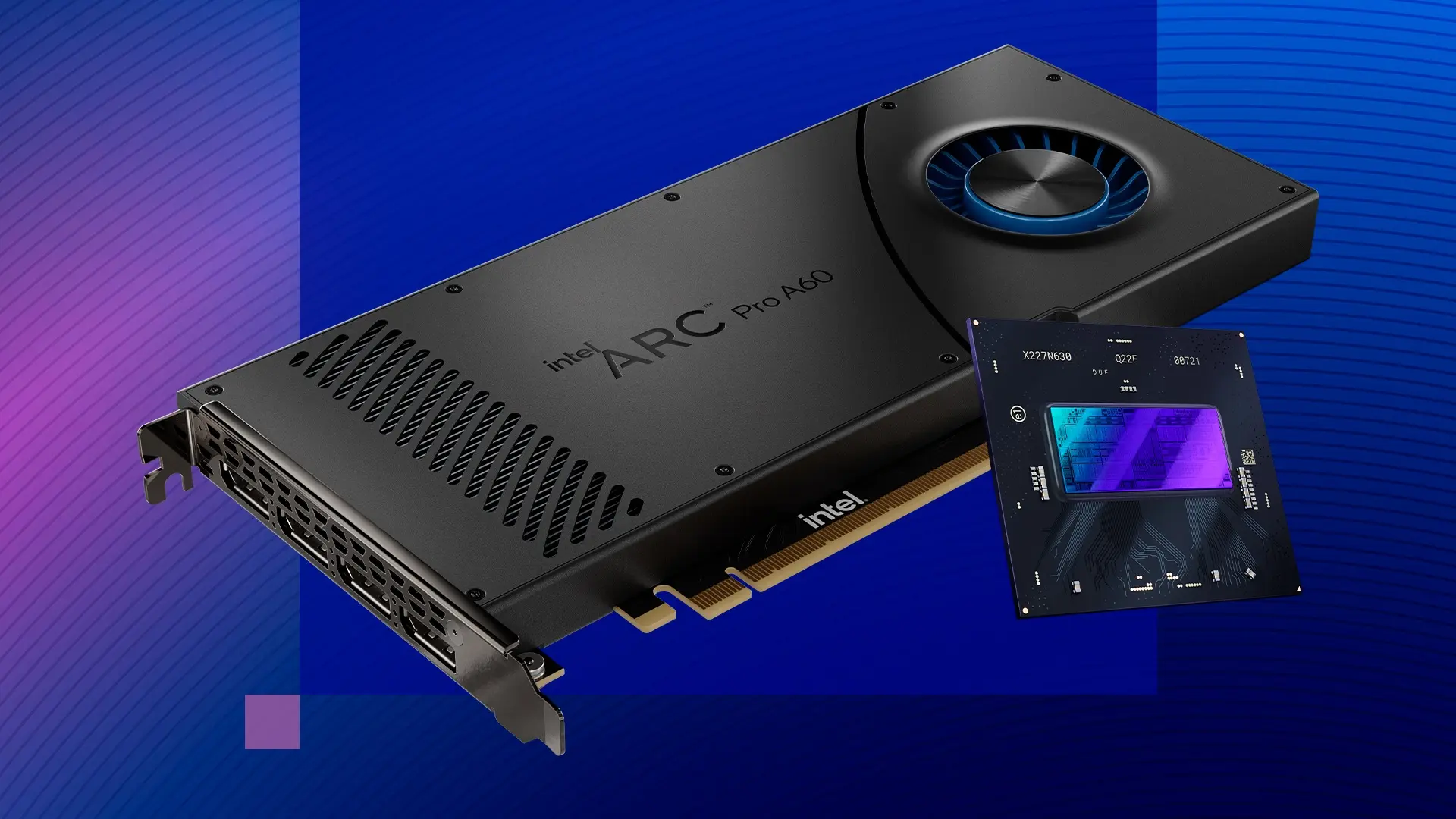
image from Intel.com

On the AMD side, the kernel merged AMD’s Hardware Feedback Interface driver for dynamic core ranking, improved task scheduling, and better support for processors with mix of classic and dense cores.

It also added SmartMux support for hybrid laptops that dynamically switch the GPU being used. For example, when gaming, the system can be switch the active display to the discrete GPU for better performance.

Other AMD changes include CPUID faulting support, and fix for AMDGPU hibernation, which can save 50 minutes on large GPU servers.
Image by anirudhlv from Pixabay

Other changes in this Kernel release include:

  • Apple System Management Controller (SMC) driver for being able to reboot modern M1/M2 Macs
  • BRBE (Branch Record Buffer Extension) support for ARM64.
  • Drop non-SMP (Symmetric Multi-Processing), meaning for system with only one CPU core, there might be small performance regression.
  • Turbostat command-line utility can now display CPU L3 cache topology information.
  • Much faster CRC32C error detection on modern Intel and AMD AVX-512 processors.
  • Added “pm_async=off” parameter to disable async suspend/resume with the Linux kernel
  • Large folio support for Btrfs (experimental).
  • Multi-device filesystems like btrfs and bcachefs can handle certain device loss without the need to shutdown the whole filesystem.
  • New driver for powering on the T-HEAD TH1520 RISC-V SoC’s GPU.

There are as well many new and updated hardware support, including:

  • Raspberry Pi RP1 PCI device support
  • Marvell PXA1908 and the CIX P1 SoC
  • Andes Tech QiLai SoC and the Sophgo SG2000.
  • NVIDIA Tegra264.
  • Samsung Snapdragon X laptop support.
  • Add support for Touch Bars on x86 MacBook Pros.
  • BCM5325 switches.
  • Support 50 / 100 / 200 / 400 / 800 gigabit Ethernet cards.
  • Lenovo WMI Gaming Series Drivers for Lenovo Legion Go S gaming handheld.

For more changes about Linux Kernel 6.17, see either this page or kernelnewbies.

How to install Linux 6.17 in Ubuntu

Ubuntu 25.10 has already included Kernel 6.17 RC, while the stable release will be available soon in the final release.

For Ubuntu 24.04, it will probably have Kernel 6.17 in next 24.04.4 point release. If you can’t wait, try the mainline kernel PPA.

NOTE: The mainline Kernel is built for testing purpose! It’s NOT signed, so you need to disable secure boot for being able to boot the kernel. And, it may have compatibility issues with proprietary drivers.

For amd64, arm64, armhf, ppc64el, and s390x CPU architecture types, the Kernel PPA provides Linux Kernel 6.17 package at the link below:

If you don’t know your CPU type, run dpkg --print-architecture command to tell, then select download & install the proper packages for your system.
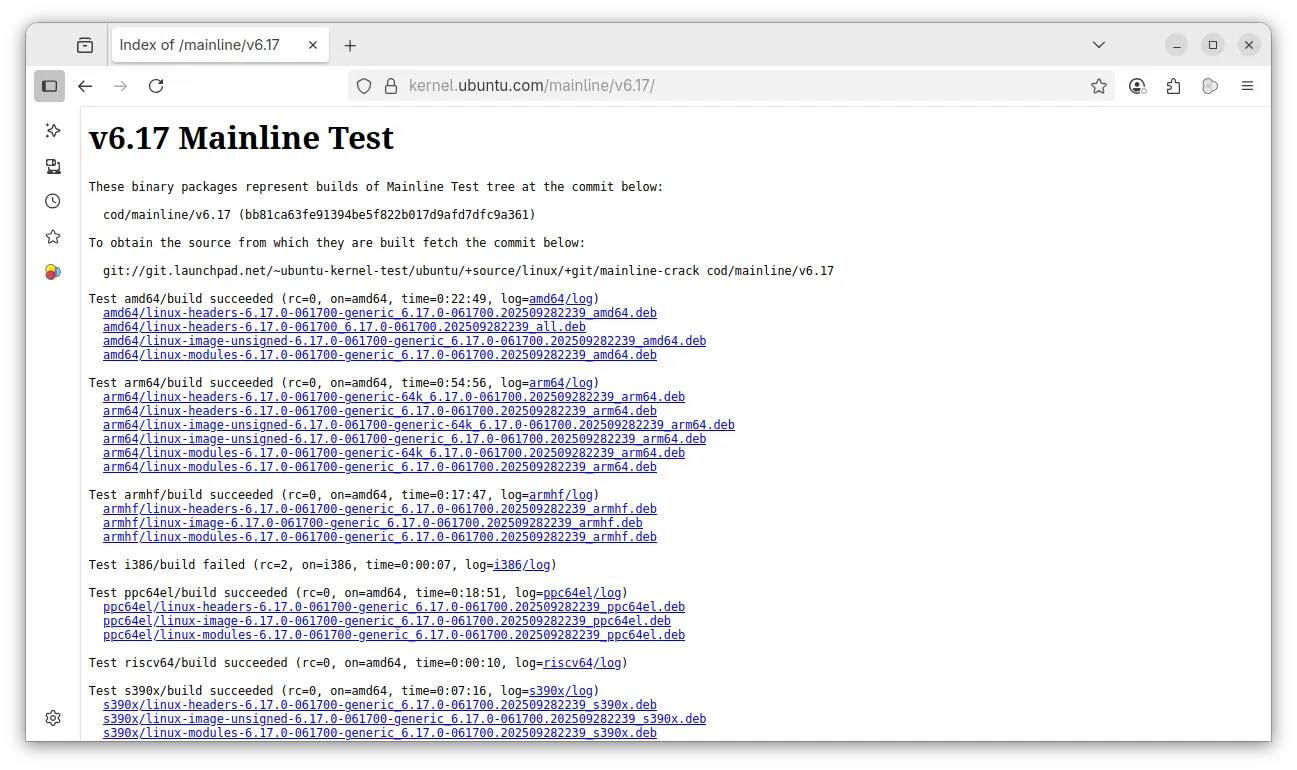
For modern Intel/AMD (amd64) platform, open terminal (Ctrl+Alt+T) and run the commands below one by one to download & install the kernel:

wget -c https://kernel.ubuntu.com/mainline/v6.17/amd64/linux-headers-6.17.0-061700-generic_6.17.0-061700.202509282239_amd64.deb

wget -c https://kernel.ubuntu.com/mainline/v6.17/amd64/linux-headers-6.17.0-061700_6.17.0-061700.202509282239_all.deb

wget -c https://kernel.ubuntu.com/mainline/v6.17/amd64/linux-image-unsigned-6.17.0-061700-generic_6.17.0-061700.202509282239_amd64.deb

wget -c https://kernel.ubuntu.com/mainline/v6.17/amd64/linux-modules-6.17.0-061700-generic_6.17.0-061700.202509282239_amd64.deb

sudo apt install ./linux-headers-6.17.0*.deb ./linux-image-unsigned-6.17.0*.deb ./linux-modules-6.17.0*.deb

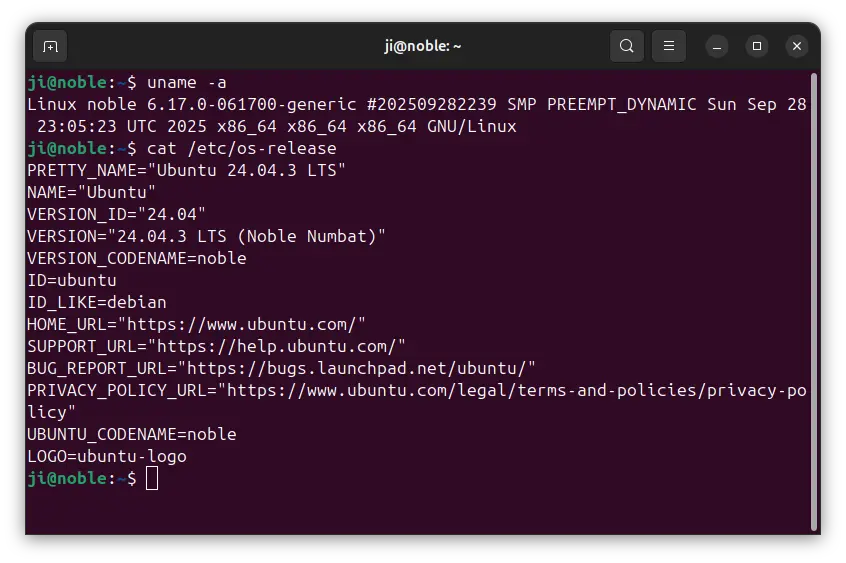
After installed the kernel, restart and run uname -a to verify the new kernel.
Uninstall Kernel 6.17

To remove the kernel 6.17, reboot and select boot an old kernel entry from Grub boot-loader (usually under Advanced menu), then run the command below to uninstall:

sudo apt remove linux-modules-6.17.0-*-generic linux-headers-6.17.0-061700

Pop!_OS 24.04 is Available for Beta Testing!

By:Ji m
29 September 2025 at 00:47

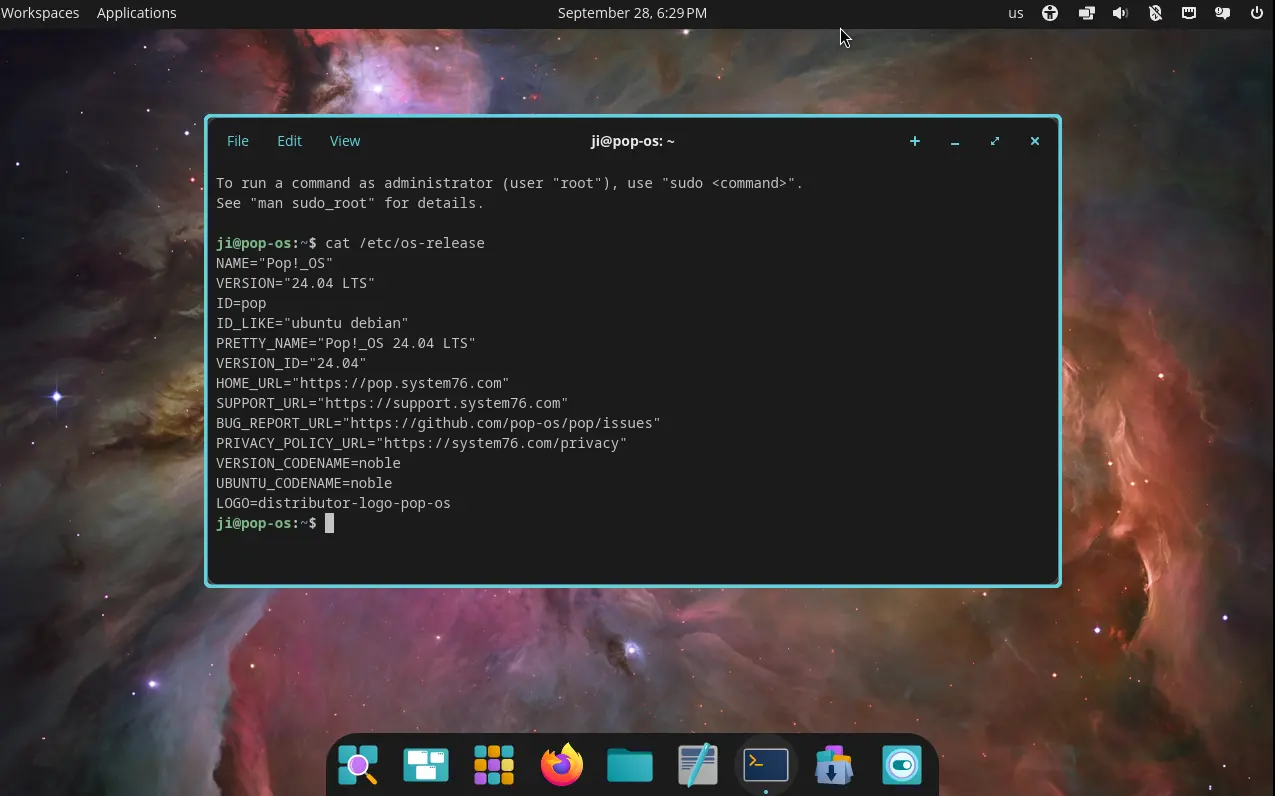
Pop!_OS, the popular Linux Distribution powered by System76, announced the Beta release of 24.04 LTS few days ago.

As the version number says, it’s based on Ubuntu 24.04 LTS, but features Linux Kernel 6.16 and its own COSMIC desktop environment.

Pop!_OS is developed by System76, a American Linux computer manufacturer. It features COSMIC desktop, which was previously a customized GNOME desktop, but now a standalone desktop environment built from scratch.

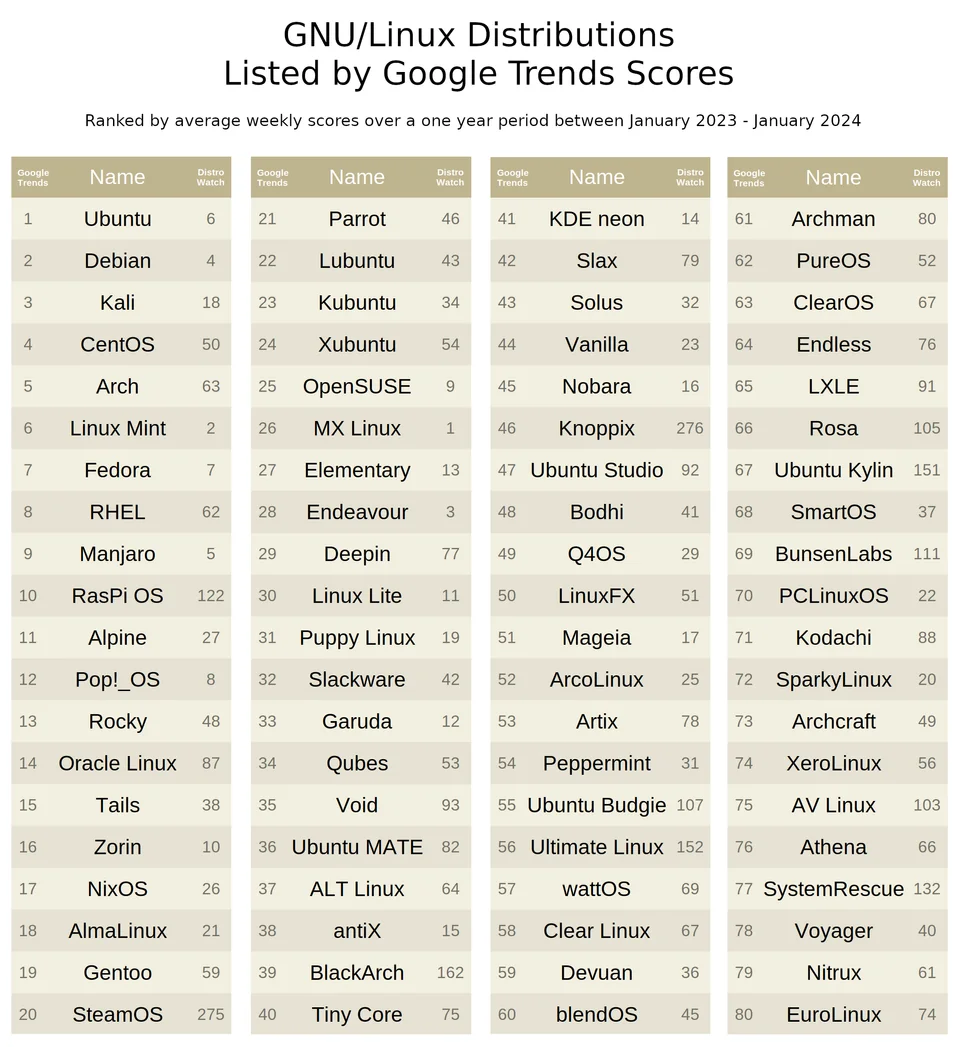
Since version 18.04, Pop!_OS updated regularly with versions based on every Ubuntu releases. And, it was ranked as 12th popular Linux Distribution according to Google Trends Scores between Jan 2023 and Jan 2024.

The development however slows down since 22.04. There’s no Pop!_OS 22.10, 23,04, or 23.10.

The first Pop!_OS 24.04 development release (first alpha) was available in August of last year. Then, it got another few more alpha releases, and finally announced this Beta few days ago!

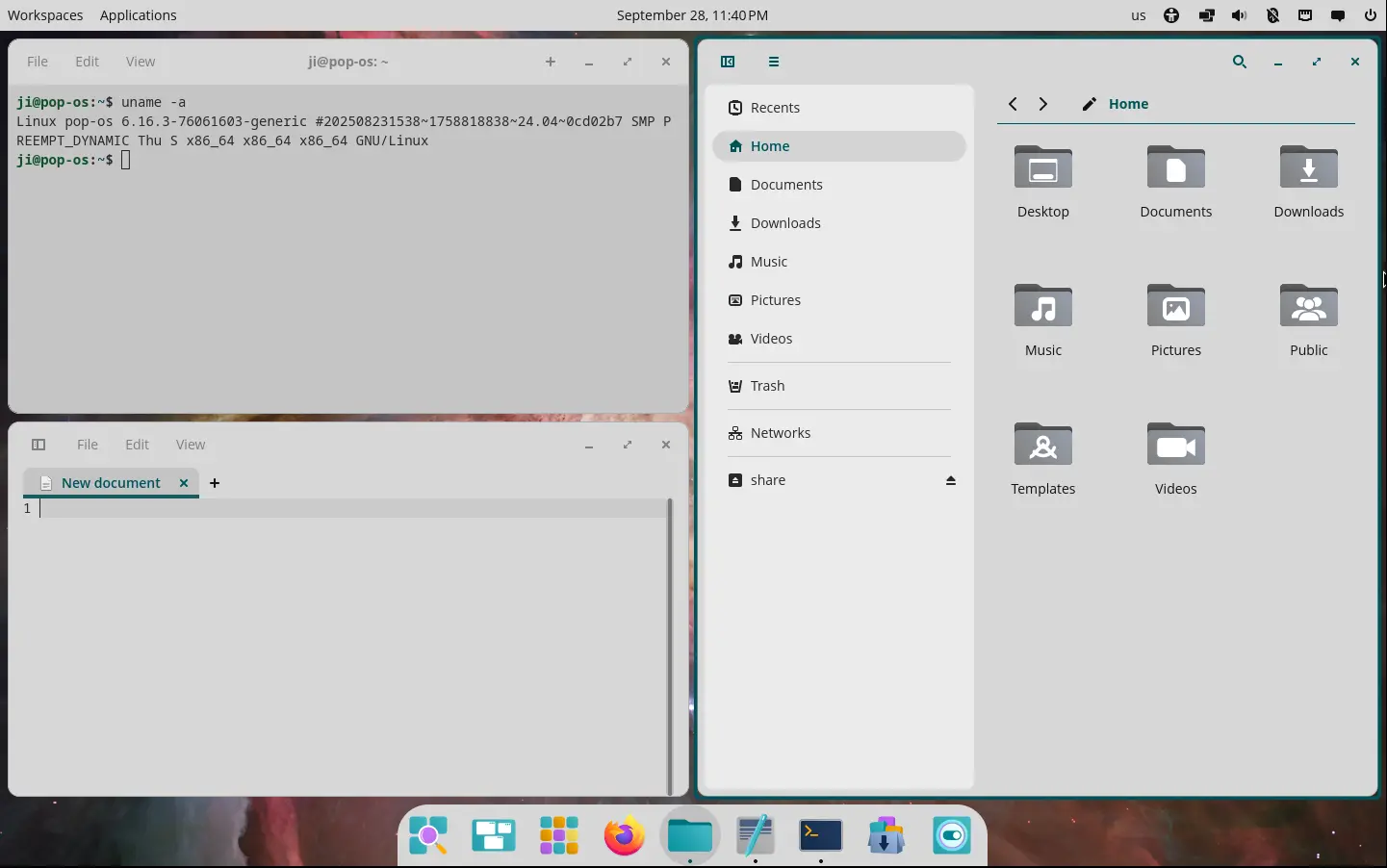
This is the first release that ships with new standalone COSMIC Desktop environment. It replaced Nautilus, Gnome Terminal, Gnome Text Editor, and Totem with its own COSMIC specific files, terminal, text editor, and video player apps.

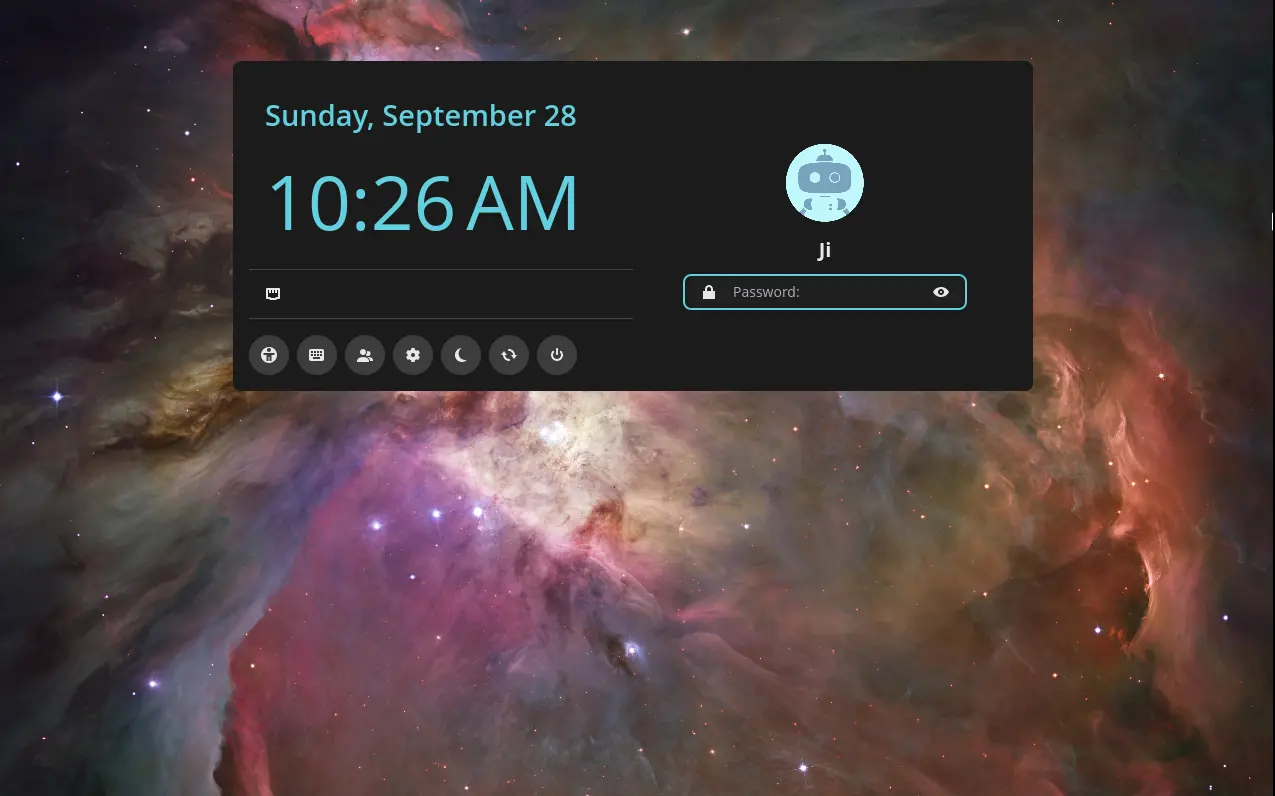
Pop!_Shop is replaced by COSMIC Store, which prefers Flatpak when both Flatpak and Deb are available. And, the GDM display manager is replaced by new COSMIC Greeter with a redesigned login appearance.

Drag’n’dropping files from Wayland apps to X11 apps is not supported so far, though user may use the applications upload option as a work-around until the feature is added.

Other changes include new and redesigned settings app, as well as:

  • Single bottom panel layout.
  • Variable refresh rate (VRR) support.
  • NVIDIA driver 580.82.07.
  • Mesa 25.1.5-1
  • New fonts, themes, and more.

Get Pop!_OS 24.04 Beta

The official release note as well as the .iso images are available in system76 website via the link below:

For Pop!_OS 22.04 users who want to upgrade to the new beta release, it can be done by opening terminal and run command:

pop-upgrade release upgrade -f

Though, it’s highly recommended to make a backup first, as bugs are expected in beta that may break things!

Block Certain App Packages in Ubuntu 25.10 [New Apt Method]

By:Ji m
25 September 2025 at 21:53

This is a step by step guide shows how to block certain app packages from Ubuntu local repositories, PPAs, or other apt repositories in Ubuntu 25.10 and higher.

Previously, we can set package pin-priority to prevent from or prior to installing certain app packages. Now, in Debian/Ubuntu with apt 3.1+, a new method is available to include/exclude packages for specified apt sources (repositories).

Say you have a Ubuntu PPA or apt repository installed in Ubuntu. It contains many app packages, but you only need one or few of them. In the case, you may use the new method below to completely exclude all other packages from that repository, so they are not installable with any apt option or other graphical tool.

NOTE 1: This tutorial only works for classic .deb packages. Though, you may use the method to block snap and flatpak entirely.

NOTE 2: This tutorial needs apt 3.1+, meaning Debian Unstable/Testing or Ubuntu 25.10+.

Step 1: Find out what packages available in the repository

Before getting started, it might be helpful to first find out all the package names available in the target PPA or apt repository.

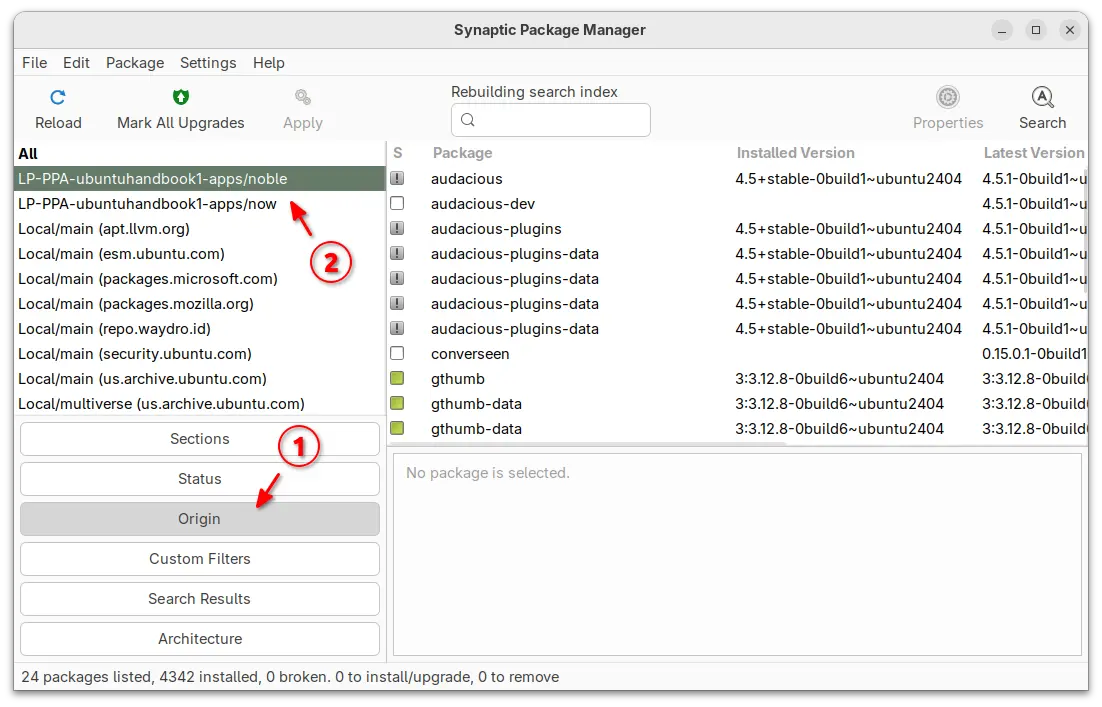
For Ubuntu desktop, you can simply install and launch Synaptic package manager. Then, choose “Origin” in left and select the target repository to show all the packages.

For server without GUI, you may view the package index files instead.

  • First, run the command below to update package index:
    sudo apt update
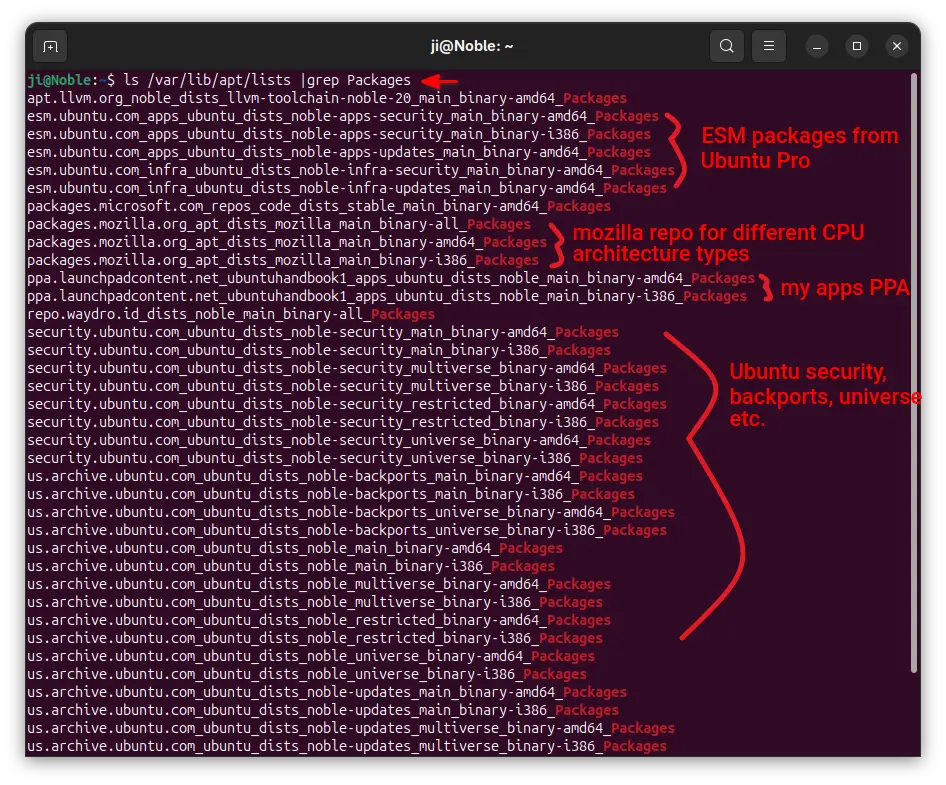
  • Next, print all the package index files under /var/lib/apt/lists directory:
    ls /var/lib/apt/lists/ |grep Packages

    The files contain the package names, their versions, origin, maintainers, sizes, and hash-code, etc information.

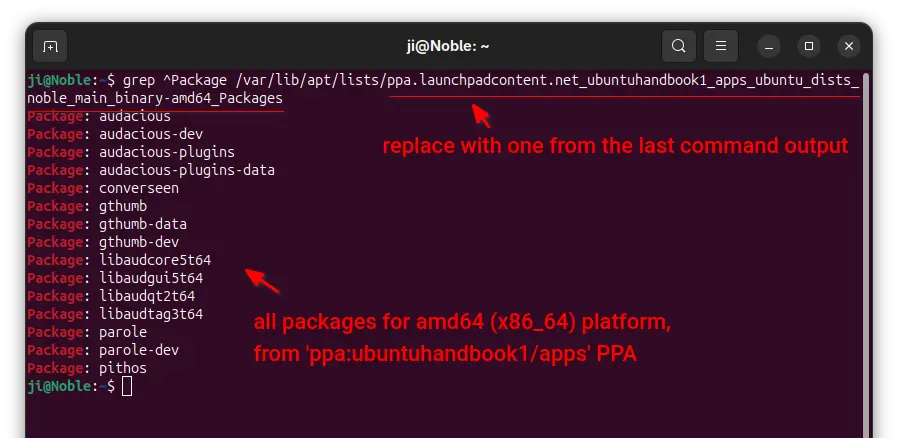
  • In last command output, find out the target file-name for your repository, then use the command below to filter and show only package names in it:
    grep ^Package /var/lib/apt/lists/ppa.launchpadcontent.net_ubuntuhandbook1_apps_ubuntu_dists_noble_main_binary-amd64_Packages

    Here you need to replace the long file-name with yours.

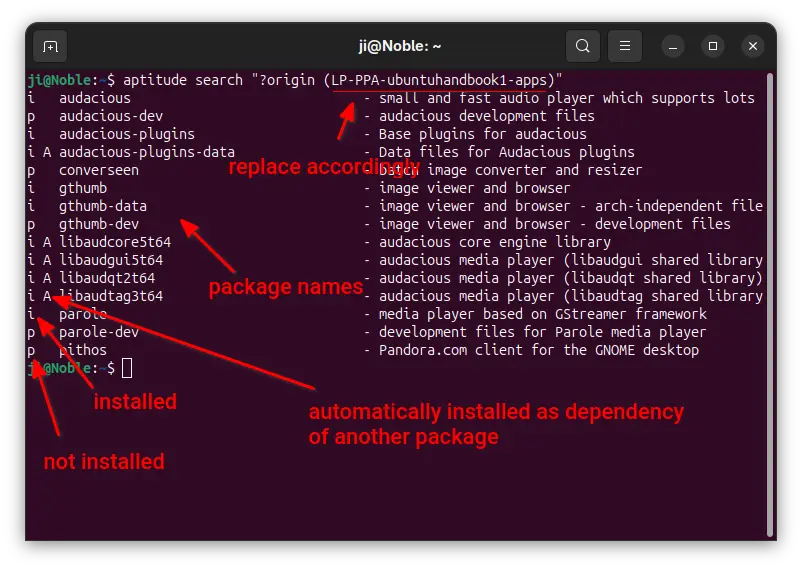
For choice, you may install aptitude, then use the command below instead to list all packages from target repository:

aptitude search "?origin (LP-PPA-ubuntuhandbook1-apps)"

Here replace LP-PPA-ubuntuhandbook1-apps accordingly, while ubuntuhandbook1 is PPA maintainer name, and apps is PPA name. For other repositories, run apt-cache policy |grep "o=" to list and get the target value of “o=”.

Step 2: Edit source files to block packages

For Ubuntu, all the apt sources are handled by .sources and .list files under /etc/apt/sources.list.d directory.

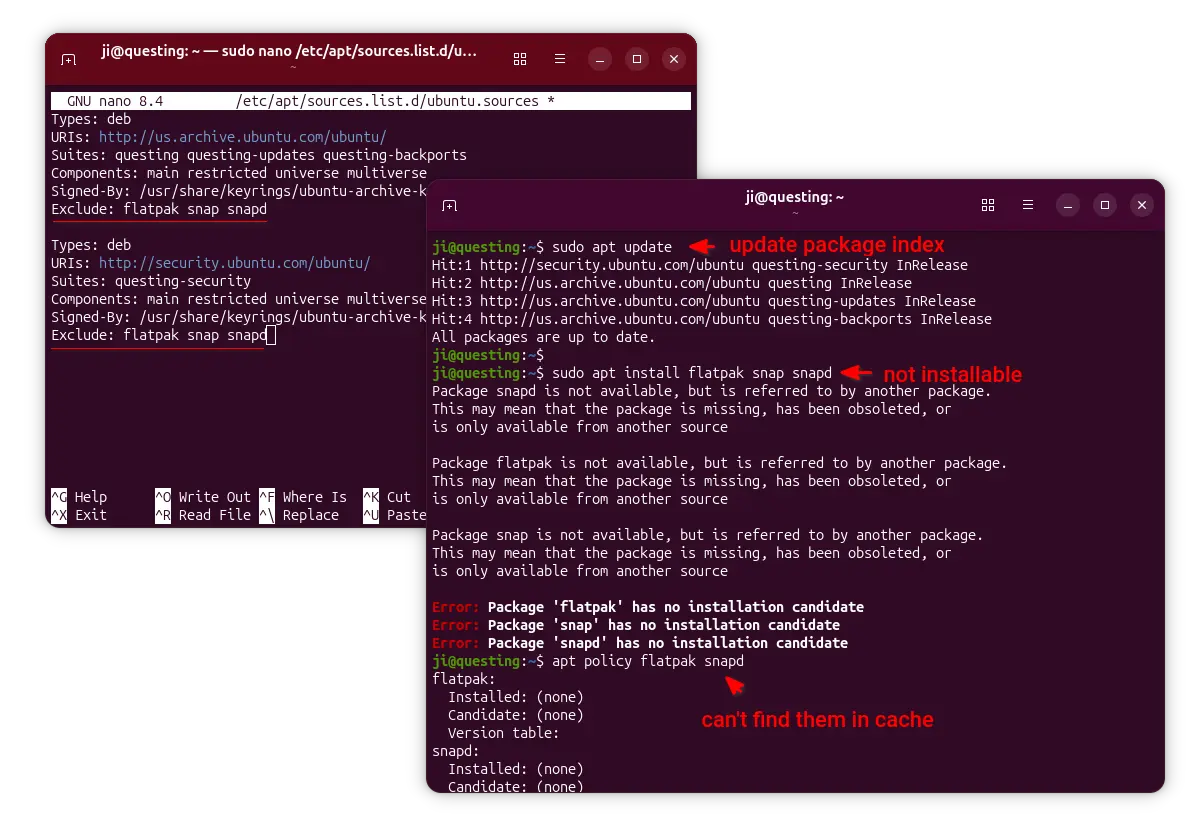
To block specific packages from Ubuntu official repositories, open terminal (Ctrl+Alt+T) and run command to edit the file below:

sudo nano /etc/apt/sources.list.d/ubuntu.sources

For next Ubuntu 26.04, there’ll be ubuntu-esm-apps.sources and ubuntu-esm-infra.sources in that directory for ESM packages if Ubuntu Pro is enabled.

When file opens, simply add Exclude: package1 package2 package3 ... in the end of the 2 sections.

In the screenshot above, it tells to block flatpak, snap, and snapd packages. After saved file (Ctrl+S, then Ctrl+X), run sudo apt update to apply changes.

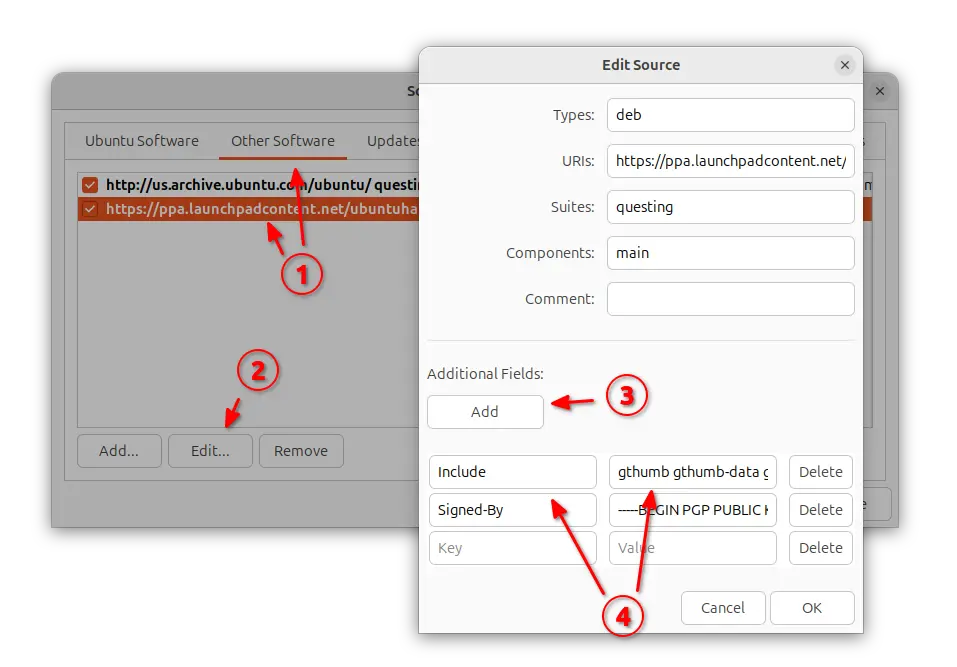
To block certain PPA packages, simply launch “Software & Updates” utility and navigate to “Other Software tab”.

Then, highlight the PPA source and edit it. Finally, click Add an additional fields, and:

  • either set key Include and value package1 package2 package3, so to block all others.
  • or set key Exclude and value package1 package2 ... to block certain packages.

Also refresh cache via either sudo apt update or Software Updater after saving the changes.

NOTE: When using “Include” (leaving others blocked), don’t forget to also include the dependency packages (if any) in that repository!

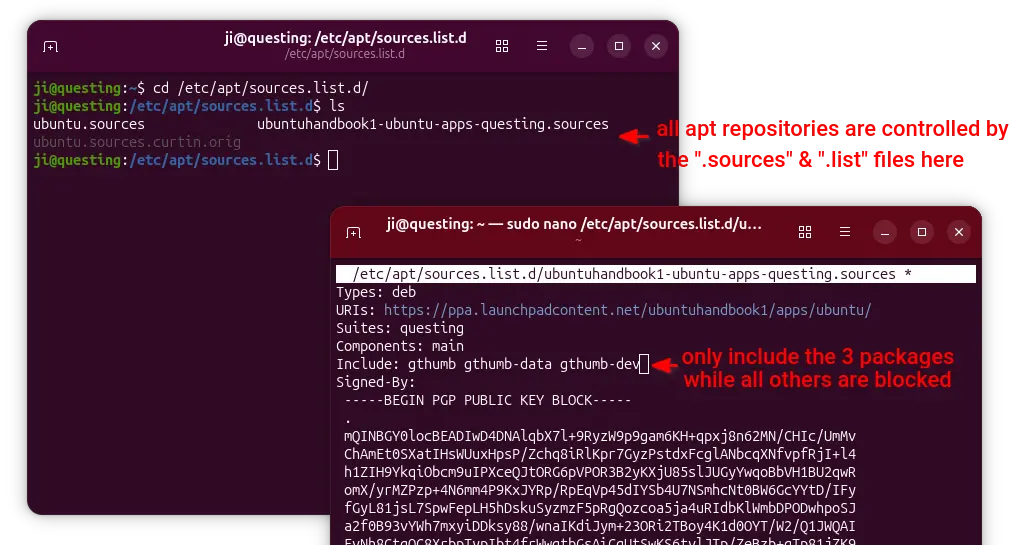
For server without GUI, run commands below and finally refresh cache.

  • First, list and find out the target source file:
    ls /etc/apt/sources.list.d
  • Then, edit the file (replace file-name with yours):
    sudo nano /etc/apt/sources.list.d/ubuntuhandbook1-ubuntu-apps-questing.sources

    Finally, add new line with either Include: package1 package2 or Exclude: package accordingly

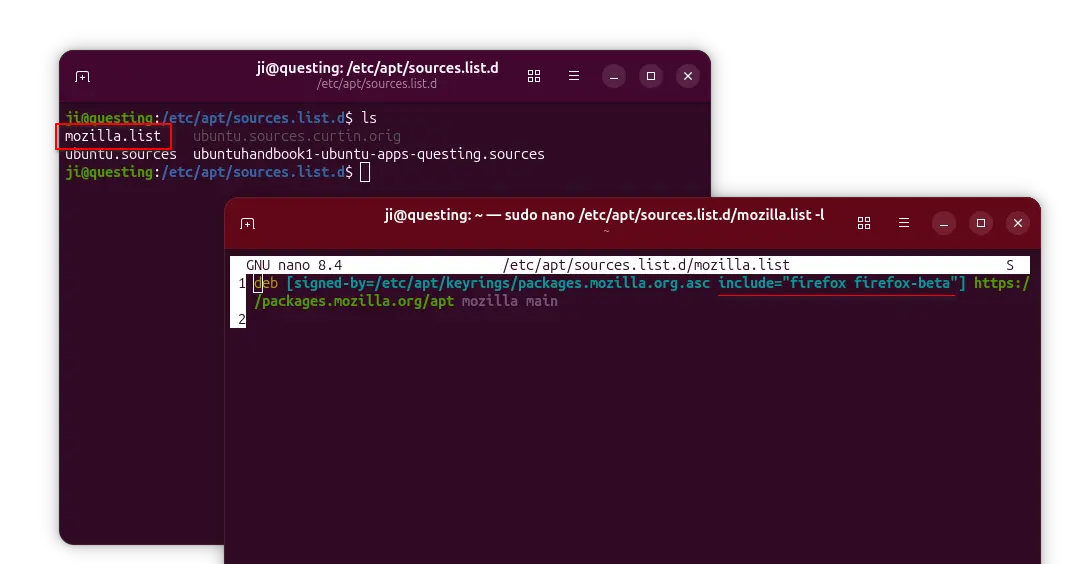
For apt repository installed in the classic .list file, edit it and add the include="package" or exclude="package" section between the brackets after ‘signed-by’ section.

And, finally run sudo apt update to apply changes.

elementary OS 8.0.2 Released with Kernel 6.14, based on Ubuntu 24.04

By:Ji m
24 September 2025 at 01:01

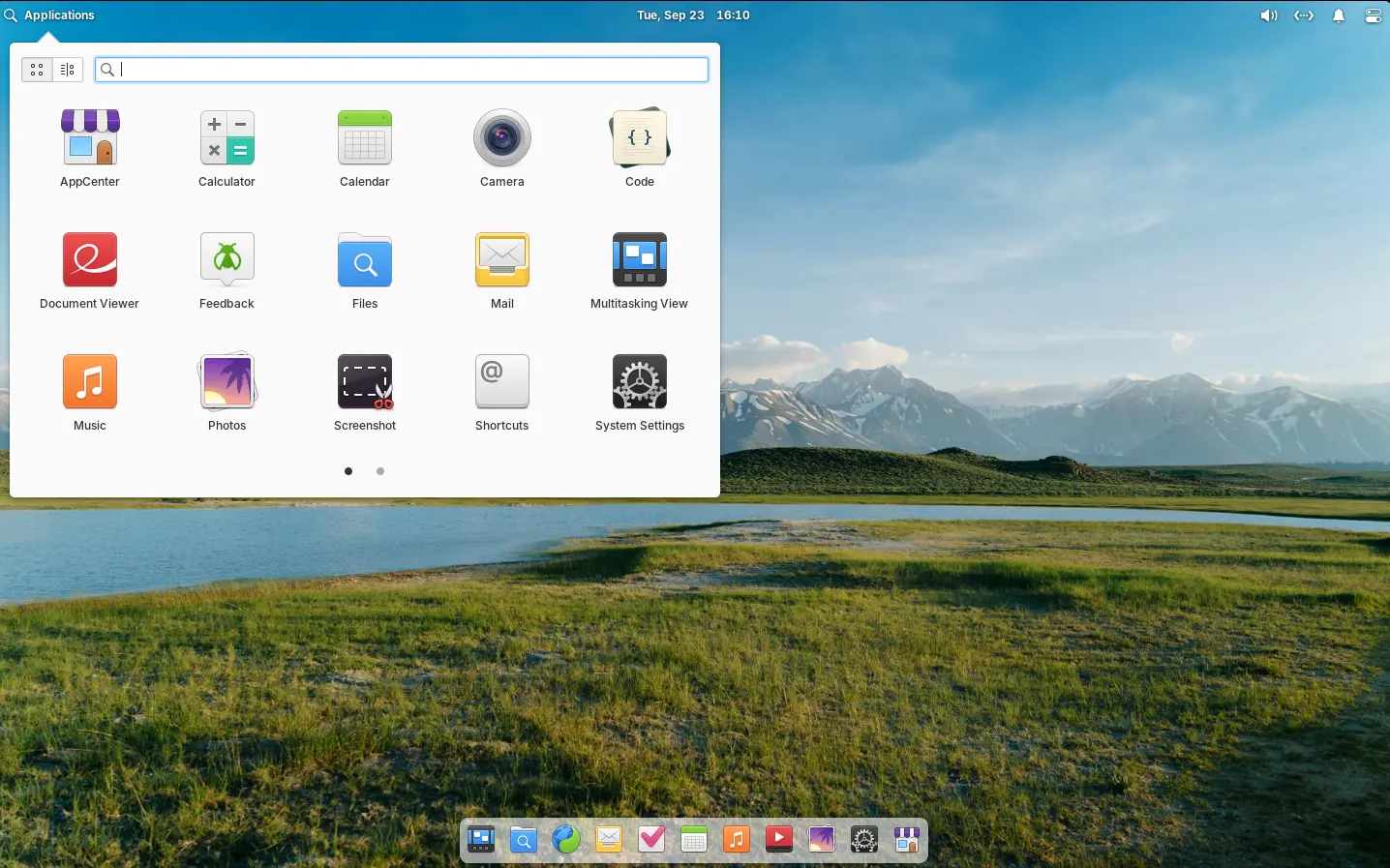
elementary OS, the Ubuntu based Linux Distribution that features Pantheon desktop environment, released new 8.0.2 version few days ago.

This is a second and last minor release for current 8.0 series, while, the developer team is busy working on the next major 8.1 version due to be released before year end.

elementary OS 8.0.2

elementary OS 8.0 is based on Ubuntu 24.04 LTS. The new 8.0.2 point release added the most recent Hardware Enablement stack from Ubuntu.

They include Linux Kernel 6.14 that features improved gaming performance, extended battery life, and more gamepads, wifi, microphones, etc hardware support, and, Mesa 25 with Vulkan 1.4 API and RDNA4, and new NVIDIA/Intel hardware support.

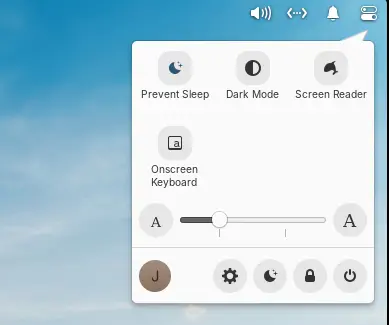
Besides the benefits from Ubuntu upstream, the new point release improved the top-right Quick Setting menu, with new “Prevent Sleep” toggle option. Which is useful when watching video or running other jobs that need to prevent system from going to sleep.

It also added new Gesture Controller, with ability to swipe up in Multitasking View to close windows. App titles in Multitasking View are now always shown, making them accessible for touch screen setups. And, screenshots taken with a keyboard shortcut will send a notification allowing to view it in Files.

For those who are blind or have low vision, the release improved screen reader support by adding password quality feedback in the installer and initial setup. Alt-Tab window switcher, and Notifications and Shortcut Overlay are also updated with screen reader support.

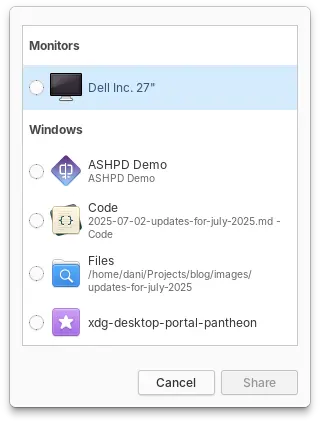
elementary OS 8.0.2 also improved the Screencast Portal an improved design for selecting which display or window should be captured, as well as respecting options for capturing the pointer.

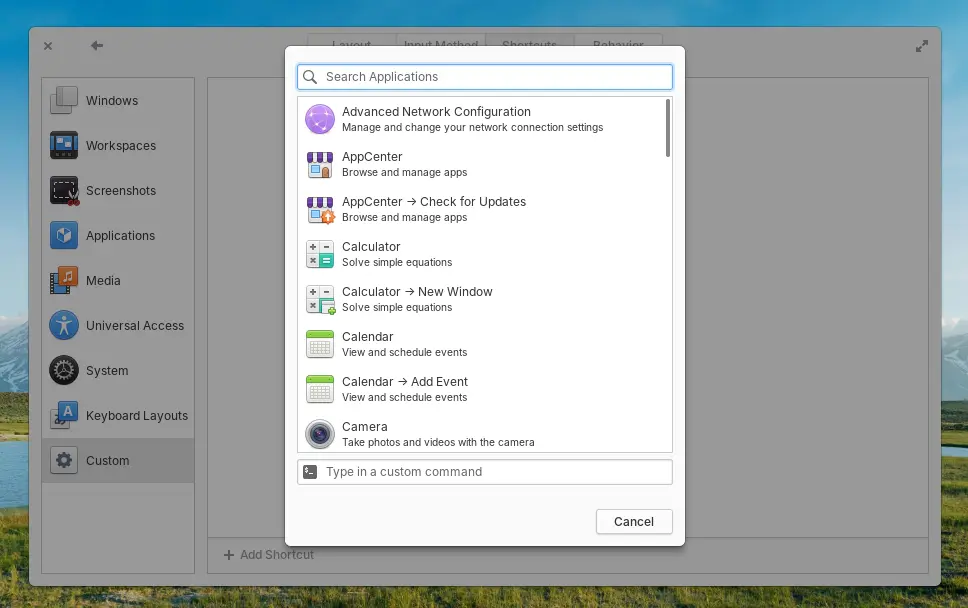
And, the custom keyboard shortcut dialog now displays a list of installed apps and their actions, allowing to easily add keyboard shortcut for launching selected app or performing an app action.

Other changes include:

  • Fix the “Dark Mode” toggle so it won’t break timed or sunset-to-sunrise dark mode schedule.
  • Refresh the Locale settings layout.
  • Long press on dock app icon to open context menu.
  • Warn when pasting command into terminal that include options to skip confirmation like -y, --interactive=never, and --force.
  • Add ability to clone git repositories directly from inside “Code” text editor via the projects menu in the sidebar.
  • Terminal inside “Code” editor now follows Natural Copy/Paste settings from the Terminal app.
  • Add context menu to remove individual track in Music app.
  • Save and ability to restore the queue and last played track in Music.
  • Show album art in media controls in the panel and elsewhere.
  • Redesign Bluetooth Settings, with keyboard navigation and screen reader experience.
  • Add System Updates entries in the Dock context menu, Application Menu, and search.

There are also tons of other changes and improvements, see the official release note for details.

Get elementOS 8.0.2

The iso image for Intel/AMD platform is available to download in its website via the link below:

Tips: set custom value to 0 if you want to try it out before donate. And recommended hardware specs include 4 GB RAM, 32 GB disk space, and 1024×768 display.

OBS Studio 32.0.0 added New NVIDIA AI Effects & Apple Metal Renderer

By:Ji m
23 September 2025 at 17:48

OBS Studio, the popular free open-source live streaming and video recording software, released new 32.0.0 version today!

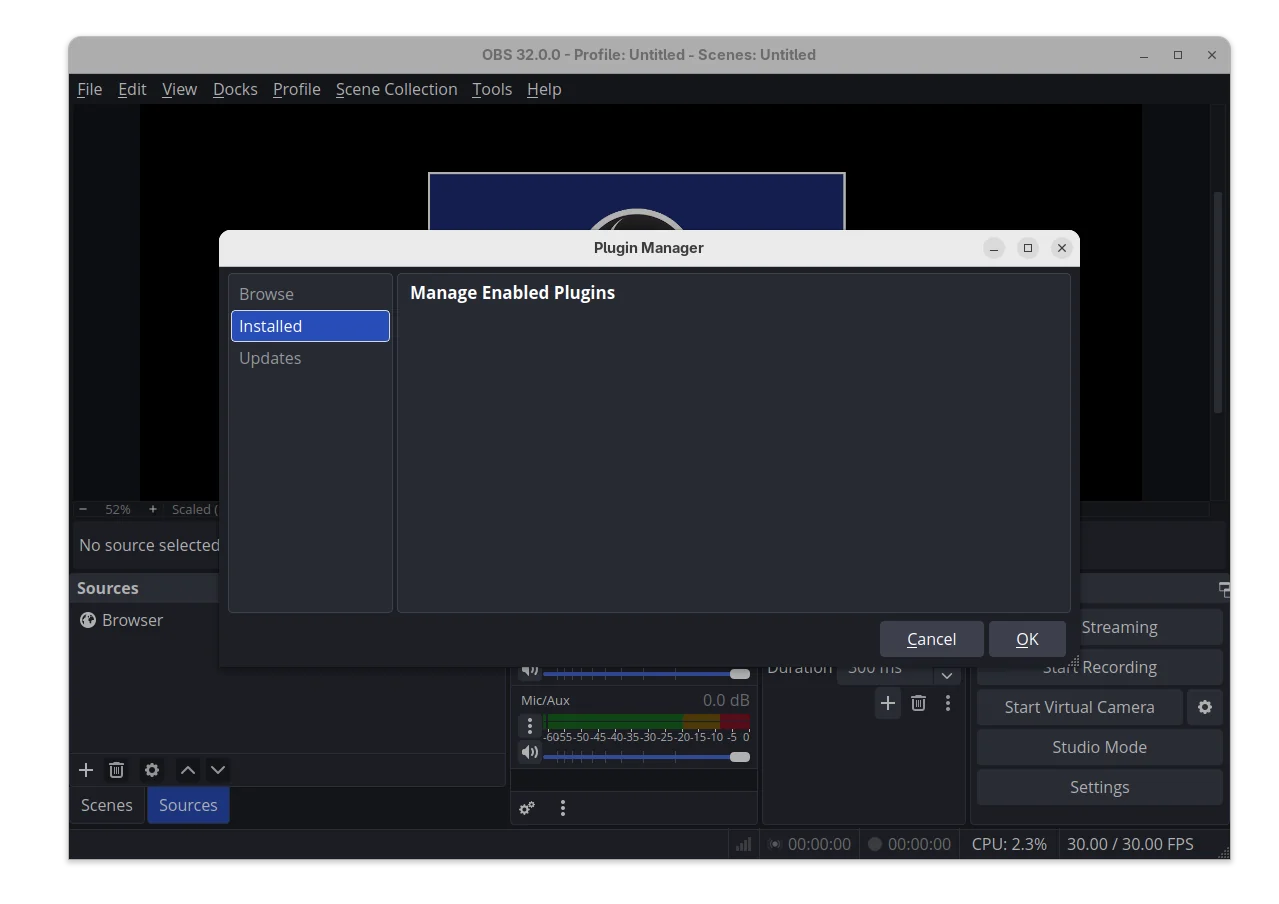
The new release is made available after 2 Beta and 1 RC testing releases. It features a new plugin manager, allowing to browser, install, update, and turn on/off plugins loading when OBS starts.

The feature is however at very early stage. There are only an UI dialog available via Tools -> Plugin Manager, but no plugin to install and manage in my case.

And probably due to new plugin manager, it will no longer load plugins built for a newer release of OBS to prevent future compatibility issues.

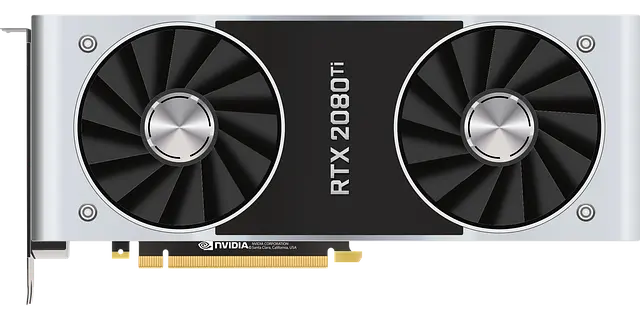
For users with NVIDIA RTX series graphics card, the new release added Voice Activity Detection (VAD) to audio effects. It’s a speech activity detection technique that can improve noise suppression for speech.

As well for NVIDIA RTX, the release added new AI-powered background removal option, allowing removal of chairs.

For modern mac computers with Apple Silicon processor, OBS Studio 32.0.0 added experimental Metal renderer support. It provides a low-level API to directly control the GPU of Apple devices, which will significantly improve the performance and efficiency.

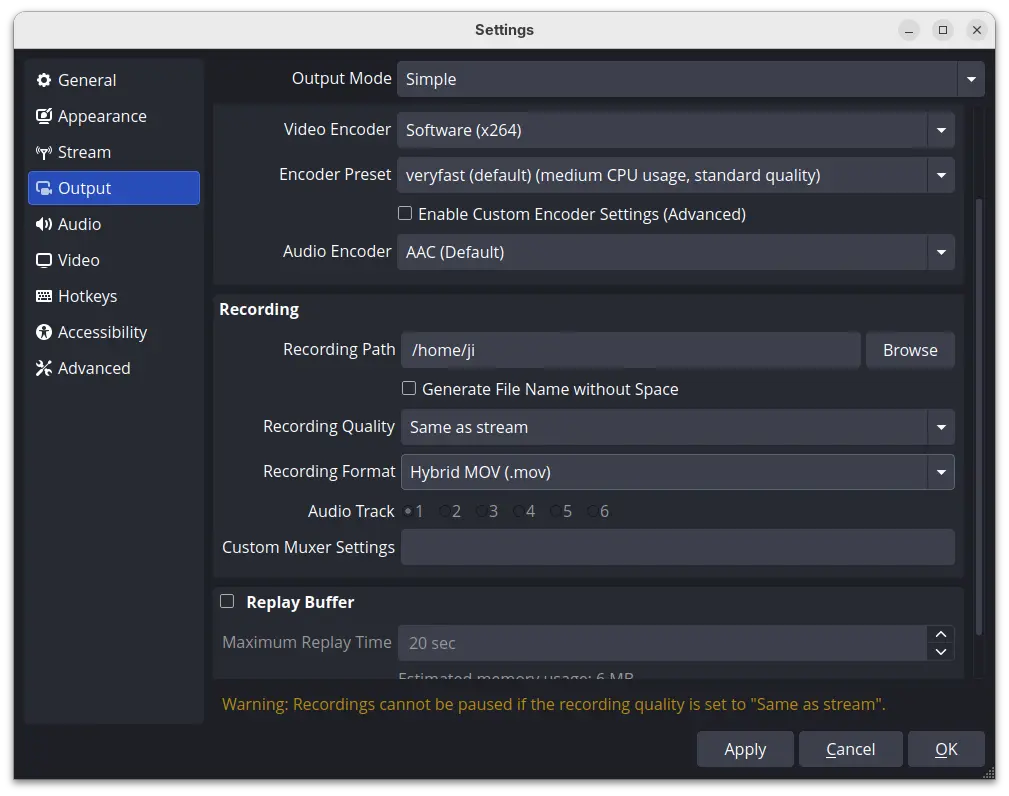
OBS 32.0.0 also introduced new Hybrid MOV container, and set Hybrid MP4/MOV as the default containers. The new container format brings Apple ProRes codec support on macOS and a more widely supported HEVC/H.264 + PCM audio option to all platforms.

Other changes in the release include:

  • Add opt-in automatic crash log upload for Windows and macOS.
  • Add custom OBS widgets in preparation for larger UI updates.
  • Change default bit-rate from 2500 to 6000 Kbps.
  • Remove the --disable-shutdown-check launch flag.
  • Change crash sentinel file location to its own sub-directory.
  • Improve audio deduplication logic to cover more cases.
  • Various crashes and other bug-fixes.

Get OBS Studio 32.0.0

The official release note as well as the installers (under “Assets”) for Linux, Windows, and macOS are available in Github via the link below:

For Ubuntu, it only provides the .deb package for 24.04. User may choose this official PPA for other Ubuntu releases support.

While, there are also Snap package available in App Center (or Ubuntu Software), and Flatpak package which also support ARM64 processors. Though, you may need to wait for few days as all of them are not updated at the moment of writing.

gThumb 3.12.8 added Viewing GPS Position Support

By:Ji m
22 September 2025 at 17:31

gThumb, the Gnome image viewer, browser, and organizer application, released new 3.12.8 version in last week.

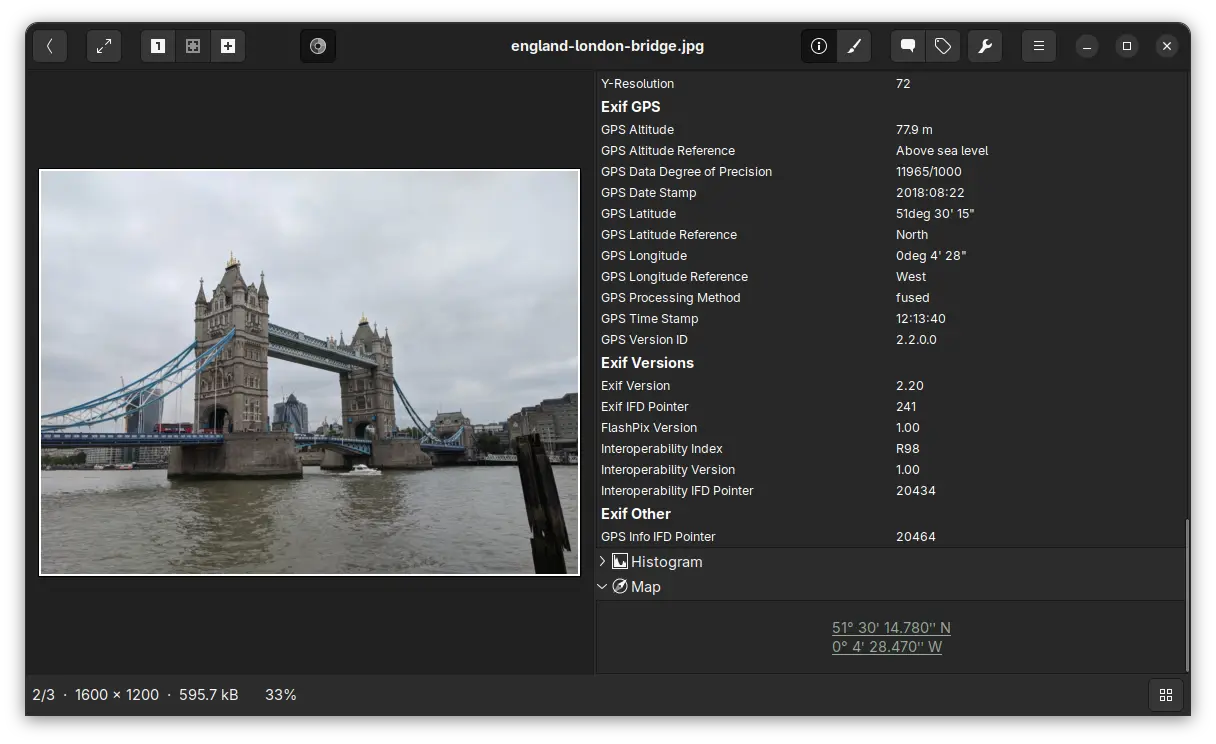
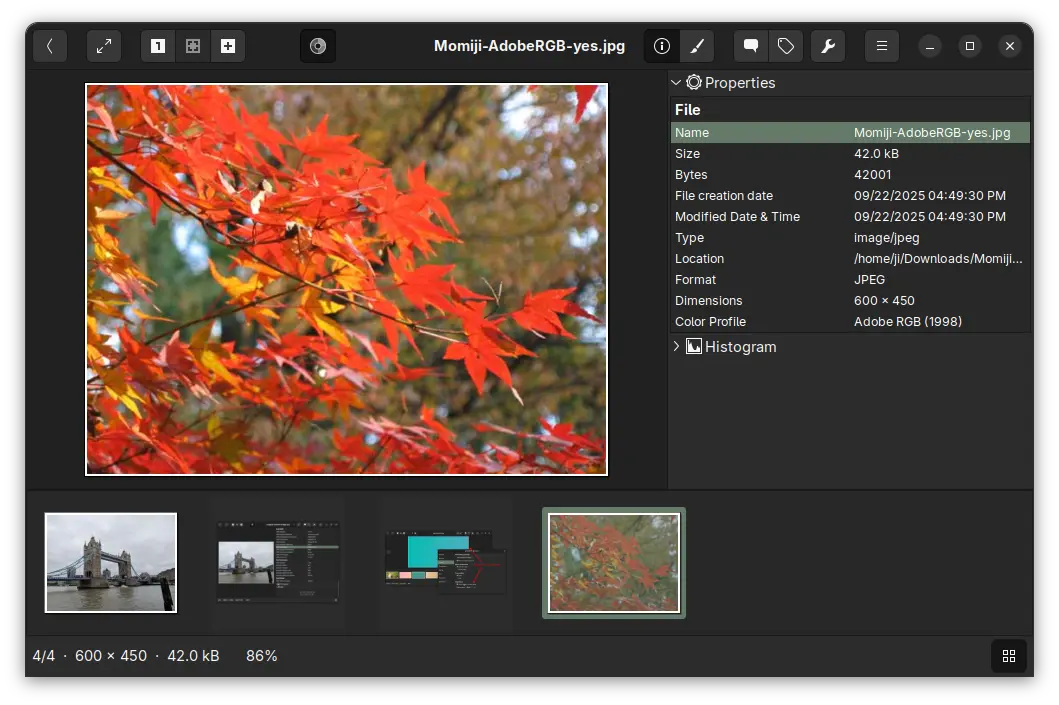
The new release of this application finally added support viewing the GPS metadata in your photo images. Meaning for photos taken by cameras or phones have location services enabled, the image viewer will show where they were taken with latitude and longitude location data.

And, by enabling the new “Open Map” extension in the Preferences dialog, it will display a “Map” section in image properties, allowing to click open the location using the OpenStreetMap free wiki world map service. So that you can see exactly where it is in world map.

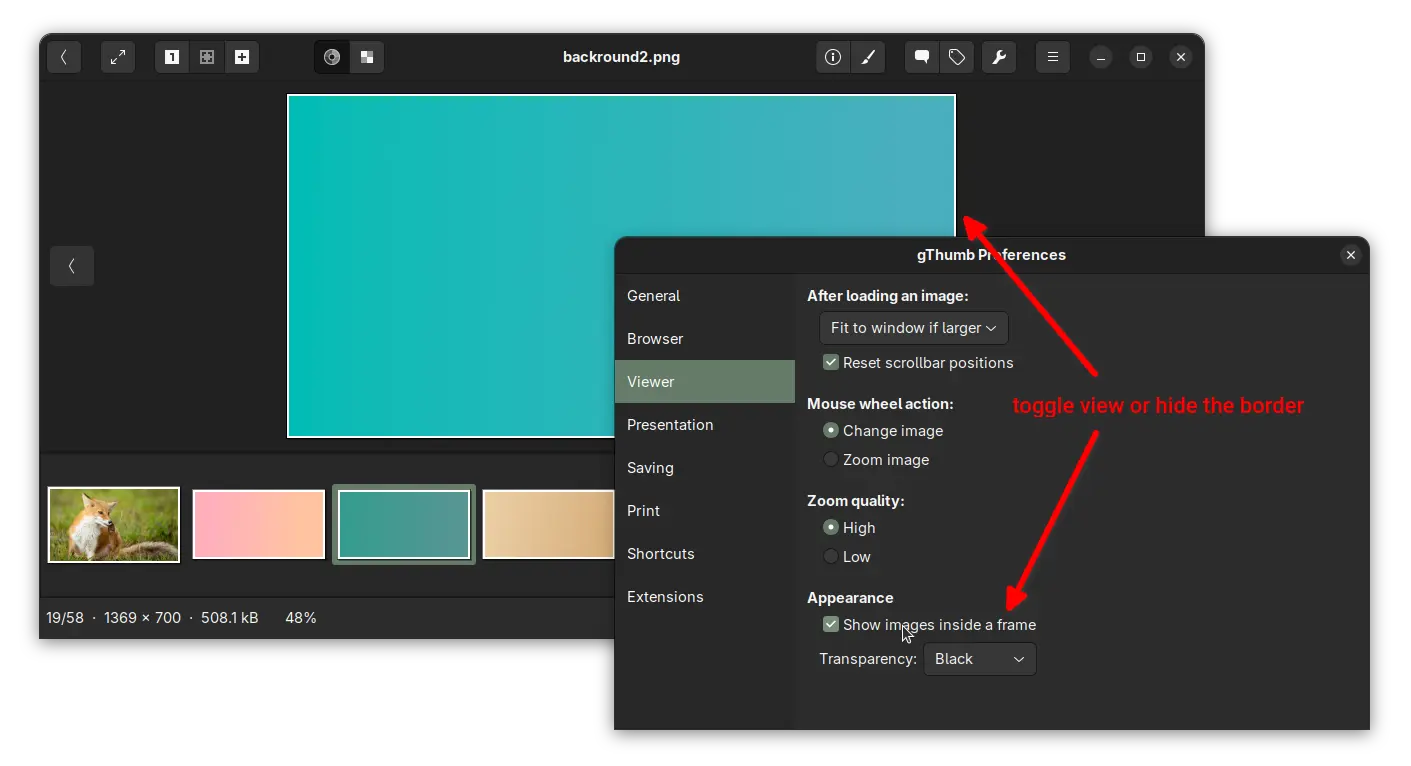
Besides that, the release added an option in Preferences dialog, allowing to hide the white border (aka frame) of the image you’re viewing. Which, however does not work for thumbnails.

gThumb 3.12.8 also updated the video viewer to rotate videos respecting the orientation tag, added ability to sort images by creation time, and added support for the AdobeRGB profile.

It now applies the embedded ICC profile for TIFF, applies the color space specified in EXIF data for PNG, and saves the color profile as well for AVIF images.

Other changes include:

  • Lossless WEBP and TIFF rotation by setting EXIF orientation tag.
  • Transform the profile to sRGB before saving an image with a profile.
  • Fix broken thumbnail panic.
  • Fix thumbnails not updated after saving an image.
  • Fix date and tag selectors on Wayland.
  • Use a darker gray for the background in image viewer.
  • Translation updates and various other bug-fixes.

How to Install gThumb 3.12.8

gThumb does NOT provide official installer packages. Besides building it from the source code, you may install it through either Flatpak, Snap, or Ubuntu PPA.

1. Snap package

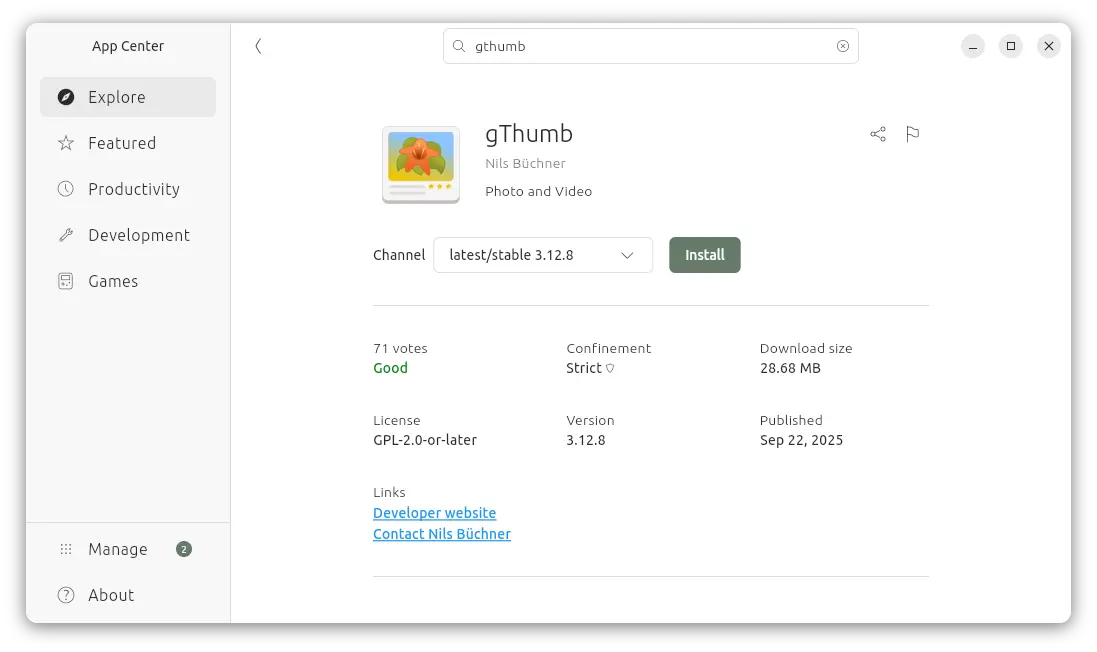
For modern Intel/AMD platform, there’s a snap package that can be easily from either Ubuntu Software or App Center, though it’s NOT updated to v3.12.8 at the moment of writing.

2. Flatpak package

Like Snap, The Flatpak runs in sandbox environment and works in most Linux distributions on both amd64 and arm64 platforms.

Ubuntu users may simply open terminal (Ctrl+Alt+T) and run the 2 commands one by one to install the package:

  • First enable flatpak support:
    sudo apt install flatpak
  • Then, install gThumb Flatpak package:
    flatpak install https://dl.flathub.org/repo/appstream/org.gnome.gThumb.flatpakref

If the app icon is not visible after installation, either log out and back in or run the command below to start it from terminal:

flatpak run org.gnome.gThumb

And, you may replace run with update in last command to check & install updates regularly.

3. Ubuntu PPA

For Ubuntu users who prefer the native .deb package, I’ve uploaded the package into this unofficial PPA for Ubuntu 20.04, 22.04, 24.04, 25.04, and 25.10 on amd64, arm64/armhf platforms.

To install it, open terminal (Ctrl+Alt+T) and run commands below one by one:

sudo add-apt-repository ppa:ubuntuhandbook1/apps
sudo apt update
sudo apt install gthumb

Uninstall:

To uninstall the Snap package, use Ubuntu Software or App Center.

To uninstall the Flatpak package, use command:

flatpak uninstall --delete-data org.gnome.gThumb

Optionally, you may run flatpak uninstall --unused to remove useless run-time libraries.

For the PPA package, uninstall it via command:

sudo apt remove gthumb gthumb-data

And, remove the Ubuntu PPA by using either “Software & Updates” under “Other Software” tab, or running command:

sudo add-apt-repository ppa:ubuntuhandbook1/apps

Also run sudo apt update to refresh cache afterward, though it should be done automatically.

Zorin OS 18 Beta is Available to Download, based on Ubuntu 24.04

By:Ji m
21 September 2025 at 00:09

Zorin OS, the popular beginner friendly Linux Distribution, announced the Beta release of version 18 yesterday!

Zorin OS is a Linux distribution designed for newcomers switching from Windows and macOS. It features Ubuntu package base, and customized GNOME desktop experience, while a lite version is available for choice with XFCE4 desktop.

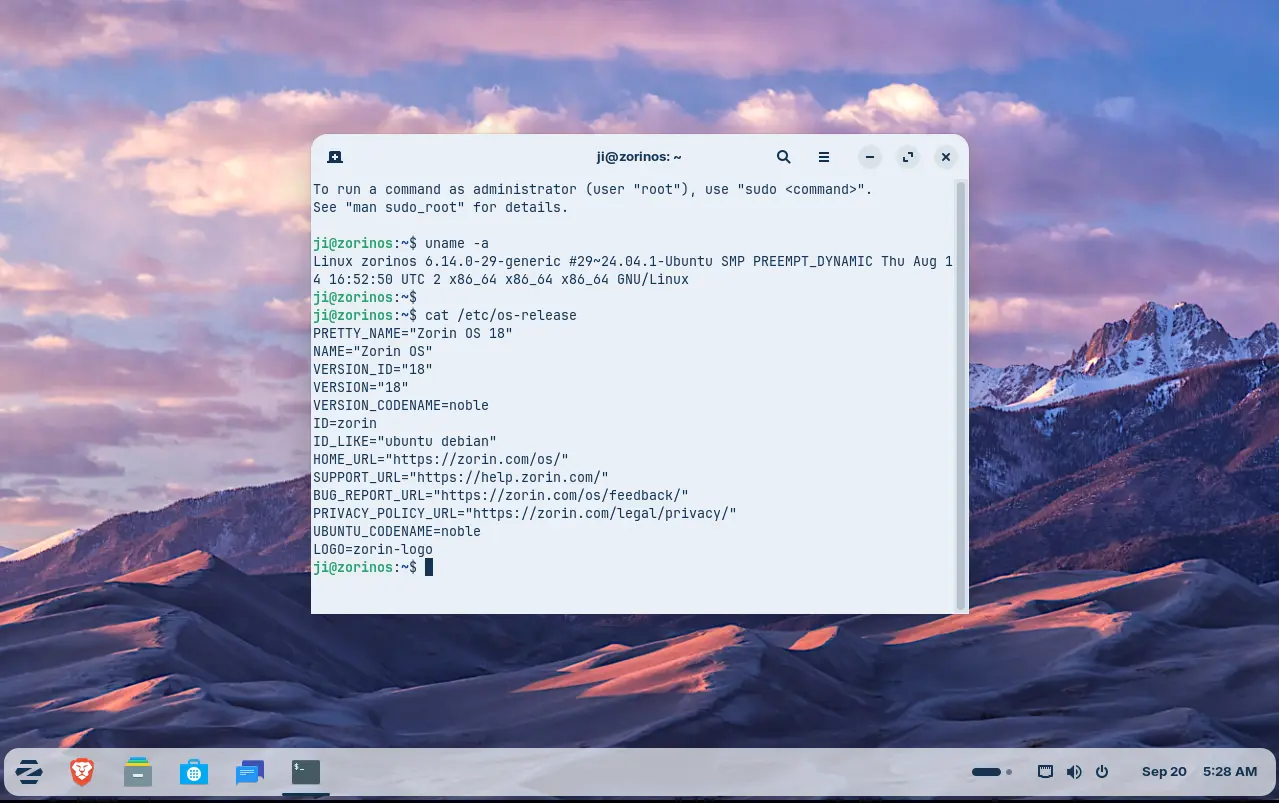
Zorin OS 18 is based on Ubuntu 24.04 LTS. Thanks to the upstream, the new release upgraded from Kernel 6.8 to Kernel 6.14 with tons of new drivers, new and improved hardware support. See what’s new in Kernel 6.14 (replace 6.14 in URL link, e.g., 6.13, for changes other Kernel versions).

Thanks to GNOME upstream changes, it features GNOME 46 (customized) desktop with a “dot and pill” icon to trigger overview, and indicate which workspace you’re working in. There are as well new camera app, remote login with RDP protocol, and OneDrive support in online accounts.

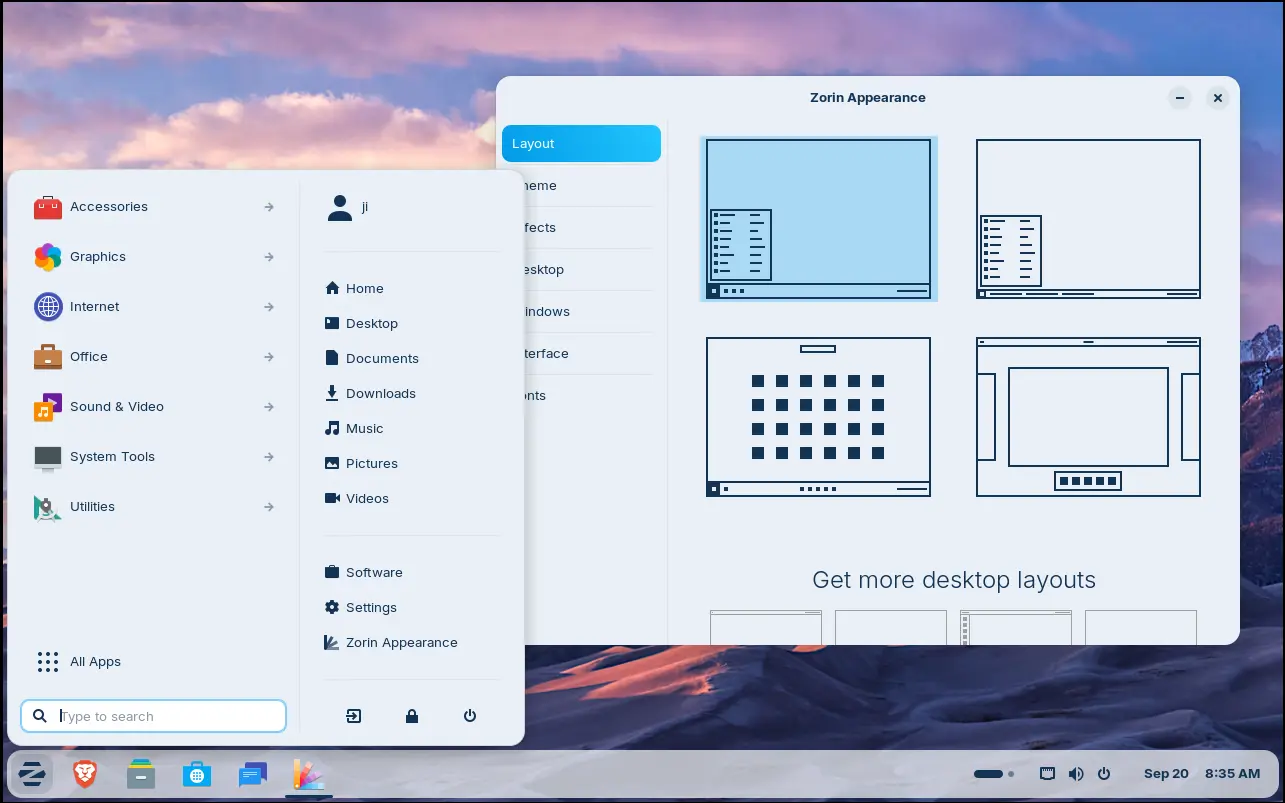
Besides the upstream changes, Zorin OS 18 refined the default desktop appearance with floating panel and rounded corners. While, user may easily change the layout with a single mouse click by using the built-in Zorin Appearance utility.

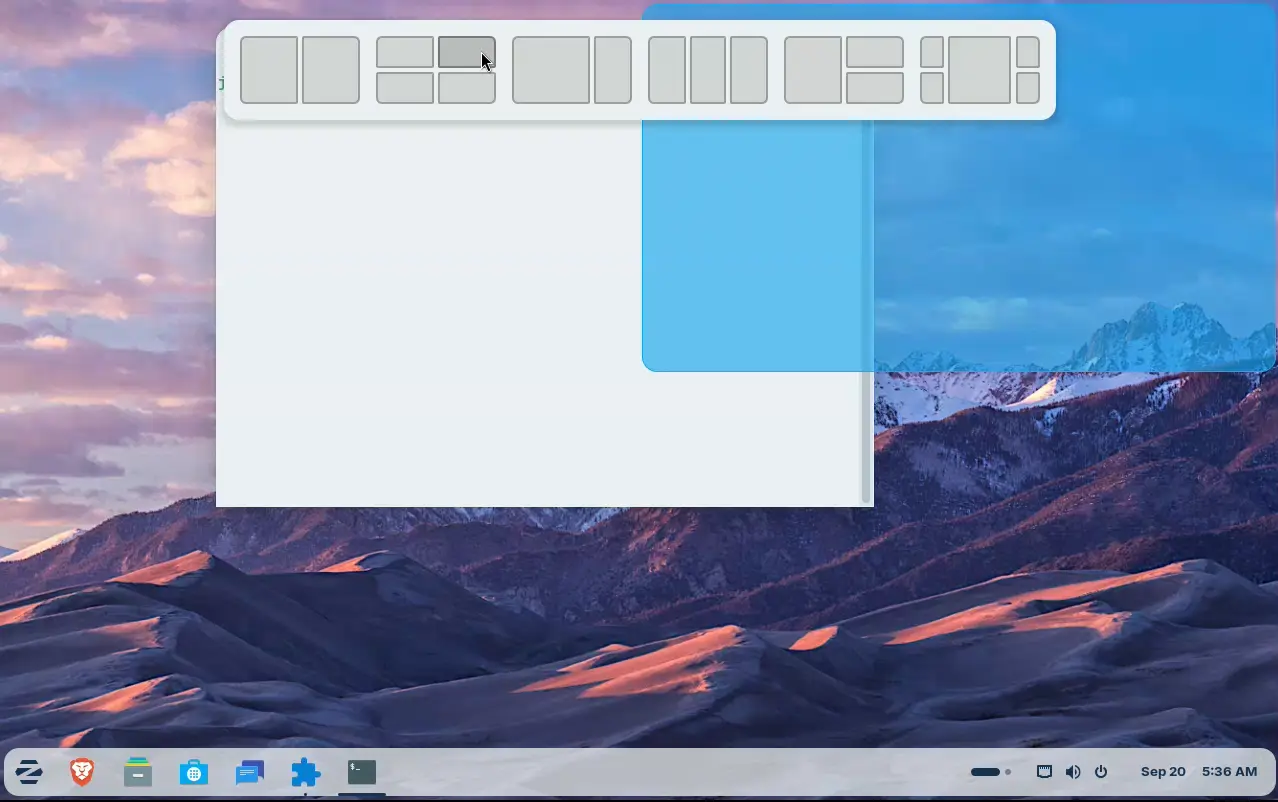
Like Ubuntu 24.04, the release also introduced a tiling window extension. Simply drag a window to screen top, it will show you a list of tiling layout, allowing to easily move and resize window automatically into selected screen edge.

By going to Zorin Appearance -> Windows -> Advanced Window Tiling, you may enable the indicator icon for the extension, and configure more about it.

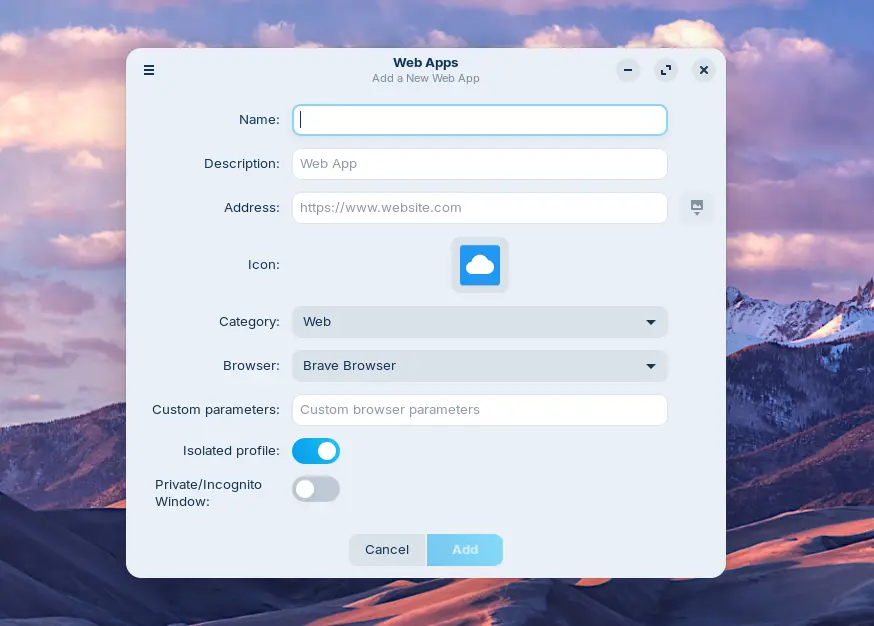
For users who need Office/365, Teams, Adobe Photoshop, etc apps, the release also introduced a WebApp Manager allowing to easily turn your favorite websites into apps, by using either the default Brave web-browser or any other browser (if installed) as you want.

Other changes in the release include:

  • Update built-in database to suggest alternatives to more Windows apps.
  • New Yellow and Brown theme colors.
  • 3 new panel layouts: Compact, Linux Mint like, and elementary OS like layouts (for Pro, paid version only).
  • Use Pipewire instead of PulseAudio as default sound server.
  • Improve Zorin Menu with multi-monitors support.
  • Center new windows at launch.
  • Global search in Files, and more!

Get Zorin OS 18 Beta

The official release note as well as the .iso image are available in its website via the link below:

NOTE that Zorin OS 18 is so far available for Beta testing, it’s not recommended to install it on production machine at the moment.

The minimum hardware requirements include 2 GB RAM, 15 GB disk space, and 1024 × 768 resolution display.

Linux Mint Released LMDE 7 Beta, based on Debian 13

By:Ji m
19 September 2025 at 23:40

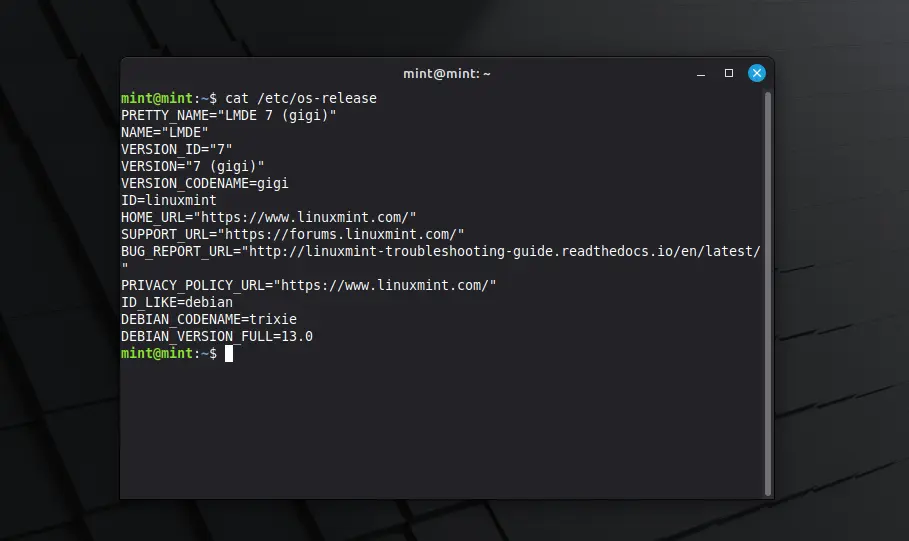
For Linux Mint users who prefer Debian package base, LMDE 7 code-name “Gigi”, is available for beta testing!

LMDE stands for Linux Mint Debian Edition. As the name says, it’s a Linux Mint edition based on Debian, aims to continue to deliver the same user experience if Ubuntu was ever to disappear.

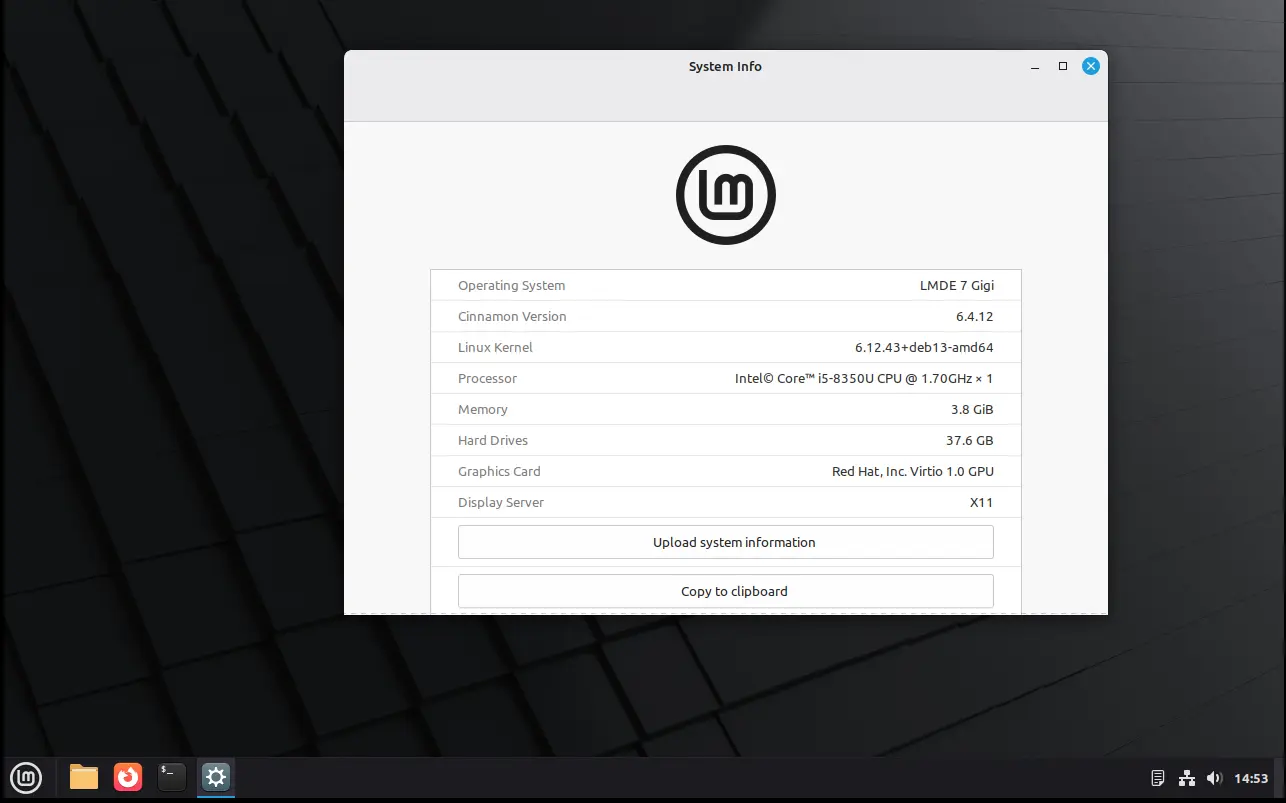
LMDE 7 is the next major release of this Linux Mint edition based on Debian 13 trixie, which was released a month ago. It features Kernel 6.12, Cinnamon desktop 6.4.12, and Debian 13 package base.

In my experience, Debian is more stable and reliable than Ubuntu. It’s perfect for server and advanced user use. And, LMDE makes it friendly for beginners.

However, it lacks major kernel version updates and most recent drivers (e.g., NVIDIA proprietary driver), unless upgrading the entire system to a new version (e.g., from LMDE 6 to LMDE7). If they are not big deal for you, then it’s a great choice!

Besides the difference between Kernel version and systems they’re based on, LMDE and normal Linux Mint edition deliver almost the same user experiences!

And, LMDE 7 Beta so far features Cinnamon only desktop, with following changes in Linux Mint 22.2:

  • New XApp Fingwit provides graphical interface to manage user fingerprints.
  • Improved Sticky Notes app with rounder corners and Wayland support.
  • Add “Theater Mode” and “Borderless Mode” mode for Hypnotix IPTV player.
  • Display user avatar in the login screen.
  • Add blur effect to the panel and user selection dialog box in login screen for better appearance.
  • Patch LibAdwaita with theme support, including Mint-Y, Mint-X and Mint-L themes.
  • Add accent colors support for LibAdwaita Flatpak apps.
  • New xapp-aiff-thumbnailer thumbnailer for cover art in .aiff audio files
  • Add iOS app for Warpinator file sharing utility.
  • Configurable EDID-based color correction (disabled by default) in XViewer.
  • Support editing description field in WebApp Manager.
  • Support leading zeros when renaming multiple files and using enumerations
  • Add description in Software Manager to tell the difference between Flatpak and system packages.

Download LMDE 7 Beta

The official announcement as well as the download link for LMDE 7 Beta is available in Linux Mint website via the link below:

For choice, you may download it from a mirror from this page. Though, as Beta it’s usually available in “testing” directory.

Hardware Requirements include: 2 GB RAM (though 4 GB recommended for smoother experience), 20 GB disk space, and 1024×768 resolution display.

Ubuntu 25.10 Beta Release is Available to Download

By:Ji m
19 September 2025 at 17:03

Ubuntu 25.10, code-name Questing Quokka, is now available for Beta testing!

The developer team announced the release last night for Ubuntu Desktop, Server, WSL, Cloud products, and official flavors.


Ubuntu 25.10 is a new short-term release with 9-month support until July 2026. It features GNOME 49, Kernel 6.17, and various other toolkit and packages updates.

The new Kernel is still in RC release stage at the moment. Compare to Kernel 6.14 in current 24.04 and 25.10, it features many new and improved hardware support, drivers, and performance improvements. For detailed changes, go HERE and HERE.

The Ubuntu Desktop so far has GNOME 49 RC, though the stable release of this desktop environment was just released 2 days ago, which features:

  • New Showtime video player (not pre-installed in Ubuntu with default mode, though available in App Center).
  • New Papers document viewer.
  • Remove ‘GNOME on Xorg’ (Ubuntu on Xorg) session, meaning Wayland only.
  • Music playback control from lock screen.
  • Improve remote desktop with multi-touch, relative mouse input, and additional virtual desktop.
  • Add configuration for pointing stick (aka TrackPoint).
  • Support relative dials on tablet pads.
  • Brightness in the Quick Settings when HDR is enabled, with external monitors support.
  • And more. See the official release note.

As you know, Ubuntu features a customized GNOME desktop experience. The 25.10 release replaced the default terminal with Ptyxis, which features first-class container integration.

And, it finally added Loupe as default image viewer, which was introduced in GNOME since v45. The image viewer features sandboxed image loading by using Glycin library, which also handles the background image loading in Gnome 49.

New default Ptyxis terminal emulator

Other changes in the Beta include screen reader support in new desktop installer, TPM-backed Full Disk Encryption recovery key management, and tryboot’s A/B booting support on Raspberry Pi.

There are as well toolkit updates, including systemd 257, gcc 15.2, binutils 2.45, glic 2.42, python 3.13.7, LLVM 20, Rust 1.85, Golang 1.24, openJDK 25, Mysql 8.4, Ruby 3.3, and more.

The final release of Ubuntu 25.10 is planned for October 9. For more about it, see the official release note.

Get Ubuntu 25.10 Beta

NOTE: Ubuntu 25.10 so far has a bug that prevents it from loading other dual-/multi-boot OSes. Configure apparmor didn’t work in my case, and I end up disabling Apparmor to get back Ubuntu 24.04.

For Ubuntu 25.04, it’s now able to upgrade to this 25.10 Beta, by firstly installing all available updates, then launch “Update Manager” via the command below:

update-manager -d

And if everything goes well, you’ll be able to upgrade from Beta to 25.10 final by installing updates regularly through “Software Updater”.

NOTE: It’s IMPORTANT to backup your data before upgrading, as it may have bug that breaks your system.

For choice, the iso images of the Beta are available to download at the link below:

Don’t know why, but it misses amd64 iso image at the moment of writing. To workaround the issue, you may choose a download mirror instead to get the ISO.

And for non-GNOME users, there are also 10 official flavors features different desktop environments, which can be download from either their websites or this page.

GNOME 49 Officially Released with New Video Player & Document Viewer

By:Ji m
18 September 2025 at 17:30

GNOME developer team finally announced the 49 release of this popular Linux Desktop environment!

If everything goes well, GNOME 49 will be the default desktop for Ubuntu 25.10, Fedora Workstation 43, and optional for Arch, Manjaro, etc Linux distributions.

The new desktop release introduced Showtime to replace Totem as the default video player, and Papers to replace Evince as the default document viewer.

Both use the GTK4 plus LibAdwaita libraries for the modern user interfaces with native look and touch friendly experience in today’s GNOME desktop.

Showtime video player

Gnome on Xorg (or Ubuntu on Xorg) is finally removed in the release, meaning there’s no longer Xorg/X11 session but only Wayland for GNOME. Though, the GDM login screen still can load other Xorg sessions, e.g., XFCE and Cinnamon.

It as well features new accessibility menu in login screen, with Quick Settings style buttons to toggle access to screen keyboard, screen reader, etc tools.

And, user can now control music playback and power-off/restart (though not enabled by default) from the lock screen.

GNOME 49 also improved Remote Desktop support, by adding multi-touch input support for client device with touch-screen, relative mouse input for better 3D app or gaming experience, and ability to have additional virtual monitors even when there aren’t additional displays physically present.

The image loading and the background wallpaper now are handled by the Glycin library, which is sandboxed to help prevent security exploits.

And, the release now supports changing the display brightness in the Quick Settings when HDR is enabled. While, these new HDR brightness controls support external displays, and allow multiple displays to be adjusted at the same time.

There are also many improvements to the Gnome Weather, Gnome Maps, Gnome Calendar apps, as well as following changes:

  • Move “Do Not Distrub” to Quick Settings.
  • Indicate when Preserve Battery Health enabled.
  • New wallpapers for HDR displays.
  • Improved Flatpak app data parsing for GNOME Software.
  • New option to disable “Super” shortcut key.
  • Support relative dials on tablet pads.
  • Hardware accelerated video encoding for Camera app.
  • Add ‘Donate’ button in About page.
  • Add configuration for pointing stick (aka TrackPoint)

For more about GNOME 49, see the official release note.

Get GNOME 49

As mentioned above, GNOME 49 will be available in Ubuntu 25.10, Fedora Workstation 43, etc Linux Distributions. And, Arch has already made the new release into GNOME Unstable repository.

For choice, there’s GNOME OS Nightly available for trying it out in either virtual machine (only support Gnome Boxes) or real hardware.

Dolphin Emulator 2509 now Emulates Cars 2 & Disney Infinity Smoothly

By:Ji m
18 September 2025 at 01:15

Dolphin, the free open-source GameCube and Wii game emulator, released new 2509 version today after another 3 months of development.

The new release of this game emulator revamped the settings UI, added some new features, and, it can finally emulate Toy Story 3, Cars 2, and Disney Infinity on powerful hardware at full speed.

It seems that Avalanche Software, the team behind the 3 games, don’t like Dolphin Emulator.

However, we’re going to go out on a limb and say that Avalanche Software, the team behind the Trio of Destruction™, weren’t so fond of us. Not only did they leave crude messages hidden in game data for “hackers” to find, but we also suspect that someone on their team was actively monitoring us.

While Toy Story 3 took a few years to get working, the writing was on the wall for quite some time that eventually it would be solved. So, for Avalanche’s next two games, we believe that they left a trap specifically designed to defeat Dolphin: the dcache suicide pill.

As the announcement said, the team added a trap in the games designed to stop Dolphin from running them in PC or mobile phone. But with the 2509 release, it finally fixed the issue by adding a patch allowing to run the Trio of Destruction™ fluidly on powerful hardware.

Besides that, the release revamped the settings UI, and introduced new “Map and Calibrate” button, allows to simply map and calibrate joystick at the same time.

It also added “Correct Time Drift” option under Advanced setting page. It pursues accurate overall elapsed time by running fast after stutters, which is useful for internet play.

Dolphin-emu 2509 also improved the general performance for Bluetooth Passthrough. It added the ability to load Realtek firmware, when trying to use a Realtek adapter with the feature for the first time.

Meaning now the Bluetooth Passthrough now supports modern Bluetooth adapters, such as TP-Link Bluetooth 5.3 Nano and Asus USB-BT500.

Other changes include:

  • Disable Dual Code mode by default for desktop, as it’s unstable and modern desktop PCs are overpowered for Dolphin. Though, there’s an option to turn it back.
  • Fix DSP-LLE Recompiler exception that could cause games not booting.
  • Add resource manager, which tracks the requests per frame for better performance loading textures, and tracks memory usage to prevent out of memory.
  • Load custom texture multi-threaded.

In addition, the Nintendo Switch 2 NSO GameCube Controller is not supported yet in the release, as it’s not fully implemented by the upstream SDL (Simple DirectMedia Layer).

Install Dolphin Emulater 2509

The software website provides official installer packages for Windows, macOS, Linux, and Android, which are available to download via the link below:

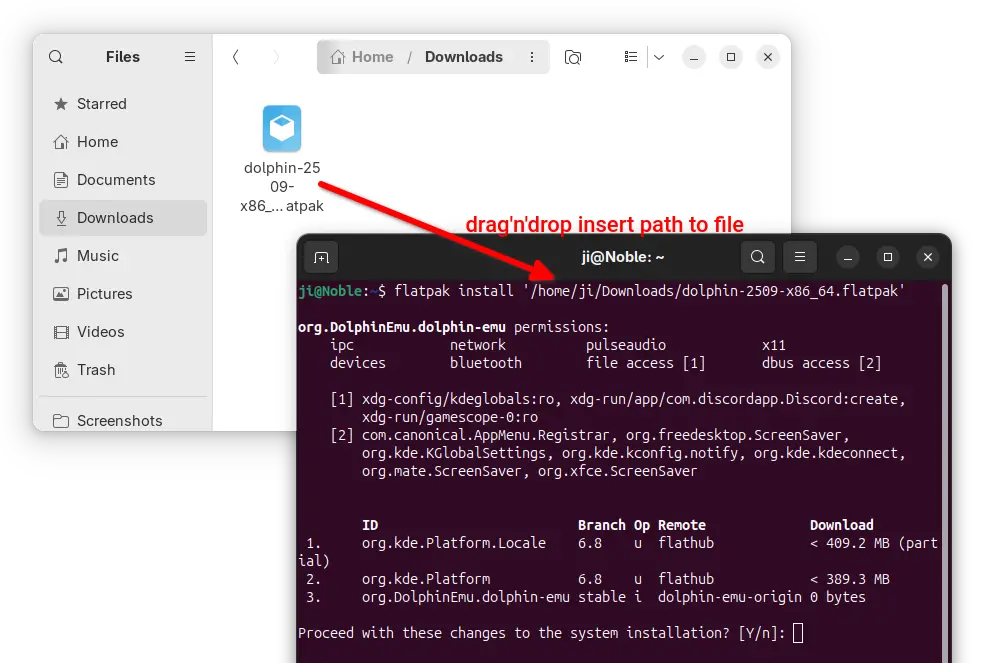
For Linux, it’s Flatpak package that runs in sandbox environment. Download either X86_64 for Intel/AMD or aarch64 for ARM64 platform, then install via command:

flatpak install /path/to/flatpak-file

NOTE: Ubuntu does NOT support Flatpak out-of-the-box, run the command below to install the daemon first:

sudo apt install flatpak

For Ubuntu users who prefer the native .deb package, I’ve made the packages into this unofficial PPA for Ubuntu 22.04, Ubuntu 24.04, and Ubuntu 25.04 on amd64 (Intel/AMD) and arm64 (e.g., Raspi, Snapdragon processors) platforms.

Simply open terminal (Ctrl+Alt+T) and run 3 commands below one by one to add PPA, refresh cache, and install the emulator:

sudo add-apt-repository ppa:ubuntuhandbook1/dolphin-emu
sudo apt update
sudo apt install dolphin-emu

VLC 3.0.22 Adds Qt6 & AMD AI Frame Interpolation Support [Ubuntu PPA]

By:Ji m
16 September 2025 at 19:27

VLC, the popular free open-source media player, rolled out the new 3.0.22 version few days ago.

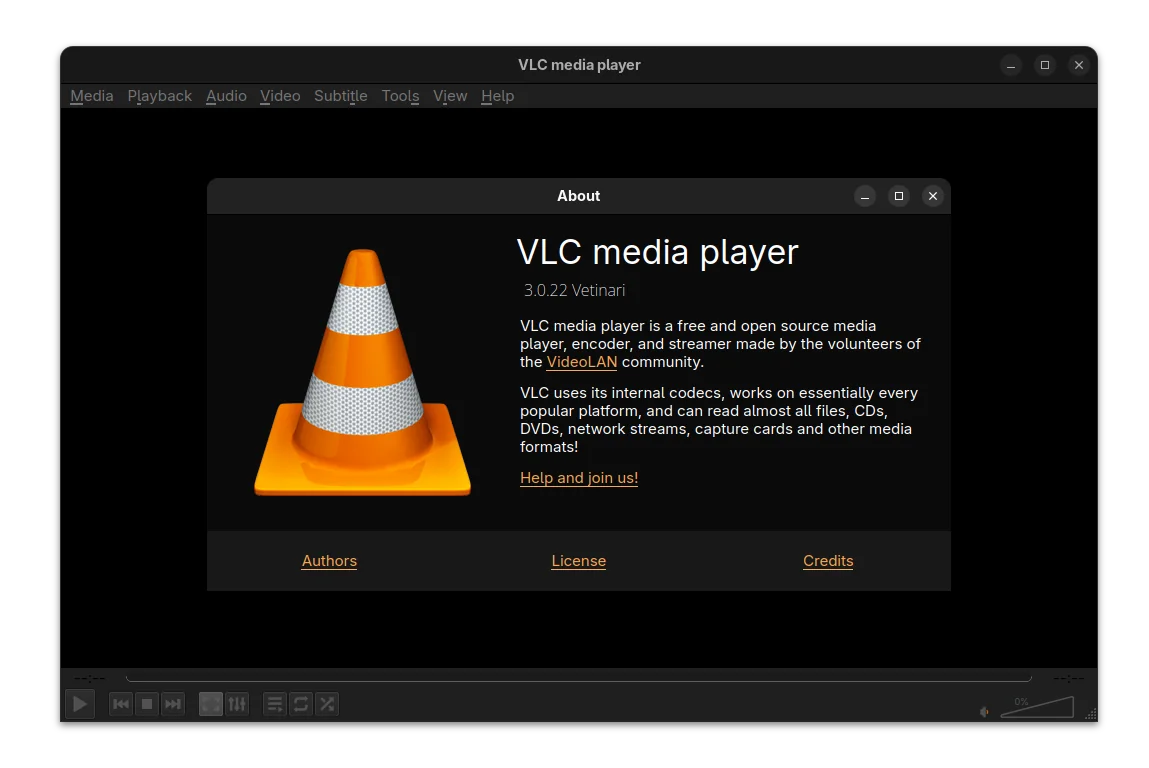
This is the twenty-third release of VLC 3.0 branch, code-name “Vetinari”, with the work of more than a year of development.

VLC qt dark interface

For Windows user, the release added official ARM64 build (for e.g., snapdragon processors), though it needs at least Windows 10 RS5 17763 / 1809.

It fixed the support for Windows XP SP3, though restricted the SystemParametersInfo calls. And, now it allows to rename, move, or delete the playing files on Windows.

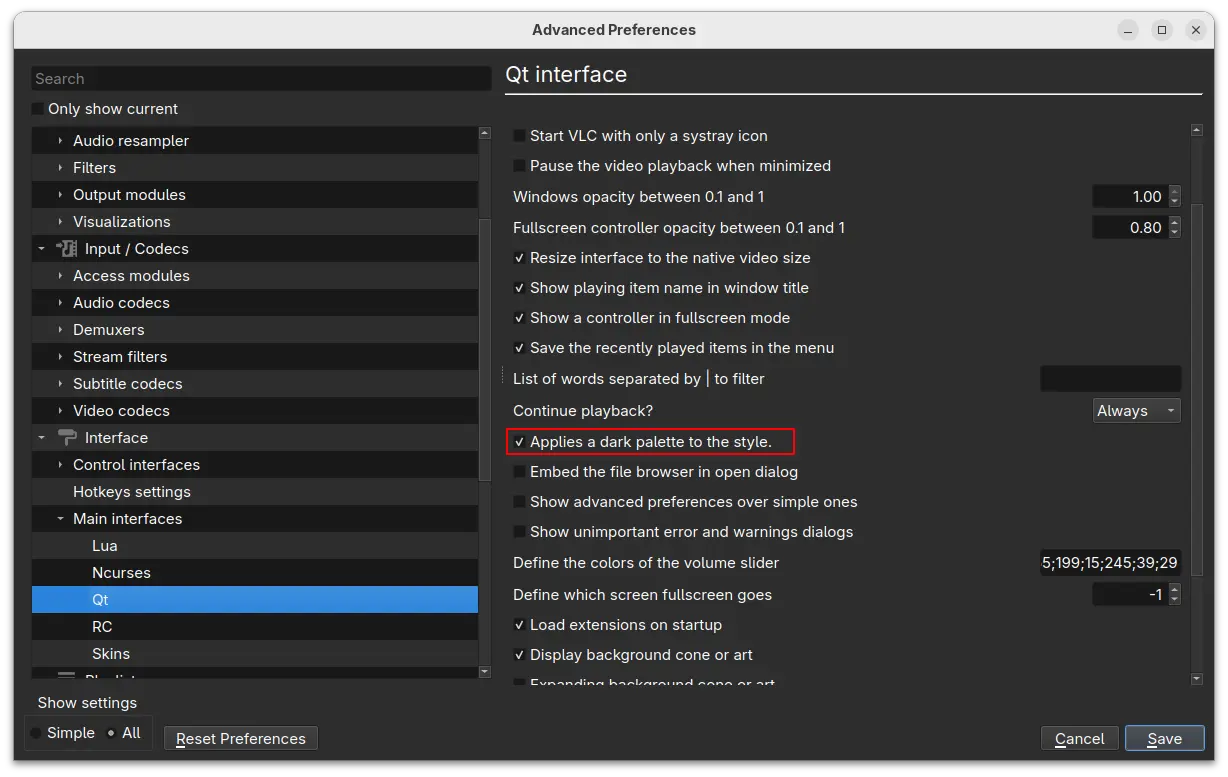
The UI now can be build with Qt6, while Qt5 is still supported. And, it introduced a dark palette for the Qt interface.

For user with AMD graphics card, VLC 3.0.22 added AMD Fluid Motion Frames (AFMF) support. It’s a video enhancement technology that use AI to generate and interpolate frames between existing frames in a video, resulting more fluid and high frame rate video.

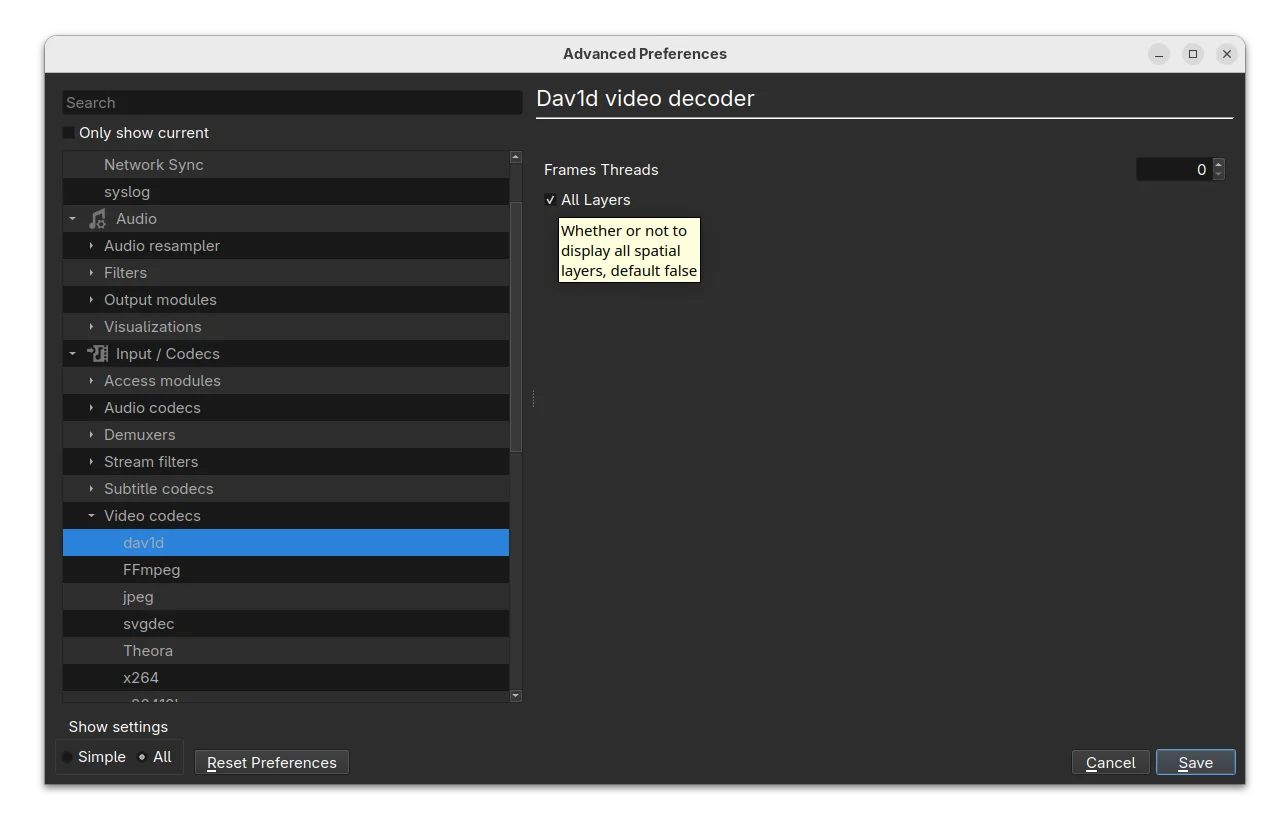
It also added dav1d-all-layers option for the dav1d decoder, to control whether or not to display all spatial layers. The feature is disabled by default, but you may enable it to make the decoder output every available spatial layer in the video higher-quality playback experience.

Other changes include A_ATRAC/AT1 (Sony ATRAC1 Codec) support in matroska, handle pictures in FLAC, as well as:

  • Assume subpictures are in SDR by default
  • Fix Opus channel mapping
  • Fix hardware decoding with VideoToolbox of XVID MPEG-4 video
  • Fix DVD CEA-608 captions parsing
  • Fix ProRes 4:4:4:4
  • Disable decoding using libdca, libmpeg2 and liba52 by default in favor of libavcodec
  • Handle mkv-use-chapter-codec option
  • Prevent FLAC seeking logic get stuck
  • Fix VOB/AOB LPCM/MLP detection failing occasionally
  • Cut QNap title on first invalid character
  • Fix display of certain JPEG files
  • Fix playback of very short ASF files (duration less than 1s)
  • Fix crashes in multiple demuxers
  • Fix SFTP seeking for large files on 32-bit OS
  • UPnP: remove SAT>IP channel list fallback
  • Use a better stretch mode in wingdi
  • Fetch missing device information when running in UWP

Install VLC 3.0.22

VLC 3.0.22 is not officially announced yet, though the source code now is available to download via the link below:

For Debian, the Deb Multimedia repository has made the package for Debian Unstable. And I’ve uploaded the new release package into this unofficial PPA for Ubuntu 22.04, Ubuntu 24.04 and 25.04.

To add the PPA and install VLC 3.0.22 in Ubuntu, open terminal (Ctrl+Alt+T) and run commands below one by one:

sudo add-apt-repository ppa:ubuntuhandbook1/vlc
sudo apt update
sudo apt install vlc -t "o=LP-PPA-ubuntuhandbook1-vlc"

Firefox 143.0 is out with Microsoft Copilot AI Integration

By:Ji m
16 September 2025 at 16:18

Firefox 143.0, the new monthly release of the popular free open-source web browser, is available to download.

The new release of Mozilla’s web browser added support installing websites as web apps for Windows user.

For running website, there’s a new “Add tab to taskbar” icon in the right corner of address bar. By clicking on it, will install the website as web app, and pin it into task bar.

The web app uses the website’s favicon as app icon. It runs in a separate header-less browser window without losing access to your installed add-ons. The features so far is only available for Windows, but not for Firefox installed from Microsoft Store.

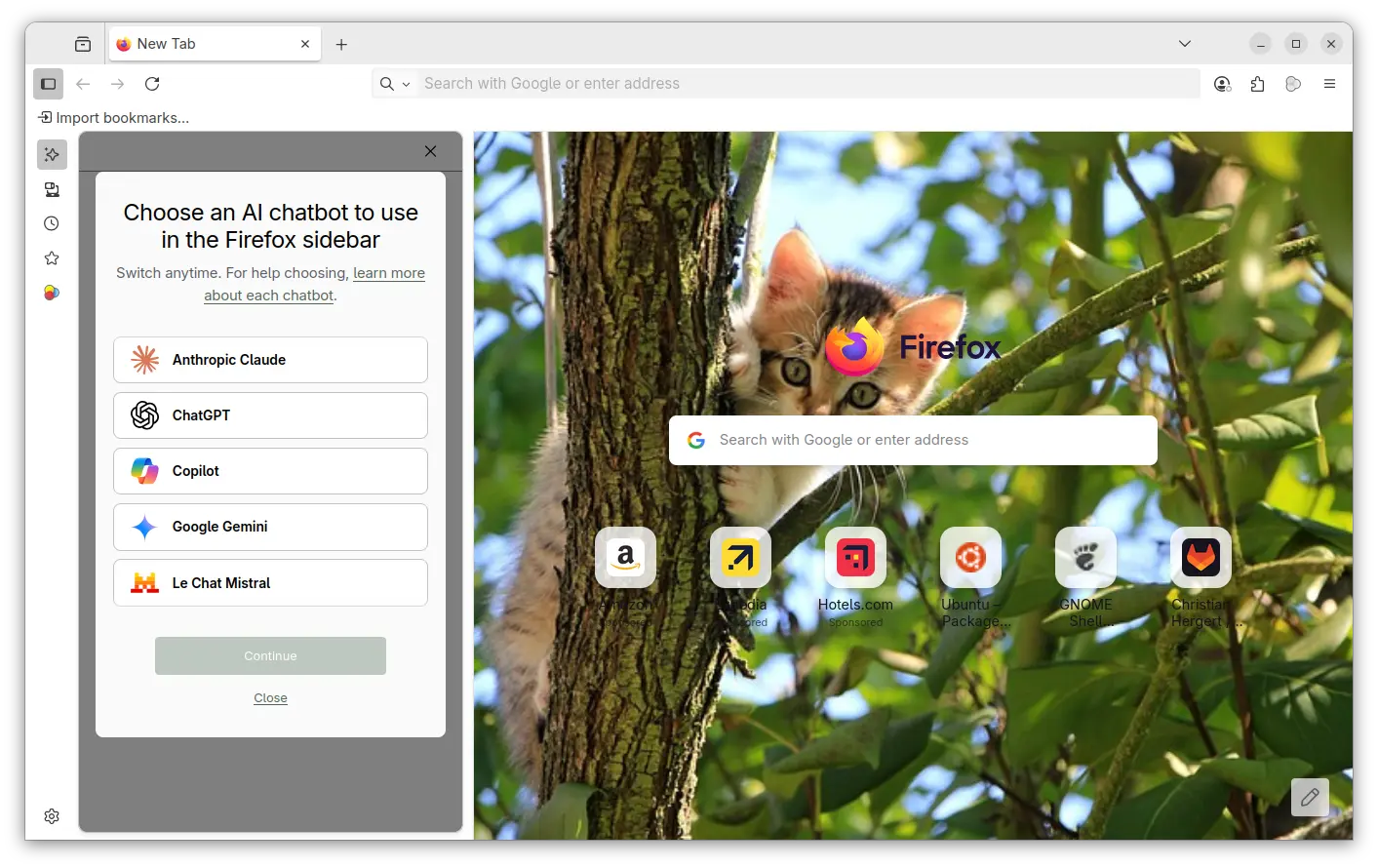
For AI users, the new Firefox release added Microsoft Copilot support. It so far supports “Quick response” and “Smart (GPT-5)” chat mode in my case, with ability to generate text, image, and code, and analyze image. It’s free without login required, though a pad version is available for choice that needs an account.

Also for Windows, the browser release added support Windows UI Automation, which improves support for accessibility tools such as Windows Voice Access, Text Cursor Indicator and Narrator. Though, it’s a progressive roll-out feature that may be not ready for you.

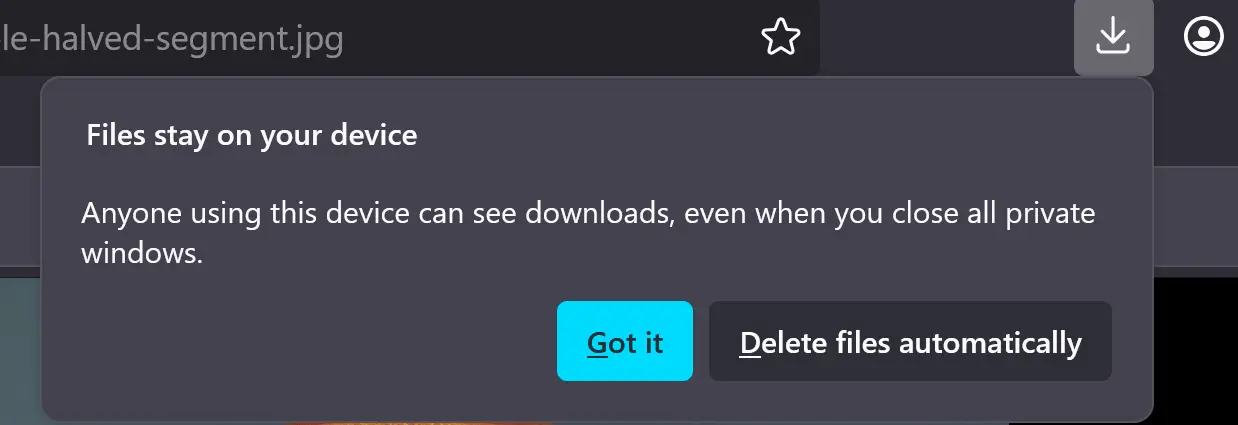
When downloading a file in the Private mode, Firefox now asks whether to keep or delete it after that session ends. You have the choice to disable this behavior, by navigating to “Files and Applications” in Settings page.

Other changes in Firefox 143.0 include:

  • Pin a tab by dragging to the start of the tab strip.
  • Preview camera inside the permission dialog.
  • Display events and dates in address bar, for users in United States, United Kingdom, Germany, France, and Italy regions.
  • xHE-AAC audio playback on Windows 11 22H2+, macOS, and Android 9+
  • Expand Fingerprinting Protection by reporting constant values for several more attributes.
  • Various security fixes.

As well there are some change for developers, including:

  • updated grid sizing algorithm
  • <input type=color> now recognizes the CSS <color> format in addition to the color hex format
  • Uncheck the Group Similar Messages now prevents successive similar messages from being grouped.
  • Remove restrictions that prevent setting the display property on <details> elements, added a ::details-content pseudo-element to style the expandable/collapsible contents of those elements.”,

Get Firefox 143.0

The official release note and download link are available in Firefox website via the link below:

The link is not ready at the moment of writing, and this tutorial is written according to the Github release note.

For Ubuntu, user may either choose download the official package, or install it via Snap, Flatpak or Ubuntu PPA.

VirtualBox 7.2.2 Fixed TPM 2.0 Emulation & KVM Conflict

By:Ji m
15 September 2025 at 22:12

Oracle VirtualBox, announced the first maintenance update for the 7.2 release series few days ago.

VirtualBox 7.2.2 fixed various crash issues and regressions in the major 7.2.0, it as well added some minor new features.

First, it fixed the issue that TPM 2.0 emulation does not work with certain guests, brings back secure boot, TPM based disk encryption, Windows Hello, etc features for your virtual machines.

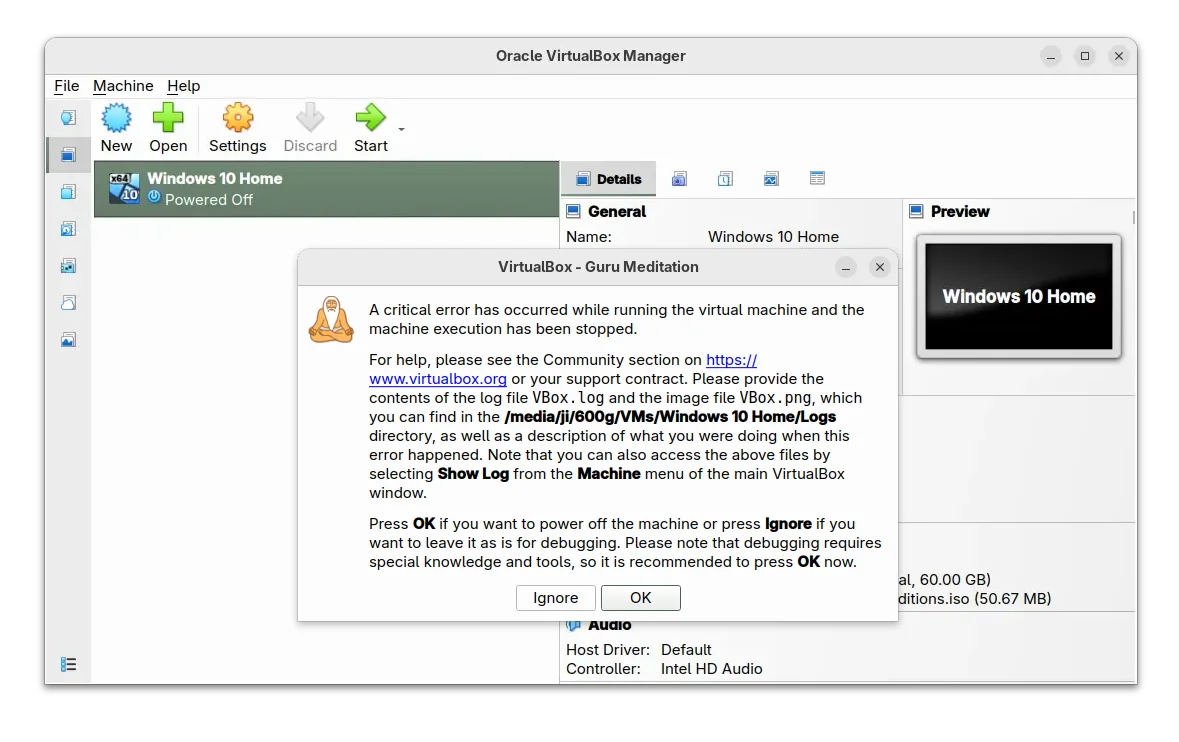
For Linux hosts who use KVM (Kernel-based Virtual Machine), VirtualBox will shows “Guru Meditaion” critical error when trying to start a VM, due to conflict.

It fixed the conflict by using KVM APIs for acquiring/releasing VT-x, which however needs Kernel 6.16.0 or higher. For earlier Kernel releases, host needs to disable the KVM kernel module for being able to start VBox VMs properly.

VBox 7.2.2 also improved Windows 11 support by adding legacy light/dark themes from Windows 10. It added a new experimental type of e1000 adapter (82583V), though requires the ICH9 chipset. And, the virtual USB webcam is now part of the open source base package.

Others are primarily bug-fixes, including fixes for various crashes, such as VM startup crash on Arm host, VBox Manager crashes when VM has a lot of snapshots, when attempting to show error notifications too early, while removing all VMs from VM list, and when trying to add a VM on Linux host.

There are as well following issues that have been fixed in VirtualBox 7.2.2. They include:

  • virtual machine not able to start on Windows Arm host.
  • error notifications could not be displayed on snapshot deletion.
  • invisible menus on Linux host.
  • NAT network does not work.
  • USB/IP backend not work.
  • high CPU usage on Arm host when VM is idle.
  • Linux guest additions reporting unable to load shared libraries on start.
  • guest additions installation fail on Windows XP SP2 64-bit.

For more, see the official ChangeLog page.

Download & Install VirtualBox 7.2.2

The official installer packages and extension package are available to download in its website via the link below:

For Ubuntu, simply select download the DEB package for your system version from this page. Then click open with either Ubuntu Software or App Center and install.

Dash to Panel updated with GNOME 49 (Ubuntu 25.10) Support

By:Ji m
15 September 2025 at 00:07

Dash to Panel, the popular Gnome Shell extension, updated few days ago with support for GNOME desktop 49.

Meaning you can now install it on Ubuntu 25.10, Fedora Workstation 43, and Arch etc Linux distributions to combine the top-bar and dash into single highly customizable task-bar.

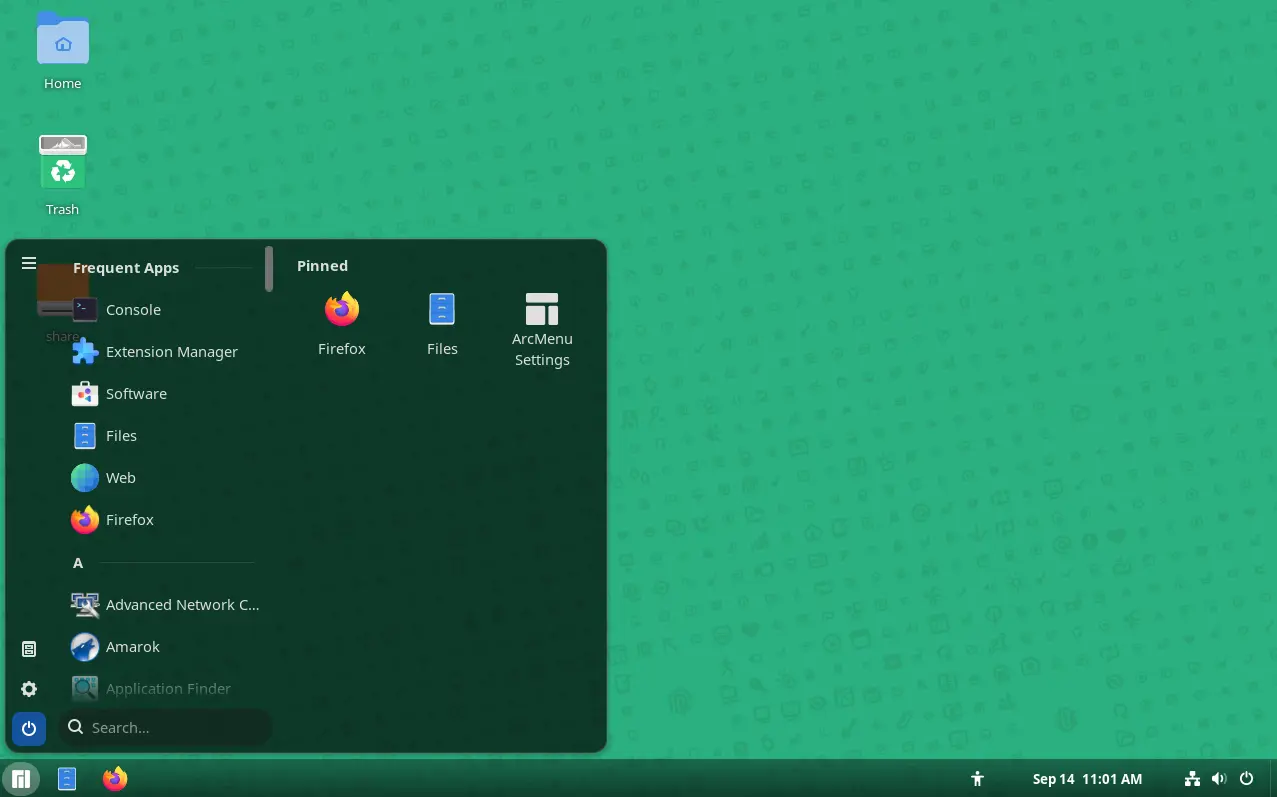
GNOME 49 with Dash to Panel, plus ArcMenu

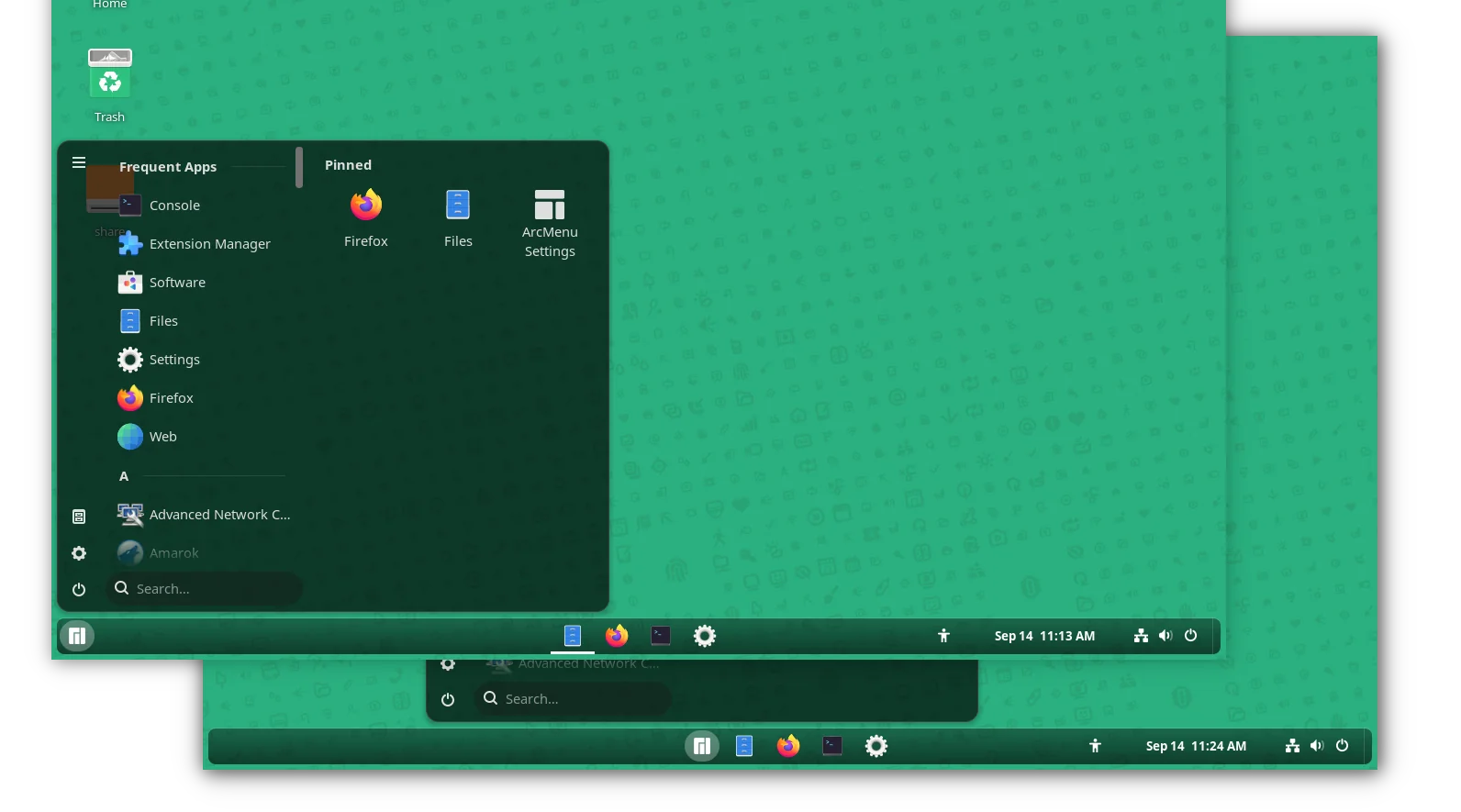
As you can see via the screenshot above, the extension provides a Windows 7+ and KDE Plasma look-like panel layout by moving the dash (the dock launcher) into the main panel and moving them to bottom (though you can then move the panel to any other screen edge).

Along with ArcMenu, an application menu extension, you can configure the Gnome desktop to be user friendly for those who’re switching from Windows.

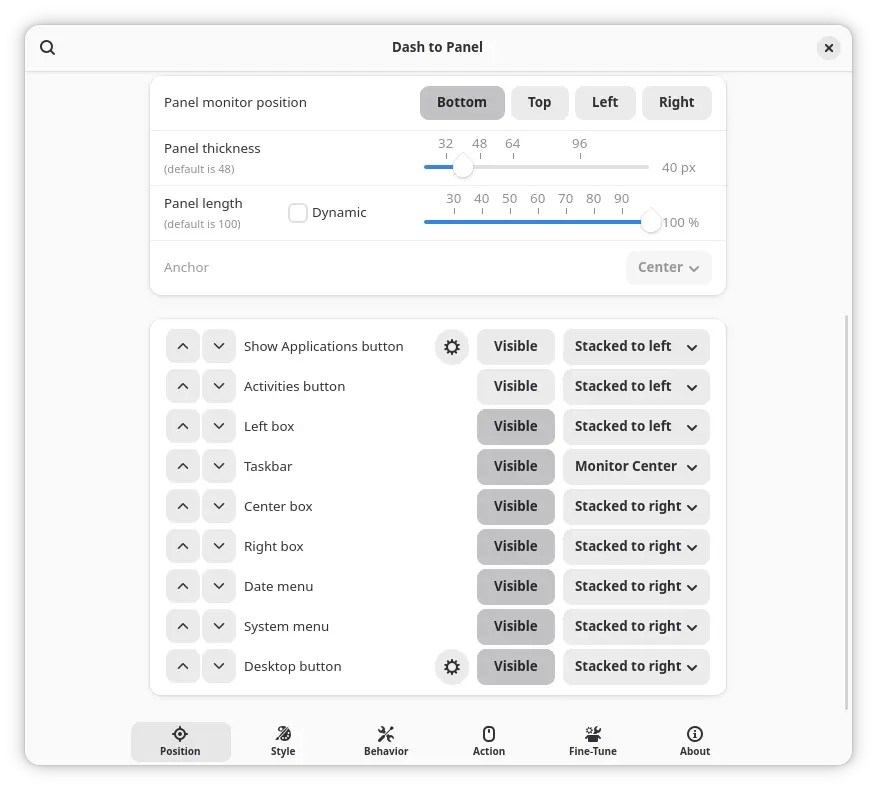
The extension provides many configure options, allowing to customize the panel position, length and width, background color and opacity, and, change panel item position, visibility, icon size, font, and margin.

It as well support intelli-hide, configuring click action, scroll action, keyboard shortcuts, as well as other panel behaviors.

As GNOME updates its GJS API for every releases, the developers mostly need to port their extensions whenever a new release is out.

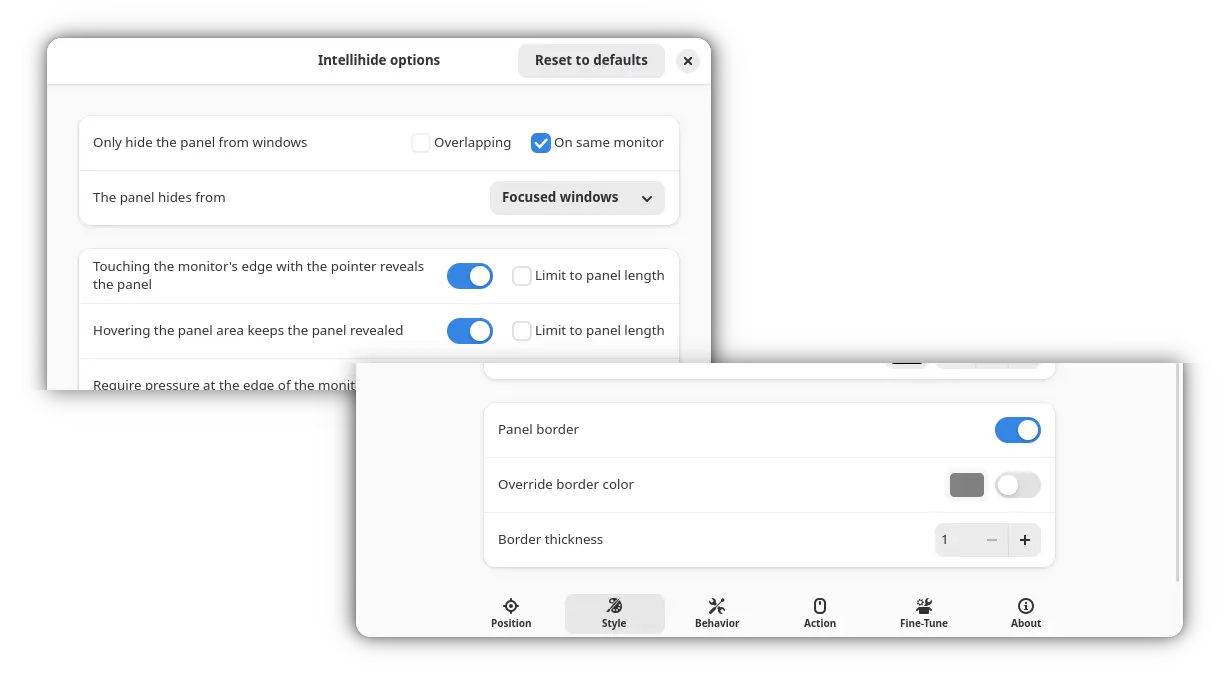
Now, Dash to panel has been updated to version 70 for GNOME 49 desktop, which will be released in next few days. And, it also introduced options to configure panel border color and thickness, and improved auto-hide with following changes:

  • Option to set time delay before revealing the panel.
  • Hide panel from window on same monitor.
  • And disable moving mouse cursor to edge to reveal panel.

New intellihide and border configure options

Dash to panel is sponsored and originally developed by Zorin OS. The new release of Dash to Panel added this sponsorship and provenance note in its About page.

Install Dash to Panel

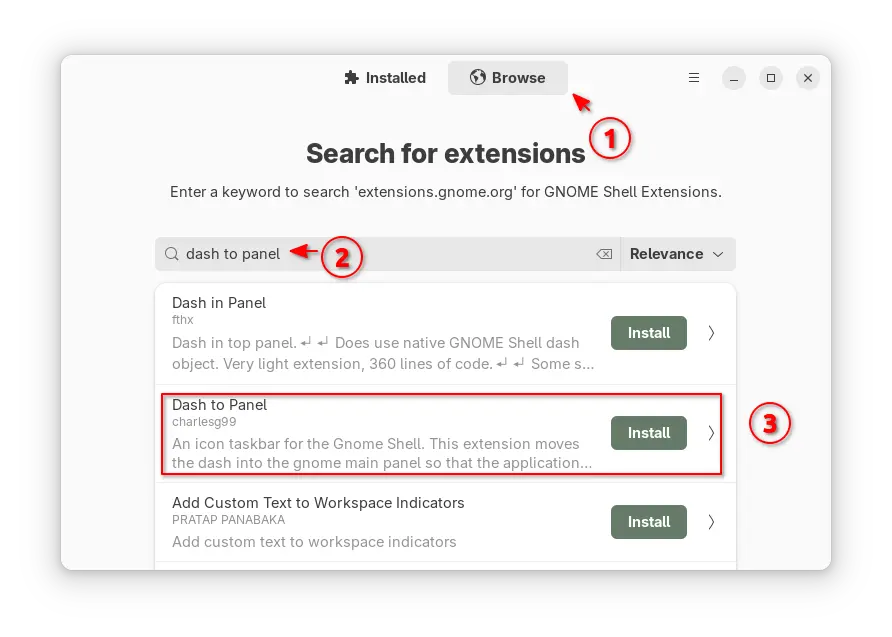
To install Dash-to-Panel, either search & install Extension Manager (from either App Center or GNOME Software), then use the tool to search & install this extension.

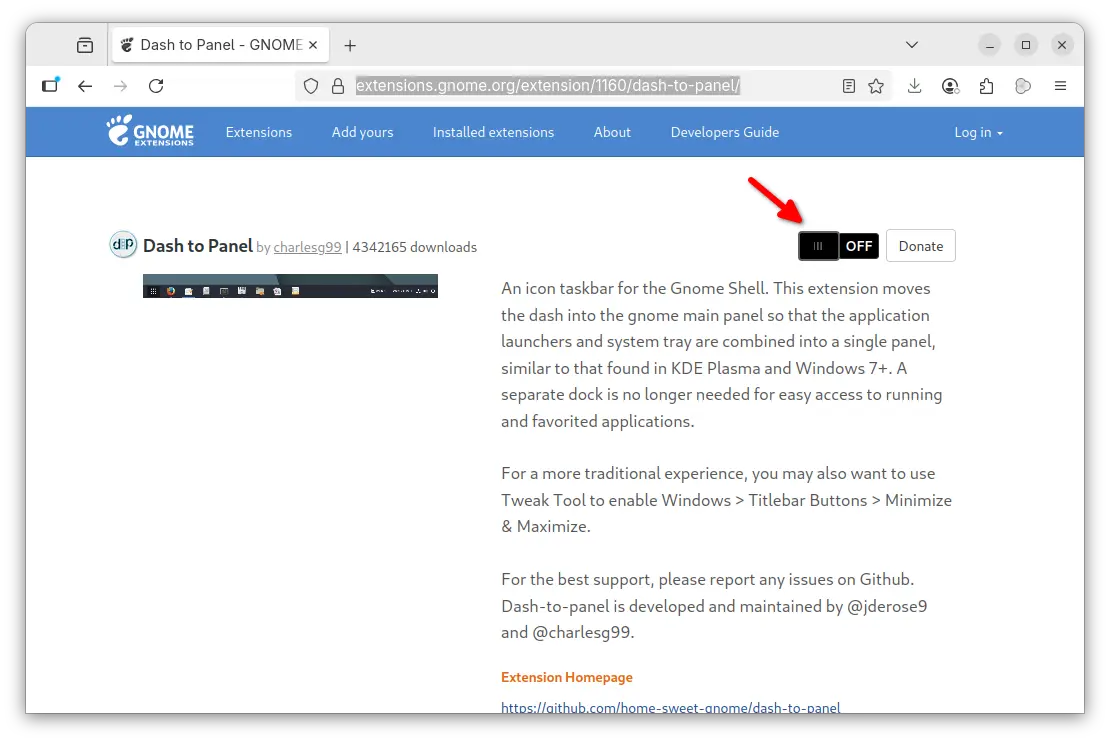
Or, visit the extension web page in GNOME website via the link below, then use the ON/OFF switch in that page to install/uninstall the extension.

NOTE: you need to install the gnome-browser-connector package via either command below depends on your Linux Distribution:

sudo apt install chrome-gnome-shell
sudo dnf install gnome-browser-connector
sudo pacman -S gnome-browser-connector

Then install browser extension (click the link in that web page) and refresh before being able to install a GNOME Shell extension from web.

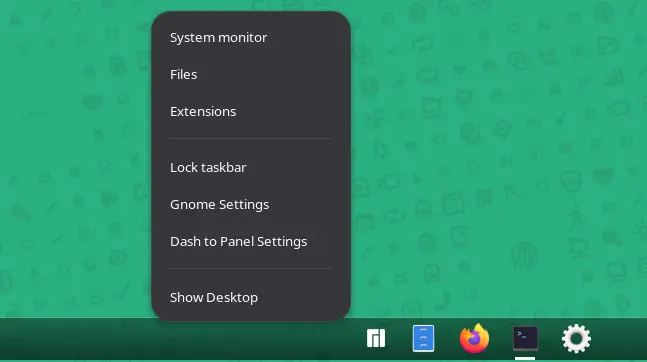
After installed and enabled the extension, it automatically disables the top-bar and dash (also Ubuntu Dock) and shows you the new panel, which can be configured by right-clicking on panel (blank area) and choose “Dash to Panel Settings”.

For the ArcMenu application menu, either get it via Extension Manager or use the ON/OFF switch on this page. Though, it does NOT support GNOME 49 at the moment of writing (I built it from source).

VS Code 1.104 Added Auto Model Selection & Sign in with Google Account

By:Ji m
13 September 2025 at 23:59

Visual Studio Code 1.104, the August release of Microsoft’s code editor, was released few days ago.

The new release introduced Auto AI model selection support (Preview feature), allowing to automatically choose between Claude Sonnet 4, GPT-5, GPT-5 mini, and GPT-4.1 models, to get the optimal performance and reduce rate limits.

And, user can view the selected model and the model multiplier by hovering over the response in the Chat view.

In agent mode, the agent now explicitly asks for user confirmation before making edits to certain files. And you can configure file patterns to indicate which files require confirmation with chat.tools.edits.autoApprove setting.

The release also improved GitHub coding agent integration with chat editor actions, seamless transitions, better session rendering, and performance boosts. And, it enhanced chat sessions view with status bar tracking, multi-session support, rich descriptions, and expanded context menus.

The #codebase tool has been updated to use a new embeddings model for semantic searching for code in workspace, providing better results, while using less storage space (only 6% compare to previous model).

Other AI changes in VS Code 1.104 include:

  • Support for AGENTS.md files (Experimental).
  • Use custom chat mode in prompt file.
  • Support changing font family and font size of chat messages.
  • Sign in or sign up to GitHub Copilot with Google account is GA.
  • Add warning first time to enable global auto approve.
  • New setting for disabling and hiding GitHub Copilot AI features.
  • Add more terminal tools to core.
  • Math rendering in chat responses is GA and enabled by default.
  • Enhance terminal auto-approve usability and security.
  • Enable or disable each tool individually.

Besides AI changes, the release also added support configuring the color of window borders in Windows. User can choose to respect color theme settings, Windows settings, disable border colors, and a specific color in Hex, RGB, RGBA, HSL, HSLA format.

It added Accounts: Manage Extension Account Preferences command to the Command Palette, new setting to show tab index, ability to toggle editor tab bar scoll-bar visibility, as well as new “Ceate on GitHub” and “Preview on Github” buttons in built-in issue reporter.

The code editor can now reads and includes MCP server instructions in base prompt. It includes new setting options to allow all MCP servers or disable MCP entirely. And, it now disables MCP auto discovery by default.

As well, it improved NES suggestion by adding new setting to allow the language model to access the entire notebook, thus it will generate more accurate and higher-quality next edit suggestions.

Other changes include:

  • add Focus Chat Confirmation action.
  • new setting to configure how quickly inline suggesstions appear after you type.
  • add “Compare with Workspace” context menu option for worktree file, and Migrate Worktree Changes… command
  • remove the built-in bower.json IntelliSense
  • add Python Environments extension support for Pipenv
  • new experimental AI hover summaries for Python with latest Pylance.
  • Pylance IntelliSense enabled in all Python documents
  • finalized Language Model Chat Provider API
  • And much more!

Get VS Code 1.104

The official release note, and download links for Windows, MacOS, and Linux are available via the link below:

Ubuntu users may either search & install the Snap package from App Center (or Ubuntu Software for 22.04), or download the deb package from the link above.

While, a community maintained flatpak available is available for choice. See this guide for how to install them.

Ubuntu Added NVIDIA 580 Driver Support for 24.04, 22.04 & 25.04

By:Ji m
12 September 2025 at 20:29

For user with NVIDIA graphics card, Ubuntu finally added official NVIDIA 580 driver packages for all current Ubuntu releases.

As you may know, NVIDIA 580 is so far the latest driver series for Linux, that was initially released one month ago. It’s a production branch driver qualified for enterprise and data center GPU use.

The 580 driver features Wayland fifo-v1 protocol support for apps/games running via Vulkan API, reducing visual inconsistencies and potential stuttering.

It enabled RMIntrLockingMode feature by default, which can help reduce stutter especially when using virtual reality (VR). As well, it implemented a feature to reduce time spent in the interrupt top half for low latency display interrupts by deferring the work until later. See HERE for more.

With NVIDIA 580.82.07, it also supports NVIDIA Smooth Motion on GeForce RTX 40 Series GPUs!

Install NVIDIA 580 driver in Ubuntu

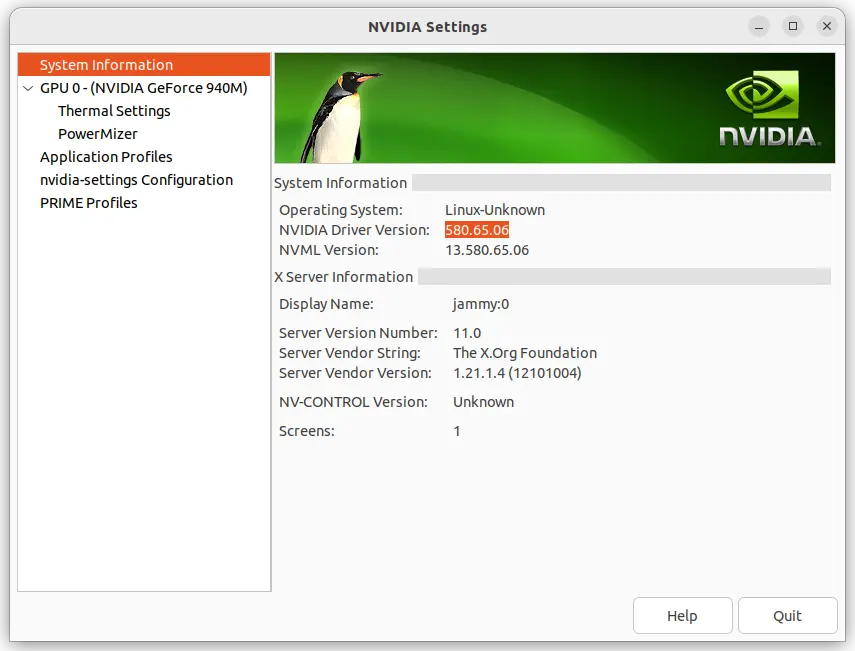
Ubuntu made NVIDIA 580 driver (so far 580.65.06) package into the proposed repository for testing few weeks ago. Now, it finally goes official. And, you may install it by following steps.

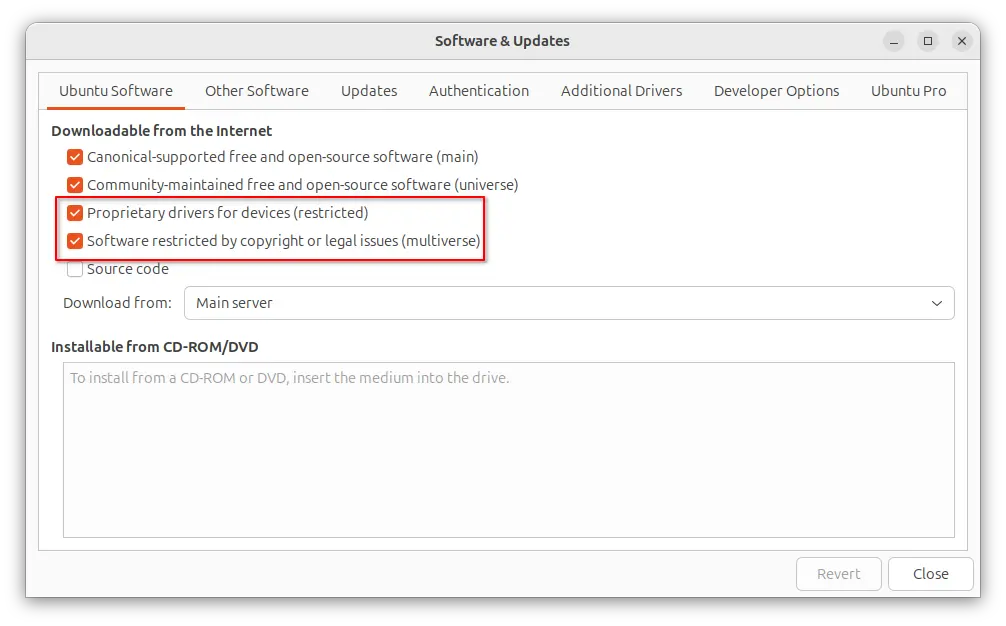
1. Enable Restricted and Multi-verse repository

The proprietary driver is available through the restricted and multiverse repositories. They are usually enabled by default in Ubuntu desktop.

Just in case, you may launch “Software & Updates” utility to ensure:

Or, run the command below for Ubuntu Server to enable them:

sudo add-apt-repository restricted multiverse

You need to install software-properties-common package if the command does not work.

2. Update your system.

Before installing the driver, it’s better to install all available system updates, especially kernel updates (usually minor version updates), to prevent potential failure.

To do so, either use Software Updater or run the commands below in terminal (Ctrl+Alt+T):

sudo apt update

sudo apt upgrade

If there’s a kernel updates, restart computer to boot the new kernel.

3. Install NVIDIA 580 driver

NOTE: The driver version so far is nvidia 580.65.06. If you can’t wait to get 580.82.07 for NVIDIA Smooth Motion support on RTX 40 series GPUs, or you’re on old Ubuntu 20.04|18.04, then run command below to add the popular “Graphics Drivers” team PPA, which however is not officially supported.

sudo add-apt-repository ppa:graphics-drivers/ppa

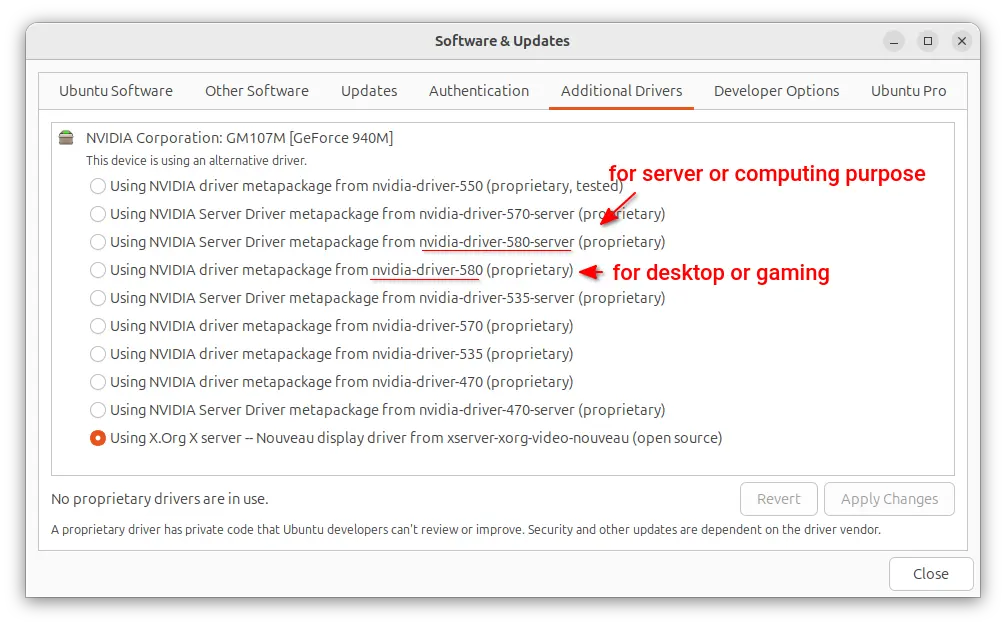
For Ubuntu Desktop, you may now launch “Additional Drivers” utility, then select either driver below:

  • nvidia-driver-580 for general desktop and gaming purpose.
  • nvidia-driver-580-server for Ubuntu Server or computing purpose.

Then, click “Apply Changes” and  restart computer when installation done!

For server without GUI, simply run the commands below one by one to install the driver.

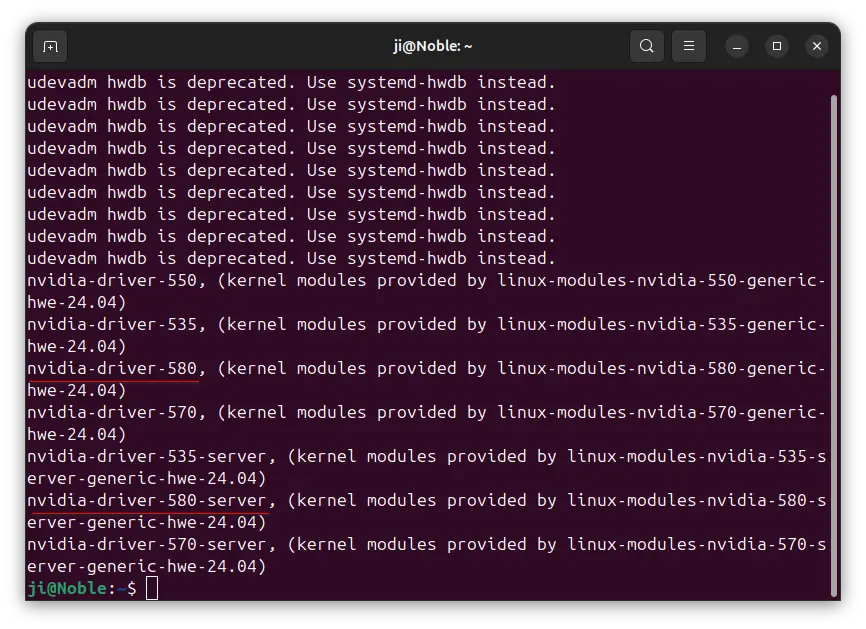
  • First, list all available drivers via command:
    sudo ubuntu-drivers list

    Skip the  “udevadm hwdb is deprecated. Use systemd-hwdb instead.” output. It’s a warning that does not matter.

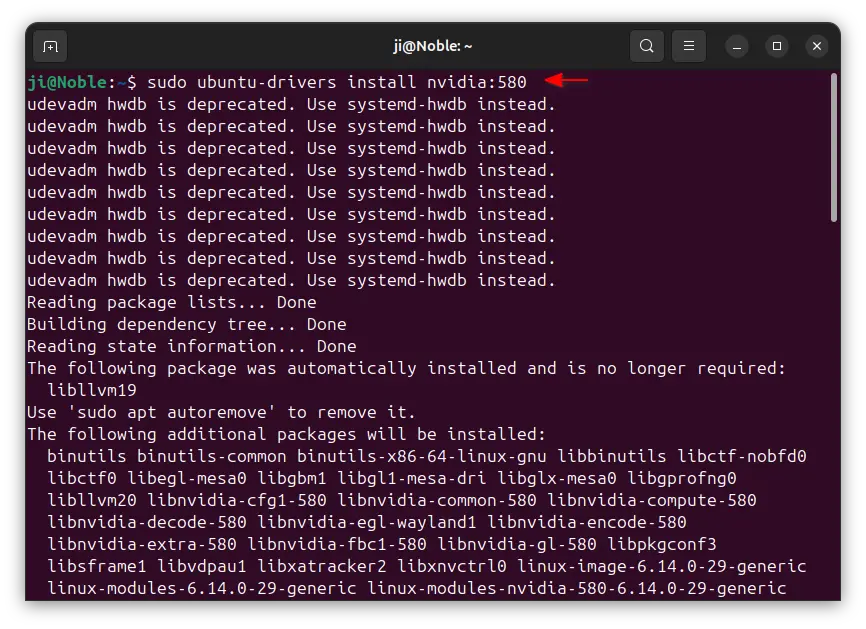
  • Then, either install the desktop  or gaming use driver via command:
    sudo ubuntu-drivers install nvidia:580

    Or, install the server or computing purpose driver:

    sudo ubuntu-drivers install --gpgpu nvidia:580-server

Finally, restart computer and enjoy!

In addition, for Ubuntu with default GNOME Desktop, it by default fall back to Xorg session, you need to manually switch back Wayland session (if need) from login screen.

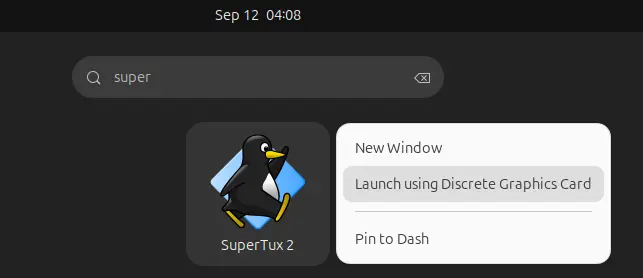
For NVIDIA Optimus laptop, it by default runs in hybrid mode. You can right-click on an application or game icon and choose “Launching using Discrete Graphics Card” to start it via NVIDIA GPU while leaving all others handled by integrated GPU.

Or, run command below in terminal to set environment variable, so all apps start from that terminal will be rendering via NVIDIA GPU:

export __NV_PRIME_RENDER_OFFLOAD=1 __GLX_VENDOR_LIBRARY_NAME=nvidia

If you want to run Ubuntu desktop with NVIDIA only mode, then launch “NVIDIA Settings” and navigate to PRIME Profiles page to make a switch.

For bugs and other issues, please report to HERE or HERE.

Stop Wallpaper Moving when Switching Workspace in Ubuntu 24.04

By:Ji m
12 September 2025 at 00:00

For GNOME users who don’t like the default workspace switch animation, here’s an extension that can help!

When switching workspace (virtual desktop), the transition acts like sliding the desktop wallpaper along with the apps. This is “Sliding Panel” effect that’s also (seems to be) default in Windows and macOS.

If you like, it’s easy to use Android/iOS style swipe left or right switching home screen pages animation. In the case, the wallpaper is static during transitions, it works like only switching the app windows on your desktop.


This can be implemented by an extension called Static Workspace Background. And, here’s how to install it in Ubuntu 24.04, 25.04 and 25.10.

NOTE: This extension only works in Ubuntu and other Linux with GNOME Desktop!

Option 1: Install the Extension in Ubuntu 25.04 / 25.10

The extension so far supports GNOME 48 and 49, though it’s working good in my case in GNOME 46.

For Ubuntu 25.04 and 25.10, first launch App Center then search & install Extension Manager (filter by Debian package).

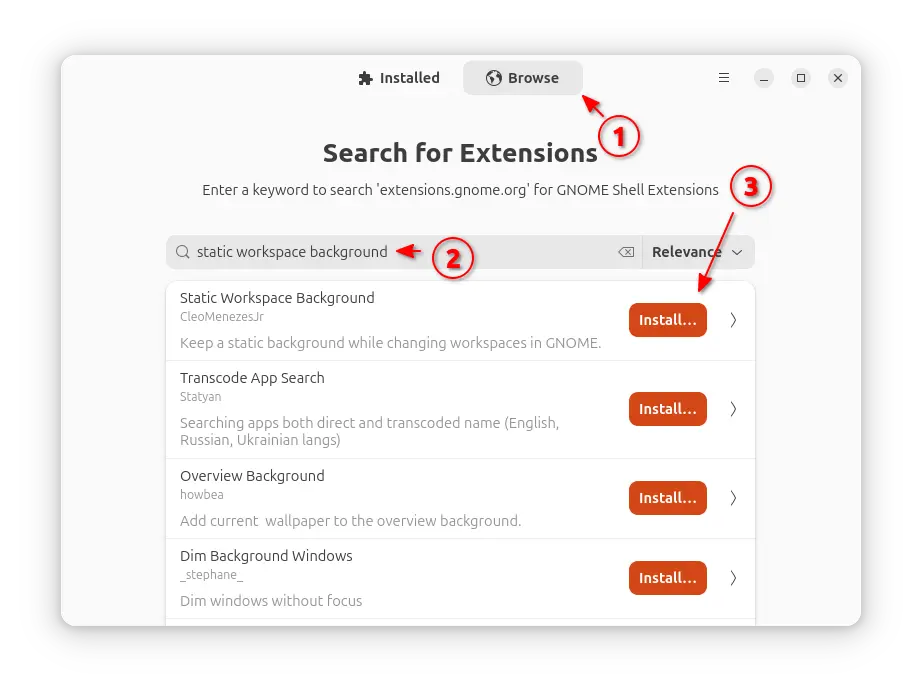
Next, use Extension Manager to search & install the “Static Workspace Background” extension under Browse tab and done!

Install via Extension Manager

Option 2: Install it in Ubuntu 24.04

The extension (version 49.0) so far works good in my case in Ubuntu 24.04 with GNOME 46, though it’s not officially supported.

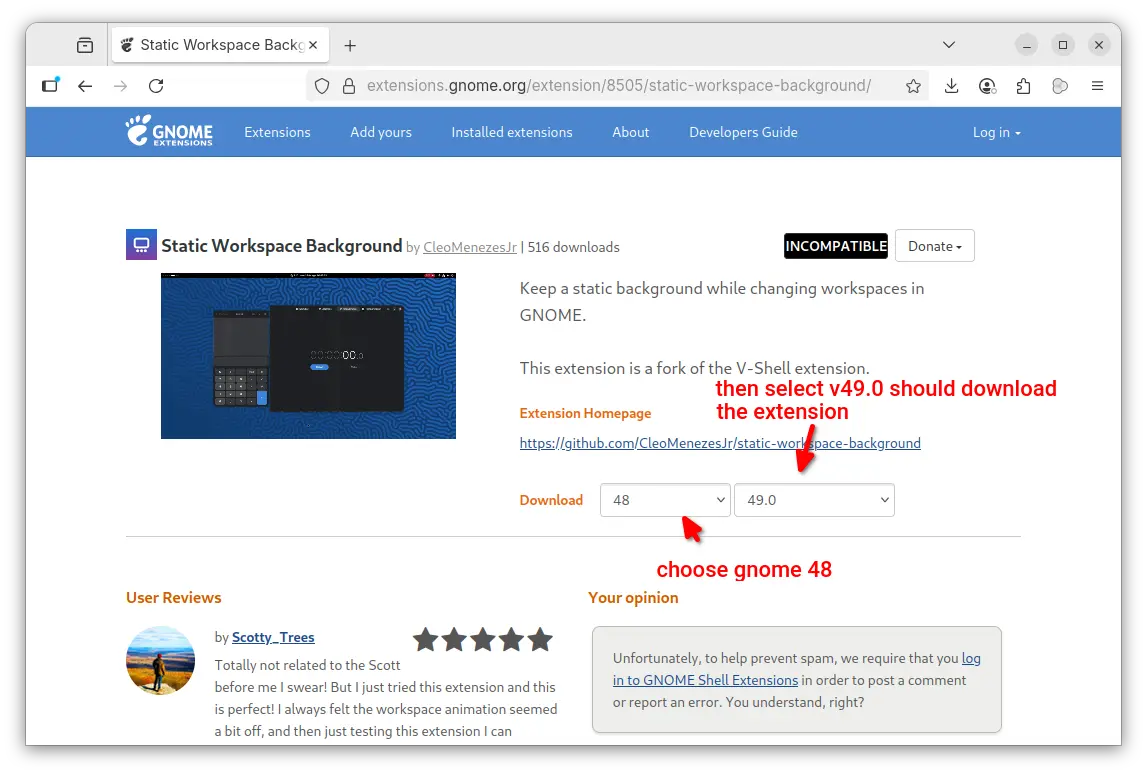
1. First, go to the extension page in extensions.gnome.org (EGO):

In the “Download” section of the page, choose a Gnome version (e.g., v48) and select extension version 49.0 to download it.

2. Once you downloaded the extension package (usually .zip archive), press Ctrl+Alt+T to open terminal and run commands below one by one to install.

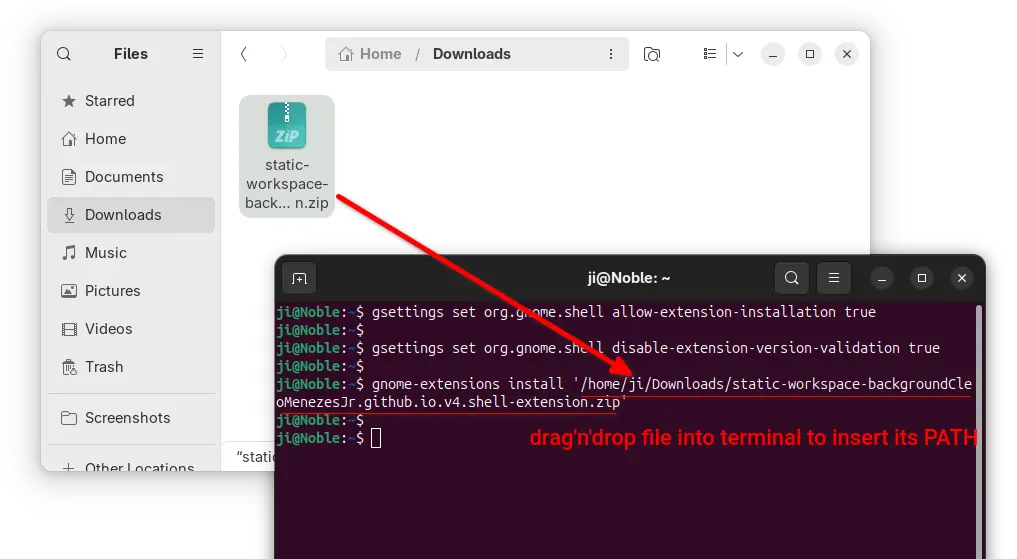
  • First, run command to make sure your GNOME is configured to allow users to install extensions in their home folder, though it’s usually enabled by default.
    gsettings set org.gnome.shell allow-extension-installation true
  • Next, disable the validation of extension version compatibility by running command:
    gsettings set org.gnome.shell disable-extension-version-validation true
  • Finally, install the extension (.zip archive you just downloaded) via command:
    gnome-extensions install /path/to/zip-archive

    Here replace /path/to/zip-archive by drag’n’dropping it from file manager into terminal!

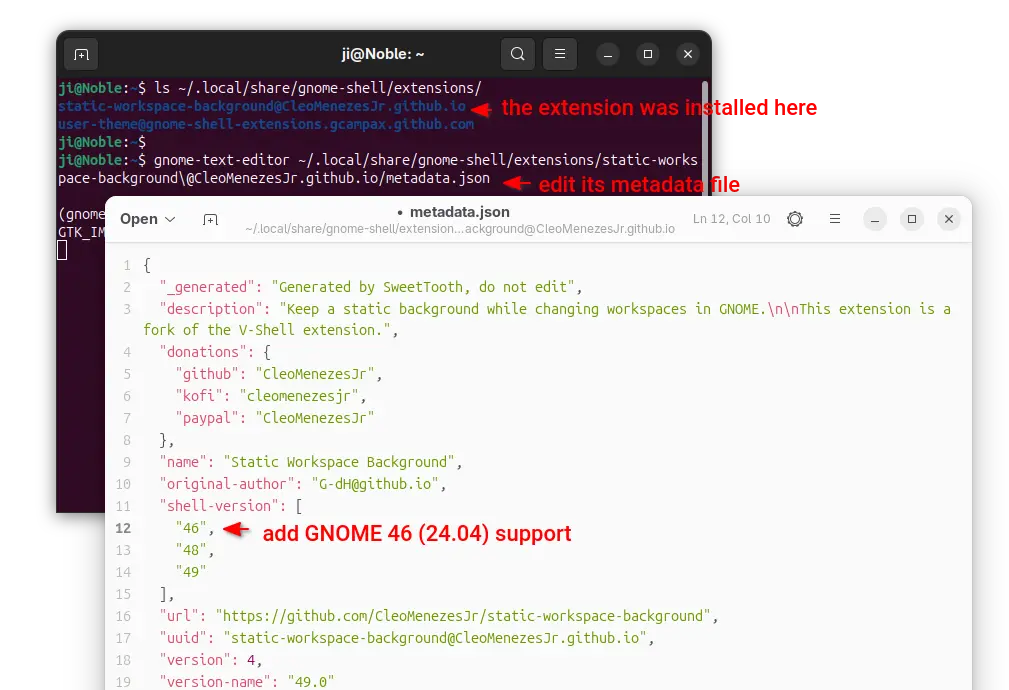
3. (Optional) After that, you have the extension installed to ./local/share/gnome-shell/extensions directory.

In case you want to re-enable the validation of extension version afterwards, run the command below to edit the metadata of that extension:

gnome-text-editor ~/.local/share/gnome-shell/extensions/static-workspace-background\@CleoMenezesJr.github.io/metadata.json

When file opens, either add “46” in “shell-version” section or simply replace any GNOME version (e.g., 49) to 46.

Then save the file, and re-enable the extension version compatibility validation if you want:

gsettings reset org.gnome.shell disable-extension-version-validation

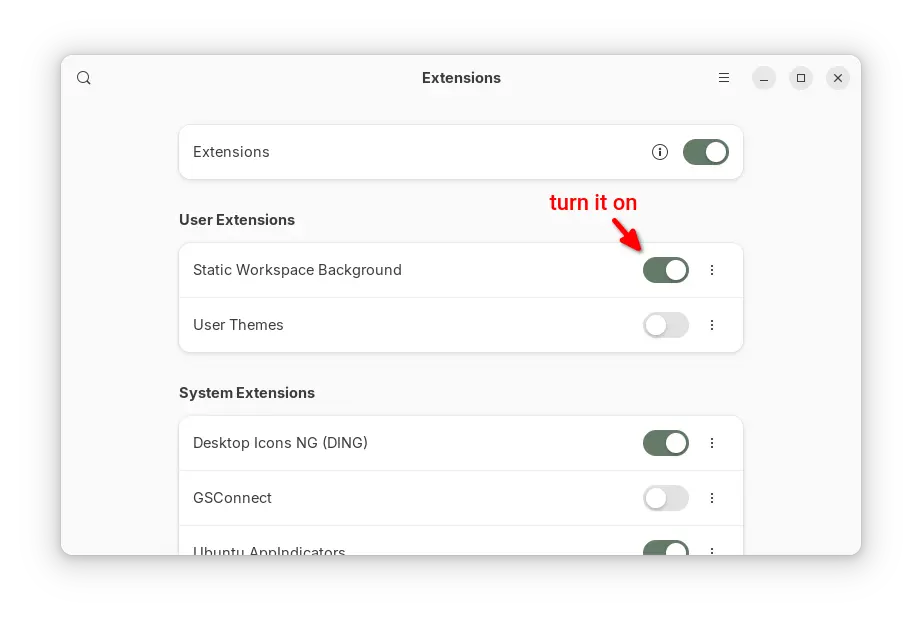
4. Finally, log out and back in. Launch either “Extension Manager” or “Gnome Extensions” app (both available in App Center) to enable the extension.

Warzone 2100 Released 4.6.0 with Spectator Host Mode

By:Ji m
11 September 2025 at 19:50

Warzone 2100, the free open-source 3D real-time strategy game, released new major 4.6.0 version few days ago.

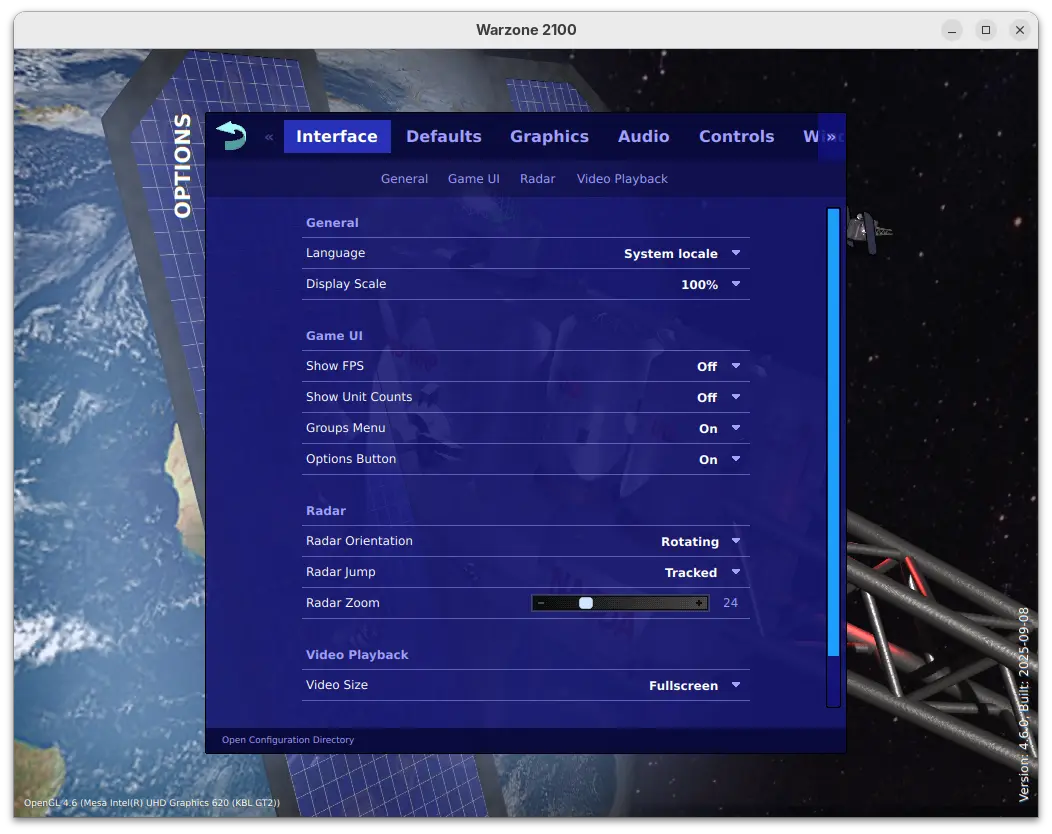
This is a big release that features revamped options menu. The options menu now has a clean design with reorganized options, which as well introduced many new toggle options, such as show FPS / Unit Counts, Group Reporting, Radar Zoom, default AI and more.

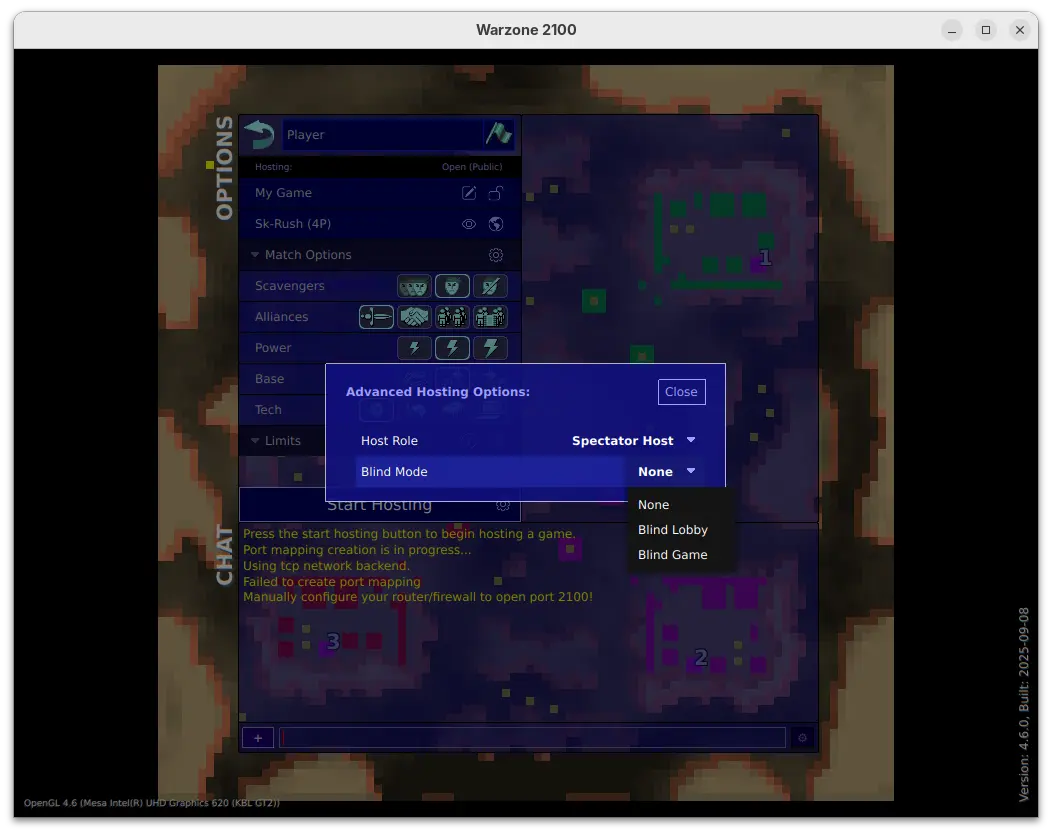
For multi-player mode, the release added option to start hosting in Spectator Host mode, in which case the host is a spectator in the game.

When start hosting in this mode, it also allows to set blind lobby mode to hide players’ true identities until the game starts, or blind game to hide players’ true identities until the game ends, while the host (as a spectator) can see them in both modes.

The 4.6.0 release also massively improved high-quality water effects, improved the performance for loading, path-finding, target selection, networking, and high-object-count situations.

It revamped Lobby game browser with new design, more filtering options, more room information, and increased responsiveness. And, it now automatically attempts multiple graphics backends on first-run, and defaults to Vulkan in more cases, when possible.

For Windows, it now provides single .exe installer (instead of three) to install the game on all the X86, X86_64, and ARM64 computers, along with option to choose install for either all users or current user only.

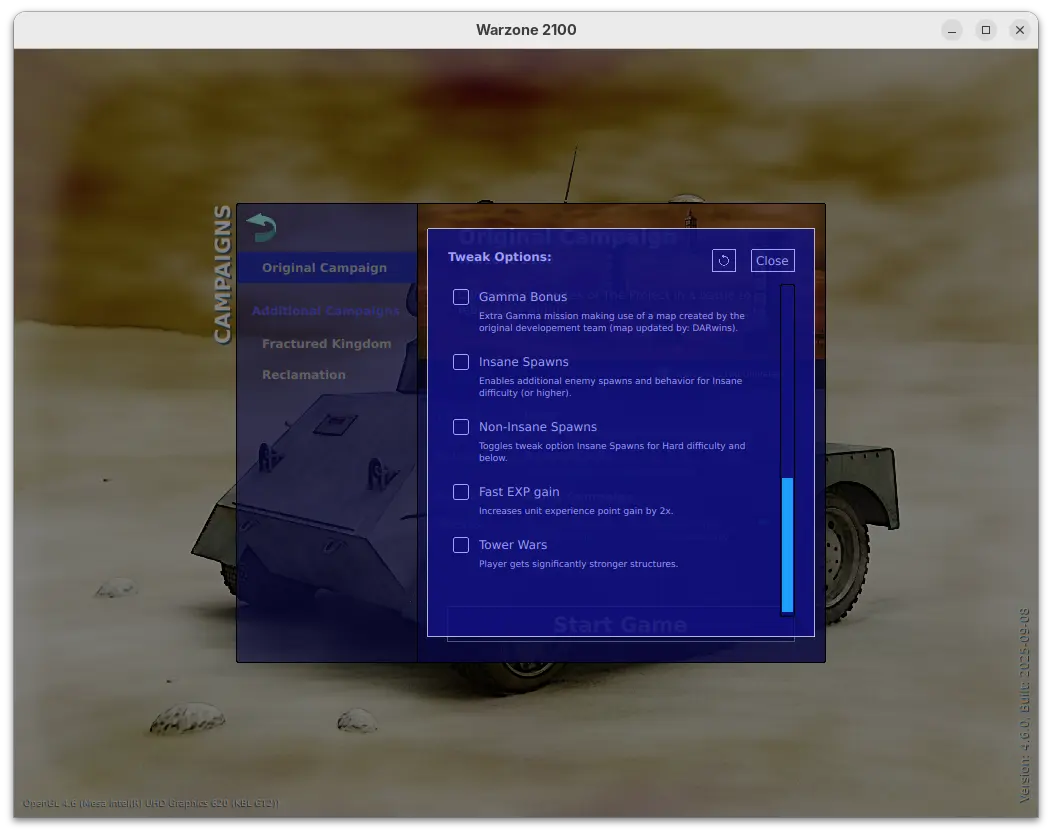
Warzone 2100 also introduced many additional tweak options for the Original Campaign. They include:

  • Infinite Time – missions have no timer when possible.
  • Victory Hints – displays a console message every few minutes showing victory related information.
  • Finale Fun – activate Final Gamma mission bonus content.
  • Insane Spawns – enable additional enemy spawns and behavior for Insane difficulty.
  • Non-Insane Spawns – toggle Insane Spawns for Hard difficulty and below.
  • Fast EXP gain – 2x unit experience point gain.
  • TowerWars – player gets significantly stronger structures.

There are as well many in game changes, including:

  • Bump repair spread area from 6 to 10 tiles.
  • Update Fractured Kingdom to v1.4.
  • Give ACs some basic splash damage.
  • Specify missing research names so research appears in the Stats objects.
  • Add “Defending Your Base” guide topic.
  • Add Particle Gun Laser weapon.
  • Adjust Emplacement-PlasmaCannon cost 200 -> 350, buildPoints 400 -> 500.
  • Increase spinAngle for Tracks in MP 45->65 to allow better unit packing.

For more, see the official release note.

Download & Install Warzone 2100 4.6.0

The official installers for Linux, macOS, ans Windows are available to download at the link below (under Assets section):

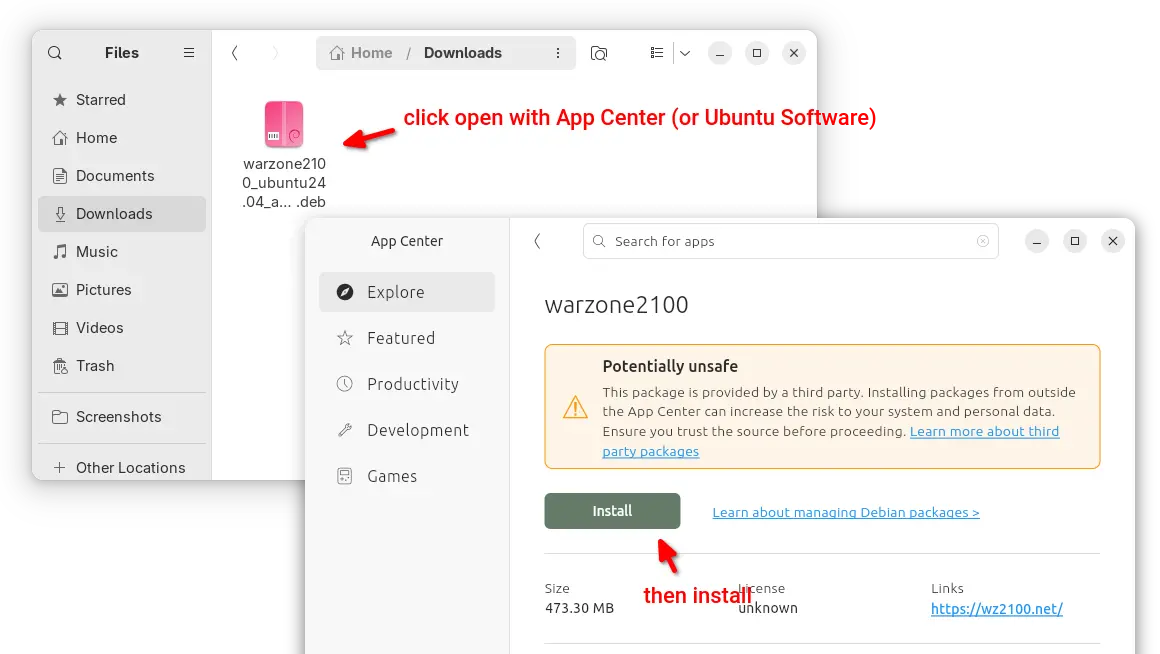
For Ubuntu 22.04 and Ubuntu 24.04 on modern Intel/AMD platform, select download the .deb package then click open & install via either Ubuntu Software or App Center.

Warzone 2100 DEB package

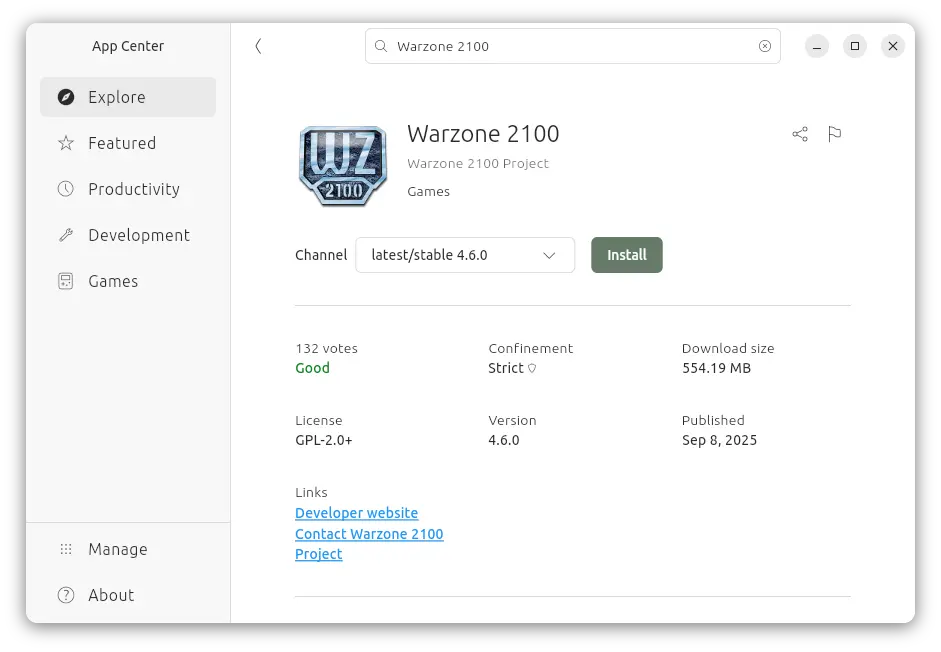
For all Ubuntu editions on Intel/AMD and ARM64, user may also choose install the Snap package (runs in sandbox) from App Center or Ubuntu Software.

warzone 2100 Snap package

While, there’s also Flatpak package (also runs in sandbox) available to install in most Linux desktops.

SuperTuxKart 1.5 RC2 added GUI option to Choose Vulkan or DirectX 9

By:Ji m
9 September 2025 at 23:12

SuperTuxKart, the 3D kart racing game, announced the second release candidate for the next 1.5 release few days ago.

Due to inner team disagreement, the release of version 1.5 was delayed. And, it explained the reason by announcing SuperTuxKart Evolution (the name of the next major release) few days ago.

Now the problem has been fixed. And, SuperTuxKart 1.5-rc2 is available as the first update afterwards.

The new release candidate introduced a graphical option in “Graphics” settings page, allowing to easily switch rendering driver to Vulkan or DirectX9 (Windows only), without having to edit the configuration file. While the default is still OpenGL.

In addition, the release migrated the online services to a new, more powerful server, which fixed occasional server disconnect issue due to sporadic overloads and improved server list loading performance.

As well, a new forum is introduced for sharing your tips, artistic creations, and discussing about the game’s development. For more, see the official announcement.

Download SuperTuxKart 1.5 RC2

The official packages for Windows, Linux, macOS, Switch, and Android, are available to download via the link below:

For Linux, select download the .tar.gz tarball depends on your CPU. They include x86_64 for modern Intel/AMD, x86 for old 32-bit CPU, arm64 for 64-bit ARM (e.g., Snapdragon processors), 32-bit armv7, and RISC-V processors.

If you don’t even know your CPU processor architecture type, open terminal and run uname -m command to tell.

After downloaded the tarball, decompress, then run the run_game.sh file to launch the game and enjoy!

❌