Reading view

SuperTux Released 0.7.0 Beta with New Artwork & Multiplayer Mode
SuperTux, the free open-source Super Mario inspired jump’n’run game, released new 0.7.0 beta version yesterday.

This is the first update after 4 years of making. It completely remade the worlds, redesigned the character, introduced new assets for the Tux, enemies, and backgrounds, and revived Android support.

First of all, the new version completely overhauled the world I (aka Icy Island) and world II (aka Rooted Forest).

User can now press the action key (left Control by default) to get the screen to select a different world, though only Icy Island is available in my case as I never completed the first world.
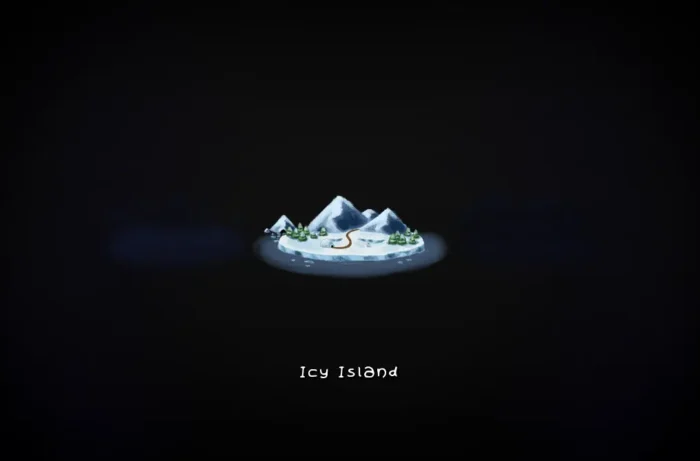
press Action key, allowing to switch world.

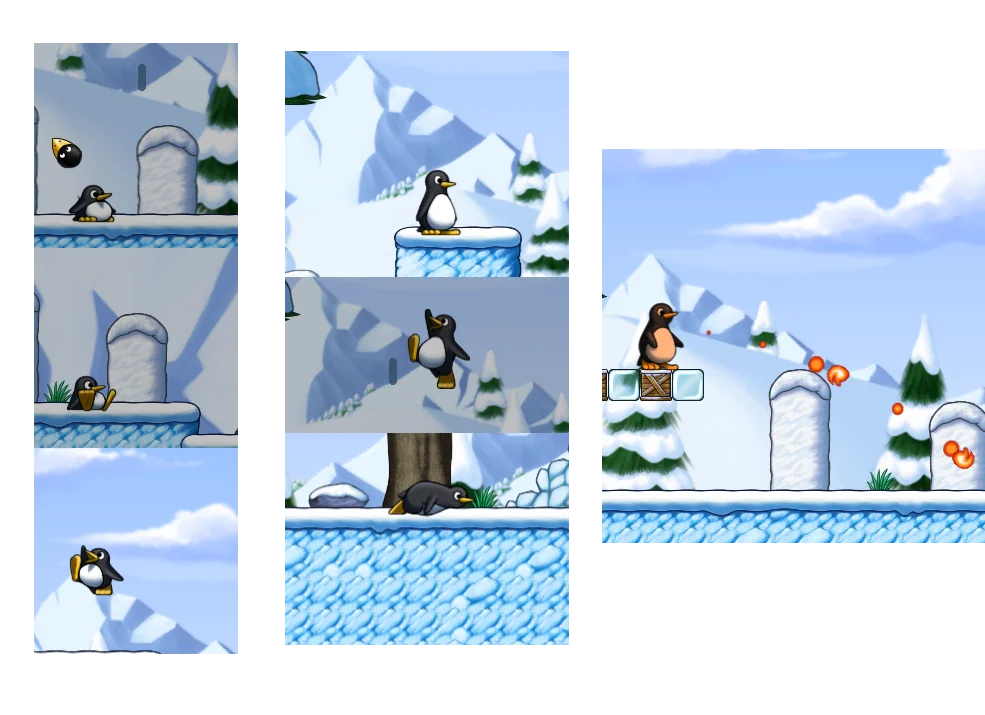
The version redesigned the main character Tux. The penguin now looks stereoscopic. And, it is animated when you’re not in control of it, which acts just like playing on its own and even sit on the ground and take a load off.

It now jumps more like a human, and supports creep forward by press’n’holding down and moving left/right. After ate a fire-flower, the body turns fiery-red instead of wearing a cap, and the fireballs are looking better than before with new animation.
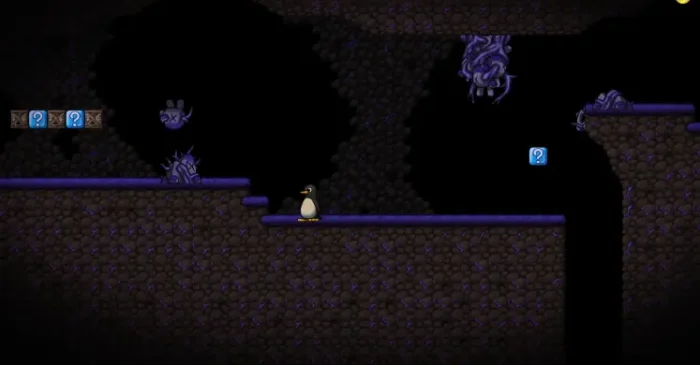
The new version also added many new enemies and NPCs. They include:

  • Granito – a friendly npc within Rooted Forest levels.
  • Root Sapling – spawns small roots pointing upwards, like Ghost Tree.
  • Corrupted Big Granito– a hostile version of the friendly Granito NPC.
SuperTux 0.7.0 also introduced new Item Pocket feature to save a powerup for later use.

If you collect a flower while having a bonus greater than GROWUP_BONUS, that flower gets equipped and the old flower gets stored in the top left corner of the screen. Now, the player can press the new ITEM control (usually Select/Back or Left Shift) to use the stored flower by throwing it up and catching it.

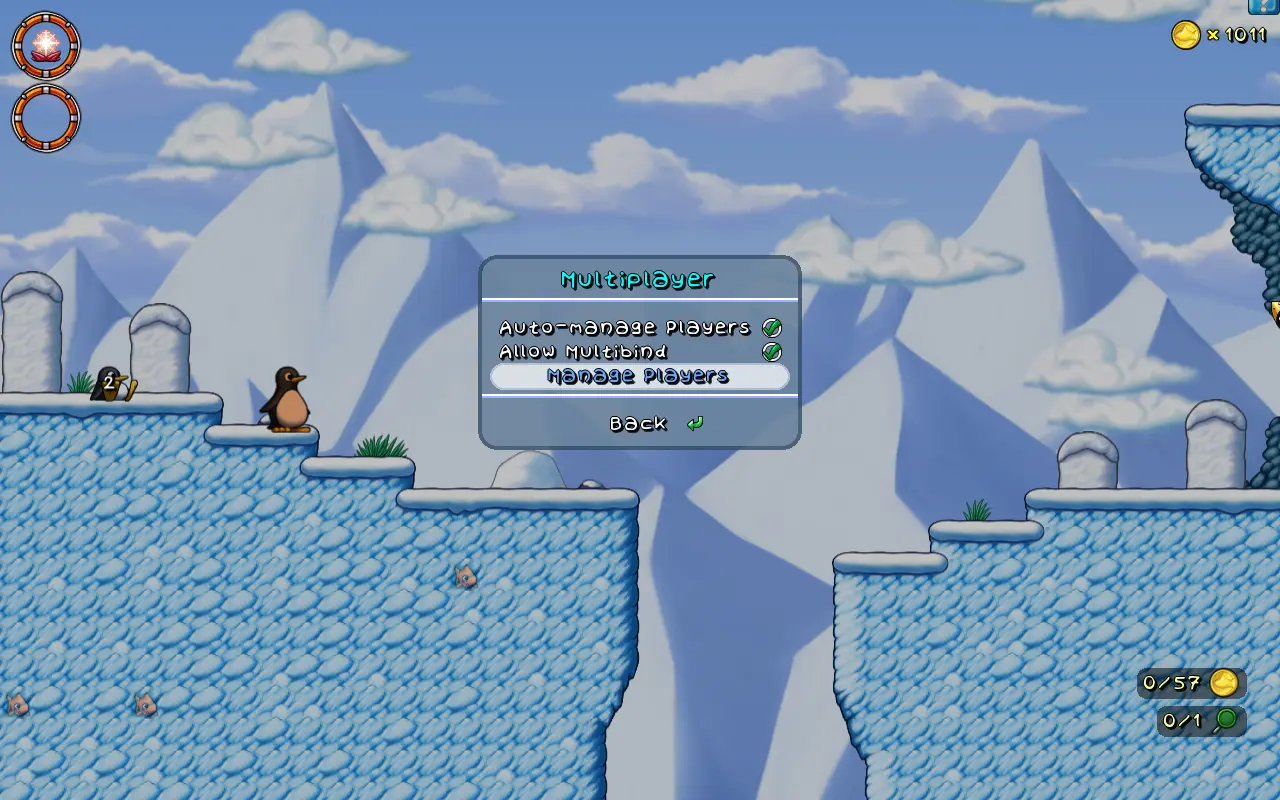
It also added local multiple player mode. It supports up to 4 players, allowing to play with your friends together with the same game screen and even same input device (e.g., keyboard).
Other changes include:

  • New Cutscenes, new Ghost Tree, new Ghost Tree, and new Yeti Boss fight.
  • New music.
  • Revamp the options dialog.
  • Revamp Level Editor and QoL changes.
  • Glinting BadGuys that will drop coins on death.
  • Revived Android support.
  • Add Linux Flatpak package.

How to Get SuperTux 0.7.0 Beta

For more about the release of 2D slide-scrolling game, as well as the official installers (under Assets section), go to the Github release page via the link below:

Linux user on AMD/Intel platform may simply download the AppImage package, then add executable permission, and run to launch the game.

As the package name says, it requires glibc >= 2.38. For Ubuntu, it means you need 24.04 LTS and higher, and make sure the libfuse2 library is installed via the command below in terminal (Ctrl+Alt+T):

sudo apt install libfuse2
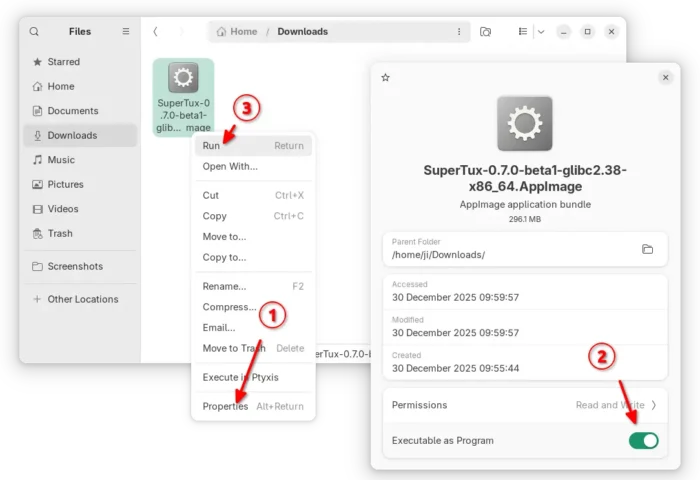
For choice, select download the Flatpak package, then run command below in terminal (Ctrl+Alt+T) to install:

flatpak install drag-and-drop-flatpak-package-into-terminal
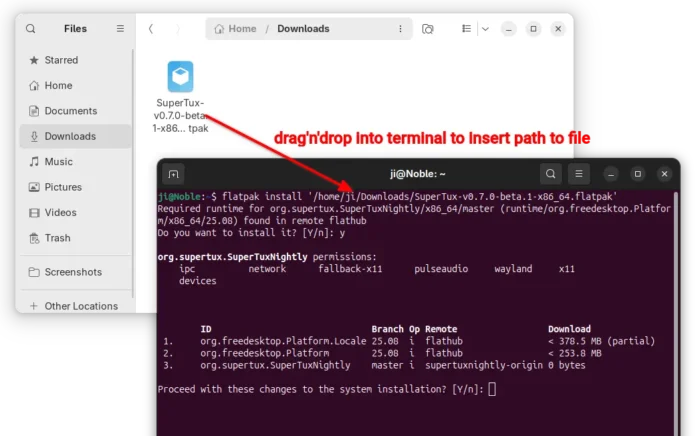

Tips: run sudo apt install flatpak to install the daemon if your don’t have Flatpak support in Ubuntu.

If the app icon is not visible, either log out and back in to apply path environment change, or run the command below instead to start it from terminal:

flatpak run org.supertux.SuperTuxNightly

(Optionally) For any reason, you may use the command below to uninstall the Flatpak package from your system:

flatpak uninstall --delete-data org.supertux.SuperTuxNightly

  •  

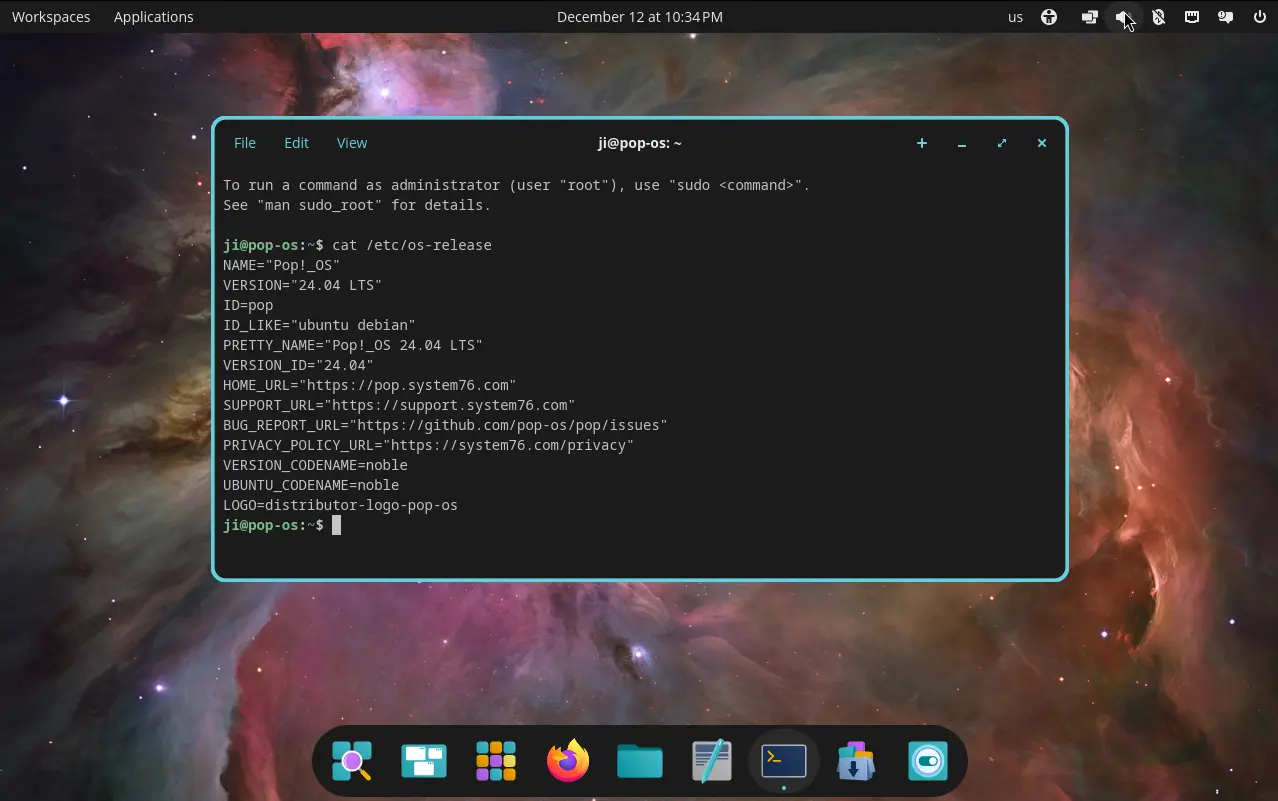
How to Install Pop!_OS COSMIC Desktop in Ubuntu 24.04

Want to try out the COSMIC desktop environment? Without installing the whole Pop!_OS, you can now install the desktop in Ubuntu 24.04 through a PPA repository.

COSMIC is a new standalone desktop environment built from scratch. It’s the default desktop environment for Pop!_OS, developed by System76, an American Linux computer manufacturer.

The desktop is written in the Rust programming language for high performance and memory safety. It features its own set of files, terminal, text editor, and video player etc core applications.

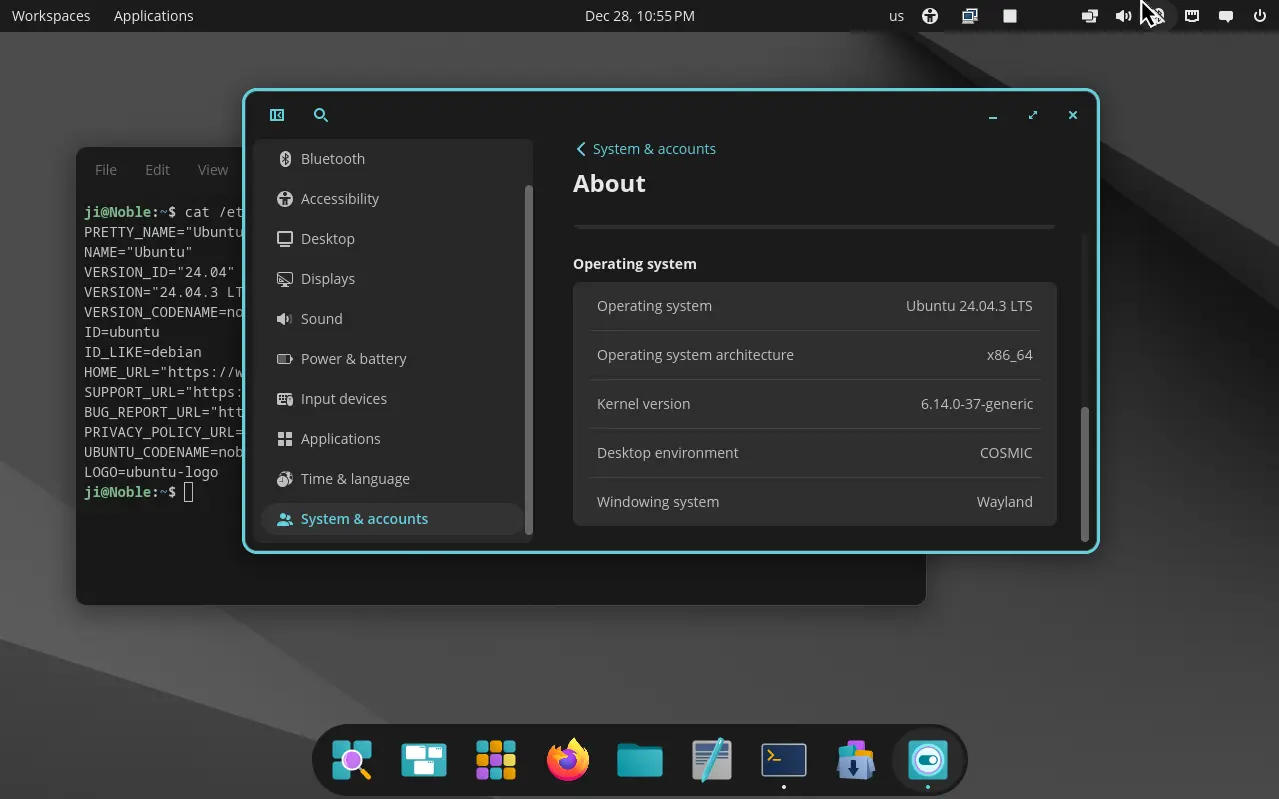
Ubuntu 24.04 with COSMIC desktop

COSMIC was previously a customized version of Gnome desktop. It by default has Gnome style top-bar and bottom dock, which are however highly customizable.

User may configure to show or hide the top-bar/dock, move them to any screen edge, as well show/hide panel items and move them to left, right, or center.

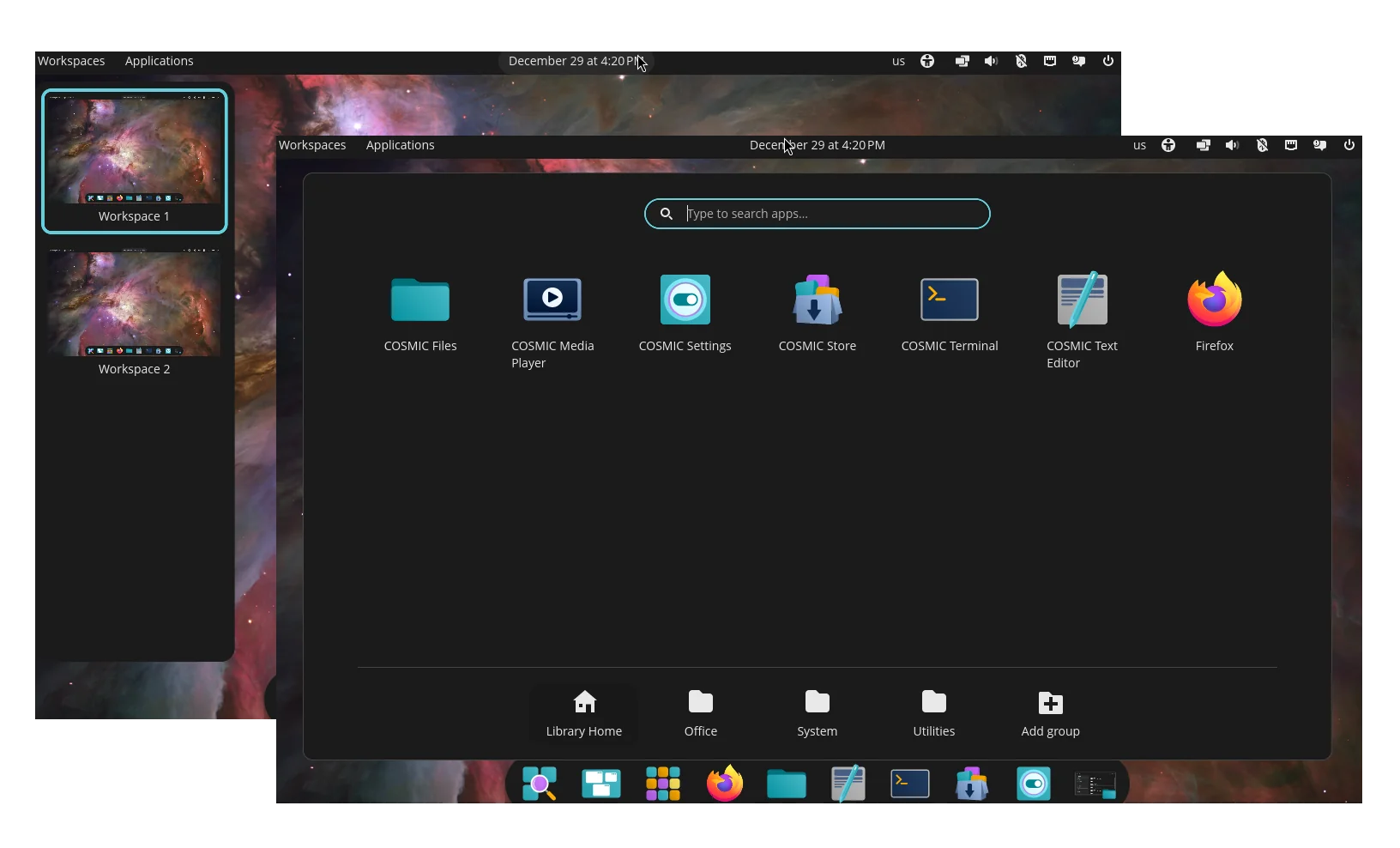
It as well features Gnome 3.x style vertical overview screen, and its own Application menu to get started launching apps or opening files.

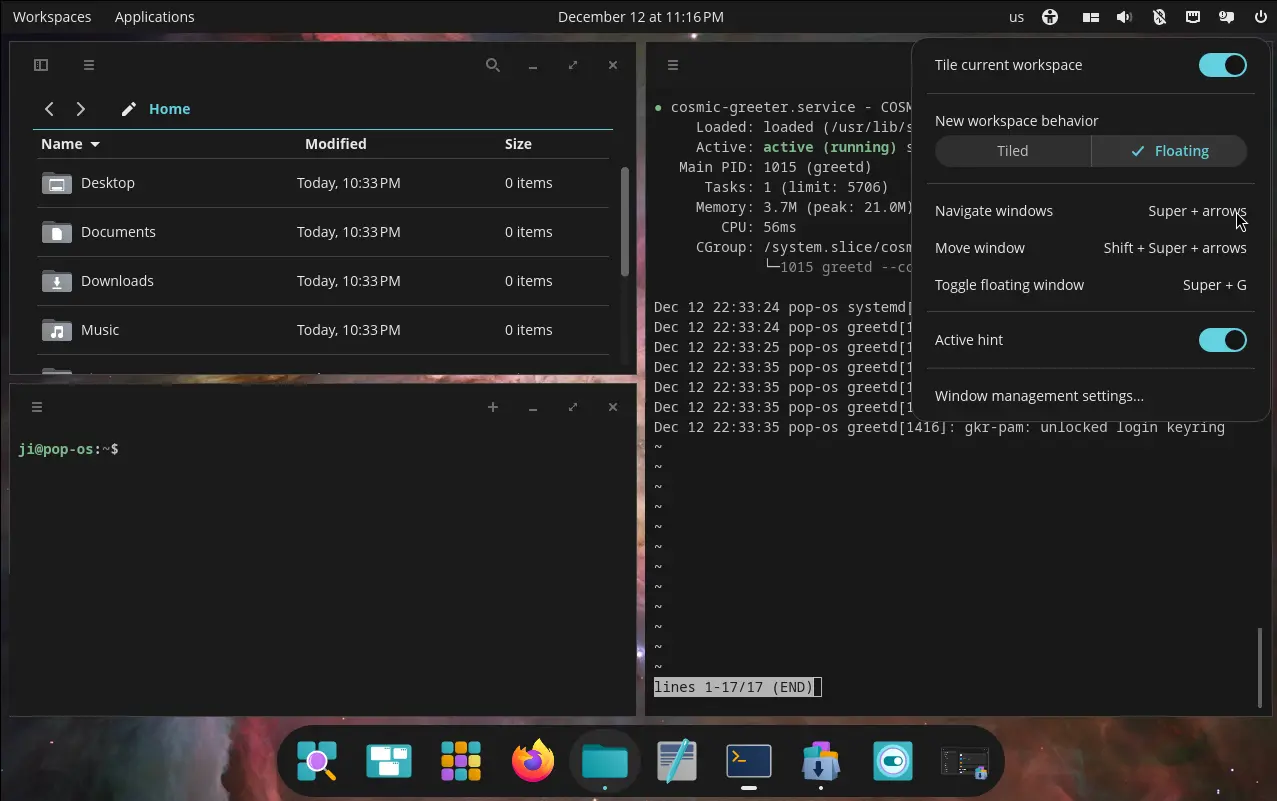
And, it features an indicator applet to one-click tiling all app windows in current workspace, while user may drag’n’drop exchanging window position in the tiling mode.

Other features include:

  • Multiple displays support with separated or spanned workspaces, per display window tiling, mixed HiDPI and standard resolutions.
  • Hybrid graphics support that auto select the correct GPU for running apps.
  • Stack windows feature to combine multiple app windows into single in tabs.

Install COSMIC in Ubuntu 24.04

For Ubuntu 24.04 LTS users who don’t want to download & install the Pop!_OS 24.04, there’s now an unofficial PPA repository that maintains the desktop environment packages for AMD/Intel platform.

NOTE: This is an unofficial PPA, though it has a source repository for reporting issues or requesting features.

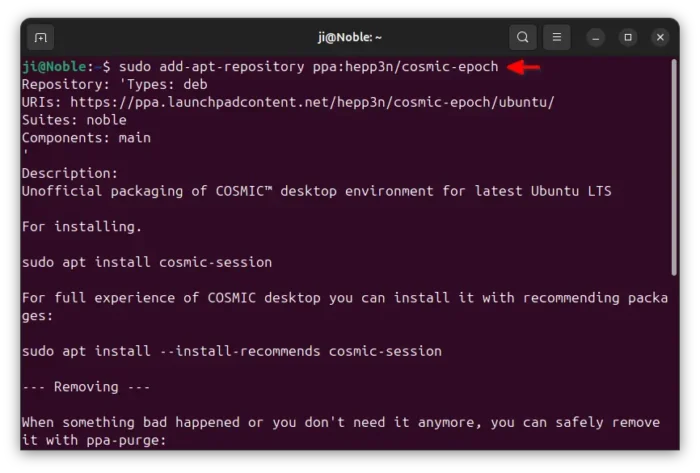
1. Just open terminal (Ctrl+Alt+T) and run command to add the PPA:

sudo add-apt-repository ppa:hepp3n/cosmic-epoch

Type user password (no visual feedback) when it asks for sudo authentication, and hit Enter to continue.

2. Ubuntu now automatically refresh cache while adding PPA, but some flavors (e.g., Linux Mint) may need to manually run command below to do the job:

sudo apt update

3. Finally, install the COSMIC desktop by running command:

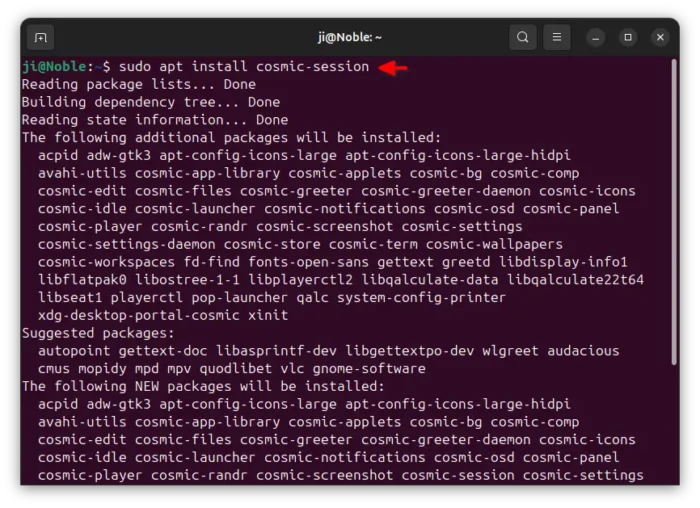
sudo apt install cosmic-session

As the PPA description said, you may optionally add --install-recommends option in last command to install more packages to get full experience of COSMIC desktop.

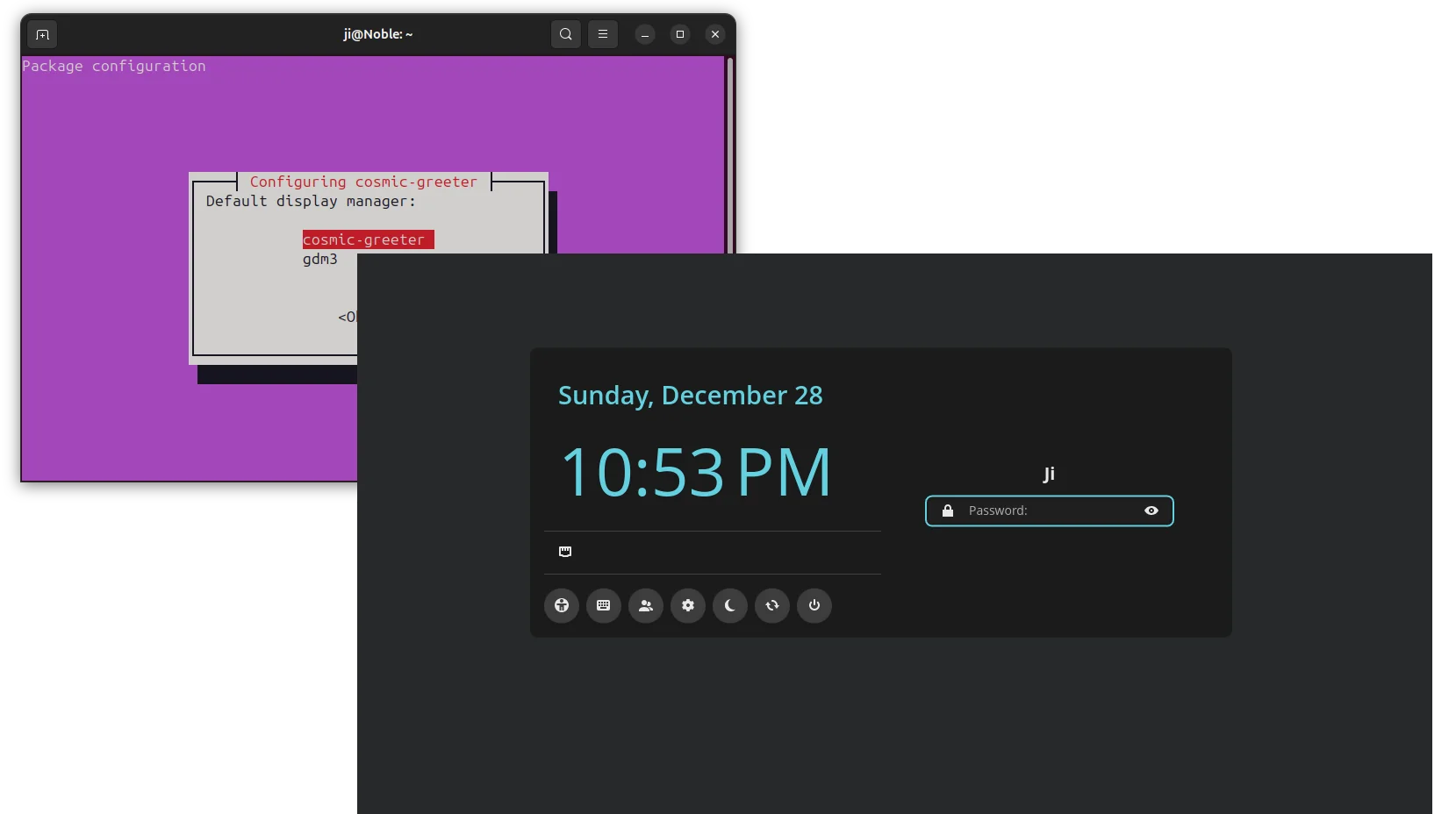
During the installation process, it will ask for choosing the default display manager. And, by choosing “cosmic-greeter” (press Tab to select OK), the login screen will change to be cosmic style.

After successfully installed the desktop, restart your computer and select login with “COSMIC” session if you chose to use the previous login screen.

Uninstall COSMIC desktop

If something goes wrong, or you just want to remove the desktop environment, then open terminal (Ctrl+Alt+T) and run commands:

  • First, install ppa-purge tool:
    sudo apt install ppa-purge
  • Then, use the tool to purge the PPA, which will also downgrade (or remove) all the installed packages.
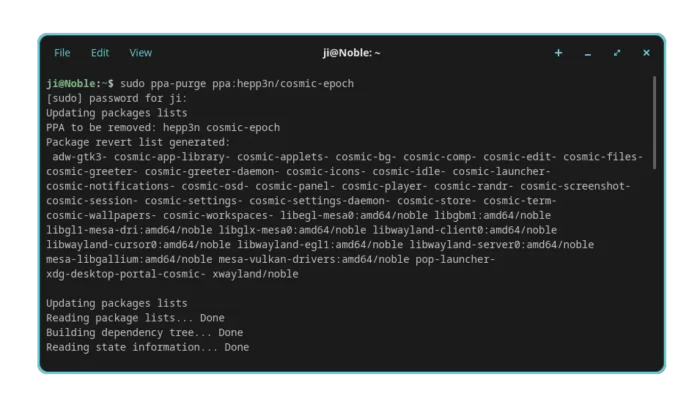
    sudo ppa-purge ppa:hepp3n/cosmic-epoch

    For Ubuntu flavors, e.g., Linux Mint, use sudo ppa-purge ppa:hepp3n/cosmic-epoch -d noble instead.

In my case, it automatically switch the display manager (the login screen) back to the default afterward.

Tips: If the ppa-purge process was somehow interrupted, then use the command below to manually remove the desktop packages:

sudo apt remove cosmic-app-library cosmic-applets cosmic-bg cosmic-comp cosmic-edit cosmic-files cosmic-greeter cosmic-greeter-daemon cosmic-icons cosmic-idle cosmic-launcher cosmic-notifications cosmic-osd cosmic-panel cosmic-player cosmic-randr cosmic-screenshot cosmic-session cosmic-settings cosmic-settings-daemon cosmic-store cosmic-term cosmic-wallpapers cosmic-workspaces pop-launcher xdg-desktop-portal-cosmic

Finally, restart computer to apply changes.

  •  

Graphical Shutdown App KShutdown 6.2 added Beep Sound & D-Bus Help

KShutdown, the graphical shutdown utility for Windows and Linux, released new 6.2 version few days ago.

The new version of this free open-source application added some minor new features, UI tweaks, and basic D-Bus help dialog for those who would like to automate the process via a widget or script.

As you may know, KShutdown is a small utility designed for KDE desktop, which also works in other desktop environments without KDE libraries.

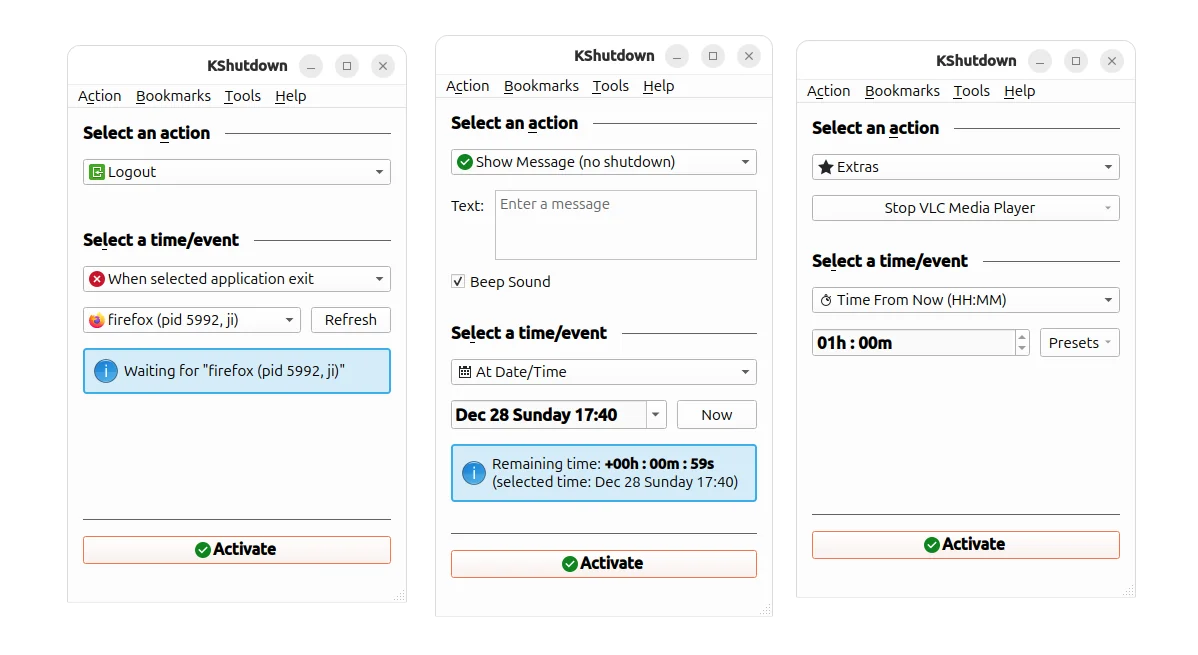
The app can automatically shutdown, restart, hibernate, suspend your system, log-out or lock/un-lock your screen, as well as run custom command or popup a message dialog.

The action can be performed at given date and time, time from now, on application exit, or when a file is created/deleted.

As you see in the screenshot above, the new 6.2 version added “Beep Sound” option when you choose “Show Message” action. In my case in Ubuntu, it will play the event sound (only once) when popping up the message dialog.

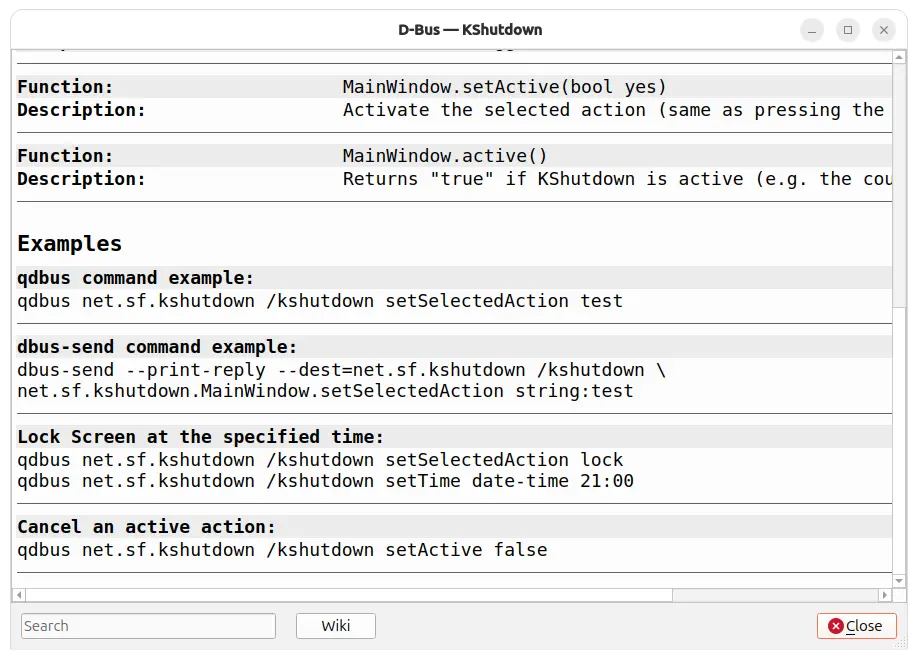
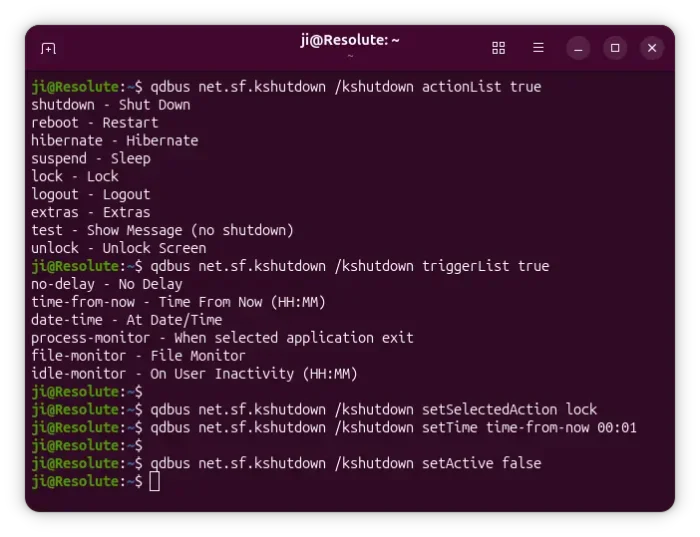
For those who would like to use Kshutdown in command line, e.g., for scripting or automation purpose, the new version added the D-Bus help dialog which can be launch from Help menu.

It shows the basic D-Bus commands to perform user-like actions. While, the Wiki page shows more about how to use it from command line.

NOTE: Ubuntu may need to first run the command below in terminal (Ctrl+Alt+T) to install the required runtime libraries for being able to use the d-bus commands.

sudo apt install qtchooser qdbus-qt6 qdbus-qt5

Besides that, the release also added more date and time presets, optimized app startup time by skipping loading of non-existent icons, and fixed some minor bugs.

Get KShutdown

The source code and Windows installers are available to download in its website via the link below:

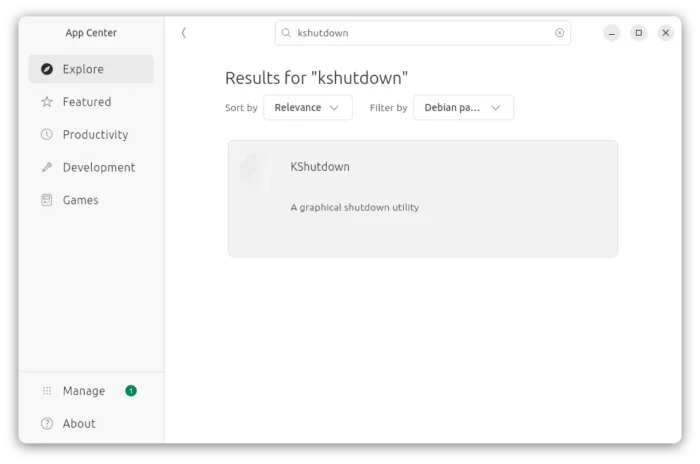
For Linux, KShutdown is available in most Linux system repositories, though a bit old. Simply, search & install it from your system package manager or software app.

  •  

Inkscape 1.4.3 Released with 100+ Bug-Fixes & Improved PDF Import

Inkscape, the free open-source GTK based vector graphics editor, released new 1.4.3 version few days ago.

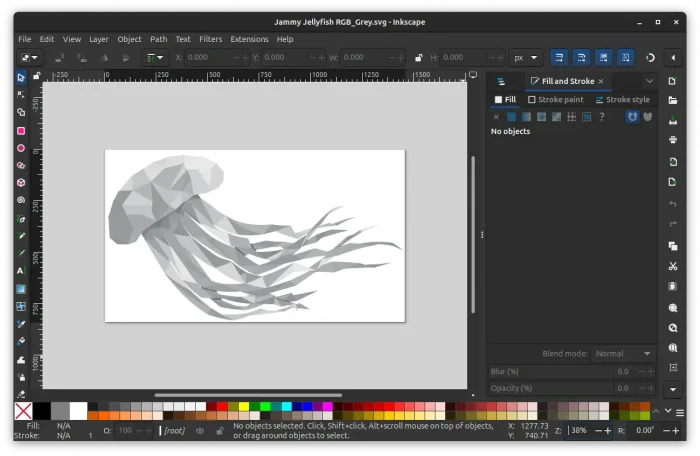
This is a maintenance release that features around 124 bug and crash fixes, improved PDF import, and other improvements.

First of all, the new 1.4.3 version added support opening the document created by the next v1.5 (still in dev stage).

As you may know, inkscape 1.5 is going to move from the ‘old’ format of pages, that only works in inkscape, to the new format that uses svg:view element, which is standardized and can work in other SVG viewers and browsers.

The current 1.4.3 version added the compatibility for 1.5 page elements. It can now open the pre-1.5 format, but saving it will convert it back to the current ‘old’ page format.

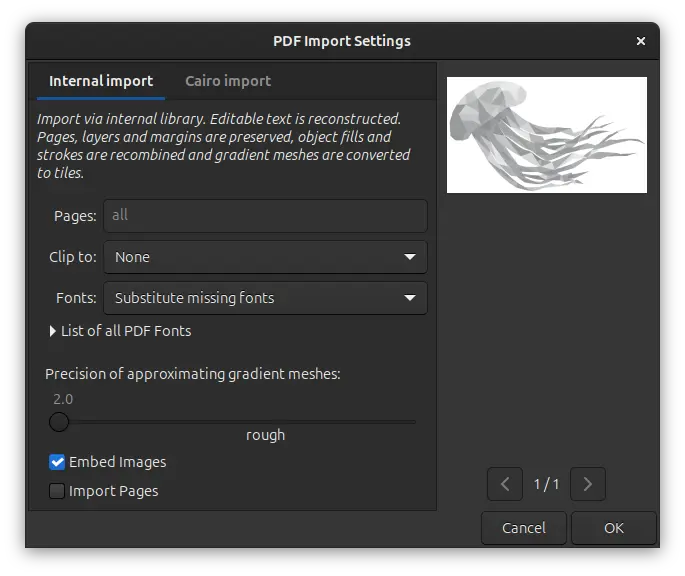
The new version also improved PDF support. It now remembers user’s selection in the PDF import dialog, and uses Substitute missing fonts as the default font import strategy.

And, it does no longer imports unnecessary (in SVG) clipping paths from PDF files, and accurately suggests substitution fonts when importing PDF with text.

The macOS app now supports importing jpg, jpeg, and webp image files. User interface texts should now always show up in real letters instead of rectangle-shaped placeholders. And, it’s now less flickering when resizing the app window and working better on multiple monitor setup.

For Linux, the Snap package now supports opening files in /home and /media by either drag’n’dropping from file manager into app window, or using the context menu open with dialog. And, on smaller screens, it fixed the issue that the Welcome dialog bottom buttons go outside of the screen on Linux with Wayland session.

Other changes in the release include:

  • Fix JPEG/JPG export for Windows.
  • Add option to disable interface animations.
  • Add color support for ‘Abstract 1’, ‘Polka dots, medium’ and ‘Polka dots, large’ patterns.
  • Add option for changing the current page on selection to the selection and the node tools.
  • Splash screen and Welcome dialog can now be disabled individually.
  • Hide the experimental “LPE Tool” from tool-bar.
  • Add pasting options to canvas context menu.
  • Allow text-on-path for rectangles.
  • Allow to override theme styles via user.css or mac.css in settings’ ui folder.
  • Effect extensions can now be written in the XSLT language.

For more about the release, see the official release note.

Get Inkscape 1.4.3

The official packages for Linux, Windows, and macOS are available to download in app website via the link below:

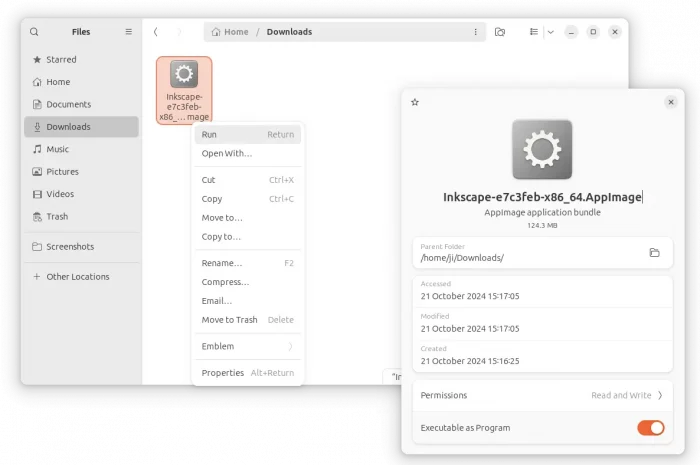
For Linux, there are 4 choices. They include AppImage package which can be downloaded from the link above. Just add executable permission from file properties dialog, then run to launch the image editor.

Tips: For Debian and Ubuntu 22.04+, you may first run the command below to install libfuse2 package first:

sudo apt install libfuse2

For Ubuntu, it’s also available to install as Snap package, which can be installed from either Ubuntu Software or App Center. Though. it’s not updated to the new 1.4.3 at the moment of writing.

If you don’t like running the app in sandbox environment, then you may also choose the official PPA that contains the native .deb packages for Ubuntu 22.04, Ubuntu 24.04, Ubuntu 25.04 and 25.10.

To add the PPA and install the deb package, open terminal (Ctrl+Alt+T) and run the commands below one by one:

sudo add-apt-repository ppa:inkscape.dev/stable
sudo apt update
sudo apt install inkscape

And, Linux Mint may search & install the Flatpak package directly from Software Manager.
  •  

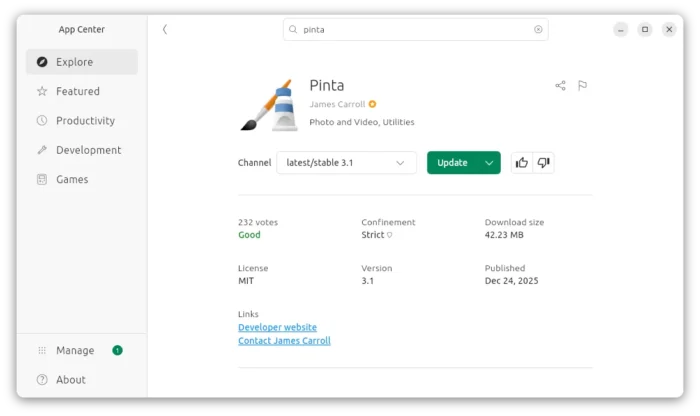
Pinta 3.1 Released with Axonometric Grid & Context Menu for Layers

Pinta, the free open-source clone of Paint.Net 3.0, released new major 3.1 version today.

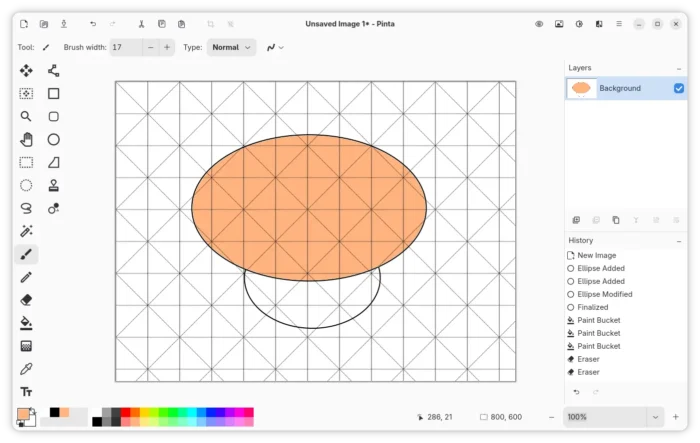
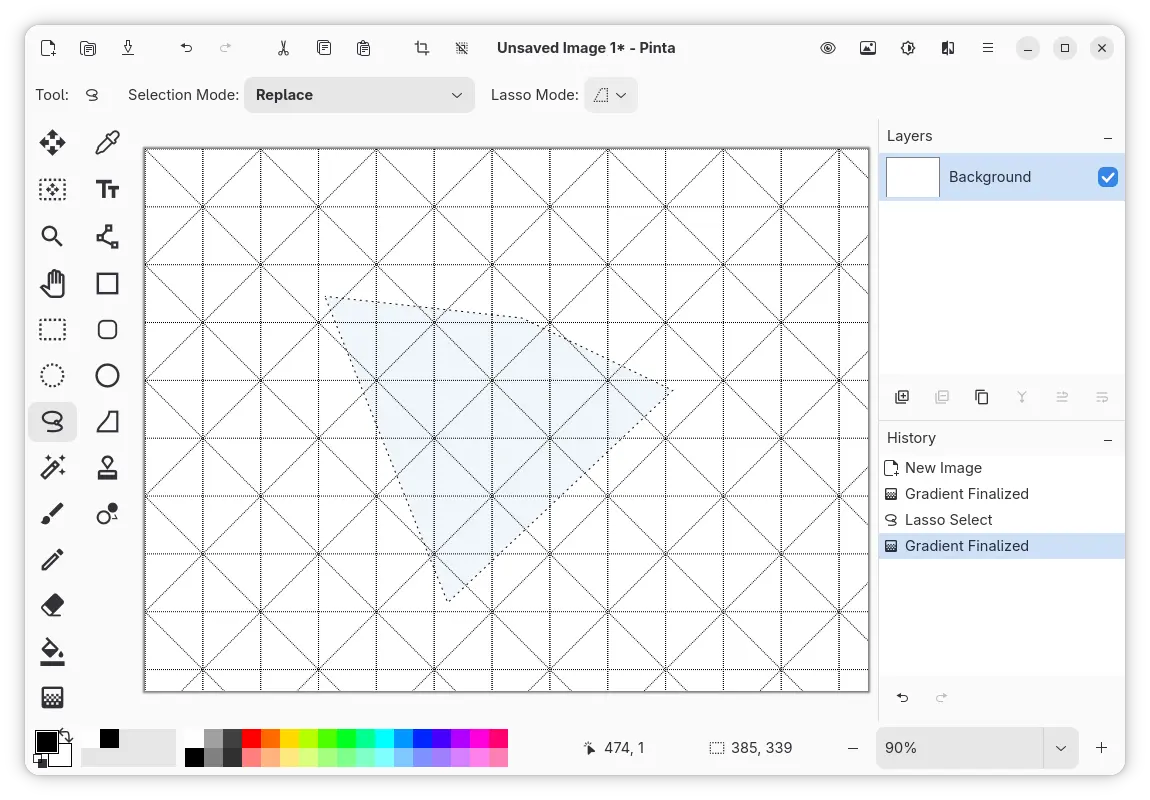
The new version of this simple GTK4 based painting software introduced Axonometric Grid. By going to “View -> Canvas Grid”, user can enable this feature with adjustable width, which is useful for drawing three-dimensional objects.

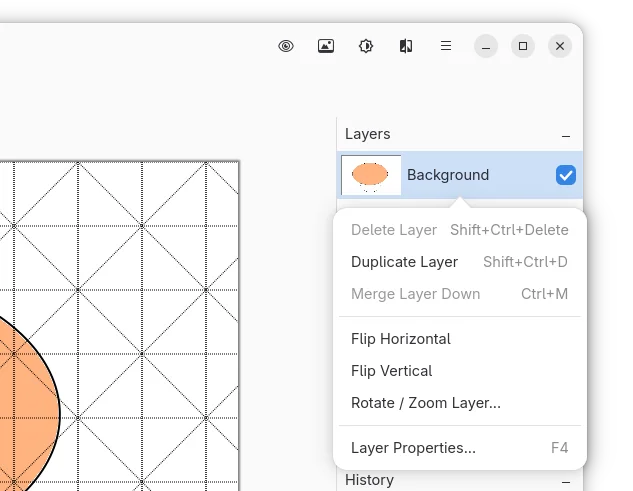
It also added context menu support for layers. Meaning, user can now right-click on a layer to get a pop-up menu with options to duplicate, merge, delete, flip, rotate or zoom layer or open layer properties dialog.

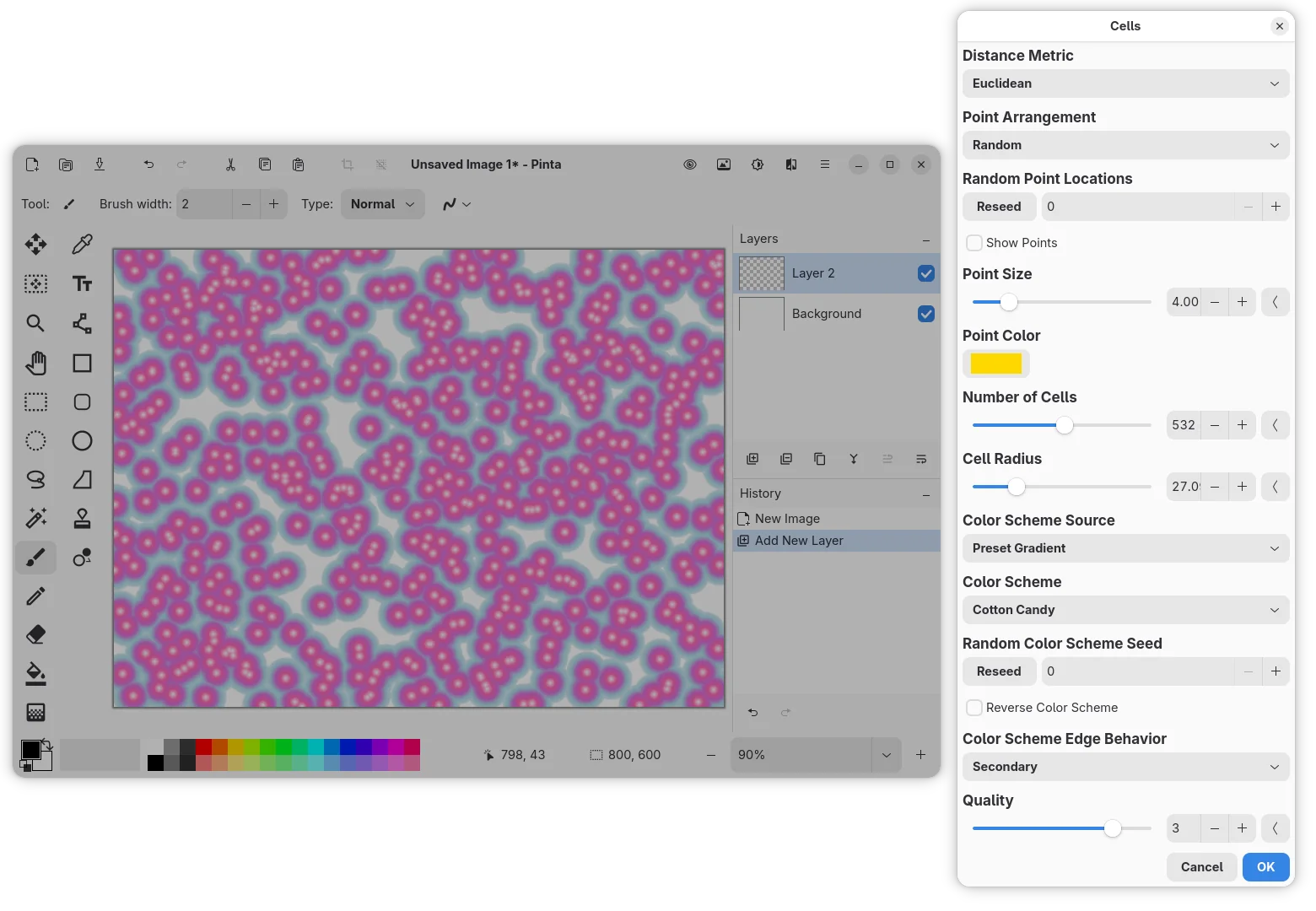
Pinta 3.1 introduced new Cells effect which can be accessed from “Effects -> Render” menu. It can add worley noise in selected area or the whole canvas with custom point arrangement, point size, cell numbers, and color scheme.

The Lasso Select tool now has new Polygon mode. Like the Polygon Lasso Select tool in Adobe Photoshop, it allows to select objects with straight lines or sharp angles.

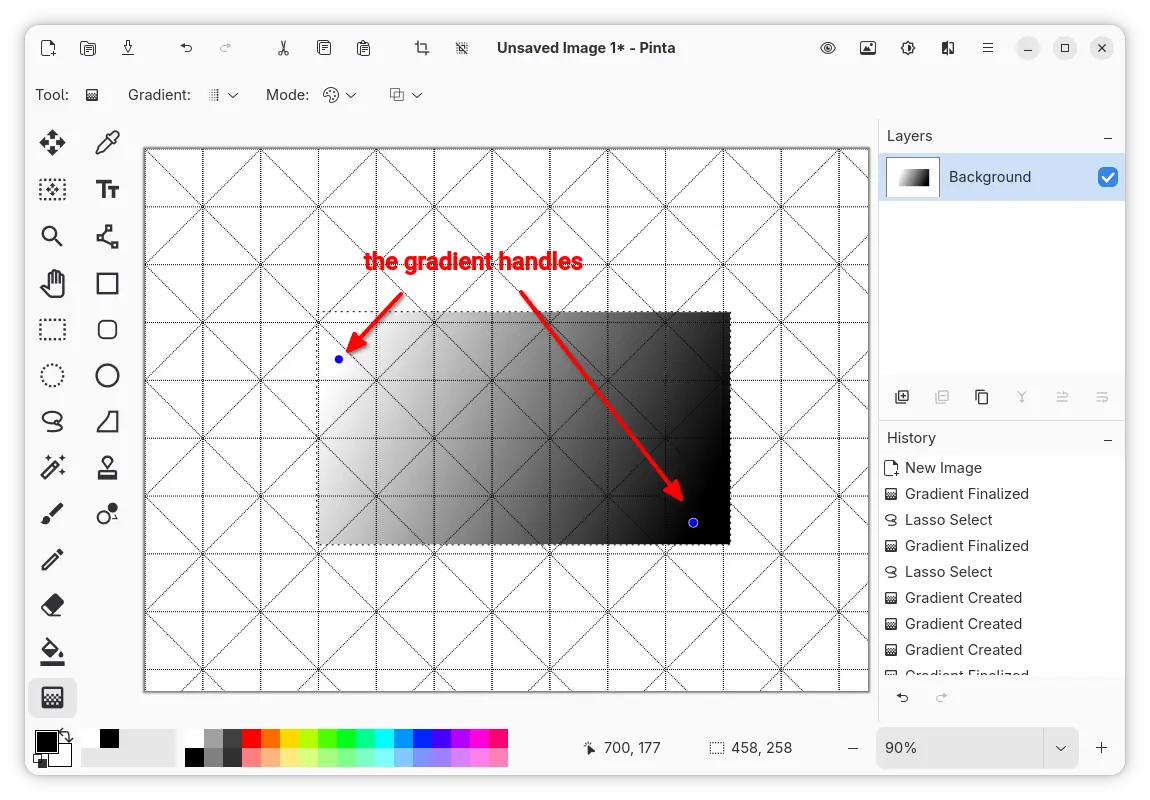
The Gradient tool now provides handles, the blue points in the screenshot below, that define the start and the end points of gradient.

User can drag moving the handles to change the gradient length and direction, or click anywhere apart from any handle to create a new gradient, and hit Enter to finalize the gradient and remove the handles. And, creating, modifying or finalizing gradient will add a new history item.

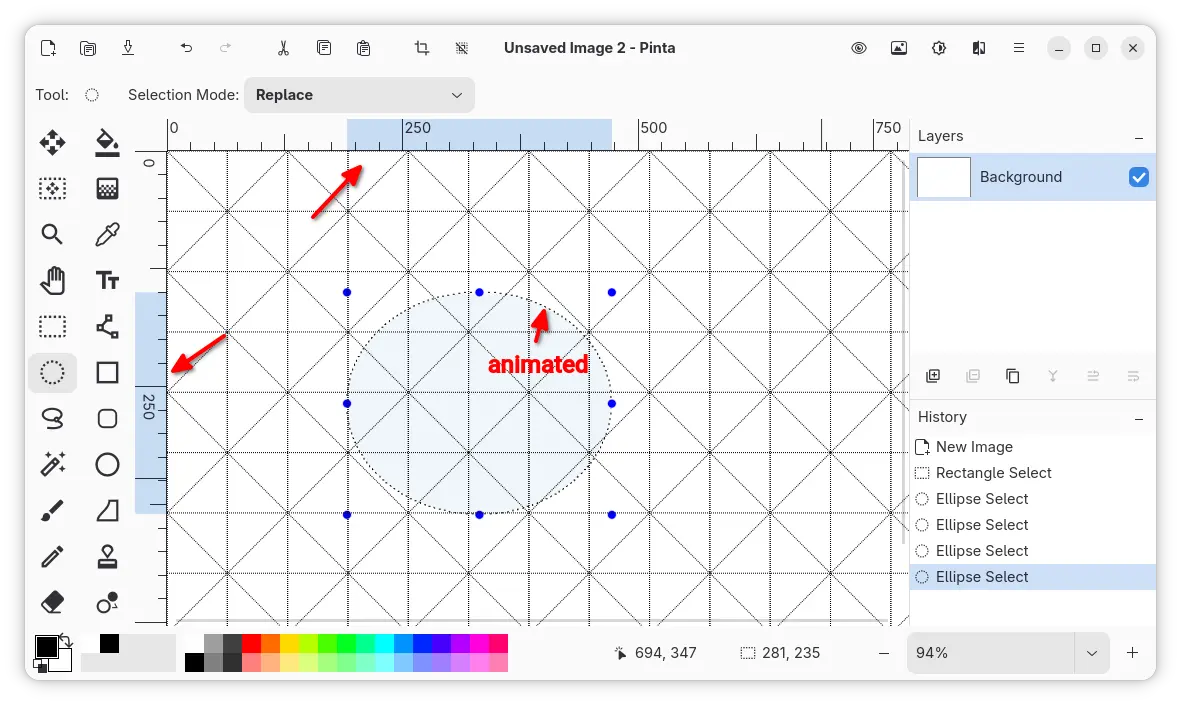
The selection of an area on the canvas is now being projected and highlighted on the rulers, so you can easily find out the position, width and height of the selection.
And, the outline dots of selection are animated to improve the visibility.

highlight the selection in ruler, and show animated outline

The Twist effect now has a new Radius Percentage parameter. The Dithering effect can now use Pinta’s current palette in addition to the effect’s preset color palettes.

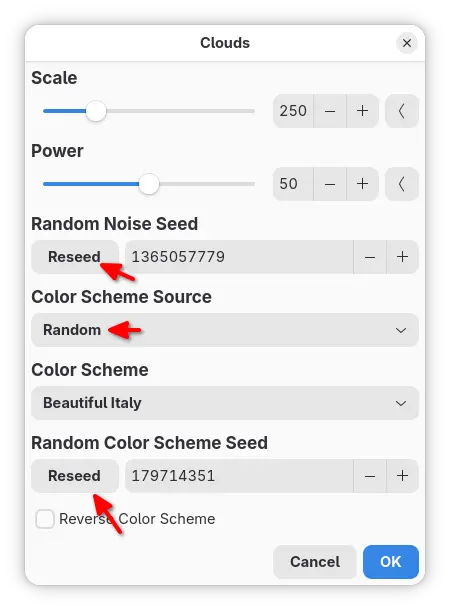
And, Render effects (e.g., Clouds, Julia Fractal) now support Random values and Reseed button.

Other changes in Pinta 3.1 include:

  • Add Ctrl+Backspace shortcut to delete words in Text tool.
  • Splatter brush draws repeatedly when holding down mouse left button.
  • Support for color picking in SimpleEffectDialog.
  • Display keyboard shortcuts in toolbar button tool-tips.
  • Rewrite the canvas widget to improve performance and memory usage issues.
  • Add issue tracker and discussion links in About dialog.
  • Add installer for Windows on ARM64.

For other changes and bug-fixes, see the official release note in the Github page.

Install Pinta 3.1

Pinta provides official packages for Linux, OpenBSD, Windows, and macOS, which are available to download via the link below:

Linux user may choose the Flatpak package which runs in sandbox environment.

While, Linux Mint and Fedora may search & install it from either Software Manager or GNOME Software, Debian/Ubuntu may run the 2 commands below one by one instead:

  • Install Flatpak daemon:
    sudo apt install flatpak
  • Install Pinta Flatpak package:
    flatpak install https://dl.flathub.org/repo/appstream/com.github.PintaProject.Pinta.flatpakref

    For updates, run flatpak update com.github.PintaProject.Pinta to check & install.

For Ubuntu, it’s also available to install as Snap package through App Center (or Ubuntu Software).

For those who prefer the native .deb package, keep an eye on the Xtradeb PPA, though it won’t support Ubuntu 24.04 and older anymore, as Pinta 3.1 requires GTK >= 4.18 that only 25.04 and higher match.

  •  

Dolphin Emulator 2512 fixed SD & added Logitech Microphone Emulation

Dolphin, the GameCube and Wii emulator, released new 2512 version yesterday! Ubuntu PPA updated for all current Ubuntu 22.04, 24.04, 25.04 and 25.10 releases.

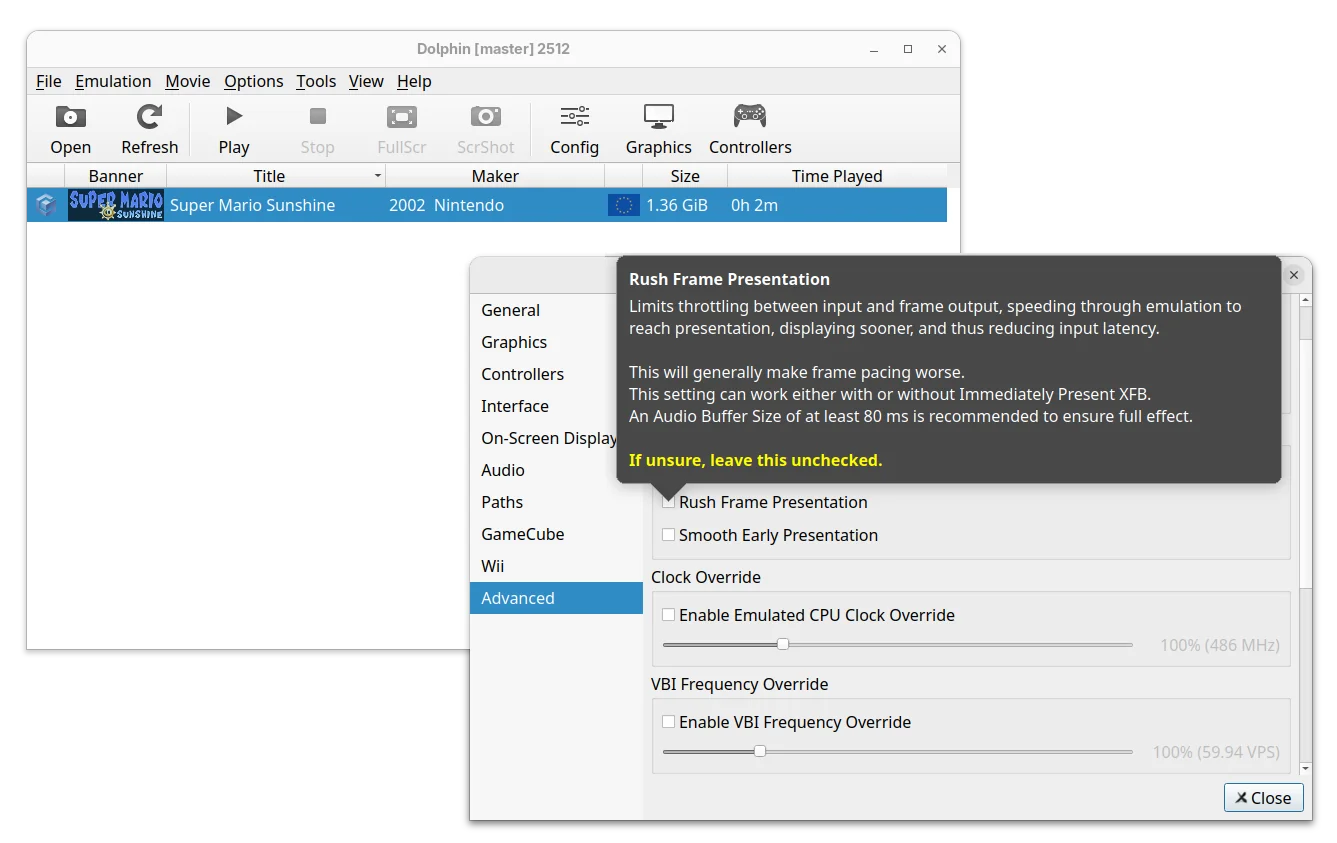
The new release of this free open-source Nintendo video game console emulator added two new options Rush Frame Presentation and Smooth Frame Presentation.

Rush Frame Presentation is a new throttling mode to reduce latency which however generally make frame pacing worse. And, Smooth Frame Presentation can improve frame pacing with Immediately Present XFB and/or Rush Frame Presentation, while still maintaining most of the input latency benefits.

Both options are available in the Advanced settings page, where, a new “Reset All Settings” button is added to restore everything to default, without manually deleting the Dolphin settings files.

For Linux and Windows, the new version added new Broadband Adapter (BBA) IPC mode for the GameCube by using the cpp-ipc library. It allows running multiple Dolphin instances on the same machine to share memory and communicate directly without the need for a host network.

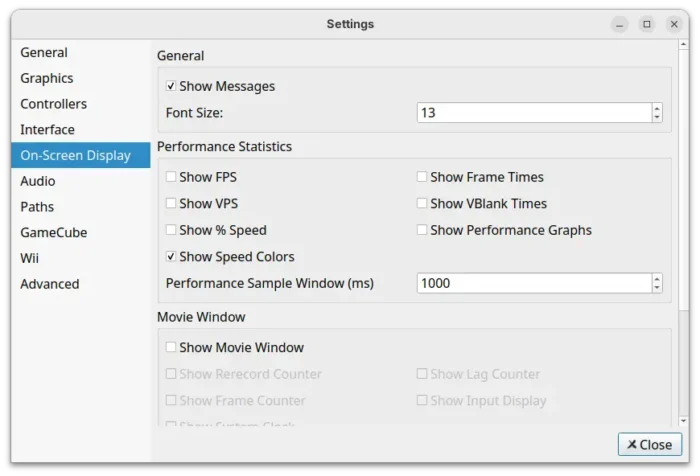
The emulator now uses Vera Sans Mono as default font for On-Screen Display, which looks clear regardless of DPI scaling. While, user can override it by adding any TrueType font to the “Load” folder of the User directory and name it “OSD_Font.ttf”.

And, On-Screen Display settings page added more options to configure what to be displayed, font size, or if to disable them all together.

The 2512 version added a patch to detect and skip complex idle loops in Need for Speed: Nitro and Rayman Raving Rabbids, results in massive performance boosts, especially in lighter areas.

It also added small patches for Hulk (2003), Conduit 2, Driver: San Francisco, Monsters Inc. Scream Arena, Tetris Worlds, The Simpsons Hit & Run, etc games that either increased emulation performance or fixed specific issues.

For Android, the RetroAchievements support is finally added. User can log in and unlock achievements in supported GameCube games. However, some menus are incomplete, it may be best to have the RetroAchievements website open in the background for achievement lists and other things.

Other changes in Dolphin 2512 include:

  • Emulate Logitech Microphone with any standard PC microphone.
  • Add SDL Gamepad (Stock) profile to speed up GameCube controller mapping.
  • Make InetAToN function async to prevent stutter for online gaming.
  • Fix CSD/CID emulation. It now properly works with virtual SD cards up to 32GB in size.
  • Fix broken audio in NFL Blitz Pro.

For more about the release, see the official announcement.

Install Dolphin 2512

Dolphin provides official installer packages which are available to download via the link below:

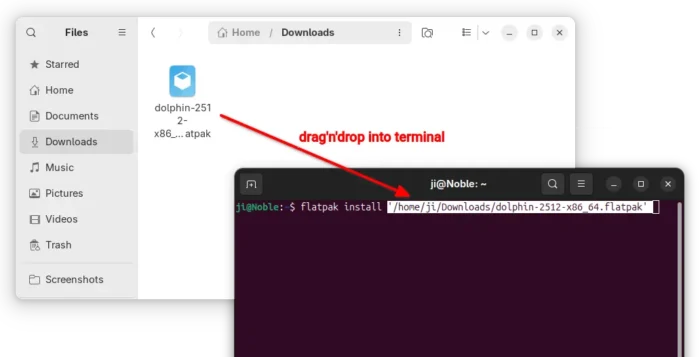
For Linux, it’s Flatpak package that runs in sandbox environment. Just download it, then run the command below in terminal to install it:

flatpak install /path/to/flatpak

Besides typing path to the flatpak manually, you may simply drag’n’drop it into terminal to auto insert the path.

For Ubuntu users who prefer the classic .deb package, I’ve built the package into this unofficial PPA for Ubuntu 22.04, Ubuntu 24.04, Ubuntu 25.04 and 25.10.

You may open terminal (Ctrl+Alt+T) and run the commands below one by one to add the PPA and install the emulator:

sudo add-apt-repository ppa:ubuntuhandbook1/dolphin-emu
sudo apt update
sudo apt install dolphin-emu

NOTE for Ubuntu 22.04 & Ubuntu 24.04, the PPA contains updated version of Vulkan loader library which is needed for building (and MAYBE properly running) Dolphin 2512, though they are NOT tested. Use it at your own risk!

  •  

MPV 0.41.0 Released with Improved Wayland Support (PPA Updated)

MPV, the popular command line media player, released new version 0.41.0 yesterday.

The new release of this free open-source media player greatly improved the Wayland support for Linux users. It added support for the color-management-v1 and wp-color-representation-v1 protocols helping ensure accurate color display for High Dynamic Range (HDR) content.

As well, it added tablet input and clipboard writing support for users on GNOME, KDE, etc desktop environments with wayland session.

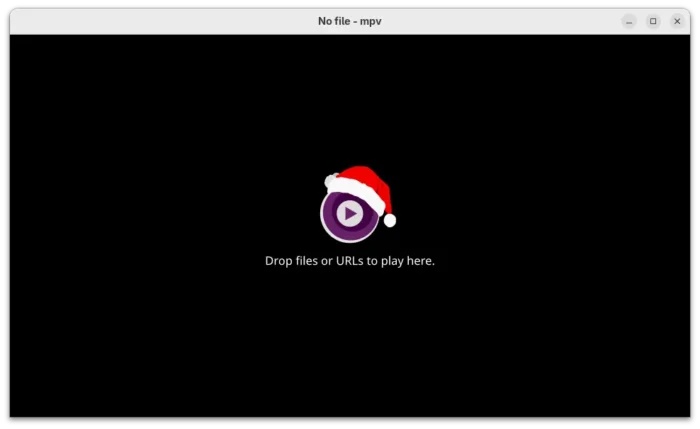
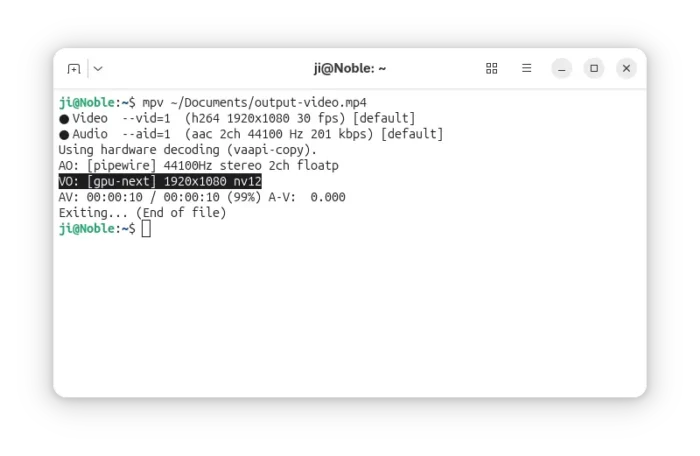
The 0.41.0 version now uses the libplacebo based gpu-next as default video output renderer instead of the previous gpu, which features overall performance improvements and better HDR and Wayland support.

It improved gpu-next with blend-subtitles=video option to force blend subtitles at the video’s native resolution, rather than the window or screen resolution.

And, it added options for the new default renderer to define the diffuse white and control subtitle peak for HDR output, and fill empty border areas with a blurred version of the video itself. It can as well respect ICC profile color space over any metadata, limit min_luma to 1000:1 contrast ratio in SDR mode, and control output colorspace metadata more precisely.

MPV 0.41.0 uses gpu-next by default

There are also new --sub-glyph-limit and --sub-bitmap-max-size libass caching options for the subtitle track, --hwdec-threads to set number of threads used for hardware decoding, and --bluray-angle to tell mpv which angle to use for Blu-ray discs contain scenes that can be viewed from multiple angles.

Other changes include:

  • Prefer vulkan hardware decoding over other APIs.
  • New context_menu.lua script for right-click context menus.
  • Ambient light support on Linux.
  • Add x11 clipboard backend.
  • Add d3d11 composition mode support for Windows.
  • Add built-in helpers to register mpv as a media app on Windows.
  • --sub-fix-timing to remove minor gaps or overlaps between subtitles.
  • Add default and forced flags to the track add commands.
  • Add options to control background tile appearance.

MPV 0.41.0 also includes many other improvements and numerous bug-fixes. See the Github releases page for details.

How to Install MPV 0.41.0 in Ubuntu

MPV does not provide official installer packages, but has a list of third-party builds for Windows, Linux, and macOS in its website.

For Linux, besides building from the source, you may keep an eye on the community maintained Flatpak package and Snap package, though they are not updated at the moment of writing.

For Ubuntu and Linux Mint users who prefer native .deb package, I’ve built mpv 0.41.0 into this unofficial PPA for Ubuntu 22.04, Ubuntu 24.04, Ubuntu 25.04 and 25.10.

To add the PPA and install MPV, run commands below in terminal (Ctrl+Alt+T) one by one:

sudo add-apt-repository ppa:ubuntuhandbook1/mpv
sudo apt update
sudo apt install mpv

NOTE for Ubuntu 22.04, the system wayland version is outdated that does not match the minimum requirement. The mpv 0.41.0 package in PPA for 22.04 was built with Wayland feature disabled.

  •  

Darktable 5.4.0 Released with Multi-Workspaces & Better Wayland Support

Darktable, the free open-source photography app and raw developer, released new major 5.4.0 version yesterday.

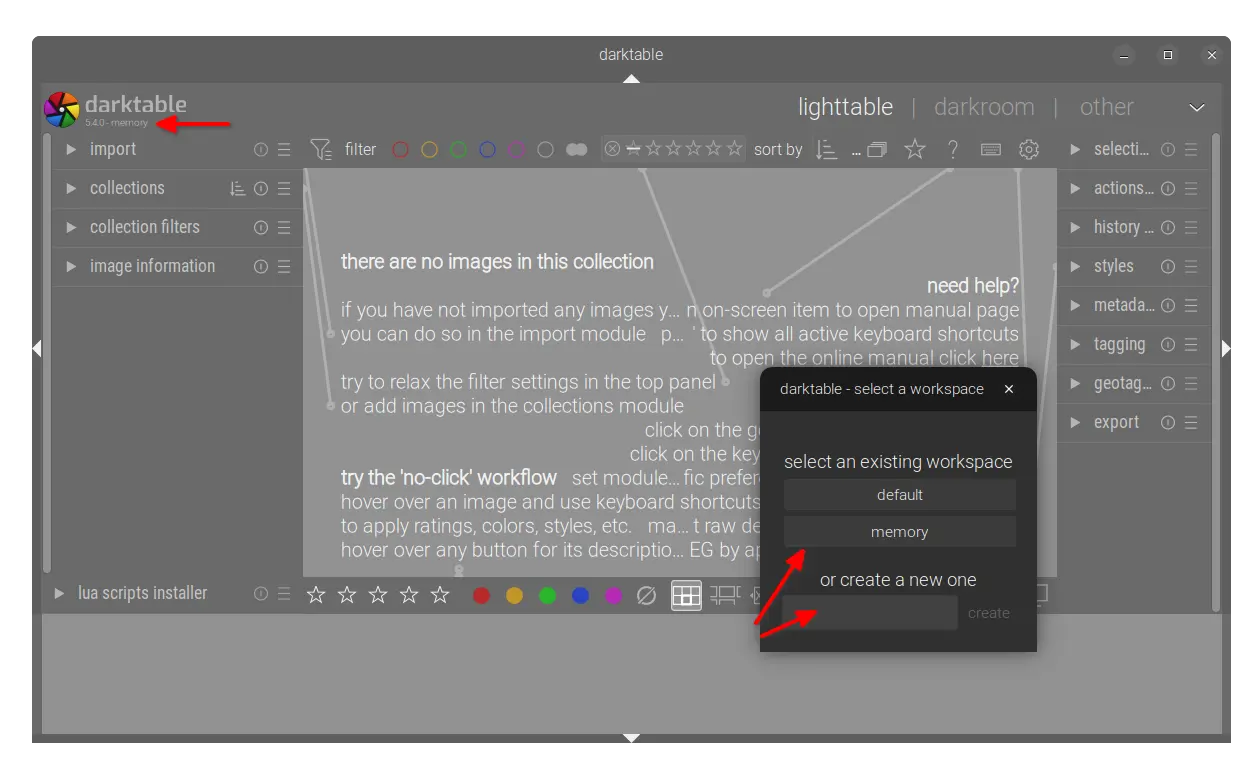
The new release of this GTK software introduced multiple workspace support. Like “user profile” feature for Firefox, user can now add custom workspaces at app start for Darktable. And, each workspace has it’s own database and configuration file.

Simply go to Preferences -> storage -> database and enable “allow for multiple workspaces” option. Then, on every start of Darktable, it shows a small window for choosing or adding a new workspace.

As you see in the screenshot below, it includes “default” workspace which is the one created on first launch, “memory” workspace that keeps database in memory and discards once you close the app window. And, you can create (or delete at next launch) as many workspaces as you want.

For a non-default workspace, the app window will display the workspace name in top-left alongside the version number.

The release added new Capture Sharpening in the demosaic module, which tries to recover details lost due to in-camera or lens blurring. See the user-manual page for more about it.

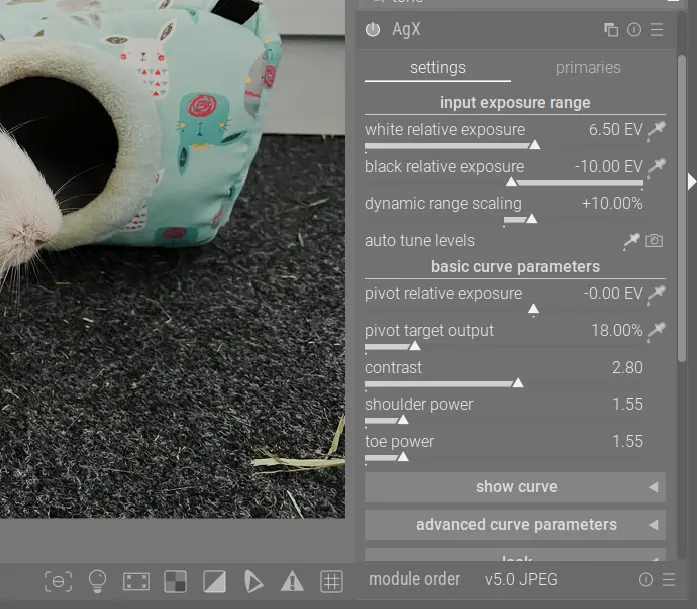
It also added the new AgX module to apply a tone mapping curve, which is inspired by Blender’s AgX tone mapper. The new module provides more extensive color output controls than Sigmoid, and it allows to set exposure white and black points explicitly similar to Filmic RGB. And, it includes user adjustable pivot point, contrast around this pivot, and contrast in highlights/shadows.

For Linux with GNOME, KDE, or other desktops with Wayland, Darktable received many fixes and improvements. It now should work on Wayland as good as it was on X11.

As well, there are many new cameras support. They include the base support for Canon EOS R1 / R5 Mark II (needs LibRaw >= 0.22-PreRC1), Canon PowerShot D10 (DNG) / S100V / S2 IS (DNG), Fujifilm FinePix HS33EXR, Fujifilm X-E5 (compressed), Kodak DCS Pro SLR/c, Kodak P712, Leica D-Lux 8, Leica M EV1 (DNG), Leica Q3 Monochrom (DNG), Leica X-E (Typ 102) (DNG), Nikon Z fc, OM System OM-5 Mark II, Olympus SP550UZ/SP565UZ, Panasonic DC-S1M2/DC-S1M2ES (3:2), Ricoh GR IV (DNG), Ricoh GX200 (DNG), Sony DSC-RX1RM3, and Sony ZV-1M2.

Other changes include:

  • Add the standard “Window” menu to the application menu bar on macOS.
  • Add new keyboard shortcuts:
    • c to toggle crop box.
    • e to set exposure compensation.
    • alt - r to set image rotation.
    • alt - [ and alt - ] to fine rotation adjustment.
  • 5% to 20% speed up for the Lut3D module.
  • Support hierarchical presets for utility modules and processing modules.
  • Dual demosaicing now works also in tiling mode.
  • Add RGB percent display in the color picker module.
  • Remove the “overwrite” option from the lighttable history stack module.
  • Add manual chroma subsampling control for AVIF export.
  • Update LUA API to v9.6.0.
  • UX/UI and performance improvements, as well as numerous bug-fixes.

How to Install Darktable 5.4.0

The official release note as well as the installer packages for Linux, Windows, and macOS are available in the Github releases via the link below:

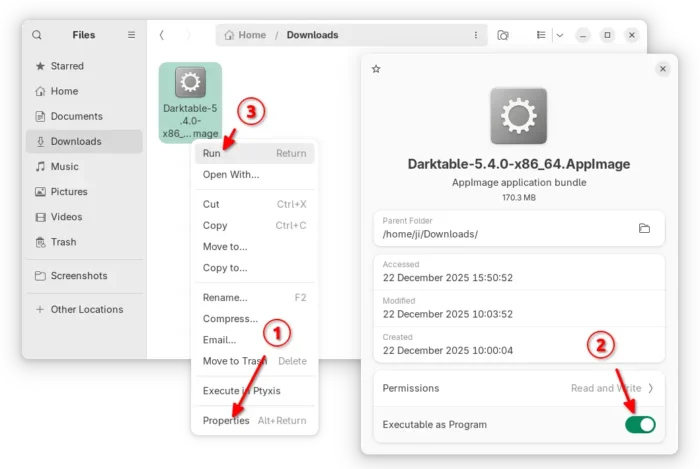
For Linux on AMD/Intel platform, select download the AppImage. Then, add executable permission from file properties. Finally, click Run to launch the software.

Tips: Ubuntu 22.04 and higher need to install libfuse2 package via the command below (Ctrl+Alt+T) for appimage support.

sudo apt install libfuse2

There’s also community maintained Flatpak package for Linux on both amd64 (AMD/Intel) and arm64 (e.g., RasPi and Snapdragon X), though it runs in sandbox environment.

For Debian, Ubuntu, Fedora, etc Linux Distributions who prefer the native .deb and .rpm packages, there’s an official OBS repository (server’s done at the moment of writing) available for choice.

And, I’ve built the new release package into this unofficial PPA for Ubuntu 22.04, Ubuntu 24.04, Ubuntu 25.04 and 25.10 users on amd64 and arm64.

To add the PPA and install darktable 5.4.0, run commands in terminal (Ctrl+Alt+T) one by one:

sudo add-apt-repository ppa:ubuntuhandbook1/darktable
sudo apt update
sudo apt install darktable

Note for Ubuntu 22.04, there’s neither HEIF nor JXL support because the system dependency libraries are old. Please leave comment below if you do need the feature.

  •  

Ubuntu 26.04 Wallpaper Competition Opened for Submissions

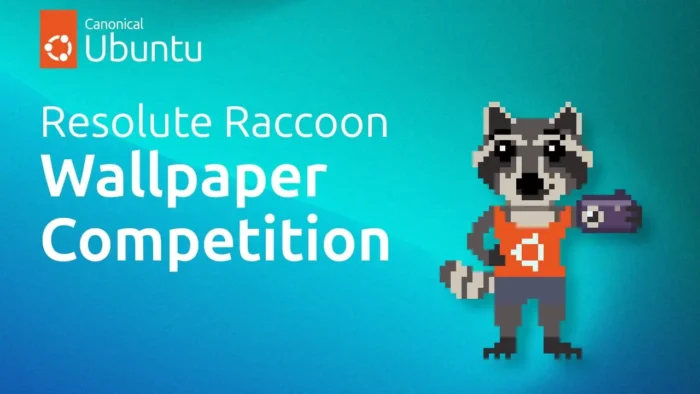
Wallpaper Competition for Ubuntu 26.04, Resolute Raccoon, opened for submissions. 6 of them will be included in the disc images.

This is one of my top favorite community activities. I’m neither an expert artist nor a professional photographer, but I can get many cool images and vote my favorites to be optional wallpapers for all Ubuntu users.

Like the last competition, the submissions are grouped into 3 categories: Mascot Theme – artwork that features the mascot for raccoon, Digital / Abstract – artwork created by digital tools (e.g., Blender, GIMP etc), and Photography – high resolution image taken from a conventional or digital camera.

The top TWO voted images from each category will be included in Ubuntu 26.04 as optional wallpapers in the Appearance -> Background settings.

The rules for this competition include:

  • Submitter must own the rights to the image.
  • Full quality image must be 3840×2160 px. PNG and WebP recommended.
  • No watermark, name or logo in image.
  • image licensed by CC BY-SA 4.0 or CC BY 4.0

The AI generated artwork is NOT allowed! Because there are active legal debates on the ownership of AI generated artwork and whether it can be copyrighted or not. And, many popular AI generation tools use a license that does not align with those for the contest.

The wallpaper submission started a week ago on December 15th (UTC), few months earlier than the last 24.04 LTS. And, the submission window is open for few weeks longer than before, until January 28th. After the submission close date, all can vote until February 4th.

The entrance of Ubuntu 26.04 Wallpaper Competition:


Here are some of my favorite images from the submission page:

Images below are optimized for faster loading, please go to the link above for original files.

  •  

Linux Mint 22.3 Beta is Available to Download

For Linux Mint users, the Beta release of next version 22.3 is now available to download for testing purpose.

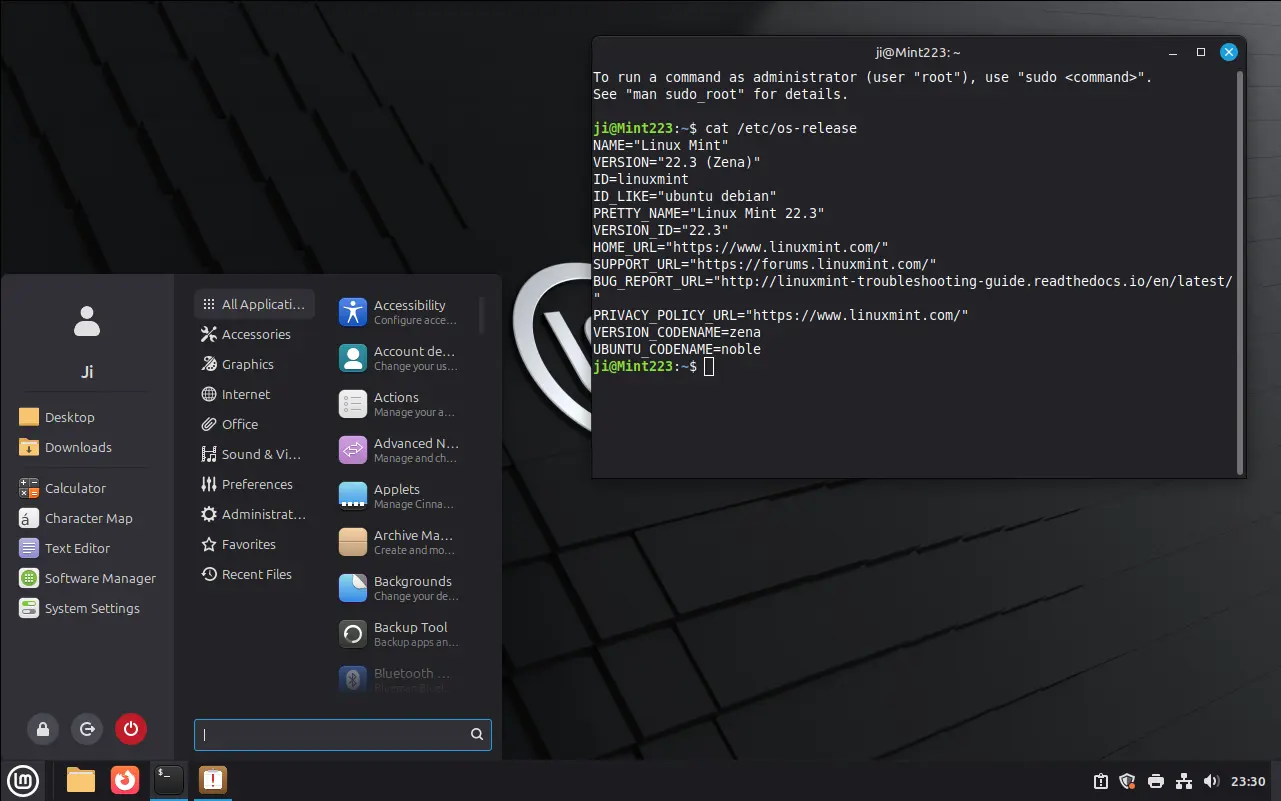
Linux Mint 22.3, code-name “Zena”, features Cinnamon Desktop 6.6.2, modern new application menu, and new application to configure the boot menu.

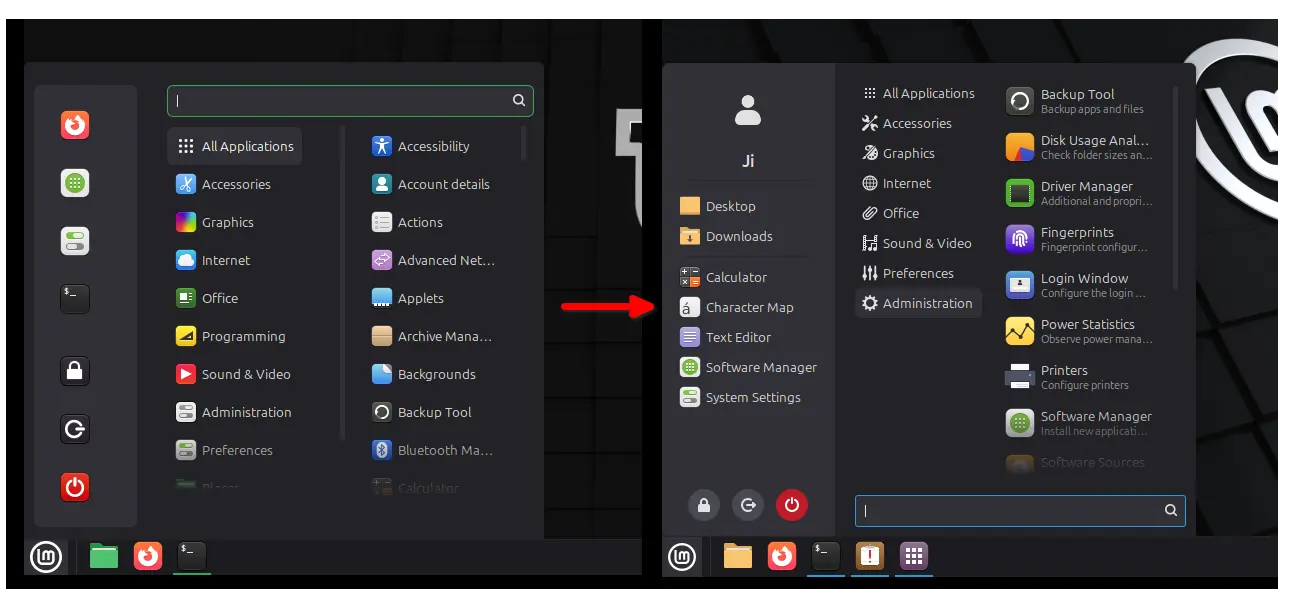
The Linux Mint blog revealed the exciting new features for 22.3 version in the October monthly news post. The start menu (aka Applications Menu) has been redesigned to look modern in today’s desktop operating systems.

It now has a full height left-bar contains user avatar, user folders, and few core apps (e.g. Settings and Software Manager). The categories now use new XApp Symbolic Icons which look tidy and compact that no longer needs a scroll-bar.

Linux Mint 22.3 Cinnamon Desktop

The search box can now be moved to the bottom of menu, and the system buttons (e.g., lock, logout, and power-off) can be placed to either in left sidebar or alongside the search box.

In addition, user can configure which kind of apps and user folders to display, and even hide the whole left-bar from the application menu.

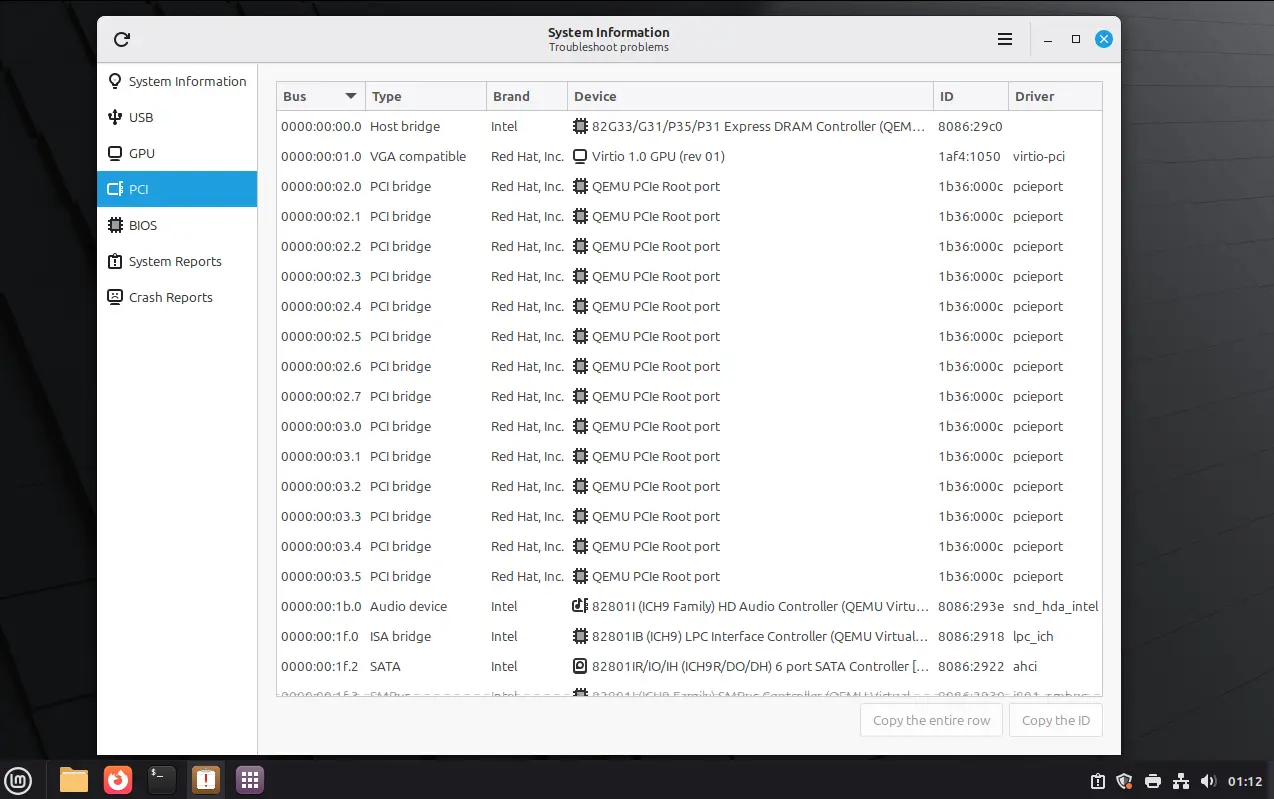
Linux Mint 22.3 also renamed System Info to System Information. Besides showing the basic system info, the app merged “System Reports” and “Error Reports”, as well added following new pages:

  • USB – displays all plugged-in devices, as well as their types, names, and IDs.
  • GPU – shows information about the default graphics card and the status of hardware acceleration support.
  • PCI – with detailed look of internal computer components, and their bus IDs, device names, and drivers.
  • BIOS – shows the information about the motherboard, BIOS version, boot mode (UEFI or legacy boot), and secure-boot enabled or not.

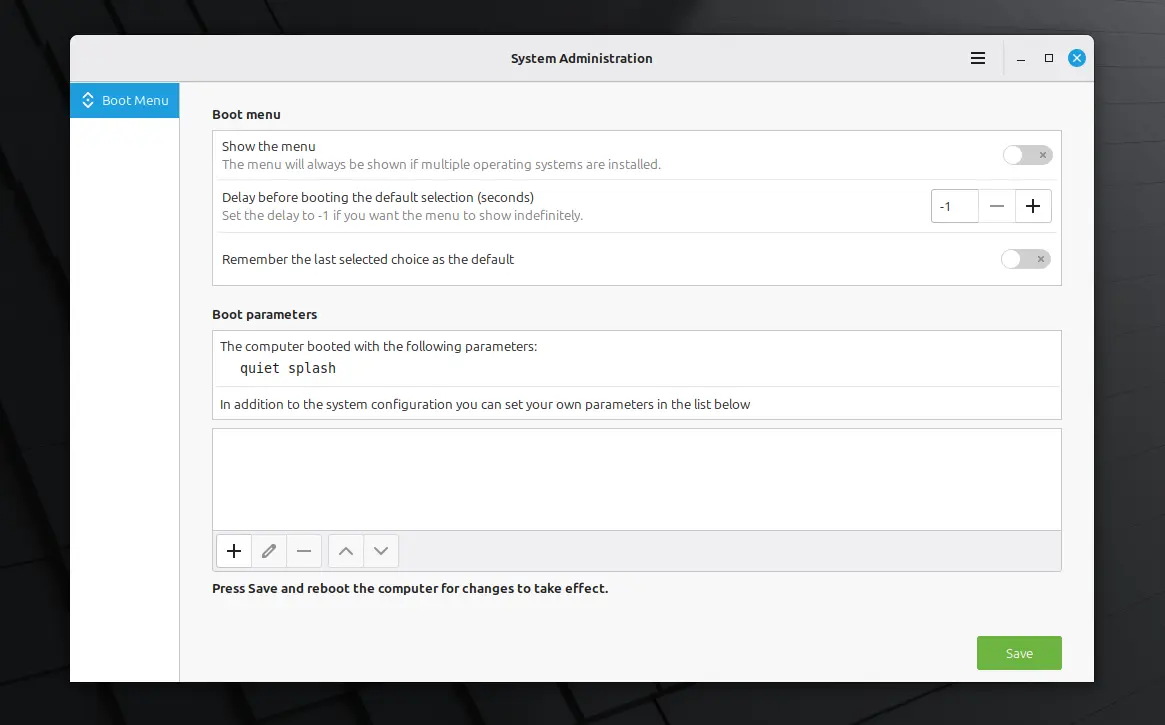
Moreover, Mint 22.3 introduced new System Administration app, allowing to configure the boot menu (aka Grub boot-loader).

With it, you may choose whether to show the boot menu or not, configure how long the menu displayed before booting the default entry, and select to remember and boot the last choice. As well, it supports adding/editing Kernel and boot parameters.

Other changes include:

  • Wayland-compatible keyboard/IM handling.
  • Improved on-screen keyboard.
  • Ability to pause file operations in Nemo file manager.
  • Add ‘Always on’ Night Light schedule option.
  • Add ability to send text messages in Warpinator.

For more about Linux Mint 22.3, see the official release note.

Get Linux Mint 22.3 Beta

The iso image for the Cinnamon edition is available to download via the link below:

https://linuxmint.com/torrents/linuxmint-22.3-cinnamon-64bit-beta.iso.torrent

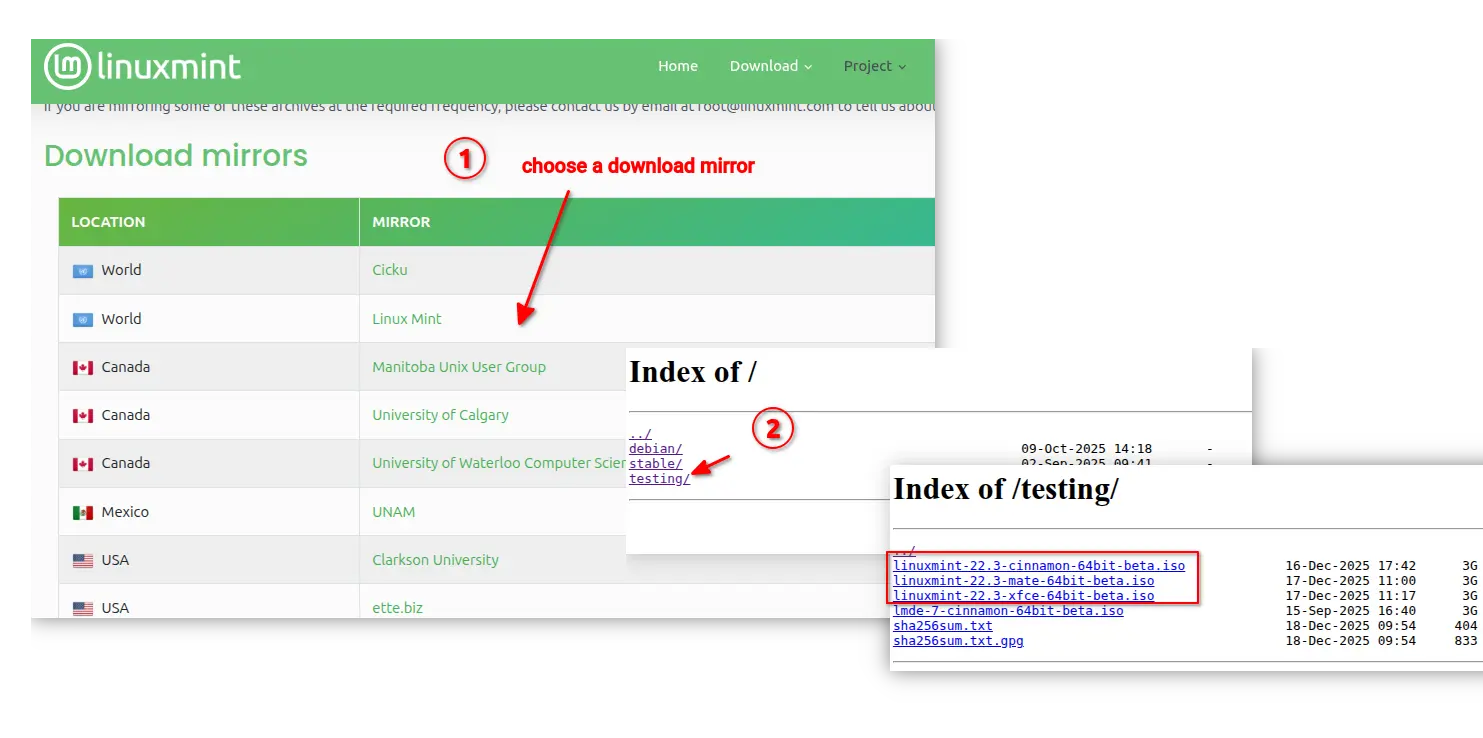
For MATE and XFCE images, choose a download mirror that near to you, then select download either Cinnamon, MATE, or XFCE edition under “testing” directory.

  •  

Canonical is Adding .NET 10 Support for Ubuntu 24.04 & Higher

For .NET developers and users, Ubuntu is finally adding the latest .NET 10 support for Ubuntu 24.04 LTS, Ubuntu 25.04/25.10, and next Ubuntu 26.04 LTS.

.NET 10 is the Long Term Support (LTS) version that was released a month ago. It features 3 years support until November 10, 2028.

The new version features JIT enhancement with various inlining improvements, improved code generation for struct arguments, and loop inversion.

It added Advanced Vector Extensions (AVX) 10.2 support for x64-based processors. And, it updated NativeAOT’s type preinitializer with support for all variants of the conv.* and neg opcodes, further optimizing runtime performance. For more features about .NET 10, see it in MS website.

Microsoft provides official .NET packages for Linux through portable tarballs, which are available to download at this page. User may select download it, decompress, and run the executable directly from the extracted folder.

Why installing .NET package from Ubuntu Repository

As you may know, Ubuntu announced the collaboration with Microsoft more than 3 years ago, to provide enterprise-grade .NET support through native .deb packages in the universe repositories.

Canonical has packaged .NET 6/7 for Ubuntu 22.04, .NET 8 for 22.04/24.04 & higher, and .NET 9 for Ubuntu 25.04/25.10.

For .NET 10, it’s already made available for Ubuntu 25.10 and Ubuntu 26.04, while the support for Ubuntu 24.04 and 25.04 will be available soon.

The .NET packages in system repositories are well tested by Ubuntu developers, and keep receiving security updates. They provide better integration with your system, as they are built with Distro specific patches and PATH and environment variables setup out-of-the-box.

And, user may ask for community support (from e.g., AskUbuntu and Ubuntu Discourse) and report bugs for the packages in launchpad.

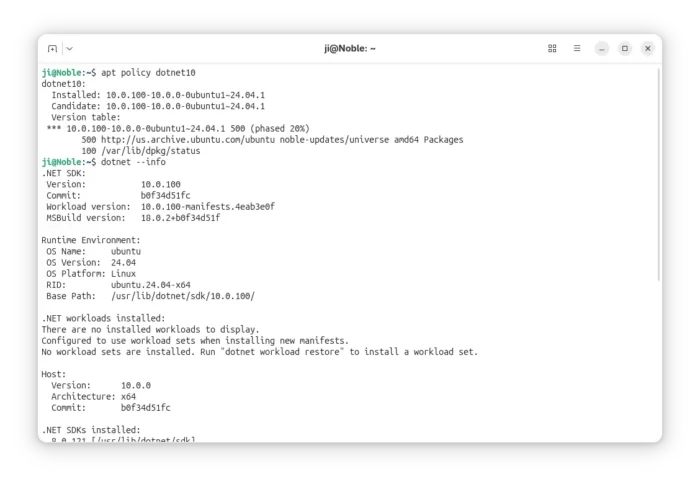
To install .NET 10 in Ubuntu from 24.04 to 26.04, open terminal (Ctrl+Alt+T) and run command:

sudo apt update && sudo apt install dotnet10

Besides installing the full SDK and run-times, you may select install only the SDK or runtime that you need:

sudo apt install dotnet-sdk-10.0
sudo apt install dotnet-runtime-10.0
sudo apt install aspnetcore-runtime-10.0

NOTE: For Ubuntu 24.04 and 25.04, .NET 10 is being rolled out gradually, so far for one-fifth of users. If you can’t get it, just wait. It will be available in next days if everything goes well.

What about Ubuntu 22.04

For Ubuntu 22.04, the maintainer team has made .NET 10 into this PPA repository.

Both the PPA and official Ubuntu packages are maintained by same team members. However, the PPA package is NOT officially supported by Ubuntu.

To add the PPA, open terminal and run commands:

sudo add-apt-repository ppa:dotnet/backports
sudo apt update

After that, you may run the apt install command above to install .NET 10 SDK and runtimes.

  •  

Kdenlive 25.12.0 added New Welcome Dialog & Widget Docking System

The 25.12.0 version of Kdenlive video editor is finally available to download!

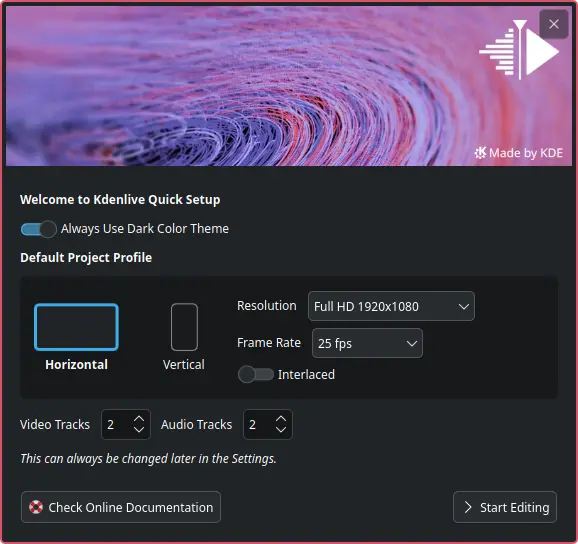
The new version of this KDE’s software added a welcome dialog at app start, allowing to open or create new project, or create new from a profile.

For new users, the welcome screen also provides options to select prefer color scheme, and configure default profile resolution, frame rate, layout orientation, and video/audio tracks number etc.

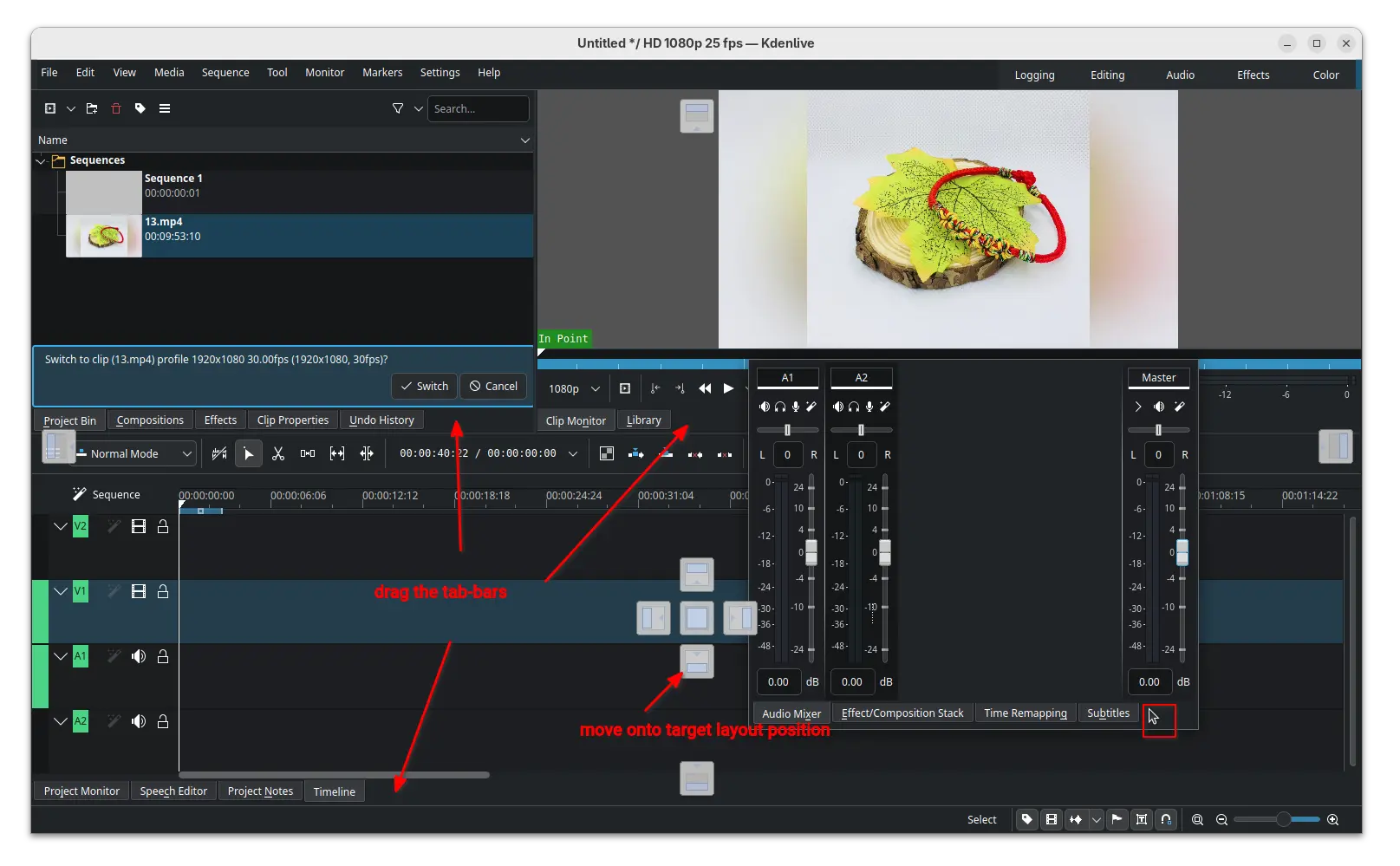
The new version also introduced new widget docking system, allowing to easily re-arrange the video editor components by dragging on their tab-bars.

Simply click down on the tab-bar of the target component then drag, it will show you the layout thumbnails. Just drag the cursor icon onto target layout position, then you’re done moving the component. Or, you may double-click (on tab-bar) to cancel the dragging, or even leave it to be outside of the video editor window.

Besides that, the release also updated the clip monitor and project monitor (video preview section) with enhanced audio display, 1080p monitor scaling, and hamburger menu options to create mark from zone.

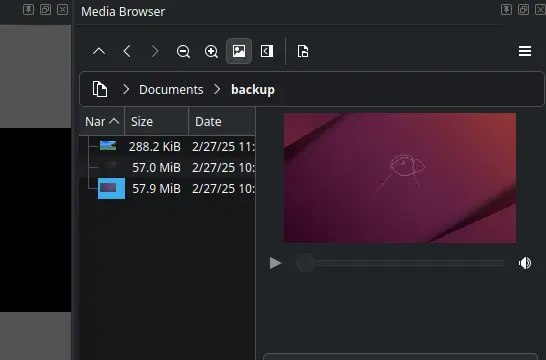
The add marker dialog now has time span support, letting to easily set the end time and duration. Media browser now has preview support, making easy to find out the file that you want. And, Safe Zone button is added in monitor toolbar, vertical safe zone layout and zoom reset.

The new version also updated audio waveform support by adding reset/cycle actions, and moving zoom control from A1 track header to status bar.

It brings back snapping when resizing for non-rotated frames, supports snapping when moving a rotated frame, and snapping for all edges when moving instead of only top-left.

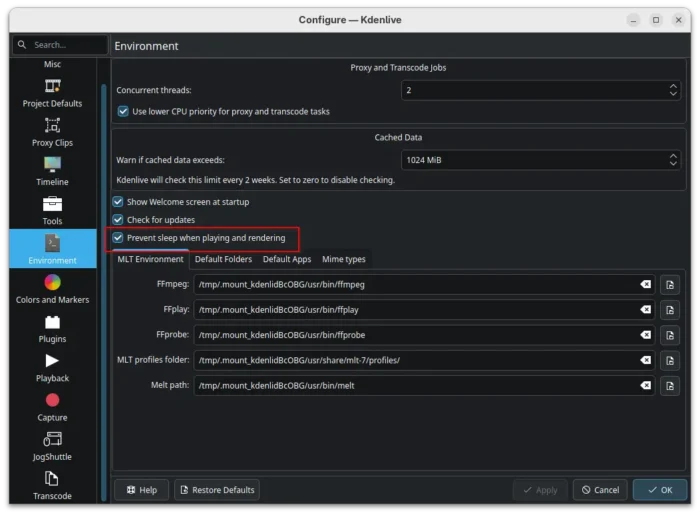
And it added power management option to disable sleep while rendering and playing, switched av1 encoder to the highly optimized software dav1d encoder, and added SVT-AV1 to codecs which use crf option.

Other changes include:

  • Two new frei0r filters.
  • Add xsd for effects.
  • Add vertical editing profile.
  • Quality and speed control to svtav1 preset.
  • Duration support in MarkerListModel import/export.
  • Add XML files for LADSPA TAP effects.
  • Allow appending video clips directly to a project in command line.

There are as well numerous other improvements and tons of bug-fixes in this release. For details, see the change-log in the KDE announcement page.

Get Kdenlive 25.12.0

The official packages for Linux, Windows, and macOS are made available in the KDE website via the link below:

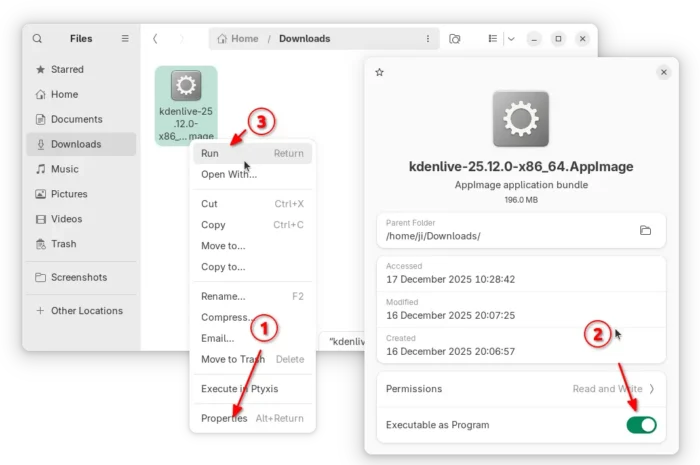
For Linux, it’s an AppImage for AMD/Intel platform, which can be run directly to launch the video editor, after adding executable permission.

There’s also an official Flatpak package for most Linux on both amd64 and arm64 processors, though not updated at the moment of writing.

For Ubuntu user who prefer native .deb package, the new release has been made into Ubuntu 26.04 repository, and I’ve uploaded the package into this unofficial PPA for Ubuntu 25.10 and Ubuntu 25.04.

To add the PPA and install Kdenlive deb package, run commands below one by one:

sudo add-apt-repository ppa:ubuntuhandbook1/kdenlive
sudo apt update
sudo apt install kdenlive
  •  

OpenShot 3.4 Released with Overall 32% Speed Up & New Effects

OpenShot, the free open-source and easy-to-use video editor, released new 3.4 version yesterday.

It’s been almost a year since the last! The new release improved the overall performance with 32% speed up, and introduced many new effects.


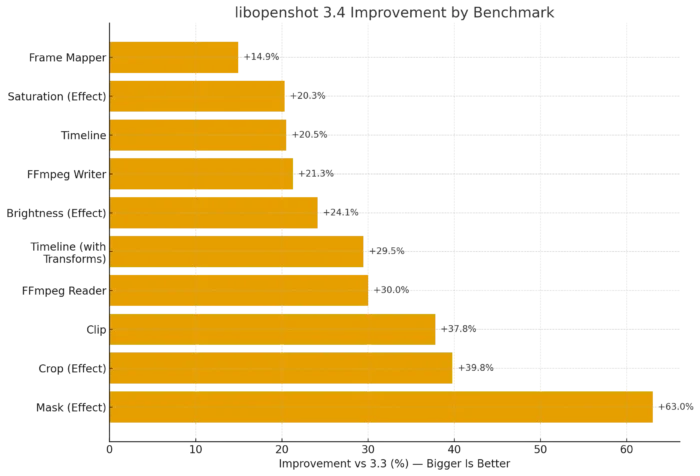
According to the official announcement, the new version has 14.9% to 63% speed up for the performance of frame mapper, mask, crop, ffmpeg reading/writing, and other effects.

It also features 23% faster export by integrating the caching thread into the Export dialog, faster waveforms for long audio plus time-curved clips, and faster FFmpeg decoding.

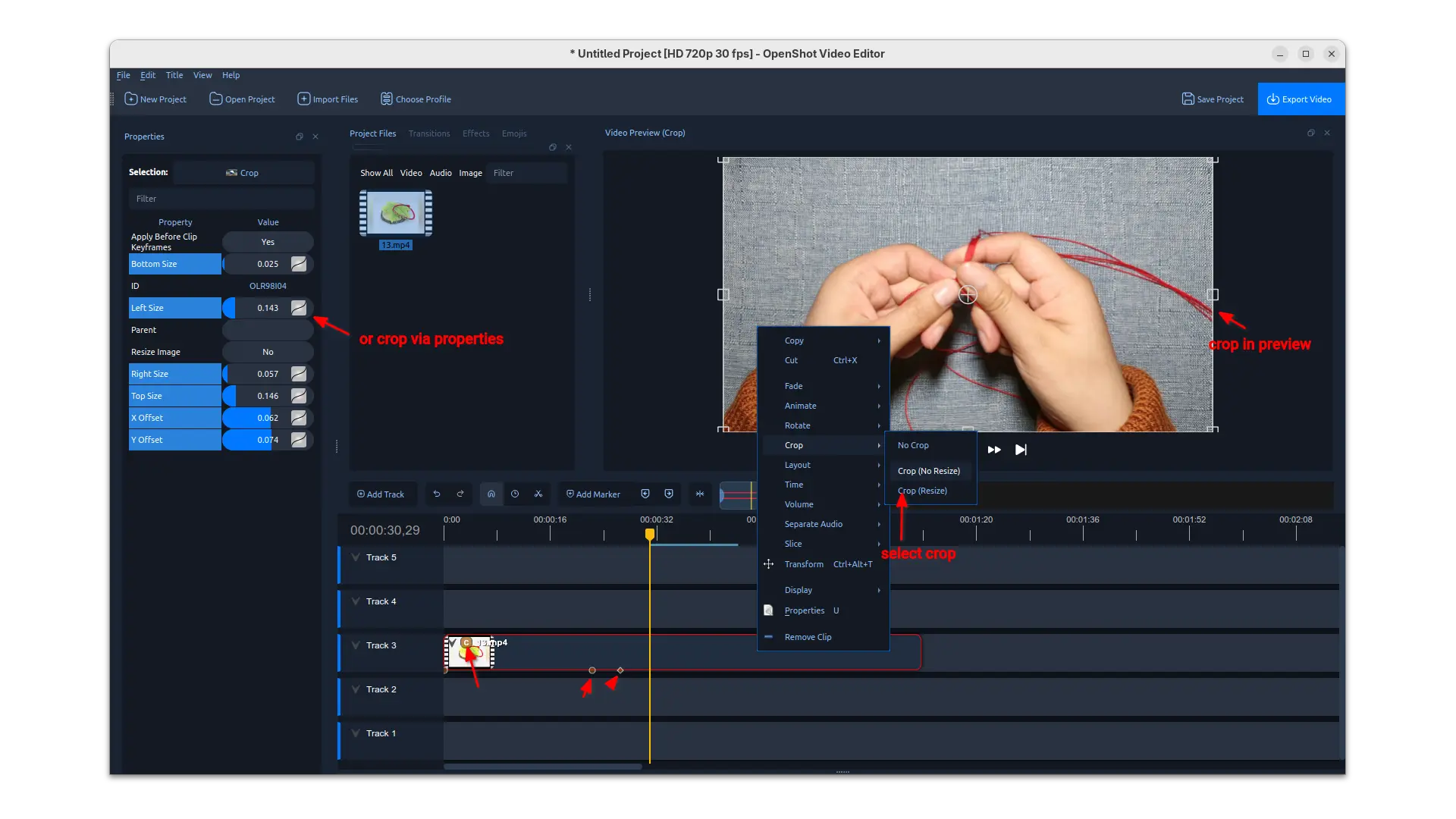
Besides the significant performance improvements, the release also introduced interactive cropping support in preview.

Simply, right-click on your video clip and choose a crop method, then you may drag resizing and moving the rectangular selection in preview to crop the video clip from current position in timeline. While, you may also input the corresponding values in left to crop using properties.

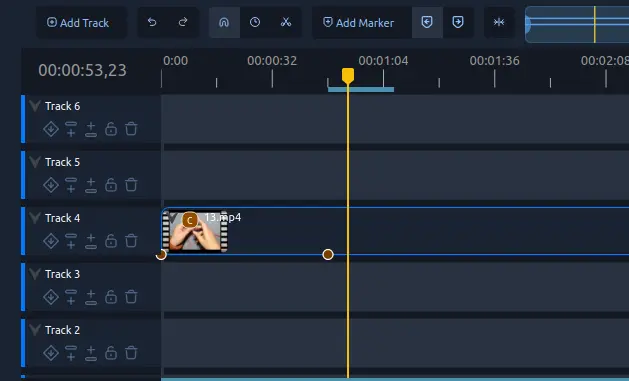
The release also added new experimental timeline which can be enabled in Preferences dialog. The new timeline added buttons to do move up/down, lock, delete actions in track header. It as well features smoother scrolling/zooming on large timelines, new Keyframe panel and in-timeline keyframe editing.

OpenShot 3.4 also added following new filter effects:

  • Sharpen – boost edge contrast to make video details look crisper.
  • Color Map (LUT) – adjust colors using 3D LUT lookup tables.
  • Spherical Projection – Flatten and reproject 360 or fisheye inputs into a rectilinear view with yaw, pitch, and FOV. Support Equirect and multiple fisheye lens models.
  • Lens Flare – simulate sunlight hitting a lens with flares and spectral colors.
  • Outline – add outline around any image or text.

Other changes include:

  • Timing toggle button to re-time by dragging clip edges, similar to trimming.
  • Dragging keyframes on the timeline with live preview while dragging.
  • Add new Repeat / Loop / Ping-Pong options into Time context menu.
  • Copy/Paste files into Project Files from system clipboard.
  • New Benchmark tool in libopenshot.
  • Improved EDL and Final Cut Pro XML import/export.
  • Update AppImage to work better on newer Linux Distros.

How to install OpenShot 3.4

The video editor provides official packages for Linux, Windows, ChromeOS and macOS. Along with the source code, they are available to download via the link below:

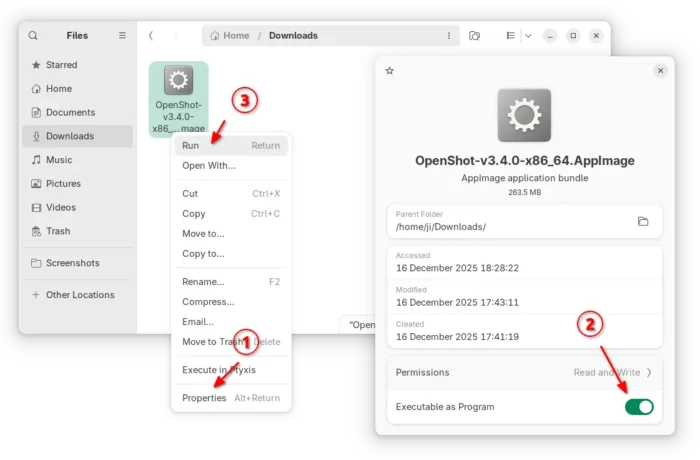
For Linux, it’s an AppImage for AMD and Intel platforms. It can be run directly to launch the video editor after adding executable permission.

For Ubuntu, there’s also an official PPA, though it’s not updated for the new release at the moment of writing.

It’s also available to install as Flatpak package, which runs in sandbox environment and support both amd64 and arm64 CPU processors.

  •  

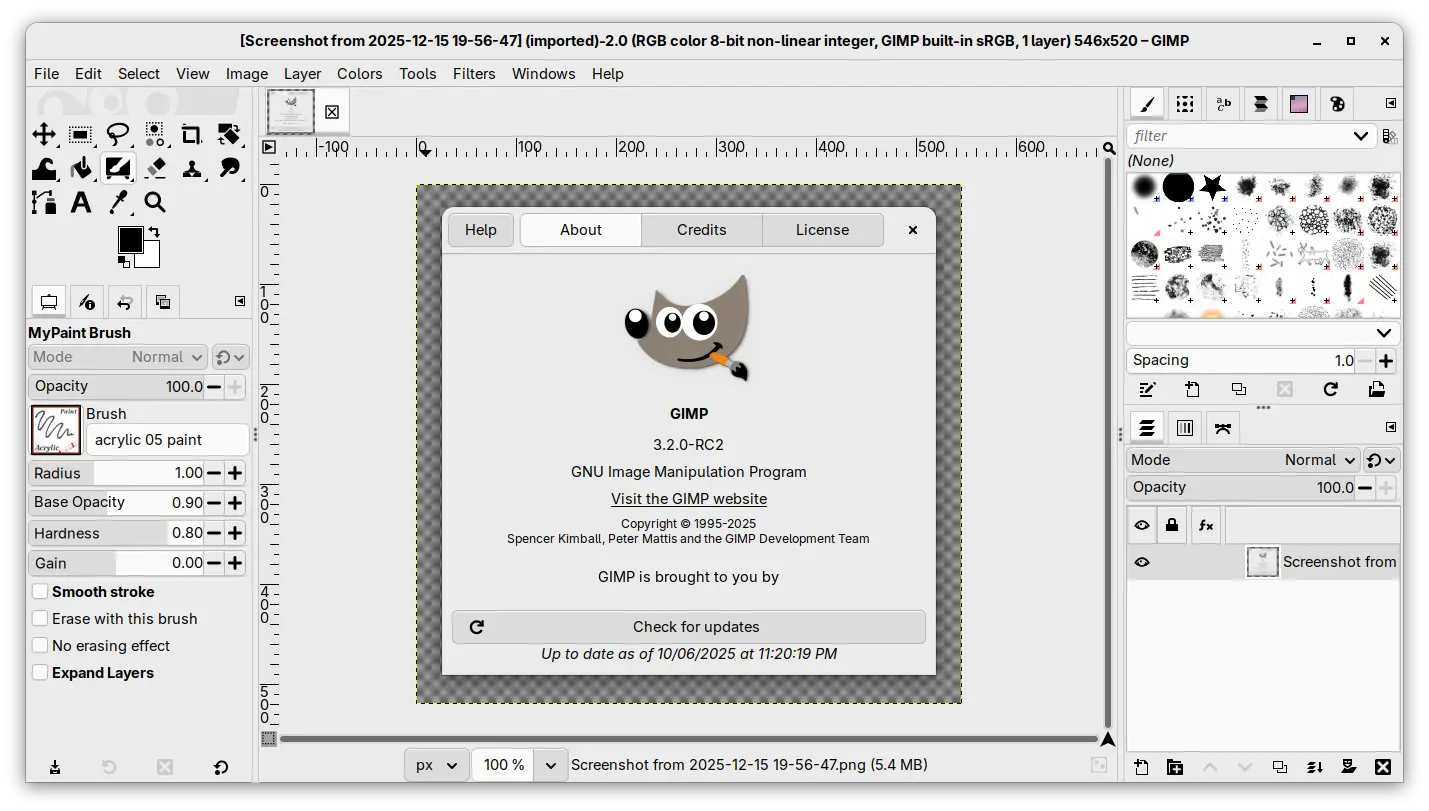
GIMP 3.2 RC2 added Barrel Rotation support for Mypaint Brushes

The second RC development release for the GIMP image editor 3.2 is out!

The new release introduced less features compare to the last RC1, but focused on improvements to performance and existing features and vulnerability fixes.

First, for user with a stylus pen, the MyPaint Brushes tool now support barrel rotation when relevant to the specific brush selected. The feature however is not tested because the developers don’t have a stylus to try it out.

Unfortunately I can’t test as we don’t have any stylus with such barrel rotation feature (and unfortunately this hardware feature is discontinued and getting a stylus with this is extra-hard now), but that should work. And at the very least, it does match with MyPaint’s implementation.

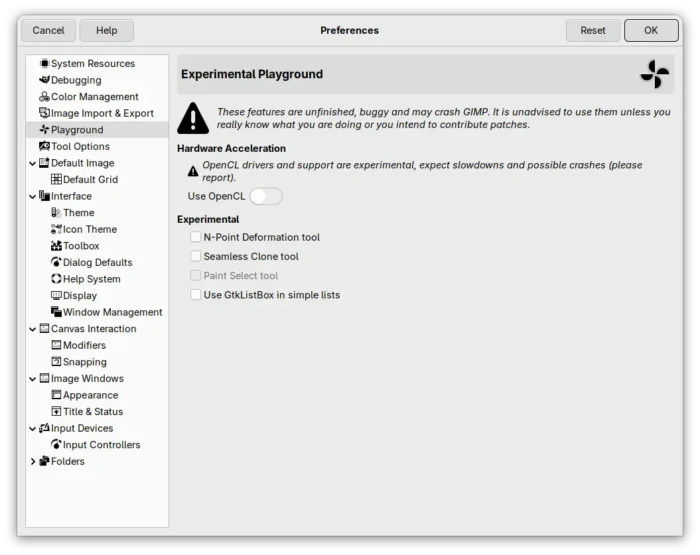
This RC also improved the Paint Select support. It’s an experimental feature introduced since version 3.0. User may try the feature by starting GIMP with --show-playground option, then go to preferences -> playground to enable it. Though, the gegl library needs to be compiled with workshop enabled.

In the release, it added progression feedback and improved local region computation to this experimental feature. And, it now processes more events, reset the scribbles at every stroke.

GIMP 3.2 RC2 also removed the restriction that prevented saving and exporting when no drawables are selected, raised the clipboard brush and pattern max size limit to 8192 for 64-bit processors, while it stays 1024 on 32-bit architecture, and it greatly improved the speed for initial font loading.

It now has a much more robust path importing from SVG by latest C-based librsvg code, and uses opaque path IDs for the ‘id’ attribute for SVG exporting, but not the GUI-visible path name anymore, to match the SVG specs.

To prevent infinite loops with cycling links, it also added a few safety checks when creating new link layers and when loading XCF files with link layers.

Other changes include:

  • New startup splash.
  • Set default PS/EPS export unit to millimiter instead of inch.
  • Import legacy PSD Outer Glow layer style.
  • Add Bash completion for the command line interface.
  • Vulnerability fixes: ZDI-CAN-28311, ZDI-CAN-28273, ZDI-CAN-28158.
  • Other fixes and build updates.

Get GIMP 3.2 RC2

The new RC2 is not announced at the moment of writing, though you may keep an eye on its news page for announcement.

For the source tarball, as well as the official packages for Linux, Windows, and macOS, they are available to download via the link below:

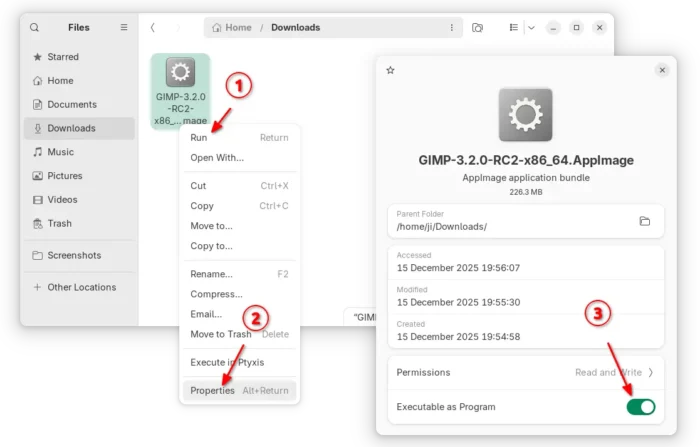
For Linux, select download the AppImage for either x86_64 (AMD/Intel) or aarch64 (for e.g., RasPi or SnapDragon X processors), then run to launch the image editor after adding executable permission.

Though, Ubuntu since 22.04 needs to install libfuse2 package for being able to run AppImage:

sudo apt install libfuse2

For those who prefer the Flatpak package, it’s also available to install via:

flatpak install --user https://flathub.org/beta-repo/appstream/org.gimp.GIMP.flatpakref

And, users who already installed the package can update it via command:

flatpak update org.gimp.GIMP//beta
  •  

Scribus 1.6.5 Released with Dozens of Fixes [Ubuntu PPA]

Scribus, the free open-source desktop publishing software, released new 1.6.5 version few hours ago.

It’s been 8 months since the last point release, and the new 1.6.5 is also a maintenance release that contains only bug-fixes and improvements.

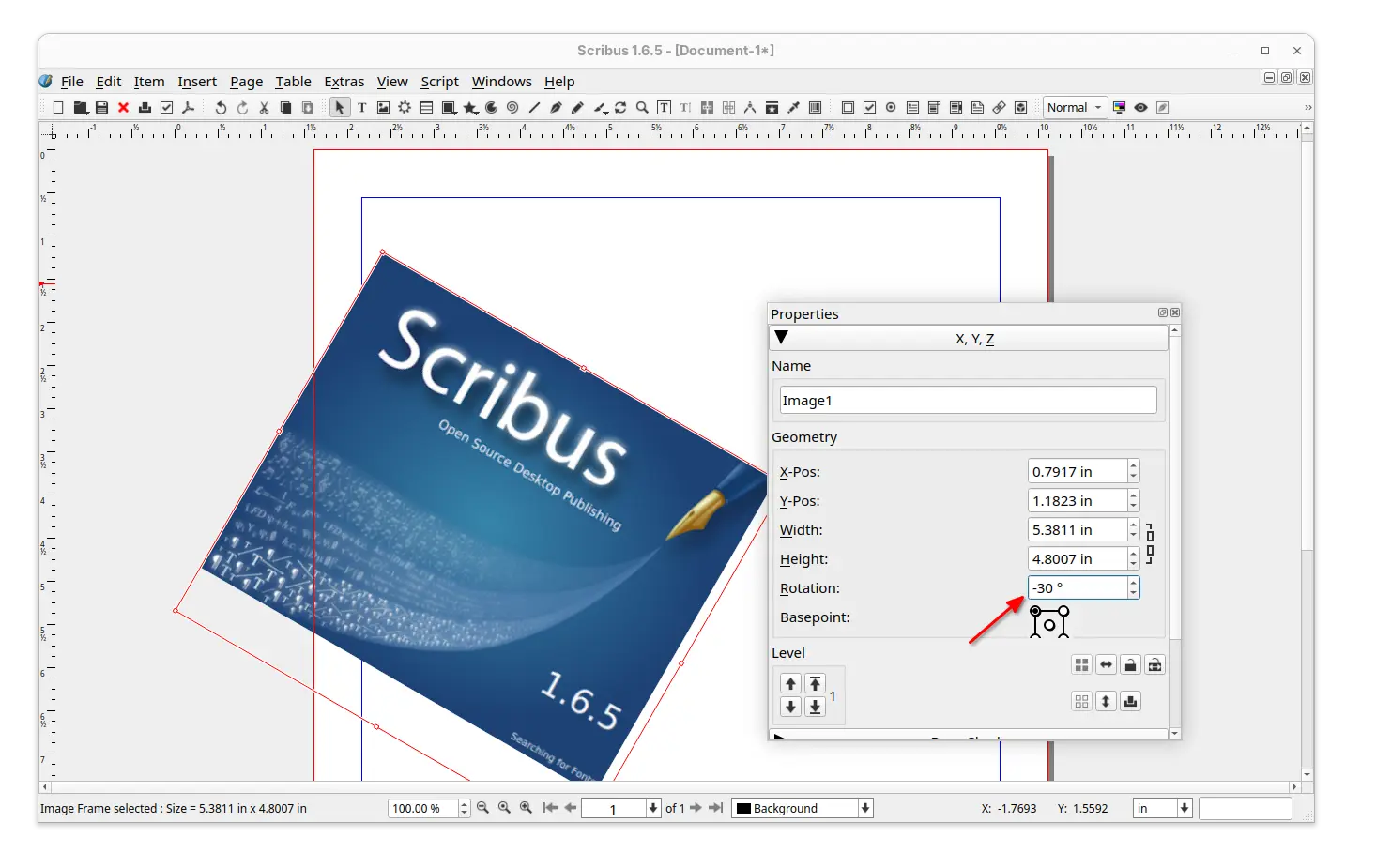
First, the new version added negative values support for the rotation in the properties palette. For example, you may input “-30” to automatically get “330” when hitting enter or leaving the properties.

For scripters, it added the document for scribus.ImageExport: transparentBckgnd, which corresponds to the ‘No Background’ checkmark in the ‘Save as Image’ dialogue, and, the function getBoundingBox() which was missing from HTML docs. And, it fixed that unknown/misspelled named parameter in API call crashed Scribus instead of giving an error message.

It also updated the print dialog, which fixed the inconsistency between output filename extension and printing language, and crop marks not present in output if it’s the only option selected in the “Marks”.

For fonts, the Additional Font Path Setting was cleared if any other setting is modified and saved while one document is open in Scribus. And, font rendering with non-integer font sizes (e.g., 9.90pt) went different after PDF export. Now, both the issues are fixed in the new 1.6.5 release.

The users who prefer dark color scheme, the new release fixed the poor menu appearance, though 3rd level menus are still in-visible in my case in Ubuntu with kvantum-dark theme.

menus were not looking good in dark color scheme

Other fixes in the release include:

  • NTLM hash leak.
  • Crash when loading a .sla file created by v1.4.6.
  • Crashes when exporting PDF with PDF-Push-Button or other PDF-thingy via Python.
  • Color picker (eyedropper) always returns “black”.
  • Layer disappears after editing inline object.
  • Documents become partially invisible when zooming or scrolling.
  • Not able to set “line spacing mode” for sub-style.

For more, see the Changelog file in source tarball (see the link below).

Install Scribus 1.6.5

The source tarball as well as installers for Linux, Windows, and macOS are available to download in sourceforge via the link below:

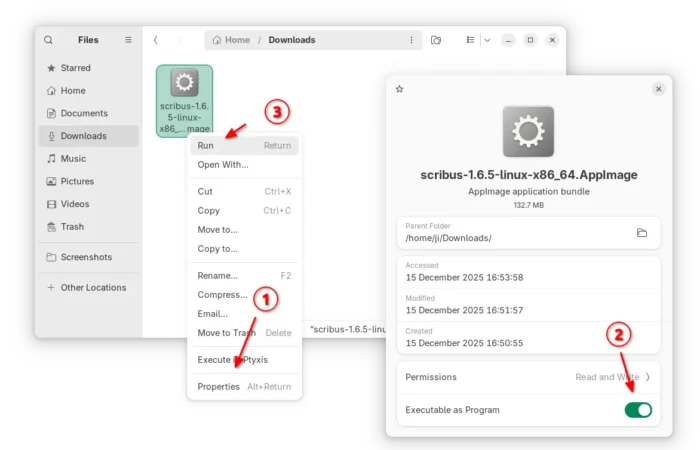
For Linux on AMD/Intel platform, it’s an AppImage that can be run directly to launch the software, after adding executable permission.

For Ubuntu, Linux Mint, Zorin OS users who prefer the classic .deb package format, I’ve uploaded the new release package into this unofficial PPA for Ubuntu 22.04, Ubuntu 24.04, Ubuntu 25.04 and 25.10.

Simply open terminal (Ctrl+Alt+T) and run the 3 commands below one by one to add PPA, refresh cache, and install the package:

sudo add-apt-repository ppa:ubuntuhandbook1/scribus
sudo apt update
sudo apt install scribus

Also, there’s a community maintained Flatpak package for most Linux, though it’s still at v1.6.4 at the moment of writing.

  •  

The Second Snapshot Release of Ubuntu 26.04 LTS is Available

Ubuntu Team announced the second development release of Ubuntu 26.04, Resolute Snapshot 2, yesterday afternoon (UTC time).

The date was moved up by a week, because of end-of-year (EOY) shutdown and the developers need more time to fix issues before holidays.

Whilst the snapshot was planned for next week, we wanted to do it a week earlier so as to give ourselves some time to fix anything that might break ahead of the EOY shutdown from w/c December 22nd.

Ubuntu 26.04 is a Long Term Support (LTS) release with a total of 15 years support: 5-years standard support, 5-years Expanded Security Maintenance (ESM), and 5 years of security coverage (for paid customers).

The snapshot so far is still powered by Kernel 6.17 and features Gnome Desktop 49. There’s NO visual difference compare to the last snapshot release. Though, you may keep an eye on this on-going release note page for the updates.

According to the road map, Ubuntu 26.04 will have 2 new default applications: Showtime video player, and Resources system monitor and task manager.

It will continue improving the NVIDIA on Wayland experience, introduce Security Protocol and Data Model (SPDM) based fingerprint authentication, add more control for TPM-backed full disk encryption (e.g., ability to add/remove PIN or passphrase after installation, re-encrypt a disk via Security Center), unified software management, and Ubuntu Pro on WSL.

And, it will sadly exclude Ubuntu MATE and Ubuntu Unity as the official flavors in next LTS, because the two flavors lack of maintainers and miss the deadline of LTS re-qualification.

Get Ubuntu 26.04 Snapshot 2

NOTE: This is a development release that’s NOT ready for production use!

The .iso images for Desktop and Server, as well as Netboot tarball, WSL, and pre-install server images are available to download via the link below:

For desktop and education users, the snapshot also includes the .iso images for all the official flavors, which are available to download via the link below:

For Ubuntu MATE and Unity, the iso images are automated builds without maintainers behind them.

If you’ve already run your machine with Ubuntu 26.04 daily build or snapshot 1, then simply install all the available updates to get to the new snapshot.

For current Ubuntu 25.10, I’ve tried to upgrade to the new 26.04 Development release by first installing all updates:

sudo apt update && sudo apt full-upgrade

Restart if required, then run:

do-release-upgrade -d

For future releases, see the table below or the official release schedule.

January 29, 2026 Snapshot 3
February 26, 2026 Snapshot 4
March 26, 2026 Beta (mandatory)
April 16, 2026 Final Freeze, Release Candidate
April 23, 2026 Final Release
  •  

Pop!_OS 24.04 Released with COSMIC Desktop & ARM Computers Support

After more than two months of Beta testing, System76 finally announced the release of Pop!_OS 24.04 LTS.

As the version number indicates, Pop!_OS 24.04 is based on Ubuntu 24.04, but features Linux Kernel 6.17 and its new COSMIC desktop environment.

Pop!_OS 24.04

Pop!_OS is developed by System76, a American Linux computer manufacturer. It features COSMIC desktop, which was previously a customized GNOME desktop, but now a standalone desktop environment built from scratch.

The new desktop environment is written in the Rust programming language for high performance and memory safety. It replaced Nautilus, Gnome Terminal, Gnome Text Editor, Totem with its own COSMIC specific files, terminal, text editor, and video player apps.

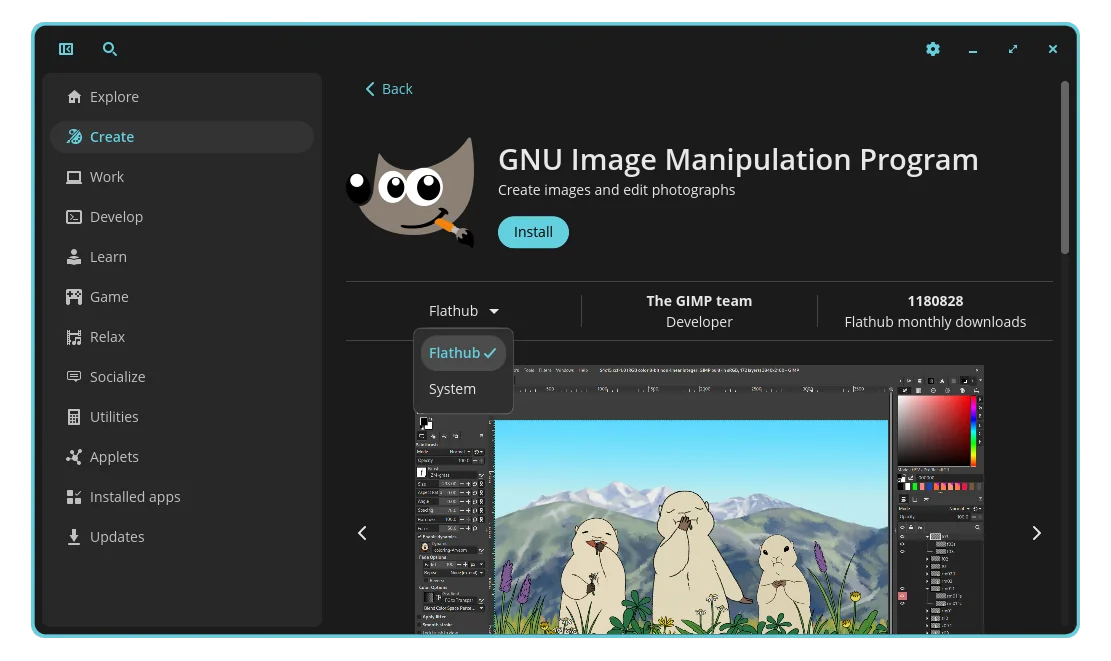
Pop!_Shop is replaced by COSMIC Store, which supports both Flatpak and Deb out-of-the-box. And, the GDM display manager is replaced by new COSMIC Greeter with a redesigned login appearance.

COSMIC Store

The new desktop improved window tiling support. It added a toggle in system tray indicator, allowing to tile all current workspace windows by single-click. The icon changes automatically according to the window tiling status. And, it supports drag’n’drop exchange window position in tiling mode.

Besides using indicator menu, it also support tiling windows via keyboard shortcuts, and tiling in per display basis.

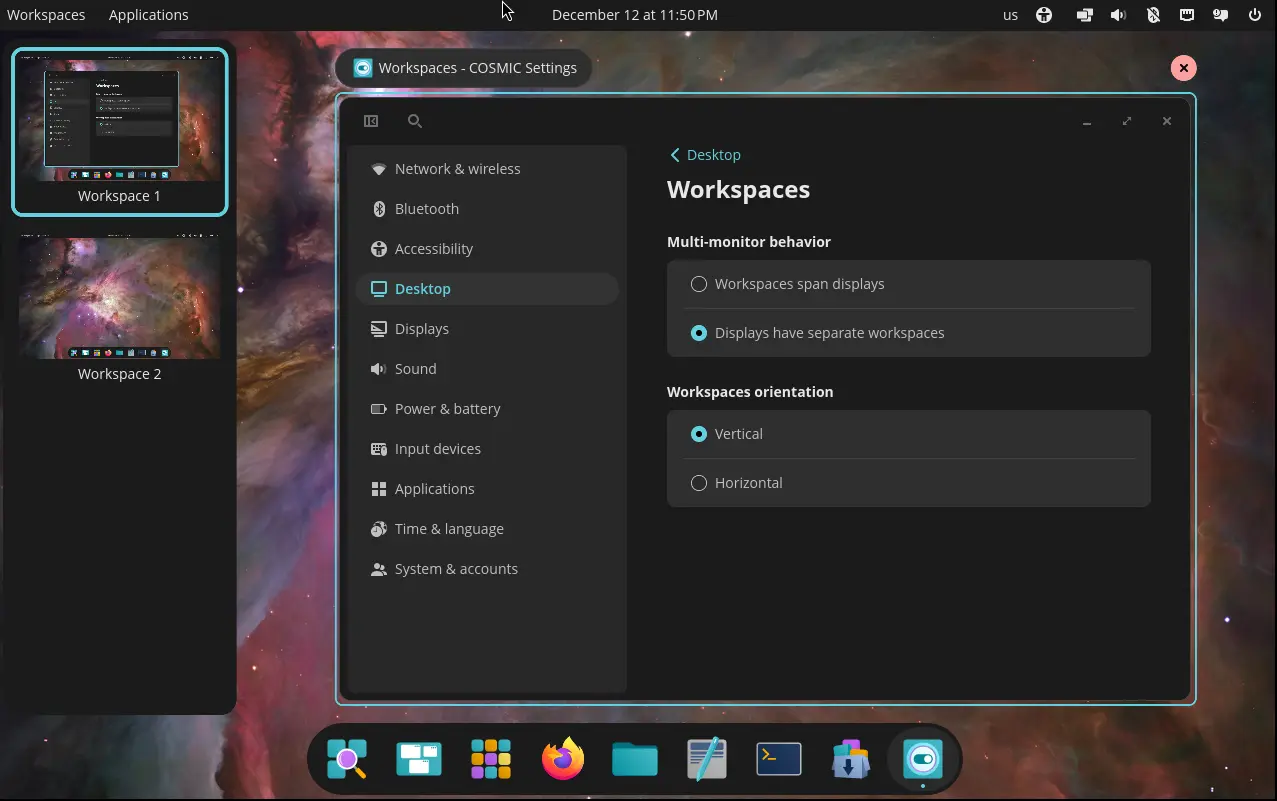
The workspaces can now displayed in either vertical or horizontal orientation. Multiple displays can have separated or spanned workspaces. And, it supports pinning workspace and drag’n’drop re-arranging workspace or even moving to another display.

Pop!_OS 24.04 also improved multiple monitors support. Besides per display window tiling and multi-display workspaces mentioned above, it also improved the experience for displays with mixed HiDPI and standard resolutions.

Displays are automatically scaled based on pixel density and display scaling can be fine-tuned in Settings. And, it will remember your display settings and restore automatically next time you plug it in.

Moreover, it added hybrid graphics support. Apps request the discrete GPU will automatically run on the correct GPU, while user may right-click on app icon to choose which GPU to use at launch.

Other changes in Pop!_OS 24.04 include:

  • New stack windows feature to combine multiple app windows into single in tabs, just like web browser.
  • NVIDIA 580 driver out-of-the-box.
  • ARM computers support.
  • Support reinstalling the OS anytime while keeping files, settings, and Flatpak user applications

For more, see the official release note.

Download or Upgrade to Pop!_OS 24.04

Pop!_OS 24.04 is available to download in its website via the link below:

It recommends 4 GB RAM, 16 GB disk space, and 64-bit ARM or X86_64 processors. While, NVIDIA edition asks for GeForce 16 series graphics or newer.

And for Pop!_OS 22.04 LTS, user may run the single command below in terminal to upgrade to Pop!_OS 24.04 LTS:

pop-upgrade release upgrade -f

Though it’s always recommended to back up your files first.

  •  

Ubuntu MATE & Unity Will NOT Be Official Ubuntu 26.04 Flavors

For users of Ubuntu MATE and Ubuntu Unity, the 2 Linux Distributions will NOT be the official flavors for the next Ubuntu 26.04 LTS.

Ubuntu announced the LTS qualifications for Resolute Raccoon in last week:

We haven’t seen LTS requalification requests from Ubuntu MATE nor Ubuntu Unity, so these will release subject to release team approval, and they will be non-LTS.

As you know, the Ubuntu flavors are the community maintained distributions with different desktop environments or specific intended use case. So far, Ubuntu has 10 official flavors, they are listed in this Ubuntu web-page.

Ubuntu always requires the official flavors to go through a qualification process for every releases, especially for LTS. For next Ubuntu 26.04 LTS, the following flavors have been approved with three year LTS qualification.

  • Ubuntu Budgie
  • Ubuntu Kylin
  • Xubuntu
  • Lubuntu
  • Edubuntu
  • Ubuntu Studio
  • Ubuntu Cinnamon

What About KUbuntu 26.04

KUbuntu 24.04

KUbuntu is not mentioned in the announcement. And, I didn’t see the qualification request for KUbuntu 26.04 in the Technical Board.

The KUbuntu developer, Scarlett Gately Moore, was in a car accident in last July. Though back to work now, she needs a little help.

Rik Mills, another KUbuntu developer who’s also Ubuntu core developer, is actively building packages for Ubuntu 26.04 and backporting Plasma desktop and KDE frameworks for current Ubuntu release through KUbuntu PPAs.

IMO, KDE Plasma is so popular and maintainers are still actively working, there’s no reason to exclude KUbuntu 26.04 as one of the next official LTS flavors.

Why Ubuntu MATE and Ubuntu Unity Excluded

Ubuntu MATE 24.04

Ubuntu MATE is Ubuntu with MATE desktop environment, a continuation of the classic GNOME 2. It was firstly approved as official flavor when it was in version 15.04.

MATE in current Ubuntu releases is still at version 1.26, while the latest MATE 1.28 has been released for more than a year. Debian upstream has started packaging MATE 1.28 for Forky and Ubuntu 26.04, though Ubuntu MATE developer missed the LTS qualification.

According to the future of Ubuntu MATE discussion, it seems that the project lead, Martin Wimpress, is now having other interests and obligations (Nøughty Linux), so he didn’t apply the re-qualification requests.

For Ubuntu Unity, the official flavor since 22.10, the project lead Rudra Saraswat, is too busy because of university exams and tests.

Other members lack of knowledge to maintain the project, and Maik Adamietz asked for help by this thread in discrouse few months ago, but without luck. And, they didn’t even know the requalification process so missed the deadline for next 26.04 LTS.

For current Ubuntu MATE and Ubuntu Unity users

Without Ubuntu MATE or Ubuntu Unity, Ubuntu 26.04 can install the 2 desktop environments from the system repositories, though they will be less stable due to lack of desktop specific maintenance.

According to this discourse page, 24.04 users may stay with it until 2034, by enabling Ubuntu Pro for security maintenance, though Canonical does not offer phone or ticket support for Community Flavors.

  •  

VS Code 1.107 Released! Isolated Background Agents, Org Level Custom Agents

Microsoft Visual Studio Code announced the November release, version 1.107, yesterday for Windows, Linux, and macOS users.

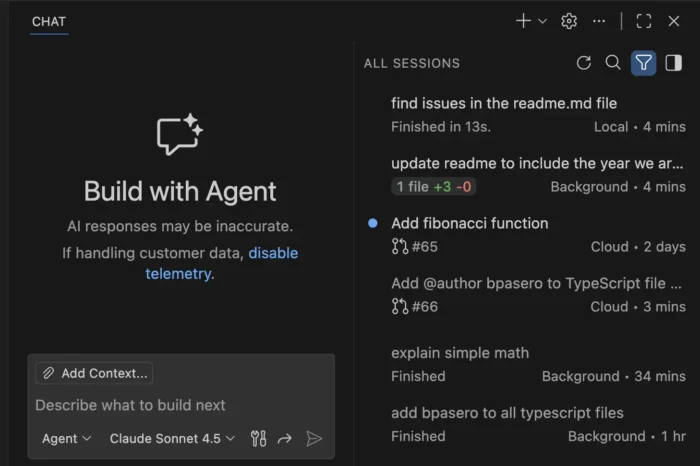
The new release of this free open-source code editor integrated the agent sessions into the Chat view. When working in a workspace, it only shows sessions related to the current workspace, while all sessions across workspaces are shown when you are in an empty window.

The agent sessions can be displayed either in “compact view” that lists 3 most recent sessions along with “Show All Sessions” button, or in “side-by-side view” when Chat View is wide enough. While, there’s an orientation setting to set to always stacked (compact view), always side-by-side, or switch automatically according to Chat View width.

The local agent now continues running in the background when you close the local chat session. And, it’s able to see the status of the running agent in the sessions list and switch back to the session at any time.

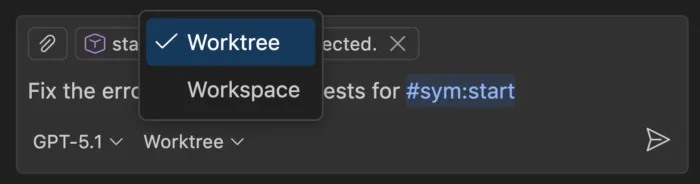
When creating a new background agent, user can now choose to run in either the current workspace or a dedicated Git worktree. And, when running a background agent in a worktree, the changes is isolated in a separate folder, thus you can run multiple background agents simultaneously without conflicts.

The background agents now support multiple context attachment types. You can attach selections, problems, symbols, search results, git commits, and more to any prompt.

Other Agent HQ changes include:

  • Introduce new “Continue in” option to continue a local chat with a background or cloud agent seamlessly.
  • Define custom agents at the organization level for your GitHub account (experimental).
  • Bring your own custom agents into Background Agents (experimental).
  • Run agents as subagents (experimental).
  • Reuse your existing claude skills (experimental).

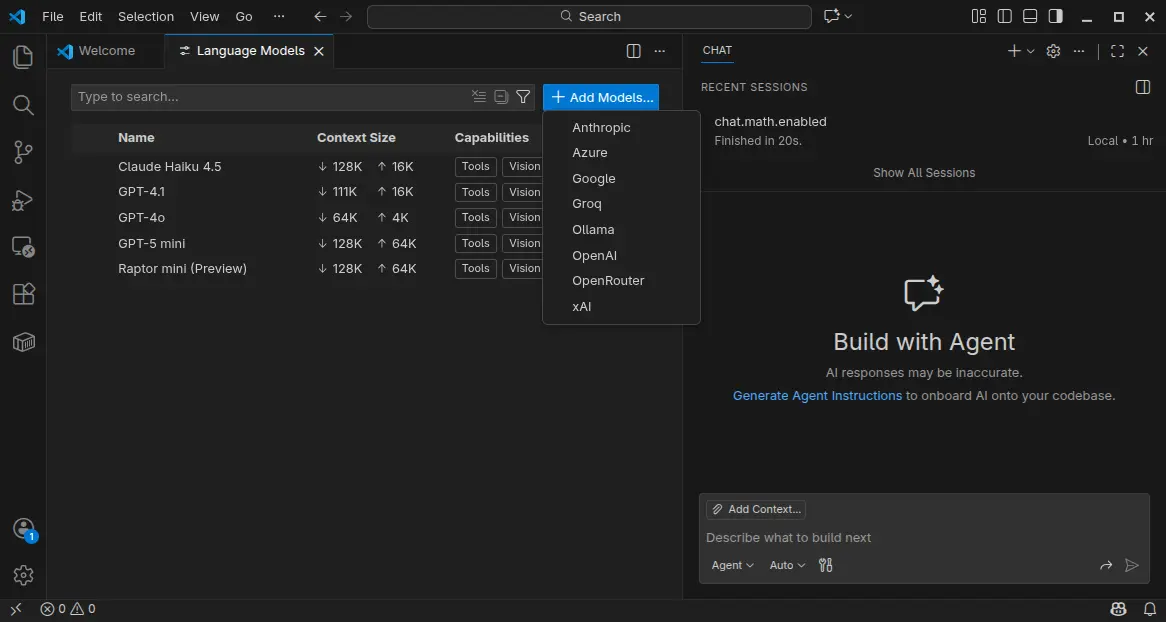
VS Code 1.107 also introduced Language Models editor which provides a centralized place to view and manage all available language models for chat in VS Code.

It can be opened either from the model picker in chat or via the Command Palette with Chat: Manage Language Models. And, it can manage model visibility and add more models.

Moreover, the textSearch tool now supports searching in ignored files/folders specified by files.exclude or search.exclude settings or .gitignore files. And, Azure model provider now uses Entra ID authentication as default.

Other AI related changes include:

  • Introduce collapsible chat sections for non-reasoning chat output.
  • Ask for confirmation when chat attempts to edit sensitive files.
  • New auto approve option to allow all future commands for the session.
  • Rich terminal output in chat.
  • Bind keyboard shortcuts to each custom agent individually.
  • And more.

Besides AI changes, VS Code 1.107 also added support the latest revision of the MCP specification, and provide GitHub remote MCP Server as a built-in MCP server (Preview).

It as well added Intel Macs and Debian-based Linux Distros support for Microsoft Authentication, enabled Terminal Suggest for stable users, introduced new model for next edit suggestions.

Other changes include:

  • 3-finger swipe on trackpad to navigate between editors in macOS.
  • Preview next edit suggestions outside the viewport.
  • Attach variables, scopes, and expressions to chat context.
  • Classic Microsoft authentication no longer available.
  • Rename suggestions for TypeScript.
  • Ability to disable automatic hover popups in the editor.
  • Add Stashes node in the Source Control Repositories view (Experimental), allows to see the complete list of stashes, view, apply, and pop each stash.

Get Visual Studio Code 1.105

For more about the new release, as well as download links for Windows, macOS, and Linux, go to VS Code website via the link below:

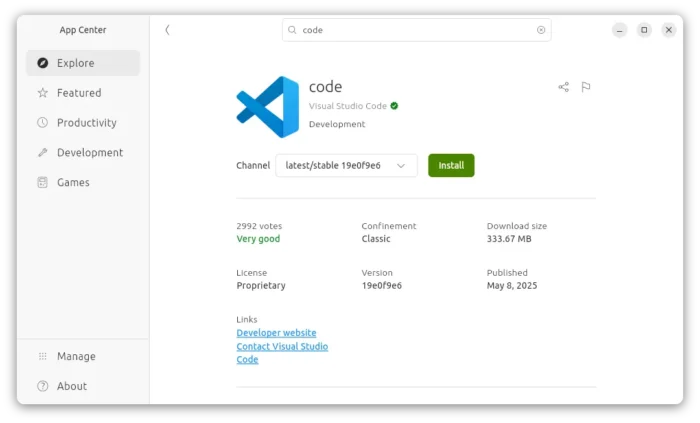
For Ubuntu users, besides download & install the deb package from the link above, there’s also official Snap package available to install in App Center (or Ubuntu Software for 22.04-).

NOTE: The source code for VS Code is open-source, but the packages above are proprietary freeware.

For open-source package, there’s a community maintained flatpak package is also available for choice. See this guide for how to install them in Ubuntu.

  •  

New Extension to Enable GNOME Top Bar in Multiple Displays

For Ubuntu, Fedora Workstation, and other Linux with recent GNOME Desktop, there’s now a new extension to enable the top-bar in multiple monitors.

As you know, GNOME top-bar by default only shows in the primary display for multi-monitors working in the “Join Mode”.

There was a multi-monitors-add-on extension which can add multiple monitors overview and panel. It’s however discontinued and support ends at Gnome 3.38.

Some forked that extension making it work in GNOME from v42 to 26, and I’ve written about how to install it in Ubuntu 22.04 & 24.04.

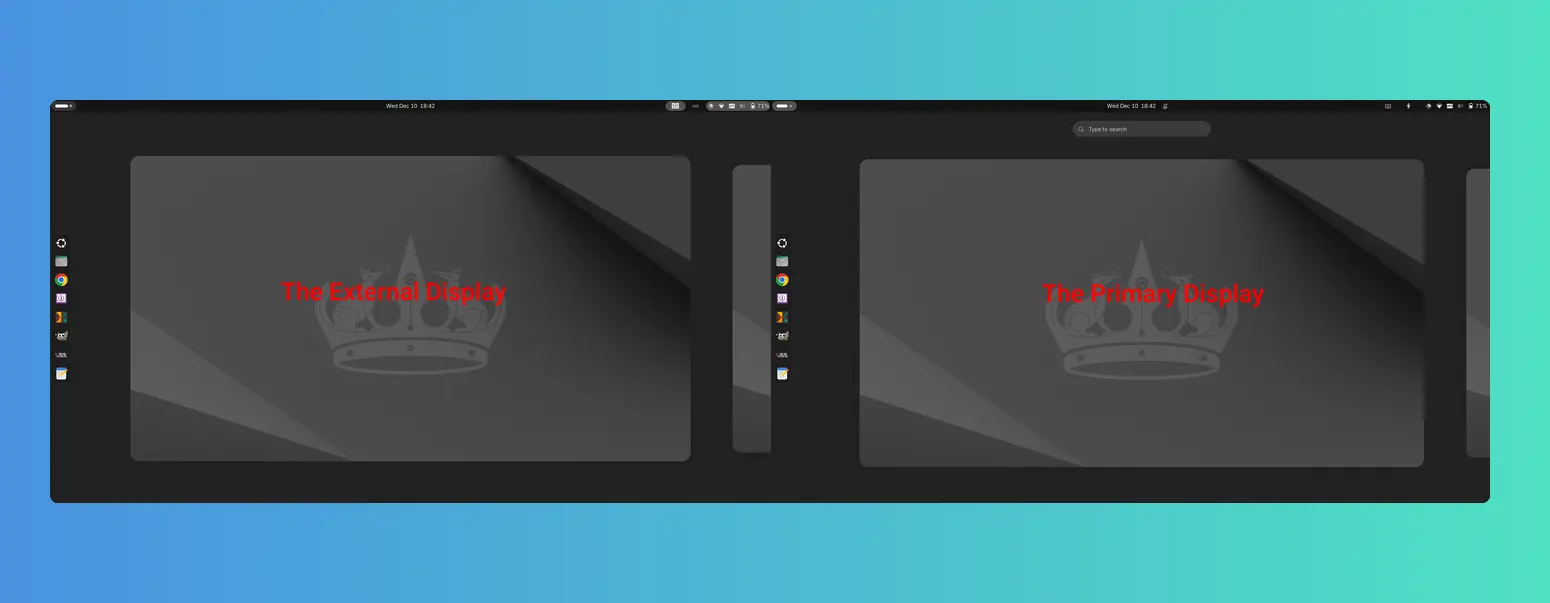
Now with the new Multi Monitor Bar extension, all Linux Distributions with recent GNOME v45 ~ 49 (e.g., Ubuntu 24.04, Ubuntu 25.04/25.10, Fedora 42/43, Debian 13, and Arch) can easily enable the top-bar on multiple monitors.

As you see via the screenshot above, besides the top-bar, it also shows following items in the non-primary displays:

  • Activities button (dot and pill icon).
  • date and time menu.
  • system tray icons and indicators.
  • the overview screen.

However, there are still some downsides. There’s neither overview search-box nor app grid to launch apps from the non-primary display. And, following things do NOT work properly either:

  • Scroll on dot-and-pill icon does not switch workspace.
  • Some indicator icons do not show in non-primary display.
  • The built-in screenshot UI options only available in primary display, and “Screen” selection only take the primary screen, though area selection works in all screens.
  • System tray icons display incorrectly when you full-screen something in primary screen. See this issue. In which case, you need to restart the extension to reset.

Install the extension to Enable Gnome Top-bar in Multi-monitors

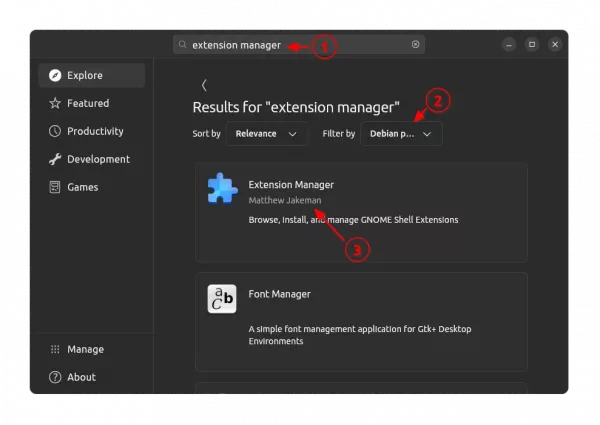
For Ubuntu 24.04 and higher, simply launch App Center, search & install Extension Manager (filter by Debian package).

Install Extension Manager in Ubuntu Software/App Center

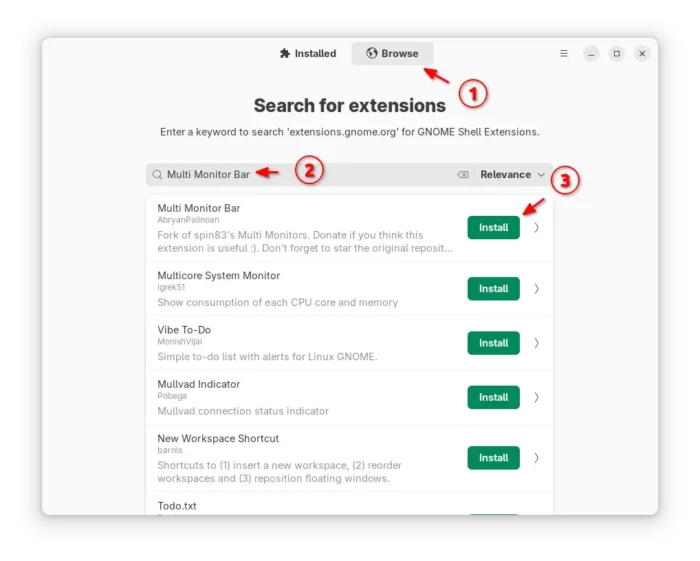
Next, launch Extension Manager and switch to “Browse” tab, finally search & install the “Multi Monitor Bar” extension.

After installed the extension, Gnome top-bar should display automatically on your external monitors. And, you may switch to “Installed” tab in Extension Manager to configure that extension with following options:

  • Turn on/off panel, activities-button, date and time button in additional monitors.
  • Enable/disable hot-corners function.
  • Add more indicators to additional monitors.

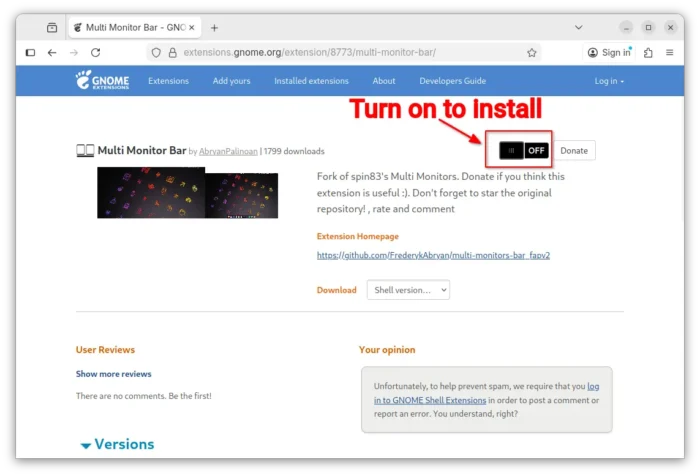
For other Linux, simply launch web browser and visit the extension on EGO:

Then, install the browser extension (if it asks) with the link in that page and refresh. Finally, use the ON/OFF toggle to install the extension.

Tips: besides installing the browser extension, Debian/Ubuntu need to also install the agent package by running the command below in terminal:

sudo apt install chrome-gnome-shell

Finally refresh the page to see the toggle option.

After installed the extension, install “Gnome Extensions” in GNOME Software or your system package manager and use it to manage the extension preferences.

That’s all. Enjoy!

  •  
❌