❌

Normal view

The Fourth Snapshot Release of Ubuntu 25.10 is Out!

By:Ji m
29 August 2025 at 11:03

Ubuntu 25.10 snapshot 4, the new monthly snapshot release of the next Ubuntu release, is available to download.

This is the final snapshot release for 25.10, as next will be the Beta release planned for September 18, while Ubuntu 25.10 stable release will be available on October 9.

Ubuntu 25.10, code-name Questing Quokka, is the next short term release with 9-month support until July 2026. The official announcement for the snapshot is HERE.

According to the on-going release note page, Ubuntu 25.10 is expected to have GNOME Desktop 49, Linux Kernel 6.17.

In the new snapshot, it added the new default wallpaper, Ptyrix terminal emulator, and Loupe image viewer. In the β€œapps” settings page, it now provide option to enable auto-start on per-app basis, through it seems only working for those running in sandbox.

New Terminal App

Other changes are mostly already available since the last release. They include removed GNOME on Xorg session, added RVA23S64 ISA profile for RISC-V, TPM-backed Full Disk Encryption recovery key management, and reduced desktop images for Raspberry Pi.

They are as well following changes expected:

  • Full VRR support in Mutter for users with compatible monitors.
  • Better Wayland experience on Nvidia GPUs.
  • Fully functional desktop session on RISC-V CPU architecture.
  • And more.

Download Ubuntu 25.10 Snapshot 4

The snapshot 4 provides desktop images for amd64 and arm64/aarch64, server images for amd64/arm64/aarch64, PowerPC, RISC-V, and IBM Z, as well as WSL images, Network install, and pre-installed desktop and server images, which are available to download via the link below:

For non-GNOME users, there are also 10 official flavors features different desktop environments, including:

[Quick Fix] Firefox Cannot Download or Open Files in Ubuntu 24.04

By:Ji m
28 August 2025 at 21:43

The default Firefox browser (Snap version) in Ubuntu 24.04 is always failing to download or open files! Here’s why and how you can fix it.

Not only for Firefox, the issue also happens when read or write user files with other SNAP apps in both Ubuntu 22.04 and 24.04 LTSs.

Firefox cannot download or open files in Ubuntu 24.04

Why?

I first heard of the issue was that some of my readers reported they cannot download HPLIP installers when following my tutorial.

I thought it was something to do with the download server until I see the snap warnings below in screenshot:

snap warns AppArmor enabled by no prompting client present

The warning told me that AppArmor (the kernel security module) is enabled, but no prompting client present. So for all snap apps, it auto-denies all the requests when trying to read or write files in user directories.

Meaning NOT only Firefox, all the applications installed as snap packages in Ubuntu 22.04 and 24.04 have the issue, while Ubuntu 25.04 excluded as it has the prompting client installed out-of-the-box.

In short, Ubuntu now has AppArmor enabled by default! And, Ubuntu 22.04 & 24.04 auto-deny snap apps’ permission requests due to lack of prompting client to manage the requests!

How to Fix the issue

To fix the issue, you may choose one of the options below:

  • install prompting client to manage snap app permission requests.
  • disable AppArmor (NOT RECOMMEND).
  • use non-snap apps.

Option 1: Install Prompting Client in Ubuntu 24.04 | 22.04

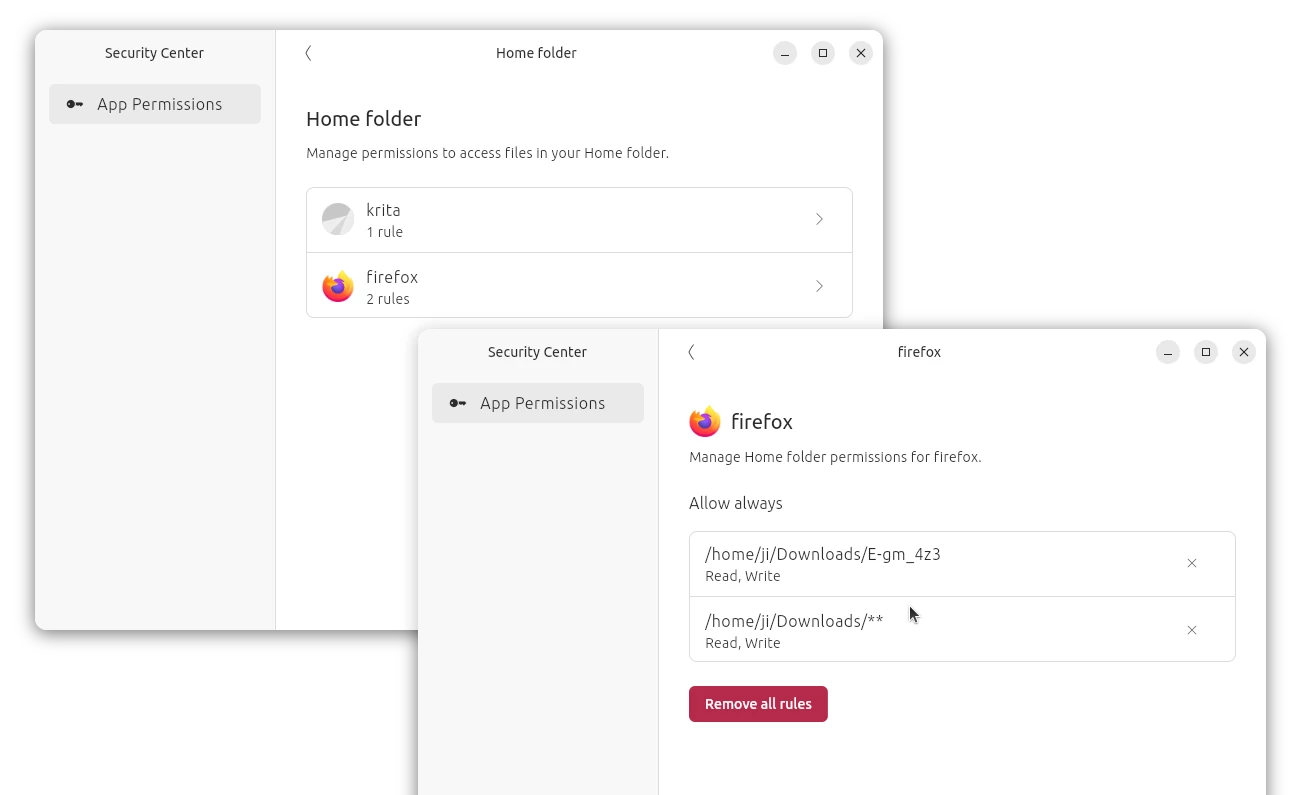
I’ve written about how to install the prompting client as well as security center in Ubuntu.

Prompting client is the official client for snap apparmor prompting. And, the desktop Security Center provides an easy-to-access interface to manage all snap apps permissions you added.

The Desktop Security Center

Both the packages are snap and pre-installed in Ubuntu 25.04, while the current 2 Ubuntu LTS releases may install them by doing the steps below:

  • either press Ctrl+Alt+T to open terminal, and run the commands below one by one to install the packages:
    sudo snap install desktop-security-center
    sudo snap install prompting-client

  • or, launch App Center (or Ubuntu Software) then search & install both (filter by snap package) packages:

    install prompting client via AppCenter

After successfully install the client, you may now launch a Snap app (e.g., Firefox) then try downloading or opening a file. It will pop-up a dialog asking to grant permission, either once or always.

Prompting client asks to grant permission when reading/writing files via Snap

Once you clicked β€œAllow”, then the snap (Firefox in the case) can open or the download the file. And, you may then launch β€œSecurity Center” to manage the permissions you set.

Option 2: Disable AppArmor (NOT RECOMMEND)

AppArmor is a Linux Kernel security module to restrict app capabilities and permissions with profiles. Due to security reason, it’s NOT recommended to disable this feature.

But if you insist, do the following steps to disable it in Ubuntu (and most other Linux) which is using the default Grub bootloader.

1. First, press Ctrl+Alt+T to open terminal, and, run command to edit Grub configuration file:

sudo nano /etc/default/grub

2. When file opens in terminal, add apparmor=0 as value to either β€˜GRUB_CMDLINE_LINUX_DEFAULT’ or β€˜GRUB_CMDLINE_LINUX’ section.

3. After edited the file, press Ctrl+S to save and Ctrl+X to exit. Finally, run command below to update Grub:

sudo update-grub

And, the change will apply in next boot. To check AppArmor status, run command sudo aa-status in terminal.

Tips: For choice, user may install the graphical Grub-Customer tool, and use the tool to add apparmor=0 as kernel parameter under β€œGeneral” tab.

Disable AppArmor via Grub Customizer

That’s all. Enjoy!

CopyQ 11.0.0 Adds Borderless Mode, New Class for HTTP Requests

By:Ji m
26 August 2025 at 21:42

CopyQ, the free open-source clipboard manager, released new 11.0.0 version few days ago.

The new release of this Qt-based advanced clipboard manager added some new features and improved scripting support with new class and other changes.

CopyQ window without title-bar and border

First, the release introduced new frameless_window option, allowing to show or hide the header/title-bar and window borders.

Simply, launch the action dialog (go to β€˜Item -> Action’ or press F5 key) and run the command below will hide them, making CopyQ window borderless (Ubuntu may use Super + drag to move window in this mode).

copyq config frameless_window true

While, Linux user may also run the command from terminal to do the same job. And, replace true with false in the command to un-hide the header and border.

For advanced users who use the scripting API for network request, CopyQ 11.0.0 introduced new NetworkRequest class, allowing to make HTTP request with custom headers, HTTP method, number of allowed redirects and timeout.

Here’s an example from the official Docs:

let req = NetworkRequest();

# allow redirects
req.maxRedirects = 5;

# set request headers
req.headers = {
   'User-Agent': req.headers['User-Agent'],
   'Accept': 'application/json',
};

# create JSON data
const data = JSON.stringify({text: 'Hello, **world**!'});

# send POST request
const reply = req.request(
    'POST', 'https://api.github.com/markdown', data)

# the request is synchronous and may not be finished
# until a property is called (like reply.data or reply.status)
if (!reply.finished) { serverLog('Processing...'); }
print(reply.data);

CopyQ added Emacs navigation key-bindings support in last 10.0.0, the new release improved it by enabled Vi/Emacs navigation in menus, and Ctrl+[ in Vi and Ctrl+G in Emacs to work in many other places as Esc key (e.g., to hide menus, dialogs).

It as well added support localizing command names in the command INI files, e.g.,:

[Command]
Name = ...
Name_cs = ...
Name_fr = ...
Name_pt_BR = ...
Name_pt = ...

Other changes include:

  • Automatically switch light / dark header (title-bar) to match system color scheme.
  • Support showing preview for more images: webp and ico.
  • Prevent backspace from closing the main window.
  • Selections and current items/rows/data in scripts now only relate to the tab selected with tab(...) in scripts
  • Various bug-fixes and translation updates.

How to Install CopyQ Clipboard Manager 11.0.0

For more changes, and installer packages for Windows, macOS, Debian, openSUSE, and Raspbian, go to the project releases page:

For Ubuntu 22.04, Ubuntu 24.04, and 25.04, the official PPA has updated with the new package for modern Intel/AMD platform.

Simply press Ctrl+Alt+T on keyboard to open terminal and run commands below one by one to add PPA & install the clipboard manager:

sudo add-apt-repository ppa:hluk/copyq
sudo apt update
sudo apt install copyq

CopyQ can be also installed in most Linux on Intel/AMD and ARM platforms through Flatpak package, which runs in sandbox environment.

  • Install flatpak daemon. For other Linux, see this setup guide:
    sudo apt install flatpak
  • Install the clipboard manager:
    flatpak install https://dl.flathub.org/repo/appstream/com.github.hluk.copyq.flatpakref

Uninstall CopyQ

Depends on which package you installed, you may remove CopyQ (.deb) by running command:

sudo apt remove copyq

Then remove the Ubuntu PPA from your system via:

sudo add-apt-repository ppa:hluk/copyq

Also run sudo apt update to refresh cache if it didn’t do it automatically.

To uninstall the Flatpak package, use command:

flatpak uninstall --delete-data com.github.hluk.copyq

Skip --delete-data if you want to keep personal configurations, and run flatpak uninstall --unused to remove useless run-times.

FFmpeg 8.0 Released with APV & ProRes RAW Decoder (Ubuntu PPA)

By:Ji m
23 August 2025 at 20:51

FFmpeg, the popular free open-source multimedia library, released new major 8.0 version almost a year since the last 7.1.

The new FFmpeg 8.0, codename β€œHuffman”, added native decoding support for Samsung’s Advanced Professional Video (APV) codec, Apple’s ProRes RAW, Sanyo LD-ADPCM, RealVideo 6.0, G.728, and ADPCM IMA Xbox.

It also added encoding support for APV (via libopenapv wrapper), libx265 alpha layer, and animated JPEG XL images (through libjxl).

FFmpeg 8.0 also introduced new decoders and encoders based on pure Vulkan compute implementation. It’s a cross-platform, open standard APIs, allowing programs to use GPU hardware accelerated rendering, calculating, and decoding, which can provide very significant speedups on some hardware.

So far, the Vulkan compute-based codecs only supports FFv1 (encoding and decoding) and ProRes RAW (decode only), while ProRes (encode + decode) and VC-2 (encode + decode) will be available in next minor release.

The release as well improved some codecs support by introducing hardware accelerated decoding support for VP9 (Vulkan), VVC (VAAPI), and hardware accelerated encoding support for AV1 (Vulkan). And, both decoding and encoding (hardware accelerated) for the OpenHarmony H264/5 video codecs.

Other changes include improved VVC (aka H.266) support via all content of SCC (Screen Content Coding), including IBC (Inter Block Copy), Palette Mode and ACT (Adaptive Color Transform), and following more:

  • New filters: colordetect, pad_cuda, scale_d3d11, Whisper, and others.
  • APV parser
  • APV in MP4/ISOBMFF muxing and demuxing
  • VVC in Matroska,
  • CENC AV1 support in MP4 muxer.
  • Enhanced FLV v2: Multitrack audio/video, modern codec support.
  • set default prediction method to PAETH for pngenc.

In addition, FFmpeg 8.0 also dropped OpenSSL < 1.1.0, removed yasm support (users need to use nasm), and deprecated OpenMAX encoders. For more, see the official release note.

Get FFmpeg 8.0

FFmpeg only provides the source tarball which is available to download at its website via the link below:

For Linux, besides waiting for your Distro to update the FFmpeg package, Deb Multimedia repository has built the 8.0 release for Debian experimental.

UPDATE: For Ubuntu 22.04, Ubuntu 24.04, and Ubuntu 25.04, FFmpeg 8.0 is available via this unofficial PPA.

NOTE: The PPA contains many updated libraries that may break dependencies! And, the packages are NOT well tested. Use at your own risk!

To add the PPA and install FFmpeg 8.0, run command:

sudo add-apt-repository ppa:ubuntuhandbook1/ffmpeg8
sudo apt update
sudo apt install -t "o=LP-PPA-ubuntuhandbook1-ffmpeg8" ffmpeg

Change the Color Scheme of GNOME Adwaita Apps & Shell

By:Ji m
22 August 2025 at 23:59

Modern GNOME apps do NOT support traditional themes, but you may change the look with custom color schemes!

As you know, GNOME has moved to use GTK4 + LibAdwaita for its applications and desktop components. And, so many apps use the LibAwaita library for their modern UI, which however do not support theming (see this thread).

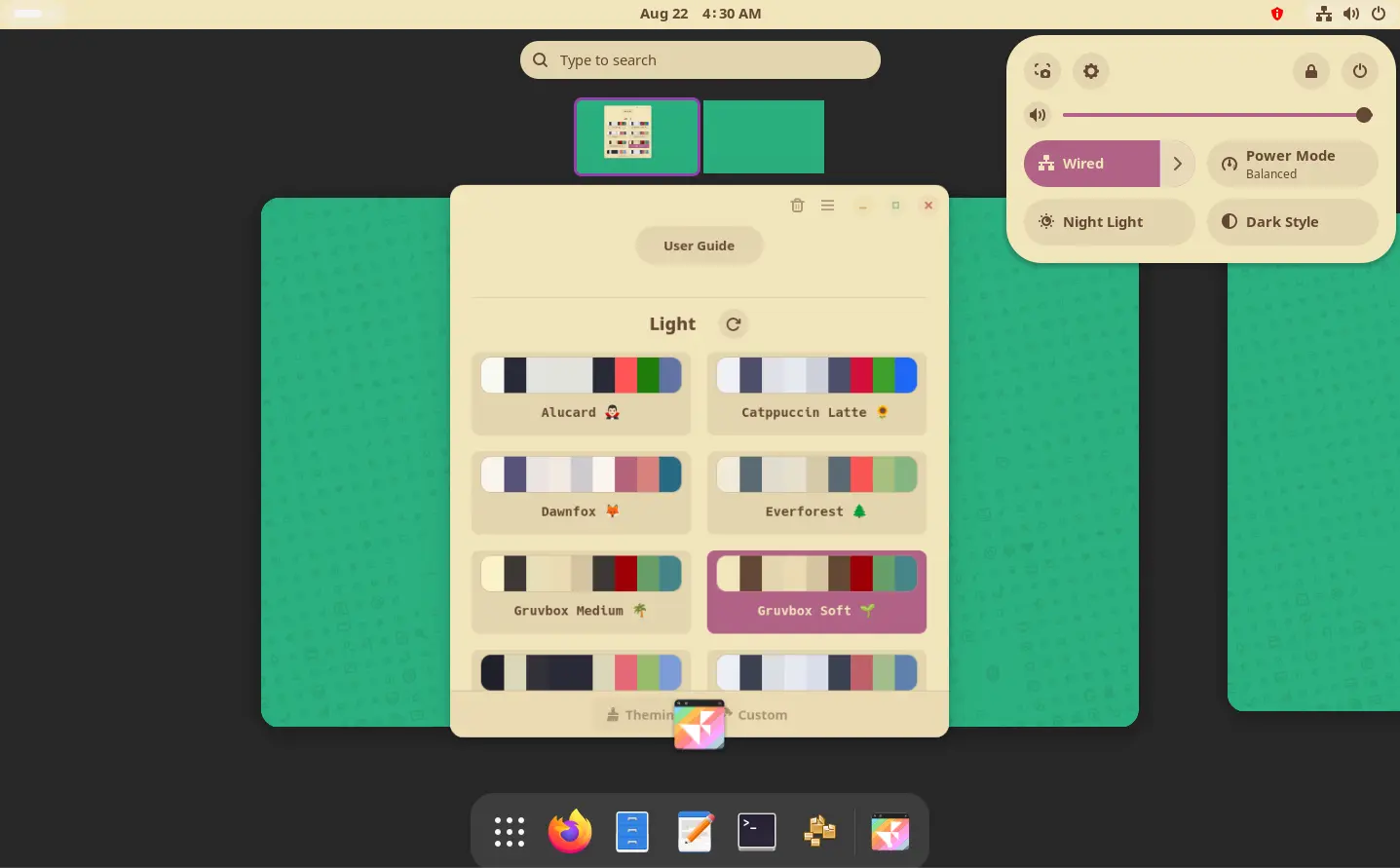
GNOME with custom color scheme

To make libadwaita apps look consistent on non-GNOME desktops, Linux Mint has a soft fork called libadapta, and programmers can inject their custom CSS code.

What if you have no coding skill, but want a fresh look of the GNOME apps? Here’s a stupid simple app that can do the job by changing the color schemes!

There used to be an app called Gradience to set custom colors for Adwaita apps, which is however discontinued due to lack of maintenance. Just a month ago, a new app was born for GNOME users boring with the default look.

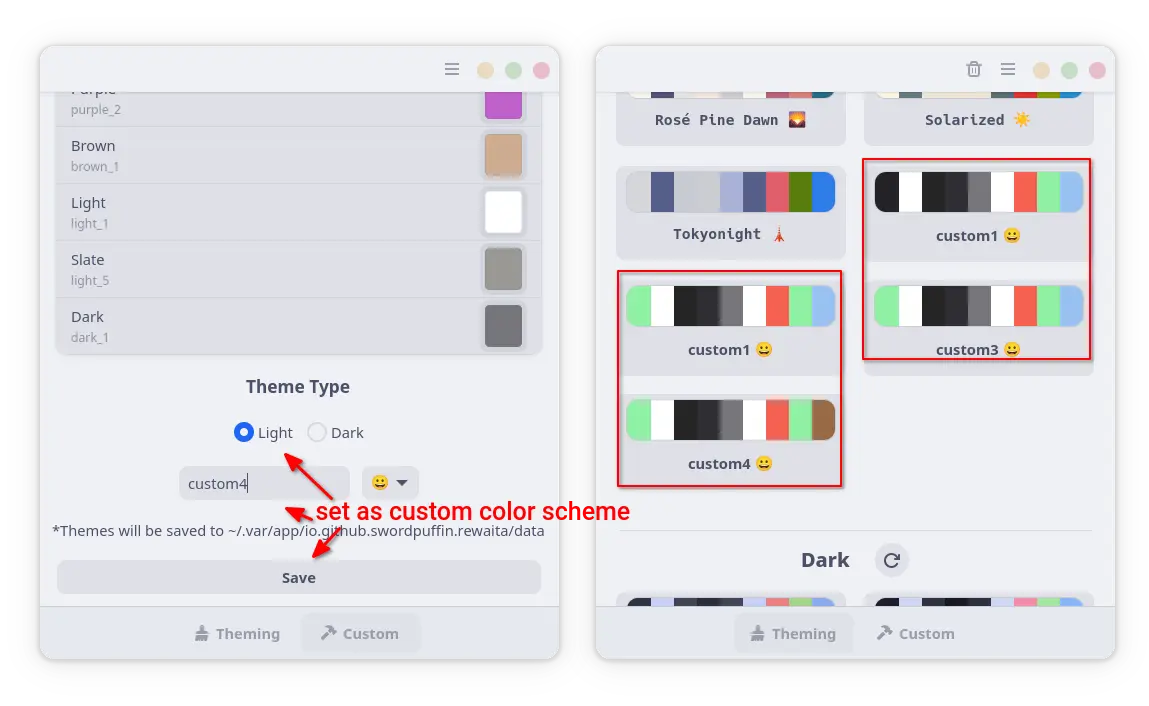
It’s Rewaita, a free open-source app written in CSS and Python, which provides a simple user interface, with few dozen of color scheme presets (for light and dark mode) and few window controls (min, max, close) layout.

Rewaita app window

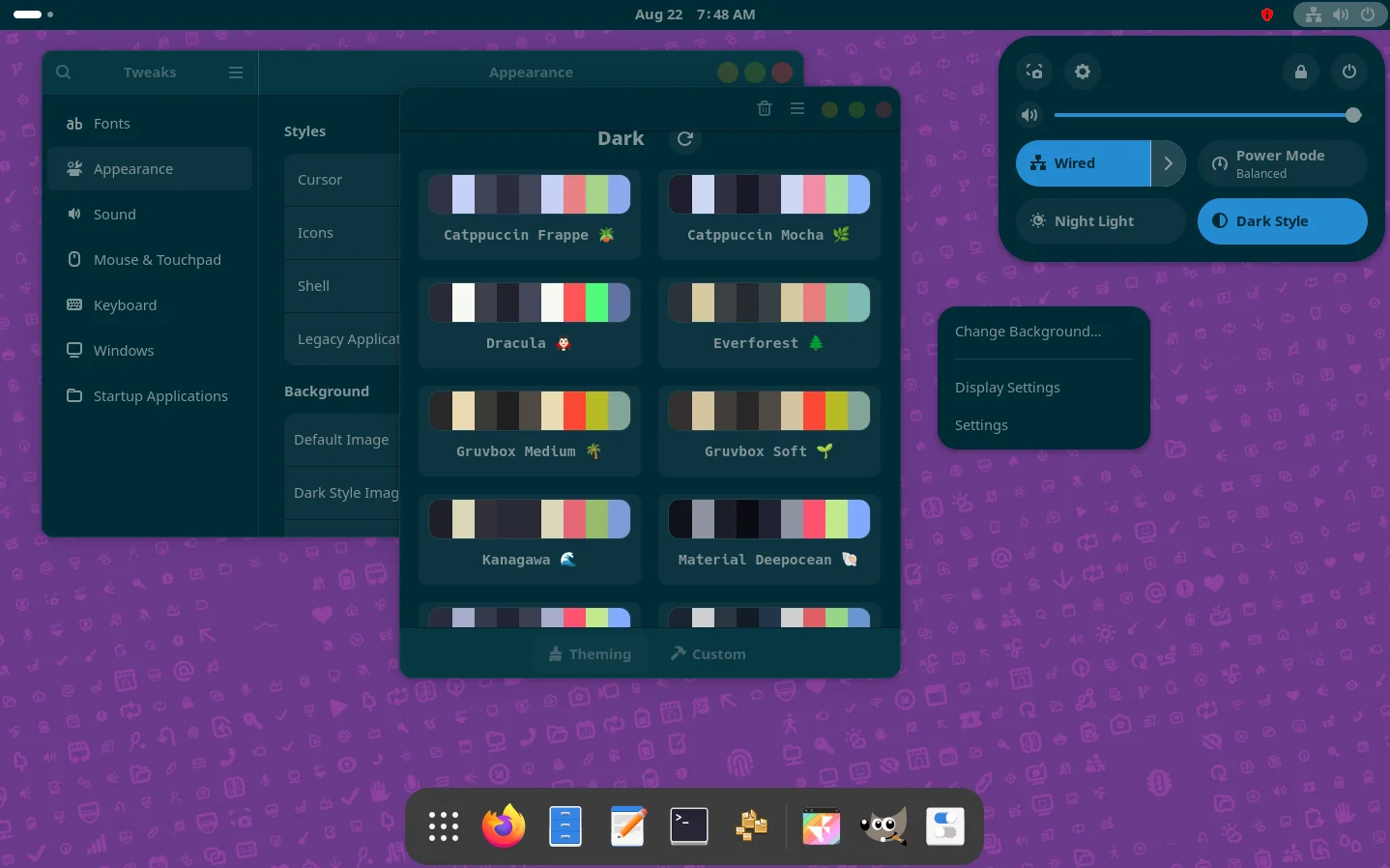
Just choose one from the list, then Adwaita apps (may need a re-launch), Gnome top-bar, and menus’ colors change automatically according to the color scheme.

GNOME Dark mode with a custom color scheme

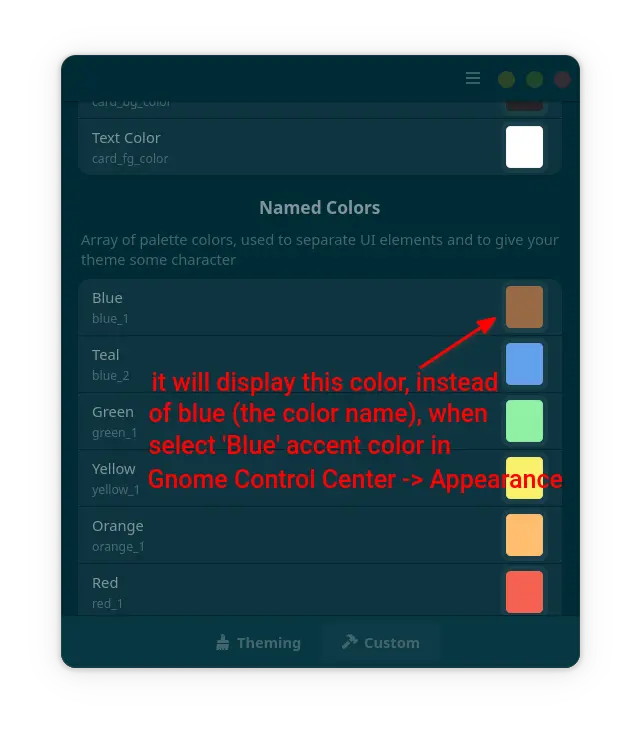
For choice, user may switch to β€œCustom” tab for options to set custom background and text colors for buttons, main window, widgets, warning, etc components.

As well, you may change the named colors, e.g., Blue, Teal, Green, Orange, Yellow accent colors. So, when you select an accent color in Appearance settings page, it won’t display the named color but the custom color you set.

The custom colors can be saved as preset for either light or dark mode, then apply at any time from the β€œTheming” tab.

How to Install Rewaita:

NOTE: Rewaita so far does NOT work in Ubuntu 24.04 and works partially IN MY CASE in Ubuntu 25.04, probably because Ubuntu does not feature vanilla Gnome environment.

Rewaita is available to install in most Linux on amd64 and arm64 platforms as Flatpak package, which runs in sandbox environment.

Fedora workstation (with 3rd party repository enabled) may search & install it from GNOME Software.

While, other Linux may do the steps below one by one to get it:

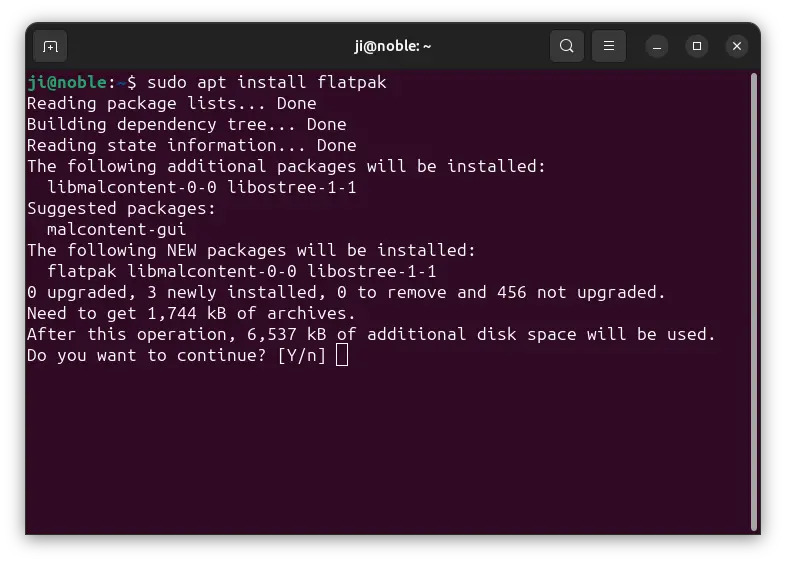
  • First, follow the official setup guide to enable Flatpak support. For Debian/Ubuntu, simply open terminal (Ctrl+Alt+T) and run command:
    sudo apt install flatpak

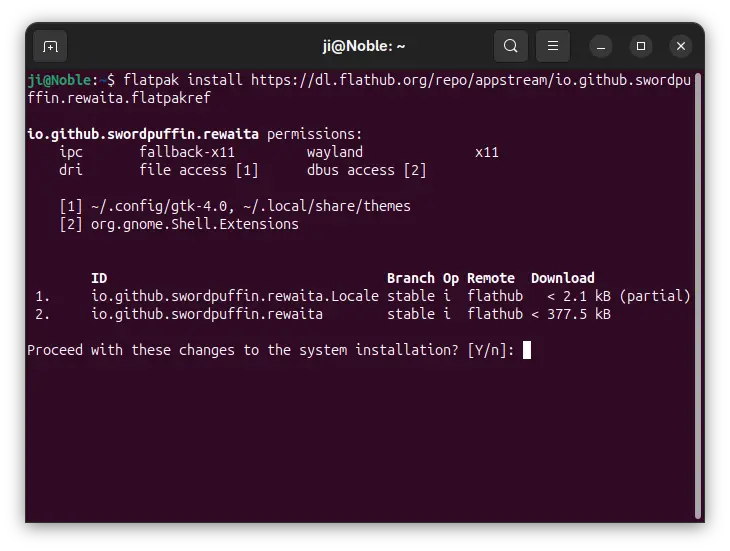
  • Next, install the Rewaita package by running command:
    flatpak install https://dl.flathub.org/repo/appstream/io.github.swordpuffin.rewaita.flatpakref

    There’ll be also lots of downloads for GNOME and FreeBSD run-times if you don’t have them.

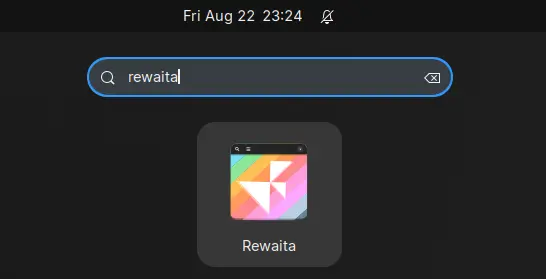
After installed the app package, launch either from GNOME Overview (log out and back in if app icon not visible) or by running command in terminal:

flatpak run io.github.swordpuffin.rewaita

And, replace run with update in last command to check & install updates.

In addition, to make custom colors work for Flatpak apps, you need to run one more command to grant read & write permission to the gtk-4.0 configuration directory for Flatpak.

sudo flatpak override --filesystem=xdg-config/gtk-4.0:rw

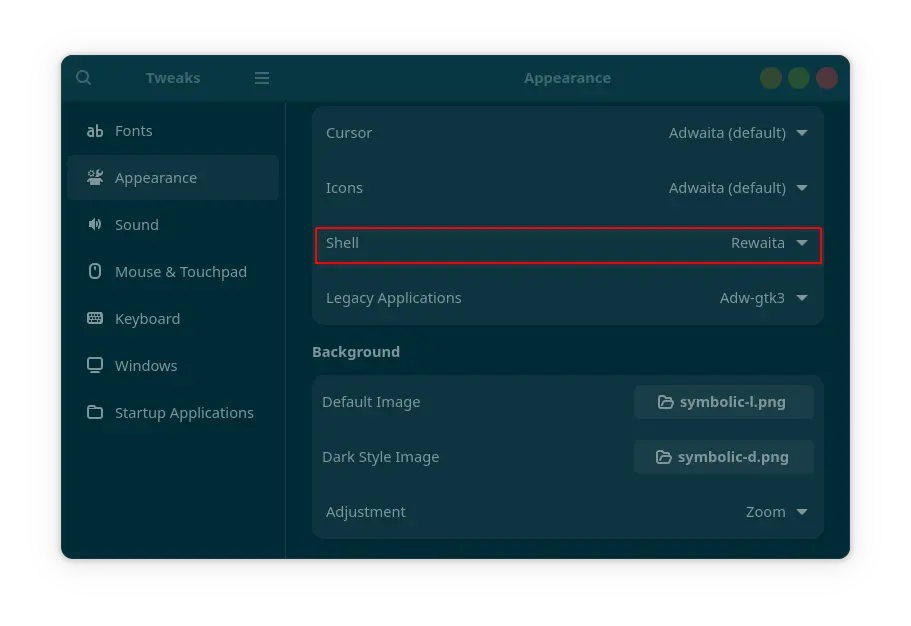
And for GNOME Top-bar and menus, you need to set Gnome Shell theme to Rewaita (via Gnome Tweaks).

Set Gnome Shell theme to Rewaita

Tips: if β€œShell” theme option is grayed out, then you need to install User Themes extension:

  • either visit the last link and use the ON/OFF toggle to install. Though you need to install browser extension if prompted, and Debian/Ubuntu needs to install the agent package first:
    sudo apt install chrome-gnome-shell
  • or install β€œExtension Manager” from Gnome Software, App Center (debian package), or your system package manager, and use it to search & install Gnome Shell extensions.
  • finally, re-launch Gnome Tweaks.

Uninstall Rewaita

To uninstall the app, first reset to default color schemes (use the ⟳ icon) for both light, dark, and window controls.

Then, run the command below to remove the flatpak package:

flatpak uninstall --delete-data io.github.swordpuffin.rewaita

Fooyin Music Player 0.9.0 Added Autoplaylists & Synced Lyrics

By:Ji m
21 August 2025 at 21:27

Fooyin, the free open-source Foobar2000 inspired music player, released new 0.9.0 (and 0.9.1 with quick fixes) version few days ago.

In case you didn’t know Fooyin, it’s a music player features Foobar2000 look like appearance and Qt6-based user interface designed for KDE desktop.

Fooyin Music Player

It uses FFmpeg library as backend for local music playback, and supports VGM (Video Game Music), ReplayGain, tag editing, and gapless playback. And, it supports editing mode to customize the app layout, and it’s highly extensible with a plugin system and scripting language.

Fooyin is less than 2 years old. It keeps updating with new features. And, the new 0.9.0 version is the most recent one that introduced some new features.

Since the release, it supports searching and downloading album artwork from LastFM, Discogs, and/or MusicBrainz (Cover Art Archive).

Just right-click on current cover art, then you may either select β€œQuicksearch for artwork” to automatically download and set new artwork. Or, choose β€œSearch for artwork” to open the finder dialog to search more and fetch the one that your favorite.

The downloaded cover arts by default are embedded into the music files (as metadata tags), though you may choose to save them separately in your music folder.

Besides that, Fooyin 0.9 added searching lyrics from either local files or remote sources, including LRCLIB, NetEase Cloud Music, QQ Music, and DarkLyrics.

You can enable/disable lyrics sources, drag’n’drop re-arranging the order in which they are queried, save lyrics (either manually or automatically) into either metadata tags or separate files, and view and edit lyrics using the lyrics editor dialog.

The release also introduced initial autoplaylist support. You can create an autoplaylist from β€œFiles” menu, then load from β€˜Most Played’, β€˜Recently Added’, β€˜Last Played’, β€˜Has Lyrics’, or use query by using script editor.

Autoplaylists are playlists generated from a query. They are automatically populated, which means their tracks cannot be edited. They will also regenerate whenever the music library changes i.e. tracks added, deleted or changed.

Other changes in Fooyin 0.9.0 include:

  • Add button to clear artwork cache.
  • VBR (Variable Bitrate) track update interval configurable.
  • Add support audio/x-flac mime type.
  • Option to control playback after queued song.
  • Add libre.fm service
  • New script functions..

For more, see the release note in Github page.

Install Fooyin Music Player

Fooyin so far provides only Linux installer packages which are available to download at the Github page via the link below:

They are .pkg for FreeBSD, .rpm for Fedora, and .deb for Debian and Ubuntu. While, Arch Linux may get it from AUR repository.

For choice, it also runs in sandbox for most Linux through the Flatpak package.

LibreOffice 25.8 Released! PDF 2.0 Export & Many New Calc Functions

By:Ji m
21 August 2025 at 01:00

LibreOffice, the popular free open-source office suite, release new 25.8 version today!

LibreOffice 25.8 is a new major release that features user interface improvements, many new spreadsheet functions, faster file loading, and many other new features.

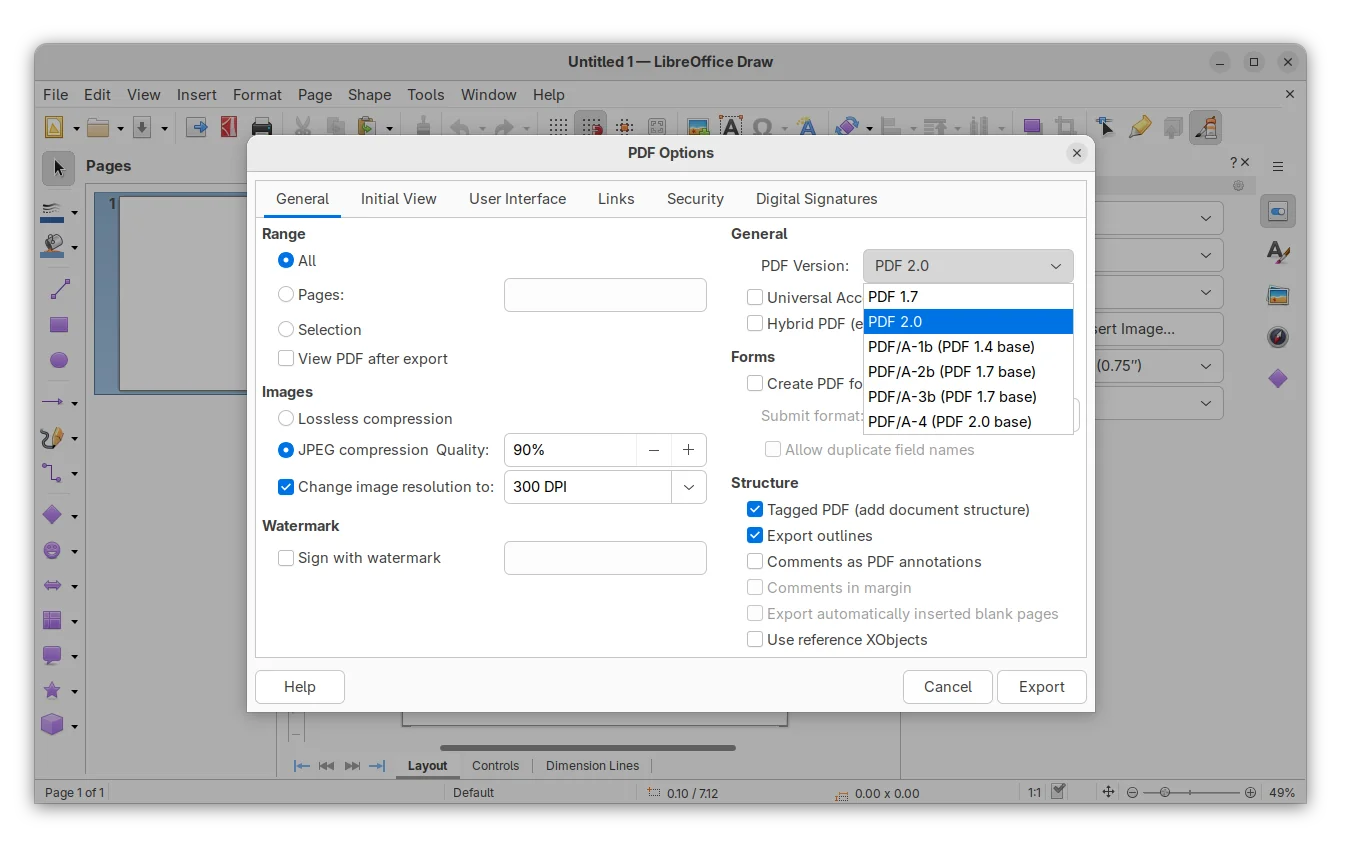
First, the new release added support for exporting PDF 2.0 (ISO 32000-2). The PDF export dialog now offers a drop-down box to choose PDF 2.0 or PDF/A-4 that’s using PDF 2.0 as the base. And, it implemented modern AES-256 encryption that is mandatory with PDF 2.0.

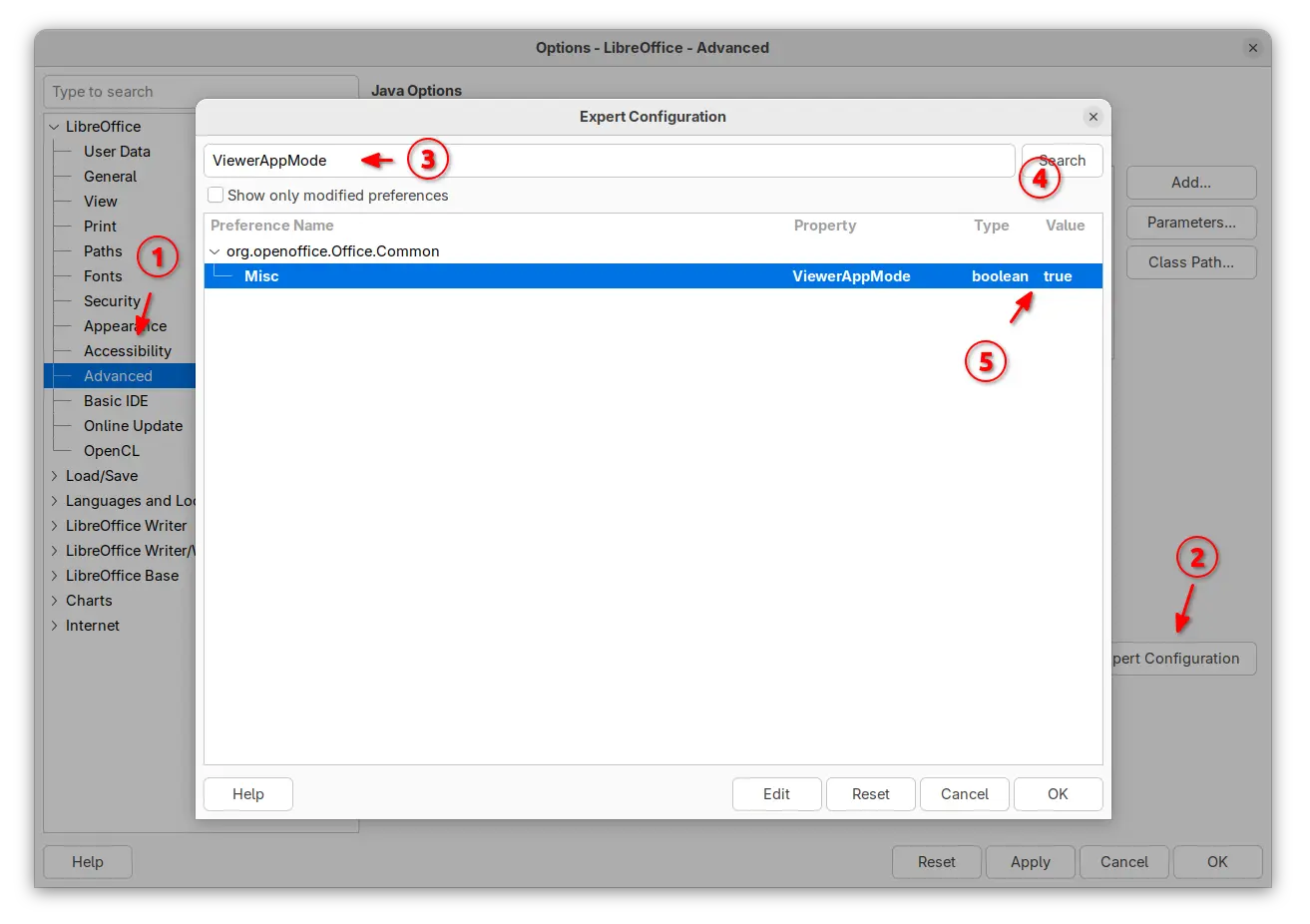
For those who would like to use LibreOffice as a document viewer, the release introduced application-wide viewer mode that all files will be open as read-only mode with all editing tools disabled.

And the option is controlled by ViewerAppMode option in the Advanced -> Expert Configuration dialog.

Enable Application Wide Viewer (read-only) Mode.

The Calc app in the release introduced many new functions. They include CHOOSECOLS, CHOOSEROWS, DROP, EXPAND, HSTACK, TAKE, TEXTAFTER, TEXTBEFORE, TEXTSPLIT, TOCOL, TOROW, VSTACK, WRAPCOLS, and WRAPROWS functions.

It as well added β€œClear AutoFilter” option to Calc cells context menu, and ability to customize conditional formatting operators in icon sets.

The Writer app introduced new Move line hyphenation rule to choose whether to hyphenate the last line words of the pages and move the whole lines to the next pages instead.

It added paragraph, column, page and spread end zones, command to insert a paragraph break before a table, command to convert fields into plain text, and dialog for copy content of a field from read-only document.

There are also per-window track changes recording, reinstate for tracked changes, option to redact images (remove sensitive data), and ability to set the language of certain punctuation characters.

Redact Images

LibreOffice 25.8 also has significantly performance improvements. Writer and Calc open files up to 30% faster in benchmark tests.

For Writer, it’s now much faster for deleting very large tables, faster loading tables with bookmarks, and faster to open large right-to-left documents in. For Calc, it greatly improved loading XLSX files with lots of conditional formatting, graphical objects, customFormat attributes, or formulas.

Other changes in the release include:

  • Accessibility check for links and references in writer header/footer.
  • Support Embedded fonts in PPTX files.
  • Master Slides in Impress and Master Pages in Draw can now be copied.
  • Show boundaries for page margins in Draw.
  • Signed PDF output now compatible with Adobe Reader.
  • Background image in document now visible as a bitmap thumbnail.
  • BASIC IDE code completion and auxiliary resources (experimental).
  • New Macro Manager dialog (experimental)
  • ODF Wholesome Encryption (experimental)

LibreOffice 25.8 also removed Windows 7 and 8/8.1 support, deprecated 32-bit Windows build. And, it’s the last version that runs on macOS 10.15. For more, see the official release note.

Get LibreOffice 25.8

LibreOffice 25.8 is available to download for Linux, Windows, and macOS via the link below:

For Ubuntu users, there are 5 choices, though some of them are not updated at the moment of writing.

  • AppImage package – run to launch the office suite without installation required. Ubuntu since 22.04 needs to install libfuse2 package first.

    LibreOffice AppImage

  • Flatpak package – runs in sandbox environment. Ubuntu users may run the 2 commands below one by one to install:
    sudo apt install flatpak
    flatpak install https://dl.flathub.org/repo/appstream/org.libreoffice.LibreOffice.flatpakref
  • Snap package – available in App Center (Ubuntu Software), which also runs in sandbox environment.
  • Ubuntu PPA – recommend for users who prefer native .deb package. Though the LibreOffice Fresh PPA usually has a few weeks (even months) delay for the new major releases.To add PPA and upgrade pre-installed libreoffice to the latest, run commands below one by one:
    sudo add-apt-repository ppa:libreoffice/ppa
    sudo apt update
    sudo apt install libreoffice
  • Official Deb packages – the download page also provide native .deb packages for Ubuntu and Debian users.After downloaded the tarball, extract, and navigate to the sub-folder that contains all the .deb packages. Right blank area and select β€œOpen in Terminal”, finally run command to install them all:
    sudo apt install ./*.deb

Uninstall LibreOffice

As there are so many ways to install the office suite, it’s easy to get it installed multiple times, resulting duplicated app icons.

Make backup of your important data before uninstalling the application.

To uninstall the Snap package, either use App Center (or Ubuntu Software) or run command:

snap remove --purge libreoffice

For Flatpak package, use the command below to uninstall:

flatpak uninstall --delete-data org.libreoffice.LibreOffice

To uninstall the Deb packages downloaded from LibreOffice website, use command:

sudo apt remove libobasis25.8* libreoffice25.8*

Or, remove the Ubuntu PPA package by running command:

sudo apt remove --autoremove libreoffice-common

NOTE: Remove the PPA package will also get rid of the pre-installed LibreOffice (if Ubuntu was installed in β€œExtended selection” mode). You may choose to purge PPA which will downgrade LibreOffice to the stock version:

sudo apt install ppa-purge
sudo ppa-purge ppa:libreoffice/ppa

Kdenlive 25.08.0 Released with NVIDIA 10 bit x265 Encoding

By:Ji m
19 August 2025 at 23:19

Kdenlive, the popular KDE video editing software, released new 25.08.0 version yesterday.

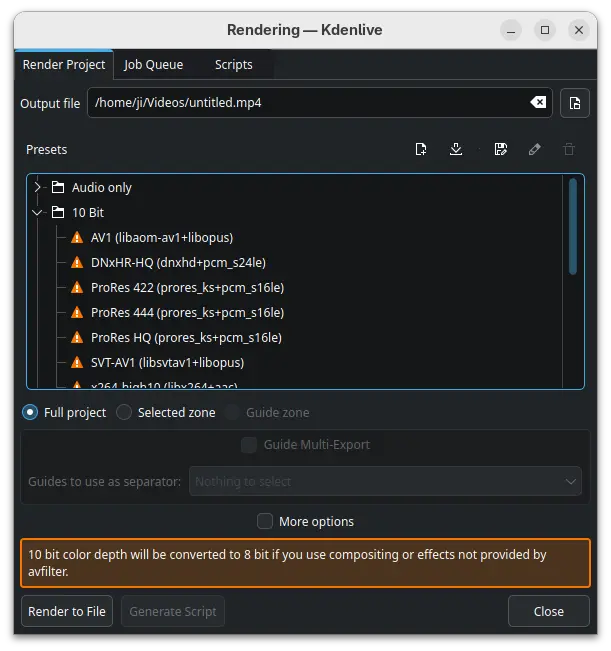
The new 25.08.0 is a new feature release that added 10 bit x265 encoding for NVIDIA, and 10 bit export profiles in the render dialog, though it will be converted to 8 bit when using compositing or non-avfilter effects.

It as well replaced AV1 profile with the faster SVT-AV1, along with preset options to control the quality and speed, and, added power management option to disable sleep while rendering and playing.

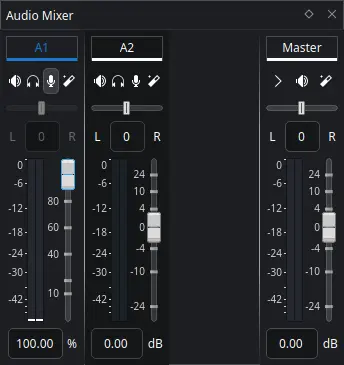
Audio mixer in the release has been redesigned with clearer level visuals and thresholds. And, it fixed some issues for better HiDPI displays support with fractional scaling.

new audio mixer

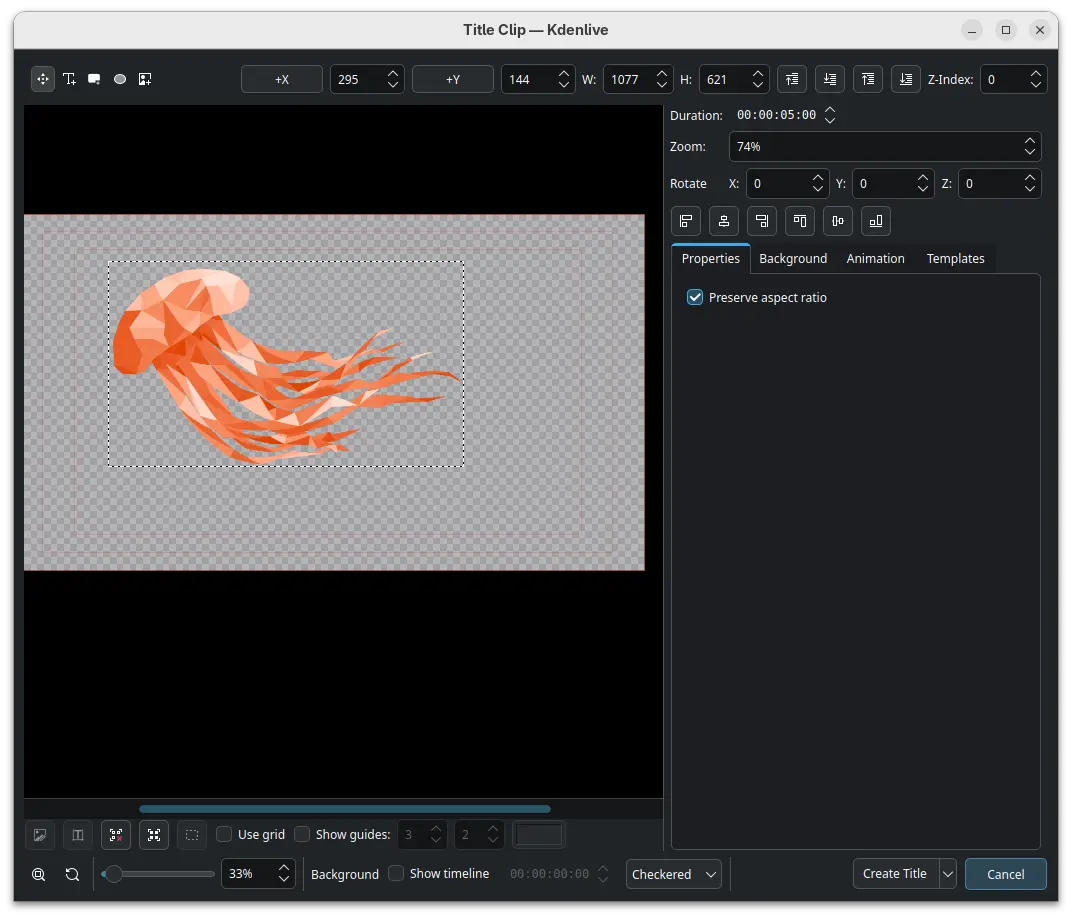
Kdenlive 25.08.0 also improved SVG and image support for its titler. It’s now has ability to move and resize items, and shift-drag item border to center resize.

It renamed the Pattern tab to Templates and moved the templates dropdown to it. As well, it added timecode widget with ability to drag to seek in the Titler.

The subtitle edit widget in the new release now is resizable to adapt to lower resolution displays. And, it now requires shift + drag of a subtitle clip to create a new layer.

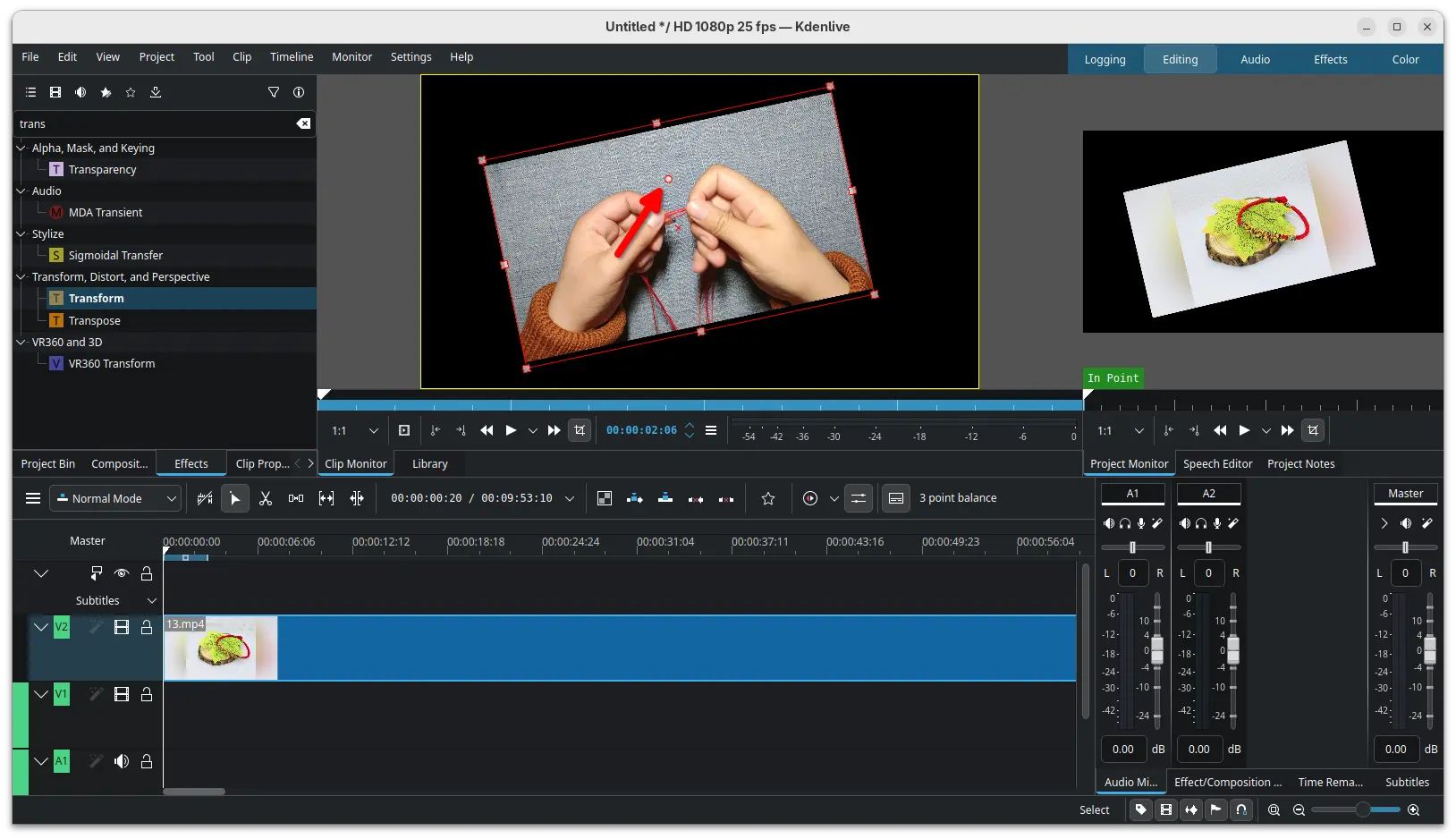
It as well added a new handle allowing to rotate an item in the preview using the Transform effect. And it improved monitor snapping by adding back snapping when resizing for non-rotated frames, snapping when moving a rotated frame, and added snapping support for all edges.

Other changes include:

  • Improve Scope styling by using system palettes.
  • Ability to create guides and markers from project notes.
  • New option to show thumbnails in the markers list dialog.
  • New β€˜Show markers for all clips in the project’ toggle option.
  • Add Enable Hardware Decoding option in welcome dialog.
  • Add SVT-AV1 to codecs which use CRF option.
  • Option to open log file in render dialog.
  • Warn when exiting Kdenlive with running job.

For more about Kdenlive 25.08.0, see the official release note.

How to Install Kdenlive 25.08.0

The official installers for Linux, Windows, and macOS are available to download in its website via the link below:

As a KDE project, you may alternatively download it from KDE website via this page.

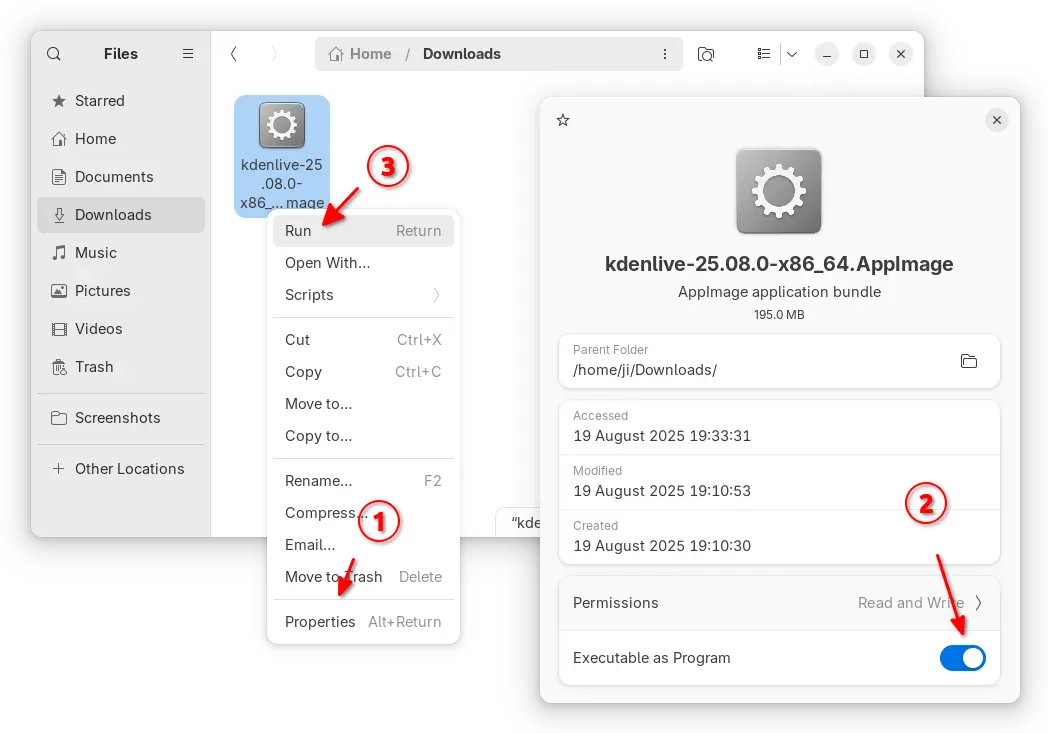
Linux user may choose download the AppImage, then click Run to launch the video editor after granted executable permission. Though, Ubuntu since 22.04 needs to install libfuse2 library first in terminal (Ctrl+Alt+T):

sudo apt install libfuse2

While AppImage is so far only for modern Intel/AMD (x86_64) platform, user may choose the Flatpak package that supports both X86_64 and ARM64 platforms, though it runs in sandbox environment.

Linux Mint and Fedora can search & install the Flatpak package from either Software Manager or GNOME Software.

Kdenlive Flatpak package in Linux Mint Software Manager

While Debian/Ubuntu, may run the 2 commands below one by one to install the package:

  • Enable flatpak support:
    sudo apt install flatpak
  • Install Kdenlive flatpak package:
    flatpak install https://dl.flathub.org/repo/appstream/org.kde.kdenlive.flatpakref

For Ubuntu, there’s also official snap package available in App Center (or Ubuntu Software).

Kdenlive Snap package in Ubuntu App Center

And, if you want to build Kdenlive from source, here’s a step by step guide shows how to do the job in Ubuntu 25.04.

Firefox 142.0 Available with More Flexible ETP Strict Exceptions

By:Ji m
19 August 2025 at 18:01

Firefox 142.0, the August release of the free open-source web browser, is available to download.

The official release note for the new version is not ready at the moment of writing, though the source tarball and installers for Windows, Linux, and macOS are out!

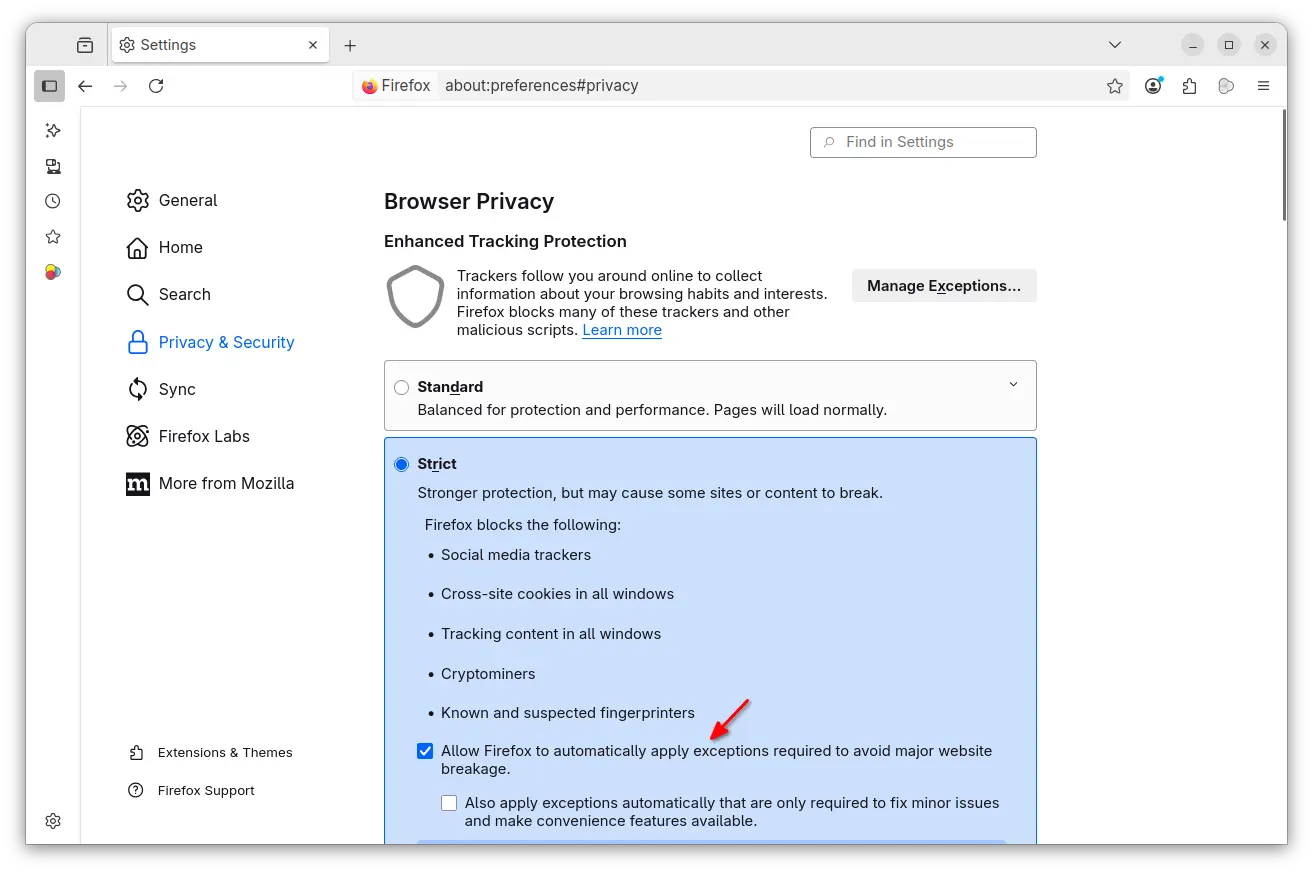
According to the Github releases page, Firefox 142.0 added new ETP stick mode options to automatically apply required exceptions to avoid website breakage. Exceptions are split into baseline (core functionality) and convenience (extra features). And, it’s also available when working in ETP Custom mode.

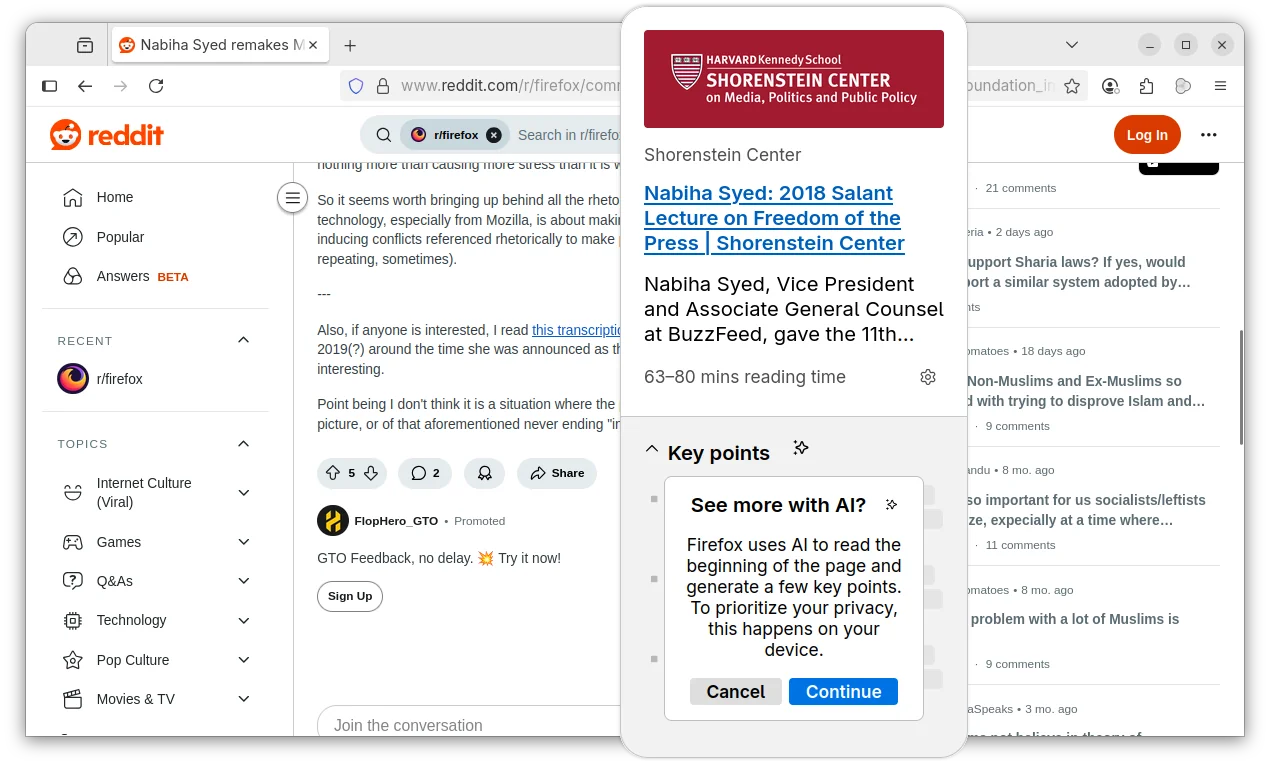
The AI-powered link preview feature that was introduced as experimental since version 139.0, now is generally available for en-US, en-CA, en-GB, en-AU users.

The feature allows to long press (or right-click and choose β€œPreview Link”) a link to preview the page that can optionally include AI-generated key points. The AI content are processed on user’s local device, though it recommends more than 3 GB of available RAM.

And, this features is gradually rolling out and so far only enabled for users mentioned above. While, others can get it in Firefox Labs setting page.

For users in United States, Firefox now groups article recommendations on New Tab page into topic sections, like Sports, Food, and Entertainment. And, you can block ones that you’re not interested in.

On Windows, clicking a persistent notification when Firefox is closed / restarted will now properly open the browser with the relevant web-page, instead of opening the main page of the website.

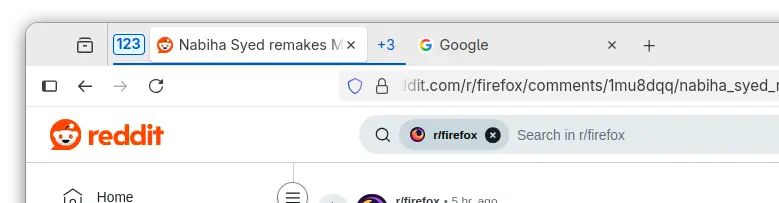
In Firefox 142, when you click collapse a tab group, the active tab in that group is still visible. This can keep your header tidier when working with many tabs open in active tab group.

Other changes in the release include:

  • Add Remove from Sidebar option to side-bar extension icon.
  • Improve search results from browsing history via the address bar.
  • Improve drag-and-drop support for blob images.
  • Various security fixes.

There are as well new features and improvements for developers. They include wllama API for extensions support, allowing developers to integrate local language model (LLM) into add-ons, and:

  • Prioritized Task Scheduling API, to assign and manage task priorities.
  • Selection.getComposedRanges() API, to accurately get selected text ranges across shadow DOM boundaries.
  • URLPattern API, to match and parse URLs using a standardized pattern syntax.
  • Display Request Headers/Cookies/Params in the Network panel even request isn’t finished yet.

Get Firefox 142.0

For more changes and the download link, go to its website via the link below:

As mentioned, the release note is not ready at the moment of writing. If you can’t wait to try it out, download it from this FTP page.

Default Wallpapers for Ubuntu 25.10 Questing Quokka Revealed

By:Ji m
17 August 2025 at 17:32

Ubuntu 25.10, code-name Questing Quokka, is coming soon in next few months. Now, the default wallpapers are out!

As usual, the default wallpaper is made up of the mascot (quokka) in center, a type of wallaby from southwestern Australia, and a gradient background.

As you see via the image below, this time it looks like a quokka that’s hopping and bounding to Ubuntu (the small logo) on the earth.

Ubuntu 25.10 Default Wallpaper (optimized for loading fast)

The file-name is always β€œwarty-final-ubuntu.pngβ€œ, and it features 4K (3840Γ—2160) resolution.

As well, there are few variants for different purpose, e.g., dark mode for dark desktop style, dimmed and light versions. See the previews below:

Ubuntu 25.10 wallpaper Dark variant (ubuntu-wallpaper-d.png)

Ubuntu 25.10 wallpaper dimmed variant

Ubuntu 25.10 wallpaper light variant

In addition, the Ubuntu 25.10 default wallpaper also has a full-color version along with its light, dark, and dimmed variants. They are:

  • Questing_Quokka_Full_Color.png,
  • Questing_Quokka_Full_Dark.png,
  • Questing_Quokka_Full_Dimmed.png,
  • and Questing_Quokka_Full_Light.png.

25.10 full color wallpaper

25.10 full dimmed wallpaper

25.10 Full Dark wallpaper

25.10 full light wallpaper

Download Ubuntu 25.10 Wallpapers

The new wallpapers will be soon made into the Ubuntu 25.10 system repository. For current 25.10 snapshot users, just keep the system up-to-date, then you’ll get the wallpapers in next few days.

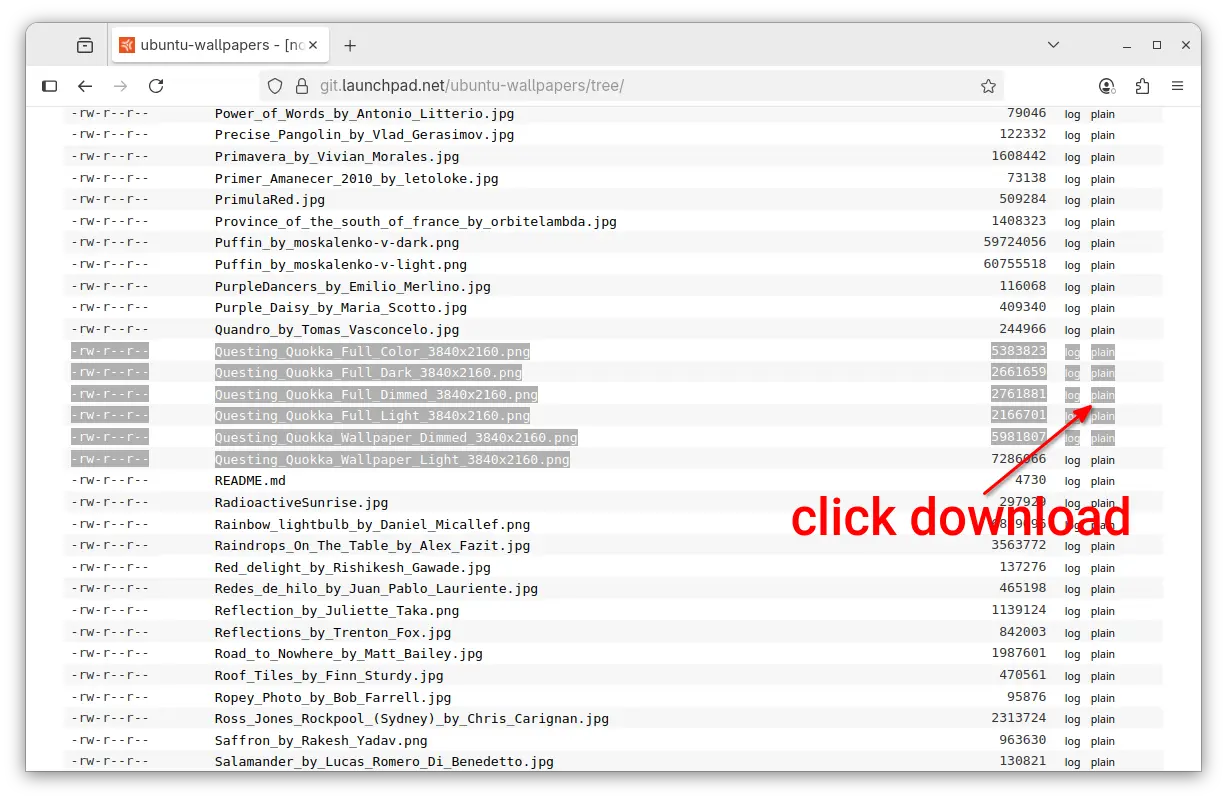
For other operating systems, you may download the wallpapers from the source page via the link below:

Then, click the β€œplain” links at the end of the desired images to download:

  • warty-final-ubuntu.png – default wallpaper (it will be 26.04 wallpaper around 6 months later).
  • ubuntu-wallpaper-d.png – dark variant.
  • Questing_Quokka_Full_Color_3840x2160.png – other variants.
  • Questing_Quokka_Full_Dark_3840x2160.png – other variants.
  • Questing_Quokka_Full_Dimmed_3840x2160.png – other variants.
  • Questing_Quokka_Full_Light_3840x2160.png – other variants.
  • Questing_Quokka_Wallpaper_Dimmed_3840x2160.png – other variants.
  • Questing_Quokka_Wallpaper_Light_3840x2160.png – other variants.

NOTE: Firefox (default Snap) does NOT download files in my case. Try Firefox Deb or other web browsers.

And, please leave comment below if you know a better place to download the wallpaper images, as Ubuntu may change the source page (it did) in future!

Ubuntu 25.10 Optional Wallpapers

In addition, there will be some optional wallpapers shipped by default in Ubuntu 25.10. They are the wallpaper contest winners that will be out in next few days.

You can vote your favorite wallpapers HERE until August 18th. And, I’ll post the winner images below once available.

Stellar Repair for MySQL – Product Review

12 December 2024 at 21:02

MySQL Database Recovery Tool by Stellar is designed to assist in resolving various issues that may occasionally arise while managing MySQL and MariaDB databases.

It can efficiently repair all inaccessible or corrupted database objects (tables, primary keys, views, triggers, etc.) created in the InnoDB and MyISAM MySQL database engines without altering or deleting the original databases.

MySQL versions 8.x, 6.x, 5.x, 4.x, and 3.x are compatible as of writing, and since it’s available for Windows, Ubuntu, and Red Hat-based distributions, you can easily recover your MySQL database on these systems. Otherwise, you can copy the MySQL data folder from an unsupported OS to either Windows or Linux, repair it, and move it back to the original OS.

After saving the repaired database in MySQL or MariaDB formats, this tool allows us to save it in various other file formats, such as SQL Script, CSV, HTML, and XLS, which can be crucial when repairing MySQL on a system without MySQL or MariaDB installed.

Pros & Cons

ProsCons
Available for Windows, Ubuntu, and Red Hat-based distributions.Not available for macOS.
Efficiently can repair the latest version of MySQL and MariaDB databases.It’s proprietary software.
Export the database file in SQL script, CSV, HTML, and XLS file formats.It’s premium software with a free trial given, which can only perform repairs and display the repaired database but does not apply the changes.
The β€œSave log report” option allows viewing and analyzing the log content later for forensic analysis.The software’s license key is quite expensive compared to alternatives.
A user-friendly interface that allows navigation and selection of the MySQL data directory for repairing corruption and applying necessary patches.It’s not completely ready for Linux systems. You might need to move your MySQL data folder to Windows for repair, as the Windows version of this tool works perfectly.

How to Install MySQL Database Recovery Tool on Linux

Since it’s available for both Windows and Linux (especially Ubuntu and Red Hat-based distributions), I’ll show you the steps to install it on a Linux distribution.

So, start by navigating to its product page to download Stellar Repair for MySQL, select β€œLinuxβ€œ, and then click on β€œFree Download” (you can begin with the free version and activate it with a license key later).

Stellar Repair for MySQL

You’ll be redirected to the Linux download page, where you can download the package file based on your Linux distribution type. For example, clicking the download button under β€œFor CentOS Redhat” will download the β€œ.rpm” file, while β€œFor Ubuntu” will download the β€œ.deb” file.

Download Linux version 64 bit to repair MySQL database

Once the file is downloaded, open your terminal, navigate to the β€œ~/Downloads/” directory, and execute one of the following commands according to your Linux distribution.

# Navigating to Downloads directory
$ cd ~/Downloads/

# Installation Command for Ubuntu-based distributions
$ sudo dpkg -i ./StellarRepairforMySQL-U.deb

# Installation Command for Red Hat-based distributions
$ sudo rpm -i ./StellarRepairforMySQL.rpm

When the installation is finished, you can launch the program by searching β€œRepair for MySQL” in the Activity Overview.

Repair MySQL database

Usage

When launched for the first time, it prompts you to provide the current logged-in username (auto-detected) and password. Before entering the credentials, make sure the logged-in user has sudo privileges to allow the program to perform repairs without interruption.

Privileges to repair MySQL database

Once logged in, you will be presented with the dashboard where you can activate the program using a license key (which is only needed when you want to apply the changes), but for demonstration purposes, you can test it without a license key.

To achieve this, stop your MySQL services and copy the MySQL data folder, typically located at β€œ/var/lib/mysql” in Linux, to a safe location like your home directory for use as a backup.

$ sudo systemctl stop mysql
$ cp /var/lib/mysql $HOME/

Afterward, open the β€œMySQL Database Recovery Tool” and click the β€œSelect Database” option.

Stellar Repair for MySQL

A prompt will pop up asking to select the relevant MySQL version and data folder. Since I use the latest MySQL version, I will select the β€œMySQL 8.x” option and β€œprovide the path to the MySQL data folder” that needs repair.

Select data folder

Next, you will see a list of databases detected by the program from the provided MySQL data folder path. Simply β€œSelect the database that needs repair” and proceed by clicking the β€œRepair” button.

Select database to repair

Now, it will look for errors or corruption in the selected database, perform the necessary steps to recover it, and display a success message once completed.

Repair complete message

Since the MySQL data folder that I’ve provided does not have any issues or corruption, it did not detect any errors, as shown in the log report below. However, in your case, it might be different.

When you’re done repairing, make sure to start the MySQL service.

$ sudo systemctl start mysql

How to Remove MySQL Database Recovery Tool from Linux

This article wouldn’t be complete without including the removal steps, so in the future, if you no longer need this tool, you can easily uninstall it from your system using the default package manager via the terminal.

# Removal Command for Ubuntu-based distributions
$ sudo apt remove stellarrepairformysql

# Removal Command for Red Hat-based distributions
$ sudo dnf remove stellarrepairformysql

Wrap Up

The Stellar MySQL Database Recovery Tool works perfectly on Windows, but I encountered difficulties using it on Linux. For instance, providing the MySQL data folder path and selecting the target database for repair resulted in an β€œEither incorrect path or no tables in the database” error message.

At first glance, I thought it might be a database issue, but after some trial and error, I moved the data folder in Windows and repeated the same steps, which worked without issues. This suggests that the Linux version of this tool is not fully ready and requires a workaround to function properly.

I’m still exploring this tool myself and will continue updating this article with new updates. If you have any questions or queries regarding the tool, feel free to ask them in the comment section.

Till then, peace!

The post Stellar Repair for MySQL – Product Review appeared first on Linux TLDR.

How to Install RQuickShare (NearbyShare/QuickShare) on Linux

7 December 2024 at 11:23

RQuickShare is a Rust implementation of the smartphone NearbyShare/QuickShare feature for Linux and macOS. It’s a free, open-source, lightweight tool designed to seamlessly transfer files between desktops and smartphones.

There are very few options available in the settings; you can only adjust the default bootup settings, run in background settings, and change the download directory to something else.

You can install it on your Linux system using the DEB package for Debian and Ubuntu-based distributions, the RPM package for Red Hat and Fedora-based distributions, or the Snap package.

If you dislike installing applications on your system, don’t worry; it also comes as an AppImage that you can use without installing, but make sure your system has the libfuse2 package installed (the step will be shown later on this article).

In this quick tutorial, I’ll show you how to quickly install RQuickShare on major Linux distributions such as Debian, Ubuntu, Red Hat, Fedora, Arch, and more.

How to Install RQuickShare on Linux

The RQuickShare package is available in two variants: main and legacy. The main variant offers future support and the latest features, while the legacy variant is only for use if you’re on an older version of your Linux distribution, though it is not recommended.

To start, visit the GitHub download page and download the appropriate distribution package for your Linux system. For instance, you can download the DEB package for Debian and Ubuntu-based distributions, the RPM package for Red Hat and Fedora-based distributions, the Snap package for the Snap package manager, and the AppImage package for portable versions.

downloading rquickshare for linux

Once the download is complete, open your terminal from the application launcher or use the Ctrl+Alt+T shortcut, then follow one of the provided instructions to install it on your Linux system.

On Debian and Ubuntu-Based Distributions

# Navigate to the downloads directory
$ cd ~/Downloads/

# Install the DEB Package
$ sudo apt install ./r-quick-share-main_*_amd64.deb

On Red Hat and Fedora-Based Distributions

# Navigate to the downloads directory
$ cd ~/Downloads/

# Install the RPM Package
$ sudo rpm install ./r-quick-share-main_*-x86_64.rpm

On Arch and Manjaro-Based Distributions

For Arch Linux, you can quickly install it from the AUR (Arch User Repository) using an AUR helper such as Yay.

$ yay -S r-quick-share

Using Snap Package

It’s not currently available on the Snap Store, but you can download the Snap package and install it using the following command:

# Navigate to the downloads directory
$ cd ~/Downloads/

# Install the Snap Package
$ sudo snap install --dangerous r-quick-share_*_amd64.snap

Using AppImage

The AppImage requires libfuse to function properly, so make sure it is installed on your Linux distribution before using the RQuickShare AppImage.

# On Debian and Ubuntu-based distributions
$ sudo apt install libfuse2

# On Red Hat and Fedora-based distributions
$ sudo yum install fuse fuse-devel

Once the installation is complete, you can navigate to the download directory, assign executable permissions, and run it just like a shell script.

# Navigate to the downloads directory
$ cd ~/Downloads/

# Assign Executable Permission
$ sudo chmod u+x ./r-quick-share-main_*_amd64.AppImage

# Launch AppImage
$ ./r-quick-share-main_*_amd64.AppImage

How to Use RQuickShare on Linux

Once the installation is complete, you can find and launch it from the application menu. Upon your first launch, you’ll see the following screen where RQuickShare will scan for nearby devices (with Quick Share) connected to the same network.

RQuickShare main windows

To customize settings like auto-launch on boot, keeping the application running in the background, and the default download directory, click the gear icon in the top right corner.

RQuickShare settings windows

When you’re ready to transfer a file, simply drag and drop or select your file, and make sure both devices are on the same Wi-Fi network. Once the other device is discovered, click on it to share your file from your desktop to your smartphone.

Sharing file from desktop to mobile using RQuickShare

That’s it! This way, you can share your file between your desktop and smartphone in a quick and easy way.

Wrap Up

RQuickShare is a fantastic tool that lets you easily share files between your desktop and smartphone. Most modern smartphones come with QuickShare or NearbyShare, so you don’t need any external applications installed on your smartphone; just install RQuickShare on your desktop and start sharing your files.

The post How to Install RQuickShare (NearbyShare/QuickShare) on Linux appeared first on Linux TLDR.

How to Install RabbitMQ Server on Linux (Quick Guide)

28 August 2024 at 18:25

RabbitMQ is a free and open-source message-broker program used for real-time communication between users in chat applications, supporting protocols such as STOMP, MQTT, AMQP, HTTP, WebSocket, and RabbitMQ Streams.

Its functionality might remind you of Apache Kafka, but the difference is that RabbitMQ prioritizes end-to-end message delivery, while Kafka is a distributed event streaming platform designed for the real-time exchange of continuous big data.

In this tutorial, you’ll learn how to install and configure the RabbitMQ server on major Linux distributions, create an administrator account, set up the management dashboard, and access it via a browser.

How to Install RabbitMQ Server on Linux

There are two ways to install RabbitMQ Server on Linux: either through the default package manager (as it’s available in most Linux repositories) or using the Cloudsmith Mirror, a third-party repository that guarantees the latest version.

You can choose the one that is best suited to you and your work environment. For beginners, I suggest starting with the default package manager, as it’s the easiest and most straightforward to follow.

Method 1: Install RabbitMQ Server via Package Manager

The RabbitMQ server package is available for several popular Linux distributions, such as Debian, Ubuntu, Red Hat, and Fedora. Users of these systems can directly install the stable version using the system’s default package manager.

# On Debian, Ubuntu, Linux Mint, or Kali Linux
$ sudo apt install rabbitmq-server

# On Red Hat, Fedora, CentOS, or AlmaLinux
$ sudo dnf install rabbitmq-server

Method 2: Install RabbitMQ Server via Cloudsmith Mirror

Cloudsmith Mirror is a third-party repository officially provided by RabbitMQ to deliver the latest RabbitMQ server package to users ahead of its availability in the Linux repository.

To add the Cloudsmith Mirror for the RabbitMQ server package on Debian, Ubuntu, Linux Mint, and other related distributions, run:

$ curl -1sLf 'https://dl.cloudsmith.io/public/rabbitmq/rabbitmq-erlang/setup.deb.sh' | sudo -E bash

For Red Hat, Fedora, CentOS, and other related distributions, run:

$ curl -1sLf 'https://dl.cloudsmith.io/public/rabbitmq/rabbitmq-erlang/setup.rpm.sh' | sudo -E bash

After adding the repository, you can proceed to install the latest version of RabbitMQ Server using the default package manager.

# On Debian, Ubuntu, Linux Mint, or Kali Linux
$ sudo apt install rabbitmq-server

# On Red Hat, Fedora, CentOS, or AlmaLinux
$ sudo dnf install rabbitmq-server

Manage RabbitMQ Server Service

Once the RabbitMQ Server installation is complete, make sure to check that the RabbitMQ service created during installation is enabled and active by running the following commands:

$ systemctl is-enabled rabbitmq-server
$ systemctl status rabbitmq-server

Output:

Checking the RabbitMQ Service in Linux

As you can see, it’s enabled and active in my case. If it’s not for you, make sure to enable and start the service in the background using the following command:

$ sudo systemctl enable --now rabbitmq-server

Output:

Starting and enabling the RabbitMQ Server in Linux

Troubleshoot

If you encounter a service failure when starting the services, ensure that the default 5672 port used by the RabbitMQ Server is not occupied by another service by using the ss command:

$ sudo ss -tulpn | grep 5672

Output:

Checking the port use by RabbitMQ Server

In the above output, the β€œbeam.smp” process is managed by RabbitMQ Server, so the issue is not with it. However, if another user or service is utilizing the port, make sure to close the service by its port number or service name.

Configure the RabbitMQ Server

To configure the RabbitMQ server with the hostname and network settings. We need to adjust the parameters in the β€œrabbitmq-env.conf” file. This configuration file is used to set global environment variables for RabbitMQ, like node names, directory locations, runtime flags, etc.

Our main motivation for editing this file is to configure it with our hostname and internal network (DO NOT EXPOSE IT TO PUBLIC IP ADDRESSES). To proceed, first open the file using your preferred text editor (I selected Nano).

$ sudo nano /etc/rabbitmq/rabbitmq-env.conf

Once the file is open, you will see the following parameters commented with a β€œ#” prefix.

#NODENAME=rabbit
#NODE_IP_ADDRESS=127.0.0.1
#NODE_PORT=5672

To configure it with the internal network, find your hostname and internal (or local) IP address, uncomment the NODENAME and NODE_IP_ADDRESS lines by removing the β€œ#” prefix, and replace their parameter values with your chosen ones. After making the necessary changes, your file should appear like this:

Modifying the RabbitMQ configuration file

If needed, you can adjust the port by uncommenting the NODE_PORT parameter and replacing the port number with your desired one. However, I don’t recommend doing this unless it’s your only option. Beside this, you can now save and close the file, and don’t forget to restart the RabbitMQ Server by running:

$ sudo systemctl restart rabbitmq-server

Create Admin Account for RabbitMQ

To access the RabbitMQ web interface (which will be discussed later), you need an administrator account. For that purpose, you can use the following command to create a new administrator account with full permissions for all vhosts on the RabbitMQ server.

$ sudo rabbitmqctl add_user rabbituser changeme
$ sudo rabbitmqctl set_user_tags rabbituser administrator
$ sudo rabbitmqctl set_permissions -p / rabbituser ".*" ".*" ".*"

Output:

Creating new user for RabbitMQ

Once the administrator account is created, we can use the following credentials to log in:

  • Usename: rabbituser
  • Password: changeme

Install RabbitMQ Management Plugin

RabbitMQ offers a set of community-contributed plugins to extend its existing features. We are particularly interested in the β€œrabbitmq_management” plugin, which provides access to a web interface that simplifies the monitoring and configuration of RabbitMQ.

To enable this plugin, run the following command:

$ sudo rabbitmq-plugins enable rabbitmq_management

This will enable the other required plugins, such as β€œrabbitmq_management,” β€œrabbitmq_management_agent,” and β€œrabbitmq_web_dispatch” that together enable the RabbitMQ management interface.

enabling rabbitmq_management plugin

Access RabbitMQ Management Dashboard

Finally, to access the RabbitMQ web interface, open your preferred browser and navigate to your internal IP address, followed by the 15672 port (like this: http://ip-address:15672). On your first visit, you will be redirected to the login page, where you can use the previously created administrator credentials to login.

RabbitMQ login page

Once the authentication is successful, you will be redirected to the RabbitMQ dashboard, which will appear like this:

RabbitMQ dashboard

That’s it! You have successfully installed and configured RabbitMQ on your Linux system.

How to Uninstall RabbitMQ on Linux

To remove RabbitMQ from your Linux system, first ensure that you remove the Cloudsmith Mirror repository if it was used for installation. For Debian, Ubuntu, Linux Mint, and other related distributions, use the following command:

$ rm /etc/apt/sources.list.d/rabbitmq-rabbitmq-erlang.list
$ apt-get clean
$ rm -rf /var/lib/apt/lists/*
$ apt update

For Red Hat, Fedora, CentOS, and other related distributions, use this command:

$ rm /etc/yum.repos.d/rabbitmq-rabbitmq-erlang.repo
$ rm /etc/yum.repos.d/rabbitmq-rabbitmq-erlang-source.repo

Once the repository is removed, you can proceed to remove the RabbitMQ Server package using the appropriate command for your Linux distribution:

# On Debian, Ubuntu, Linux Mint, or Kali Linux
$ sudo apt uninstall rabbitmq-server

# On Red Hat, Fedora, CentOS, or AlmaLinux
$ sudo dnf uninstall rabbitmq-server

Wrap Up

In this article, you’ve learned how to install and configure the RabbitMQ server on major Linux distributions, create an administrator account, set up the management dashboard, and access the dashboard via a browser.

If you have any questions or queries related to the article, do let us know in the comment section.

Till then, peace!

The post How to Install RabbitMQ Server on Linux (Quick Guide) appeared first on Linux TLDR.

How to Use Chattr Command in Linux (for Beginners)

15 August 2024 at 22:03

Chattr is a UNIX command-line program that’s pre-shipped in most Linux distributions. The role of this command is to allow the admin user to set file attributes that impose restrictions on files.

There are a handful of file attributes for different roles, such as the β€œ+i” attribute, which prevents a file from being renamed, deleted, or modified, and the β€œ+a” attribute, which only allows appending new content, as well as a few others that will be discussed later in this tutorial.

The benefit of using this command is that the restriction applies to both the normal user and the root user, making it a good choice for protecting important and sensitive files from accidental or retroactive changes.

In this beginner-friendly tutorial, I’ll explain to you how to use the chattr command with its various options, operators, and file attributes in a real-world scenario.

Tutorial Details

DescriptionChattr command
Difficulty LevelLow
Root or Sudo PrivilegesYes
OS Compatibility Ubuntu, Manjaro, Fedora, etc.
Prerequisites–
Internet RequiredNo

Syntax of the Chattr Command

The chattr command takes three arguments: the first is the option, the second is the file attribute, and the third is the file path where you want to apply the selected file attribute.

$ chattr [option] [attribute*] [path/to/file*]

When you specify the file attribute, you’ll mainly use the β€œ+” and β€œ-” operators: the β€œ+” operator adds the selected attribute restriction to the file, while the β€œ-” operator removes it. Besides this, you use the β€œ=” operator to remove all the existing attributes and replace them with the selected ones.

The available options for chattr are the β€œ-R” option to recursively apply the specified attribute to every file in the selected directory, the β€œ-V” option to display the changed files, and the β€œ-f” option to hide common errors.

Enjoying it, right? Now, let’s learn a bit more about some important file attributes that you’ll mainly use for setting restrictions using the chattr command, starting with…

List of File Attributes for Chattr Command

The following is a list of commonly used chattr attributes and their purposes.

  • a: Only allow appending new content while imposing write, rename, and delete restrictions.
  • A: Access time (or atime) record is frozen.
  • c: Enables the transparent compression of the file on the supported filesystem.
  • S: The changes to the file are updated synchronously, which will ensure the integrity of the critical data.
  • i: Enables immutable mode, which allows the file content to be viewed but prevents writing, renaming, deleting, or appending actions.
  • j: It will ensure that the changes are first applied to the ext3 journal before the file itself.
  • t: Disable the tail-merging.
  • d: It will reject the dump process for the selected file, which is often used for creating backups.
  • u: When a file is accidentally deleted, a copy of the file is generated and can be recovered later.
  • e: It’s a default attribute applied to all files that indicates the file system uses extents to map the file’s location on the disk.

The above list contains a few attributes from the complete list. To see the entire list, you can use the β€œman chattr” command. However, these are sufficient for a beginner, as your work will mostly revolve around them. Let’s now look at some practical examples of this attribute in use.

Apply Write, Rename, and Delete Restriction to File

The β€œ+i” attribute makes the file immutable, preventing any modifications, even by root. A real-life scenario would be protecting a critical configuration file from accidental changes.

$ sudo chattr +i myfile.txt

Output:

Applying modification restriction to file using chattr command

The content of the file can still be viewed despite the write, rename, and delete restrictions.

Remove Write, Rename, and Delete Restriction to File

To remove the restrictions placed on a file in the previous method, you can use the β€œ-i” attribute.

$ sudo chattr -i myfile.txt

Output:

Removing modification restriction to file using chattr command

Note that this will only remove the restriction for the β€œ+i” attribute. If the user assigns a different attribute or multiple attributes at the same time, they will still exist.

Apply Append-Only Permission

The β€œ+a” attribute is very similar to the β€œ+i” attribute and prevents write, rename, and delete actions but allows appending new content to the file. You can apply this attribute to log files to prevent retroactive changes.

$ sudo chattr +i myfile.txt

Output:

Allow append-only permission to the file using chattr command

To restore the file to its original state, use the β€œ-a” attribute to remove the append-only restriction.

Check the Applied Attribute to Selected File

To keep track of existing attributes or verify whether the applied attribute is set, you can use the β€œlsattr” command, which lists all the attributes assigned to the selected file.

$ lsattr myfile.txt

Output:

Check the file atrributes

The above output indicates that the file has two attributes: β€œiβ€œ, which means the file is immutable, and β€œeβ€œ, which is the default attribute applied to all files.

Replace the Existing Attribute With New Attribute

When a file has multiple attributes applied to it but you want to replace all of them with the selected one, you can specify the attribute with the β€œ=” operator for this task.

$ sudo chattr =u myfile.txt

Output:

replacing the existing attribute with new one

Apply the Attribute to All Files Within the Selected Directory

To apply a selected attribute to all files in the target directory, use the β€œ-RV” option to make changes recursively to all files, and then list the affected files.

$ sudo chattr -RV +u mydir/

Output:

Applying file attribute to all files in a directory

Wrap Up

In this article, you have learned how to use the chattr command with various operators and attributes, as well as its available options. If you have any questions about the topic, feel free to reach out to us via the comment section.

Till then, peace!

The post How to Use Chattr Command in Linux (for Beginners) appeared first on Linux TLDR.

How to Setup SOCKS5 Proxy Server on Linux Using MicroSocks

14 June 2024 at 13:46

VPNs are popular these days, but many users still prefer using a SOCKS proxy to tunnel network connections through them, as it offers faster internet connections and is ideal for managing torrent traffic, despite the generic drawback of unencrypted traffic.

You can even access blocked sites in your country using a SOCKS proxy. There are many public SOCKS proxy servers available, but as mentioned earlier, traffic on a SOCKS proxy is not encrypted, so using a public one could be risky.

In this article, I’ll show you how to install and set up a SOCKS5 proxy server on Linux using MicroSocks.

MicroSocks: A Lightweight SOCKS5 Proxy Server

MicroSocks is a lightweight and multi-threaded SOCKS5 proxy server designed to robustly handle requests on servers with low resources by consuming minimal resources and gently denying new connections during heavy loads instead of aborting them.

It supports IPv4, IPv6, DNS, uses TCP (no UDP currently) for network proxy, and allows users to connect with or without a password or by providing a one-time password, all without needing to create or edit any configuration file.

Let’s now see how to install MicroSocks on popular Linux distributions like Debian, Ubuntu, Linux Mint, Red Hat, Fedora, Rocky Linux, Arch, or any others.

Install MicroSocks on Linux

MicroSocks is available in most Linux repositories, such as Debian, Ubuntu-based distributions, and Arch systems, where you can quickly install it using one of the appropriate commands based on your Linux distribution.

# On Debian, Ubuntu, Kali Linux, Linux Mint, Zorin OS, Pop!_OS, etc.
$ sudo apt install microsocks

# On Arch Linux, Manjaro, BlackArch, Garuda, etc.
$ sudo pacman -S microsocks

On Red Hat and Fedora-based distributions, or on older Debian and Ubuntu distributions, you can build and install it from the source, which also provides you with the latest version.

To start, ensure the development tools are installed on your Linux system, then run the following series of commands to install MicroSocks from source.

$ wget http://ftp.barfooze.de/pub/sabotage/tarballs/microsocks-1.0.4.tar.xz
$ tar -xvf microsocks-1.0.4.tar.xz && cd microsocks*/
$ make && sudo make install

Once the installation is complete, the MicroSocks executable file will be added to the β€œ/usr/local/bin” directory.

Start MicroSocks SOCKS5 Proxy Server

Now that the installation is complete, the β€œmicrosocks” command is available to use, but before that, let’s look at a few options you can use with it.

OptionDescription
β€œ-1β€œIt allows you to authenticate once, after which your IP address will be included in a whitelist, enabling you to connect to the proxy server later without authentication.
β€œ-qβ€œDisable logging.
β€œ-i ip-addressβ€œSpecify the IP address to listen on; not providing one means listening on all network interfaces in the server (default is β€œ0.0.0.0β€œ).
β€œ-p portβ€œSet the port to use for listening (default is β€œ1080β€œ).
β€œ-u user” and β€œ-P passwordβ€œSpecify the username and password for authentication in plain text, which can be anything regardless of existing users on the server.

In my case, I’ve set up the MicroSocks proxy server on a DigitalOcean VPS and started it using the following command, which listens on all server IPs with port 8484, the username β€œproxyuserβ€œ, and the password β€œsecurepasswordβ€œ.

$ microsocks -1 -p 8484 -u proxyuser -P securepassword

Output:

starting microsocks server

To connect to the above MicroSocks proxy server from the local machine, run the following command, replacing the green highlighted fields with the correct proxy server information.

$ curl --socks5 user:password@server-ip:port https://www.google.com/

Output:

connecting to microsocks proxy server

Once you do that, your local machine will be whitelisted for the MicroSocks proxy server due to the β€œ-1” option, allowing you to configure SOCKS5 with your browser or Linux system without providing credentials.

To connect to your MicroSocks proxy server from Firefox, navigate to β€œPreferencesβ€œ, then β€œGeneralβ€œ, scroll down to the β€œNetwork Settings” section, and click on β€œSettingsβ€œ.

firefox network settings

Then, ensure you enable manual proxy configuration, select SOCKS v5, and provide the host and port number of your SOCKS5 proxy server.

configuring SOCKS5 on firefox

Your Firefox is now configured with the MicroSocks proxy server, so all your browsing will go through the proxy server. If you encounter a connection failure error, make sure to re-execute the previous curl command.

To connect your local machine (running on GNOME) with the MicroSocks proxy server, first open β€œSettingsβ€œ, navigate to β€œNetworkβ€œ, and then β€œProxyβ€œ.

navigating to proxy section

Next, toggle the β€œNetwork Proxy” and choose the β€œManual” configuration.

enabling proxy configuration

Finally, enter the host and port of your MicroSocks proxy server in the β€œSOCKS5 HOST” section and save the changes.

configuring SOCKS5 on ubuntu

You now have your system running on GNOME, connected to your MicroSocks proxy server.

Allow MicroSocks Proxy Server Listening Port on Firewall

If you are running an Ubuntu system with UFW (Uncomplicated Firewall), you need to open the port your proxy server listens on. First, check the firewall status:

$ sudo ufw status

If it’s active and running, then open the port for the MicroSocks proxy server, which by default is 1080; however, since I’ve opted for a custom port of 8484 using the β€œ-p” option, I need to allow this port with the following command:

$ sudo ufw allow 8484/tcp

Output:

allowing firewall to microsocks proxy server

Create MicroSocks Proxy Server Systemd Service

To keep the MicroSocks proxy server running in the background and autostart on boot without any manual intervention, you can create a Systemd service.

To begin, open your terminal and create a Systemd service file using the command below.

$ sudo nano /etc/systemd/system/microsocks.service

Then copy-paste the following snippet.

πŸ“
If you’ve installed the MicroSocks proxy server from source, ensure to replace β€œ/usr/bin/microsocks” with β€œ/usr/local/bin/microsocksβ€œ. Additionally, you can add or remove the existing β€œ-u” and β€œ-P” options as needed.
[Unit]
Description=microsocks SOCKS5 server
Documentation=https://github.com/rofl0r/microsocks
After=network.target auditd.service

[Service]
EnvironmentFile=/etc/microsocks.conf
ExecStart=/usr/bin/microsocks -1 -u ${MICROSOCKS_LOGIN} -P ${MICROSOCKS_PASSW}

[Install]
WantedBy=multi-user.target

Save and close the file, then create a MicroSocks configuration file for the user and password variables used in the above Systemd service file.

$ sudo nano /etc/microsocks.conf

Copy and paste the following snippet, ensure to replace the user and password information with the correct MicroSocks proxy server details. Also, if you’ve customized the port or restricted IP in the Systemd service file, set their values accordingly in this configuration file.

# used by the systemd service file
MICROSOCKS_LOGIN="proxy-user"
MICROSOCKS_PASSW="proxy-password"

Save and close the file, then use the following command to enable and start the service:

$ sudo systemctl enable --now microsocks.service

To verify the status of the service, run the β€œsystemctl status microsocks” command.

checking MicroSocks service status

Uninstall MicroSocks from Linux

To uninstall the MicroSocks proxy server from your Linux system installed via the package manager, run:

# On Debian, Ubuntu, Kali Linux, Linux Mint, Zorin OS, Pop!_OS, etc.
$ sudo apt remove microsocks

# On Arch Linux, Manjaro, BlackArch, Garuda, etc.
$ sudo pacman -R microsocks

If you have installed it directly from the source, then run:

$ sudo rm /usr/local/bin/microsocks

To disable and remove the Systemd service, run:

$ sudo systemctl disable --now microsocks.service
$ sudo rm /etc/microsocks.conf

If you’ve allowed the MicroSocks listening port on UFW, then execute the following command to locate its index number:

$ sudo ufw status numbered

Then remove the corresponding port using the β€œsudo ufw delete [no]” command.

The post How to Setup SOCKS5 Proxy Server on Linux Using MicroSocks appeared first on Linux TLDR.

Reset the WordPress Admin Password Using CLI (via 2 Methods)

13 June 2024 at 18:56

WordPress is a popular CMS for bloggers and journalists, offering a range of features, including multi-user management, allowing admins to create separate accounts for different users with varying privileges.

The rule of thumb is to hand over the username and password to the user after account creation, but if the user or admin itself forgets the own password, the only option is to reset the user or admin password from the MySQL console or by using external tools.

In this article, I’ll show you how to reset (or change) the WordPress logins using the MySQL command-line client or the β€œwp-cli” command.

Method 1: Reset the WordPress Password via MySQL Command

The first step is to log in to your server running WordPress via SSH. Then, make sure to take a backup of your WordPress database. You can either create a snapshot of your server or use the backup option if you are using a hosting provider.

Alternatively, you can use the following command to export a specific MySQL database to an SQL file format by providing the MySQL username, password, and database name.

$ sudo mysqldump -u [user] -p [db_name] > [export_the_db.sql]

Once you have taken the backup, you can reset the WordPress password by first connecting to the MySQL or MariaDB server.

$ mysql -u [user] -p

Output:

connecting to mysql server

Then you need to select the WordPress database; if you forget the database name, you can use the β€œSHOW DATABASES;” SQL query to list all MySQL databases. Once you locate the correct database, use the following command to select it:

MySQL> use [wordpress_db]

Output:

selecting WordPress database

Then, for confirmation, you can run the following command to list all WordPress users:

MySQL> select user_login from wp_users;

Output:

listing wordpress username

I have only one user account named β€œlinuxtldrβ€œ, whose password I want to change. However, in your case, there could be one or more users, so note down the username and execute the following SQL query to update that user password (using the MD5 hashing algorithm):

πŸ“
Make sure all highlighted green fields are replaced with accurate information.
MySQL> UPDATE `wp_users` SET `user_pass` = MD5('changeme') WHERE `user_login` = 'wordpress-user';

Output:

updating wordpress user password in mysql command

When you are done, quit the MySQL console using the β€œexit” SQL query and return to WordPress to log in with the updated password.

Method 2: Reset the WordPress Password via WP-CLI Command

WP-CLI is a fantastic command-line tool for managing WordPress that you should definitely give a try. We’ve already covered its installation and command-line usage in a separate article, so we’ll skip those parts and focus on resetting the WordPress administrator password.

First, ensure you are connected to the system running WordPress, then open your terminal and navigate to the directory where the WordPress files are stored (typically, it’s β€œ/var/www/htmlβ€œ).

Then run the following command to list all the WordPress user accounts:

$ wp user list

Output:

listing wordpress users

Finally, select the username whose password you want to change, and pass it to the command below, along with the new password for resetting.

πŸ“
Make sure the green highlighted fields are replaced with the correct information.
$ wp user update wordpress-user --user_pass=changeme

Output:

changing wordpress login password using wp-cli

That’s it; you have successfully changed the WordPress password using the β€œwp-cli” tool.

Final Word

All the methods mentioned would work for resetting the WordPress password; you can choose one according to your preference. If you have any questions, feel free to ask them in the comments.

Till then, peace!

The post Reset the WordPress Admin Password Using CLI (via 2 Methods) appeared first on Linux TLDR.

How to Check Python Version in Linux (via 3 Methods)

13 June 2024 at 12:31

Python is one of the most widely used programming languages that powers many popular web applications, AI/ML technologies, IoT devices, task automation, and many more.

Right now, Python 3 is the latest version, but if you are using an outdated system, you might be using an older version of Python, possibly Python 2, which is now deprecated.

Knowing the correct Python version is crucial, whether you are running a program that only works with a specific version or planning to start a Python project with the latest version.

In this quick guide, I’ll show you how to check the Python version in Ubuntu and other Linux distros from the command line.

How to Check Python Version in Linux (via 3 Methods)

There are multiple ways to find out the Python version from the command line; here I’ve provided you with the first two ways to identify if Python 2 or 3 is running on your Linux system, and the third method works for any Python version.

Method 1: Check Python 2 Version via Python Command

If you are running the older Python 2 version (which is now deprecated) on your Linux system, you can try running the β€œpython” command with the β€œ-V” or β€œβ€“version” option to check its version information.

$ python -V

# OR

$ python --version

Output:

checking Python 2 version in linux

This method only works for Python 2, as Python 3 requires a different command, which you can find in the next section.

Method 2: Check Python 3 Version via Python Command

To check the Python 3 version information, you can try running the β€œpython3” command with the β€œ-V” or β€œβ€“version” option.

$ python3 -V

# OR

$ python3 --version

Output:

checking Python 3 version in linux

This method works for any Linux distribution, as well as for Windows and macOS.

Method 3: Check Python Version via Python Interpreter

The previous two methods will help you find the Python version installed on your Linux system, but if you want to check the Python version in the interpreter (also known as the Python console) or within a Python script, you can do that too.

The β€œsys” and β€œplatform” modules can help you check the installed Python version; the β€œsys” module provides detailed information, including the build number and date, while the β€œplatform” module only prints the version.

You can use any one of them according to your needs, so when you’re ready, open your Python console or script and copy-paste any of the following Python snippets:

# Checking Python Version Using Sys Module
import sys
print(sys.version)

# Checking Python Version Using Platform Module
import platform
print(platform.python_version())

Output:

checking python version from python interpreter

This method would work on any Linux distribution (such as Debian, Ubuntu, Red Hat, Fedora, Arch, Manjaro, etc.), as well as on Windows, macOS, or Raspberry Pi.

Final Word

Knowing the correct Python version is crucial to ensuring compatibility among the program, libraries, framework, and applications. This article shows you various methods to check the installed Python version on your Linux system, whether from the command line, the Python interpreter, or programmatically.

If you have any questions, feel free to ask them in the comments.

Till then, peace!

The post How to Check Python Version in Linux (via 3 Methods) appeared first on Linux TLDR.

How to Check PHP Version in Linux (via 4 Methods)

13 June 2024 at 01:28

PHP is a popular scripting language used in the backend during web development to take the client request, process the request and respond to it, or execute MySQL queries.

Many popular CMS (content management systems), such as WordPress, Joomla, Drupal, Laravel, Magento, Symfony, and many more, are based on PHP.

As the popularity of PHP grows, each PHP version undergoes multiple changes, such as performance improvements, functionality updates, and security enhancements.

With this release, knowing the PHP version installed on your system is crucial, especially if you plan to develop a new web app based on PHP; ensure you check the PHP version on your system and strategize your development accordingly.

In this article, I’ll show you how to check the PHP (or PHP-FPM) version on Ubuntu and other Linux distros using the command line.

How to Check PHP Version in Linux (via 4 Methods)

There are multiple ways to find out the PHP version installed on your system: I’ll show you four methodsβ€” the first three work for any Linux distribution such as Debian, Ubuntu, Red Hat, Fedora, Arch, Manjaro, etc., while the fourth method only works for Ubuntu-based distributions such as Debian, Pop!_OS, Linux Mint, etc.

Method 1: Check PHP Version via PHP Command

The simplest way to find out the PHP version is by using the β€œ-h” or β€œβ€“help” flag with the β€œphp” command in your command line.

$ php -v

Output:

checking php version using php command

This method will work for the majority of Linux distributions with PHP installed through a package manager.

Method 2: Check PHP Version via PHP Script

When PHP is installed using a different method, such as source code, the previous method might not work as it relies on passing the help flag to the PHP binary file that resides in the bin folder.

If you’re using the absolute path of the PHP binary file to run your PHP script, you can create a new PHP file named β€œphpversion.php” and include the following content:

<?php
	phpinfo();
?>

Then, you have two options: either run the PHP server and access the PHP file in your web browser to check the PHP version, or pass the PHP file to the absolute path of the PHP binary file and use the grep command to find the PHP version.

$ /path/to/php phpversion.php | grep "PHP Version"

Output:

checking php version using php file

This method would work for all Linux distributions, as well as Windows and macOS.

Method 3: Check PHP Version via System Path

If you’ve relocated the PHP directory and can’t locate it, neither of the previous methods will work. In such cases, you can use a few command-line tools to find the PHP directory.

For example, in the given command, β€œlocate” will search for a file or directory named PHP, β€œgrep” will filter the results for files ending with the name PHP, and the final command is β€œxargs” and β€œlsβ€œ, which are used to follow symbolic links, taking stdin data from the previous piped command.

$ locate php | grep -P "/php$" | xargs ls -L

When you run the above command, it will return all PHP files, sometimes including the PHP version in the output, as shown.

locating all PHP files and directory

If the PHP version isn’t displayed, you can look for a PHP file in a bin directory or use tools like the file command to identify a binary file. Then, use the absolute path to the PHP binary file along with the help option to determine the PHP version.

$ /usr/bin/php -v

Output:

checking php version using path

This method is quite effective but might be a bit trickier for beginners, so if you’re using a Debian or Ubuntu-based distribution, you can follow the next method to verify the PHP version.

Method 4: Check PHP Version via APT Command

When you install a program on a Debian or Ubuntu-based distribution, it adds an entry in the APT list that you can use to check the PHP version installed on your system.

$ apt list --installed | grep php

Output:

checking php version using apt command

This method would only work for Debian or Ubuntu-based distributions; if you’re uncertain about the Linux distribution you’re running, use the command β€œcat /etc/os-release” to identify it.

Final Word

In this article, you’ve learned various methods to check the PHP version running on your Linux system. If you have any questions, feel free to ask them in the comment section.

Till then, peace!

The post How to Check PHP Version in Linux (via 4 Methods) appeared first on Linux TLDR.

[Fixed] pkg-config script could not be found in Linux

8 June 2024 at 13:41

Are you also facing the β€œpkg-config script could not be found” or β€œconfigure: error: pkg-config is required” error while compiling your favorite program? Then just run one of the following commands based on your Linux distribution, and the problem will be resolved.

# On Debian, Ubuntu, Kali Linux, Linux Mint, Zorin OS, Pop!_OS, etc.
$ sudo apt install pkg-config

# On Red Hat, Fedora, CentOS, Rocky Linux, AlmaLinux, etc.
$ sudo dnf install pkgconfig

# On Arch Linux, Manjaro, BlackArch, Garuda, etc.
$ sudo pacman -S pkgconf

# For macOS
$ brew install pkg-config

Interested in knowing more about this package? Then, let’s start.

What is pkg-config in Linux?

pkg-config is a helper tool that is used to provide the correct path of header files or libraries to the compiler option during the compilation of an application or program.Β 

It often happens that the path of header files or libraries varies for different systems; instead of hard-coding them, pkg-config helps determine the proper paths to header files and code to link them to your software project.

It’s free, open-source, and originally released for Linux and other UNIX-like systems, but later ported to Windows and macOS. The program code has been rewritten multiple times, with the first implementation by James Henstridge and the current one maintained by Tollef Fog Heen.

Let’s now see how pkg-config can help us find the correct path to pass to the compiler.

Usage of pkg-config command

pkg-config helps during the compilation of applications by providing paths to the installed header files and libraries. To learn its usage, you must first find out the list of available packages on your system using this command:

$ pkg-config --list-all

Output:

listing installed header library files

Once you have selected the package name, you mainly use the following two options:

  • β€œβ€“cflagsβ€œ: It will provide the path for the β€œ-I” (include) compiler option, typically for header files.
  • β€œβ€“libsβ€œ: It will return the path for the β€œ-L” (libs) compiler option, which is often used to link compiled libraries to new code.

Let’s say you want to find the compiler option for the β€œpython3” package, you can run:

$ pkg-config --libs --cflags python3

Output:

checking compiler option for python3

In this scenario, there is only one path for each β€œinclude” and β€œlibs” compiler option. However, certain packages, like β€œgtk+-3.0” may offer multiple paths.

$ pkg-config --libs --cflags gtk+-3.0

Output:

checking compiler option for gtk3

These outputs can be used for program compilation. You can either copy-paste it or assign it to a custom environment variable. For example, exporting the output of the pkg-config command to the compiler via environment variables would look like this:

$ export COMPILER_PATHS=$(pkg-config --libs --cflags LIBRARYNAME)

Afterward, you can use this environment variable to compile your program, like below:

$ COMPILER -c MYPROGRAM ${COMPILER_PATHS}  

If you’re not a programmer and aren’t involved in compilation, you might wonder why this matters. However, if you do end up involved in compiling other programs via source code, the β€œconfigure” file you use to set up the environment might include pkg-config for providing paths. In that case, pkg-config must be installed on your system, or you might encounter the error mentioned in the article introduction.

I hope you understood the concept of pkg-configβ€”what it is, when to use it, and why you should care. If you have further questions, feel free to ask them in the comments.

Till then, peace!

The post [Fixed] pkg-config script could not be found in Linux appeared first on Linux TLDR.

Kill a Process Running on a Specific Port in Linux (via 4 Methods)

7 June 2024 at 20:21

A newbie user often struggles to identify the process behind a specific listening port. Indeed, it’s not all their fault, as some listening ports are started and managed by the OS. However, they may forget the name or struggle to find the process ID of the service they manually started.

The running (or unresponsive) process must be stopped to free the occupied port and make it available for other processes. Let’s assume you are running an Apache server that uses ports 80 (for HTTP) and 443 (for HTTPS). You won’t be able to launch an Nginx server that shares these common ports until the Apache server is stopped.

It’s one of the many scenarios, and listening ports are often overlooked by users until a process fails to launch due to port unavailability. Hence, in this quick guide, I’ll show you how to identify and kill a process running on a specific port in Linux.

How to Kill a Process Running on a Specific Port in Linux

There are many ways to find and terminate processes running on a certain port. However, IT Guy, SysAdmin, or network engineers often favor using the CLI tool for this job. In such cases, you can use the β€œkillportβ€œ, β€œfuserβ€œ, β€œlsofβ€œ, β€œnetstatβ€œ, and β€œss” commands as detailed in the following sections.

Method 1: Kill a Process Running on a Specific Port Using killport

Killport is a fantastic CLI tool for killing a process running on a specific port by using only the port number, without needing a service name or process ID. The only inconvenience is that it’s an external tool, but you can quickly install it on your Linux system by following our installation guide.

Once you have it installed, you can quickly terminate the process running on a certain port. Let’s assume you have an Apache server running on port 80. To stop it, simply execute this command:

$ sudo killport 80

Output:

kill process running on a specific port using killport

Well, ignore the last β€œNo such process” messageβ€”it’s simply the response to the last kill signal sent to the process. The key point is that the port is now available for use by any other process.

Method 2: Kill a Process Running on a Specific Port Using fuser

Fuser is another great tool used for identifying processes using specific files, file systems, or sockets. Despite using it to identify processes running on specific sockets (or ports), you can use it to troubleshoot issues related to file locking, process management, and system resources.

It comes preinstalled on some popular Linux distributions like Ubuntu, Fedora, and Manjaro, but if it’s not available on your system, you can install the β€œpsmisc” package that contains β€œfuser” and other command-line utilities.

# On Debian, Ubuntu, Kali Linux, Linux Mint, Zorin OS, Pop!_OS, etc.
$ sudo apt install psmisc

# On Red Hat, Fedora, CentOS, Rocky Linux, AlmaLinux, etc.
$ sudo dnf install psmisc

# On Arch Linux, Manjaro, BlackArch, Garuda, etc.
$ sudo pacman -S psmisc

# On OpenSUSE system
$ sudo zypper install psmisc

To find out the process running on a specific port, you can specify the port number and its TCP or UDP protocol in the β€œfuser” command.

$ sudo fuser 80/tcp

The above command will return the process ID in charge of handling the specified port.

finding out which process is running on a particular port

Instead of printing the running process ID, you can use the β€œ-k” option with the above command to terminate the process associated with that process ID.

$ sudo fuser -k 80/tcp

Output:

killing the process running on a specific port

Once you terminate the process with this method, you may need to wait a 60-second delay before the process fully shuts down. This is implemented as a security measure to avoid potential data corruption or conflicts. If you want to immediately stop the running process, you can specify the process ID in the β€œsudo kill -9 <PID>” command.

Method 3: Kill a Process Running on a Specific Port Using lsof

Lsof is another powerful tool used to identify the process responsible for managing specific files, directories, network sockets, and other system resources on the active system. It comes pre-installed with nearly all Linux distributions, requiring no additional installation.

To identify the process name and ID associated with a specific port, use the following command, followed by the port number you wish to check:

$ sudo lsof -i :80

The above command will return the output in multiple columns, with your focus areas being solely the β€œCOMMAND” and β€œPID” columns.

list process name and PID of particular port

Once you have the process ID, you can use the β€œkill” command to terminate the process.

$ sudo kill -9 36749 36751 36752

Output:

killing the process running for a specific port

The β€œ-9” option sends the β€œSIGKILL” signal to aggressively terminate the process, while you can alternatively use the β€œ-1” option to hang up the process (less secure) and the β€œ-15” option to gently kill the process (default).

Method 4: Kill a Process Running on a Specific Port Using netstat and ss

Netstat and ss are among the most widely used tools for SysAdmins to quickly pinpoint a process name and process ID associated with a specific port. However, netstat is considered depricated, and some major Linux distributions have removed it, requiring the installation of the β€œnet-tools” package for usage.

The ss command can be found in most Linux systems, and it’s basically an improved version of netstat. Both tools use almost identical command syntaxes, with the β€œ-tnlp” option being the most common to identify the listening port’s process name and process ID, where each option follows.

  • β€œ-tβ€œ: Shows the TCP sockets
  • β€œ-nβ€œ: Avoid resolving the service names
  • β€œ-lβ€œ: Show the listening sockets
  • β€œ-pβ€œ: Show the process ID and name

To find out the process name or ID of port 80, you can use either the netstat or ss command with the β€œ-tnlp” option, along with the grep command, to filter out the data for only the specified port number.

$ sudo netstat -tnlp | grep -i :80
$ sudo ss -tnlp | grep -i :80

Output:

find process name and id using the port number

Instead of specifying the port number in the grep command, you can also use the service name to identify its process ID and listening port.

$ sudo netstat -tnlp | grep -i apache
$ sudo ss -tnlp | grep -i apache

Output:

find process name and id using the service name

Finally, to kill the corresponding process, you can specify its process ID with the following command:

$ sudo kill -9 41005

Output:

terminating process listening to specific port

When terminating the process using the β€œkill -p” command, ensure that the service is not actively being used by any other process, as forcefully terminating it could lead to data corruption or loss.

Final Word

In this article, you learned different ways to terminate a process running on a specific port that would work for almost all major Linux distributions, such as Debian, Ubuntu, Red Hat, Fedora, Arch, Manjaro, etc. Well, if you have any questions or queries, feel free to tell us in the comment section.

Till then, peace!

The post Kill a Process Running on a Specific Port in Linux (via 4 Methods) appeared first on Linux TLDR.

❌