Normal view

KeePass 2.60 Released with Firefox CSV Import Support (Ubuntu PPA)

By:Ji m
5 November 2025 at 00:24

KeePass Password Safe released new 2.60 version few days ago. Here are the new features and PPA update for Ubuntu users.

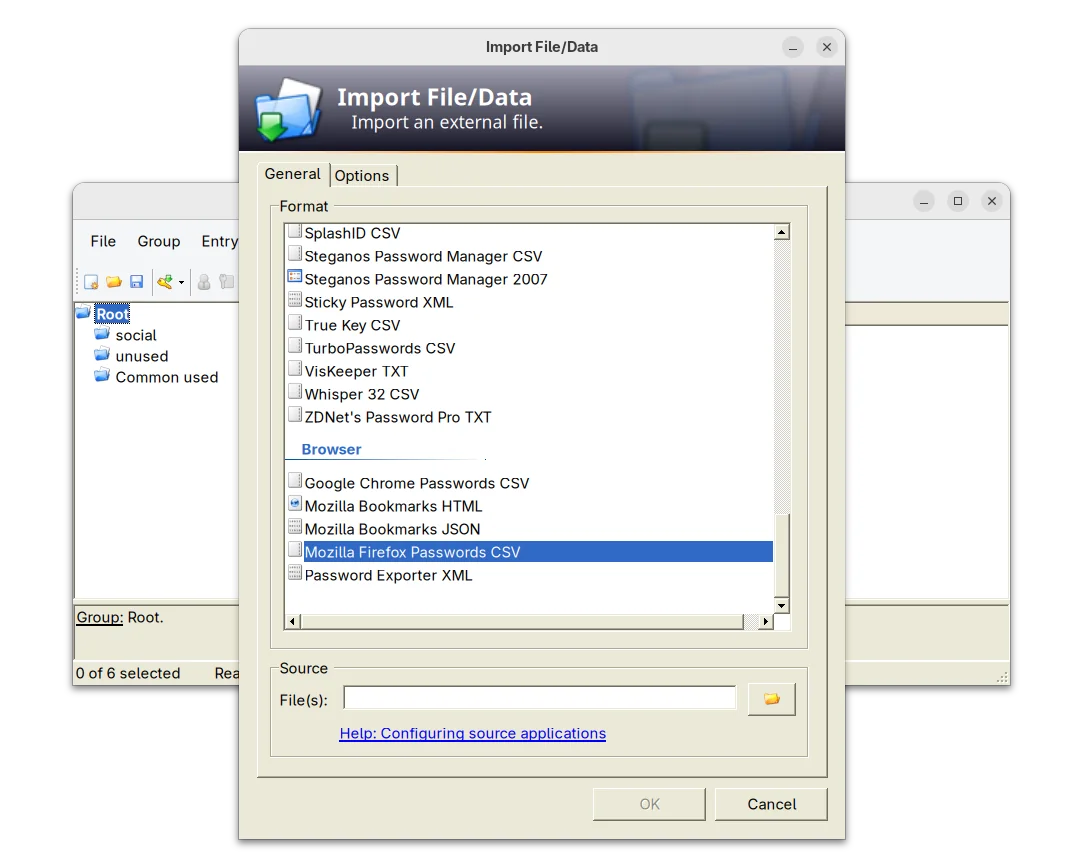
The new release of this free open-source password manager application added support importing .csv passwords exported from Mozilla Firefox web browser.

KeePass 2.60 support importing Firefox Password CSV

It as well improved Bitwarden JSON support. Now, if the value of a totp field consists only of Base32 characters, it is now treated as a shared secret for time-based one-time password generation.

The release also improved the app user interface. The quick search box now search for group paths, while a toggle option is available in Tools -> Options -> Interface (1) to turn on/off the feature.

The drop-down box for quick search box, which can be opened by Alt + Down now supports keyboard navigation and selection. However, due to bug, the auto-completion of the quick search box is disabled.

For users who have many groups, the release now supports displaying ‘Group Path’ and ‘Group Name’ list columns in the main entry. Though, the feature is not enabled by default. User may enable them by going to ‘View’ → ‘Configure Columns’.

KeePass 2.60 also improved the app user experience for keyboard users. It now supports pressing Ctrl+A to select all items in the list views, and Delete to delete selected items in list views that have a corresponding ‘Delete’ button.

And, for those who use Ctrl+Alt+A for the global auto-type hot key, while French Standard AZERTY keyboard layout is active, it shows a warning dialog telling the conflict along with a ‘More information’ link.

Other changes in the release include:

  • Add empty state messages for list views.
  • Support generating native ARM64 images (NGen) on ARM64 systems for ShInstUtil.
  • Save configuration immediately when shutting down the system.
  • The value of a ‘File/URL’ or ‘Key file’ field of a trigger event/condition/action may now optionally be enclosed in double quotation marks.
  • Various other improvements. See the release note for details.

Install KeePass 2.60

The official installer and portable zip archive for Windows are available to download in its website along with KeePass 1.x and source tarball.

For choice, you may go directly to this sourceforge page download page.

For Ubuntu user, there’s no official package for the new release so far. Besides building from source, I’ve uploaded the package into this unofficial PPA for Ubuntu 20.04, Ubuntu 22.04, Ubuntu 24.04, 25.04 and 25.10.

You may press Ctrl+Alt+T on keyboard to open terminal, then run the commands below one by one to add PPA & install the password manager:

sudo add-apt-repository ppa:ubuntuhandbook1/keepass2
sudo apt update
sudo apt install keepass2

Uninstall:

To uninstall the PPA package, run command:

sudo apt remove keepass2

And, remove the PPA either by running the command below in terminal:

sudo add-apt-repository --remove ppa:ubuntuhandbook1/keepass2

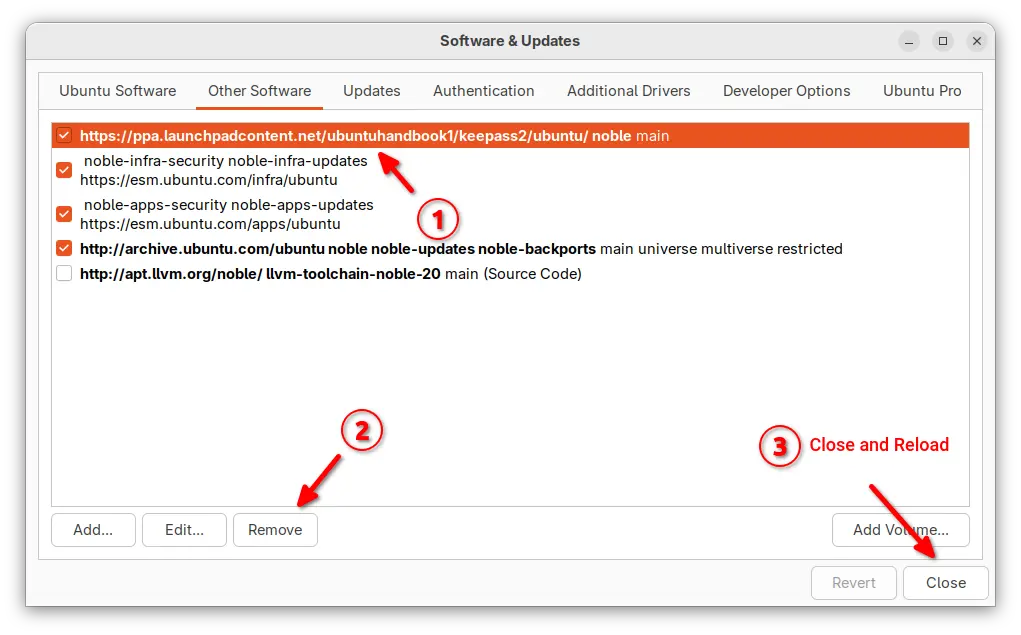
Or, launch “Software & Updates” and remove the source line under Other Software tab.

The Release Schedule for Ubuntu 26.04 LTS is Out

By:Ji m
2 November 2025 at 18:43

Ubuntu team announced the release schedule for next Ubuntu 26.04 LTS few days ago!

Ubuntu 26.04, code-name Resolute Raccoon, is the next Long Term Support (LTS) release that will have 5-year standard support until 2031 and another 5 year Expanded Security Maintenance (ESM) support via Ubuntu Pro.

image by Alexas_Fotos from pixabay.com

If everything goes well, 26.04 will feature GNOME 50 and perhaps Kernel 6.20 (if not switch to version 7.x) according to the Linux Kernel release history.

Besides Kernel and default Desktop environment, the next LTS will probably use Python 3.14 as default, and include Golang 1.25, binutils 2.46, and GCC 16 and other toolkit updates.

And the official Ubuntu 26.04 release note in Ubuntu Discourse has been created. Where you may keep an eye for the latest changes.

Ubuntu 26.04 Release Schedule:

Ubuntu 26.04 is planned to be released on April 23, 2026. From now on, there will be following events according to the release schedule.

February 19, 2026 Feature Freeze,  Debian Import Freeze
March 12, 2026 User Interface Freeze
March 19, 2026 Kernel Feature Freeze, Documentation String Freeze
March 23, 2026 Beta Freeze, Hardware Enablement Freeze
March 26, 2026 Beta (mandatory)
April 09, 2026 Kernel Freeze
April 16, 2026 Final Freeze, Release Candidate
April 23, 2026 Final Release

As you may know, Ubuntu introduced monthly Snapshot releases when 25.10 was in development. It’s somehow NOT included in this release schedule.

NOTE: Ubuntu MAY change the schedule as time goes on. See this page for the official one.

GNOME, the default desktop environment, is developed by another team. It’s also has a release schedule for the next 50 version. See the table below:

January 03, 2026 Gnome 50 Alpha
January 31, 2026 Gnome 50 Beta
February 28, 2026 Gnome 50 RC
March 14, 2026 Gnome 50.0
April 11, 2026 Gnome 50.1

Also, the schedule may change as time goes on. See this page for the official calendar.

Shotcut 25.10 added Text to Speech & Image/Video from HTML Support

By:Ji m
2 November 2025 at 01:11

After 2 months of development, the Shotcut video editor released new 25.10 version yesterday.

The new release of this free open-source Qt and MLT based video editor introduced new option to generate image or video from HTML, Text to Speech, and some other exciting new features.

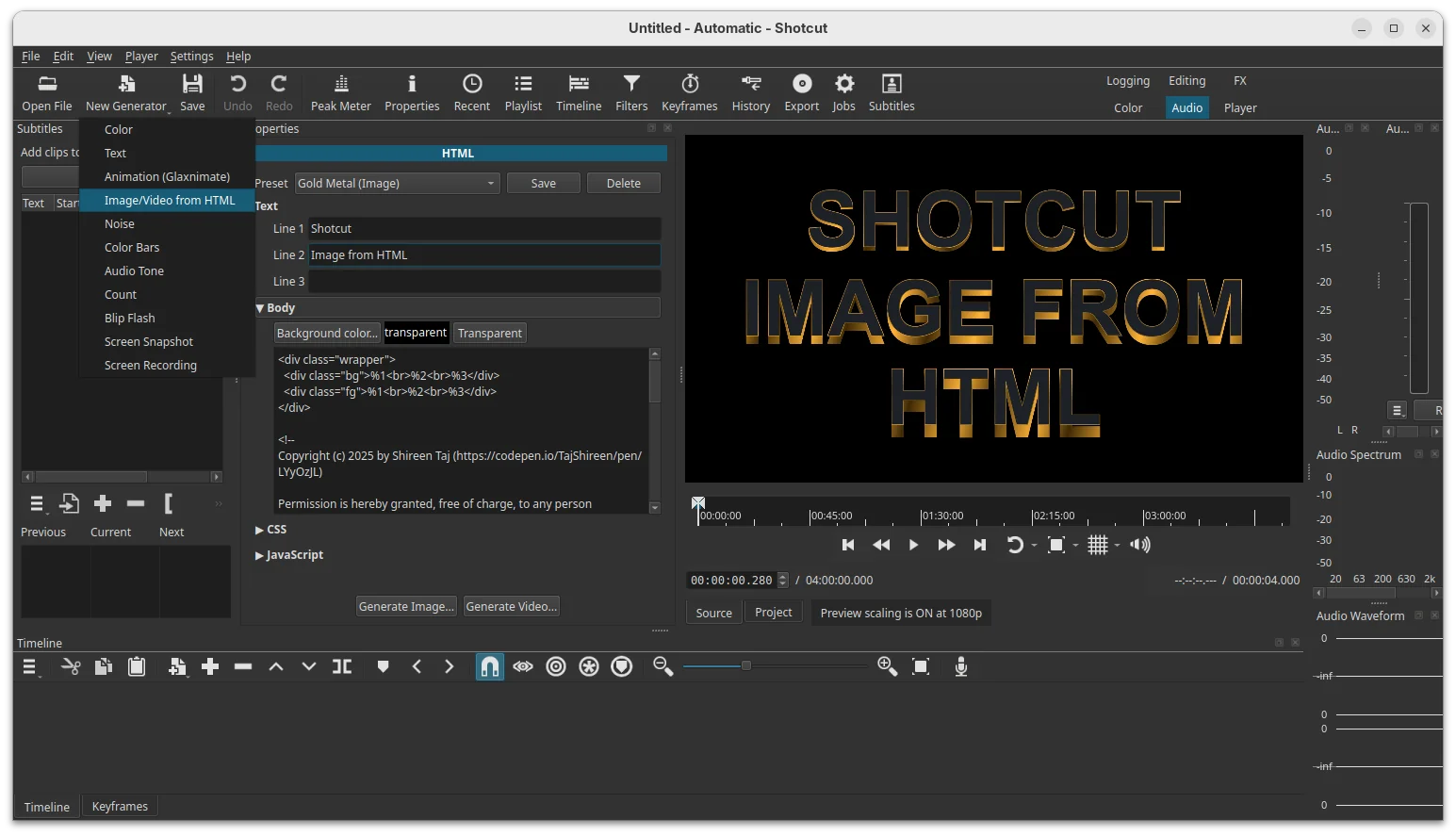
Under File -> New or New Generator menu, there’s a new Image/Video from HTML option, that can generate image or video through custom HTML code, with transparent background by default, though the video is limited to 15 frame-per-second for performance reasons.

The feature depends on Google Chrome or Chromium web browser. You need to specify path to the executable of either browser first time you launch the option.

It offers some presets that also demonstrate a template with up to 3 lines of text. And, it automatically opens the generated image or video in the Source viewer so that you can preview and revise it if need. However, there’s neither preprocessors nor WebGL or embedded video support.

In addition, the release added New -> Screen Snapshot and Screen Recording options to generate image or video from your screen. And, the recording so far can be only ended by selecting “Stop This Job” from context menu of the job.

Shotcut 25.10 also added Text to Speech support to Notes and Subtitles. The quality with subtitles is heavily dependent upon the timing and duration of each item. And, it requires installing a docker image which takes 13.2 GB space in my case in Ubuntu.

Text to Speech needs installing a docker image as plugin

The release also introduced new Text: Typewriter video filter, that can insert text to your video clip and display them line by line, word by word, or character by character with typing cursor animation.

Other changes in the release include:

  • Add Typewriter option to “New Generator -> Text” dialog.
  • Add “Open with” and “Reload” buttons to properties.
  • Upgrade to FFmpeg 8.0.
  • Raise minimum glibc requirement to version 2.35 (Ubuntu 22.04 and higher).

Get Shotcut 25.10

The official release note and installer packages for Linux, Windows, macOS are available to download in Github releases page. Along with the source tarball they are available via the link below:

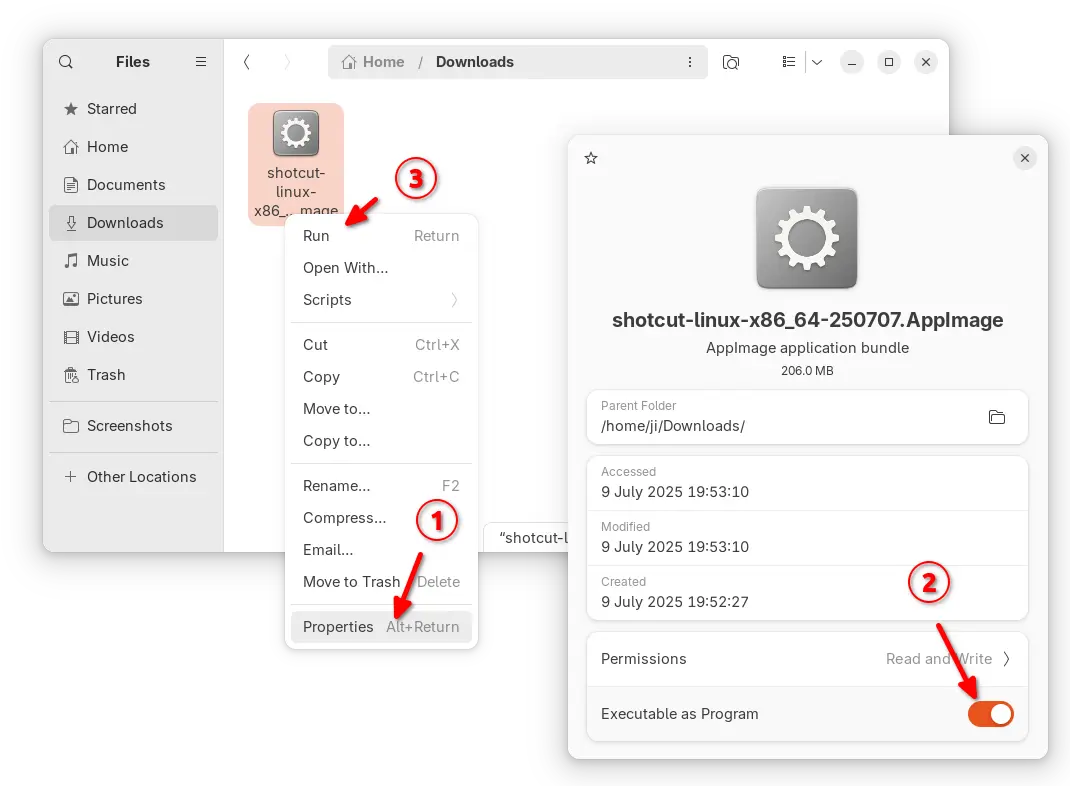
For Linux, either download the AppImage (for Intel/AMD). Then add executable permission from its Properties dialog, and click Run the package to launch the video editor.

NOTE: Ubuntu since 22.04 does NOT support AppImage out-of-the-box. Press Ctrl+Alt+T to open terminal and run command to install the required library first:

sudo apt install libfuse2

Or, download the Linux tarball “shotcut-linux-x86_64-25.10.31.txz“, extract and run the executable file to launch the video editor, though you need to manually set the run-time libraries environment variable.

For choice, there are also official Flatpak package in flathub.org, which also support ARM64 platform, and snap package in App Center (or Ubuntu Software), though both run in sandbox environment!

Ubuntu Announced the 25.04 to 25.10 Upgrade Channel

By:Ji m
31 October 2025 at 19:50

After 3 weeks of the release date, Ubuntu finally opened the channel for upgrading from Ubuntu 25.04 to Ubuntu 25.10.

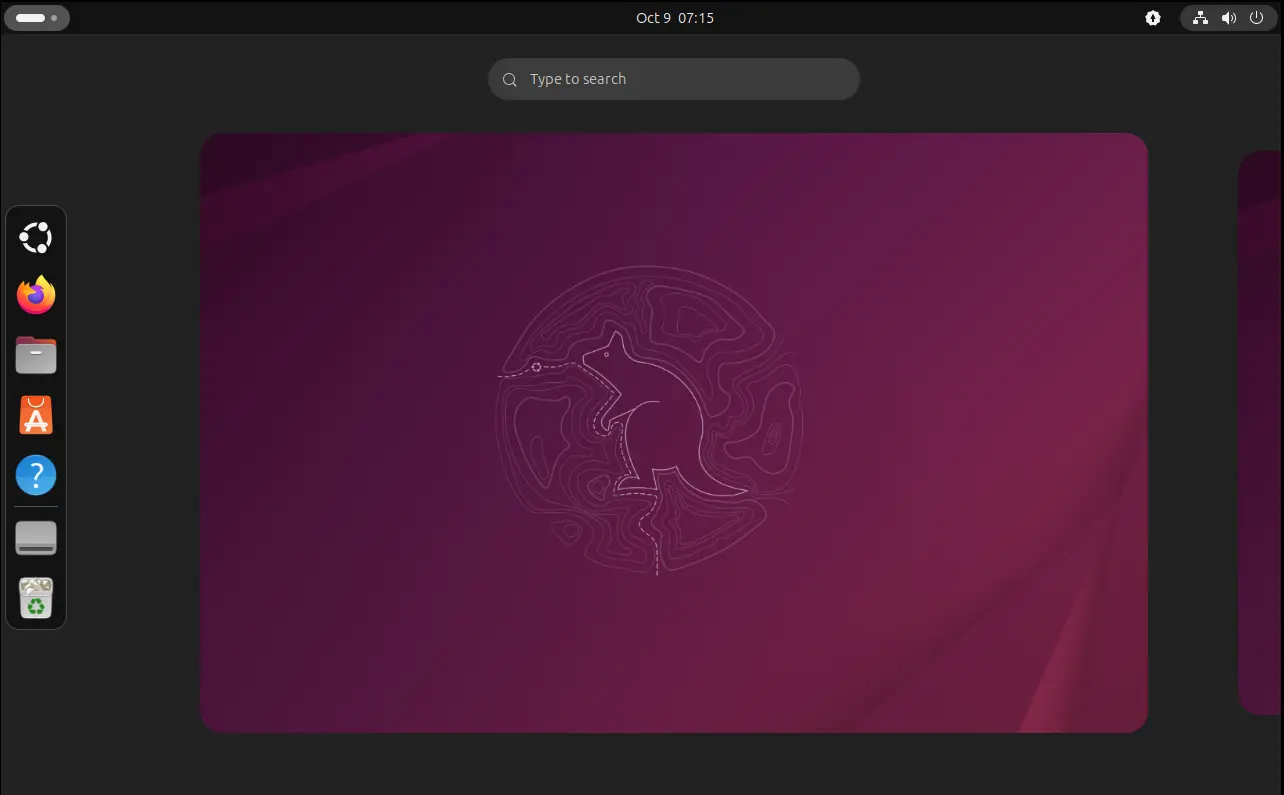
Ubuntu 25.10, code-name Questing Quokka, is the latest version that was released on October 9th. It features 9 month support until July 2026, Linux Kernel 6.17, GNOME Desktop 49, new Rust-based core utilities, new Ptyxis terminal emulator, and Loupe image viewer.

It as well removed the classic Xorg session and dropped “Startup Applications” tool. See Ubuntu 25.10 release note for more details.

Just one day ago, Ubuntu finally announced the upgrade channel for 25.04, while Ubuntu 24.04 may also upgrade to 25.04, then to 25.10.

We’re happy to announce that the upgrades to Ubuntu 25.10 (Questing Quokka) are now live!

This cycle also marks the arrival of amd64v3 as an architecture variant — shiny, fast, and ready for testing. If you haven’t already, I’d encourage reading the Discourse post for the full story:

https://discourse.ubuntu.com/t/introducing-architecture-variants-amd64v3-now-available-in-ubuntu-25-10/71312

Happy upgrading, and may your Quokka quest be bug-free!

Before getting started

Ubuntu 25.04 support will end in January 2026. If you decide to upgrade to Ubuntu 25.10, then it’s better to do following steps before getting started:

  • Backup, backup, backup! Backup your important data before upgrading to 25.10, as the process might fail due to unknown bugs or potential interruption.
  • Backup the data of Xorg only applications, as 25.10 dropped Gnome on Xorg, unless you use other desktop environments (e.g., XFCE4, MATE) or switch to XUbuntu, Ubuntu MATE, etc flavors.
  • (optional) Uninstall unused apps, which can speed up the upgrade process by downloading less packages.
  • For laptops, connect to power supply in case of running out of battery.

Upgrade from 25.04 to 25.10

Ubuntu 25.04 now should automatically pop-up a dialog saying that Ubuntu 25.10 upgrade is available, with buttons to accept or refuse.

If you miss that dialog, then do following steps to manually start the upgrading process.

1. First launch Software & Updates, under “Updates” tab, make sure you set notify for any new Ubuntu version.

For Ubuntu server, edit /etc/update-manager/release-upgrades instead and set Prompt=normal

2. Next, launch Software Updater and install all the available updates. And, restart your computer if it asks.

For server with GUI, run the command below instead:

sudo apt update && sudo apt full-upgrade

3. Finally, either launch Software Updater again and click the “Upgrade” button.

Or, run the command below to start the upgrade process from terminal:

do-release-upgrade

then follow the wizard or terminal output to upgrade your Ubuntu.

NOTE: Don’t go far away from your computer. It will ask few questions during the upgrade process, e.g., whether to keep obsolete packages or not. And, when everything’s done well, it will ask you restart computer to complete.

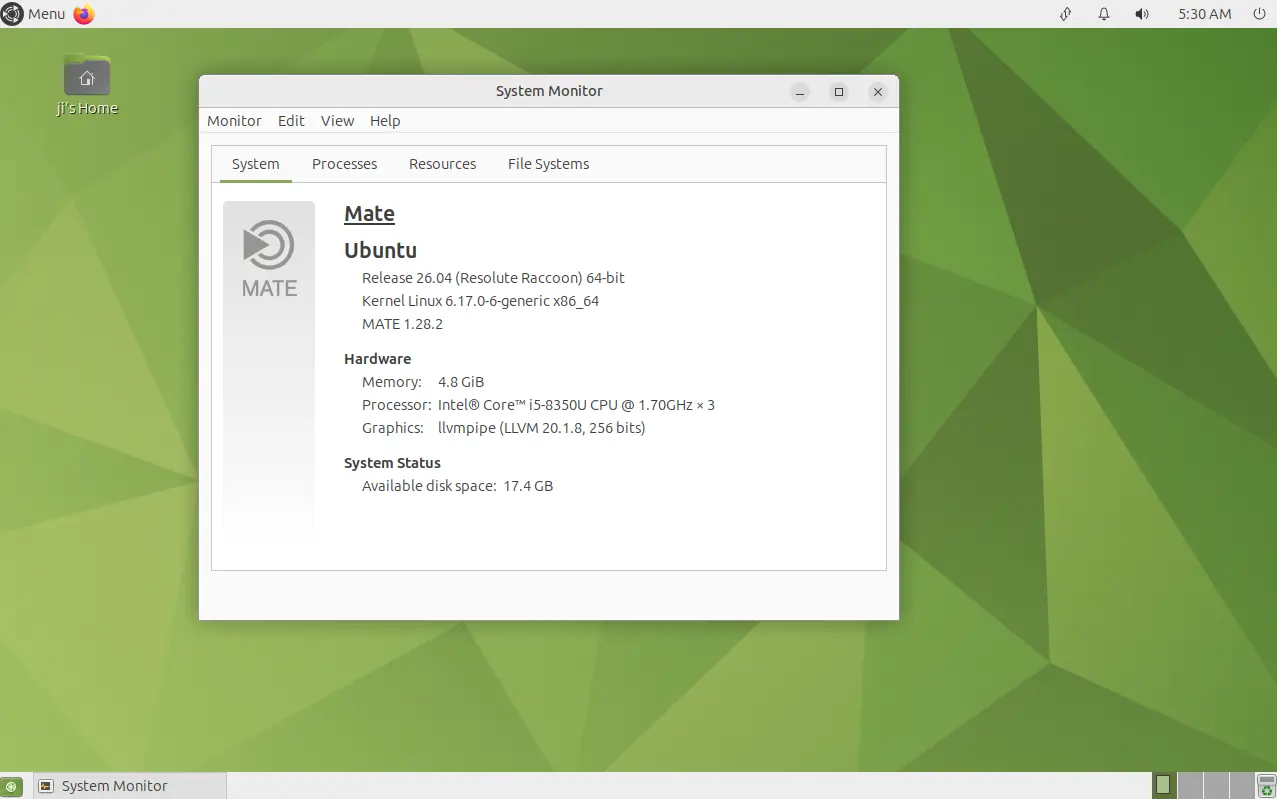
MATE 1.28 Finally Coming to Ubuntu 26.04 & Debian Forky

By:Ji m
31 October 2025 at 00:12

For MATE users, Debian and Ubuntu are finally migrating this desktop environment to version 1.28 for Debian Testing (Forky) and Ubuntu 26.04 LTS.

MATE, the continuation of GNOME 2, is a popular lightweight desktop environment for Linux. The latest version is MATE 1.28 which was released more than a year and a half ago in February 2024.

MATE 1.28 in Ubuntu MATE 26.04

What’s New in MATE 1.28

In case you don’t know or forget about the release, MATE 1.28 introduced experimental Wayland session using Wayfire.

It updated several core components, such as file manager, mate-applets, and control center, to work seamlessly with Wayland. And, it updated the codebase to ensure compatibility with the latest GTK versions.

Other changes include:

  • Support reading epub via Atril document viewer.
  • Use unar instead of cpio for CPIO archives, and support unrar-free for the archive manager.
  • Add new Quickhighlight plugin for pluma text editor.
  • Add new plugin to view the exact properties of media files in file manager.
  • Mouse middle-click support for mate-indicator-applet.
  • Double click to set mate-terminal tab title.
  • Add OSC 8 hyperlinks support for mate terminal.

For more about MATE 1.28, see the official release note.

Why MATE 1.28 is NOT available in current Ubuntu & Debian 13 Trixie

The MATE desktop packages for Debian and Ubuntu in the past 10 years are mostly maintained by Mike Gabriel.

However, due to lack of time and two problems he said in the MATE 1.28, the migration delayed:

The problem is indeed an ENOTIME (haven’t had time for it) early enough before the trixie freeze.

I started packaging stuff, but noticed two problems:

* mate-desktop (libmate-desktop-…) removed symbols without an SOVERSION_MAJOR bump. I started bringing back the removed symbols but that was not a trivial task and I ended up discouraged as this is a major upstream flaw of the 1.28 version of libmate-desktop and it needs to be fixed there.
* mate-settings-daemon’s behaviour on DBus is broken, breaking e.g. arctica-greeter

So, Trixie will come with MATE 1.26 and I will put some effort into bumping it to 1.28 after the trixie release.

Unless someone else steps up and pushes MATE 1.28 in (but please resolve the above issues sanely). If it needs more feedback and details, I can provide them.

Thankfully, Jeremy Bícha took up the task in last week and submitted MATE desktop 1.28 into Debian unstable. Then, it’s migrated to Debian Forky and backported for Ubuntu 26.04 LTS (so far available as pre-release updates) few days ago.

NOTE: So far only few of MATE 1.28 components are migrated. As 26.04 is in very early stage, things may change! See this page to track the mate-desktop package for Debian, and see the package for Ubuntu.

Task Manager App Resources 1.9.0 Added Intel Xe Driver Support

By:Ji m
30 October 2025 at 00:19

Resources, the modern task manager and system monitor app for Linux desktop, released new 1.9.0 version few days ago.

The new release of this free open-source application added more languages support, more display options, bug-fixes and improvements.

Resources is a GNOME application allowing to monitor and control running processes and apps, and check the utilization of your system resources.

Like Windows’ task manager app, it provides a modern interface to monitor the memory, CPU, and GPU usage for each running app/process, along with option to kill or halt the selected task.

It as well has a “Show App/Process Information” option in bottom, to display more, such as swap, drive read/write, video memory/encoder/decoder usage, as well as app ID, running time, etc properties.

In the new 1.9.0 release, the process view page supports “Commandline” column to display command for each process, though you need to enable the feature in Preference dialog.

For Intel users, the release also added the Intel xe driver support. It’s the modern replacement for the older i915 driver, that was introduced since Linux Kernel 6.8, and may be enabled by default for the newest hardware with Kernel 6.17.

With the new xe driver, the app supports reading the GPU frequency, power and temperature for Intel GPUs.

For Wi-Fi devices, the release now displays the Link information about the connected network, Wi-Fi 5 or Wi-Fi 6, 5 GHz or 2.4 GHz, as well as the maximum send/receive speed.

To display Link information, the app needs “network access” permission for Flatpak package, though it does not connect to the Internet in any way. And, if you don’t need this information, just disable “network access”.

Other changes in the release include:

  • Add Bulgarian, Finnish, Hebrew and Slovenian translations.
  • Halt graphical updates when it is not in view to save on power.
  • Show uptime in CPU view..
  • Add PCIe 7.0 and PCIe 8.0 (though not released) devices support.
  • And more, see official release note for details.

How to Install Resources system monitor and task manager

Resources is available to install in most Linux on amd64 and arm64 platforms through Flatpak package which runs in sandbox environment.

Linux Mint and Fedora Workstation may simply search & install the package from either Software Manager or GNOME Software.

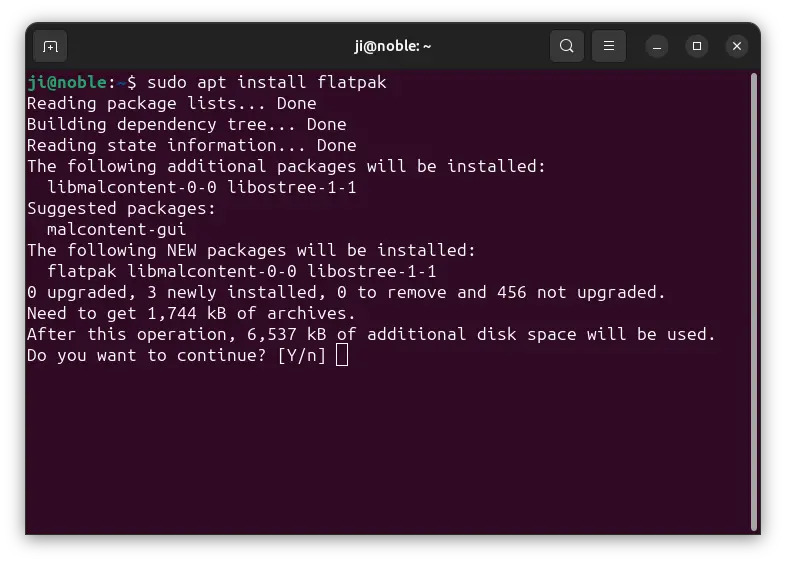
While Debian, Ubuntu, and other Linux can install the package by following the steps below one by one:

  • First, press Ctrl+Alt+T to open terminal. When it opens, run command to install Flatpak daemon:
    sudo apt install flatpak

    For other Linux, see the official setup guide to enable Flatpak support.

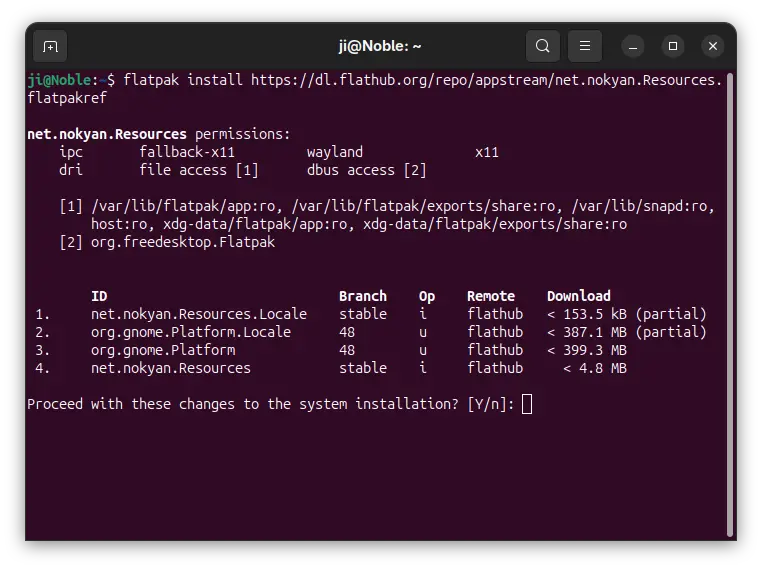
  • Then, run command to install Resources flatpak package:
    flatpak install https://dl.flathub.org/repo/appstream/net.nokyan.Resources.flatpakref

After installed the package, either search for and launch from GNOME Overview (log out and back in of app icon not visible), or run the command below to start from terminal:

flatpak run net.nokyan.Resources

And, you may replace run in last command with update to check & install updates.

Uninstall Resources

To uninstall the system monitor app, use command:

flatpak uninstall --delete-data net.nokyan.Resources

Also run flatpak uninstall --unused to remove useless Flatpak run-time libraries to free up some disk space.

Ubuntu Announced How to Fix for 25.10 Automatic Updates

By:Ji m
28 October 2025 at 00:40

For users of Ubuntu 25.10 Questing Quokka, Ubuntu team announced how to fix the issue that automatically check of updates not working in desktop, server, cloud, and container.

As you may know, Ubuntu replaced GNU Core Utilities with Rust in 25.10. Most core command line tools, such as chroot, dd, du, echo, ls, mkdir, pwd, sudo, who, and more, are now the “memory safe” Rust-based utilities, though for end users, they can be used just like before.

Ubuntu 25.10 switched to Rust based core-utils

This Rust rewritten coreutils so far has many issues that break things in Ubuntu 25.10. And, Ubuntu and upstream developer team keep working to fix them.

As far as I know, Grub bootloader did not (fixed now) find and load dual- or multi-boot operating systems, who command does not show who is logged in, stty command seems to return invalid or non-standard argument format that breaks interactive terminal applications.

Ubuntu by default checks and installs security updates automatically, which is useful to keep your system (especially for public server) safe.

Ubuntu by default automatically check & install security updates

However, due to bug in date command, some Ubuntu 25.10 systems may be unable to automatically check for available. It’s announced few days ago:

Due to a now-resolved bug in the date command, some Ubuntu 25.10 systems have been unable to automatically check for available software updates. Affected machines include cloud deployments, container images, Ubuntu Desktop and Ubuntu Server installs.

As mentioned in the announcement, the issue may affect users who have rust-coreutils <=0.2.2-0ubuntu2. And, it can be easily fixed by installing/updating to rust-coreutils 0.2.2-0ubuntu2.1 or later.

  • For Ubuntu Desktop, simply launch “Software Updater“, then install all the available updates.
  • If you’re OK with Linux commands, then run the command below to refresh cache and update the package:
    sudo apt install --update rust-coreutils

If you found other issues about core utils, then you may either report to this Ubuntu page or the upstream Github page.

And, this discourse thread provides the choice to revert back the old GNU based core-utils for those who need it.

BleachBit 5.0.2 added Pacman and Disabled Snap Support

By:Ji m
27 October 2025 at 21:32

BleachBit, the CCleaner alternative system cleaner app, released new 5.0.2 in last week with support for cleaning more app caches.

BleachBit is a free open-source application for Linux and Windows that can free up disk space by deleting cookies, cleaning internet history, discarding junks and removing logs.

It support cleaning thousands of applications, such as Firefox, Chrome/Chromium, Opera, and more, removing apt, bash, and system caches, shredding files to prevent recovery, wiping free disk space, and vacuuming Firefox to improve speed without removing any data.

The last major 5.0.0 version, which was released in May, added cleaning more apps support, including Librewolf and Microsoft Edge for Linux, beta and snap versions of Discard.

In the new 5.0.2 version, it now supports cleaning caches for pacman, the default package manager for Arch and Manjaro etc Linux Distributions.

For Ubuntu and other Linux have apps installed as snap packages, the release also added support removing snap packages that have been disabled. It will trigger native snap remove command running silently in background to remove all disabled snaps, though it was not working good in my case as it stuck at Sl sleeping status waiting for something.

Besides that, the new version also updated its UI. Like web browser, it now supports Ctrl+Scroll or Ctrl + +/- keyboard shortcuts to change text font size, and F11 to toggle full-screen mode.

Other changes are mostly bug-fixes and translation updates. They include:

  • Fix Firefox vacuuming error for version 140 and later.
  • Improve KDE stability by skipping KDE files when leaning system cache.
  • Improve compatibility in headless and restricted environments such as crontab.
  • Add description for Exaile music player, and update description for Audacious.
  • Add new Gaeilge and සිංහල translations, and update 68 languages.
  • Add packages for AlmaLinux, Debian 13, Linux Mint Zara, and openSUSE Leap 15.6 and 16.0.

In addition, the release uses a newly renewed digital certificate that may cause temporary security warnings from antivirus software in Windows. For more, see the official release note.

Get BleachBit 5.0.2

BleachBit provides official packages for Windows and Linux which are available to download via the link below:

For Linux, they are .rpm packages for Fedora, openSUSE, etc distributions, and .deb for Debian and Ubuntu based systems. And most desktop software app now support installing them.

SuperTuxKart 1.5 Released! New Skins, Egg Hunts, & Supersampling

By:Ji m
23 October 2025 at 21:44

After almost three years of development, SuperTuxKart kart racing game finally released new major 1.5 version few days ago.

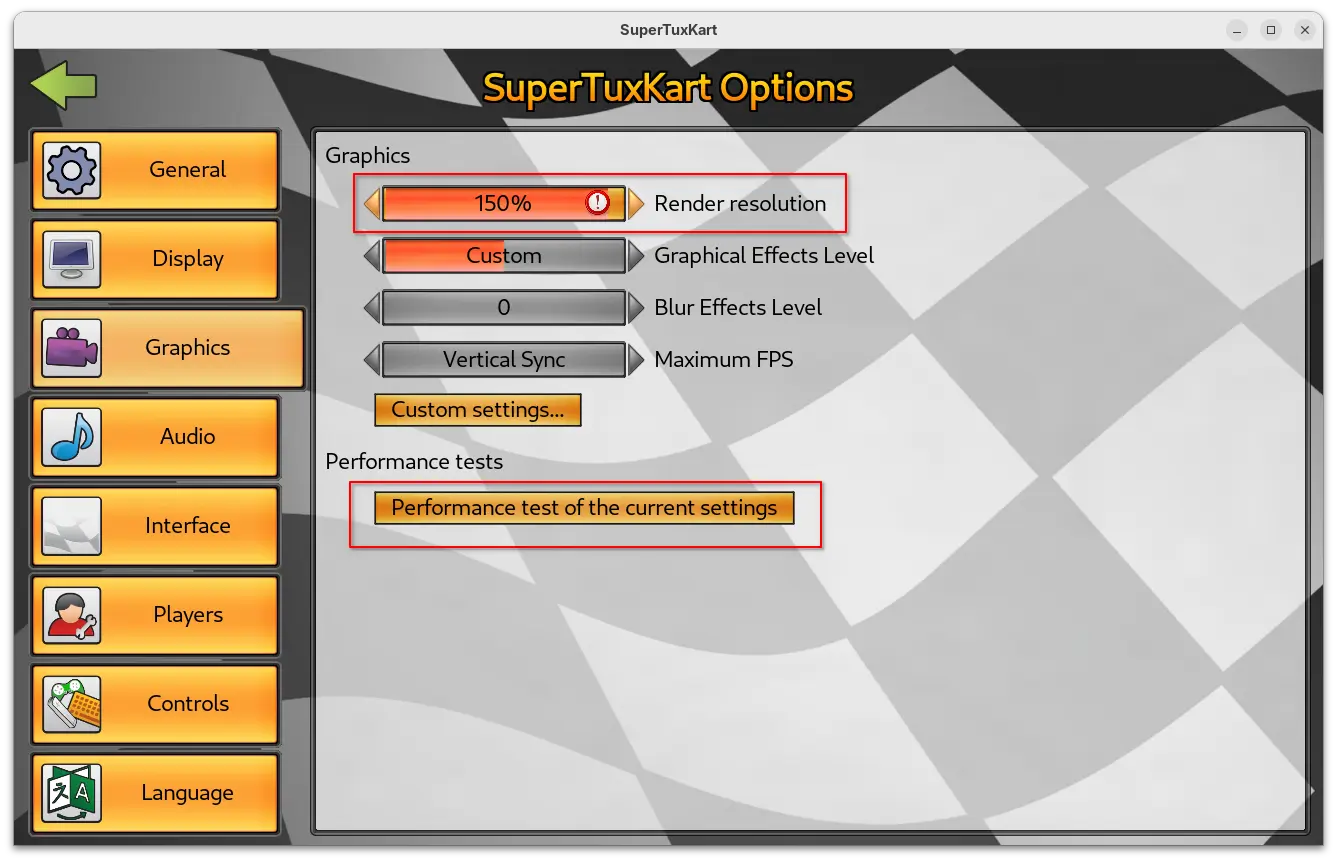
The new release of this game introduced Supersampling Anti-Aliasing (SSAA) support. Meaning that it can render game resolution higher than current screen size (even over maximum display resolution). It greatly improved the graphics quality, which is however extremely heavy that may lower frame rate.

You may enable this feature by going to “Graphics” setting page and set render resolution higher than 100%.

As you can see in the screenshot above, the setting page also added new “Performance test of the current settings” benchmark button. By clicking on the option, it starts a self-driving game with single loop track, and prints the performance test results, such as FPS, duration, and your current settings when it ends.

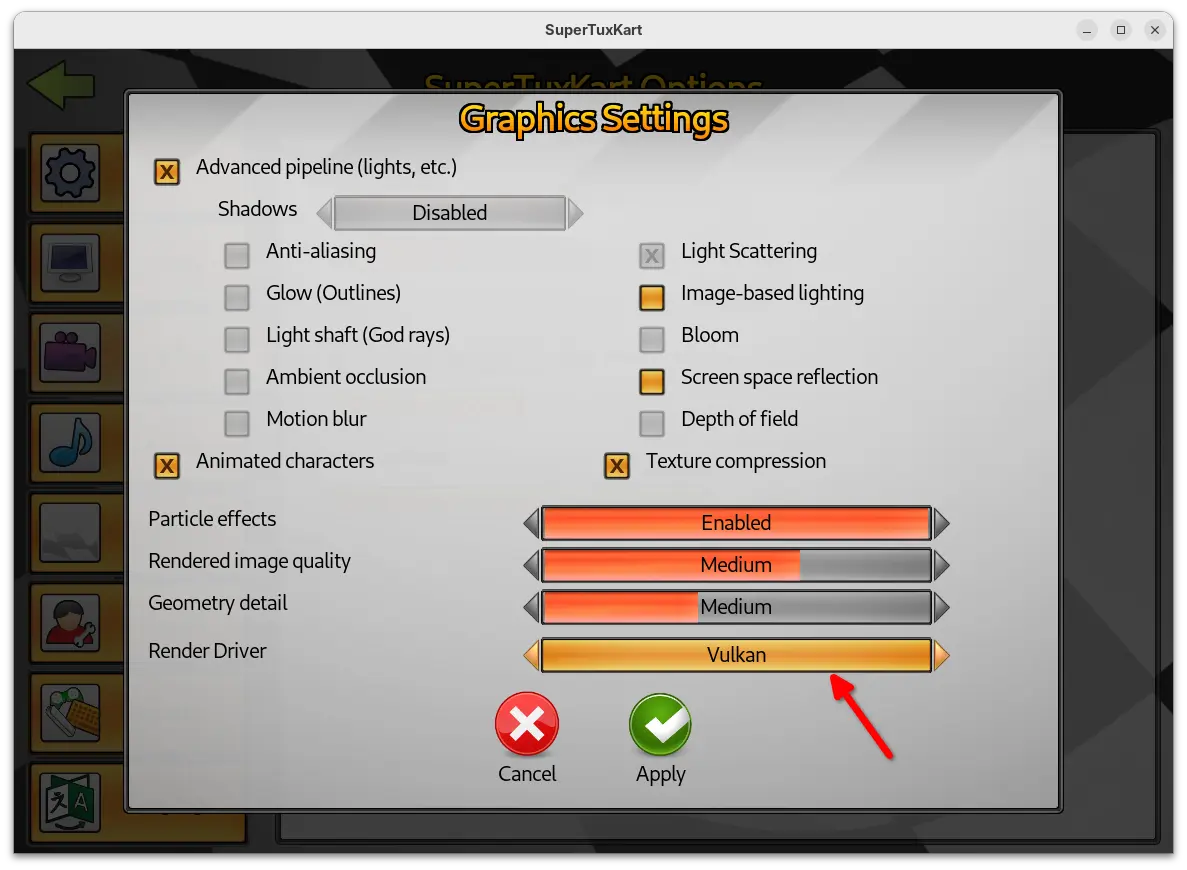
Besides that, the Vulkan support now goes stable. It added spotlight support and significant updates to the Vulkan renderer. And, user can now go to “Custom settings…” under Graphics to easily switch the render driver to Vulkan.

SuperTuxKart 1.5 as well improved level of details (LoD) and shadow mapping logic, which significantly reduce the occurrence of the sudden or abrupt appearance of game elements. And, it improved sound scale allowing headphone users to easily pick the ideal sound level.

For the UI, the release added 6 new skins. The previous skins are now grouped as Classic with 5 variants, while a new Desert variant is added in this release. Cartoon theme now has five new variants, and each of them come with a background picture showing a scene from one of STK’s tracks.

Other changes in the release include three new egg hunts in Black Forest, Gran Paradisio Island and The Old Mine, and three new official fields in soccer mode. They are Oasis and XR-4R3N4 by CrystalDaEevee, and Hole Drop by CrystalDaEevee & Sven Andreas Belting.

There are as well following changes in the release:

  • Move full-screen toogle, resoluation, and camera options into new Display setting page.
  • Add “Screen space reflection” setting option.
  • Redesign the game mode and track selection page, reducing the need for scrolling.
  • Add ability to mark tracks and karts as favorites.
  • Add new nicer spawn animation for Parachute and Bubblegums.
  • New spotlight lighting effect for karts in night tracks.
  • New music for Las Dunas Arena and Las Dunas Soccer.

For more about the release, see the official announcement.

How to Install SuperTuxKart 1.5 in Ubuntu

The new release packages as well as the source code are available to download via the link below:

For Linux, it’s a portable tarball. Download and decompress it, then run the “run_game.sh” script to start the game.

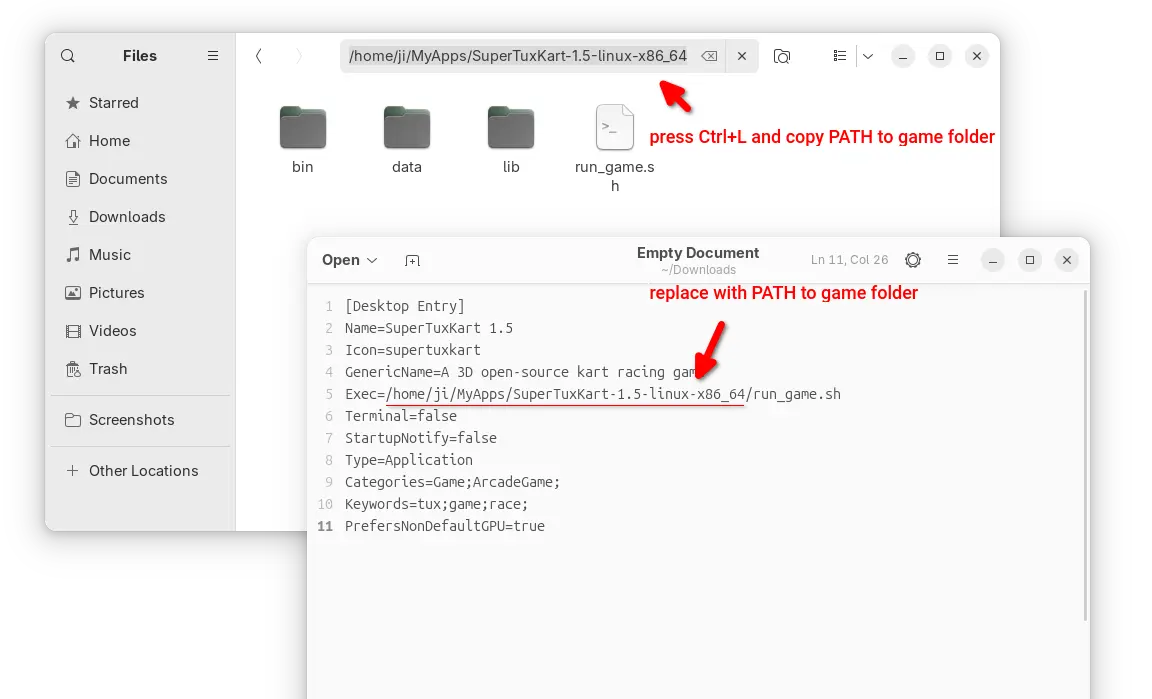
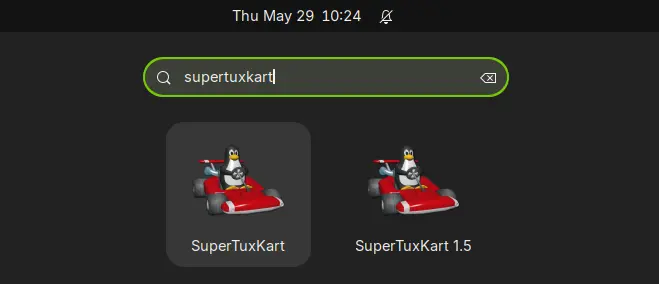
If you want to launch the game from app launcher (e.g., Gnome App Grid, overview search), then open Text Editor, create an empty document, then paste the following lines:

[Desktop Entry]
Name=SuperTuxKart 1.5
Icon=supertuxkart
GenericName=A 3D open-source kart racing game
Exec=/home/ji/MyApps/SuperTuxKart-1.5-linux-x86_64/run_game.sh
Terminal=false
StartupNotify=false
Type=Application
Categories=Game;ArcadeGame;
Keywords=tux;game;race;
PrefersNonDefaultGPU=true

Here you need to replace the game PATH that’s in bold, according to where you saved the folder to.

In my case, I created “MyApps” folder in user home, and put all portable apps/games folders into there.

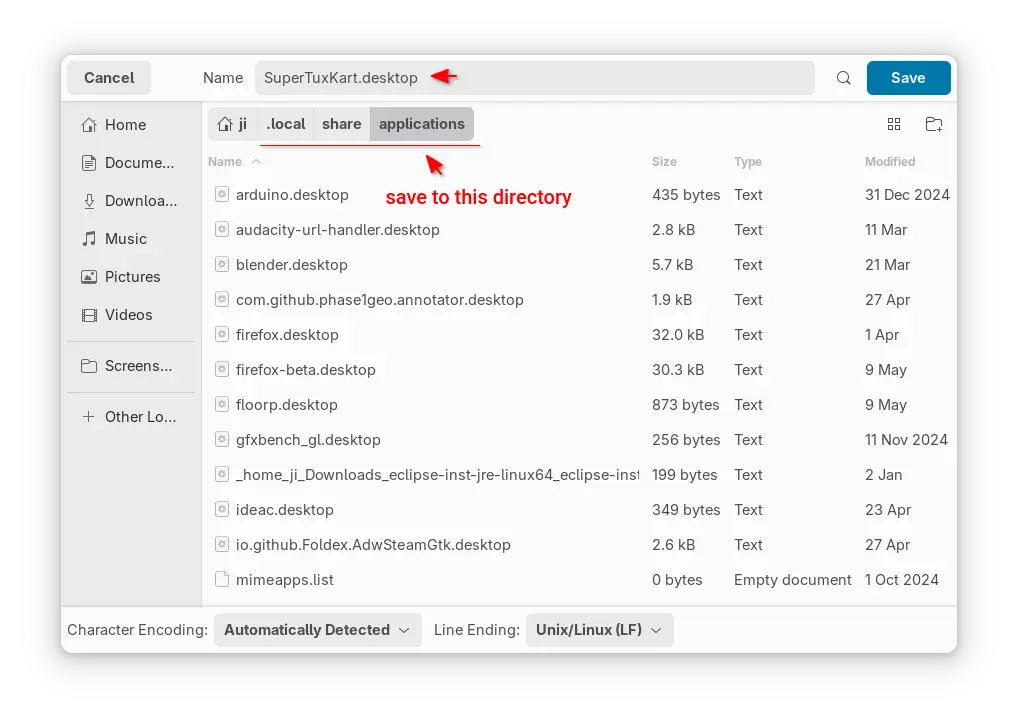
After that, save the file as “supertuxkart.desktop” into .local/share/applications directory. NOTE: .local is hidden by default, press Ctrl+H in file chooser dialog to view/hide it.

If everything goes well, you’ll be able to launch the game from start menu (or Gnome overview) few moments later.

Note for missing app icon, just grab one from the web, name it as supertuxkart (.PNG or .SVG), finally put it into .local/share/icons directory.

In my case, I have both SuperTuxKart 1.4 installed from system repository, and v1.5 via the Linux tarball. So, I have 2 game icons in launcher, but with different names.

Uninstall:

To uninstall the kart racing game installed via the steps above, simply delete the game folder using file manager.

Then, also delete the supertuxkart.desktop file from .local/share/applications, and delete the icons (if any) from .local/share/icons directory.

KDE Plasma 6.5 Released! How to Install it in KUbuntu 25.10

By:Ji m
23 October 2025 at 00:06

KDE announced the Plasma desktop 6.5 yesterday. See what’s new and how to install guide for (K)Ubuntu 25.10.

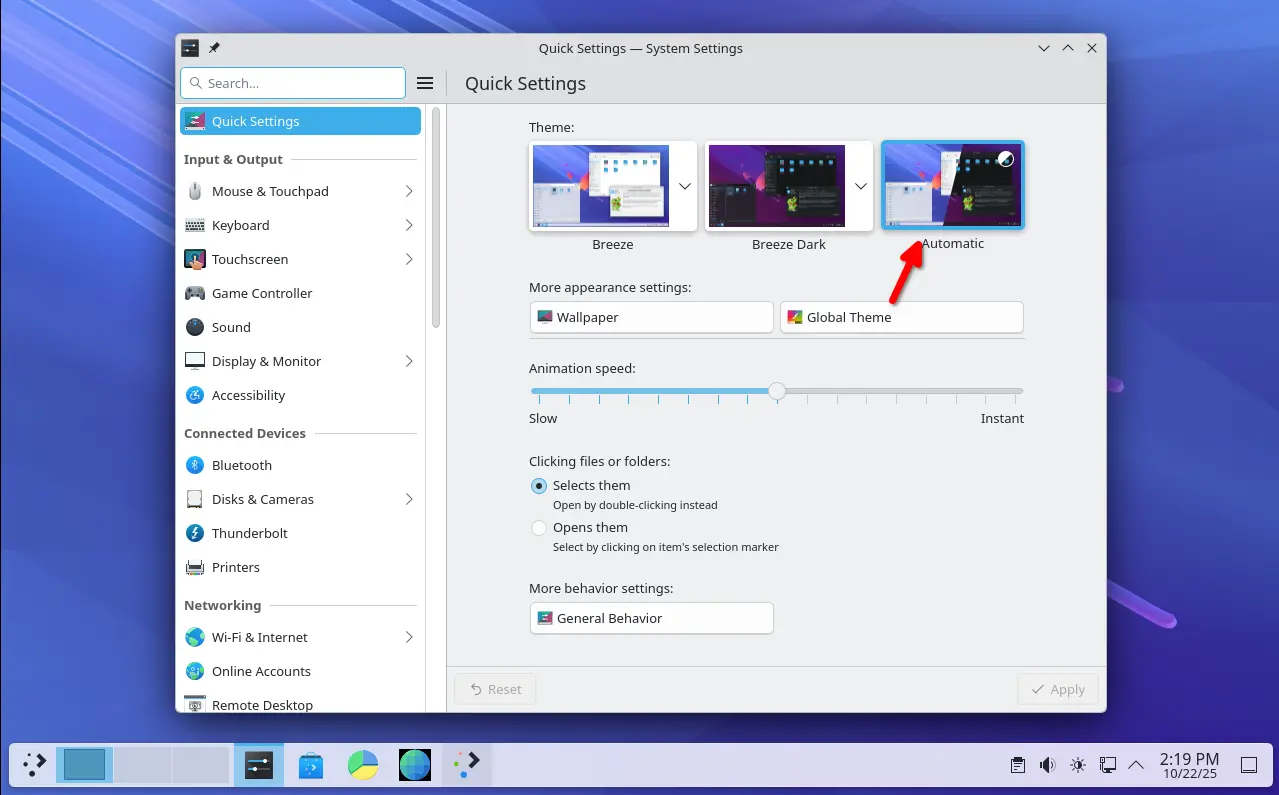
Plasma 6.5 introduced an Automatic theme selection in settings, allowing to automatically switch between light and dark themes according to the time of day.

In the Automatic mode, it uses the light theme for panels, menus, app windows, and wallpaper during the day, and automatically switch them to dark at night. While, user has the choice to set which light or dark theme, and which wallpapers to use.

The new desktop release updated its software app (aka Discover) with support for flatpak+https:// URLs. Meaning that, it allows to click “Install” button in Flathub.org page to automatically open Discover. And, it now can show you hardware drivers available for installation on operating systems supporting this feature.

KRunner, the app launcher, unit converter, calculator, that can be triggered by Alt+F2 or Alt+Space, now supports Fuzzy Search. Meaning even when you misspell an app’s name, it will probably still find it for you.

KRunner Fuzzy Search

The built-in Remote Desktop Protocol (RDP) server in the release now has the ability to share the clipboard. And, it no longer requires to manually create separate remote desktop accounts, as system’s existing user accounts now work as expected.

Zoom & Magnifier effect now has new “Enable text caret tracking” option. With it enabled, it will automatically jump to the position of the text insertion point, when you moving around the screen.

Other changes in Plasma 6.5 include:

  • Rounded window corners (include bottom corners) for default Breeze themes.
  • Add “Pinned clipboard items” feature.
  • Hibernate system from the login screen.
  • Inform when printer’s ink or toner running low or empty.
  • Ability to see missed notifications while you were in Do Not Disturb mode.
  • “Mute Microphone” key or Meta+Mute shortcut mutes all microphones rather than just the active one.
  • Configure rotary dials and touch rings on your drawing tablet in System Settings -> Drawing Tablet
  • Add general Application Permissions page to manage app (include Flatpak apps) permissions.
  • Add more info about game controllers in System Settings’ Game Controller page.
  • Orca screen reader now reads out changes to the Caps Lock state.
  • Show a system notification when plug in a device.
  • Ability to re-order virtual desktops from the Pager widget (Wayland only).
  • Experimental support for Wayland picture-in-picture protocol.
  • Add “overlay planes” support for compatible GPU.

For more about it, see the official release note in this page.

Install Plasma 6.5 in (K)Ubuntu 25.10

Arch Linux has made the Plasma 6.5 into its Extra-Testing repository.

For KUbuntu 25.10, the official Kubuntu Backports PPA has been updated with Plasma Desktop 6.5 along with most recent KDE Gear 25.08.2.

To get them, simply launch terminal (Konsole) and run the commands below one by one:

  • First, run command to add the Backports PPA:
    sudo add-apt-repository ppa:kubuntu-ppa/backports

    It should automatically update caches after adding PPA. Just in case, you may run sudo apt update to manually refresh cache.

  • Then, install all available updates to upgrade your desktop to Plasma 6.5:
    sudo apt full-upgrade

Ubuntu 25.10 and other flavors without KDE Plasma may also install the desktop environment by running the command below after added the PPA:

sudo apt install kubuntu-desktop

Though this is not a good idea as it might mess your current desktop appearance.

Finally, restart your computer to apply changes.

Uninstall KDE Plasma 6.5:

If you installed the 6.5 version of this desktop environment in KUbuntu 25.10 from PPA, simply open terminal (Konsole) and run command below to uninstall:

sudo apt install ppa-purge && sudo ppa-purge ppa:kubuntu-ppa/backports

This command will install ppa-purge command line tool, and use it to purge the PPA, which also downgrade all the packages installed from it. Also, you need to restart computer to apply changes.

VirtualBox 7.2.4 Released with Initial 6.18 Kernel Support

By:Ji m
22 October 2025 at 19:38

VirtualBox, the free open-source hypervisor software by Oracle, released new 7.2.4 version yesterday.

This is the second maintenance update for the latest 7.2 release series, features only include some bug-fixes, translation updates and minor new features.

First, the new release added initial support for Linux Kernel 6.18, which is still in RC development stage. Meaning it now works for Linux with this mainline kernel, either running as host OS or guest in virtual machine.

The release fixed Linux Guest Additions compile issue for RHEL 9.6 / 9.7 and their derivatives, such as Alma Linux 9. It also fixed Guest Additions installation issue on Windows XP SP2.

It as well fixed the VirtualBox VM Manager crash issue when the Windows host OS was resuming from sleep, and, fixed NAT networking breaks when adding additional port forwarding rule.

Other changes include translation updates with support for Traditional Chinese, Greek, Swedish, Hungarian and Indonesian. For more, see the official ChangeLog page.

Get VirtualBox 7.2.4

The official packages for Linux, Windows, macOS, and Solaris hosts are available to download in its website via the link below:

NOTE: the new release so far does NOT support Ubuntu 25.10 host OS, even the package for 25.04 does not install on it due to dependency issue.

RustDesk Released 1.4.3 with Multi-Monitor for Wayland & Virtual Mouse

By:Ji m
22 October 2025 at 01:20

RustDesk, the popular free open-source remote desktop software, released version 1.4.3 few days ago.

RustDesk is yet another remote desktop solution written in Rust, which works in Linux, Windows, macOS, Android, iOS, and web browser. It features peer-to-peer encrypted connection and self-hosting server support.

RustDesk client in Ubuntu

Like TeamViewer or AnyDesk, simply install the app in both sides of your devices, then you may input the ID to connect to each other. By default, it uses the public server to initialize the connection, but data is typically sent peer-to-peer after the connection is established. While, user may set its own server for faster and more reliable connections.

RustDesk supports VP8, VP9, AV1, and hardware accelerated (if your GPU support it) H264/H265 video codecs, as well as IPv6 p2p connection, UDP hole punching, and more.

The latest 1.4.3 version added virtual mouse along with virtual joystick support when accessing remote desktop from mobile devices. It allows user to control mouse movement by touching and dragging a virtual joystick on screen, and scroll up or down through virtual scroll-buttons.

RustDesk on iPhone, accessing remote Ubuntu desktop with virtual mouse

For Linux Wayland (e.g., Ubuntu 24.04 & higher with default session), it now supports sharing multiple monitor screens (if any). When accessing with remote machine, there’ll be a toggle to switch between the monitors, view all monitor screens in single view, or have multiple RustDesk windows (one monitor screen per window).

In addition to show remote desktop with the original screen size, adaptive to fit app window size, the release added scale custom option with a slider bar, allowing to scale the remote desktop screen by percentage value. It’s useful to scale remote screen to fit app window, while keeping the ratio to prevent distortion.

Other changes in the release include:

  • IPv6 prefix-based rate limiting on login failures.
  • Move touch mode option from peer option to local option.
  • More assign from cli and devices.py.
  • Address book api res/ab.py, and audit api res/audits.py.
  • Fix high CPU usage on Arch with Wayland.

How to Install RustDesk 1.4.3

The software offers official packages for Windows, Linux, macOS, iOS, and Android, available to download at its Github releases:

Go to “Assets” sections for more packages, and select download X86_64 for Intel/AMD, AArch64 (ARM64) for RasPi, Snapdragon, or Apple Silicon.

For Linux, run uname -m command to tell if you don’t even know your CPU architecture type. And, see the official docs for setting up self-hosting server.

digiKam 8.8.0 Released with UI Translation for 61 Languages

By:Ji m
21 October 2025 at 19:40

digiKam, the popular Qt-based photo management software, released new 8.8.0 version after 4 months of development.

This is probably the last release in 2025, as the developer team plans to add Qt 6.10 bundle and AI-power tools for image enhancement and management in next version for 2026.

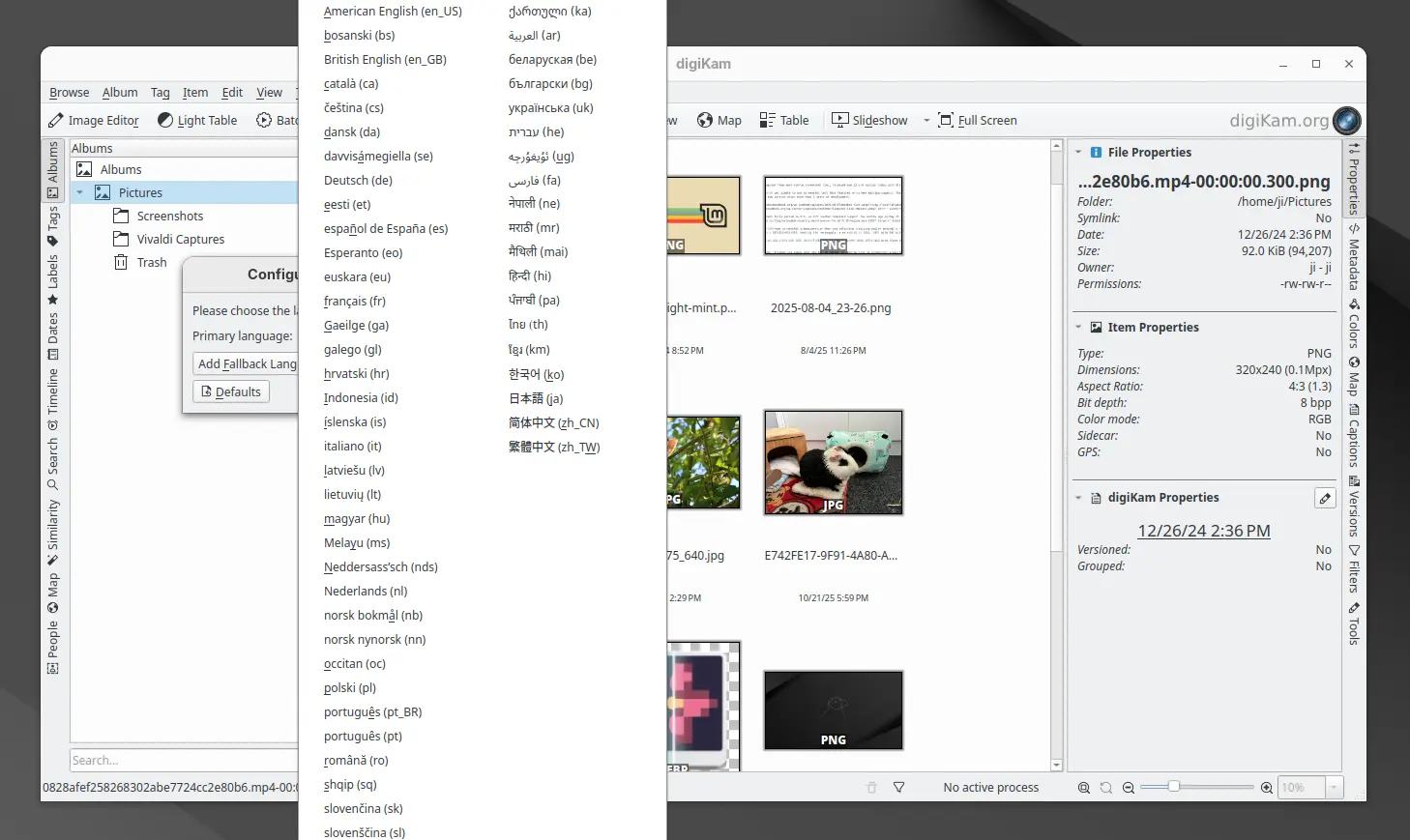
The new release finally updated its UI with translations support. By going to Settings -> Configure Language, user can now switch the application graphical interface between 61 different languages. And, the online documentation has been updated with Brazilian Portuguese translations support.

digiKam 8.8.0 has been fully ported with Qt 6.10.0 support, though the official installers for Linux, Windows, and macOS are still have Qt 6.9.1 in bundle.

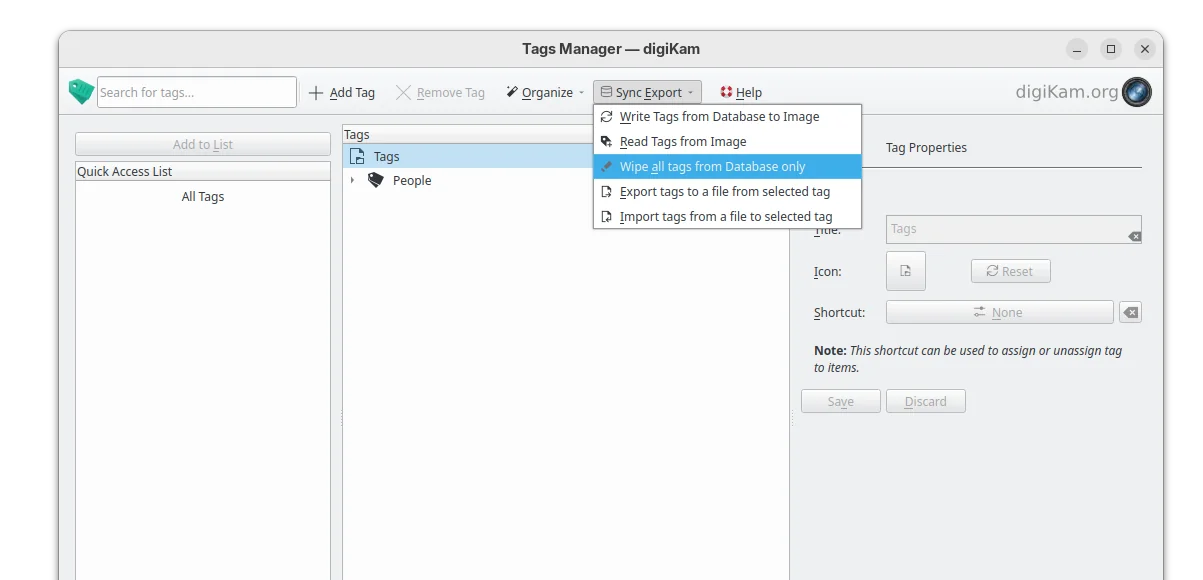
The tag manager in the release now include 2 new options, allowing to import or export tag hierarchies to and from text files, supporting the Controlled Vocabulary Keyword Catalogue (CVKC) format.

The Preview module has been updated with focus point visualization support for FujiFilm and Olympus/OM Systems cameras, providing photographers with precise information about focus accuracy and composition.

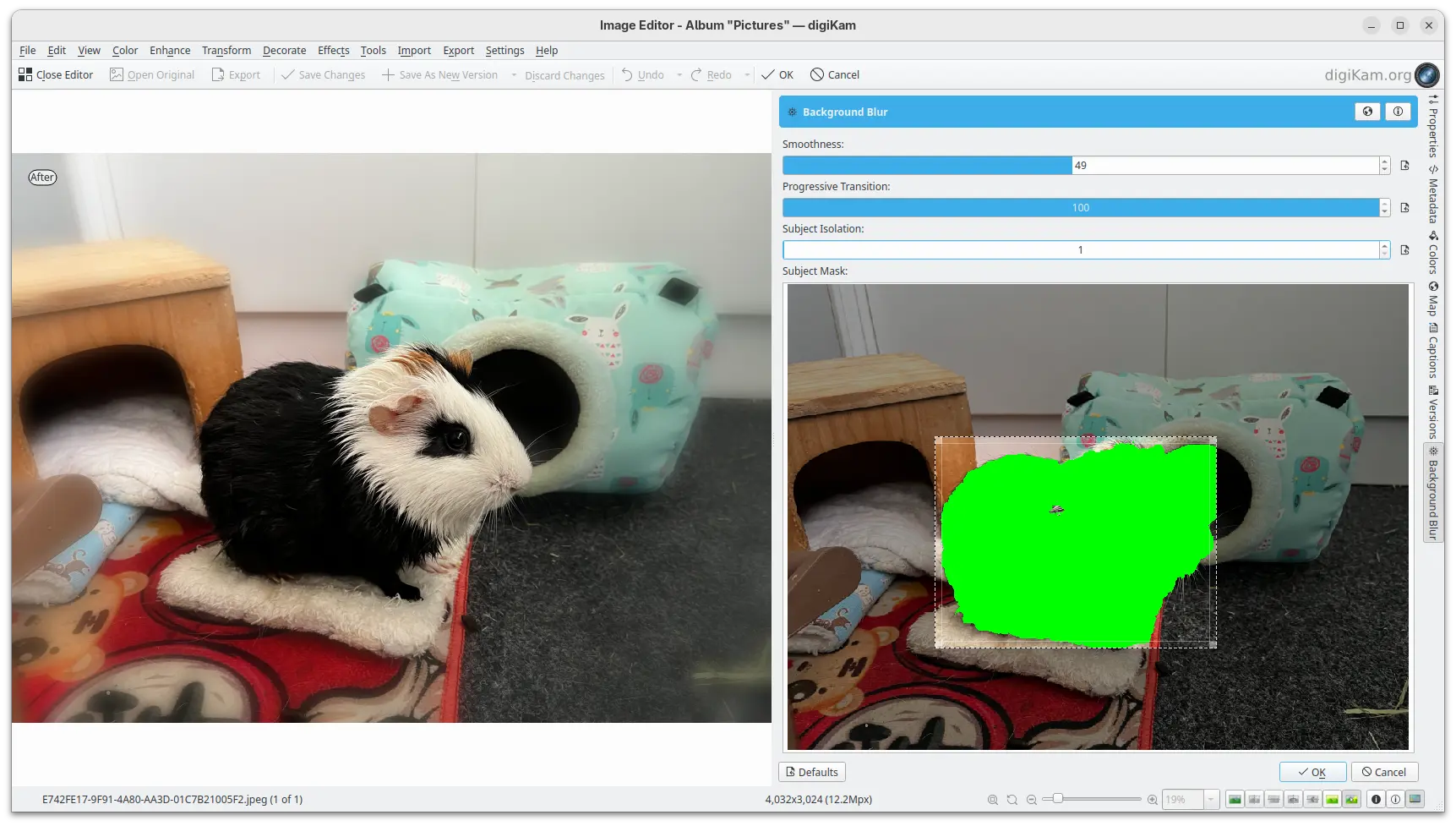
And, the Image Editor new includes a new enhancement tool, Background Blur, allowing to progressively blur the background of a subject in a photo, enabling creative depth-of-field effects.

New background blur enhance tool

Other changes include G’MIC-Qt plugin 3.6.0, long file paths (when enabled) support in Windows, as well as:

  • Use the monitor color profile set under Windows, macOS, and Linux Wayland.
  • Use native desktop notifications in Progress Manage.
  • Update QtAVPlayer video module to 20250913.
  • Update Libraw RAW decoder to 20250727.
  • Improved stability for Linux Wayland.
  • And over 100 bug-fixes.

For more about digiKam 8.8.0, see the official release note.

Install digiKam 8.8.0

The software offers official packages for Linux, Windows, and macOS, which are available to download at the link below:

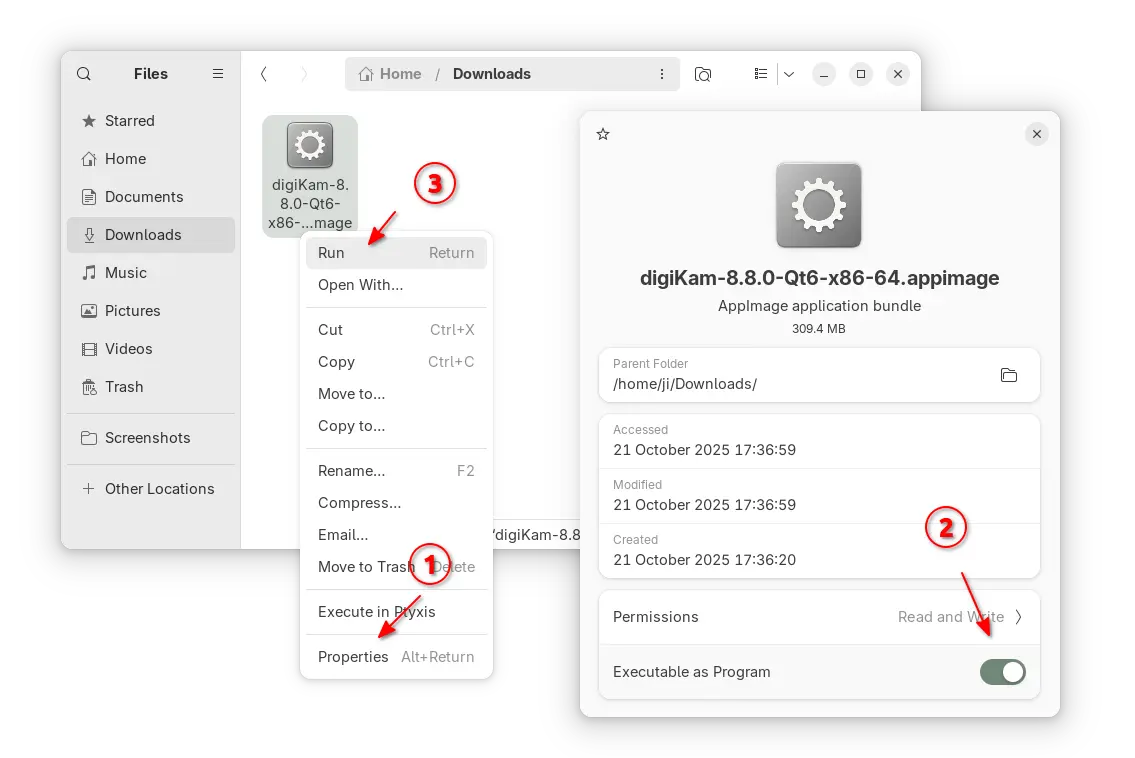
For Linux, it’s an AppImage for modern Intel/AMD platforms. Just grab the package, add executable permission from its Properties dialog, finally run to launch the software.

NOTE: Ubuntu since 22.04 does NOT support AppImage out-of-the-box, you need to open terminal (Ctrl+Alt+T) and run command to install libfuse2 package first:

sudo apt install libfuse2

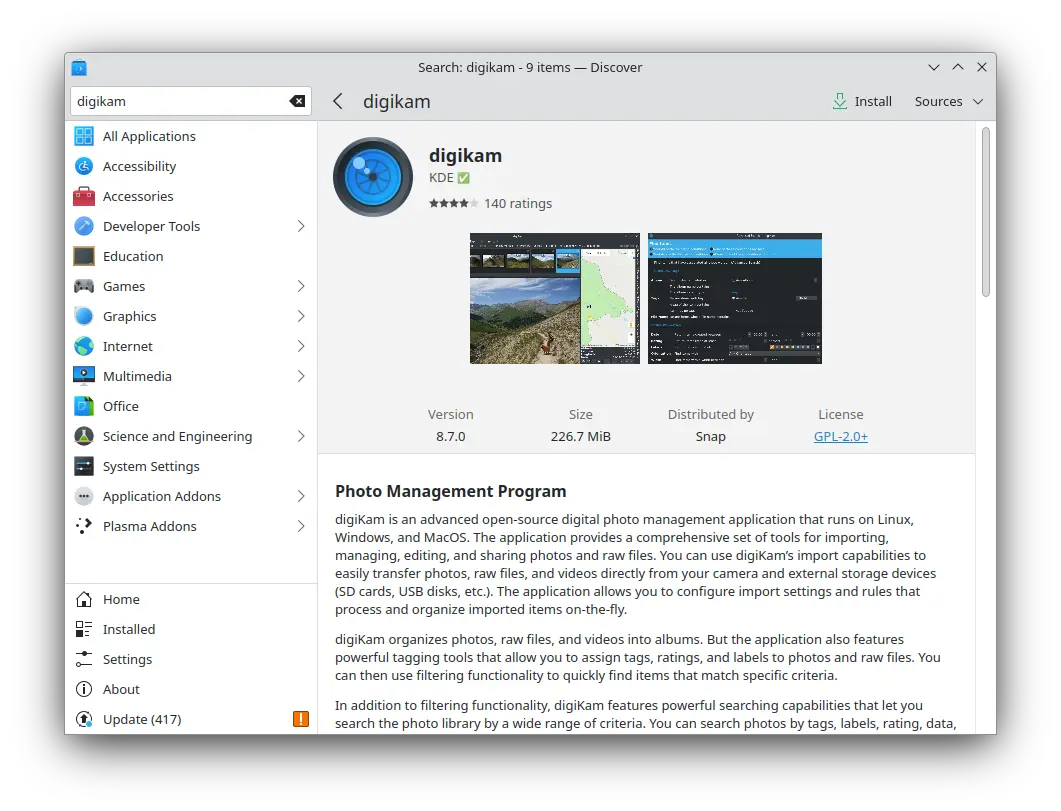
For choice, Ubuntu user (and its official flavors) may search & install digiKam from either App Center (Ubuntu Software) or desktop specific software app. It’s official Snap package that runs in sandbox, though not updated at the moment of writing.

digiKam snap package in KUbuntu software app

For Linux Mint, Fedora, etc Linux Distributions that prefer Flatpak, or Linux users on ARM64 platform, it’s also available to install as Flatpak package.

While Debian & Ubuntu users may run 2 commands below one by one to get it:

  • Install Flatpak daemon:
    sudo apt install flatpak
  • Install digiKam flatpak package:
    flatpak install https://dl.flathub.org/repo/appstream/org.kde.digikam.flatpakref

NOTE: If this is the first Flatpak app you installed on your system, then you may need a log out and back in to make app icon visible. Or, you may start it from terminal by running terminal:

flatpak run org.kde.digikam

And, you may replace run in last command with update to check updates, or with uninstall to remove the package.

Lenspect – New Malware Scanner App for Linux Desktop

By:Ji m
21 October 2025 at 00:47

Want to scan your files for security threats? Here a new app can do the job for Linux Desktop.

It’s Lenspect, a free open-source Python written application that features a lightweight user interface designed for GNOME. And, it uses VirusTotal as backend for scanning.

As you may know, there’s a ClamAV AntiVirus software that supports Linux. It has a graphical front-end ClamTk (available in App Center or Ubuntu Software), that provides simple interface to scan your files or directories for malware.

ClamTk

ClamAV is great for basic use, but if you want to check for viruses that ClamAV may have missed or verify against any false positives, then VirusTotal is a good alternative and Lenspect is a graphical front-end for it working on Linux.

Lendspect

VirusTotal is an online service created by the Spanish security company Hispasec Sistemas. The company now belongs to Google Security Operations, a subsidiary of Google.

It’s a free service that aggregates over 70 antivirus engines and URL/domain blocklisting services called Contributors. They include Arcabit, Avast, BitDefender, ClamAV, McAfee, and more. See this page for all the scanning engines.

With it, you may scan files, IPs, and URLs to detect malware with multiple anti-malware or antivirus engines concurrently. Though as an online service, you need to upload file through either its web page, browser extension, or API.

Lenspect uses VirusTotal API to upload you files, then show you a scan summary, while you may click open in VirusTotal website for a more detailed information, including analysis from different antivirus products, file details, and more.

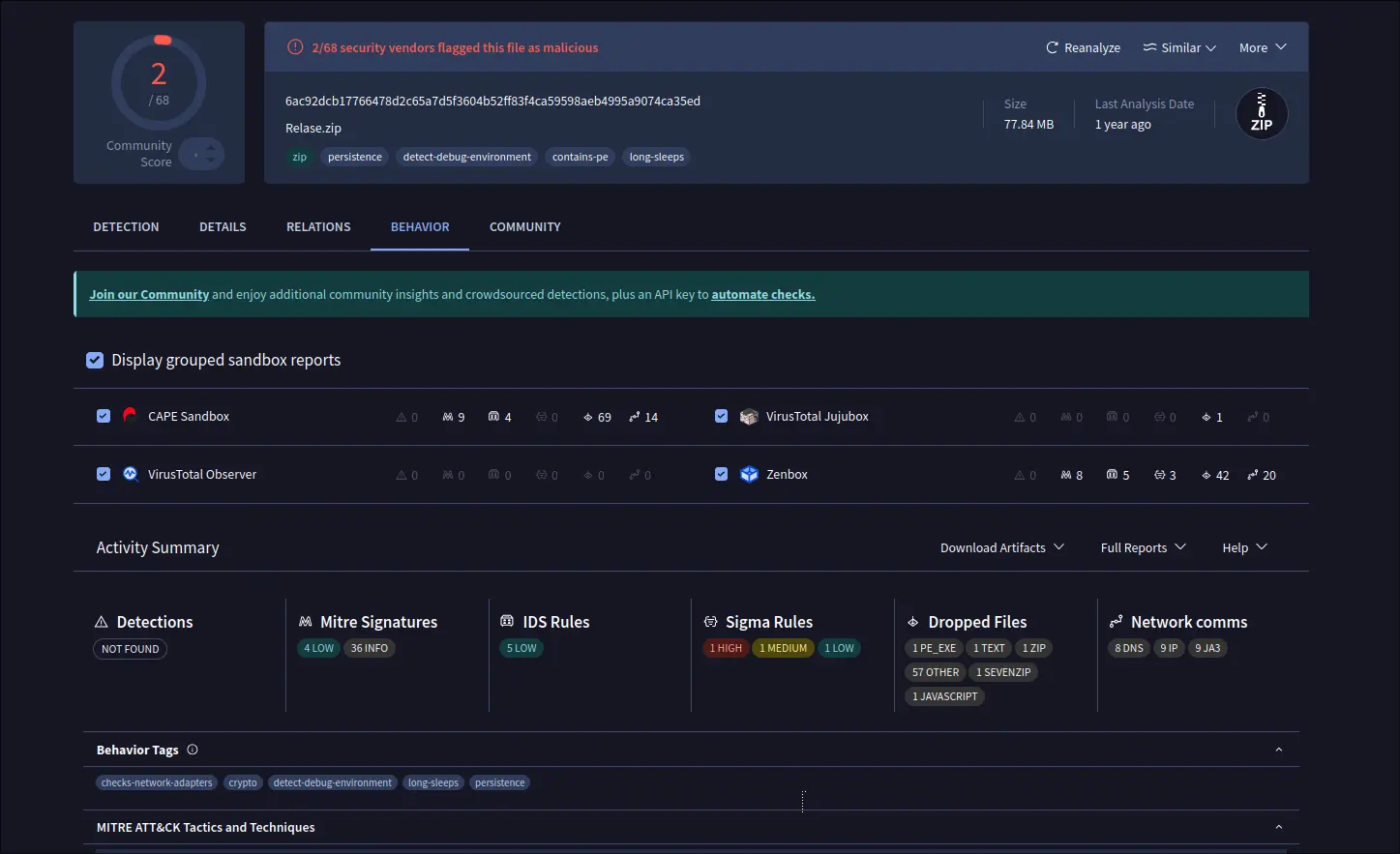
View scan details in virustotal.com

The standard API is free but has limitations. They include 4 lookups per min, 500 lookups per day, 15.5 K lookups per month, and non-business use.

Install Lenspect

NOTE that the app will send your file to VirusTotal, DON’T use it for scanning sensitive data.

Lenspect is available to install in most Linux through Flatpak package, which runs in sandbox environment.

Linux Mint and Fedora Workstation may simply search & install the application from either Software Manager or GNOME Software.

While Ubuntu and other Linux can do the steps below one by one to get it:

  • First, open terminal (Ctrl+Alt+T) and run command to install Flatpak daemon package:
    sudo apt install flatpak

    For non-debian/ubuntu based distributions, follow the official setup guide to enable Flatpak support.

  • Next, install the app package by running command:
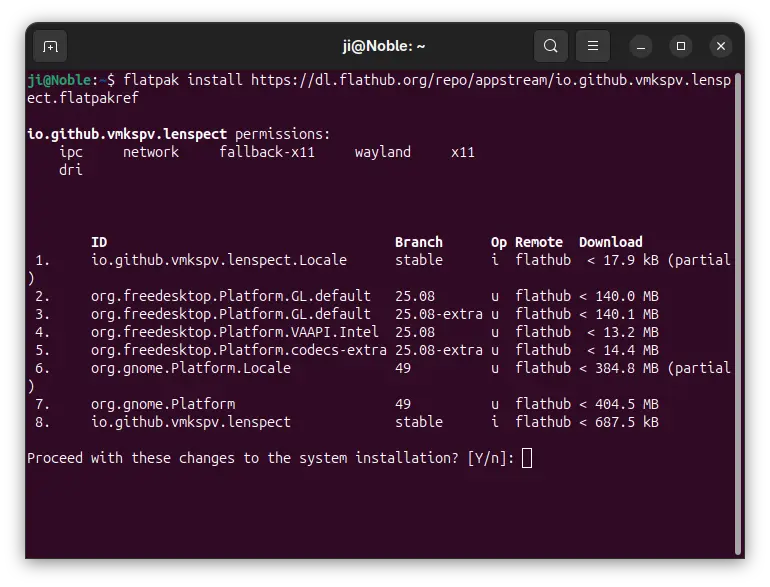
    flatpak install https://dl.flathub.org/repo/appstream/io.github.vmkspv.lenspect.flatpakref

After installation, log out and back in if you don’t see the app icon, or run the command below to start it from terminal:

flatpak run io.github.vmkspv.lenspect

While you may replace run with update in last command to check updates.

Uninstall:

To uninstall the app, simply open terminal (Ctrl+Alt+T) and run command:

flatpak uninstall --delete-data io.github.vmkspv.lenspect

Also run flatpak uninstall --unused to remove useless runtimes to free up disk space.

OnlyOffice Desktop Editors 9.1 Released with New PDF Editing Tools

By:Ji m
16 October 2025 at 23:59

OnlyOffice Desktop Editor, the free open-source offline use office suite, release new 9.1 version yesterday.

The new release updated the PDF editing support with new tools, and improved formulas in sheets. It now automatically recover unsaved documents due to app crashes.

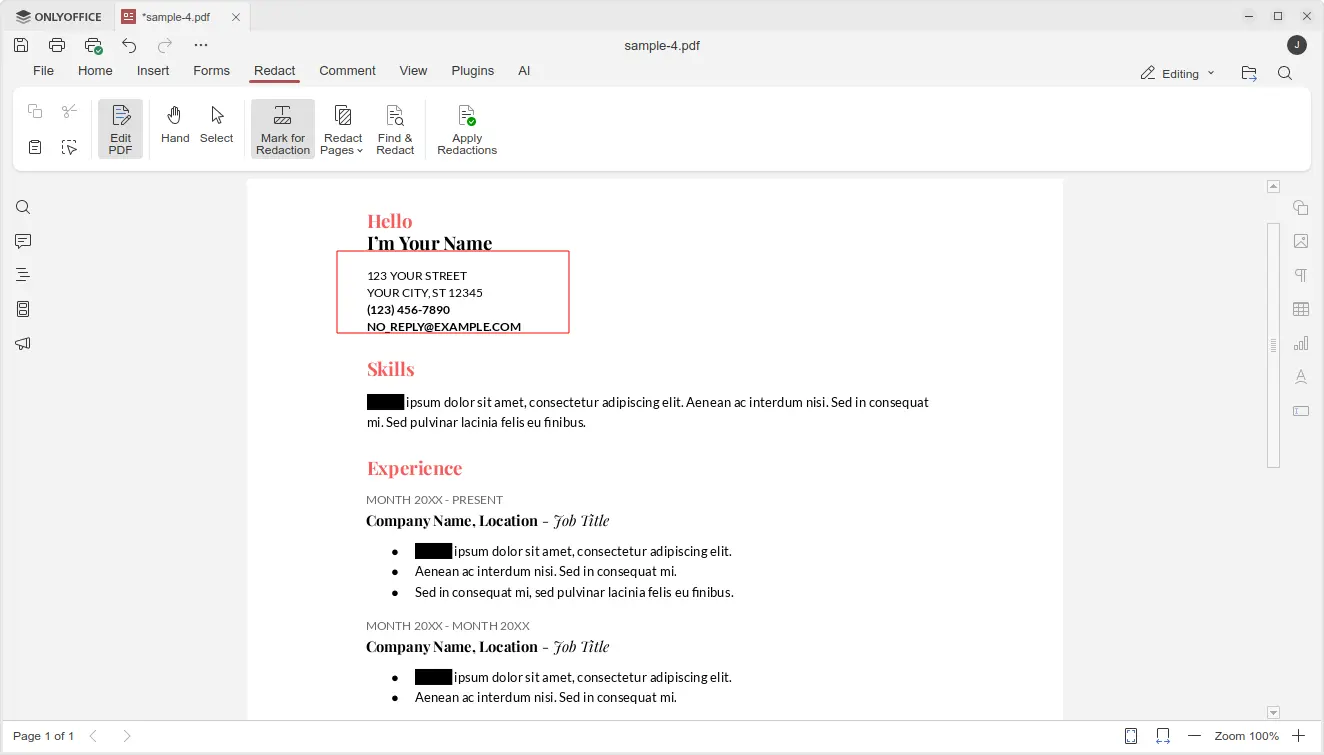
First, in PDF editing mode, it introduced new Redact feature, allowing to hide sensitive or confidential information.

The Redact tab includes “Mark for Redaction”, “Redact Pages”, and “Find & Redact” options, allowing user to select rectangle area in PDF content, choose PDF pages, or find all matched keywords, then use “Apply Redactions” option to hide them.

In “Comment” tab, there are new annotation tools added, allowing to draw rectangle, circle, arrow, and connected lines on your PDF, with custom color and size.

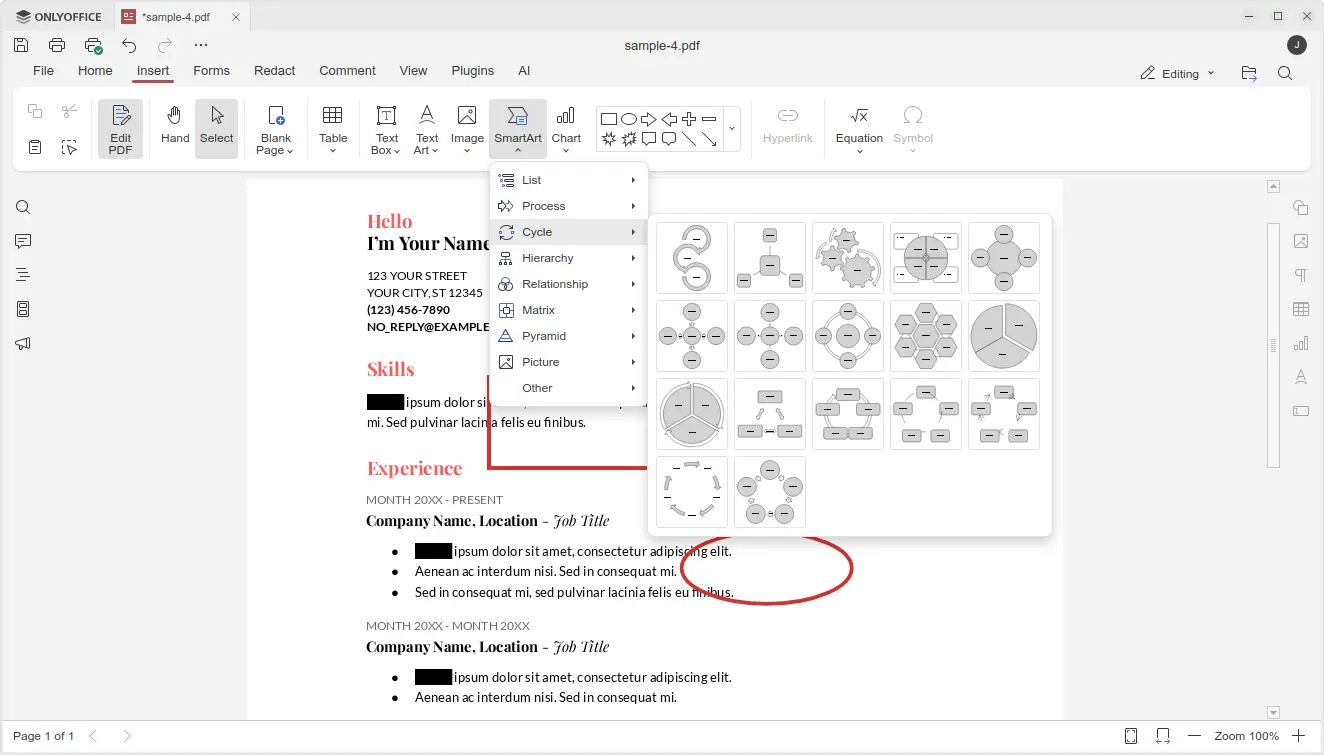
And in “Insert” tab, it added new SmartArt and Chart option, allowing to insert many new objects into your PDF.

The Spreadsheet editor now provides updated LOOKUP, VLOOKUP, HLOOKUP and XLOOKUP formulas that now deliver up to 4x faster exact and linear searches.

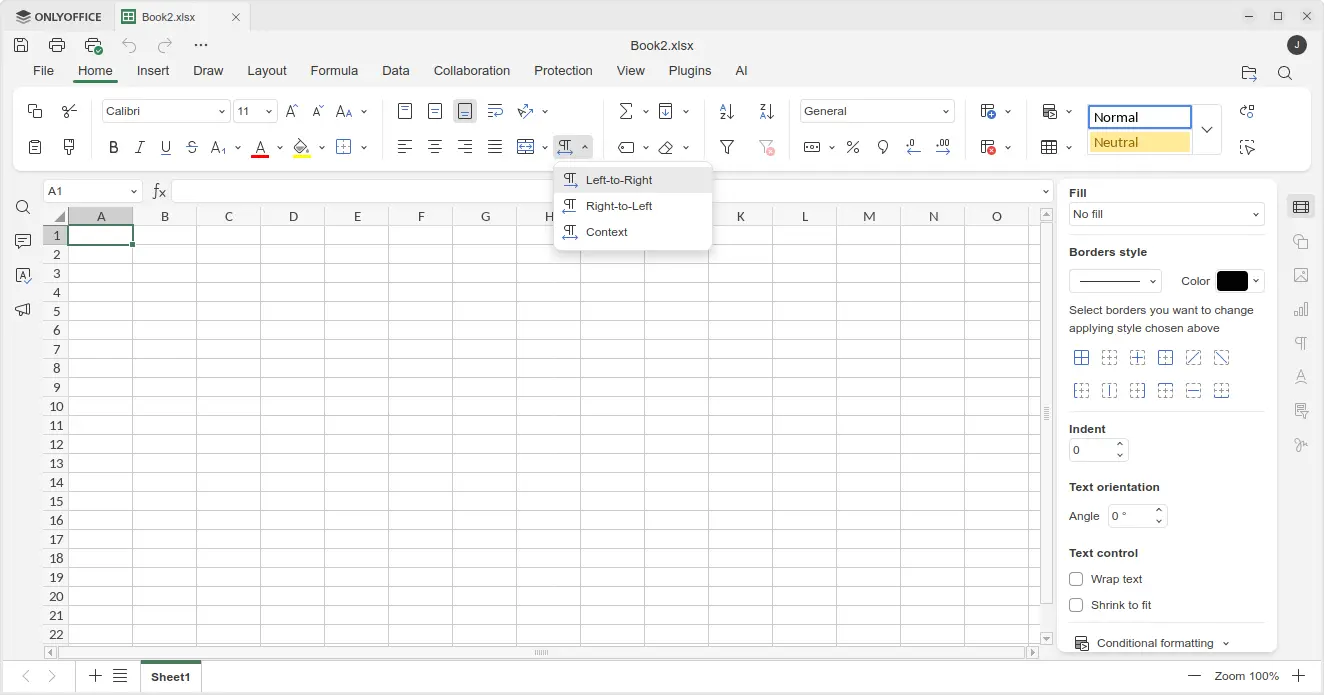
It also added support for date filters in pivot tables, dedicated “Table Design” tab with formatted table settings, and added Left-to-Right and Right-to-Left options in Home tab to easily switch text direction in cells.

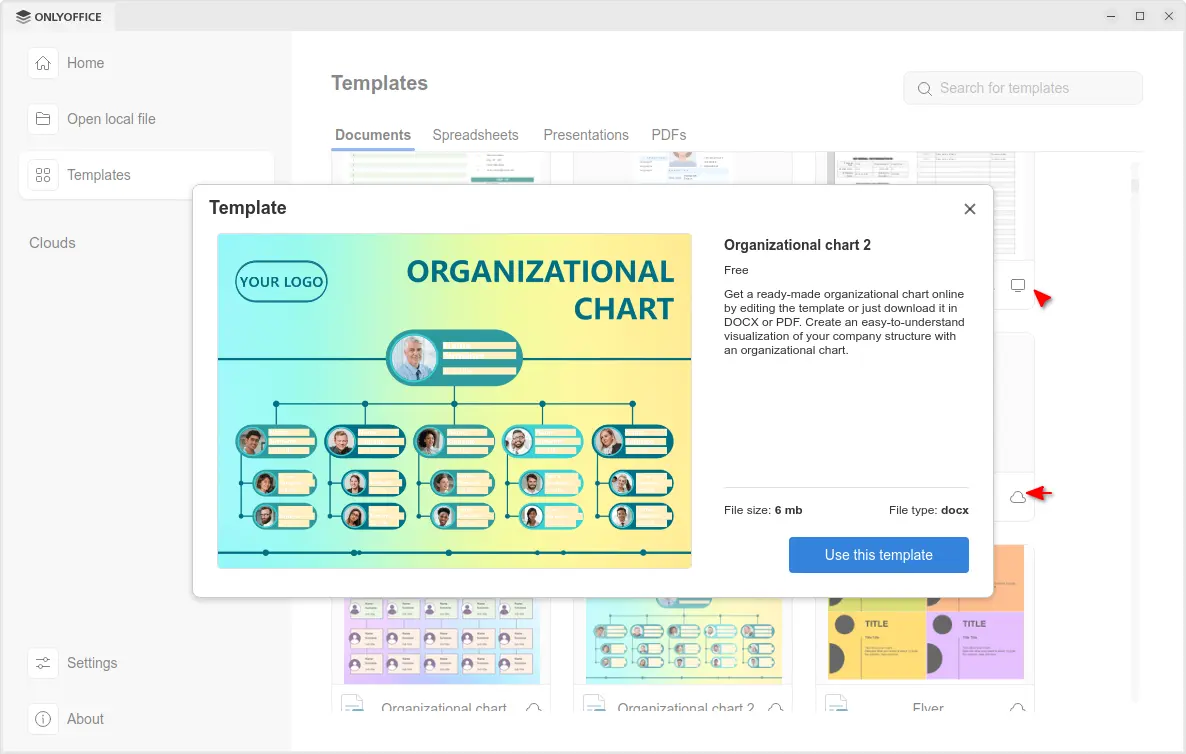
The release also improved the Templates support. It now includes many templates in local computer as well as tons of templates in cloud.

Clicking on a cloud template no longer open it directly in editor, instead it shows a popup with bigger preview with description as well as file type and size, making clearer whether it’s what you want before downloading it.

For Windows 10 and higher, it now displays the notifications about file associations and updates via system toast notifications instead of modal windows.

For macOS, it finally added the new options to insert audio and video files in Presentation, as well as built-in media player to play videos in your slides.

Other changes in the release include:

  • Add HEIF images and HWPML documents support.
  • Support direct PDF to TXT and PPTX to TXT conversion.
  • Full-featured chart editor in documents and presentations.
  • Add Spelling language detection toggle for macOS.
  • Add explosion support for 2D pie and doughnut charts;

For more about OnlyOffice Desktop Editors 9.1, see the official announcement.

Get OnlyOffice Desktop Editors 9.1

For Ubuntu user, the office suite is easy to install by using App Center (or Snap Store). It’s Snap package that runs in sandbox environment. And, at the moment of writing, it’s still at version 9.0.x.

OnlyOffice in App Center

For choice you may download the app package for Windows, Linux, and macOS from its website. Where Ubuntu user may choose Download DEB, then click open with App Center to install.

Zorin OS 18 officially Released! Based on Ubuntu 24.04 LTS

By:Ji m
15 October 2025 at 16:43

Zorin OS finally announced new major version 18 for beginners switching from Windows or macOS!

Zorin OS is a beginner friendly Linux Distribution. It’s based on Ubuntu LTS and features a customized GNOME desktop experience, while a lite version is available for choice with XFCE4 desktop.

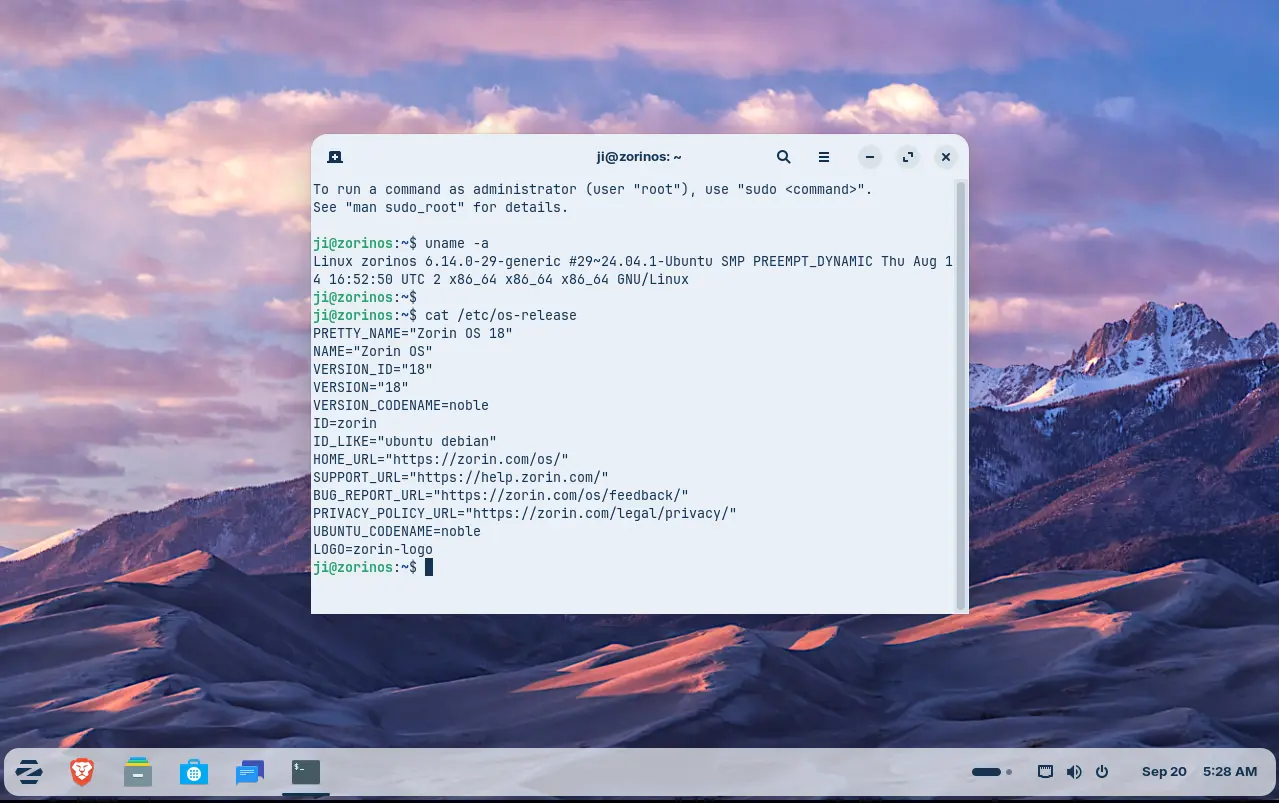
Zorin OS 18 is based on Ubuntu 24.04 LTS. Thanks to the Ubuntu upstream, the new release upgraded from Kernel 6.8 to Kernel 6.14 with tons of new drivers, new and improved hardware support. See what’s new in Kernel 6.14 (replace 6.14 in URL link, e.g., 6.13, for changes other Kernel versions).

Thanks to GNOME upstream changes, it updated the desktop experience with a “dot and pill” icon to trigger overview, and indicate which workspace you’re working in. There are as well new camera app, remote login with RDP protocol, and OneDrive support in online accounts.

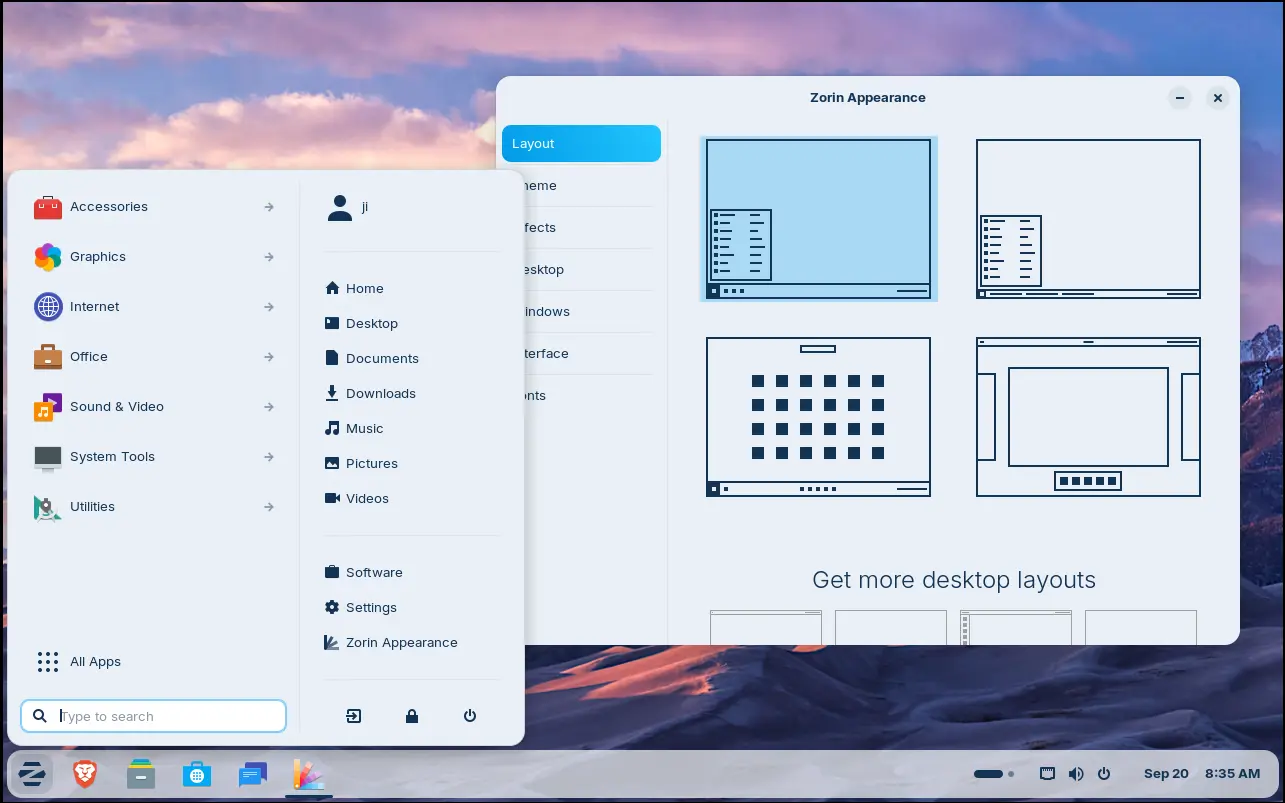
Besides the upstream changes, Zorin OS 18 refined the default desktop appearance with floating panel and rounded corners. While, user may easily change the layout with a single mouse click by using the built-in Zorin Appearance utility.

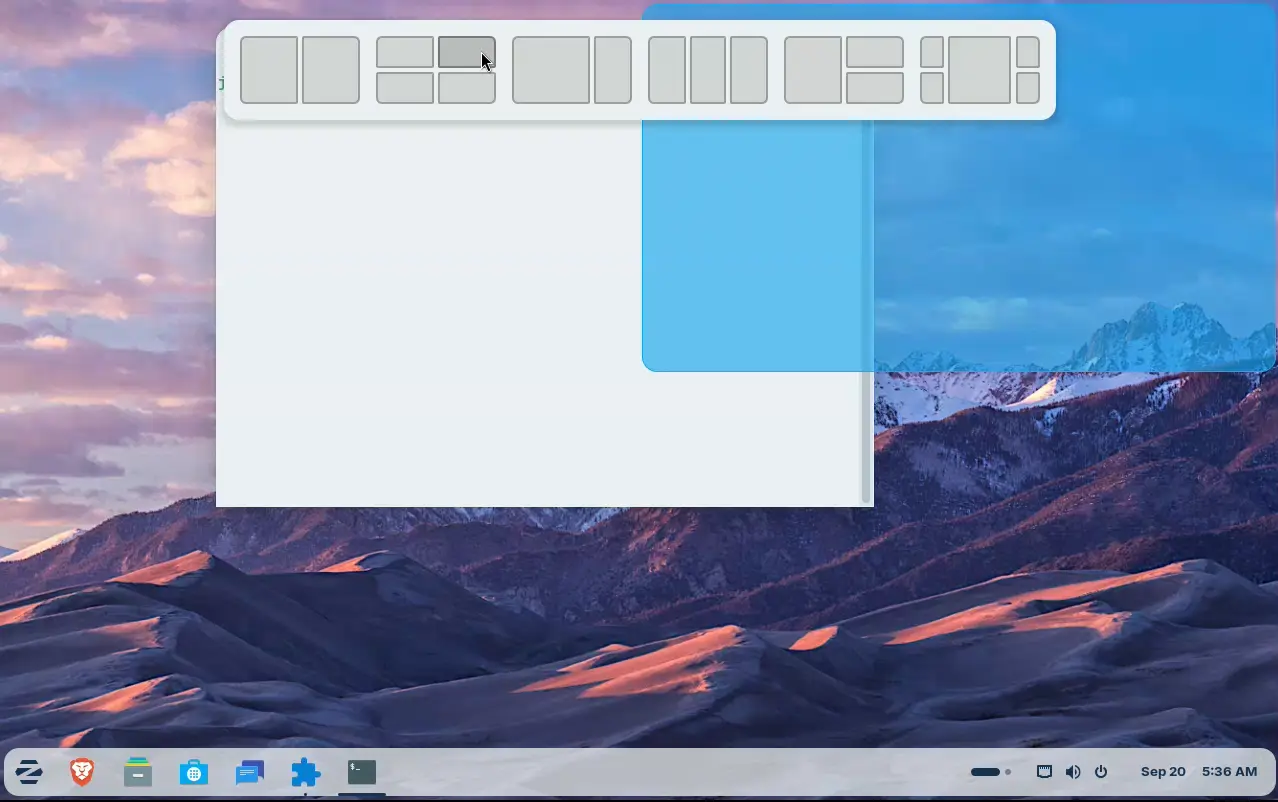
Like Ubuntu 24.04, the release also introduced a tiling window extension. Simply drag a window to screen top, it will show you a list of tiling layout, allowing to easily move and resize window automatically into selected screen edge.

By going to Zorin Appearance -> Windows -> Advanced Window Tiling, you may enable the indicator icon for the extension, and configure more about it.

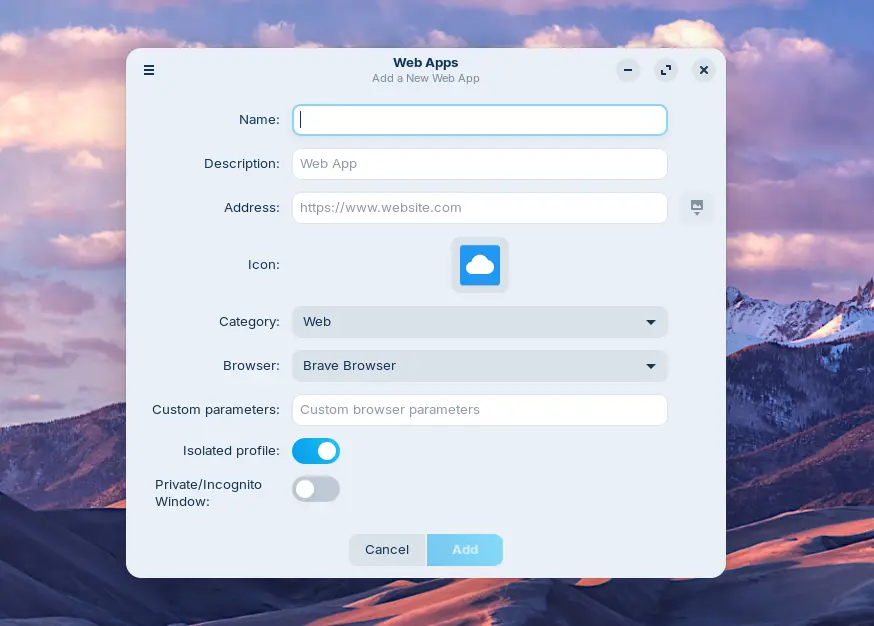
For users who need Office/365, Teams, Adobe Photoshop, etc apps, the release also introduced a WebApp Manager allowing to easily turn your favorite websites into apps, by using either the default Brave web-browser or any other browser (if installed) as you want.

In addition, the release added some new apps! They include:

  • Deskflow – to share keyboard and mouse across computers (Pro only).
  • Warp – file transfer (Pro only).
  • Valot – time tracking app (Pro only).
  • Easy Effects – audio manipulation tool for Pipewire (Pro only).
  • Gradebook to keep track of your grades (for Education).
  • Spedread GTK speed reading software (for Education).
  • TurboWarp, a tool for learning programming (for Education).

They are either for Pro or Education editions, though they all can be freely installed from Flathub.org via Flatpak package.

Other changes in the release include:

  • Update built-in database to suggest alternatives to more Windows apps.
  • New Yellow and Brown theme colors.
  • 3 new panel layouts: Compact, Linux Mint like, and elementary OS like layouts (for Pro, paid version only).
  • Use Pipewire instead of PulseAudio as default sound server.
  • Improve Zorin Menu with multi-monitors support.
  • Center new windows at launch.
  • Global search in Files, and more!

For more, see the official release note.

Get Zorin OS 18

The official .iso images are available in its website via the link below:

They include Pro edition that needs to play $47.99, while other editions are free:

  • Core edition for basic use.
  • Education with educational software for schools and students.
  • And, Lite edition (not ready at the moment of writing) for low end computers.

The minimum hardware requirements include 2 GB RAM, 15 GB disk space, and 1024 × 768 resolution display.

Linux Mint Officially Released LMDE 7 based on Debian 13

By:Ji m
14 October 2025 at 19:19

For Linux Mint users who prefer Debian package base, LMDE 7 code-name “Gigi”, is officially released!

LMDE stands for Linux Mint Debian Edition. As the name says, it’s a Linux Mint edition based on Debian, aims to continue to deliver the same user experience if Ubuntu was ever to disappear.

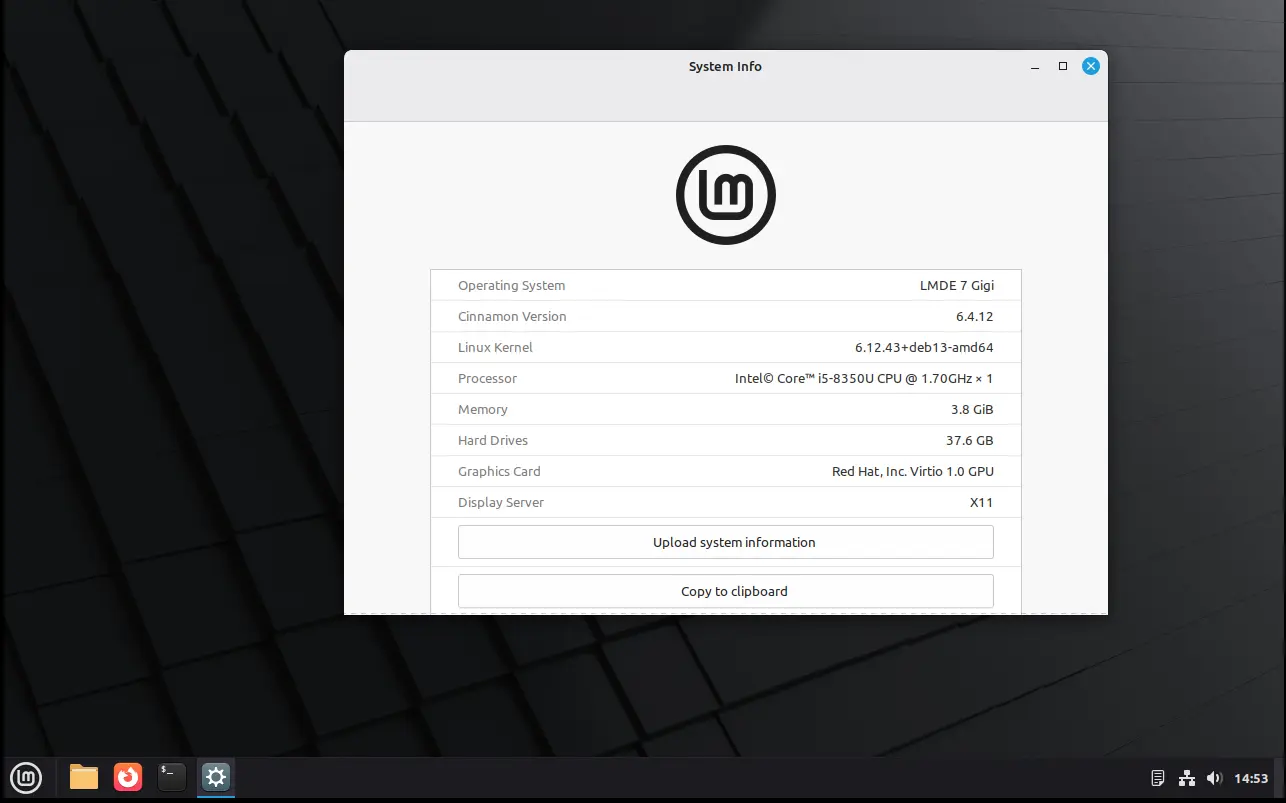
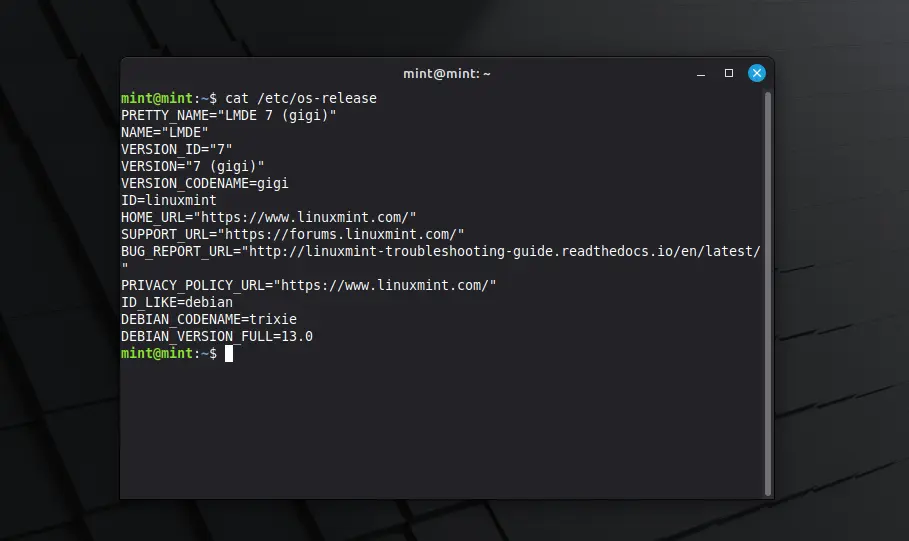
After less than a month of Beta testing, LMDE7, the new major release of this Linux Mint edition based on Debian 13 trixie, is now available to download. It features Kernel 6.12, Cinnamon desktop 6.4.12, and Debian 13 package base.

In my experience, Debian is a bit more stable and reliable than Ubuntu. It’s perfect for server and advanced user use. While, LMDE is a fork makes it friendly for beginners.

However, LMDE lacks major kernel version updates and most recent drivers (e.g., NVIDIA proprietary driver), unless upgrading the entire system to a new version (e.g., from LMDE 6 to LMDE7). If they are not big deal for you, then it’s a great choice!

Besides the difference between Kernel version and systems they’re based on, LMDE and normal Linux Mint edition deliver almost the same user experiences!

And, LMDE 7 so far features Cinnamon only desktop, with following changes in Linux Mint 22.2:

  • New XApp Fingwit provides graphical interface to manage user fingerprints.
  • Improved Sticky Notes app with rounder corners and Wayland support.
  • Add “Theater Mode” and “Borderless Mode” mode for Hypnotix IPTV player.
  • Display user avatar in the login screen.
  • Add blur effect to the panel and user selection dialog box in login screen for better appearance.
  • Patch LibAdwaita with theme support, including Mint-Y, Mint-X and Mint-L themes.
  • Add accent colors support for LibAdwaita Flatpak apps.
  • New xapp-aiff-thumbnailer thumbnailer for cover art in .aiff audio files
  • Add iOS app for Warpinator file sharing utility.
  • Configurable EDID-based color correction (disabled by default) in XViewer.
  • Support editing description field in WebApp Manager.
  • Support leading zeros when renaming multiple files and using enumerations
  • Add description in Software Manager to tell the difference between Flatpak and system packages.

Download LMDE 7

The .iso image for LMDE 7 (torrent) is available to download via the link below:

For choice, you may download it from a mirror that near to you. See this page for the download mirrors all over the world.

Hardware Requirements include: 2 GB RAM (though 4 GB recommended for smoother experience), 20 GB disk space, and 1024×768 resolution display.

For LMDE 6, it easy to upgrade to LMDE 7 by running the commands below one by one:

NOTE: LMDE 7 has no i386 support! Backup important data first, and connect to power supply for laptop.

  • Refresh cache and install mint-upgrade tool:
    sudo apt update
    sudo apt install mintupgrade
  • Start the upgrade tool, and follow on screen intructions:
    sudo mintupgrade
  • When done successfully, remove the tool and reboot your computer:
    sudo apt remove mintupgrade
    sudo reboot

For more, see the official guide in Linux Mint website.

Firefox 144.0 is out! Perplexity AI Search & AES-256-CBC Encryption

By:Ji m
14 October 2025 at 18:31

Firefox 144.0, the October release of Mozilla’s web browser, is available to download today!

The new browser release continues improving the tab group feature support. It now supports dragging a tab into a collapsed tab group without automatically expanding it.

The profile management is now available to all users globally. You can now name profiles and customize them with avatars and color themes, then quickly switch between them while keeping bookmarks, tabs, and browsing history completely separate.

The picture-in-picture (aka pop-out video) now supports Shift + Click on the close button or use Shift + Esc shortcut key to exit (meaning merge back browser window) while keeping playback uninterrupted.

video playback in Picture-in-picture mode

Firefox 144.0 now includes Perplexity AI search for desktop users, allowing to get AI-powered conversational answers directly from the address bar via the unified search button.

The AI search engine seems to be disabled by default, at least in my case, as I can’t find the option and the about:config page shows the “browser.urlbar.perplexity.hasBeeninSearchMode” key set to false.

Besides that, it added new “Search Image with Google Lens” option when you right-clicking on any image in browser. Which, allows to quickly find similar products, places, or objects, copy, translate, or search text from images. Though, you need to set Google as default search engine for being able to use the feature.

image from mozilla.org

For security reason, the passwords stored in Firefox are now encrypted on disk using AES-256-CBC algorithm, while logins synced through Firefox Sync already use AES-256-GCM. The new encryption algorithm is much faster and secure than the older 3DES-CBC, which is deprecated.

Other changes in Firefox 144.0 include:

  • New Azerbaijani, Bangla, and Icelandic translations.
  • Only use or open window in current virtual desktop, when open link from another application in Windows.
  • And various security fixes.

They are as well many changes for web developers:

  • Support the Element.moveBefore API.
  • Add support math-shift compact.
  • Support PerformanceEventTiming.interactionId, allowing to group related input events.
  • Support the command and commandfor attributes.
  • Add support the View Transitions API Level 1.
  • Disable dithering when linear-gradient, conic-gradient, and radial-gradient are rendered using hardware WebRender.
  • Add support upsert proposal.
  • Support the lock() and unlock() methods of ScreenOrientation interface on Windows tablets and Android devices.
  • Support worker transfer for RTCDataChannel.
  • Add support the resizeMode getUserMedia constraint, allowing to crop and downscale video captured from a camera.
  • Add support the WebGPU GPUDevice.importExternalTexture API on Windows.
  • WebCodecs on Windows now has a batch-encoding path for VideoEncoder.
  • Rename Gecko-specific CSS2Properties to CSSStyleProperties.
  • Jump to a CSS custom property’s definition from within the var() function in style rules.

Get Firefox 144.0

The official release note as well as the download link will be soon available in Firefox website via the link below:

While the source code, and installers for Linux, Windows, and macOS are available to download at this page.

Fix Qt App Window Border & Title-bar in Ubuntu 24.04 | 25.10

By:Ji m
13 October 2025 at 16:25

Qt applications (e.g, qBittorrent, KeePassXC) look weird as they don’t have window border or shadow in Ubuntu since 24.04. Here’s how to configure to make them look native.

Applications in Ubuntu and other popular Linux distributions mostly use GTK or Qt tool-kits for rendering their user interfaces. Gnome is based on GTK. It uses “xcb” QPA plugin for Qt apps running on classic Xorg session.

Due to switch to Wayland, the “xcb” plugin is not in use by default, and Qt apps look weird as you see in the screenshot below in Ubuntu 24.04, Ubuntu 25.04 & 25.10.

Qt apps look border-less in Ubuntu since 24.04

To “fix” the issue, I found few choices:

  1. Re-use “xcb” QPA plugin.
  2. QGnomePlatform theme.
  3. QAdwaitaDecorations Qt decoration plugin.

While there are also Qt5/6 configuration tool and Kvantum available for configuring Qt theme, icon, font, color, and more.

1. “Fix” Qt window title-bar and window border

Option 1: use “xcb” QPA plugin

Most Qt applications (both Qt5 and Qt6) are still working good with “xcb” QPA plugin even in Wayland session.

1. First, press Ctrl+Alt+T on keyboard to open window. When it opens, run command to install the required libraries:

sudo apt install libxcb-cursor0 libxcb-composite0

Run sudo apt update to refresh cache in case it’s unable to locate the packages.

2. After that, run the command below in terminal to set the environment variable:

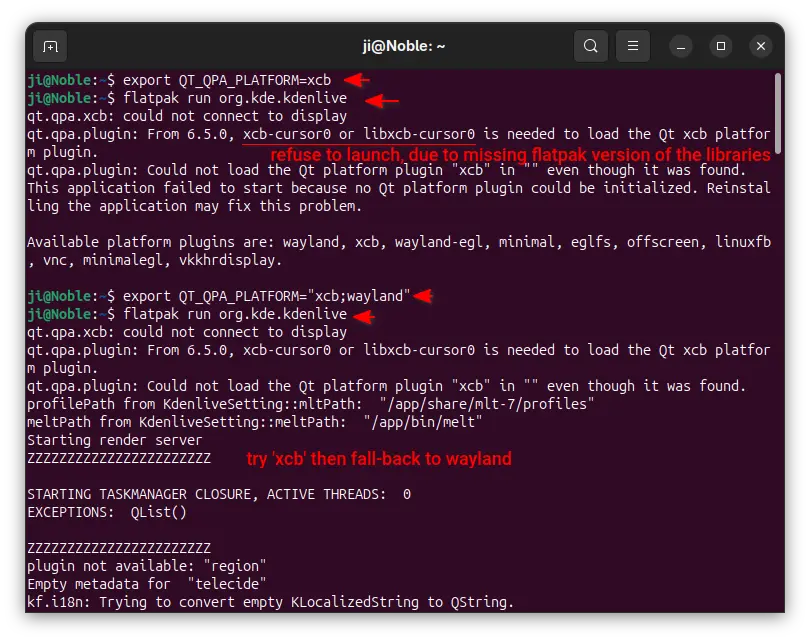
export QT_QPA_PLATFORM=xcb

Then, all Qt apps start from that terminal window will try using “xcb” plugin. For example, run keepassxc to start the Qt-based password manager.

enable ‘xcb’ for apps start from this terminal only

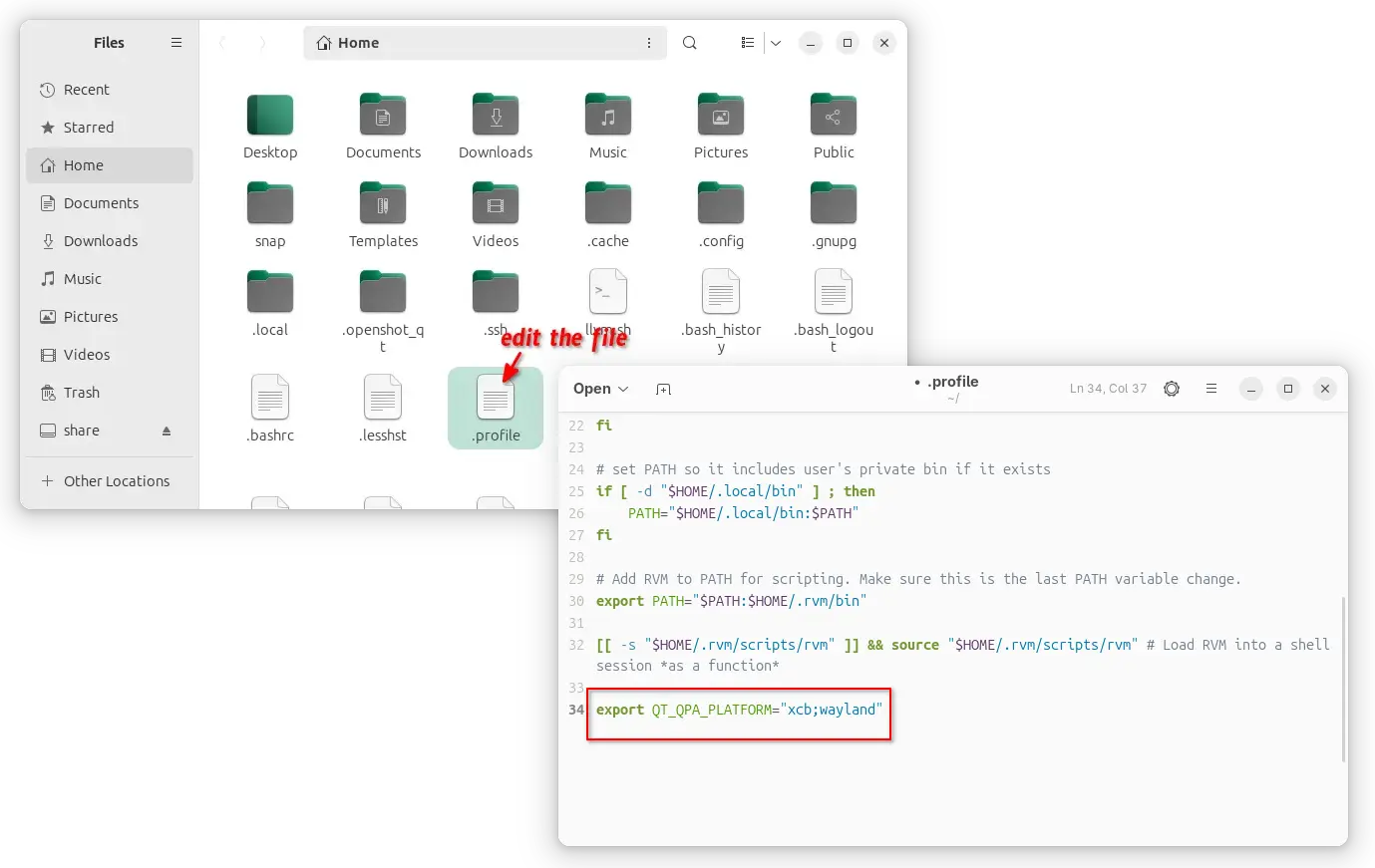
3. If it works for you, then open Files (aka Nautilus), and press Ctrl+H to show all hidden files. Find out .profile file in home directory and click edit it.

Finally, add export QT_QPA_PLATFORM=”xcb;wayland” in the end of file to make it work for all Qt applications permanently! And, log out and back in to apply.

enable xcb for all Qt apps, though current user only

NOTE: It must be set to “xcb;wayland“, to allow fall-back to default wayland, when ‘xcb’ does not work. For example, Qt apps installed as Flatpak may not work with ‘xcb’ plugin and output the error below:

qt.qpa.xcb: could not connect to display
qt.qpa.plugin: From 6.5.0, xcb-cursor0 or libxcb-cursor0 is needed to load the Qt xcb platform plugin.
qt.qpa.plugin: Could not load the Qt platform plugin “xcb” in “” even though it was found.

Option 2: Use QGnomePlatform theme

While xcb is designed for Xorg, FedoraQt team has developed few Qt plugins for better integration in GNOME. They are “QGnomePlatform” theme, “adwaita-qt” style, and “QAdwaitaDecorations”.

Downsides: The Qt window title-bar made by QGnomePlatform looks NOT so good. FedoraQt has discontinued the project. And, Ubuntu 24.04 only includes Qt5 version of the package.

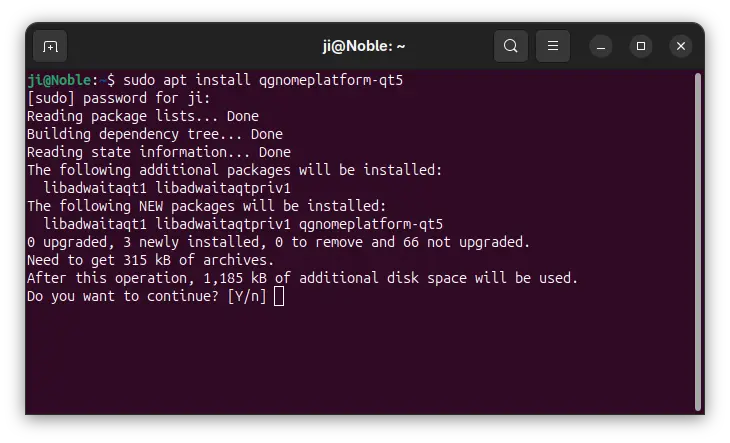
1. To install the Qt platform theme, open terminal (Ctrl+Alt+T) and run command:

sudo apt install qgnomeplatform-qt5

Ubuntu 25.04, 25.10 may also install qgnomeplatform-qt6 for Qt6 support.

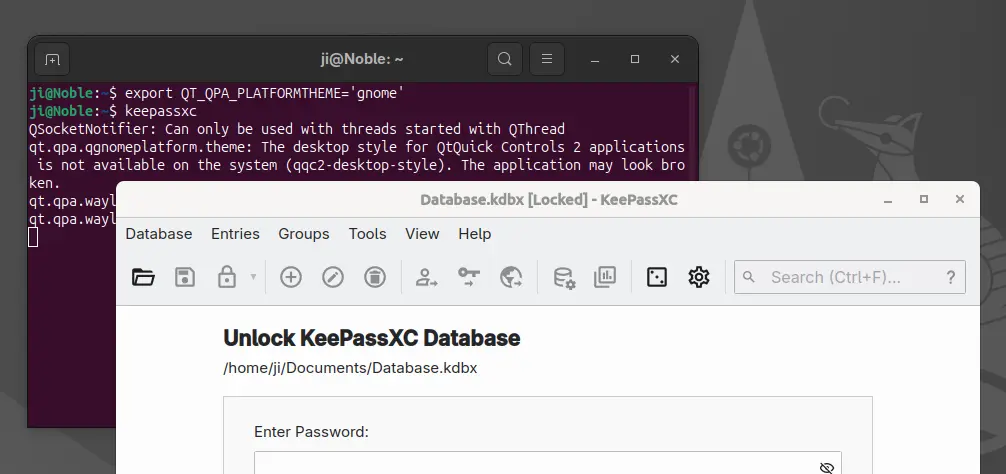
2. Next, either run the command below to set environment:

export QT_QPA_PLATFORMTHEME='gnome'

Then, start Qt apps from the same terminal window to use the Qt platform theme.

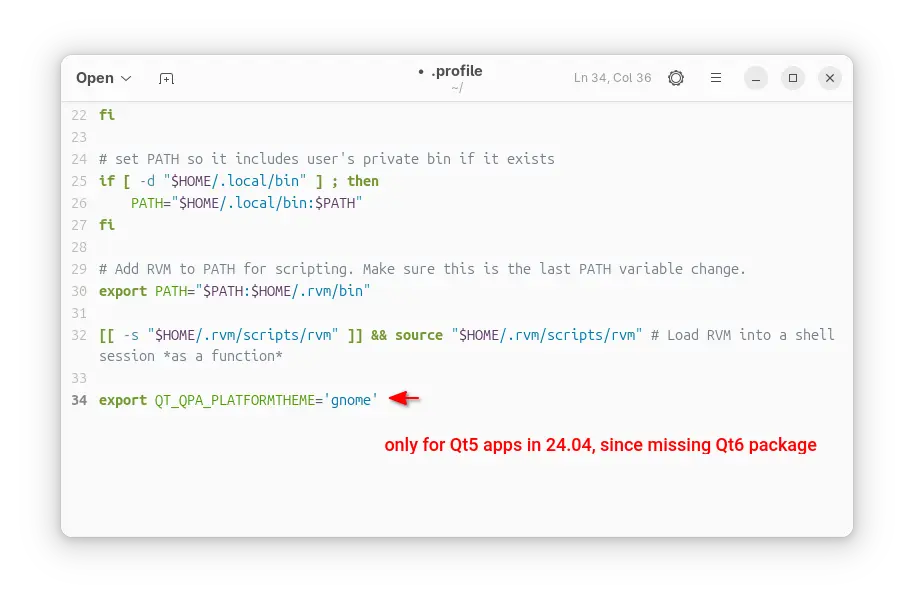
Or, edit .profile file in home directory and add export QT_QPA_PLATFORMTHEME='gnome' to make it work permanently for all Qt apps (Qt5 only for 24.04) at next login.

Option 3: Use QAdwaitaDecorations

QGnomePlatform and adwaita-qt have been discontinued (though they still work). QAdwaitaDecorations, the project that implements Adwaita-like client-side decorations, is so far the only upstream project that’s still in development.

However, it’s NOT made into Debian/Ubuntu repositories so far. Meaning you need to build it by yourself. And, it does not support Qt6 app for Ubuntu 24.04, as it requires Qt6 >= 6.5.0 (24.04 has 6.4.2).

This option is good choice for Ubuntu 25.10, to enable Qt5 window decorations, while Qt6 decorations work out-of-the-box.

1. First, open terminal (Ctrl+Alt+T) and run command to install dependency libraries:

sudo apt install git cmake build-essential qtbase5-dev libqt5svg5-dev libqt5waylandclient5-dev qtbase5-private-dev qtwayland5-private-dev libwayland-dev

2. Then, run command to grab the source code:

git clone https://github.com/FedoraQt/QAdwaitaDecorations.git

After that, navigate to the source folder, create ‘build’ sub-folder and navigate into it:

cd QAdwaitaDecorations
mkdir build && cd build

Next, configure the source for Qt5:

cmake -DUSE_QT6=OFF ../

Ubuntu 24.04 does NOT meet Qt6 requirement, and Qt6 window decoration in 25.10 looks good out-of-the-box, so here I only build it for Qt5.

3. Finally, build & install the plugin by running the 2 commands below one by one:

make -j3
sudo make install

Here -j3 tells to start 3 threads in parallel. Depends on how many CPU cores you have, you may replace it with -j4, -j8, or j$(nproc) to use all CPU cores.

4. After successfully built the plugin, clean up by deleting the source folder. Then, either run the command below to set environment variable:

export QT_WAYLAND_DECORATION=adwaita

So it works for all Qt5 apps start from this terminal window.

Or, edit .profile file in user home and add the line to make it work permanently for all Qt5 apps at next login.

2. Change Qt Theme, or Configure Fonts, icon, and colors

Gnome/Adwaita style decorations is NOT enough? You may also configure the Qt apps themes, fonts, icons, and color scheme.

Option 1: Use Kvantum along with “xcb”

If you use “xcb” plugin for the decorations, then you may also use Kvantum (SVG-based theme engine) to change the Qt app themes.

1. First, open terminal (Ctrl+Alt+T) and run command to install the package:

sudo apt install qt5-style-kvantum

Ubuntu 25.04, 25.10 users may also install qt6-style-kvantum for Qt6 apps support, however it’s NOT available in Ubuntu 24.04.

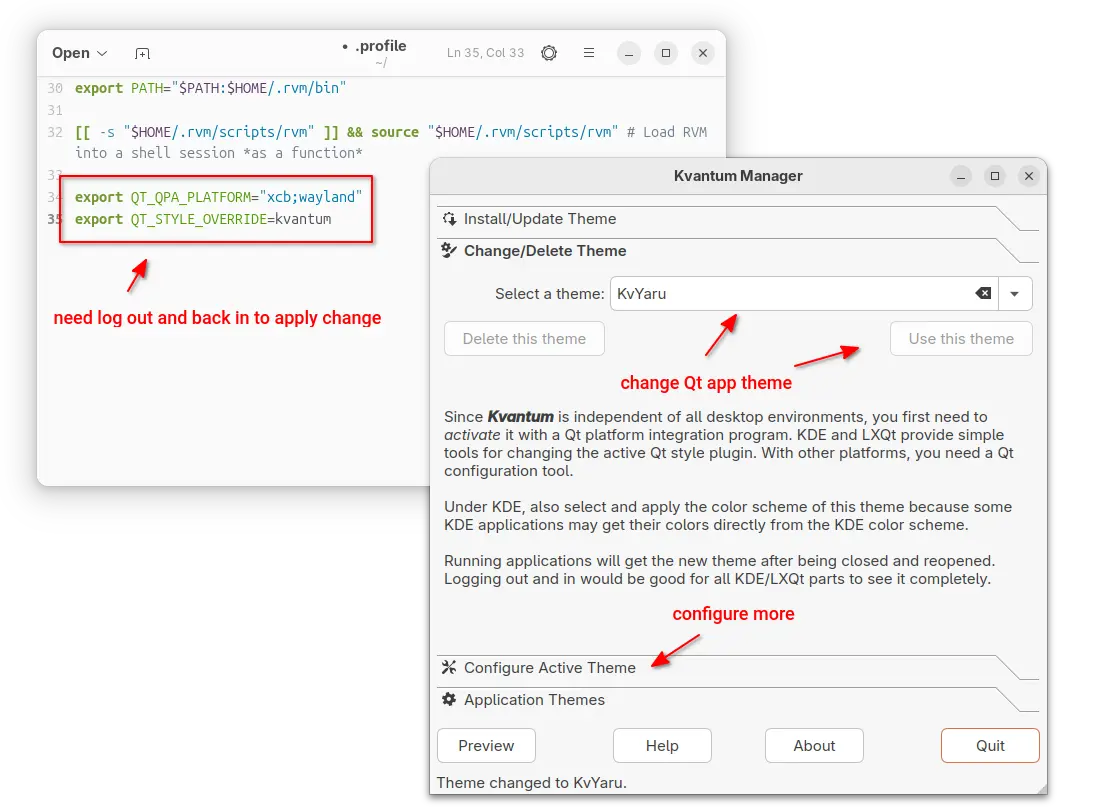
2. Next, set the following environment variables:

export QT_QPA_PLATFORM="xcb;wayland"
export QT_STYLE_OVERRIDE=kvantum

either in terminal for apps start from that terminal, or in .profile for all Qt apps (Qt5 only for 24.04).

3. Finally, launch “Kvantum Manager” to change Qt theme and configure active theme.

Use qt5ct / qt6ct

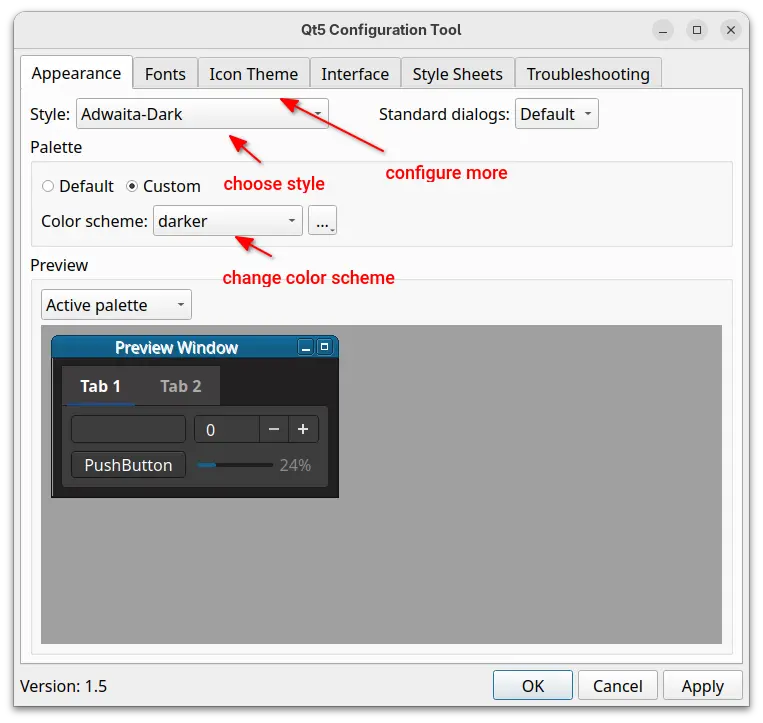
For choice, you may use Qt5 / Qt6 settings tools to configure the app window buttons, fonts, icons, and color scheme.

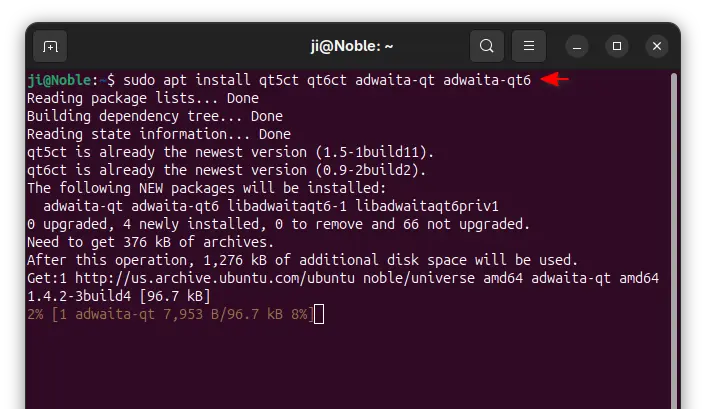
1. First, open terminal and install the settings tools, as well as adwaita-qt themes:

sudo apt install qt5ct qt6ct adwaita-qt adwaita-qt6

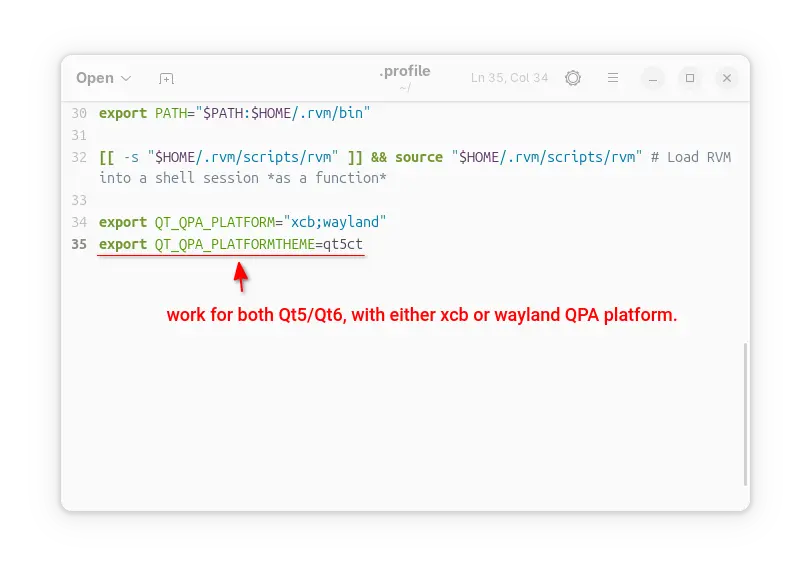
2. Next, set environment variable:

export QT_QPA_PLATFORMTHEME=qt5ct

It works for both Qt5 and Qt6 with either “xcb” or “wayland” QPA platform.

3. After set the environment (log out and back in if added to .profile), launch Qt5 Settings or Qt6 settings to configure the Qt appearances.

Summary:

This tutorial shows how to “fix” border-less issue for Qt apps in Ubuntu 24.04 and higher with default GNOME, as well as change the theme, fonts, icons, and color scheme.

The “xcb” QPA platform plugin is still a good choice for 24.04 with both Qt5 and Q6 support. While, QAdwaitaDecorations is better (in my own opinion) for Qt5 in 25.10, as Qt6 decorations look good out-of-the-box.

VS Code 1.105 added GPT-5-Codex & Apple Account Sign in/up

By:Ji m
12 October 2025 at 19:55

A new monthly version of Microsoft’s code editor, Visual Studio Code 1.105, was released few days ago.

The release added 2 new AI chat models, GPT-5-Codex and Claude Sonnet 4.5. In addition to Google and Github account, it now allows to sign in or sign up GitHub Copilot with an Apple account, along with
The AI chat now supports fully qualified tool names for prompt files and chat modes, which can help to avoid naming conflicts between built-in tools and tools provided by MCP servers or extensions.

Support for AGENTS.md at the root of workspace is now generally available and enabled by default. There’s as well experimental support for nested AGENTS.md files in sub-folders of your workspace.

The release also improved the OS notifications for chat sessions. It now shows a notification with preview when a chat response is received, and selecting it brings focus to the chat input.


Other AI chat changes include:

  • Chain of thought (Experimental).
  • Show recent local chat conversations (Experimental).
  • Ability to keep or undo changes to files during an agent loop.
  • New Ctrl+Alt+Up/Down shortcut keys to navigate through your chat messages.
  • Platform-specific terminal profiles.
  • Add ‘learning’ mechanism to select the optimal tool set for custom models.
  • Auto-reply to terminal prompts (Experimental).

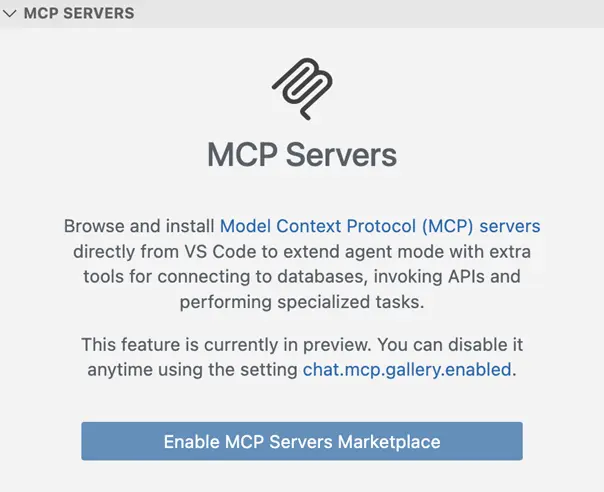
Besides that, VS Code 1.105 introduced built-in MCP marketplace, which enables users to browse and install MCP servers directly from the Extensions view, though disabled by default.

The new or outdated MCP servers are now started automatically when you send a chat message. There are as well 2 new MCP specification updates SEP-973 and SEP-1034.

The new vs code release also improved the editor experience, by adding ability to override the default keyboard shortcuts for the Quick Input controls, and possibility to disallow next edit suggestions (NES) to propose whitespace-only changes such as code formatting.

The runTests tool in Chat now also reports test code coverage to the agent, and it now shows notification when long-running task completes while the VS Code window is not focused.

Other changes in the release include:

  • Shell integration for pwsh on Windows support for screen readers.
  • Add ability to resolve merge conflicts with AI.
  • New “Start Dictation in Terminal” action to use voice dictation to input text into the terminal.
  • Native broker support for Microsoft Authentication on ARM-series macOS devices.
  • PKCE (Proof Key for Code Exchange) support for GitHub Authentication.
  • Add Copy Test Id command to run gutter icon context menu.

Get Visual Studio Code 1.105

For more about the release, as well as download links for Windows, MacOS, and Linux, go to its website via the link below:

For Ubuntu, besides download & install the deb package from the link above, there’s also Snap package available to install in App Center (or Ubuntu Software).

While, a community maintained flatpak package is also available for choice. See this guide for how to install them.

❌